
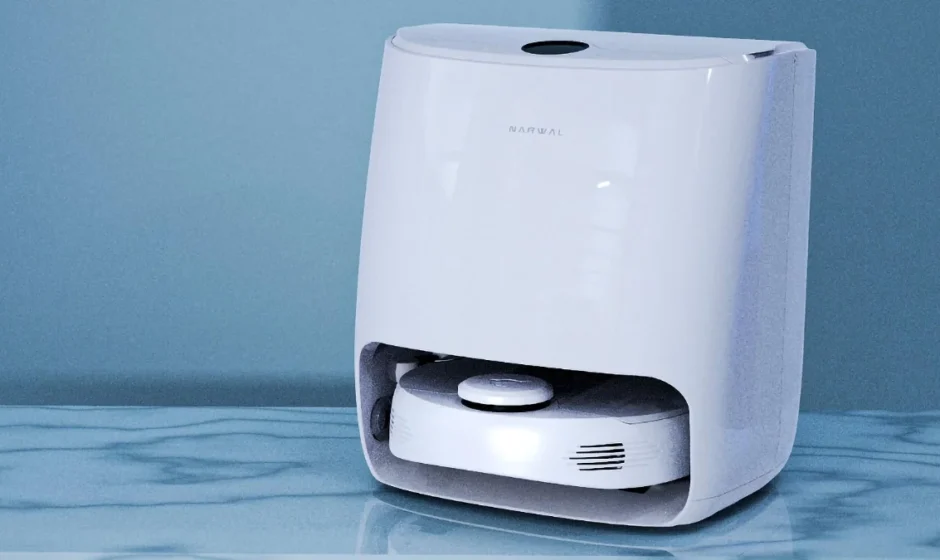

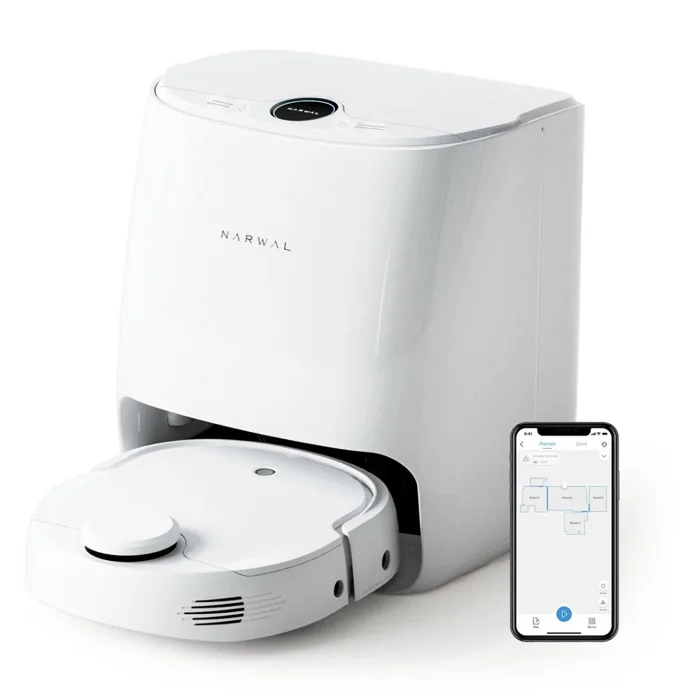
Narwal T10 Robot Mop & Vacuum
When using an electrical robot, basic precautions should always be followed, including the following:
READ ALL INSTRUCTIONS BEFORE USING (THIS APPLIANCE)
WARNING – To reduce the risk of fire, electric shock, or injury:
- Do not leave the appliance when plugged in. Unplug from the outlet when not in use and before servicing.
- This appliance is provided with double insulation. Use only identical replacement parts. See instructions for Servicing of Double-Insulated Appliances.
- SERVICING OF DOUBLE-INSULATED APPLIANCES
A double-insulated appliance is marked with one or more of the following: The words ″DOUBLE INSULATION″ or ″DOUBLE INSULATED″ or the double insulation symbol (square within a square). In a double-insulated appliance, two systems of insulation are provided instead of grounding. No grounding means is provided on a double-insulated appliance, nor should a means for grounding be added to the appliance. Servicing a double-insulated appliance requires extreme care and knowledge of the system, and should be done only by qualified service personnel. Replacement parts for a double-insulated appliance must be identical to the parts they replace.
General
- Do not allow it to be used as a toy. Small children, pets and the elderly should be supervised when your robot is operating.
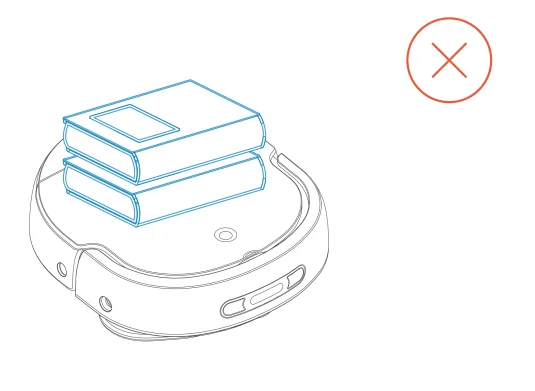
- Do not sit, stand, or place any object on your robot or the base station.
- Only use as instructed in this manual.
- Only use attachments recommended or sold by the manufacturer.
- Your robot is not waterproof. Do not spray or pour liquids on your robot. If liquid spills on your robot, dry it immediately.
- For INDOOR use ONLY. Do not use your robot in outdoor, commercial, or industrial environments. Do not use your robot on wet surfaces or surfaces with standing water.
- Do not use your robot or base station if it is damaged, is not working properly, has been dropped, left outdoors, or has come into contact with water. The robot must be repaired by the manufacturer or its authorized service agent.
Important Safety Instructions
- Do not use and store in extremely hot or cold environments. Do not operate below 0 C/32°F or above 35C/95F. Do not store below -20’C/-4 ‘F or above 70’C/158 F . Charge your robot in temperature between 5C/41F and 30’C/86F. Keep your robot away from fire or places with temperatures higher than 130’C/266 F . Otherwise, your robot may explode.
- Keep the front side of your robot facing upward at all times when transporting, moving, or operating your robot, or replacing any component for it. Your robot may be damaged if turned upside down.
- Do not expose your robot to direct sunlight.
Operating your Robot
- Do not handle plug or your robot with wet hands.
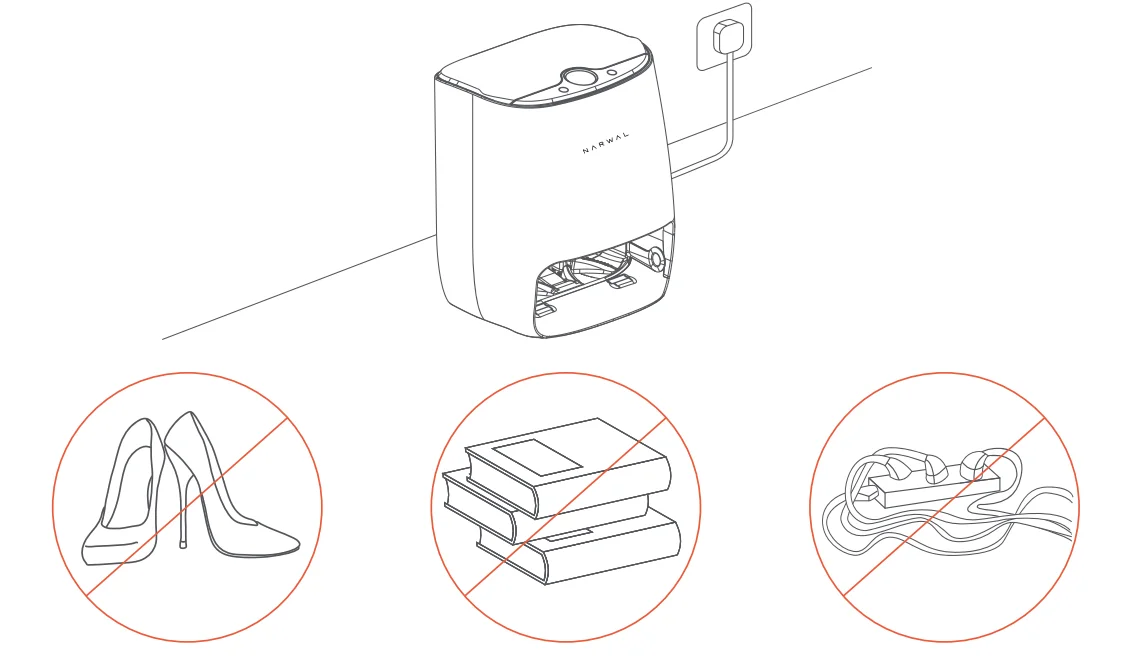
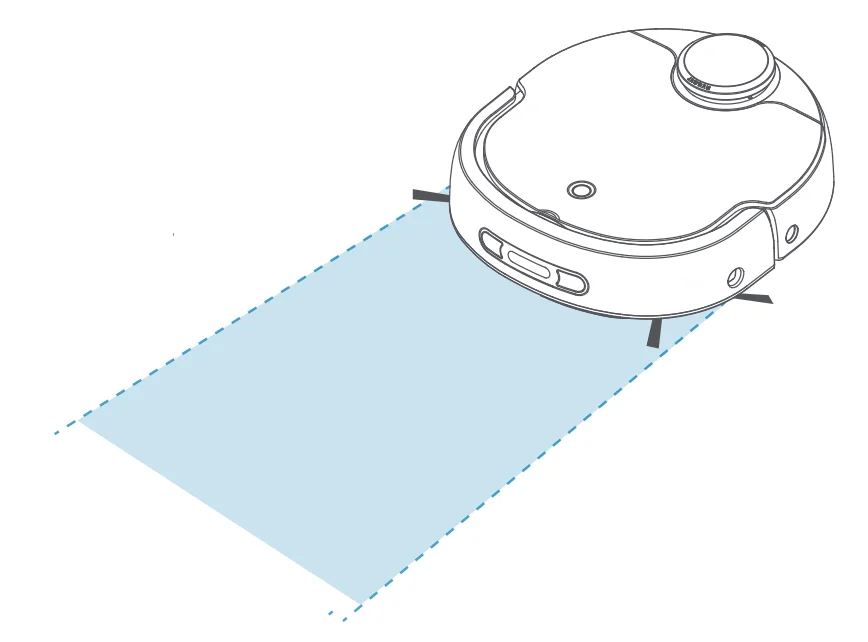
- Ensure a clearance of 1 meter / 3 feet for a 180° range in front of the base station.
- Before using your robot, pick up objects on the floor, including clothing, loose papers, cords for blinds or curtains, power cords, and any fragile objects. If your robot passes over a cord and drags it, there is a chance an object could be pulled off a table or shelf. Ensure that no sharp objects, such as blades, scissors, or screwdrivers, are in the cleaning area.
- Remove lit candles and fragile items from on top of furniture before operating your robot. Your robot may hit or bump into the furniture and knock off items on top.
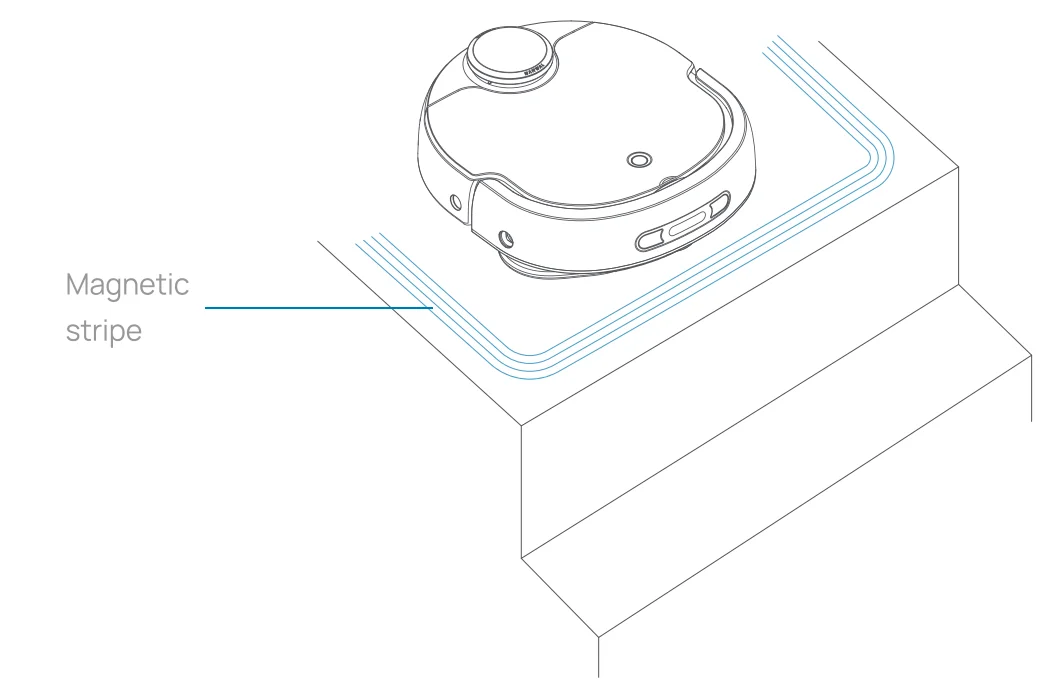
- Ensure that your robot will operate on indoor flat floors and that there are no stairs or barriers higher than 15 mm / 0.5inch in areas to be cleaned. If there is a drop off in the cleaning area due to a step or stairs, you should operate your robot to ensure that it can detect the step without falling over the edge, or specify a no-go area by placing a magnetic strip provided by the manufacturer or build a physical barrier of no less than 25 mm / 1inch high so as to prevent the robot from falling. Make sure the physical barrier is not a trip hazard.
- The robot will move around automatically. Therefore, watch your step in the operation areas of the robot to avoid step on it. Take care of babies, children, pets, the blind and the elderly if they are near a running robot. Never operate your robot in a room where an infant or child is sleeping. Ensure network access in the room so that you can view your robot’s working status through the APP on your phone.
- Do not move the robot randomly because it will result in positioning failure of the robot. If you move items in the cleaning area after map creation, such as a couch, a tea table, or a dining table, your robot may create a map again, which is normal.
- Keep hair, loose clothing, fingers, and all parts of the body away from any openings and moving parts.
- Do not allow your robot to pick up large objects like stones, large pieces of paper or any item that may clog your robot.
- Your robot may get blocked by objects. Please turn off the power and then manually remove the obstacle.
- Do not put any object into openings. Do not use with any opening blocked; keep free of dust, lint, hair, and anything that may reduce air flow.
- Do not use your robot to pick up flammable or combustible materials, such as gasoline, printer or copier toner, or use in areas where they may be present.
- Do not use your robot to pick up anything that is burning or smoking, such as cigarettes, matches, hot ashes, or anything that could cause a fire.
- Do not use your robot in explosive or volatile areas or areas easy to leak or collect static electricity, such as a gas station.
- Anytime you encounter a liquid leak, stop using your robot, turn off the power, and contact after-sales personnel.
- In cleaning mode, add the detergent specified by the manufacturer to the clean water tank. Non-designated detergent may cause damage to your robot.
- During and after mopping, the floor will be wet. Be careful to avoid slipping.
- When using the mopping function, it is normal for overflowed water to collect below the base station. Clean the excess water with a dry towel.
- After the mopping operation, the base station will dry the mop. During this process, do not pull out the plug or disconnect power to the base station.
SAVE THESE INSTRUCTIONS
What’s Inside
Body
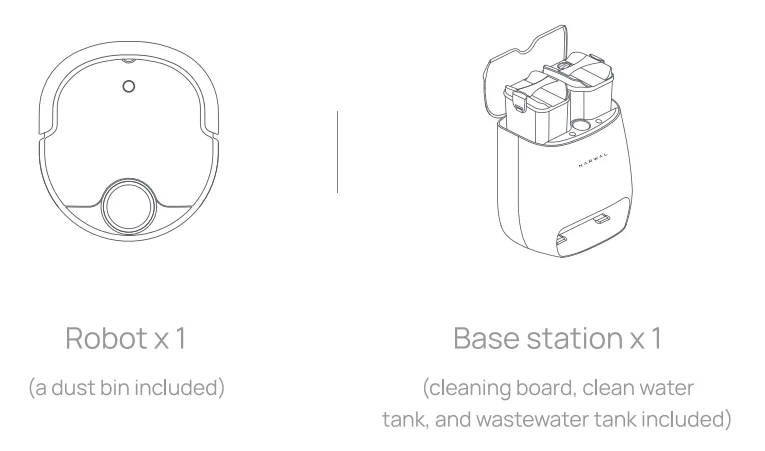
Accessory
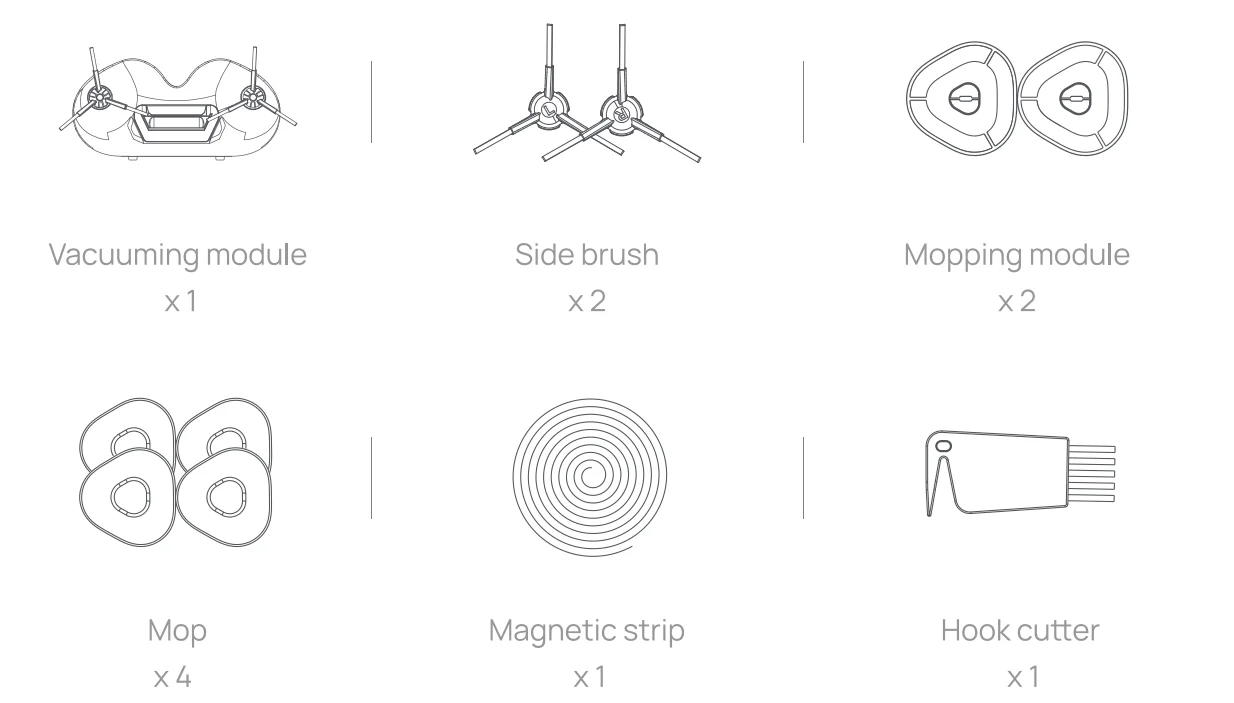
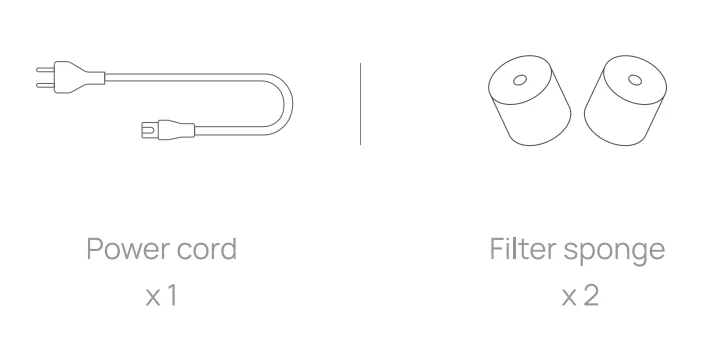
Product Components
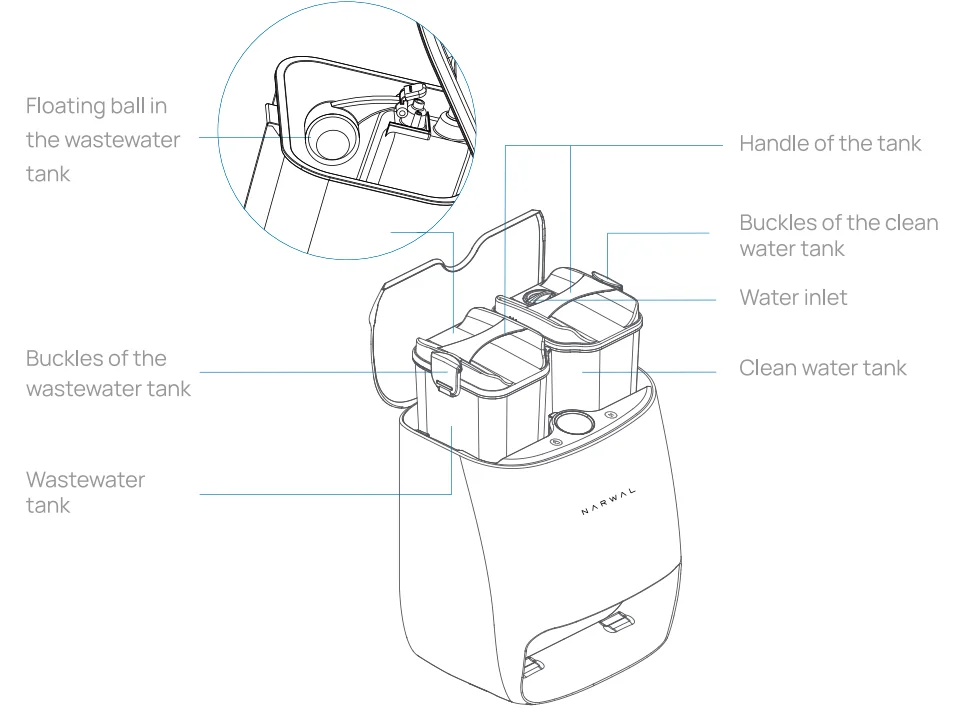
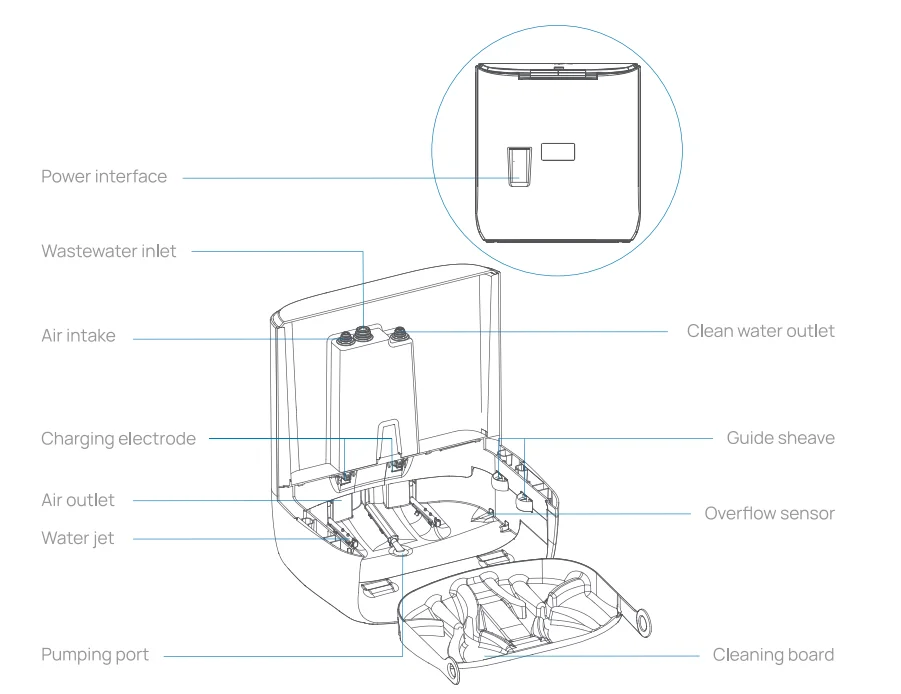
Base station
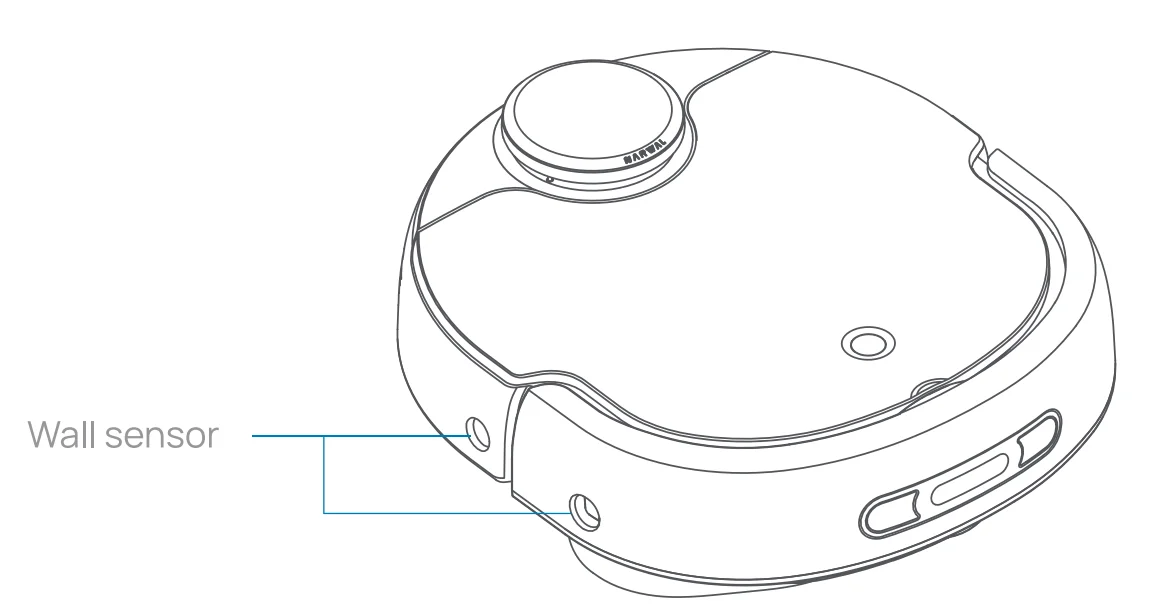
Robot
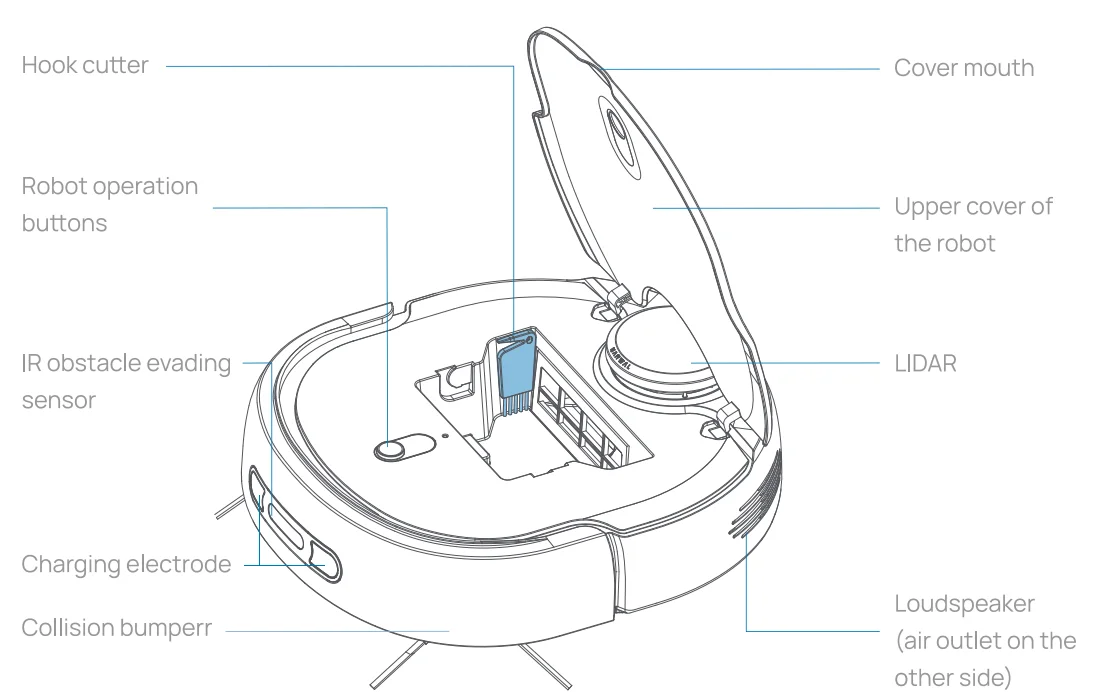
Side of the robot
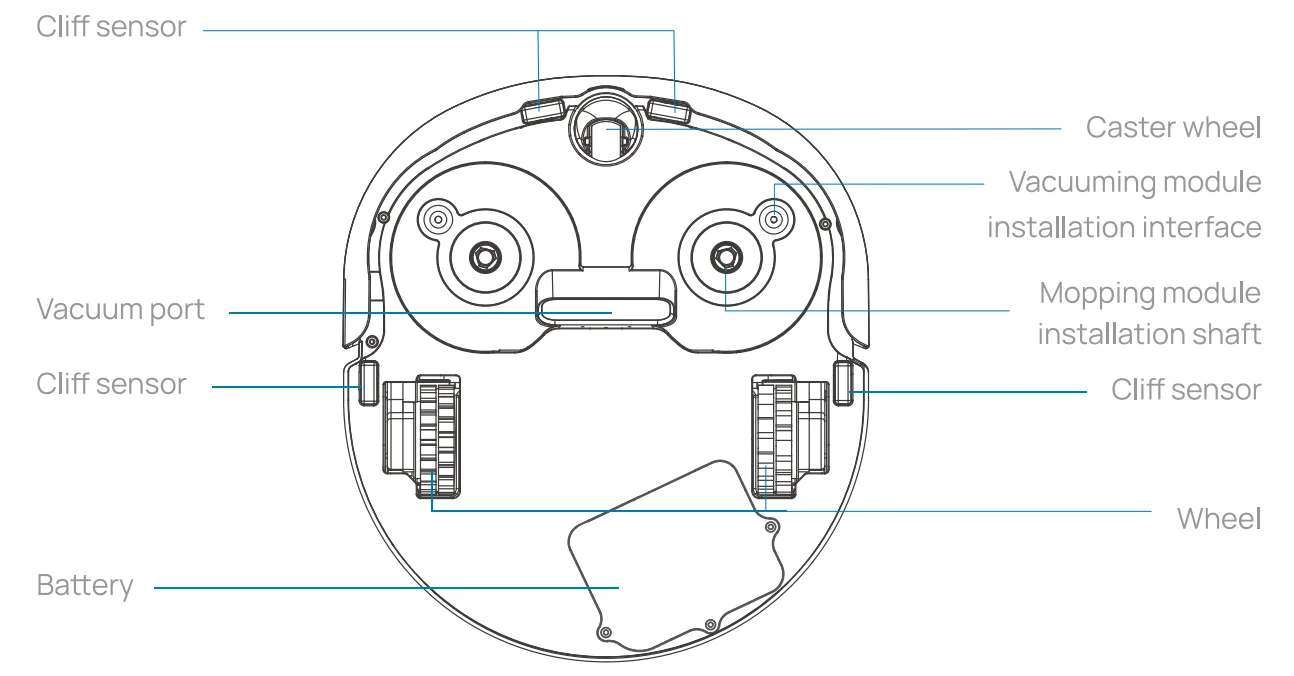
Bottom of the robot
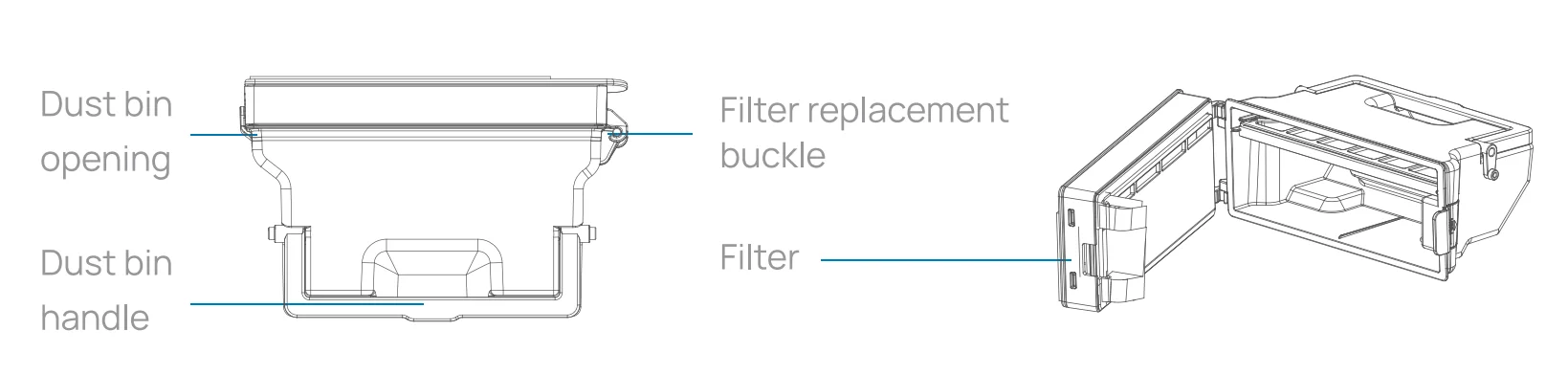
Dustbin
Vacuuming module
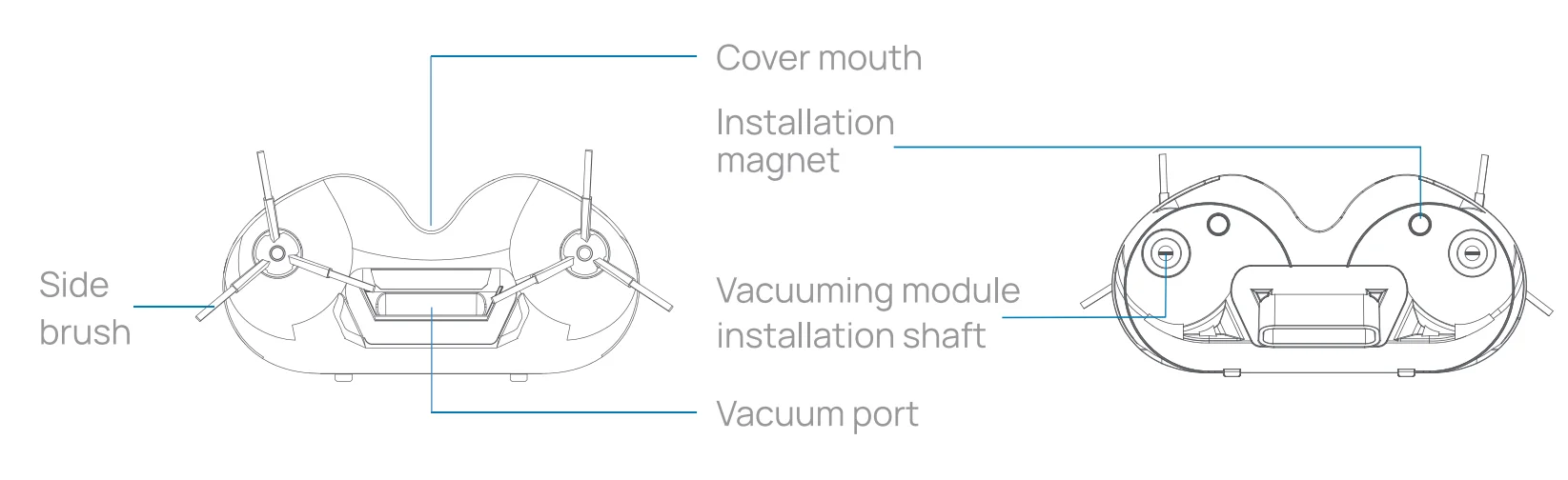
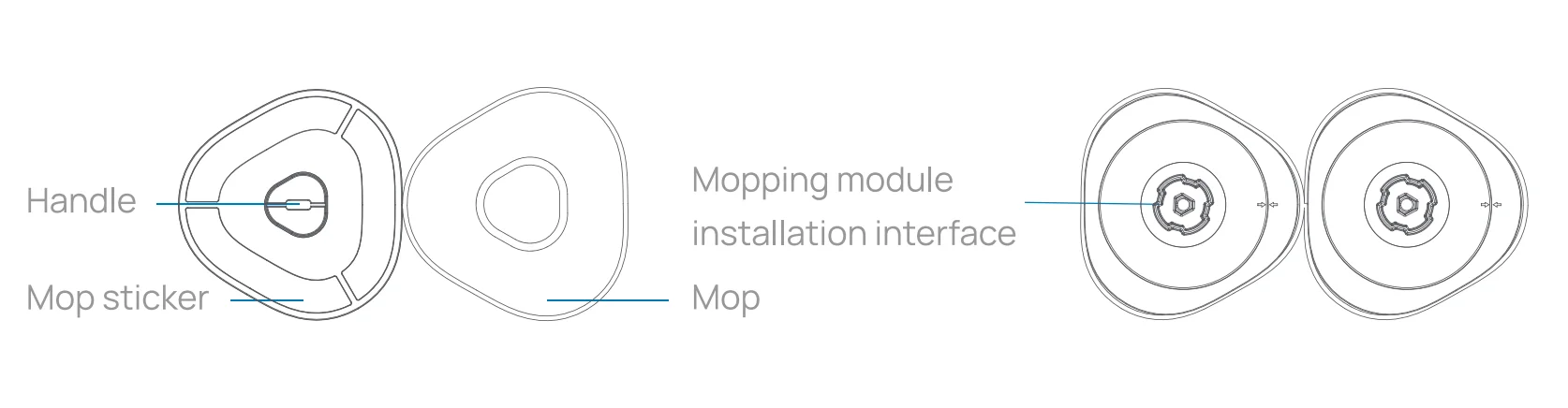
Mopping module
Other accessories
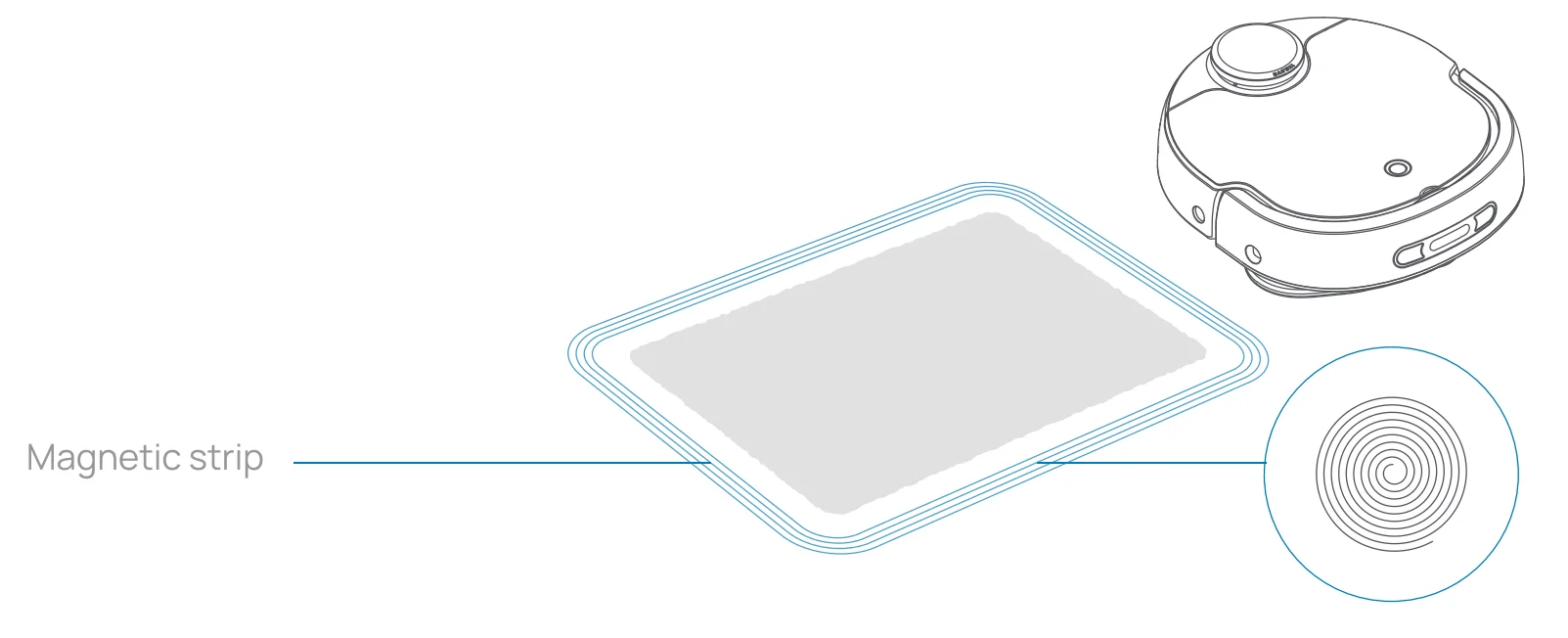
Magnetic strip:
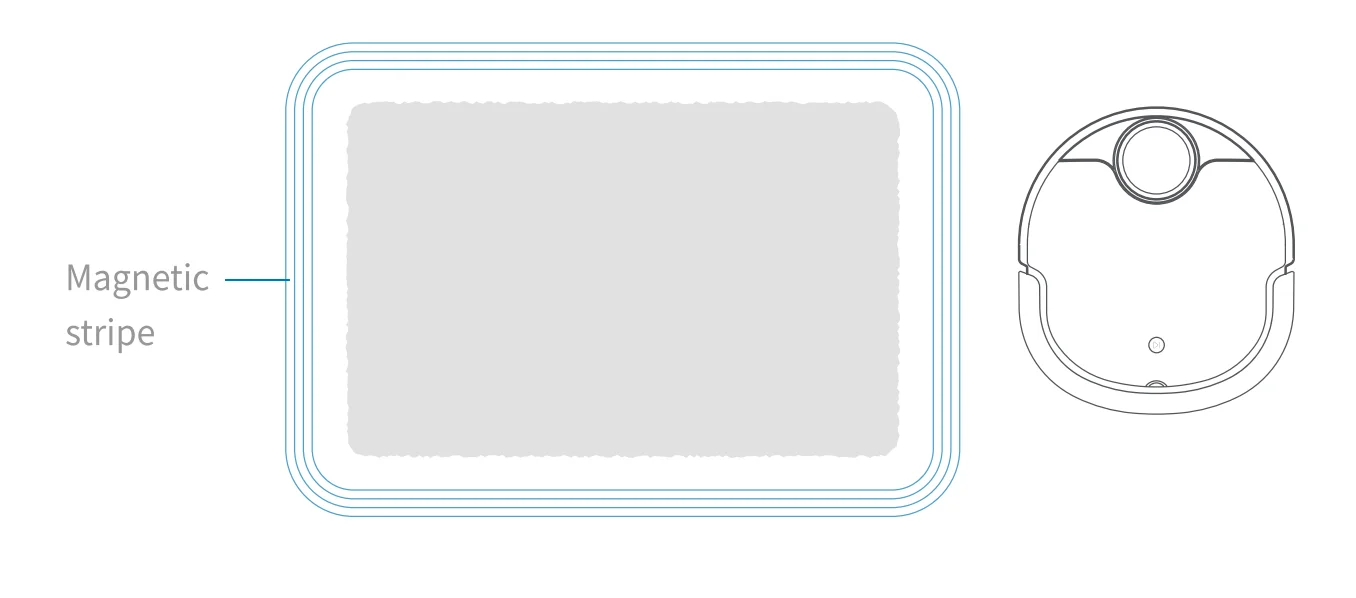
Isolates areas that are not to be cleaned (where the robot may get stuck). Attach the magnetic strip along the entrance or the boundary of areas to shape a specific area for isolation. The magnetic strip can be trimmed to the desired length.
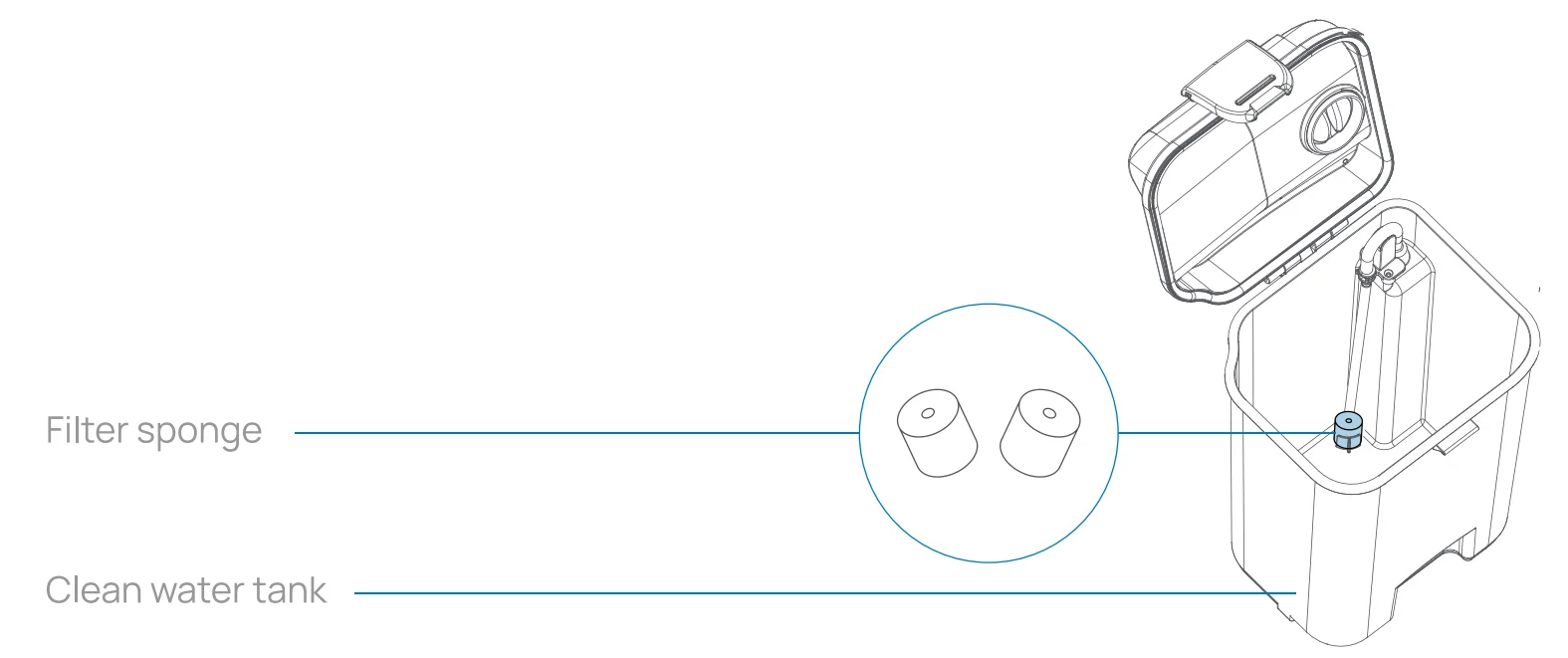
Filter sponge:
Used to replace the sponge currently used in the clean water tank and filter particulate matter in the water.
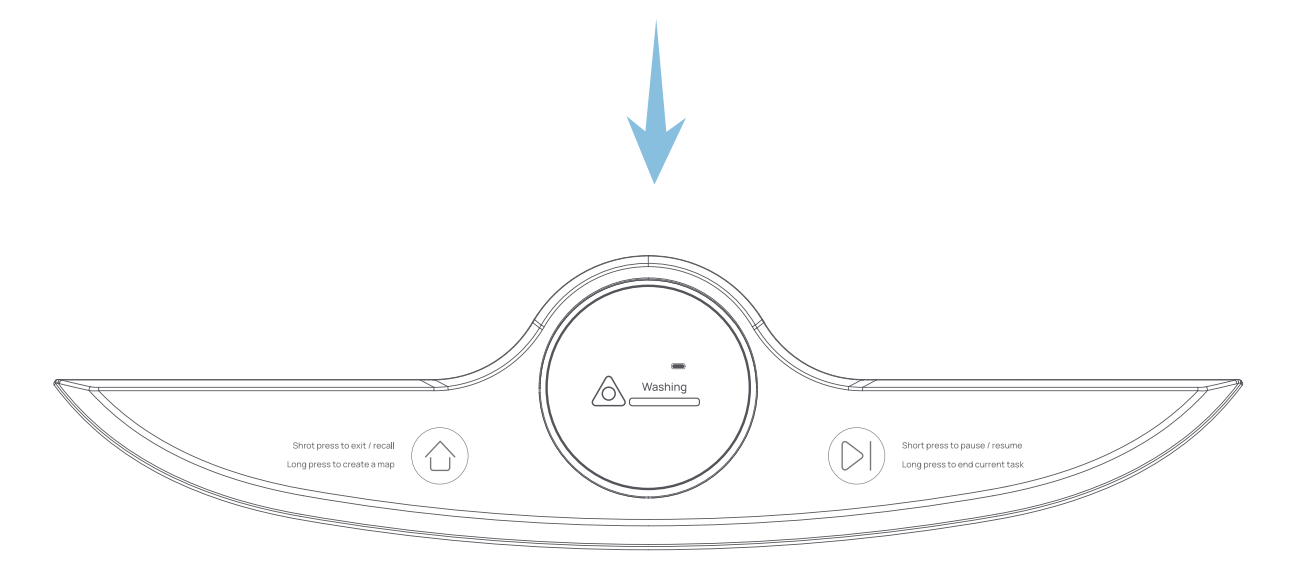
Operation Panel
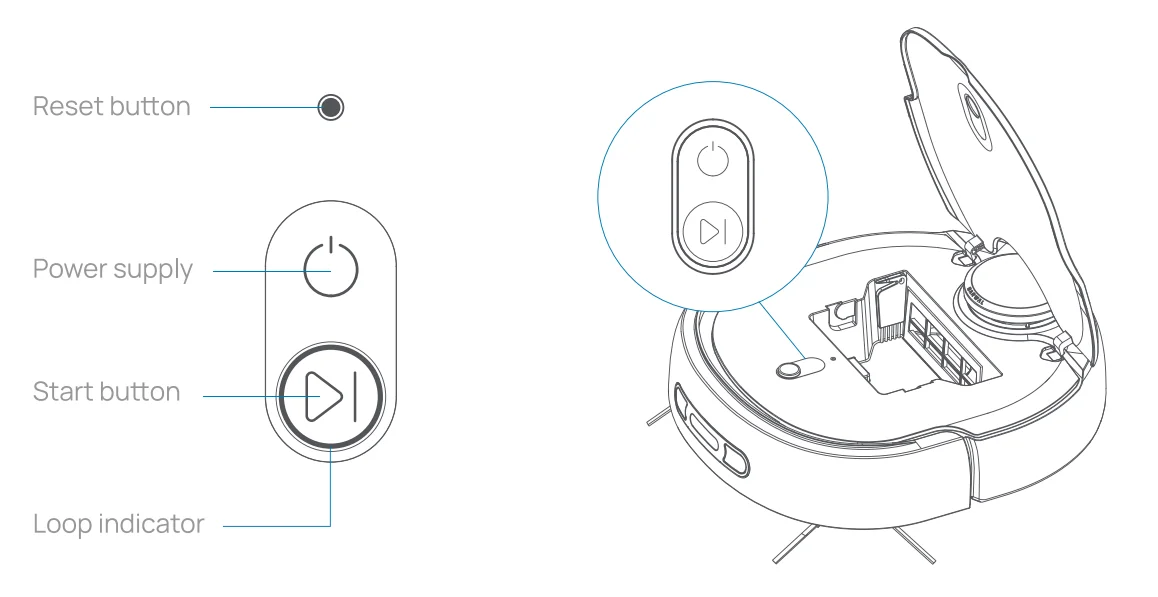
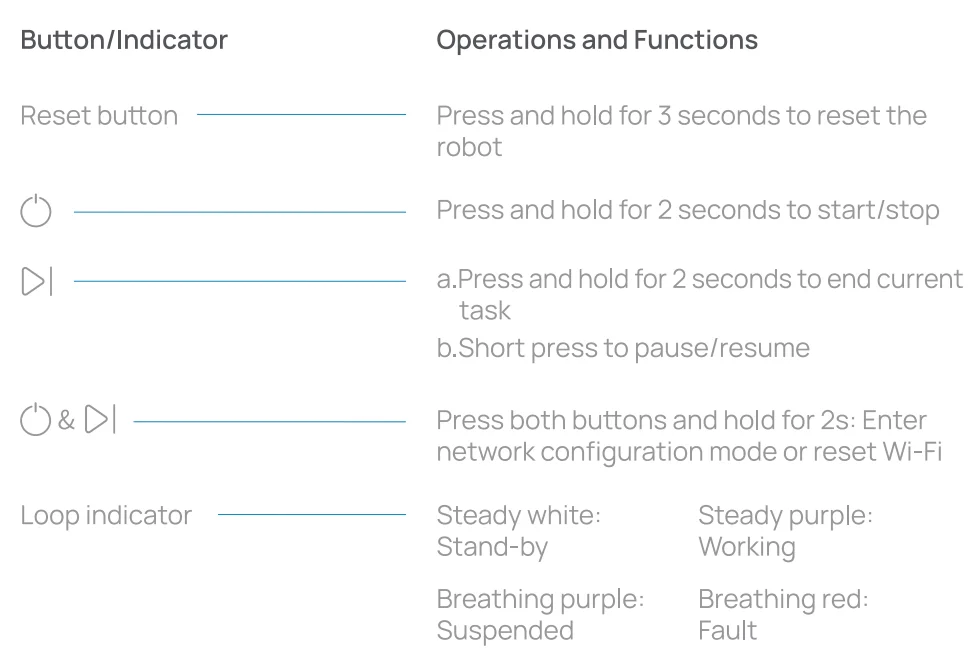
Operating panel of the robot
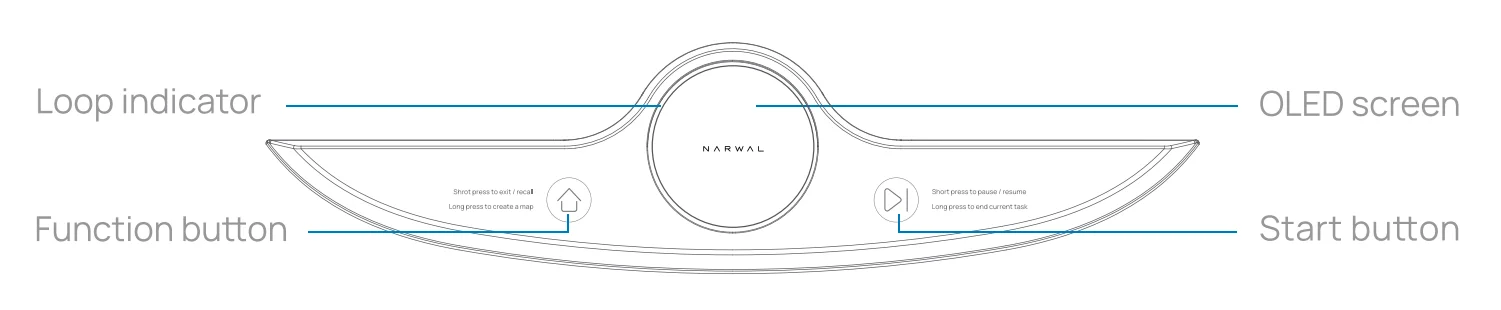
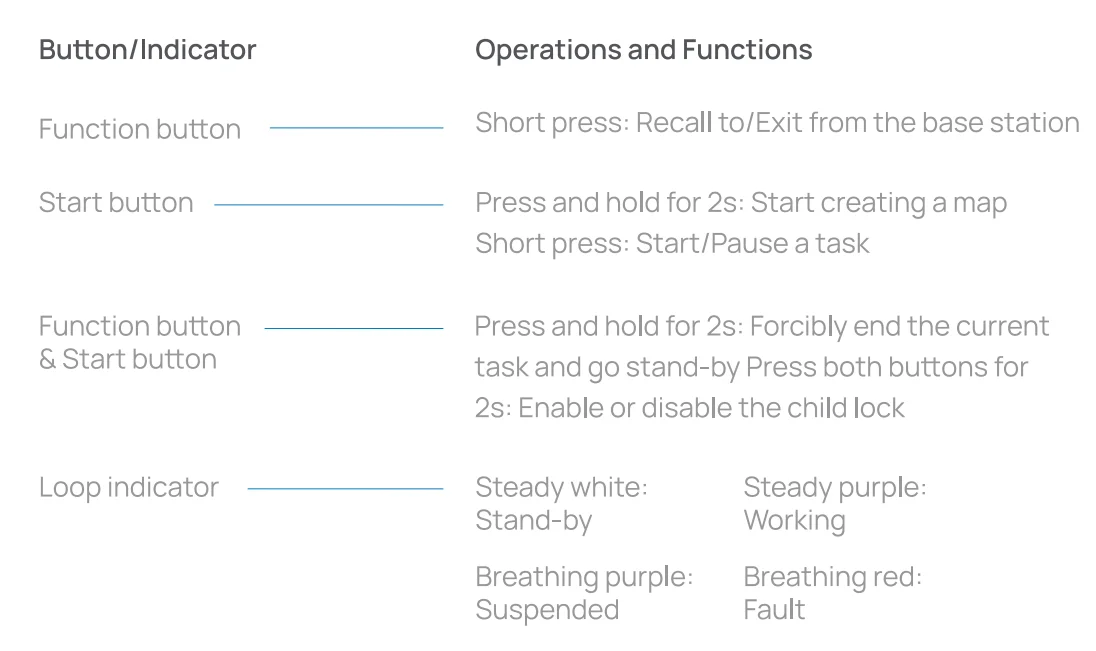
Operating panel of the docking station
Icons on the OLED screen
 Vacuum icon
Shows the current cleaning state Charging icon
Indicates the robot properly contacts the charging electrodes of the base station Mop icon
Shows the current cleaning state Battery icon
Shows the current battery level Child lock icon
Indicates that the panel of the base station has been enabled Child lock icon
Indicates that the panel of the base station has been locked
 Vacuum icon
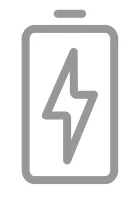 Charging icon
 Mop icon
 Battery icon
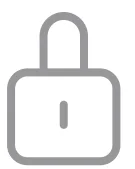 Child lock icon
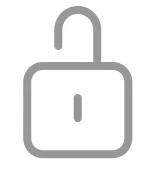 Child lock icon
PRODUCT USAGE
APP Operations and Guidance
You can also unlock more advanced functions through the APP. The following introduces how to download the APP and connect the robot.
- Scan the preceding QR code to download and register with the APP.

- Tap to add the robot and then configure the network. Prior to configuring the network, please make sure:
- The robot is turned on ( the button indicator is steady on);
- You have access to your home Wi- Fi;
- Your phone is connected to your home Wi-Fi.

- Return to the APP and wait for the network configuration to complete.

- Network connection success
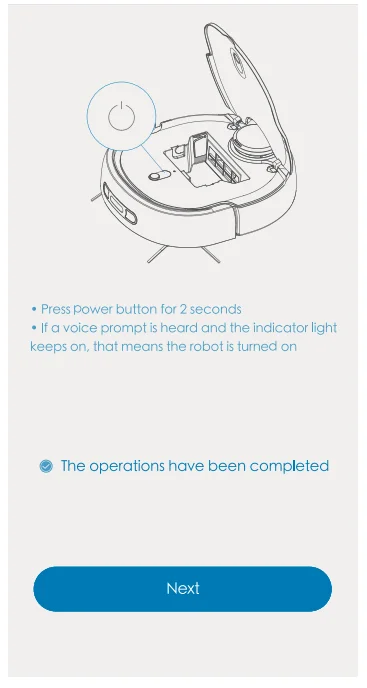
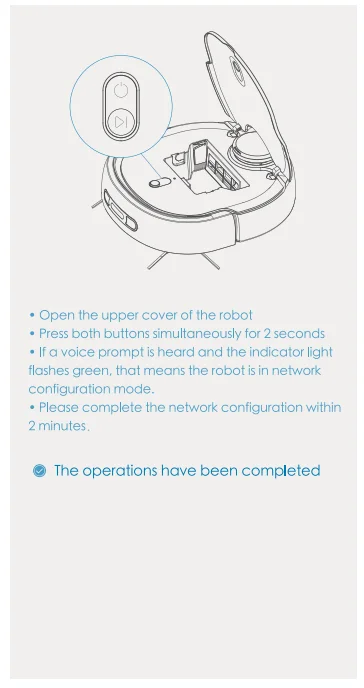
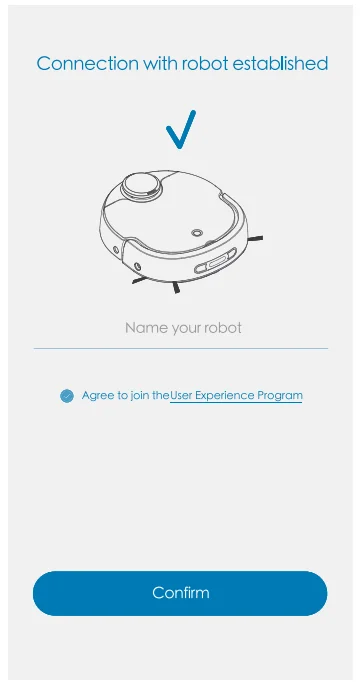
Precautions
Suitable for indoor floor cleaning ONLY. Do not use outdoors (such as open balconies), non-floor areas (couch or window), high-rise areas, or commercial or industrial environments.
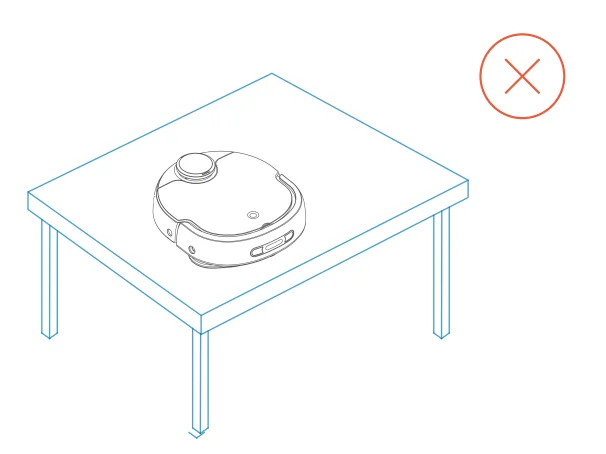
- Do not use in suspended areas (duplexes or top of furniture) without a fence.

- Do not place any object (human or pet) on a static or running robot.

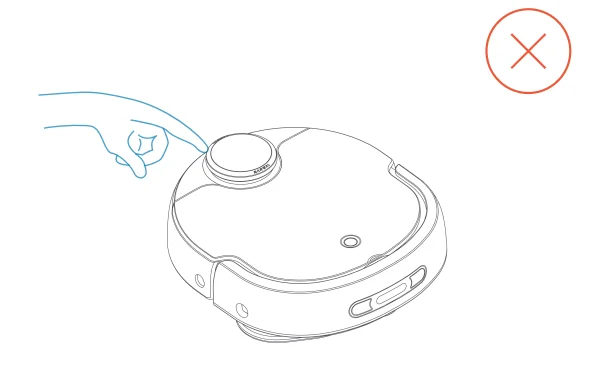
- To avoid injury, keep hair, fingers, or other parts of the body away from the mop, side brush, LIDAR, vacuum port, or cleaning board of the robot.

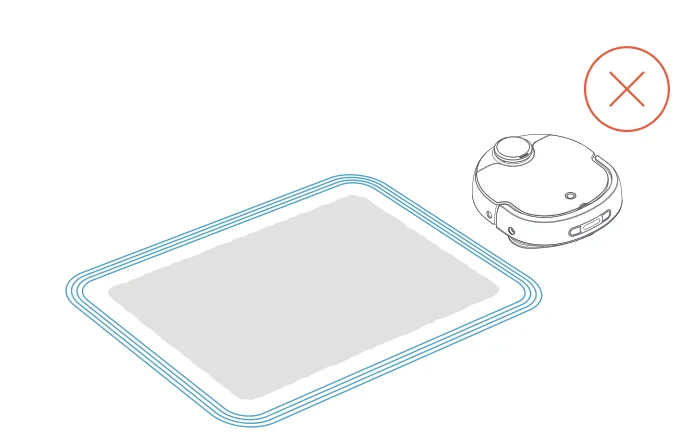
- If you don’t want the robot to enter the carpet area or areas with valuables during cleaning, set this area as an off-limit area or attach a magnetic strip to keep the robot away from it to avoid property damage.

- Do not let the robot pick up hard or sharp objects.

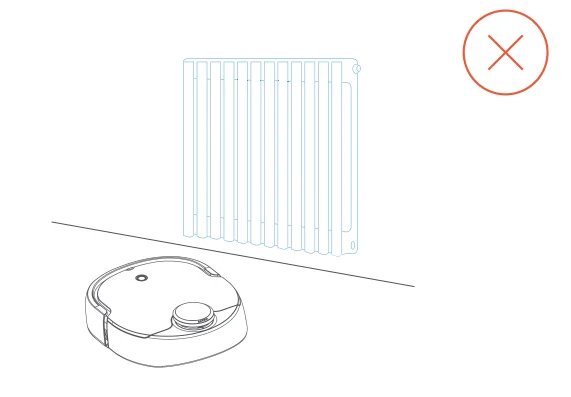
- Keep the robot away from heat or water sources (such as heating radiators and taps).
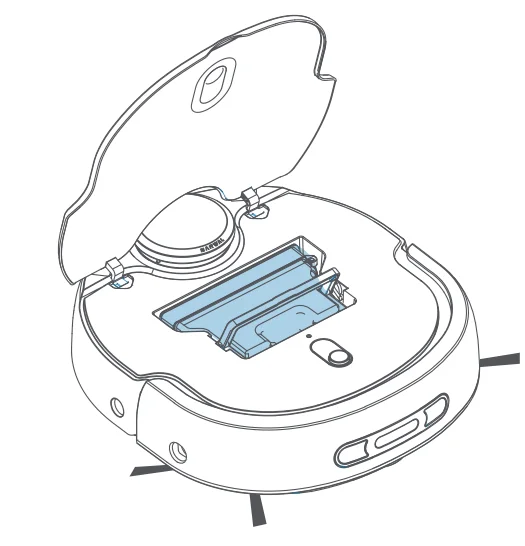
Operating Your Robot - Do not operate the robot with an open upper cover. Otherwise, the robot will be damaged.
- To move the robot, hold both sides of the robot tightly and lift it upward vertically.
- Do not lift the base station with the robot in it in case the robot may slip off.
- Persons (including children) with reduced physical, sensory, or mental capabilities must be given supervision or instruction by a guardian concerning the use of the product.
- Do not use the robot as a toy. Close attention is necessary when children or pets are nearby. Keep the robot away from them.
- Do not place the vacuuming module, mopping module, and other parts in areas accessible to children.
- Do not place the packing parts (bags or foam) in areas accessible to children.
- Do not use your robot to clean shaggy carpets.
- Do not use your robot to clean anything that is burning (such as cigarette ends).
- Do not use the mopping module on carpets.
- Clean or maintain the robot and the base station only after turning off the power and disconnecting the power cord.
- Do not use a wet cloth or any liquid to wipe any part of the robot’s body.
- Do not use any third-party batteries, chargers, or charging bases.
- Do not disassemble, repair, or reconfigure the robot, base station, or battery.
- Please turn off the robot and remove the battery before you abandon the product.
- Do not discard or place battery scraps casually but hand them to professional recycling agencies for disposal.
- If the power cord is damaged or broken, stop using the product and contact customer service.
- To transport this product, ensure that the robot is powered off and recommend packing it in the original package.
Before use
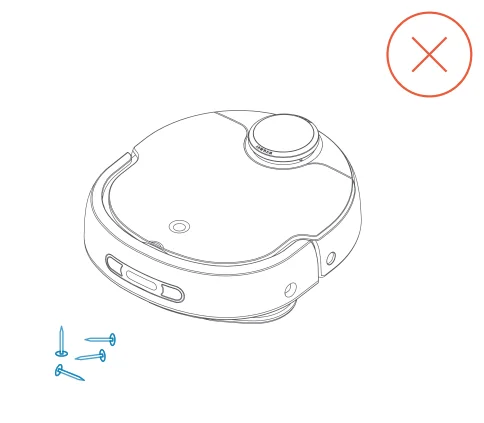
- Remove items on the floor, such as power cords, clothes, and magazines, to prevent the robot from being entangled during operating. If entangling happens, power outage, item damage, cable weariness, and robot fault may occur.

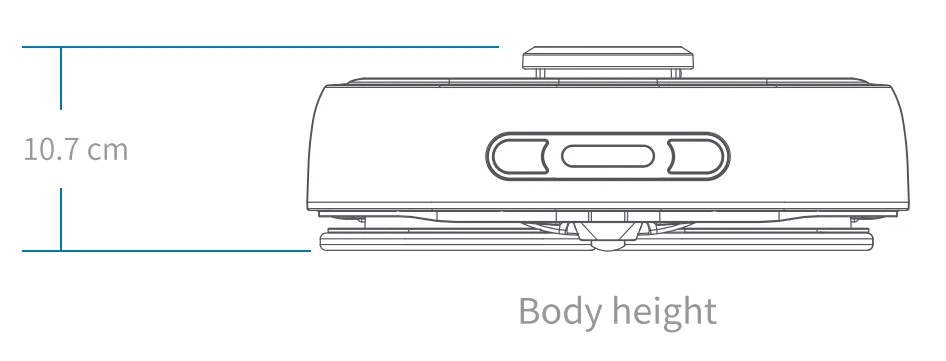
- If there is furniture of the same height as the robot, set the furniture as an off-limit area to prevent the robot from being blocked.

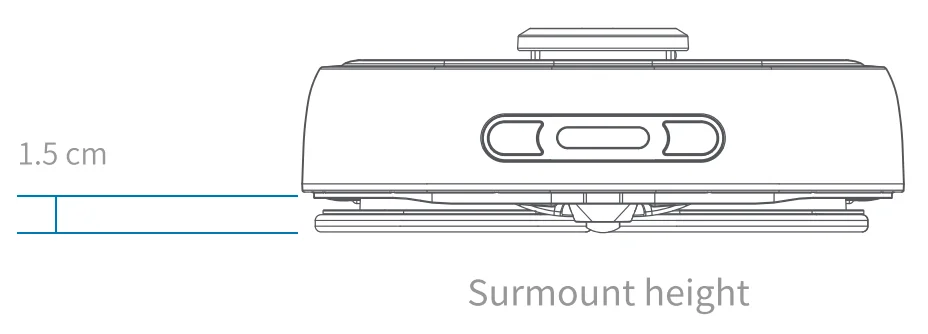
- The robot can surmount up to 1.5 cm. If the doorsill exceeds 1.5 cm, the robot cannot enter the room.

- lf you don’t want the robot to enter the carpet area or areas with valuables during cleaning, set this area as an off-limit area or attach a magnetic strip for isolation.

- lt is recommended that the robot be used in two-storey rooms with a fence or magnetic strip presence.

Components Installation and Uninstallation
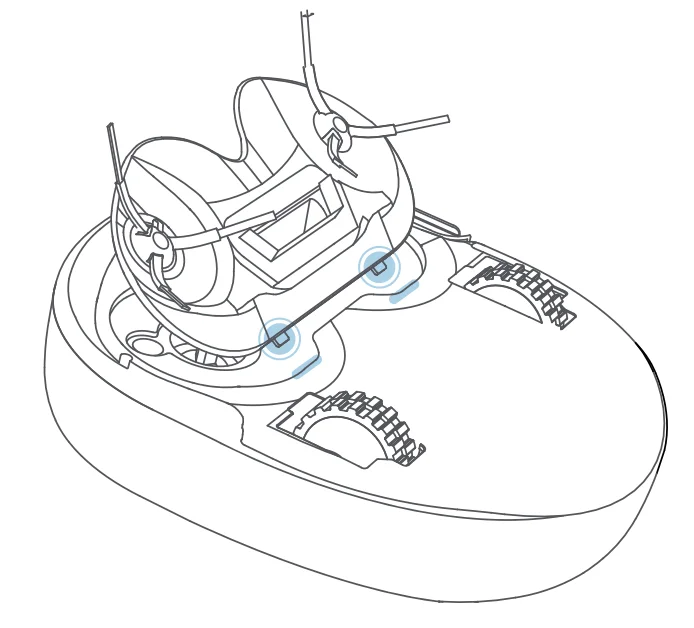
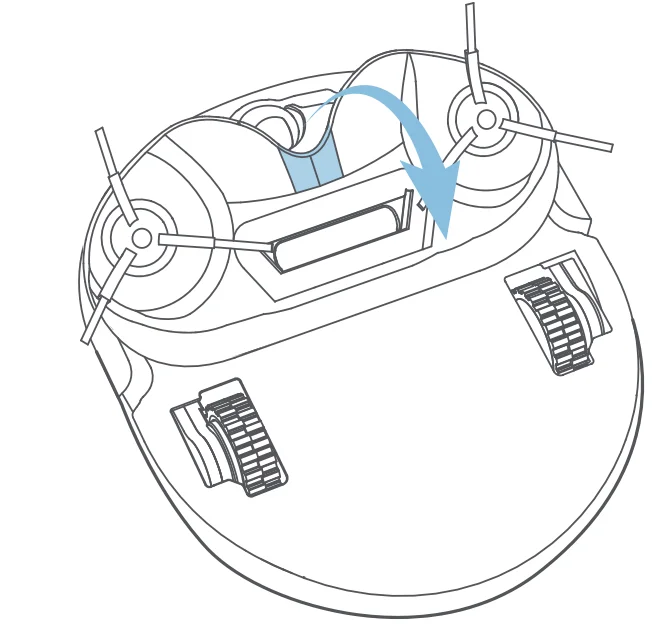
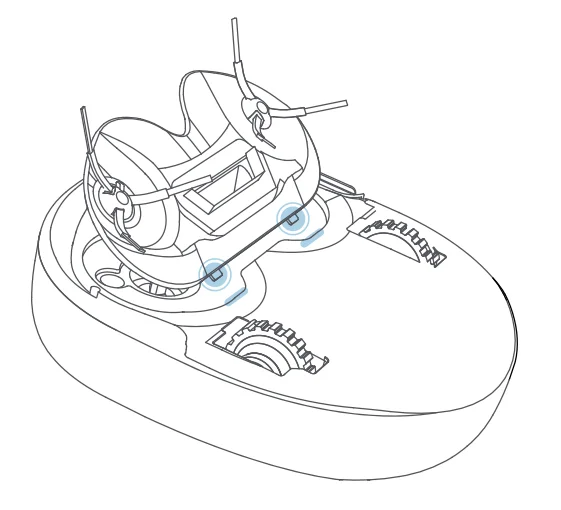
- Installing the vacuuming module:
Insert the two buckles at the bottom of the vacuuming module into the slot and click them in.
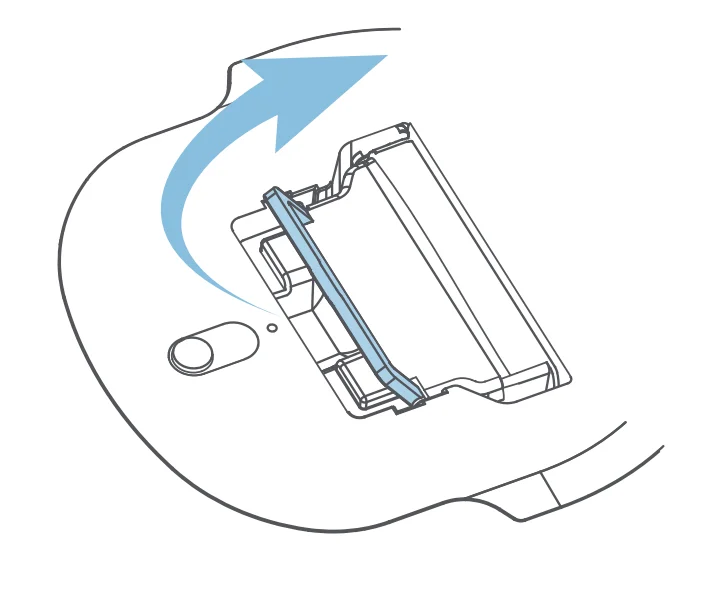
- Uninstalling the vacuuming module:
Lift the cover upward and remove the vacuuming module.
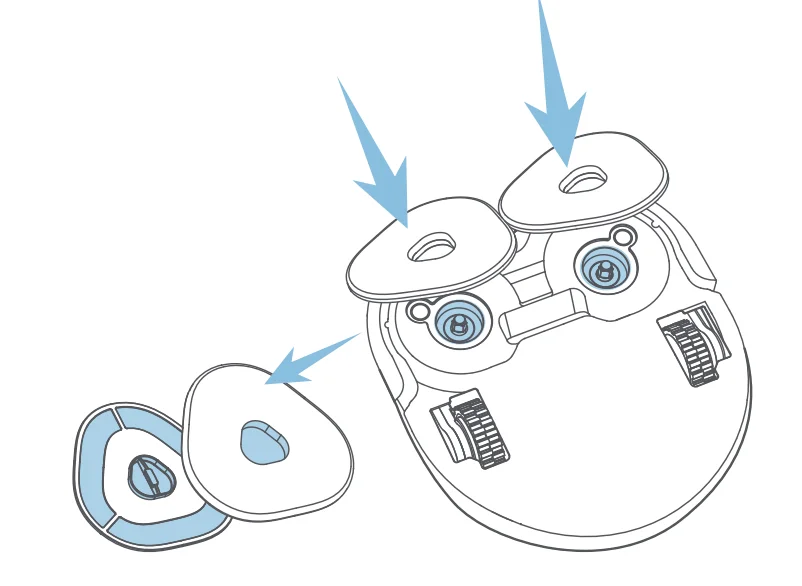
- Installing the mopping module:
Align the installation interface of the mopping module with the installation shaft and rotate the module until it clicks in.
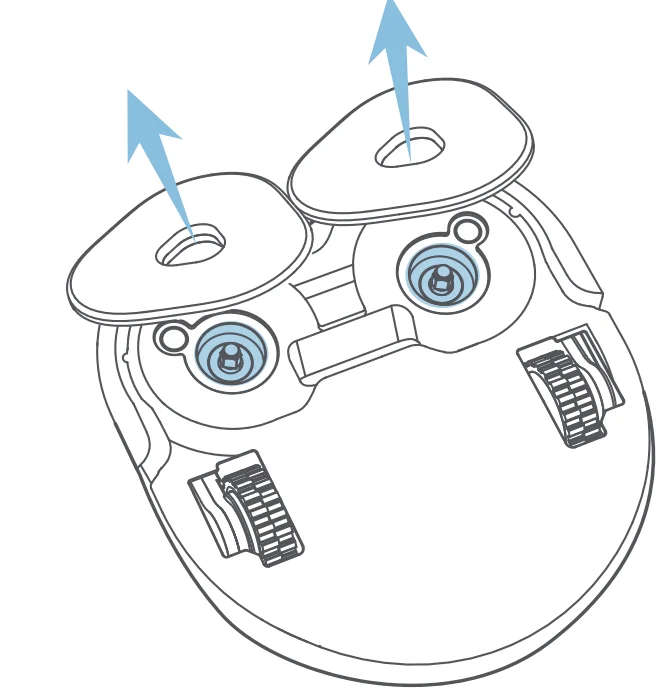
- Uninstalling the mopping module:
Hold the handle of the mopping module and lift upward to remove it.
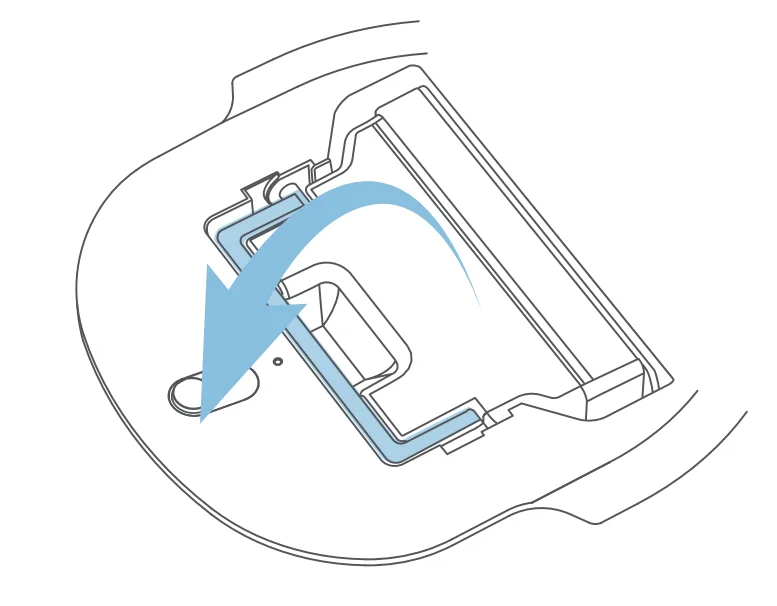
- Installing the dust bin:
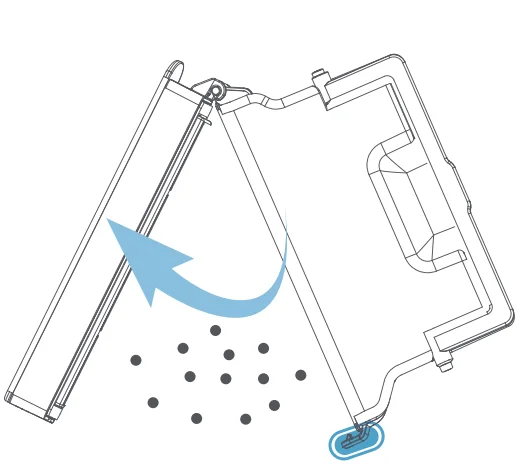
Align the dust bin to the groove, and press the handle downward to tuck the dust bin in.
- Uninstalling the dust bin:
After the dust bin handle is taken out, lift it upward to remove the bin.
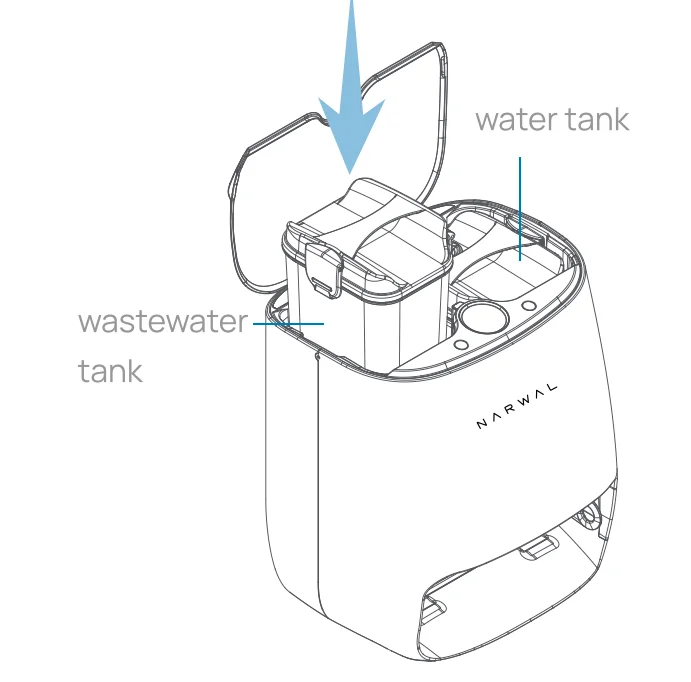
- Installing the clean water tank/wastewater tank:
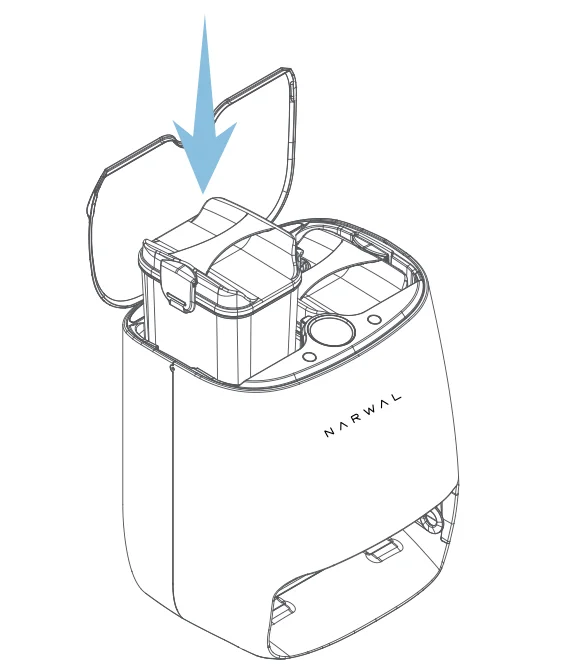
Install the clean water tank on the right side of the base station and the wastewater tank on the left of the base station.
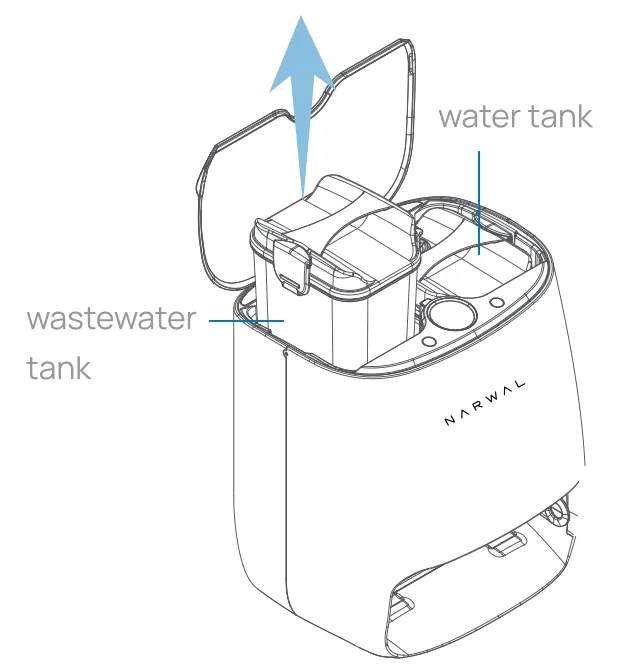
- Removing the clean water tank/wastewater tank:
Open the upper cover of the base station and take out the tank.
On First Use
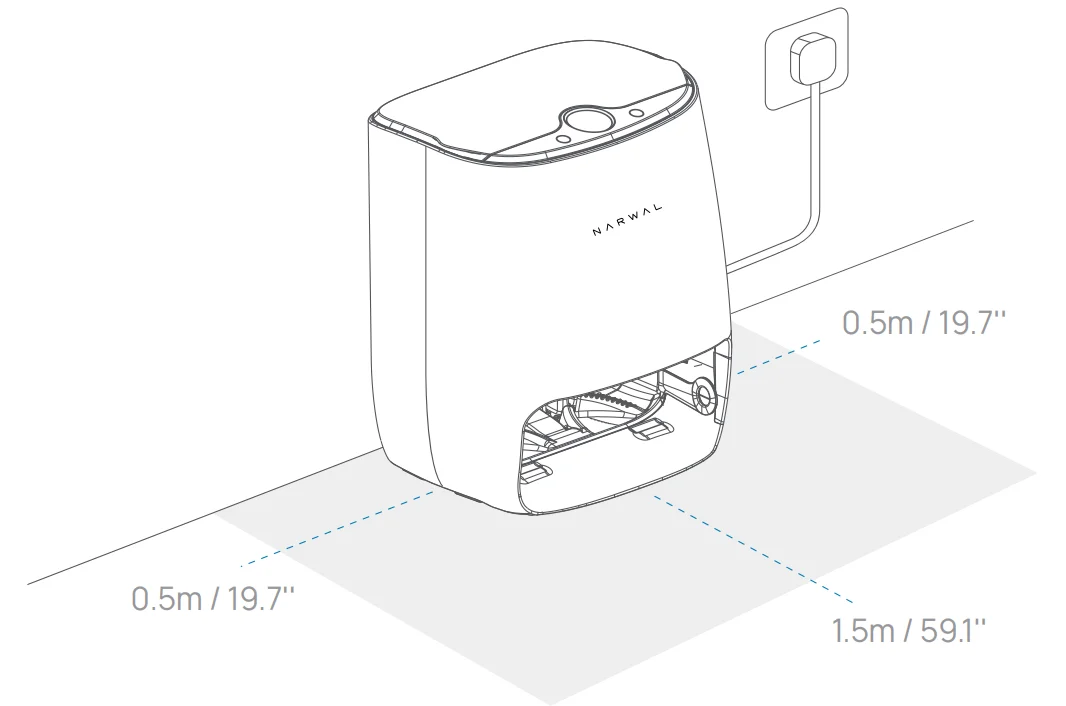
- Positioning the base station
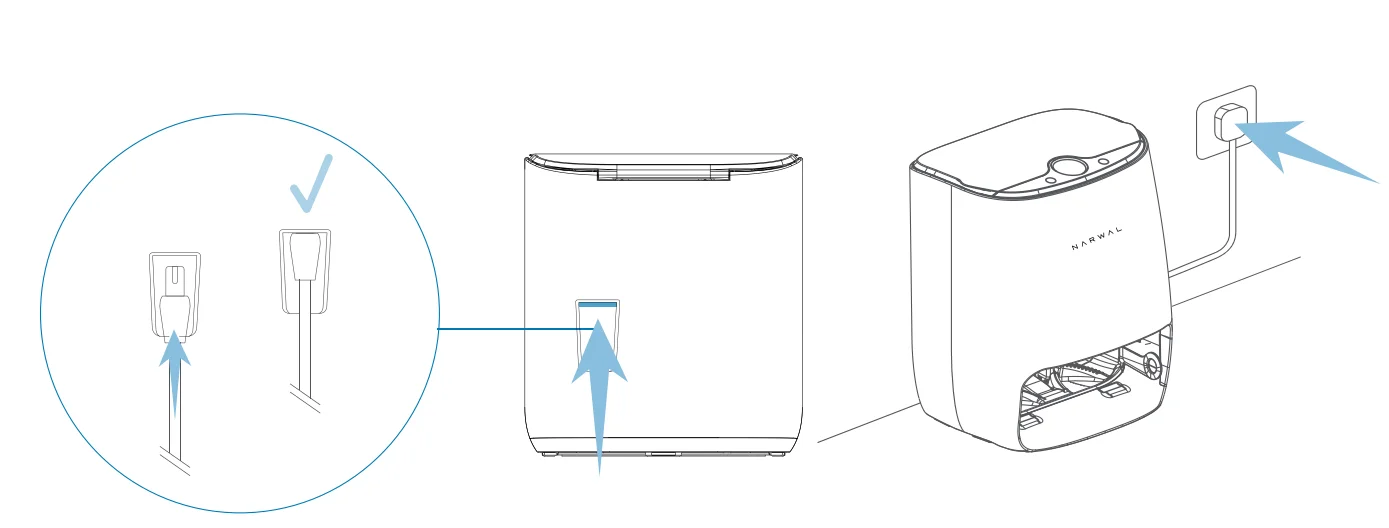
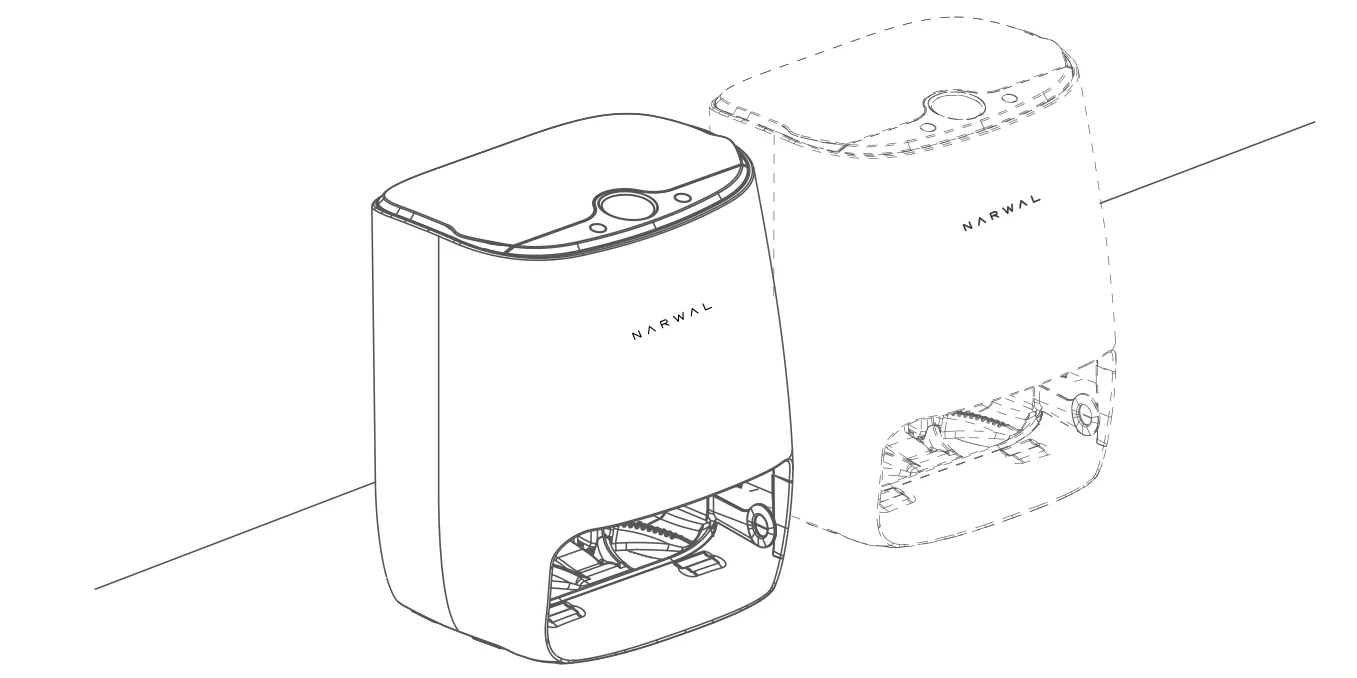
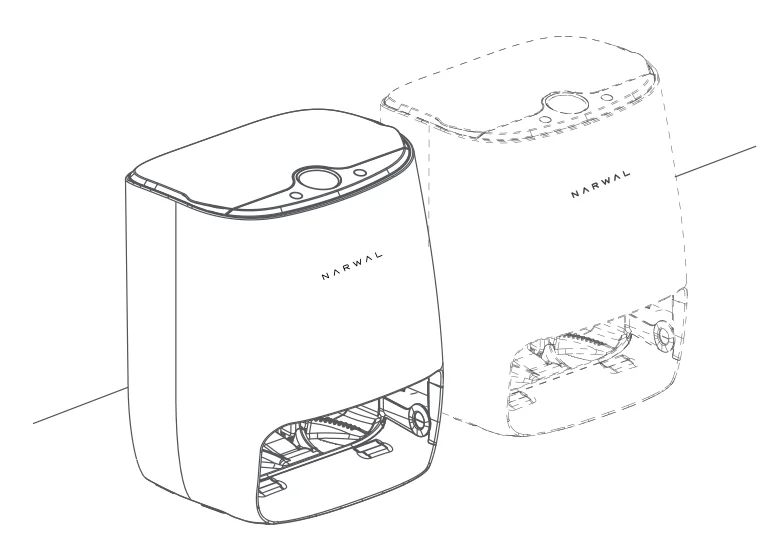
To optimise the cleaning performance, please place the base station against a wall of the room, maintaining a minimum clearance of 19.7″ on both sides, and 59.1″ in front.
- Connecting the base station to the power supply
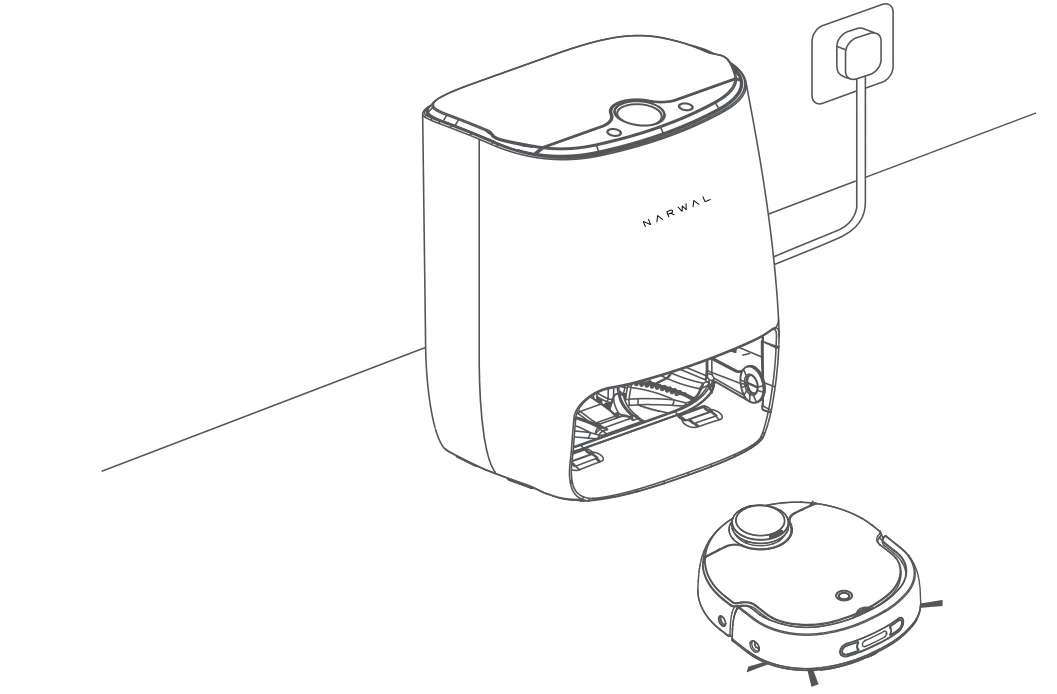
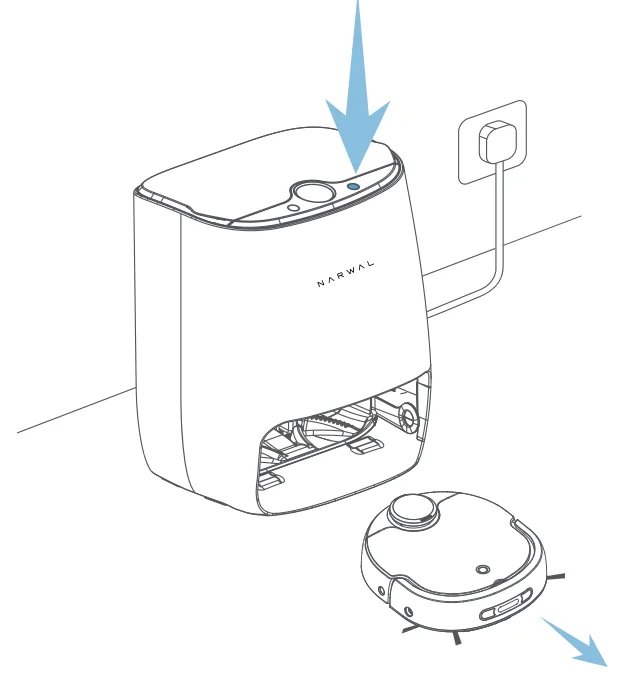
Take the power cord out of the accessory box, and connect one end of the cord to the rear jack of the base station and the other to a power outlet. (Please plug in the power cord tightly to avoid poor contact)
- Turning on the robot and recalling it to the base station
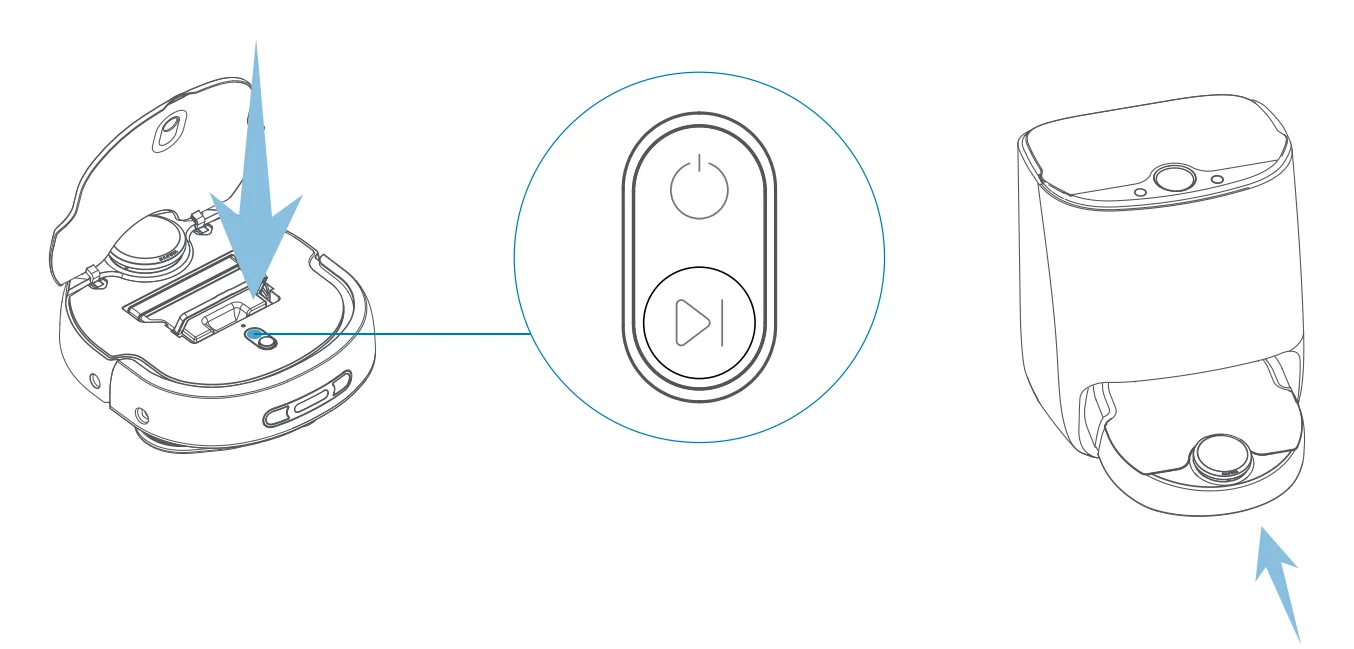
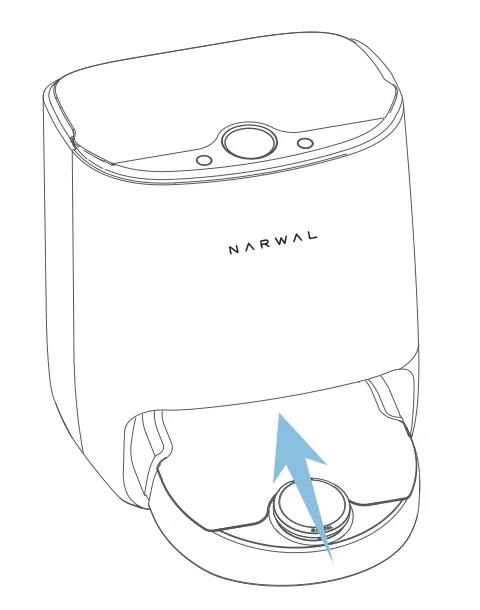
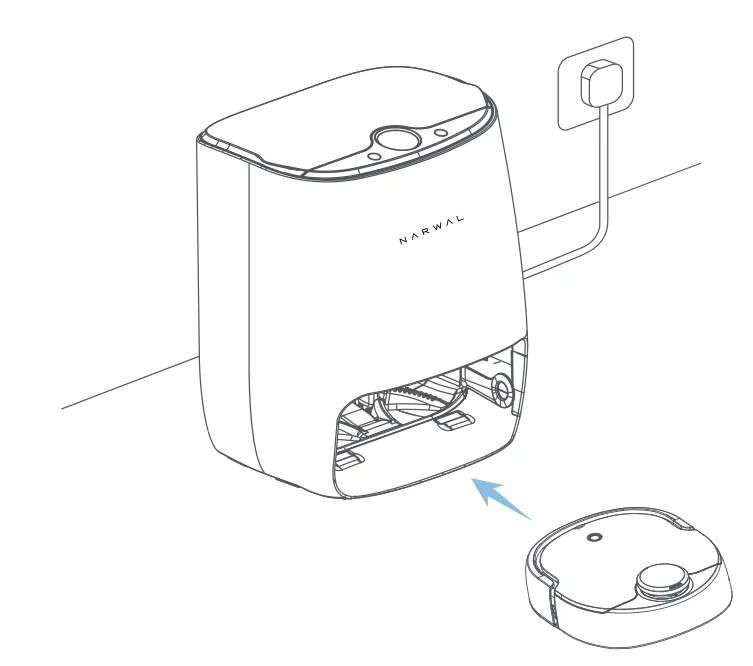
Lift the upper cover of the robot and long-press the power button to turn it on. After that, short-press the left button on the base station to recall the robot. (When placing your robot into the base station, please make sure it is placed with the buttons facing toward the base station.)
- Preparations before mapping
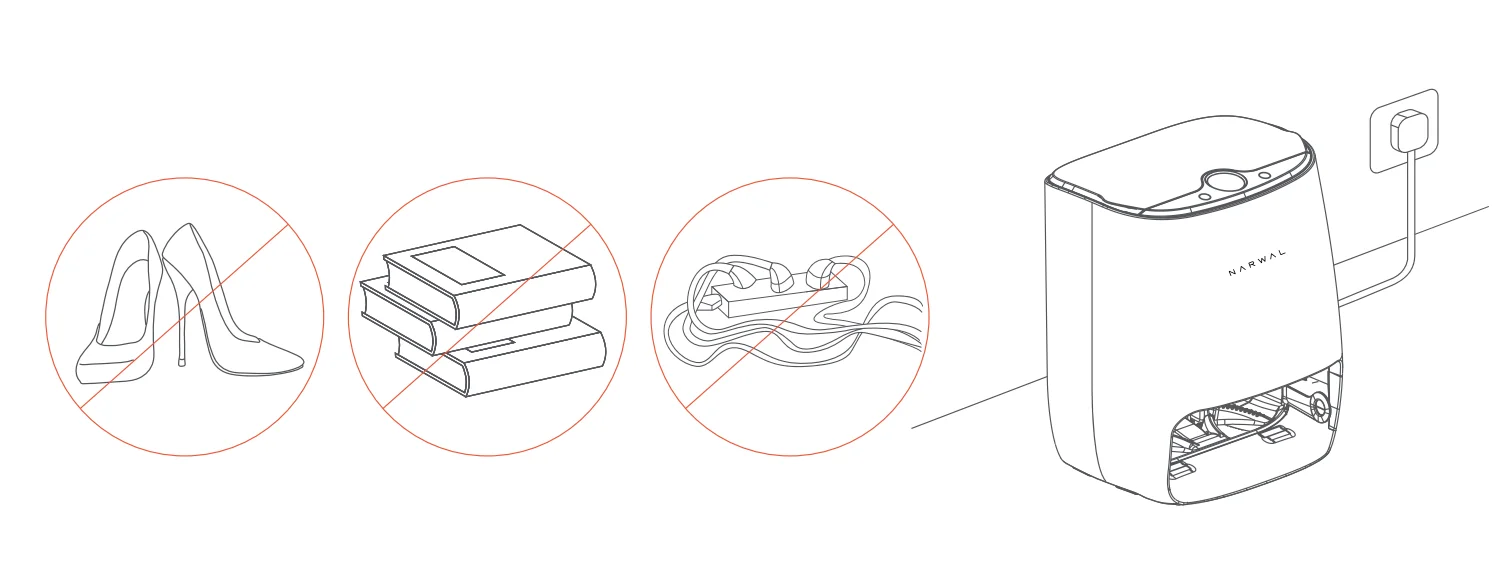
Prior to mapping, please remove miscellaneous items on the floor, take in power cords, and open the doors of rooms to be cleaned.
- The mapping mode
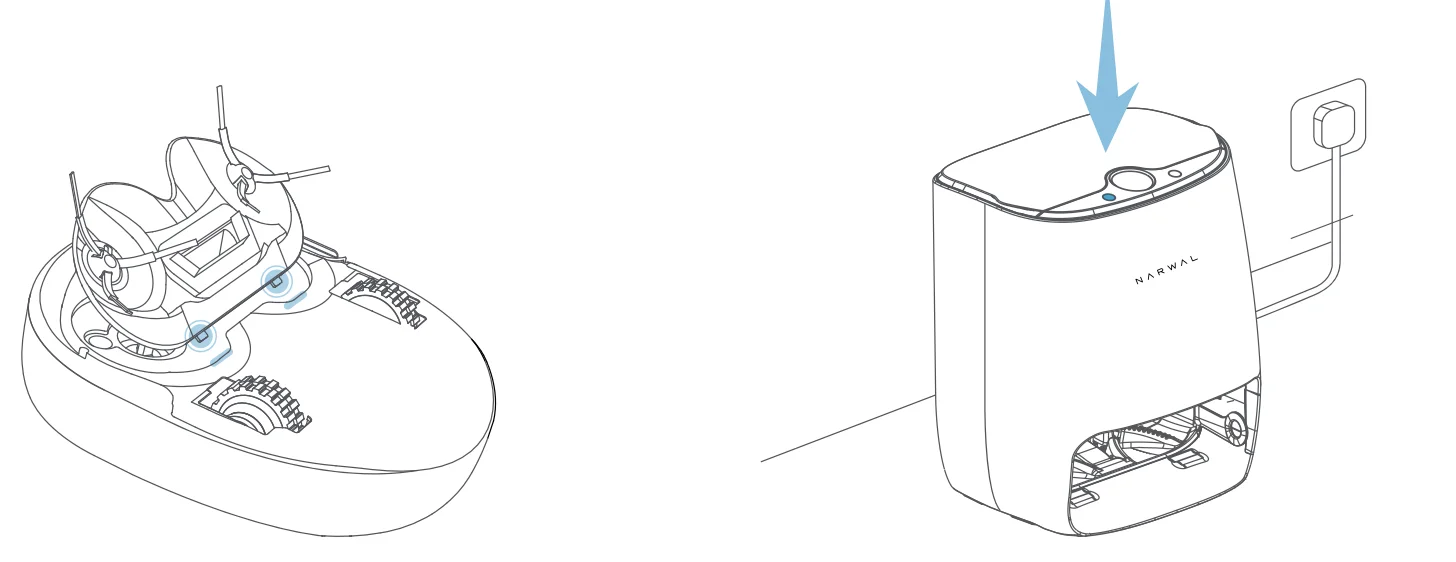
Press and hold the left button on the base station to start mapping. The robot will start scanning and create a cleaning map. (The robot will not start mapping until the vacuuming module is installed)
- Precautions for mapping
The robot should not be followed or blocked by a human or a pet during the mapping process. The aisle or doorway should be kept clear; there may be a mapping omission.
- Completing mapping and automatic planning
Do not move the base station after a successful mapping. Otherwise, the map would need to be created again. It is recommended to recreate the map if large items in the cleaning area have been relocated.
- Starting cleaning
Select either the vacuuming module or the mopping module for cleaning based on needs. Short press the right button of the base station to start a default task.
Vacuuming Function Introduction
- Install the vacuuming module to the robot.

- Check that the dust bin has been properly installed inside the robot.

- Short press the left button on the base station to recall the robot.

- Short press the right button on the base station to start vacuuming.

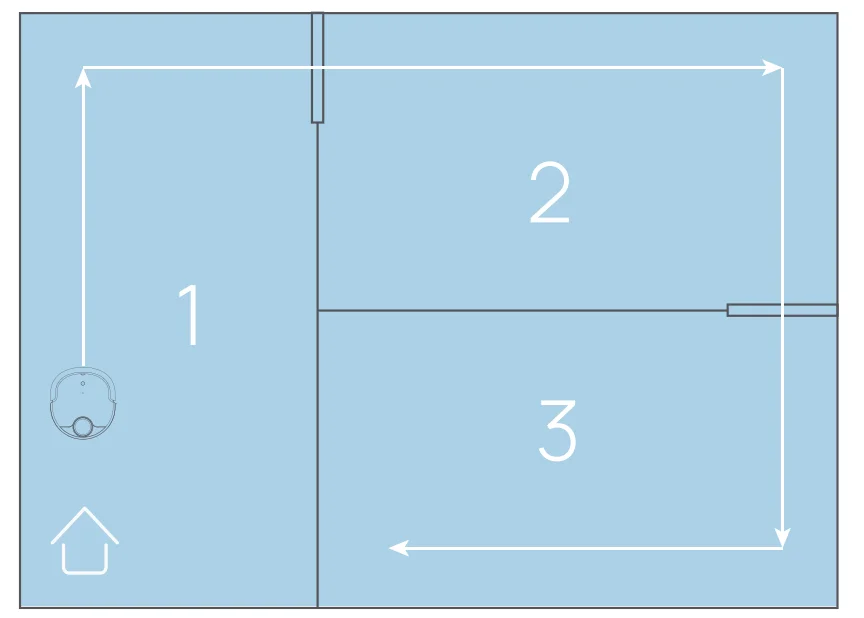
- The robot will plan an optimal cleaning sequence according to the map created and start by default from the room where the base station is located.

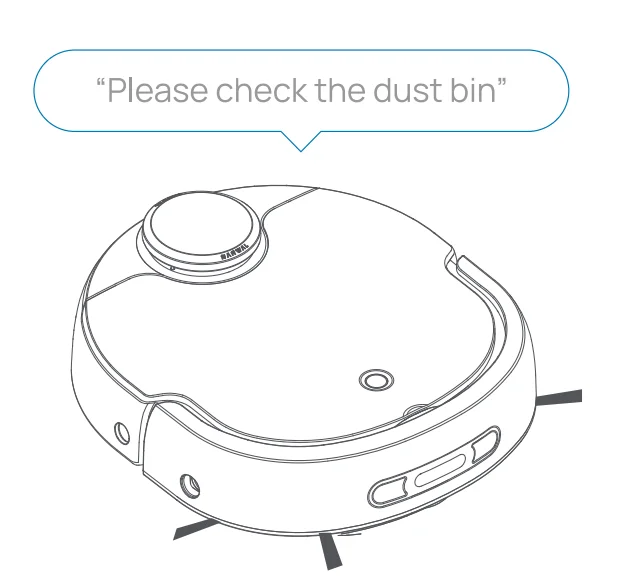
- If the dust bin is filled up during vacuuming, the robot will give a voice prompt to clean the dustbin.

- After the vacuuming task is completed, clean the dust bin as instructed on P41.

Mopping Function Introduction
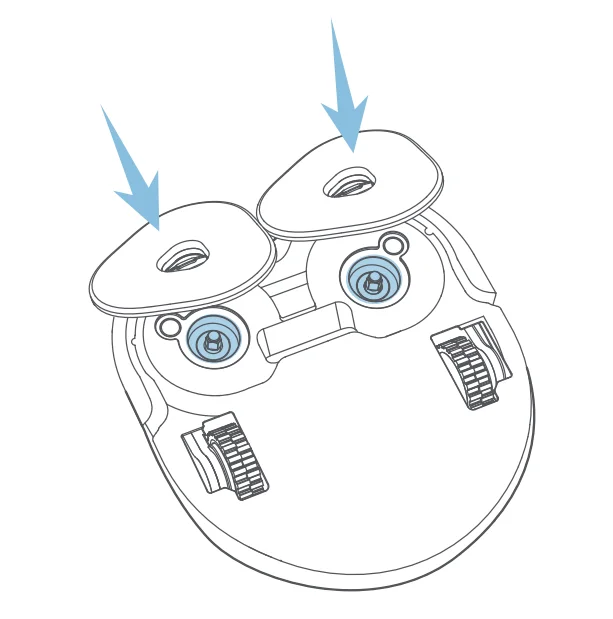
- Install the mopping module to the robot.

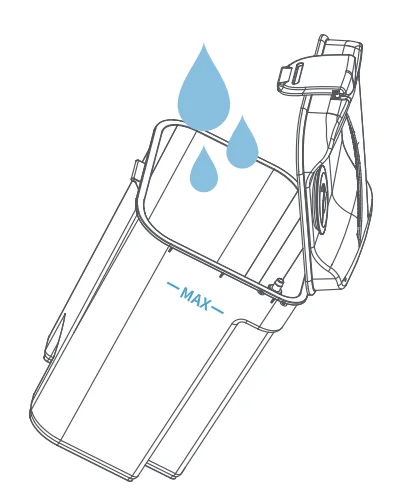
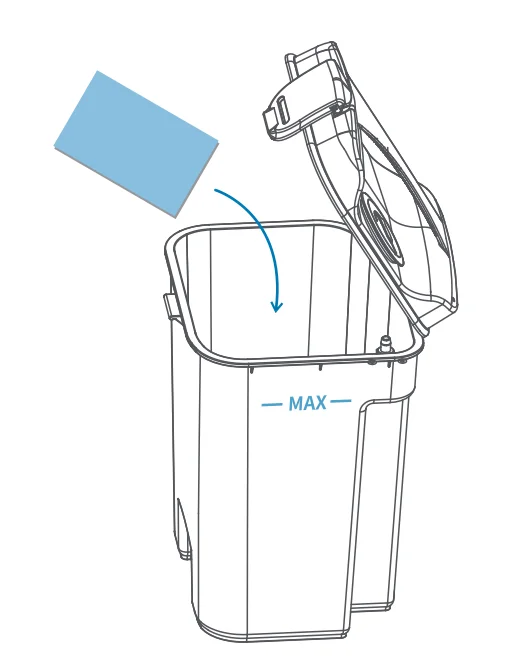
- Fill up the clean water tank and make sure to keep the water level below the Max mark on the tank. Lift the water tank only when its cover is buckled, so as not to damage the rotating shaft.

- Add Narwal detergent sheet into the clean water tank for improved mopping results. Please be reminded not to add detergents of other brands, otherwise the robot may not function properly.

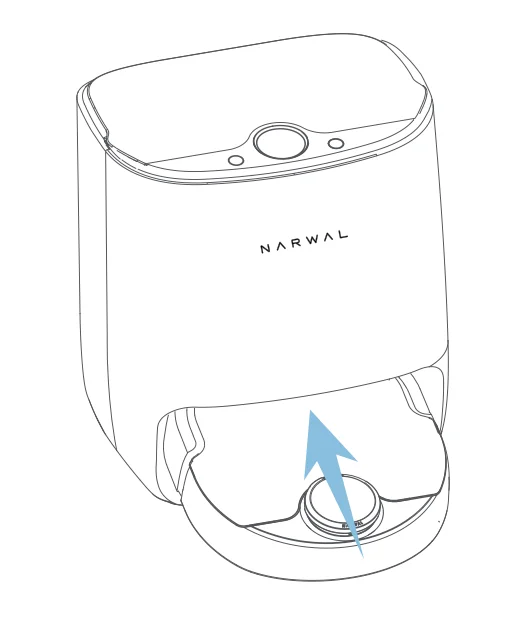
- Install the clean water tank and wastewater tank properly in the base station after verifying that there is no wastewater in the wastewater tank.

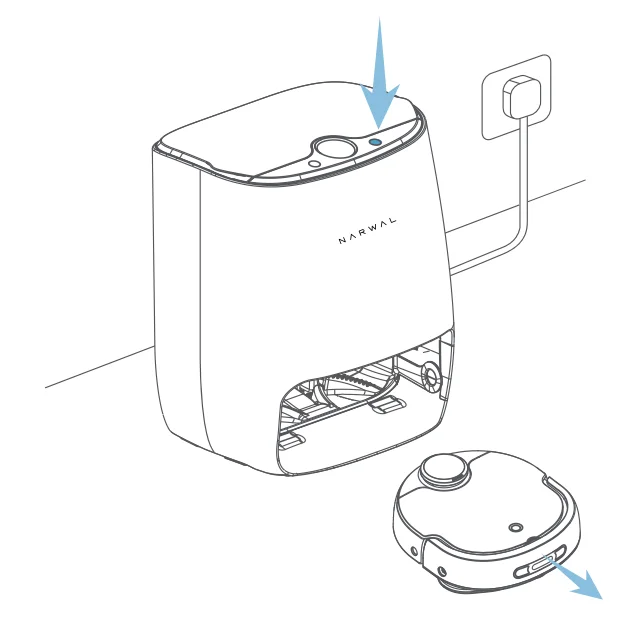
- Short press the left button of the base station to recall the robot.

- Short press the Start button on the right of the base station to start mopping.

- Prior to executing a mopping task, a mop cleaning task will be executed. Please wait for the cleaning task completion.

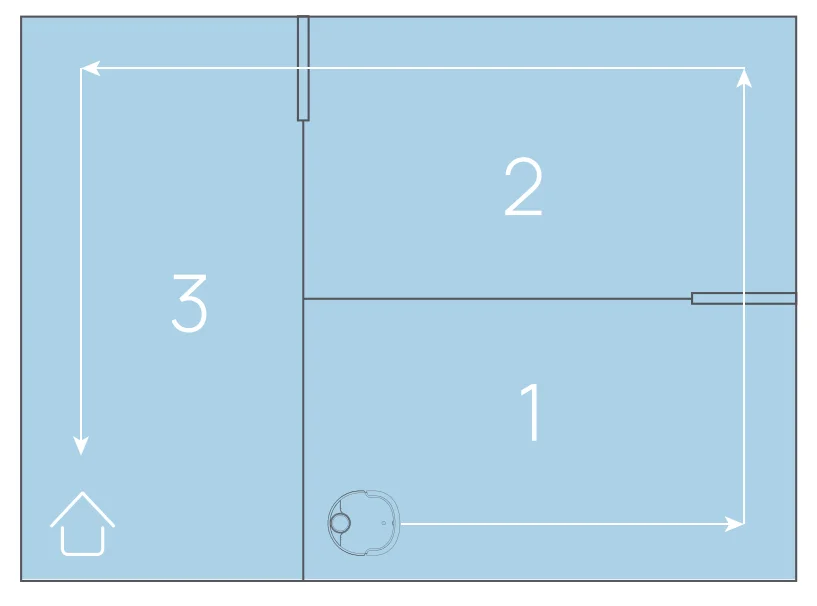
- The robot will plan an optimal cleaning sequence according to the map created and start by default from the room that is farthest from the base station.

- During the mopping process, the robot will automatically return to the base station to get the mop cleaned.

- Please do not move the base station, water tanks, or cleaning board during the mopping process.

- When clean water is used up or the wastewater tank is full during the mopping process, the robot will give a voice prompt to check the clean water tank or the wastewater tank.

- After completing a mopping task, the robot will return to the base station to get the mop cleaned and air-dried automatically.

- Upon mopping completion. Please clean the wastewater tank in time to prevent the wastewater from deteriorating and stinking.
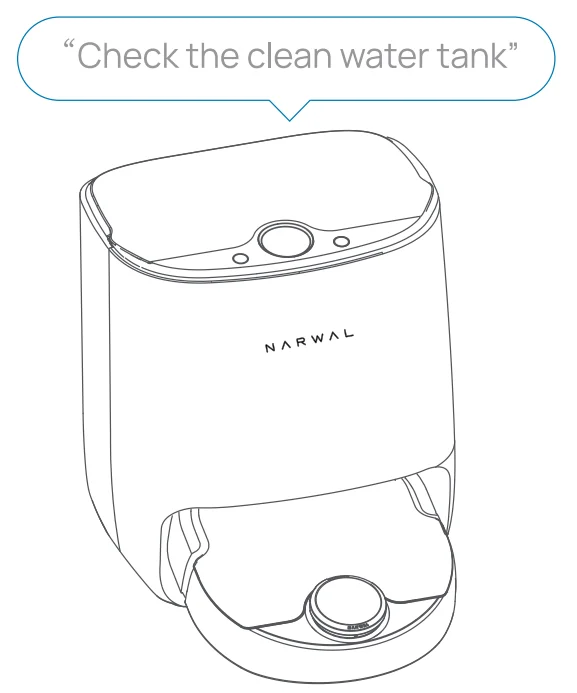
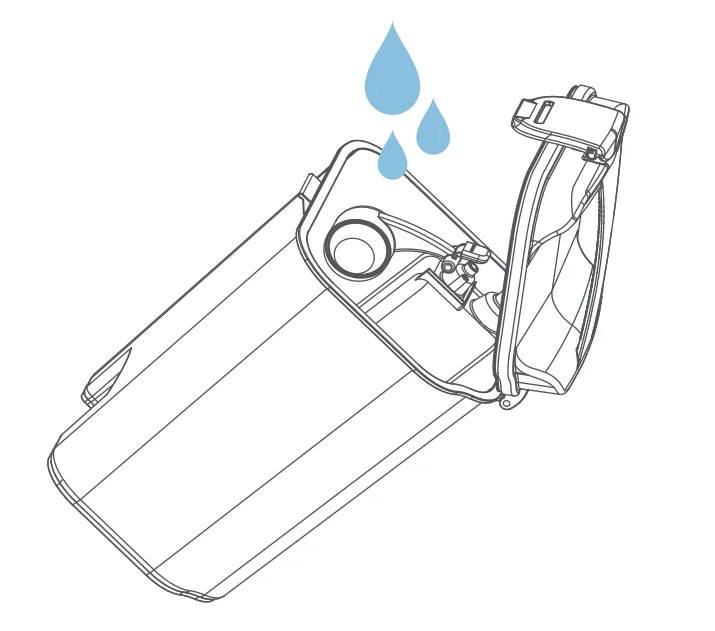
Other precautions
- lf there is no task, and the robot has stood by for 5 minutes, it will go into the low power mode.
- The robot will automatically end the current task and go into the low power mode if the idle time is over 2 hours after the robot task is temporarily suspended or there is an error prompt. or the power of the robot is lower than 10%.
- The robot will return to the base station to charge after it finishes a task or if the battery level drops below 20%. After being fully charged, the robot will resume an interrupted task automatically.
Cleaning path
The vacuuming mode and mopping mode differ in room cleaning sequences but they share the same logic. Specifically, in both modes. The robot cleans along the walls first, and then zigzags to cover the entire room space. (By default, mopping starts from the room that is farthest from the base station, while vacuuming starts from the room that is nearest to the base station.
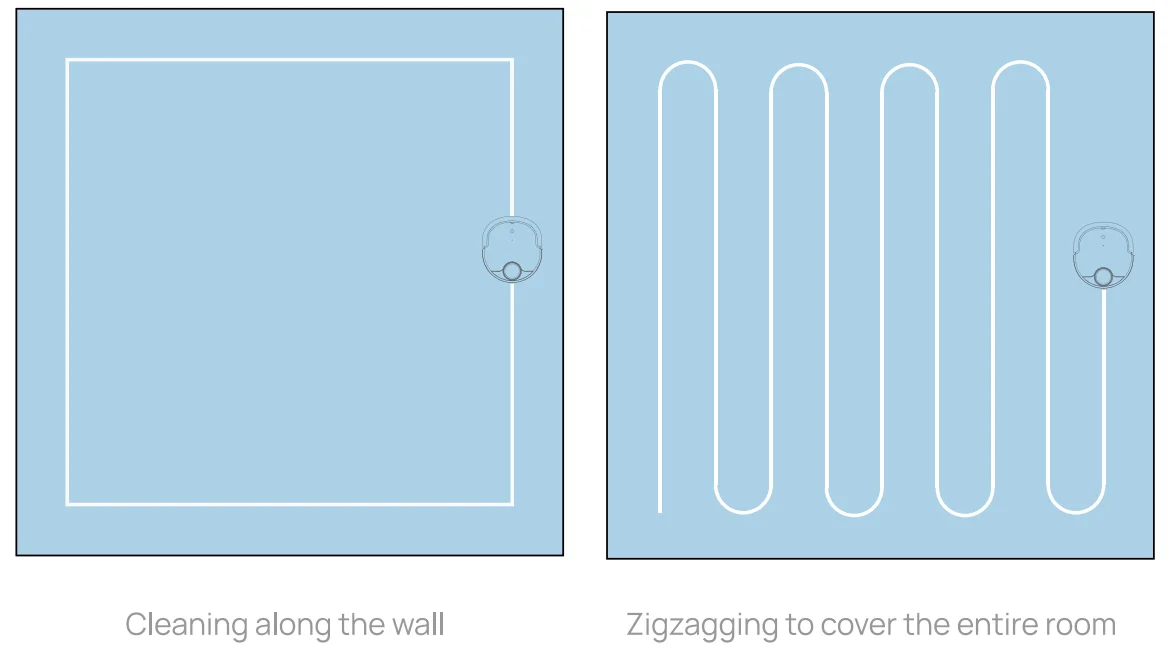
CLEANING AND MAINTENANCE
Maintenance cycle
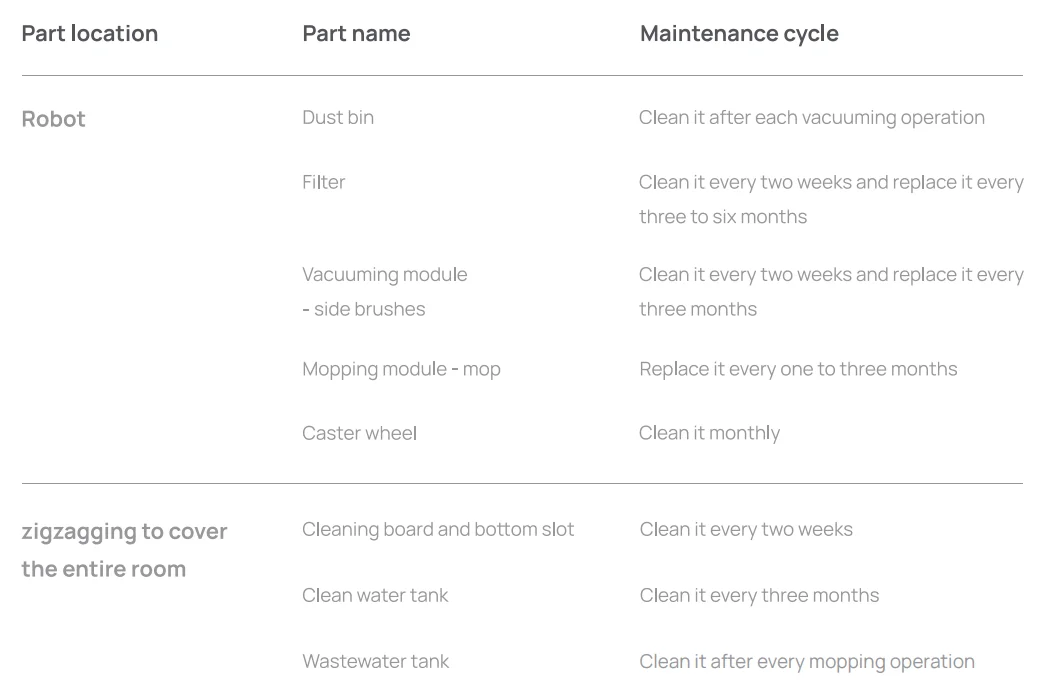
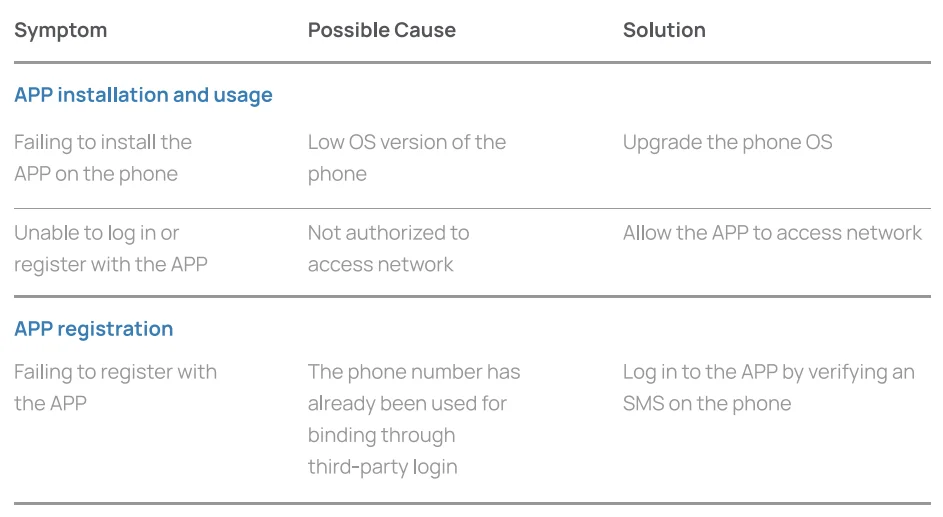
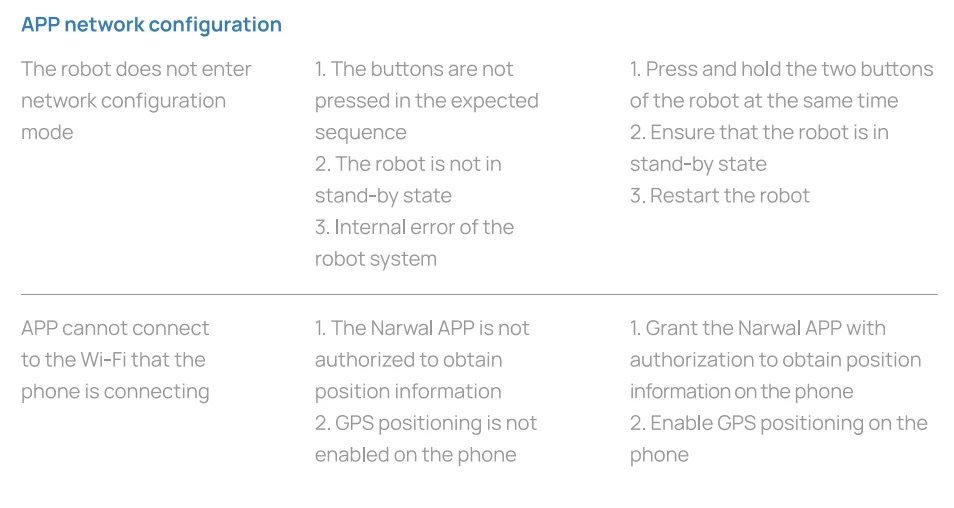
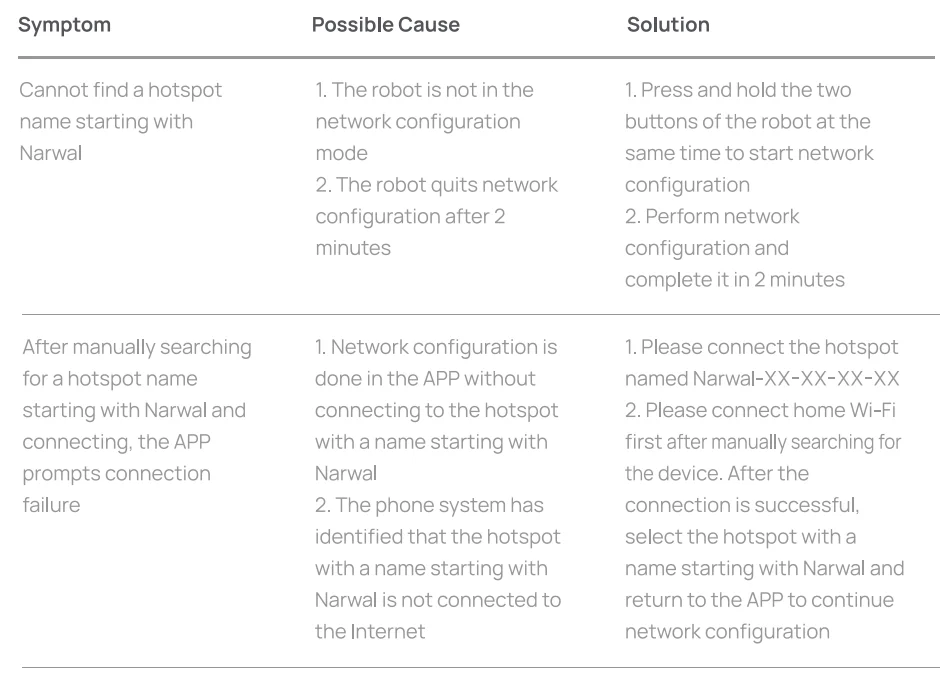
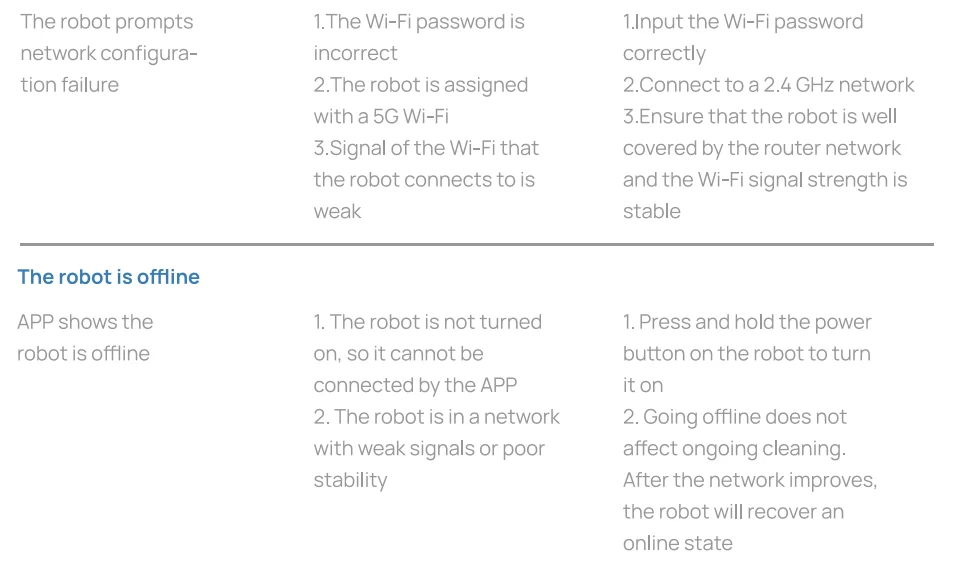
Faults and Troubleshooting
- For faults that cannot be resolved by following the instructions in the preceding table, contact Narwal Intelligence customer service for more help.
- This type of robot works only with the accompanying base station. Do not use other Narwal robots, or third-party robots or base stations.
- Please follow this manual to use this product. Any loss caused by improper use shall be undertaken by the user.
Other Problems
Q: After the network has been configured for my robot, can I control it with several phones?
A: Yes. The robot can be shared. After successful network configuration, the main user can click on Family Member Settings on the setting page of the Narwal APP, and send an invitation to the user account to be shared, hence allowing the robot to be controlled by several phones.
Q: If there are stairs in my home, what precautions should I take for the robot to work properly?
A: The floor sensor of the robot can automatically identify a level difference of more than 10 cm. If the level difference in the scene is smaller than that, the robot will move to a lower location and cannot go back if the stair is higher than 1.5 cm. To prevent the robot from falling, you may attach a magnetic strip along the edge of the place with a level difference, or set this area as an off-limit area on the APP.
For more manuals by Narwal, visit ManualsLibraryy
Narwal T10 Robot Mop & Vacuum-FAQs
How do you use the Narwal T10 for mopping?
To mop with the Narwal T10, fill the clean water tank and ensure the mopping pads are properly attached. Start a cleaning session through the app or button. The robot automatically scrubs floors using rotating pads, then returns to the base station to wash and dry them for continuous cleaning.
How can I reset the Narwal T10 robot vacuum?
To reset the Narwal T10, press and hold the reset button (usually near the top or inside the cover) for several seconds until you hear a voice prompt. This restores factory settings, clearing Wi-Fi and saved maps, which helps fix connection or performance issues.
Why is the Narwal T10 brush not spinning?
If the brush isn’t spinning, it’s often due to tangled hair, debris, or blockage. Turn off the device, remove the brush, and clean it thoroughly. Also, check for damage or obstructions around the brush motor, as these can prevent proper rotation.
How do I connect the Narwal T10 to Wi-Fi?
Download the Narwal app and power on the robot. Follow in-app instructions to add a new device, then enter your Wi-Fi credentials. Make sure your phone and robot are on the same network. Proper connection allows remote control, scheduling, and map management.
Why is my Narwal T10 not picking up dirt properly?
Poor suction is usually caused by a full dustbin, clogged filter, or tangled brushes. Empty the bin, clean or replace the filter, and remove debris from brushes. Regular maintenance ensures strong suction and consistent cleaning performance across different floor types.
How do you charge the Narwal T10?
The Narwal T10 charges automatically when docked at its base station. Ensure the charging contacts are clean and aligned correctly. Once docked, the robot begins charging without manual input, keeping it ready for scheduled or on-demand cleaning sessions.
How often should I mop floors using the Narwal T10?
For most homes, mopping once or twice a week is sufficient. High-traffic areas may need more frequent cleaning. Regular mopping helps maintain hygiene and prevents dirt buildup, while the Narwal T10’s automated system ensures consistent and efficient results.
What should I do if the Narwal T10 won’t connect to Wi-Fi?
If the robot fails to connect, check your network settings and ensure a stable signal. Restart your router, reset the robot, and try reconnecting through the app. Also, confirm you are using a compatible Wi-Fi band for smooth connectivity.
How long does a Narwal T10 typically last?
With proper care, the Narwal T10 can last around 5 to 8 years. Regular cleaning of filters, brushes, and sensors helps extend its lifespan. Replacing worn parts when needed ensures the robot continues to perform efficiently over time.
What is the correct way to clean floors with a robot mop?
Before mopping, remove loose dirt by sweeping or vacuuming. Use minimal water to avoid over-wetting floors. The Narwal T10 automates this process by controlling water usage and scrubbing efficiently, leaving floors clean without excessive moisture or residue.