
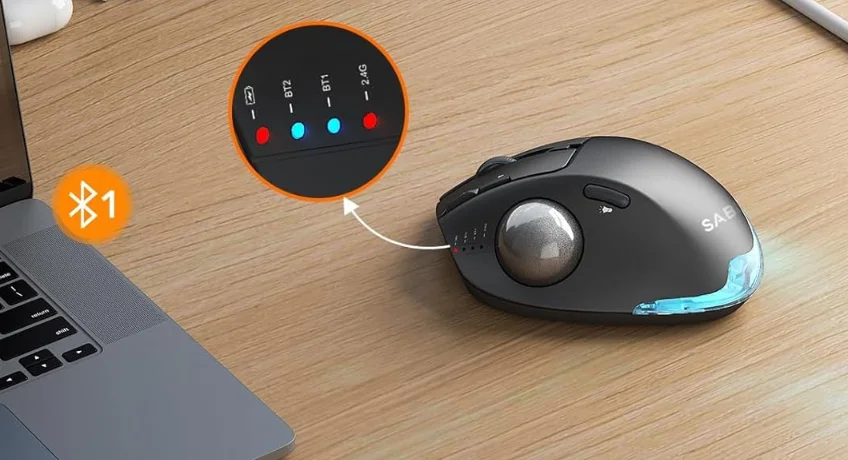

Sablute MAM1 Pro Wireless Trackball Mouse
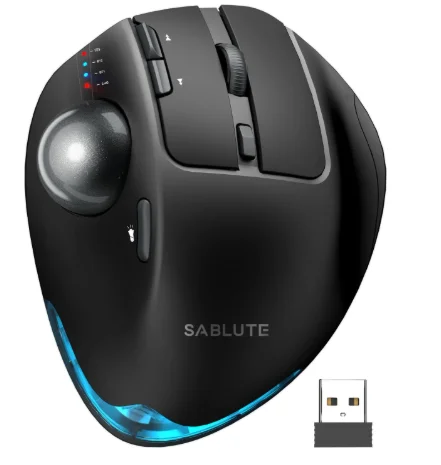
Package Contents (attachment)
- Mouse x1,
- Receiver x1,
- Instructions x1,
- Charging cable x1,
- Package x1.
Compatibility
With Receiver:
- Windows® 11 or later / Windows® 10 / Windows® 8, Windows® 7
- macOS 10.10 or later
- Chrome OS™
- Linux Kernel 2.6
Bluetooth® low energy technology:
- Windows® 11 or later / Windows® 10 / Windows® 8
- macOS 10.10 or later
- Chrome OS™
- Android™ 5.0 or later
Product Structure Diagram
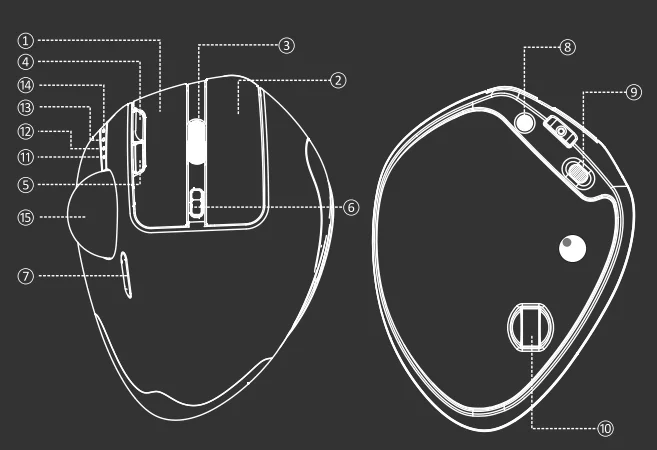
Notes on the functions of components
- Left button
- Right button
- Scroll wheel
- Forward button
- Back button
- Adjust DPI mode
- Switch light mode
- Bluetooth
- Power on/off
- Receiver
- 2.4GHz indicator
- Bluetooth “1” indicator
- Bluetooth “2” indicator
- Battery status indicator
- Trackball
Specifications
- Number of buttons: 8
- Tracking system: optical
- Frequency: 2402.85MHz – 2480.85MHz
- Effective range: >10m
- Operating voltage / current: 3.7V = 15mA
- Button lifespan: 3 million clicks
- Scroll wheel lifespan: 1.2 million rotations
- Product size: 0° 136*102*52mm, 18° 136*100*56mm
- Product weight: 270 ± 5g
- Resolution: 800 – 1200 – 1600 – 2400 – 4800DPI
- 2.4GHz polling rate: 125 – 500Hz
- Bluetooth polling rate: 90 – 133Hz
Bluetooth Mode
A. Pair Your First Device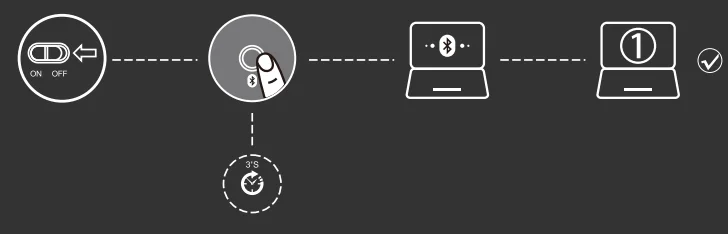
- Turn on the power switch.
- Press and hold the Bluetooth button for 3 seconds or more. The blue light flashes rapidly, and the mouse will enter Discoverable mode for 2 minutes.
- Complete Bluetooth pairing on your device:
Windows 7 and 8:
- Click Start, then select Control Panel > Add Devices.
- Select BT 3.0 Mouse or BT 5.0 Mouse in the list, then click Next.
Windows 10:
- Click Start, then select Settings > Device > Bluetooth.
- Select BT 3.0 Mouse or BT 5.0 Mouse in the list, then click Pair.
B. Pair Your Second Device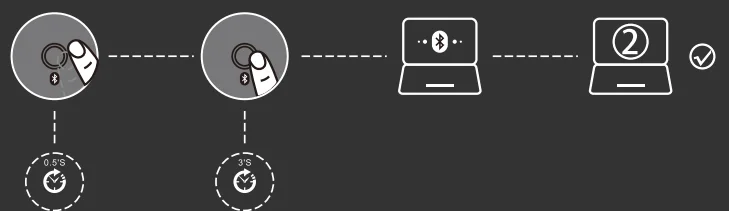
- Short-press the Bluetooth button to switch channels.
- Follow Steps 2 and 3 in “Pair Your First Device” to complete pairing.
- Switch between devices. Press the Bluetooth button to switch between up to 3 paired devices (up to 2 devices via Bluetooth and 1 device via the 2.4 GHz receiver).
- Charging Prompt: The battery status indicator is always on during charging, and off when the battery is fully charged.
- Low Battery Prompt: When you use the mouse, the 2.4GHz or Bluetooth indicator will flash quickly every other second.
- DPI Prompt: When the DPI button is pressed, the 2.4GHz indicator or the Bluetooth indicator will flash to indicate DPI levels: once for DPI level 1, twice for DPI level 2, and so forth.
What If the Mouse Does Not Respond?
- Please charge the mouse with the USB cable.
- Please try to replace the receiver with a USB interface.
- Make sure the power switch on the bottom of the mouse is
 or at the correct position.
 - Try to restart the computer.
- If it is still unsuccessful, please email to: [email protected].
 or at the correct position.
The device conforms to Part 15 of the FCC Rules. Operation is subject to the following two conditions:
- The device may not cause harmful interference, and
- The device must accept any interference received, including interference that may cause undesired operation.
Declaration of Conformity
The product conforms to EC standards for radio interference. MA M1 Pro radio equipment conforms to Directive 2014/53/EU. Maximum Output Power: 0dBm. Frequency Range: 2.4 GHz band (2402.85MHz-2480.85MHz).
FCC Statement
- This device complies with Part 15 of the FCC Rules. Operation is subject to the following two conditions:
- The device may not cause harmful interference.
- The device must accept any interference received, including interference that may cause undesired operation.
- Changes or modifications to this unit not expressly approved by the party responsible for compliance could void the user’s authority to operate the equipment.
Note: This equipment has been tested and found to comply with the limits for a Class B digital device, pursuant to Part 15 of the FCC Rules. These limits are designed to provide reasonable protection against harmful interference in a residential installation. This equipment generates, uses, and can radiate radio frequency energy and, if not installed and used in accordance with the instructions, may cause harmful interference to radio communications.
However, there is no guarantee that interference will not occur in a particular installation. If this equipment does cause harmful interference to radio or television reception, which can be determined by turning the equipment off and on, the user is encouraged to try to correct the interference by one or more of the following measures:
- Reorient or relocate the receiving antenna.
- Increase the distance between the equipment and the receiver.
- Plug the equipment into a socket on a circuit different from that to which the receiver is connected.
- Consult your distributor or an experienced radio/TV technician for help.
The symbol means the product should not be disposed of with household waste but should be brought to an appropriate collection point to enable recycling. According to local regulations, do not dispose of the product or rechargeable battery with normal household waste. Appropriate disposal of used products and rechargeable batteries helps to prevent negative impacts on the environment and human health.
Trackball Maintenance
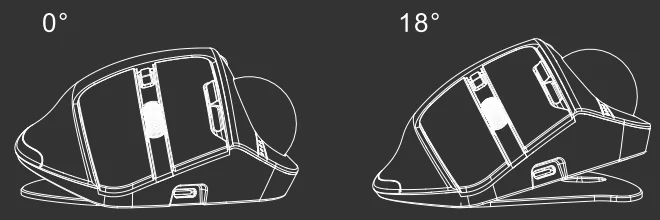
- The adjustable hinge enables you to choose a 0° or 18° angle.
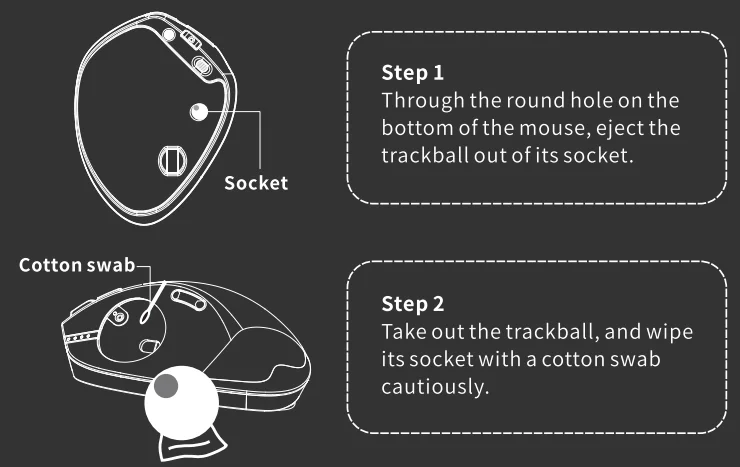
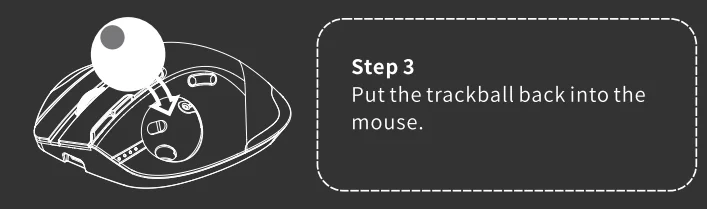
- The trackball can be removed and cleaned to move more smoothly.


Driver Download
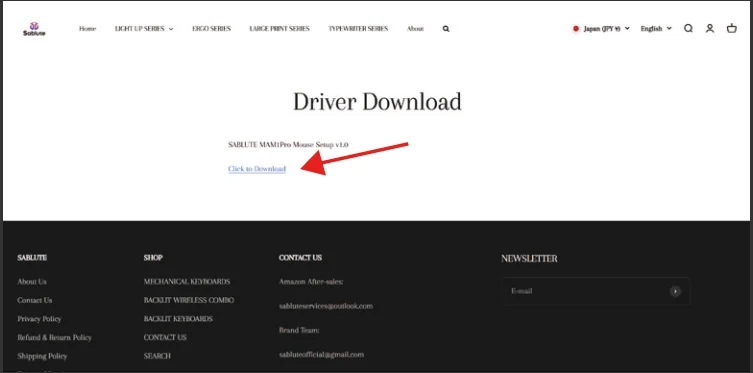
- Please enter the driver URL: https://sablute.com/pages/driver.
- Enter the corresponding website and go to the download page.

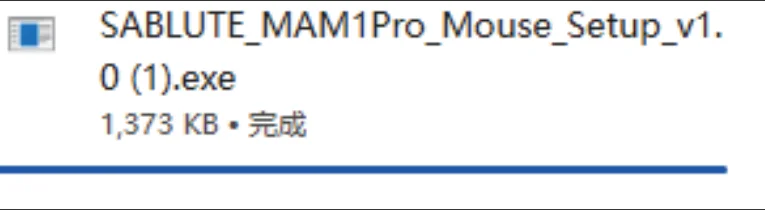
- Click the download link to start automatic downloading.

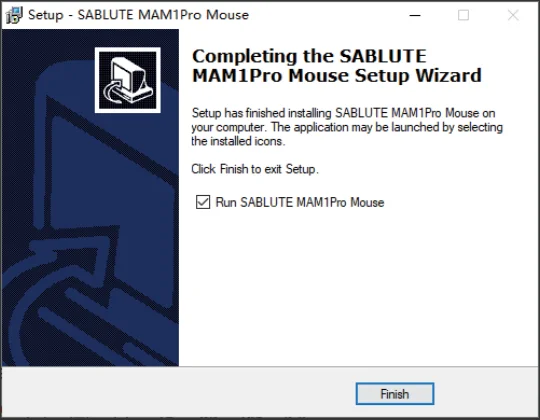
- Perform the installation steps.

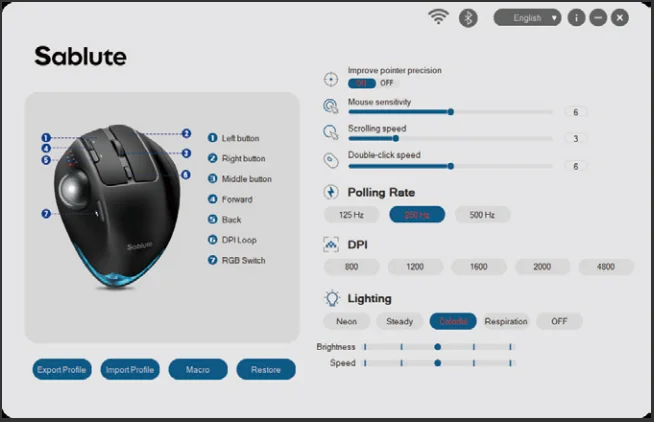
- Once the installation is complete, you can debug the device.

Customer Service
Buy on SABLUTE, you will get:
 30-Day Money-Back Guarantee
- 90-Day Free Replacement
- Hassle-Free Warranty Without Returning
- Lifetime Customer Support
 30-Day Money-Back Guarantee
Contact Us
For FAQs and more information, please visit: sablute.com/pages/contact, [email protected].
For More Manuals By Sablute, Visit ManualsLibraryy.
Sablute MAM1 Pro Wireless Trackball Mouse-FAQs
What is the Sablute MAM1 Pro Wireless Trackball Mouse, and how does it work?
The Sablute MAM1 Pro is an ergonomic wireless trackball mouse that uses a thumb-operated ball to control the cursor instead of moving the entire mouse. This design reduces wrist and arm movement, making it ideal for small desks and long hours of computer use.
What are the key features of the Sablute MAM1 Pro trackball mouse?
The MAM1 Pro includes adjustable DPI levels, multi-device connectivity, and a rechargeable battery. It also features an adjustable tilt angle and quiet-click buttons, offering both precision and comfort while working, browsing, or multitasking across different devices.
Is the Sablute MAM1 Pro comfortable for long working sessions?
Yes, the ergonomic design with adjustable 0° and 18° tilt angles helps align your wrist naturally, reducing strain during extended use. Combined with thumb-based control, it minimizes repetitive movements and enhances overall comfort for daily productivity tasks.
How many devices can the Sablute MAM1 Pro connect to?
The MAM1 Pro supports connection to up to three devices simultaneously using Bluetooth and a USB receiver. Users can switch between devices with a single button, making it highly convenient for multitasking across laptops, desktops, or tablets.
What DPI settings are available on the Sablute MAM1 Pro?
The mouse offers five adjustable DPI levels, typically ranging from 800 to 4800 DPI. This allows users to customize cursor speed and precision based on their tasks, whether for detailed editing work or faster navigation across larger screens.
Does the Sablute MAM1 Pro have a rechargeable battery?
Yes, the MAM1 Pro comes with a built-in rechargeable battery, eliminating the need for disposable batteries. This feature ensures long-lasting usage and makes it more convenient for daily work, especially for users who prefer eco-friendly and cost-effective solutions.
Is the Sablute MAM1 Pro suitable for small desk setups?
The trackball design makes it ideal for compact workspaces since the mouse does not need to be moved around. Users can control the cursor entirely with their thumb, making it perfect for tight desks, cluttered setups, or limited working areas.
Is there a learning curve when switching to the MAM1 Pro?
Yes, users transitioning from a traditional mouse may need some time to adjust to thumb-based control. However, most people adapt within a few days and find the trackball design more efficient and comfortable once they get used to it.
Does the Sablute MAM1 Pro produce loud clicking sounds?
No, the mouse is designed with quiet-click technology that significantly reduces noise. This makes it suitable for offices, shared environments, and late-night work sessions where maintaining a quiet atmosphere is important.
Is the Sablute MAM1 Pro good for gaming or professional use?
The MAM1 Pro is primarily designed for productivity and comfort rather than gaming. While it can handle casual gaming, its ergonomic trackball design and precision controls are better suited for office work, creative tasks, and long-duration computer use.