
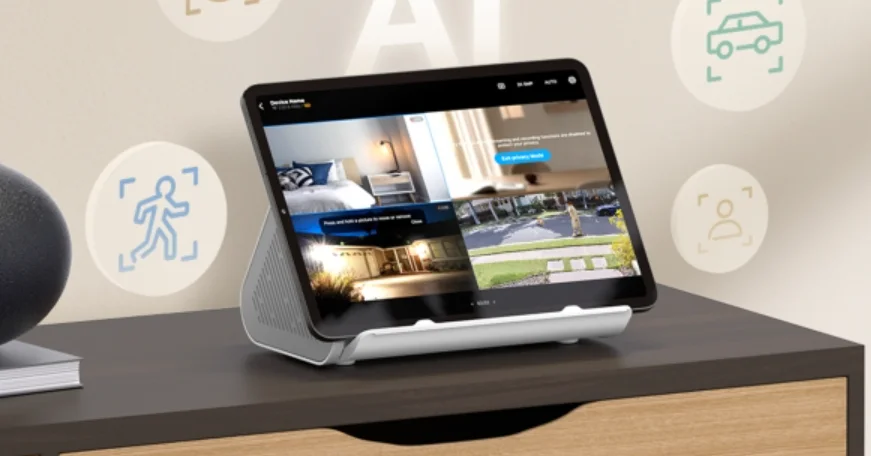

Tapo H500 CentralHub
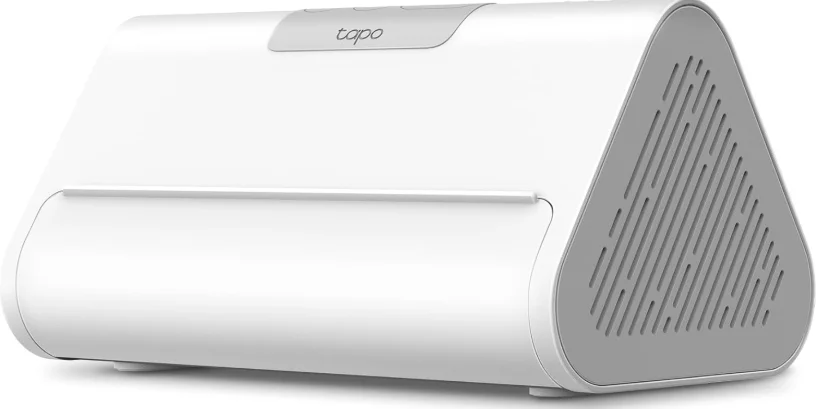
About This Guide
This guide provides a brief introduction to the Smart HomeBase and the Tapo app, as well as regulatory information. Please note that features available in Tapo may vary by model and software version. Tapo availability may also vary by region. All images, steps, and descriptions in this guide are only examples and may not reflect your actual Tapo Camera experience.
Conventions
In this guide, the following convention is used:
More Info
- Specifications can be found on the product page at https://www.tapo.com.
- Our Technical Support and troubleshooting information can be found at https://www.tapo.com/support/.
- Setup video can be found at https://www.tp-link.com/support/setup-video/#smart-hub.
Introduction
Smart living starts here with up to 64 smart sensors + 16 cameras or video doorbells connected to your smart home ecosystem.
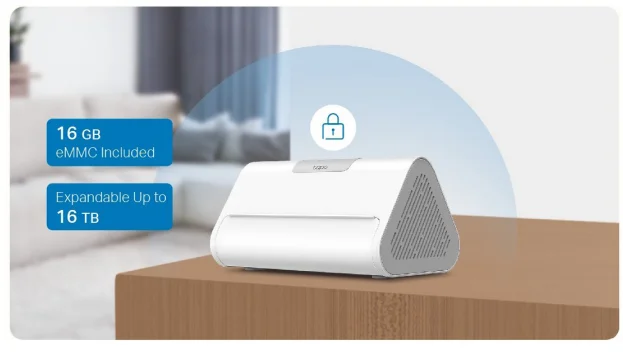
- Local Storage – With 16GB of built-in storage, expandable up to 16TB via an additional hard drive, you can store massive video clips locally. Save money by avoiding extra SD cards and monthly fees for your security cameras.

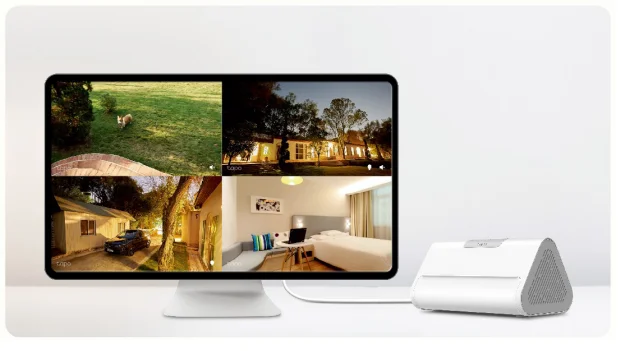
- 4-Channel Live View – Watch live views and playback on your phone or pad, or monitor up to 4 channels in real time on a large screen via the HDMI port.
- Enhanced Smart AI Detection – Provides multiple free enhanced AI functions such as facial recognition, person & pet & vehicle detection, and more. Effectively filters invalid alerts from non-human and non-vehicle sources.
- Multi-layer Encryption – Use multi-layer encryption technology like AES 128-bit and TLS 1.2 encryption protocols, and store videos locally to keep your privacy safe.
- Home Security at Ease – Real-time viewing, event playback, and daily summary viewing of all connected cameras on an app page. Quickly find the events you want by tag.
- Facial Recognition – Identifies strangers, family, and friends, categorizing them to trigger alarms selectively, enhancing accuracy and minimizing false alarms.
- AI Empowerment – Empower your compatible cameras and doorbells with enhanced AI capability like facial recognition, providing a higher level of security and an elevated user experience.
- Offline Recording – Enjoy secure offline storage for all recordings, ensuring your data remains intact even during network interruptions.
- USB Sharing – Share recorded videos with other devices on your network.

Appearance
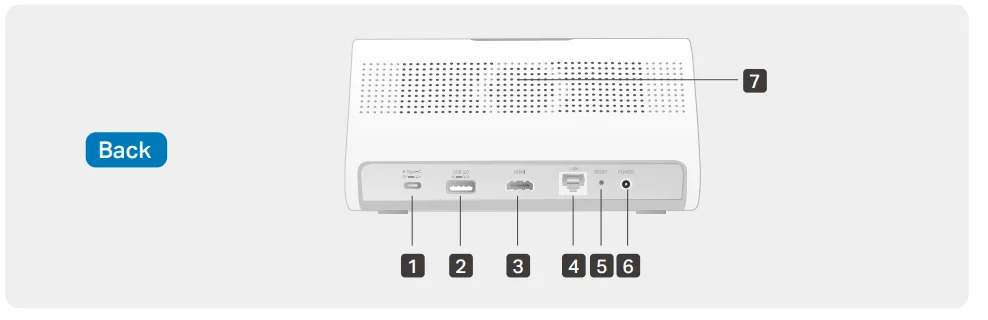
- Type-C Port
- 5V/1.5A Type-C port for charging your devices (e.g., battery-powered cameras). This port cannot transfer any data.
- USB 2.0 Ports
- 5V/0.5A USB port for exporting data to another device.
- HDMI Port
- Output port for high-definition audio and video signals. You can connect it to a TV or monitor to project camera videos.
- LAN Port
- Connect to a router or a switch using an Ethernet cable.
- RESET
- Press and hold for 10 seconds to restore factory default settings.
- 12V/2A Power Port
- Speaker

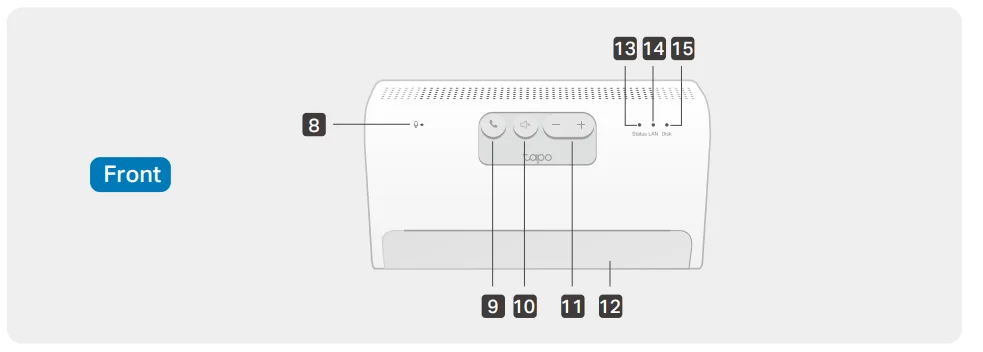
- Microphone
- Answer/SYNC Button
- Press once: Answer the video call.
- Press and hold for 3 seconds: Enter pairing mode.
- 10 Decline/Mute Button
- Decline the video call, or silence the alarm.
- Volume Button
- Volume up or down.
- 9+11
- Switch to the previous or next channel when using HDMI output.
- Pad Holder
- Easily place your pad here.
- Status LED
- LAN LED
- Disk LED

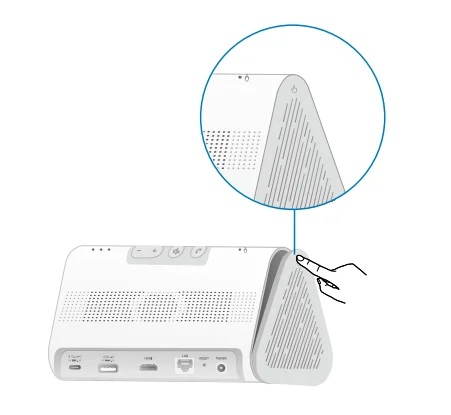
Install Hard Drive
Install an extra HDD/SSD drive (2.5“) to expand local storage.
Note:
- Back up all the data on your hard drive before installation, as Tapo may need to format your hard drive.
- The HomeBase must be powered off when you install or remove a hard drive.
- Push down the cover to remove it. The sign shows the place where you should press.

- Loosen the screw and pull out the hard drive bracket.

- Put it in your hard drive and secure it with the provided screws.

- Insert the bracket back into the HomeBase. Secure it with the screw. Then replace the cover.

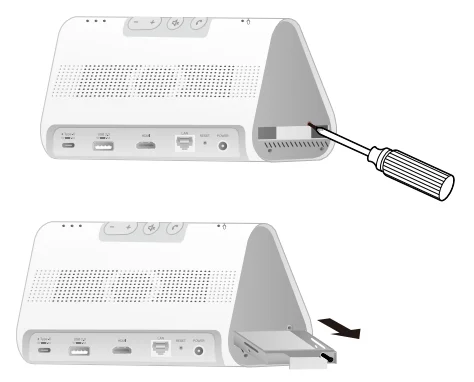
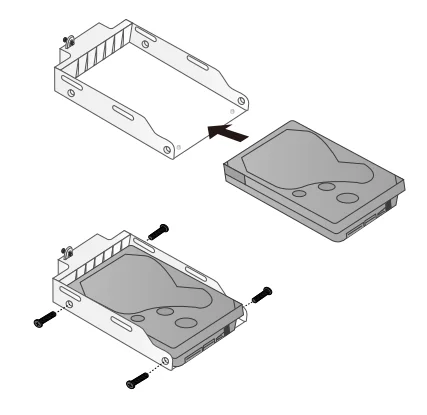
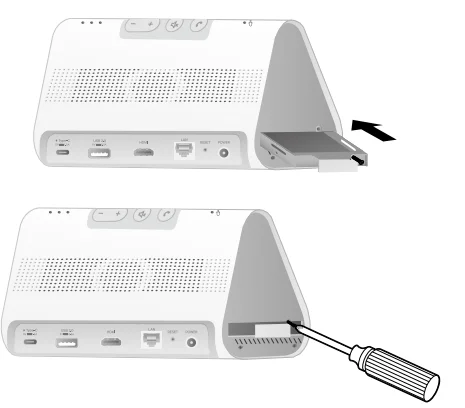
Note: Initialize the hard drive in the Tapo app.
Set Up Your HomeBase
Follow the steps below to set up your HomeBase.
Step 1. Download Tapo App
Get the Tapo app from the App Store or Google Play, or by scanning the QR code below.
Step 2. Log In
Open the app, and log in with your TP-Link ID. If you don’t have an account, create one first.
Step 3. Add Your HomeBase
Tap the button in the app, select Hubs/HomeBase, and then your model. Follow the app instructions to set up your HomeBase and add accessories to it.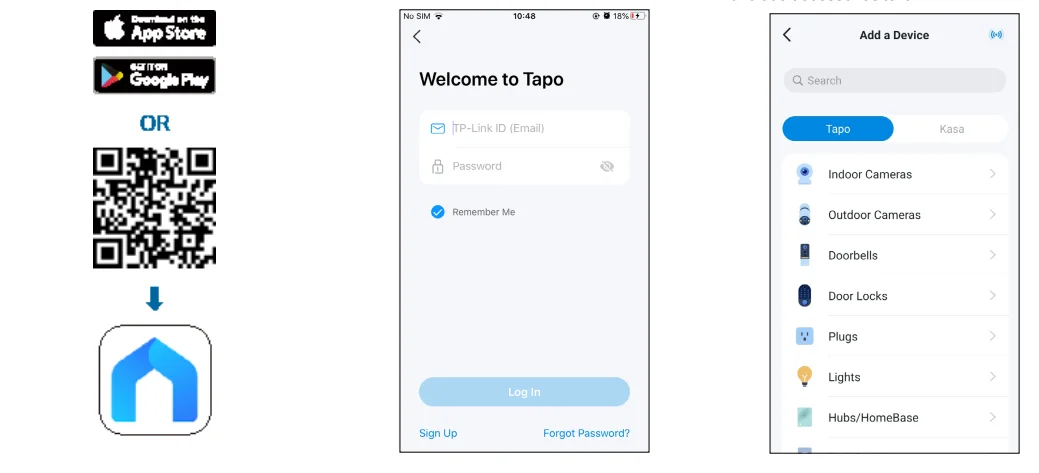
Use Your HomeBase
After setup, your device will be listed on the Home page. You can tap your device to manage it.
1. Home Page
You can check your battery, favorite/unfavorite, and remove your device on the Home page.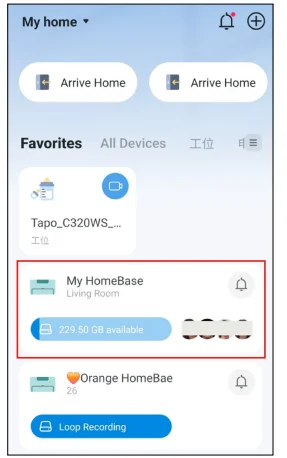
2. Status Page
Check/manage connected devices, check the facial recognition report, have access to the storage, AI Empowerment, USB access, screen mirror, camera playback, and ring log. You can also play the ringtone on this page.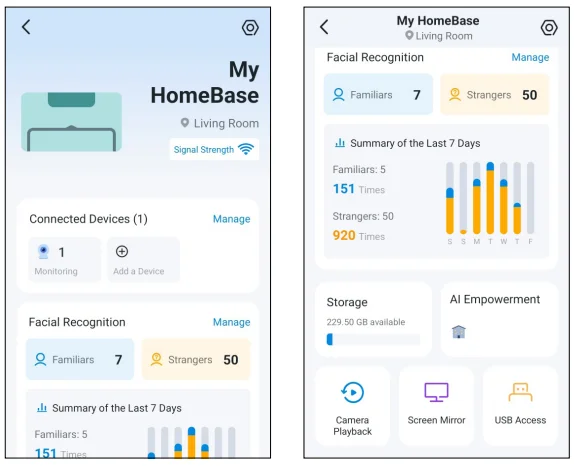
Check/Manage Connected Devices
Check/manage what devices are connected to your HomeBase.
1. Check Connected Devices
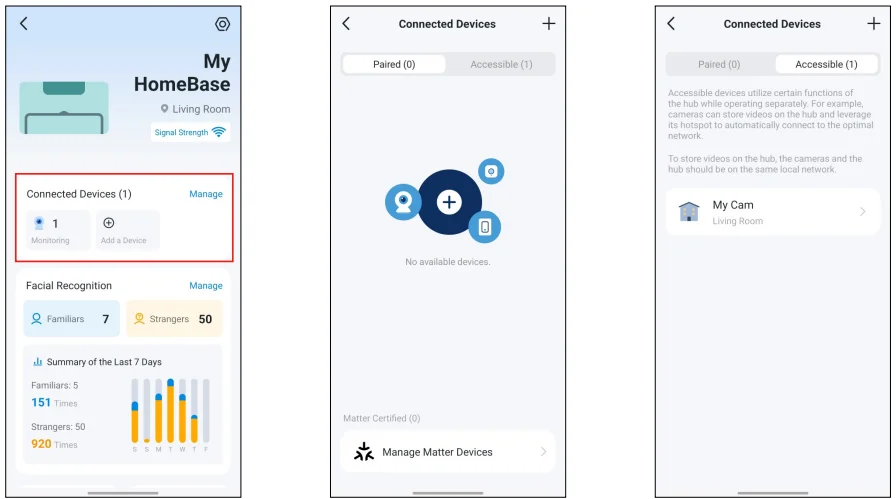
- Tap the Connected Devices card. The connected devices are categorized into two types: paired devices and accessible devices.
- Paired Devices: Sub-G devices like sensors and cameras/doorbells that need to be bridged through the HomeBase to connect to the Wi-Fi network.
- Accessible Devices: Cameras/doorbells that only utilize the storage or the hotspot of your HomeBase. They can be AI empowered by the HomeBase to enhance their AI capabilities.

2. Add Connected Devices
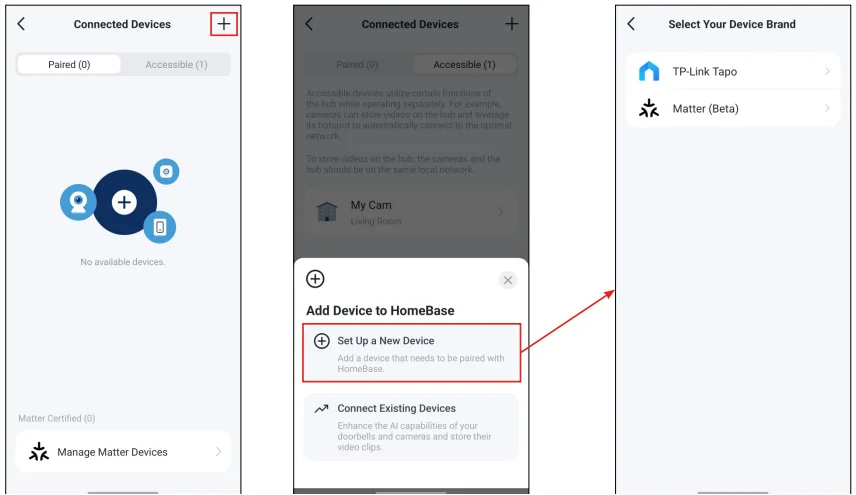
- Tap the + icon. Choose what devices you want to add to the HomeBase.
- Set Up a New Device: Set up a new Tapo or third-party Matter device.
- Connect Existing Devices: Bind your existing camera/doorbell to the HomeBase for the HomeBase storage and AI Empowerment.

3. Manage Matter Devices
Tap Manage Matter Devices at the bottom. You can manage your third-party Matter devices that have been added to Tapo.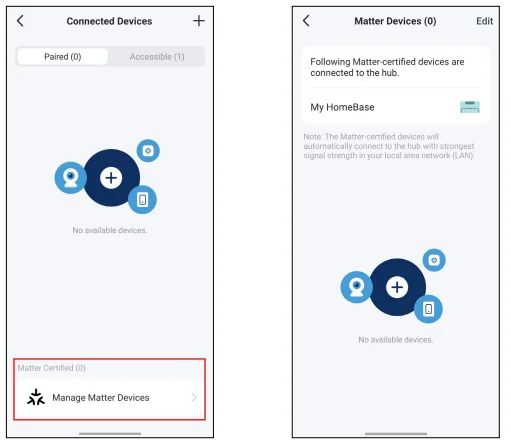
Facial Recognition
The HomeBase can recognize faces captured by the connected cameras and track their activities.
1. Manage Familiars and Strangers
Tap the Facial Recognition card. You can add or delete familiars, delete strangers in batches, and check their activities.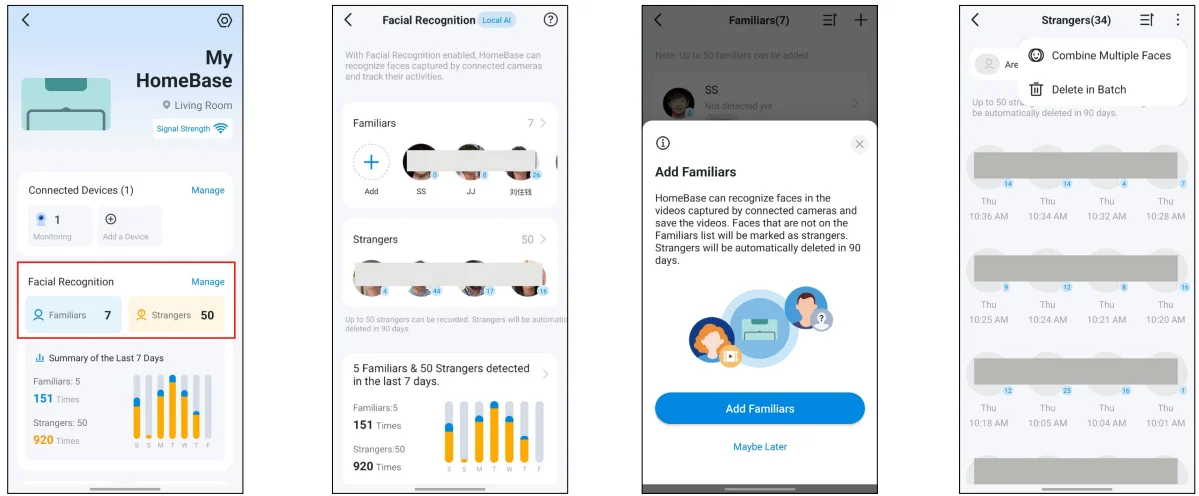
2. Check Facial Recognition Report
You can check the daily/weekly/monthly activities detected of the familiars and strangers. You can set whether to receive the facial recognition report notifications and the notification frequency.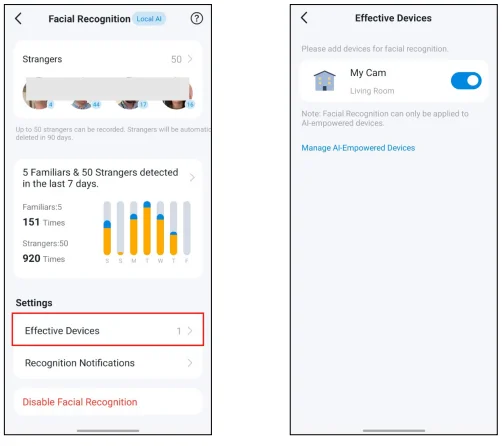
3. Check Devices with Facial Recognition Enabled
Tap Effective Devices, and then you can see the cameras/doorbells with Facial Recognition enabled. These devices are AI-enabled to support Facial Recognition.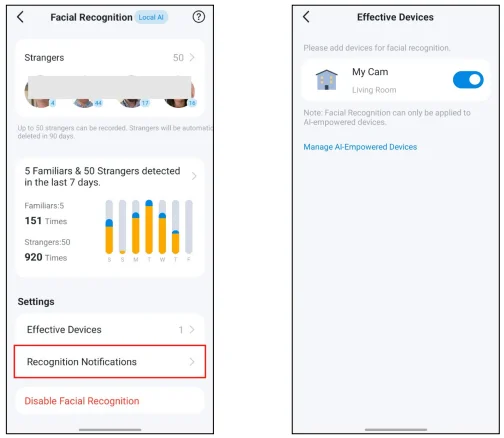
4. Facial Recognition Notifications Settings
Tap Recognition Notifications, and then you can see the cameras/doorbells with Facial Recognition enabled. These devices are AI-enabled to support Facial Recognition.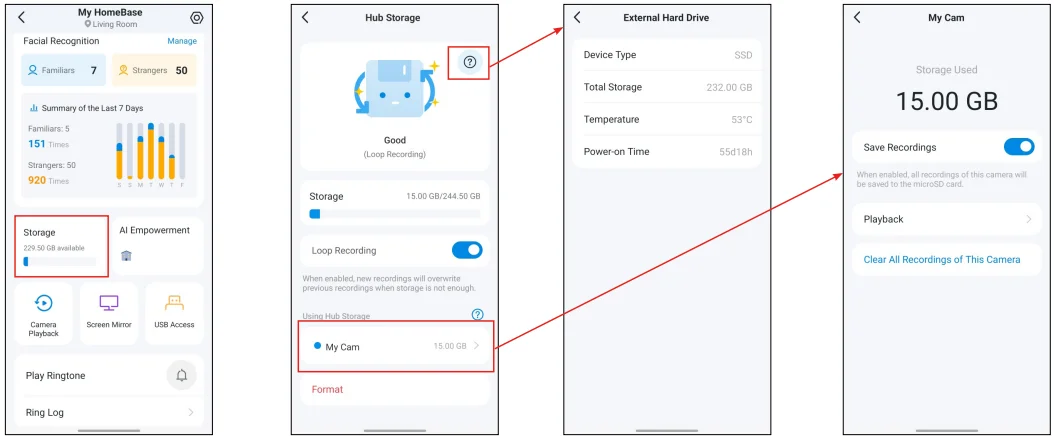
Storage Settings
The connected cameras/doorbells can leverage the HomeBase’s storage to store recorded videos.
Manage HomeBase Storage
Tap the Storage card. Check how much storage space is used, information about the hard drive, and what devices are using HomeBase’s storage. You can also enable Loop Recording to let new recordings overwrite previous recordings.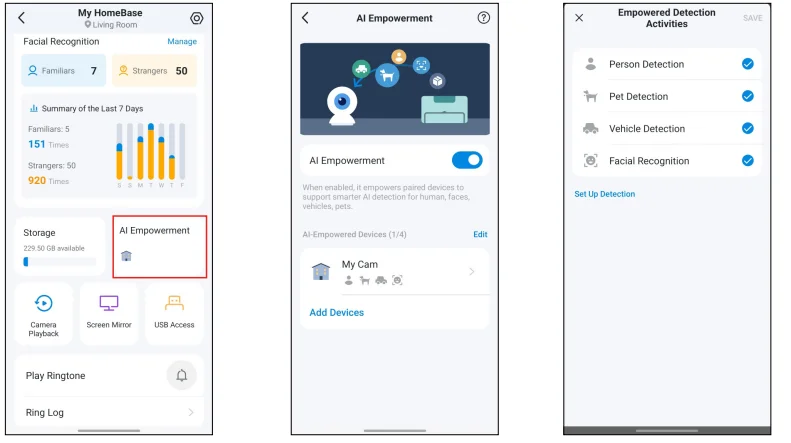
AI Empowerment
Enhance the AI capabilities of the connected cameras/doorbells with AI Empowerment.
Enhance Your Cameras/Doorbells
Tap Add Devices and select the cameras/doorbells to be enhanced. Tap your AI-empowered devices to select the empowered detection types.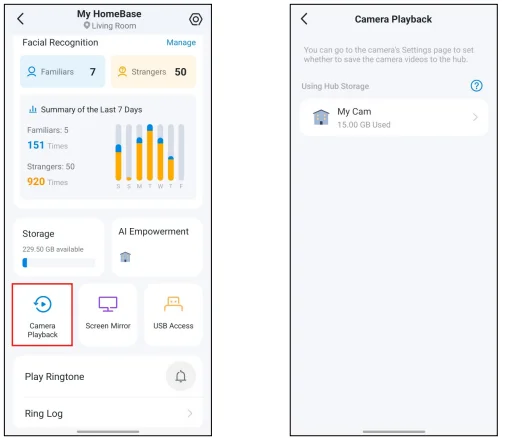
Camera Playback
Play back videos recorded by the connected cameras.
Check Camera Playback
Select your cameras and playback the recordings.
Screen Mirror
Cast your cameras to a TV or monitor and create dashboards for easier management.
Explore Screen Mirroring Capabilities
Cast your cameras to a TV or monitor for streamlined management via dashboards.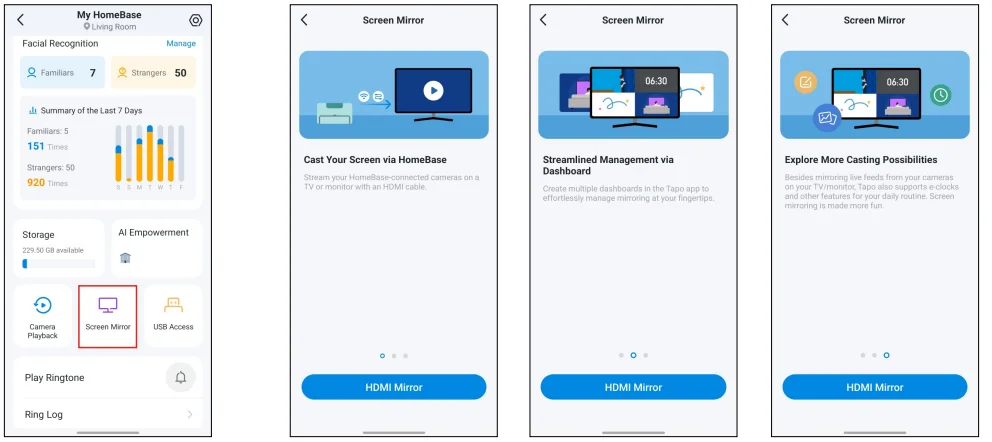
Start HDMI Screen Mirroring
Use an HDMI cable to connect your HomeBase to your streaming device, like a TV or monitor. Make sure you have selected the HDMI input on your streaming device. Then tap HDMI Mirror and follow the app instructions to start mirroring your cameras.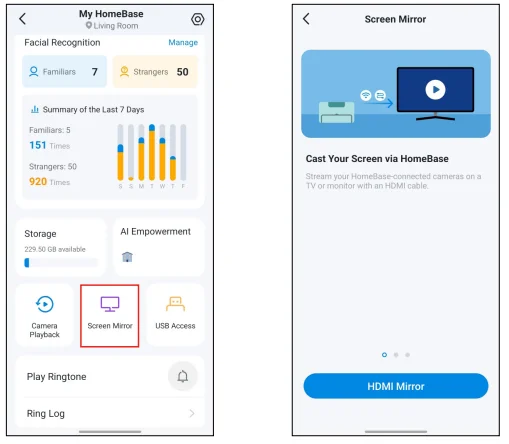
USB Access
Connect a USB device to back up or share the recorded videos.
Back Up & Share Videos
Tap Start a New Backup. Select your camera to be backed up, and what types of videos within what time range will be backed up. Tap Share Now to share videos from a USB device with others on the internet.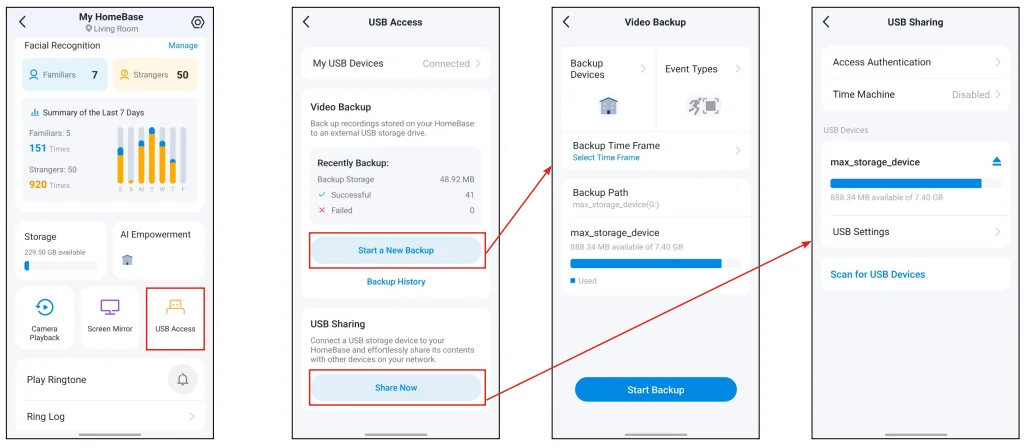
Manage Device Settings
Go to the Device Settings page and configure the settings as you need.
1. Set Ringtones
Set the ringtone and its playing duration.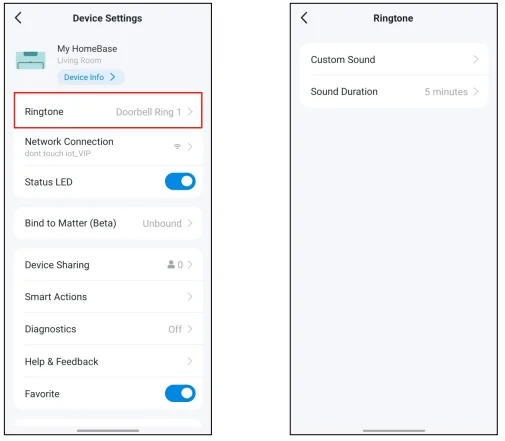
2. Check Network Connection
Check whether your HomeBase is connected to a Wi-Fi network or to your router via an Ethernet cable. You can also test the Wi-Fi signal and switch to another Wi-Fi network.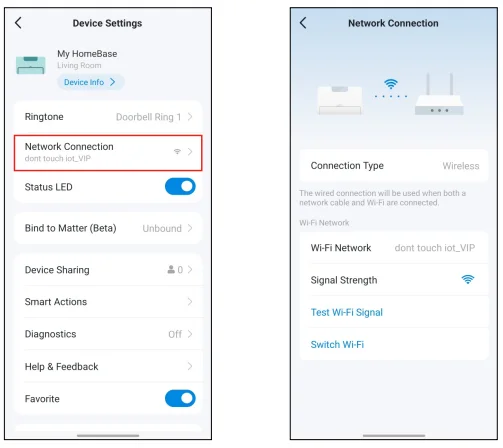
3. Bind to Matter
Add your HomeBase and its connected devices to other Matter-compatible ecosystems via a setup code. Please complete pairing before the countdown ends. If timed out, revisit this page and then try again.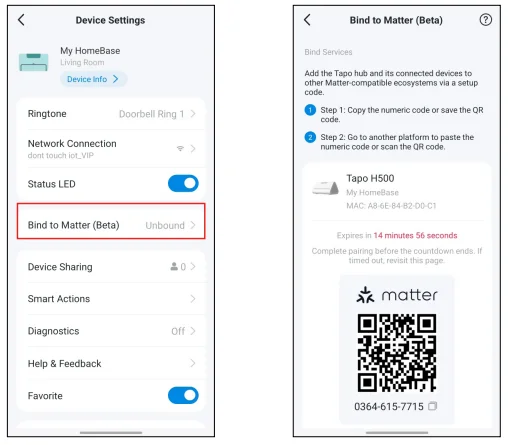
4. Smart Actions
Tapo provides recommended automation templates for your HomeBase to simplify your daily routine. You can also check the already configured smart actions that your HomeBase is involved in.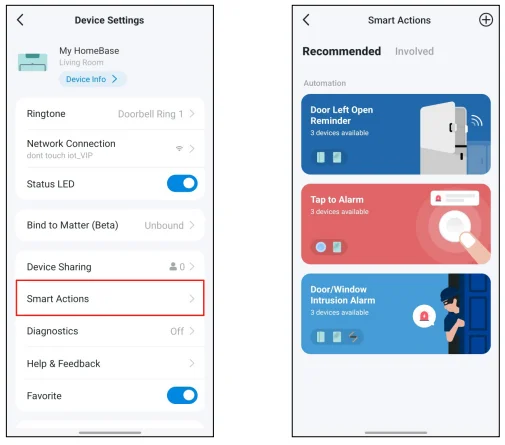
5. Auto Reboot
When enabled, your HomeBase will reboot automatically at your specified time.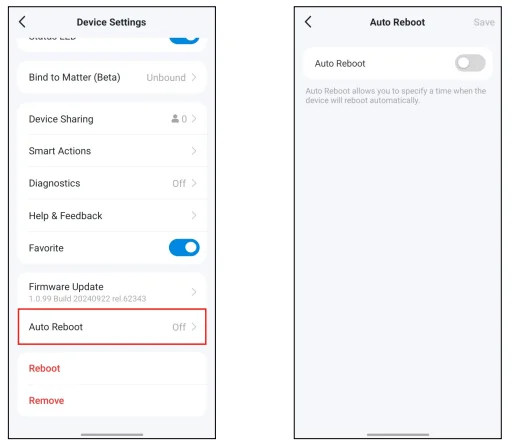
Reset Your HomeBase
There are three ways to reset your HomeBase.
Method 1. Remove Device on the Device Settings Page
Go to the Device Settings page. Tap Remove down below.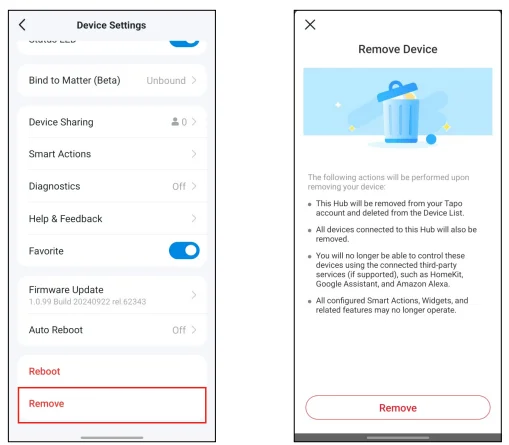
Method 2. Remove Device on the Home Page
Go to the Home page. Long-press your device card and then tap.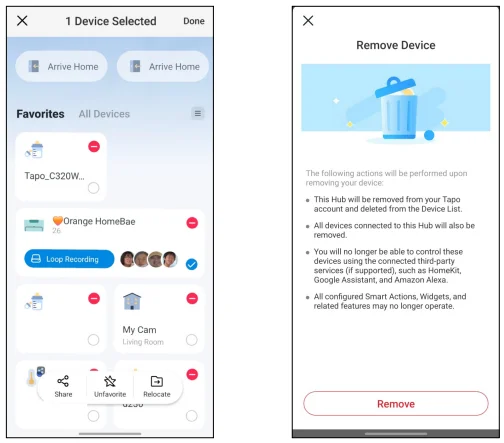
Method 3. Press the Reset Button on the HomeBase
Locate the Reset button on the back panel of your HomeBase. Use a pin to press and hold the Reset button for 10 seconds to restore factory default settings.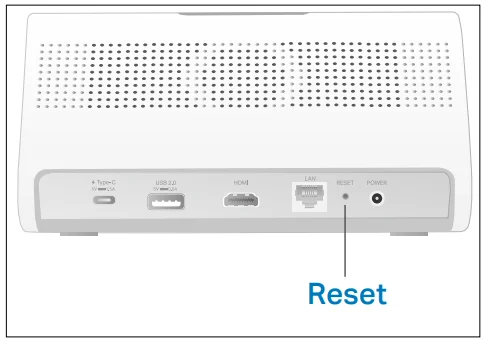
Safety Information
- Never touch the product with wet hands.
- Do not disassemble, repair, or modify the product.
- Do not use the device where wireless devices are not allowed.
- Do not use the product if the casing has been broken. Danger of electric shock.
- Keep the device away from water, fire, humidity, or hot environments.
- Do not use a damaged charger or USB cable to charge the device.
- Do not use any other chargers than those recommended.
- Do not use the device where wireless devices are not allowed.
- The adapter shall be installed near the equipment and shall be easily accessible.
- Do not place near automatically controlled devices such as fire alarms. Radio waves emitted from this product may cause such devices to malfunction, resulting in an accident.
- Observe restrictions on using wireless products in fuel depots, chemical plants, or when blasting operations are in progress.
- Do not use liquid to clean the product. Only use a dry cloth.
- Never put metal objects inside the product. If a metal object enters the product, turn off the circuit breaker and contact an authorised electrician.
- This product is not intended to be used when providing medical care. Consult the manufacturer of any personal medical devices, such as pacemakers or hearing aids, to determine if they are adequately shielded from external RF (radio frequency) energy.
- Do not use this product in health care facilities. Hospitals or health care facilities may be using equipment that could be sensitive to external RF energy.
- Do not use this product near water, for example, near a bathtub, wash bowl, kitchen sink, laundry tub, in a wet basement, or near a swimming pool.
- The product should be kept free from excessive smoke, dust, or high temperature and vibration.
- This product should not be exposed to direct sunlight.
- Do not place heavy objects on top of the product.
- This product may interfere with other electronic products such as TVs, radios, personal computers, phones, or other wireless devices.
- This equipment shall be installed at a height of fewer than 2 meters when sticking to a clean wall.
41
- a) Remove and immediately recycle or dispose of used batteries according to local regulations and keep away from children. Do NOT dispose of batteries in household trash or incinerate.
- b) Even used batteries may cause severe injury or death.
- c) Call a local poison control center for treatment information.
- d) This product includes button/coin cell batteries of type CR1220.
- e) The nominal voltage of the button/coin cell batteries is 3.0 V.
- f) Non-rechargeable batteries are not to be recharged.
- g) Do not force discharge, recharge, disassemble, heat above (manufacturer’s specified temperature rating), or incinerate. Doing so may result in injury due to venting, leakage, or explosion, resulting in chemical burns.
This product contains non-replaceable button/coin cell batteries. In order to avoid unnecessary danger, please do not attempt to remove and replace the button/coin cell batteries.
Doorbell Operating Temperature: -20 °C ~ 45 °C (-4 °F ~ 113 °F)
Chime Operating Temperature: 0 °C ~ 40 °C (32 °F ~ 104 °F)
Please read and follow the above safety information when operating the device. We cannot guarantee that no accidents or damage will occur due to improper use of the device. Please use this product with care and operate at your own risk.
For More Manuals By Tapo, Visit ManualsLibraryy.
Tapo H500 CentralHub-FAQs
What is the Tapo H500 CentralHub, and what does it do?
The Tapo H500 CentralHub is a smart home security hub designed to manage and connect multiple Tapo cameras and sensors in one system. It centralizes video storage, enables AI-powered monitoring, and simplifies device control through a single app interface for seamless home security management.
Does the Tapo H500 require a subscription for storage?
No, the Tapo H500 offers free local storage without any monthly subscription fees. It includes built-in 16GB storage and supports expansion using a 2.5-inch SATA HDD or SSD, allowing users to store large amounts of footage privately and securely without ongoing costs.
How many devices can the Tapo H500 support at once?
The Tapo H500 can connect up to 16 Tapo cameras and 64 smart sensors simultaneously. This makes it suitable for building a comprehensive smart home security ecosystem, allowing users to monitor multiple areas and automate various smart devices from a single centralized hub.
What AI features are included in the Tapo H500?
The Tapo H500 includes advanced AI detection features such as facial recognition, person detection, pet detection, and vehicle detection. These capabilities help reduce false alerts and allow users to categorize events more accurately, making it easier to monitor and retrieve specific security footage.
Can the Tapo H500 work without internet or cloud services?
Yes, the Tapo H500 processes data locally, reducing reliance on cloud services. Its AI features and video storage operate on the device itself, improving privacy and ensuring that your recordings remain accessible even without a constant internet connection or cloud subscription.
How does the Tapo H500 improve home security monitoring?
The hub provides a unified dashboard where users can view multiple camera feeds, track movement across devices, and access recorded events. It also supports features like face tracking and event retrieval, making it easier to monitor activity and respond quickly to potential security threats.
Does the Tapo H500 support smart home integration?
Yes, the Tapo H500 supports Matter and works with platforms like Google Home and Amazon Alexa. This allows users to integrate various smart home devices such as lights, sensors, and switches, creating automated routines and a more connected smart home environment.
What connectivity options are available on the Tapo H500?
The Tapo H500 supports both Wi-Fi and Ethernet connections, offering flexible setup options. It typically connects via 5GHz Wi-Fi or wired Ethernet to ensure stable video transmission, while connected devices communicate wirelessly for easier installation without complex wiring requirements.
Can you view camera feeds on a screen using the Tapo H500?
Yes, the Tapo H500 supports HDMI output, allowing users to connect it to a monitor or TV for live viewing. It can display multiple camera feeds at once, providing a convenient way to monitor security without relying solely on a smartphone app.
Is the Tapo H500 suitable for large homes or businesses?
The Tapo H500 is well-suited for larger homes or small business environments due to its ability to manage multiple cameras and sensors. Its expandable storage, centralized control, and AI-powered monitoring make it a scalable solution for users needing broader and more reliable security coverage.