

Blueair Blue Signature SP3i Smart Air Purifier
Safety Information
Blue Signature air purifier is an electrical appliance for indoor use only. Take the necessary precautions to reduce the risk of fire, electric shock, or injury.
- This appliance is not intended for use by persons (including children) with reduced physical, sensory, or mental capabilities, or a lack of experience and knowledge, unless they have been given instructions concerning its use or are under supervision by a person responsible for their safety.
- Supervise children to ensure that they do not play with the appliance.
- Cleaning and product maintenance should not be conducted by children.
- Always disconnect the appliance from the power supply before maintenance.
- If your Blueair appliance is found to be defective, we will replace it with the same or a similar model at no cost, per the warranty terms. Please use caution when attempting repairs yourself, as this presents the danger of electrical shock or injury.
- Ensure that the power cable and the power plug are not at risk of getting damaged.
- If the appliance is damaged or malfunctions, turn it off, disconnect it from the power supply, and contact Blueair.
- The power plug must be firmly inserted in the power socket.
- When disconnecting the unit from the power supply, do not pull on the power cord; pull on the power plug.
- Use the power cable provided with your Blueair air purifier to plug directly and firmly into an appropriate electrical outlet.
- To reduce the risk of fire, electric shock or injury to persons, do not use replacement parts that have not been recommended by the manufacturer (e.g., parts made at home using a 3D printer).
- Do not use an extension cord or a power strip. Refer to the rating label on your appliance.
- Do not alter the power plug in any way. If the plug does not fit into the outlet, contact qualified personnel to install the proper outlet.
- To avoid risk of fire or electric shock, the appliance should only be used with the correct input voltage that it is rated for, refer to your rating label on the device.
- Do not use the included power cord for anything else but the appliance.
- Do not allow objects to enter or block the air inlets and air outlets as this can cause electric shock or damage the appliance.
- Do not sit on, stand, climb onto or hang from the appliance.
- Keep the appliance, including the power cable, at a safe distance from heated surfaces and open fire.
- Keep the appliance and power plug away from water and other liquids.
- Keep the appliance and power plug away from chemicals such as pesticides and deodorants.
- Always turn off and disconnect the appliance from the power supply before moving the unit, changing filters, cleaning or carrying out maintenance procedures.
- Never clean with gasoline, chemical solvents, or corrosive materials as these agents may damage the air purifier.
- Do not operate the device with a damaged cord or plug. Discard the device or return it to an authorized service facility for examination and/or repair.
- If the supply cord is damaged, it must be replaced by the manufacturer, its service agent or similarly qualified persons in order to avoid a hazard.
- The energy efficiency of an ENERGY STAR certified model is measured based on a ratio between the model’s CADR for Smoke and the electrical energy it consumes, or CADR/Watt.
- This product complies with the maximum allowable concentration of ozone of 0.050 parts per million by volume (ppmv) in a 24-hour period.
WARNING: RISK OF ELECTRIC SHOCK – These servicing instructions are for use by qualified personnel only. To reduce the risk of electric shock, do not perform any servicing other than that contained in the operating instructions unless you are qualified to do so.
Blue Signature™ air purifier
Product introduction
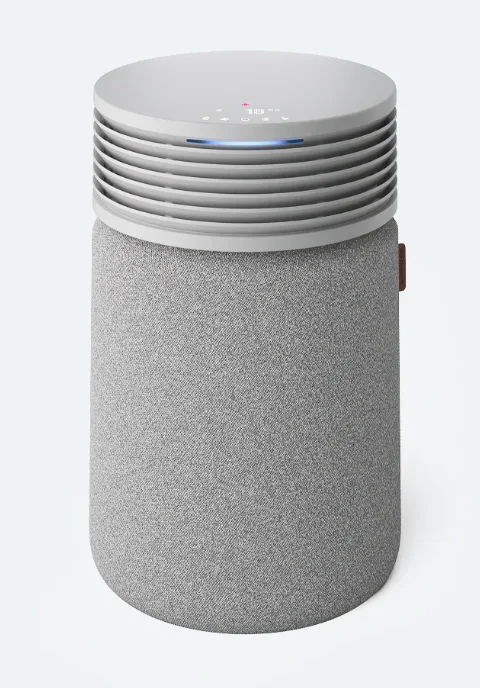
Blue Signature™ is an advanced air purifier with built-in sensors, a control display showing indoor pollution level for PM2.5 and tVOC like gases and odors. To adjust the settings of your product, you can either use the control panel on the device or the Blueair App, which unlocks additional features and functions.
Recommendations for best performance
- Ensure that the size of the room where the air purifier is placed does not exceed the recommended capacity.
- Position the air purifier in an area where air can freely flow in and out, ensuring proper circulation.
- Maintain a distance of at least 4 inches (10 cm) between the air purifier and any other object to ensure proper air circulation.
- Keep the doors and windows closed while the air purifier is in operation.
- Replace the filter when the filter replacement indicator turns red on the control panel.
- Refer to the maintenance instructions in this user manual for proper care.
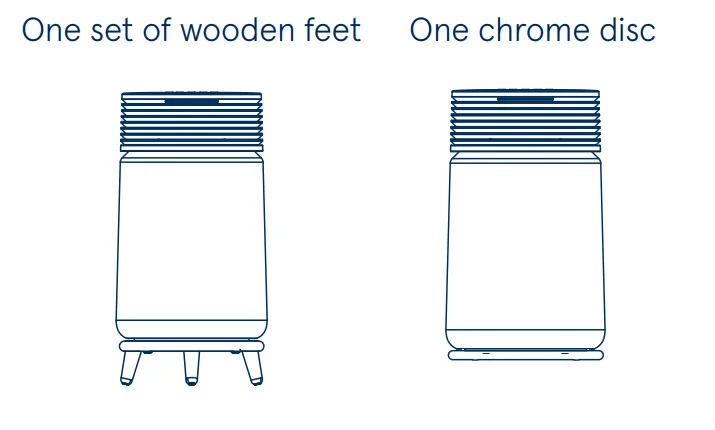
Accessories – Available options
PURCHASED SEPARATELY
Easily order from www.blueair.com
Product map
- Product Name: Blue Signature™ air purifier
- Model: SP3i
- Model number: 4412311000
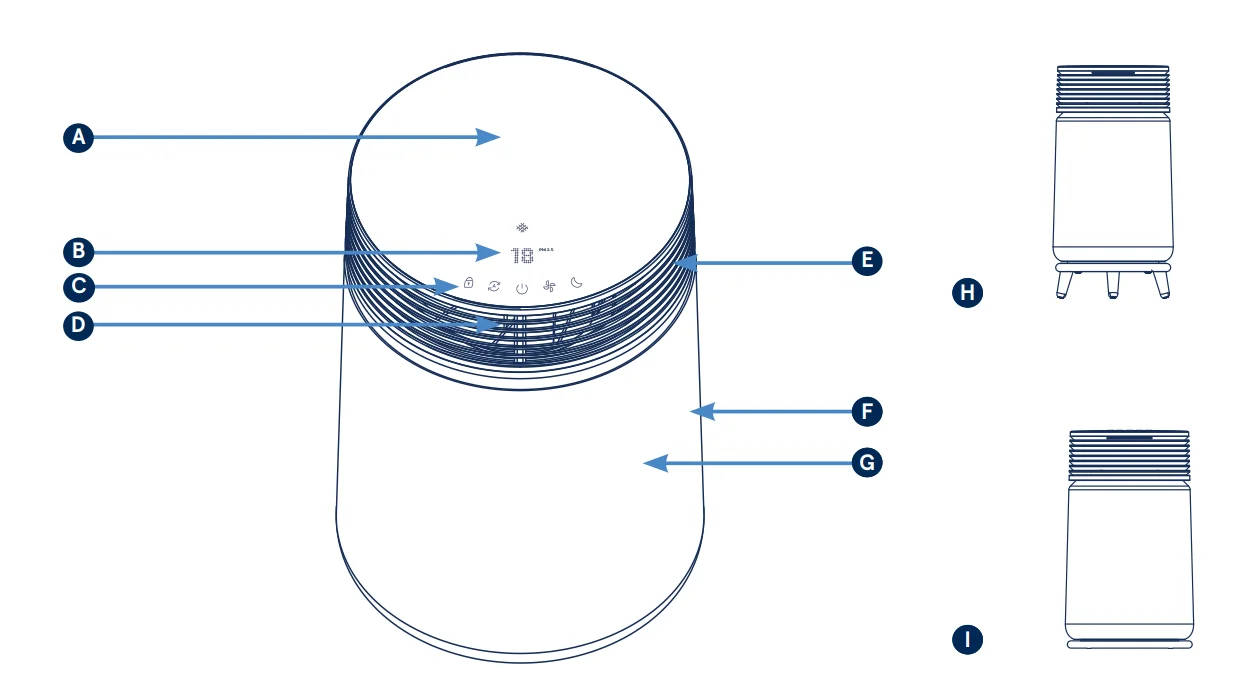
- A. Table top surface
- B. Digital Display
- C. Control interface
- D. Air quality indicator
- E. 360 degree Air Outlet
- F. Customizable pre-filter and air inlet
- G. Filter
- H. Wooden Legs Accessory (Sold separately)
- I. Chrome Disc Accessory (Sold separately)
Device Controls
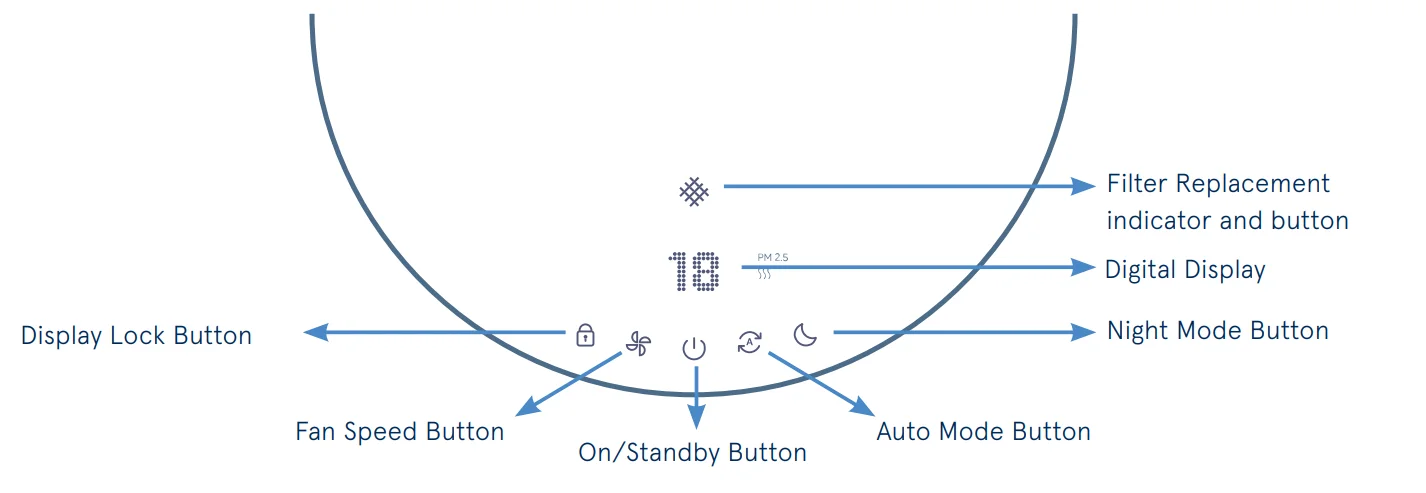
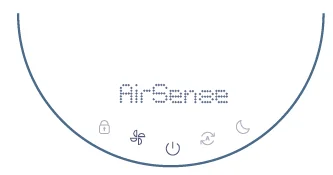
- On/Standby Button
Turn the device on or go into Standby mode. - Fan Speed
Press to change to desired fan speed from 0 to 4. Selected fan speed will be visible on the display. - Filter Replacement
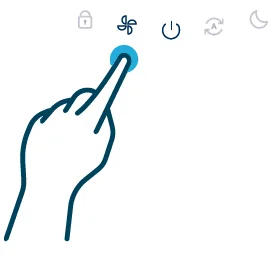
After replacing it with a new filter, always reset the Filter Replacement Indicator by pressing and holding the Fan Speed button for 15 seconds or go to your device page in the Blueair App. - Reset Wi-Fi
If you choose not to connect the product, the Wi-Fi can be turned off. Press and hold the Auto utton for 15 seconds and then release. The Wi-Fi will be turned off. If you want to re-connect your air purifier, hold Auto button for 5seconds until Wi-Fi LED starts blinking. Then follow the instructions in the “Connect to the Blueair App” section. - Auto Mode
In Auto mode, the device will automatically adjust the fan speed based on your indoor air PM2.5 levels to ensure optimal air quality. - Night Mode
Turns the device to the lowest fan speed and lowest brightness. - Display Lock Button
Press and hold Display Lock Button for 2 seconds to activate/deactivate Lock mode. The lit indicator means the display is locked, preventing control panel operation. - Display indicators
Display your room’s PM25 and VOC pollution level on the interface. - Factory reset
Reset the device to the factory setting by pressing and holding the On/Standby button for 15 seconds.
Display Information
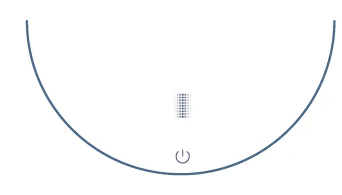
- First time start up will display calibration animation while your purifier is analyzing your indoor air quality.

- When the air is clean a check mark
 will be displayed with text “Air is clean”.
- When you adjust fan speed or mode your selection will be displayed on the interface (Auto, Fan Speed or Eco).

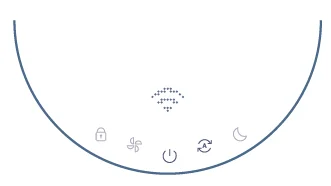
- Indicates if the purifier is ready for Wi-Fi connection.

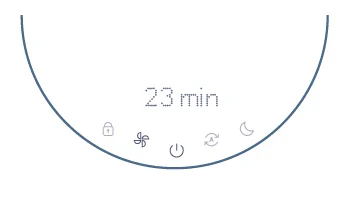
- Air purifier will display the number of minutes until air will be clean. This number of minutes will go down until 0, which will indicate the air is now clean.

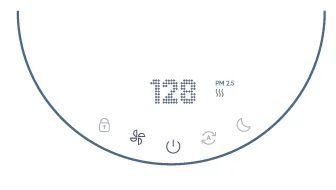
- Number on display indicates current air quality as PM2.5 or VOC.

- Indicates that Night Mode is active and the lights of the User Interface and Air Quality Indicator will then dim down.

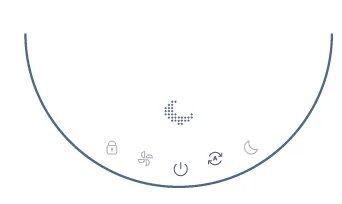
- AirSense mode automatically refreshes your air few times per day. This mode can be turned off or on in the Blueair app.
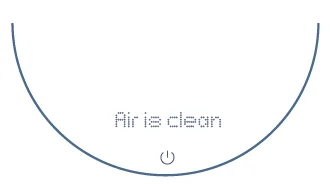
 will be displayed with text “Air is clean”.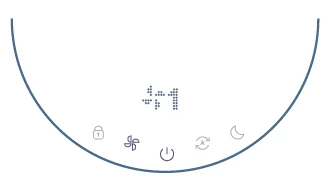
Getting started
Connect to the Blueair App
- Step 1
Plug your air purifier into a power outlet. - Step 2
Download the Blueair App on your phone or tablet from the Apple App store or Google Play store. - Step 3
Follow the setup steps.Wi-Fi is required.
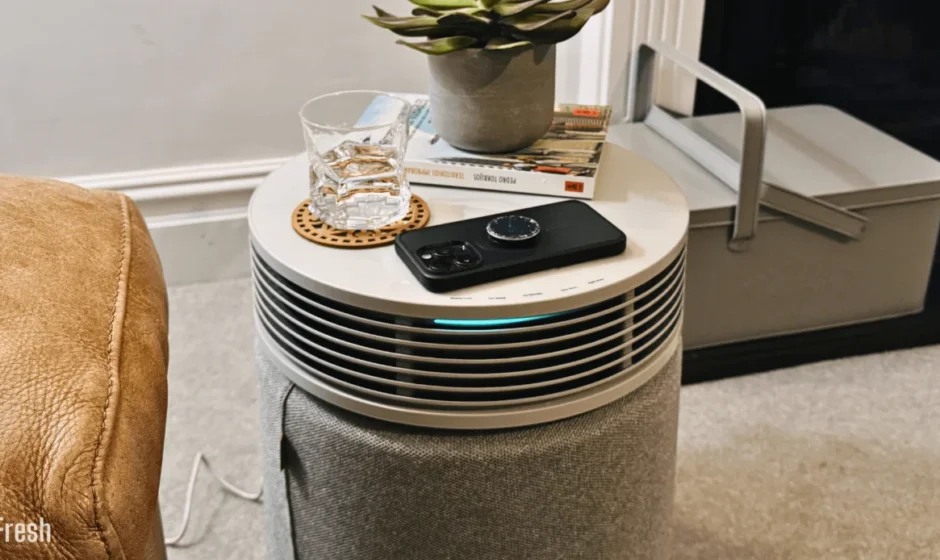
Using the Air Purifier as a Table top
The purifier is designed to serve as a table top, so you can place items
like books, phone, decorations.
Important! Do not place any of the below items on top of the appliance:
- Wet items or liquid
- Very heavy items
- Hot items directly or items that heat up
- Chemical items

Air Quality Indicator (AQI)
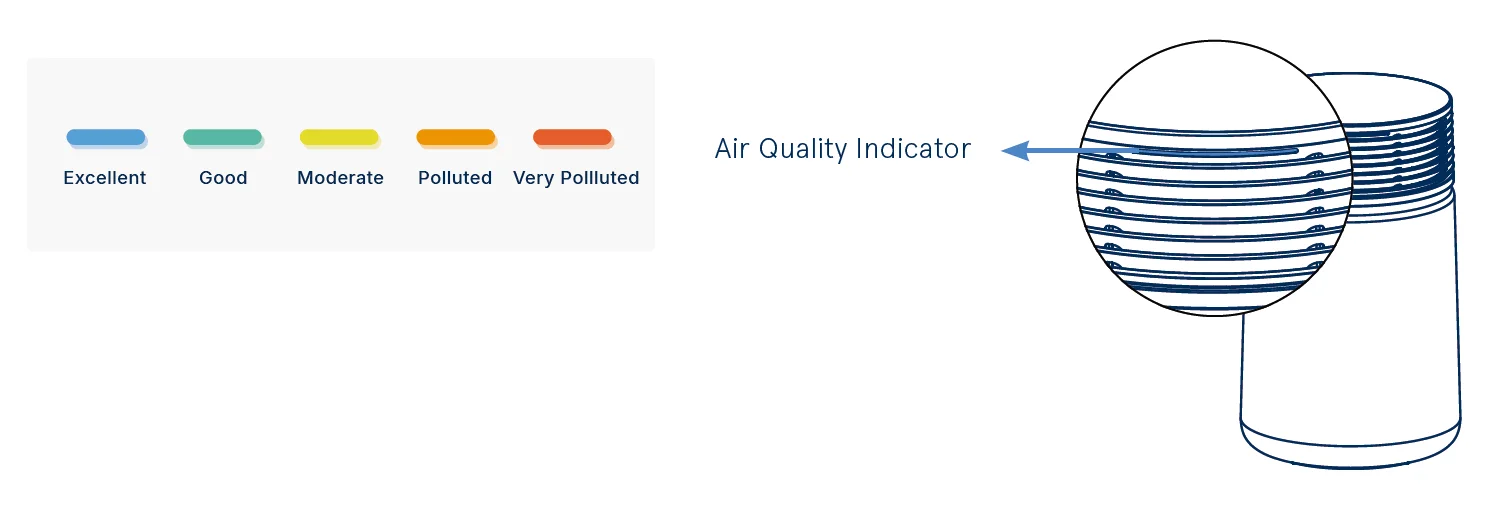
Blue Signature™ air purifier has sensors to measure fine particles (PM2.5) and tVOC like gases and odors in the room. The Air Quality Indicator (AQI) shows the air quality status in five colors, ranging from excellent (blue) to very polluted (dark orange). The AQI reacts to either VOC or PM2.5 pollution, depending on which is more dominant in the room. When VOCs are detected, a gas icon appears on the display, followed by the gas level. In the Blueair App, you can adjust the AQI behavior according to your preference. The AQI can be set to react only to fine particles, or to both fine particles and tVOC like gases and odors.
Filter replacement information
Changing the filter
Important! Always turn off and disconnect the appliance from the power supply before changing filters, cleaning, or carrying out device maintenance procedures. The air purifier uses Blueair’s proprietary RealTrack algorithm to calculate the remaining lifetime of the filter based on actual usage and indoor pollution levels. When it is time to change the filter, the filter replacement indicator will appear red on the control panel on top of the device. The recommended time for filter change is 12 months.
Easily order Blueair filters from www.blueair.com or sign up to Blueair filter subscription for additional discount.
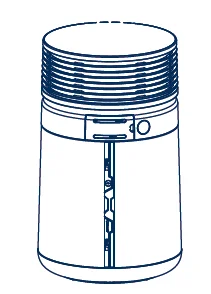
- Step 1
Turn off the air purifier and unplug it. Remove the pre-filter fabric.
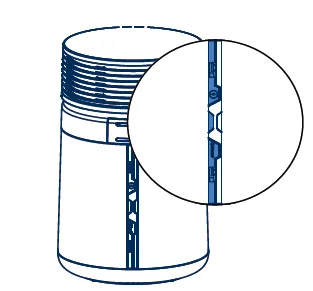
- Step 2
Unlock the current filter by pulling open the connector.
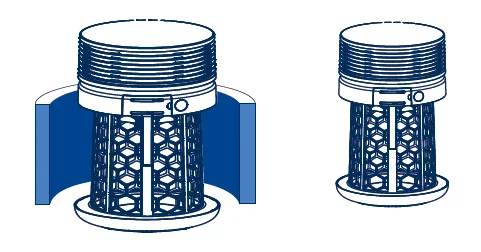
- Step 3
Wrap the new filter around the purifier body and attach the connect it. Ensure the correct side is facing up, as indicated by the arrow on the filter.
- Step 4
Pull back on the prefilter fabric. Turn the purifier back on.
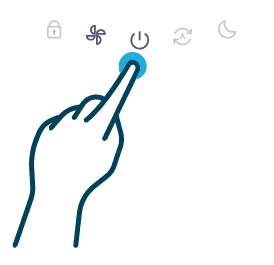
- Step 5
Reset the Filter Indicator by pressing the Fan Speed button for 15 seconds or go to your device page in the Blueair App.
Maintenance Information
To maintain optimal air purification performance regular maintenance is recommended. Please follow below recommended steps to clean your device.
- Disconnect the air purifier from the power supply.
- Do not allow foreign objects to enter the air inlets or air outlets. This may cause electric shock or damage the air purifier.
- Never clean with gasoline, chemical solvents or corrosive materials as these agents may damage the air purifier.
- Do not wash the replacement filter, it’s not washable or reusable.
Cleaning
- Wipe the top of the air purifier with a soft, clean cloth.
- Clean and check the power cable and power plug for wear or damages.
Clean your pre-filter regularly when you see dust or dirt. Vacuum the exterior of the fabric with a soft brush attachment. For a deeper cleanse wash according to the pre-filter maintenance instructions and hang to dry.

- Step 1
Turn the air purifier off and unplug it.
- Step 2
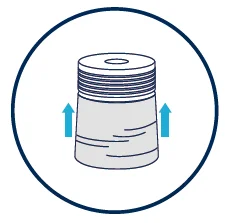
Remove the fabric pre-filter.
- Step 3
Wash according to instructions on the fabric pre-filter´s label.
- Step 4
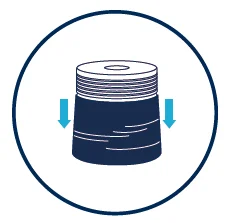
Pull the clean pre-filter back over the main filter.
- Step 5
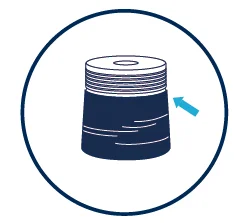
Please ensure that the logo tag of the pre-filter is on the upper part.

Disposal, support and warranty
Disposal and recycling
The air purifier should be disposed or recycled as electrical waste and the filter should be disposed as regular waste. If you have questions regarding the disposal and recycling of your device, please contact your local recycling facility.
Help and support
If you have questions about your product, please visit www.blueair.com or contact your local Blueair retailer.
Limited warranty information
The air purifier has a limited warranty of 3 years (1 year standard warranty and 2 extra years upon registration).
Regulatory information
WARNING: Changes or modifications to this unit not expressly approved by the party responsible for compliance could void the user’s authority to operate the equipment.
Note! This equipment has been tested and found to comply with the limits for a Class B digital device, pursuant to Part 15 of the FCC Rules. These limits are designed to provide reasonable protection against harmful interference in a residential installation. This equipment generates, uses and can radiate radio frequency energy and, if not installed and used in accordance with the instructions, may cause harmful interference to radio communications.
However, there is no guarantee that interference will not occur in a particular installation. If this equipment does cause harmful interference to radio or television reception, which can be determined by turning the equipment off and on, the user is encouraged to try to correct the interference by one or more of the following measures:
- Reorient or relocate the receiving antenna.
- Increase the separation between the equipment and receiver.
- Connect the equipment into an outlet on a circuit different from that to which the receiver is connected.
- Consult the dealer or an experienced radio/TV technician for help.
- This device complies with Part 15 of the FCC Rules. Operation is subject to the following two conditions:
- This device may not cause harmful interference.
- This device must accept any interference received, including interference that may cause undesired operation.
This Class B digital apparatus complies with Canadian ICES-003. This device contains licence-exempt transmitter(s)/receiver(s) that comply with Innovation, Science and Economic Development Canada’s license-exempt RSS(s). Operation is subject to the following two conditions: (1) This device may not cause interference, and (2) This device must accept any interference, including interference that may cause undesired operation of the device. FCC/ISED RF Exposure Information: This equipment should be installed and operated with a minimum distance of 8 inches (20 cm) between the unit and your body.
For more manuals by Blueair, visit ManualsLibraryy
Blueair Blue Signature SP3i Smart Air Purifier-FAQs
What does the Blueair Blue Signature SP3i Smart Air Purifier do?
The Blueair Blue Signature SP3i Smart Air Purifier helps improve indoor air quality by removing airborne particles such as dust, pollen, smoke, pet dander, and allergens. It is designed to create a cleaner and fresher environment for homes, bedrooms, and offices.
Is the Blueair SP3i suitable for people with allergies?
Yes, the purifier can help reduce common airborne allergens that may trigger allergy symptoms. Its advanced filtration system captures fine particles from the air, helping create a more comfortable indoor space.
Can an air purifier help with eczema symptoms?
Air purifiers may help reduce airborne irritants like dust and pollen that can worsen sensitive skin conditions. Cleaner indoor air can support a healthier environment for people dealing with eczema or skin irritation.
Is it safe to leave the Blueair SP3i running all day?
Yes, the purifier is designed for continuous operation. Many users keep it running throughout the day and night to maintain consistent indoor air quality and fresher airflow.
Can I sleep with the Blueair air purifier on overnight?
Yes, the Blueair SP3i is suitable for nighttime use. Its quiet operation helps maintain clean air while you sleep without causing major noise disturbance.
Does the Blueair SP3i remove dust and smoke?
Yes, the purifier is built to capture airborne dust, smoke particles, pet dander, and other pollutants. This helps reduce unwanted particles circulating inside the room.
How often should the filter be replaced?
The filter usually lasts around 6 to 12 months depending on usage, room conditions, and air quality. Replacing the filter regularly helps maintain strong purification performance.
Does an air purifier dry out the air?
No, air purifiers generally do not remove moisture from the air. However, running one continuously in a very dry environment may sometimes make the air feel less humid.
Is the Blueair SP3i good for bedrooms?
Yes, the purifier is a good choice for bedrooms because of its compact design, quiet performance, and ability to improve indoor air quality while sleeping or relaxing.
How many hours should I use the Blueair SP3i daily?
For the best results, many users operate the purifier continuously or for most of the day. Regular use helps keep indoor air consistently cleaner and fresher.