
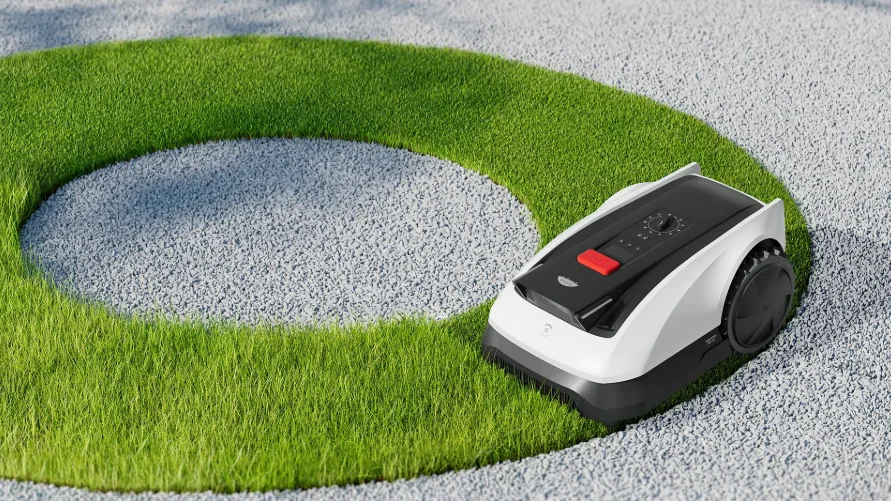

Ecovacs GOAT 0800 RTK
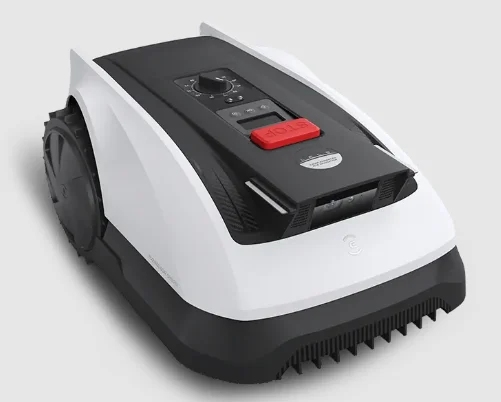
1. Original Instructions
IMPORTANT: READ CAREFULLY BEFORE USE. KEEP FOR FUTURE REFERENCE.
- Read the instructions carefully. Make sure you understand the instructions and are familiar with the controls and the proper use of the appliance. Please understand that you can reduce the risk by following the instructions and warnings in this manual, but you cannot eliminate all the risks. Lawn Mowing Robot (hereinafter referred to as “ECOVACS GOAT”) has many built-in safety sensors; however, safety risks still exist. All related residual risks have been described or informed in this manual.
- Description of intended use: Intelligent lawn mowers are mainly used in mowing grass, especially in parks, private villa yards, and football fields.
- For machines used in public areas, warning signs shall be placed around the working area of the machine. They shall show the substance of the following text:
- WARNING! Automatic lawnmower! Keep away from the machine! Supervise children!
- DO NOT modify the mower by yourself. Modifications could interfere with mower operations, result in serious injury and/or damage, or void the Limited Warranty. Use only ECOVACS-approved parts and accessories.
WARNING
- Never allow children, persons with reduced physical, sensory, or mental capabilities, lack of experience and knowledge, or people unfamiliar with these instructions to use the machine. Local regulations may restrict the age of the operator.
- To avoid using the machine and its peripherals in bad weather conditions, especially when there is a risk of lightning.
- Before each mowing session, check that all parts of the mower can function normally.
- Periodically inspect the area where the machine is to be used and remove all stones, sticks, wires, bones, and other foreign objects.
- NEVER allow children to touch the power supply unit, charging station, blades, battery compartment, or any parts with gaps, such as the wheels.
WARNING
- Never operate the machine and/or its peripherals with defective guards or shields, without safety devices, or if the cord is damaged or worn.
- Keep away from the rotating blades! DO NOT put hands or feet under or near the rotating blades.
- Keep a safe distance from the mower when operating.
- DO NOT overreach. Keep your balance at all times and always be sure of your footing on slopes. Walk, never run, while operating the machine or its peripherals.
WARNING: Never allow children to be in the vicinity of or play with the machine when it is operating.
WARNING: DO NOT touch moving hazardous parts before they have come to a complete stop.
WARNING: For the purposes of recharging the battery, only use the detachable supply unit provided with this appliance (CH2492/CH2492B). This appliance contains batteries that are only replaceable by skilled persons.
Safe Usage:
- Do not connect a damaged cord to the supply or touch a damaged cord before it is disconnected from the supply, because damaged cords can lead to contact with live parts. Keep extension cords away from moving hazardous parts to avoid damage to the cords, which can lead to contact with live parts. Connect the machine and/or its peripherals only to a supply circuit protected by a residual current device (RCD) with a tripping current of not more than 30 mA.
- Unplug the Power Supply from the power socket and then untangle it when the power cord or the extension cable is damaged or entangled during use. During operation, pull the body of the plug rather than the cord to avoid hazards. Contact Customer Service and let a skilled professional repair or replace the cord.
- Please use the extension cable manufactured by ECOVACS. If you have any problem, contact Customer Service.
- If the SUPPLY CORD is damaged, it must be replaced by the manufacturer, its service agent, or similarly qualified persons to avoid a hazard.
- Press the STOP Button at once when the mower makes an abnormal sound or raises the alarm.
- In case of leakage of electrolyte, flush with water or neutralizing agent. Ask for medical help once it comes into contact with the eyes, etc.
- If there are abnormal vibrations, please restart the mower. If the problem persists, please contact Customer Service.
Instructions to always wear substantial footwear and long trousers while operating the machine with a manual controller.
Additionally, when using the manual controller:
- a) Mow only in daylight or in good artificial light.
- b) Avoid operating the machine in wet grass.
- c) Do not operate the machine when barefoot or wearing open sandals. Always wear substantial footwear and long trousers.
- d) Always be sure of your footing on slopes.
- e) Use extreme caution when reversing the machine towards you.
- f) Always switch on the motor according to instructions, with feet well away from the blade(s).
- Do not use or store in extremely hot or cold environments (below 5˚C/41˚F or above 45˚C/113˚F).
- This equipment must be installed and operated in accordance with the provided instructions, and the antenna(s) used for this transmitter must be installed to provide a separation distance of at least 20 cm from all persons and must not be collocated or operated in conjunction with any other antenna or transmitter.
Device Update
Typically, some devices are updated bi-monthly, but not always so specifically. Some devices, especially those that went on sale more than three years ago, will only be updated if a critical vulnerability is found and fixed.
2. What’s in the Box
2.1 Package Contents
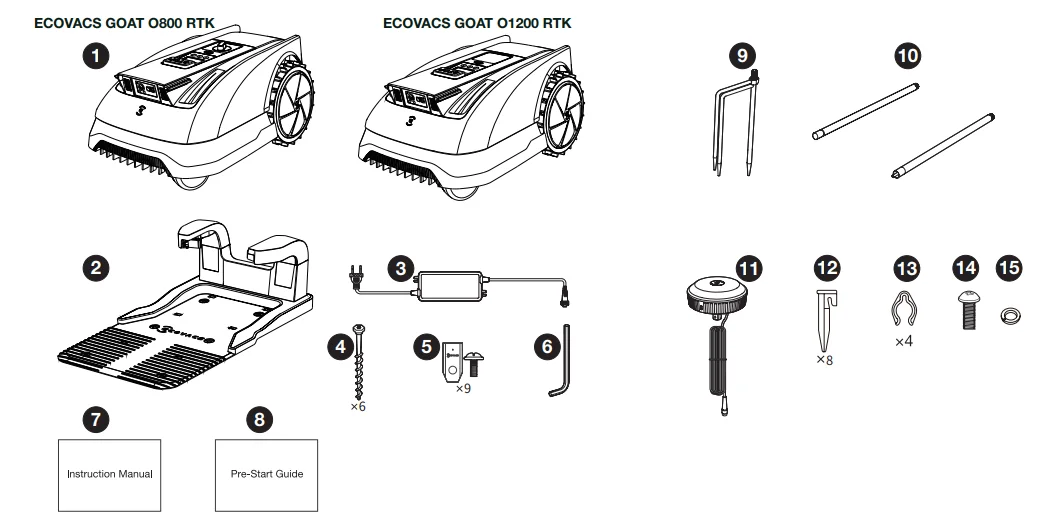
- ECOVACS GOAT O800 RTK (including Blade *3) / O1200 RTK (including Blade *3)
- Charging Station
- Power Adapter
- Charging Station Fastening Anchors
- Spare Blade Kit
- Allen Key
- Instruction Manual
- Pre-Start Guide
- RTK Reference Station Fixing Anchor
- RTK Reference Station Mounting Poles
- RTK Reference Station
- Power Cable Loop Fastener
- RTK Reference Station Cable Clips
- RTK Pole Assembly Screw
- Spring Mat
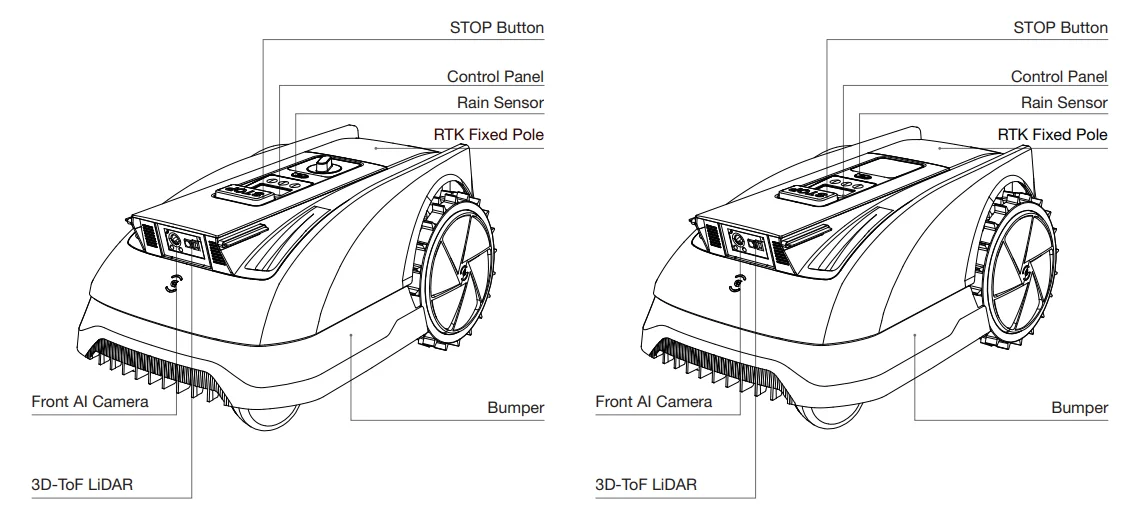
2.2 Views and Functions
1. Top View (O800 RTK) / Top View (O1200 RTK)
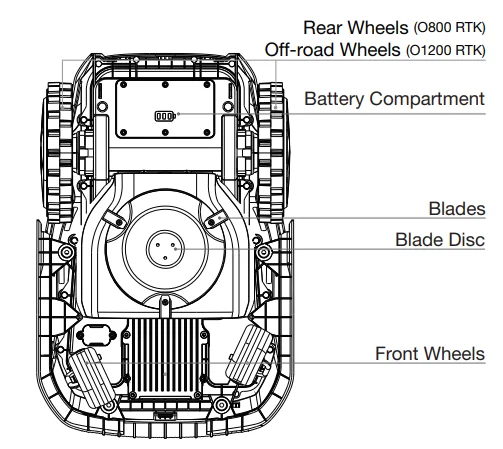
2. Bottom View
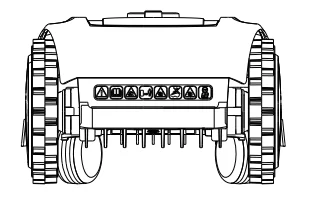
3. Back View
4. Charging Station and RTK Reference Station
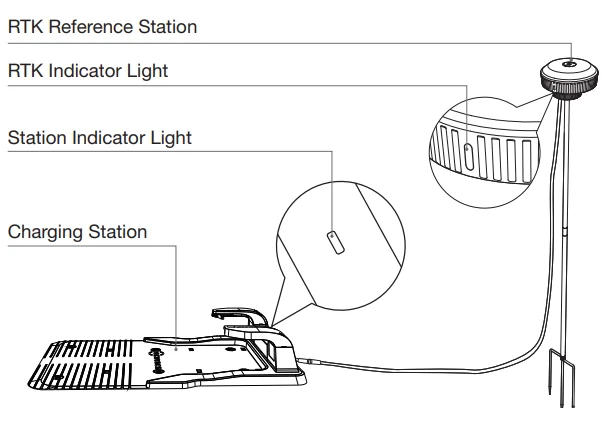
Charging Station Light
- Solid Blue: Powered on/Fully charged.
- Flashing Blue: Charging.
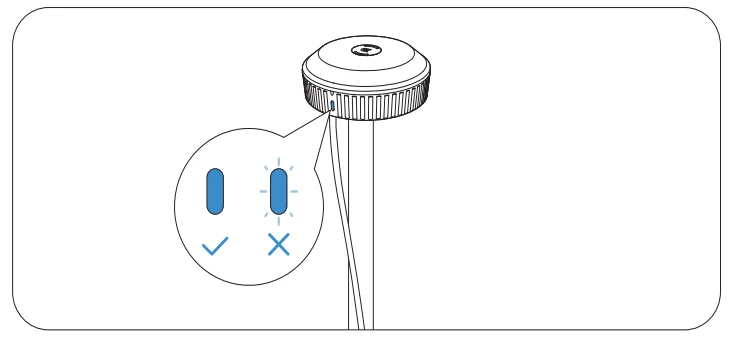
RTK Reference Station Light
- Solid Blue: Strong signal.
- Flashing Blue: Poor signal. Please select a new location for installation.
3. Get Your GOAT Ready
3.1 GOAT and App Setup
1. Start GOAT and Set PIN Code
Control Panel:
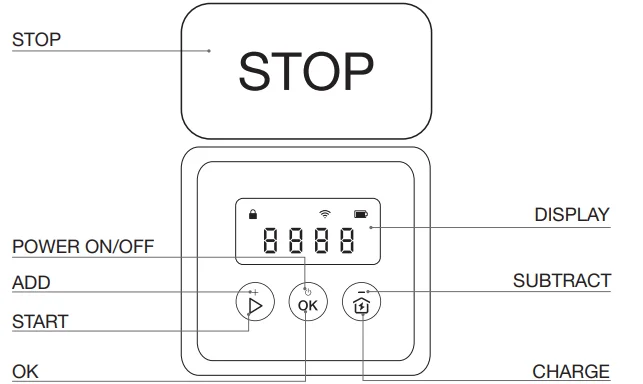
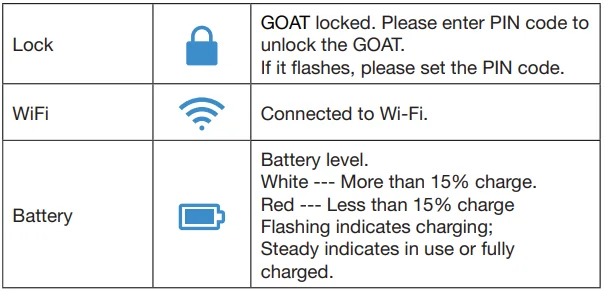
Panel Icons:
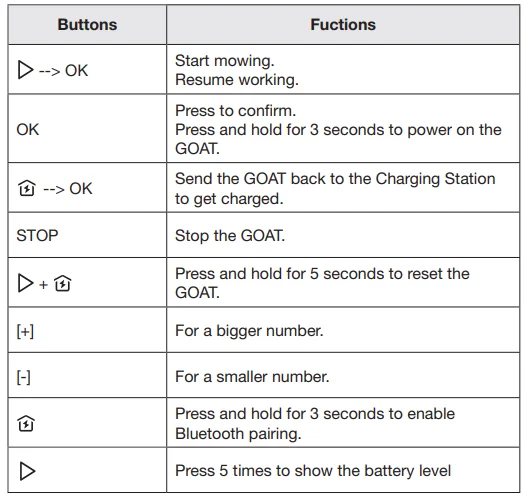
Buttons and Functions
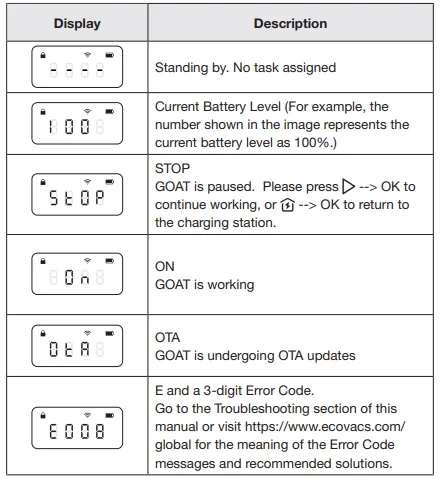
Panel Display Reads:
1. Start GOAT:
- Press and hold [OK] for 3 seconds on GOAT, and the digital tube display will flash as follows.
Note: Your GOAT will be automatically powered on when it docks at the Station.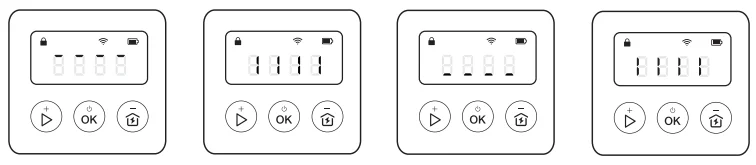
2. Set PIN Code:
When the GOAT is off-map, or is powered on or reset, it will automatically be locked. You can unlock it by entering the correct PIN code. Set the PIN code when the display shows as below. Press [+] or [-] to select the PIN code numbers one by one. After the first digit is decided, press [OK] to confirm, and the cursor will move to the next digit.
- If the
 icon is flashing, please set the PIN code.
 - If the icon is solid, enter the previously set PIN code.
- Once unlocked, the icon will disappear. If unlocking fails, the icon will flash again, prompting you to reset the PIN code.

 icon is flashing, please set the PIN code.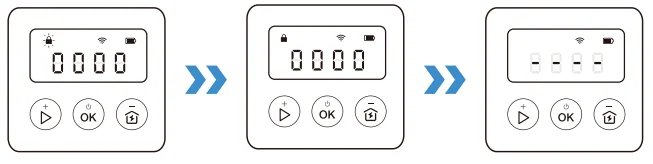
Note:
- 0000 is an invalid PIN code.
- PIN code is to be entered twice to confirm the setting.
- If you enter the wrong numbers while setting the PIN code, the setting process will start all over again.
- You may change the PIN code on the App.
2. Download the ECOVACS HOME App
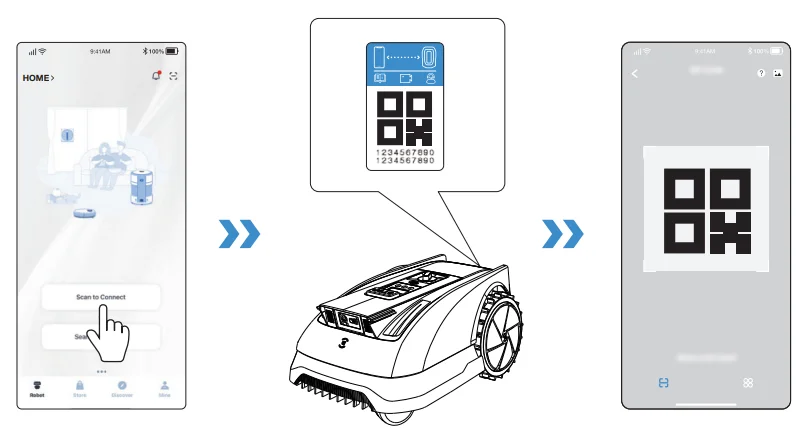
Scan the QR code on the GOAT, download and install the ECOVACS HOME App, complete the registration, and log in. You may also find the Instruction Manual and How-to-use guide by scanning the QR code.
3. Connect GOAT to the App
Note:
- Your mobile phone is connected to a Wi-Fi network.
- The 2.4GHz band wireless signal is enabled on your router.
- Make sure your GOAT and your phone are in the same 2.4GHz network router environment.
- Ensure your phone has Bluetooth function and your GOAT is within the effective distance of 10 m.
Bluetooth Connection and Wi-Fi Connection
- Turn on Bluetooth on your phone.
- Scan the QR Code on GOAT or select GOAT manually on the App.
- Follow the instructions on the App to complete the Bluetooth and Wi-Fi connection.

- The
 icon on GOAT’s panel display will light up after a successful connection.
 icon on GOAT’s panel display will light up after a successful connection.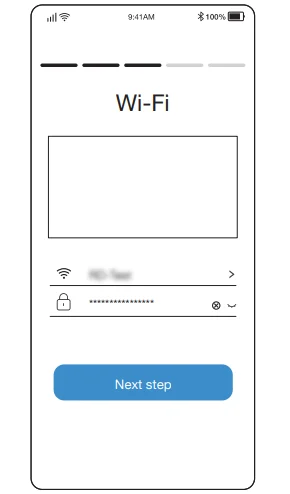
How to unbind your ECOVACS GOAT?
Allowing binding to one App account currently, your ECOVACS GOAT cannot be bound to another App account before unbinding. You can unbind your ECOVACS GOAT in the App. Feel assured to take this operation, as it will not erase the working data, such as the schedules of your ECOVACS GOAT. You can also cancel the account by clicking the small triangle next to the device name to delete the machine.
3.2 Station Installation
1. Install the Charging Station
- Ensure the Charging Station is in a place with a strong Wi-Fi signal for better remote control.

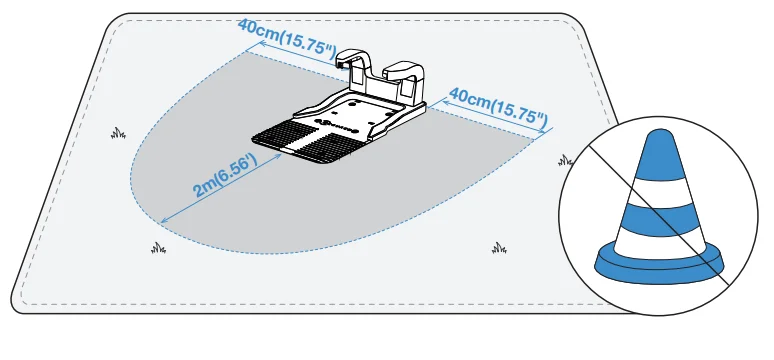
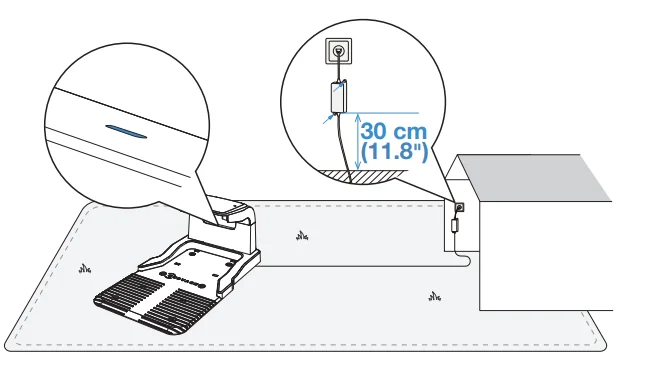
- Place the Charging Station on an open and flat lawn, avoiding any slope, rocks, or shadow coverage. Ensure that there are no objects (e.g., fences or plants) within 40 cm (15.75″) on either side and 2 m (6.56′) in front.

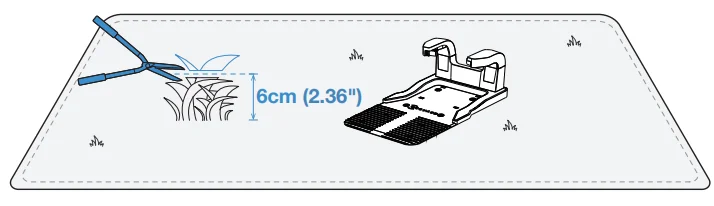
- Make sure that the grass around the Charging Station is no longer than 6 cm (2.36″). Overgrown grass may affect recharging.

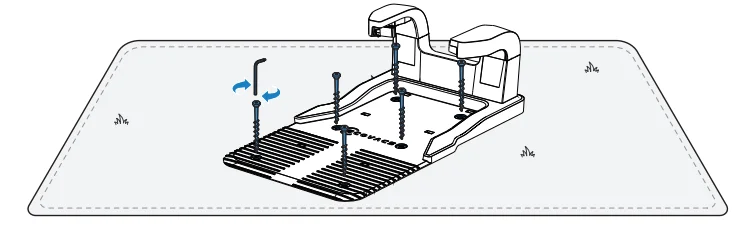
- If you want to fix the Charging Station to the ground, use the Charging Station Fastening Pegs and the Allen key. Note: You may want to do this after you have settled everything down.

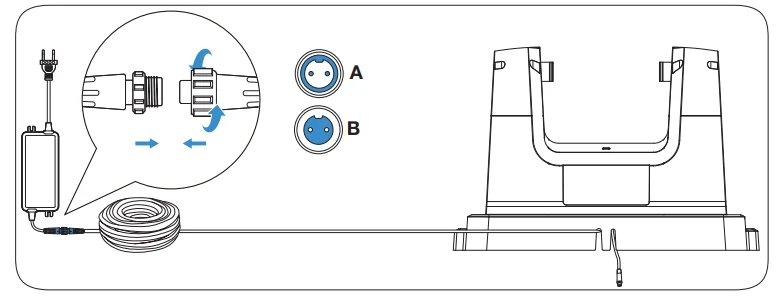
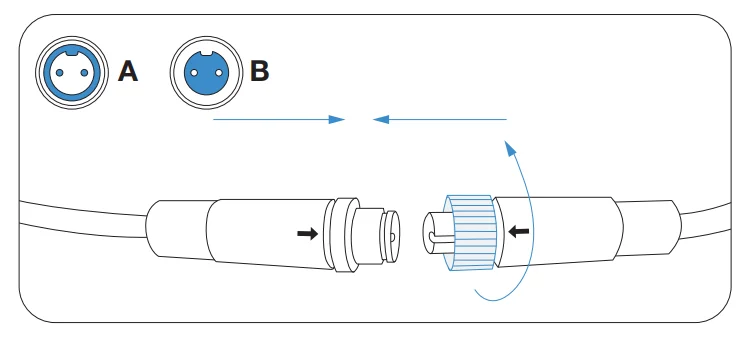
- Connect the longer cable to the Power Adapter. Please align the notch (A) with the groove (B) and screw the nut until they are locked into each other.

- Connect the Charging Station Plug to the power supply and ensure the blue light is steadily on.
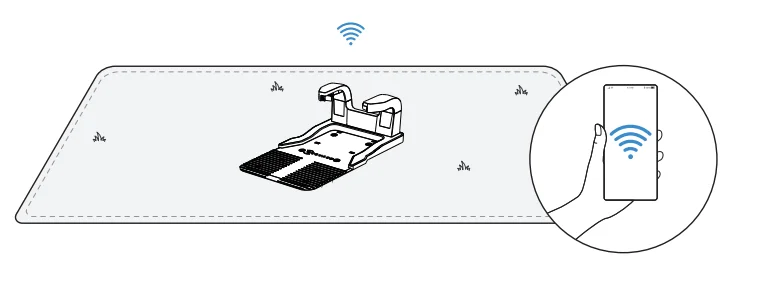
Note:
- Please ensure the Power Adapter is positioned 30 cm (11.8″) above the ground to prevent water and moisture damage.
- Please plug the device into an indoor outlet or an outdoor waterproof outlet.
- You can choose to buy the Extension Cable by connecting it to the Power Interface if needed.

2. Install the RTK Reference Station
Note: You may explore more accessories for easier installation of the RTK Reference Station at the online store.
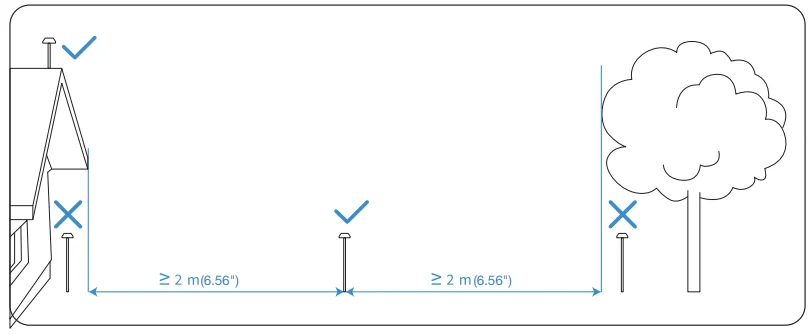
- Choose an open area to place the RTK Reference Station, preferably at least 2 m (6.56′) away from buildings and trees for better RTK performance.

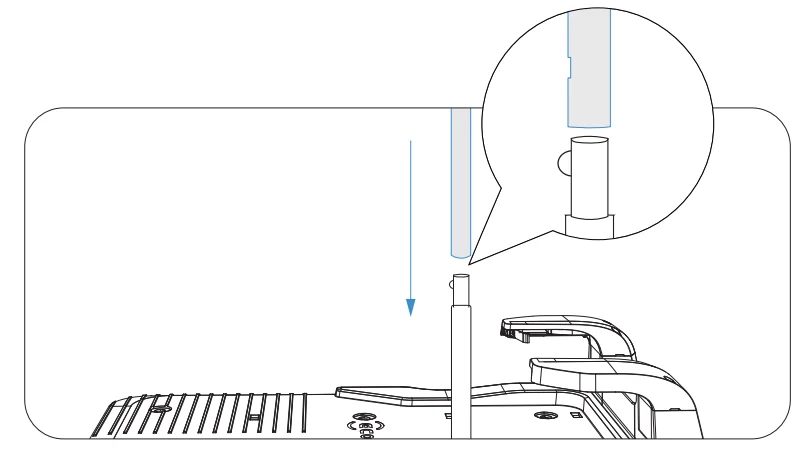
- Assemble the upper and lower parts of the RTK Station Mounting Poles, ensuring the buckle clicks securely into place.

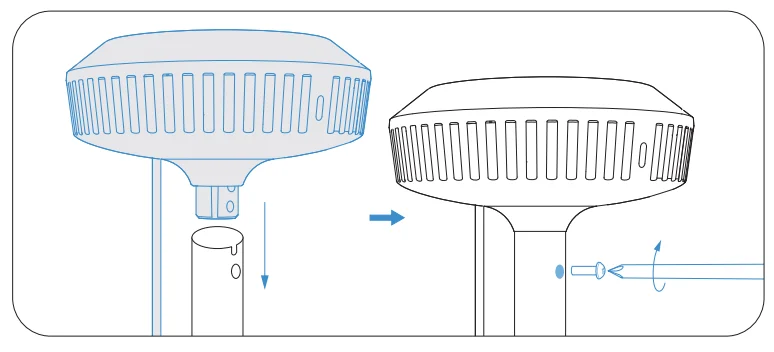
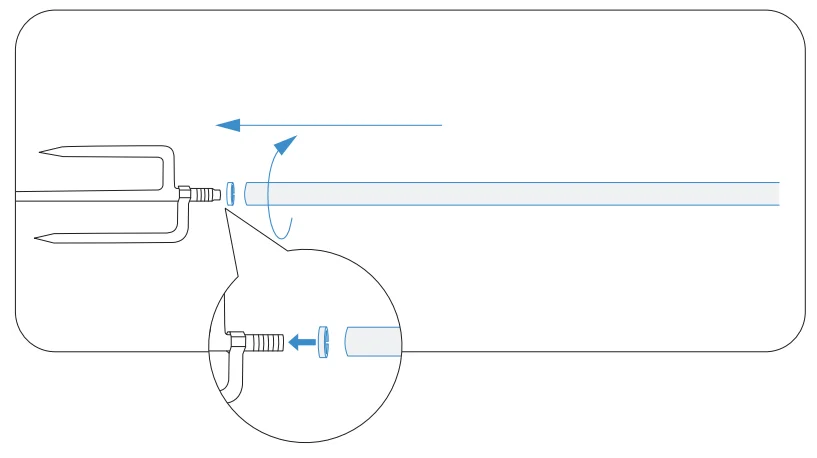
- Attach the RTK Reference Station signal head to the RTK Station Mounting Pole by tightening the RTK Pole Assembly Screw.

- Insert the triangular peg into the mounting pole and tighten it securely.

- Connect the RTK Reference Station power cable to the Charging Station power cable and tighten the nut.

- After powering on, please wait one minute to check the indicator light status. If the RTK Reference Station indicator remains steady blue, the location is ideal with a good signal. If it flashes, relocate the RTK Reference Station until you find the perfect position.

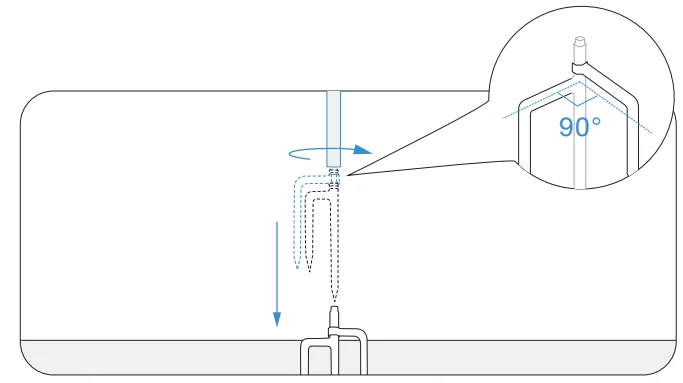
- After locating the perfect spot, insert the RTK Station Fixing Fork Peg into the ground.

- Note: DO NOT install the RTK Reference Station in a spot where the ground is soggy and mushy; otherwise, the pole may easily tilt, thus undermining the working accuracy of the RTK Reference Station.
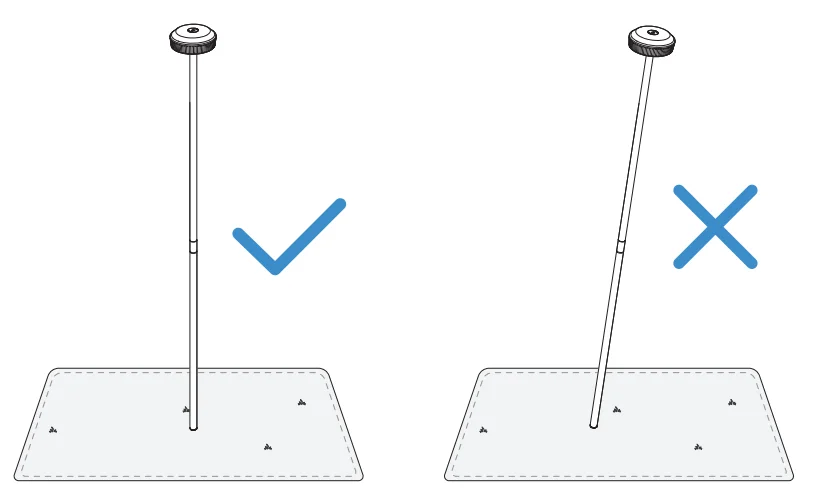
- The RTK Reference Station should be oriented vertically, as shown below.

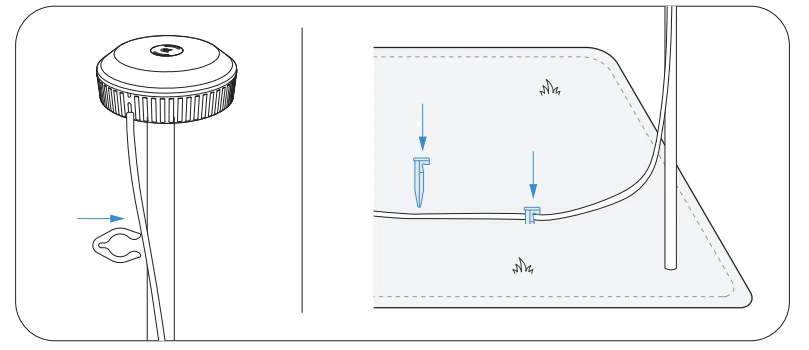
- Secure the RTK Reference Station power cable to the mounting pole with the RTK Reference Station Cable Clips, and use the Power Cable Fastening Pegs to secure other cables to the ground.

3.3 Charge Your GOAT
- Fully charge your GOAT before first use.
- Place it at the Charging Station for charging. The indicator
 on GOAT’s panel will flash white, displaying the current battery level on the screen. The indicator light on the Charging Station will flash blue during charging and turn solid blue when fully charged, with the screen showing “100”.
 on GOAT’s panel will flash white, displaying the current battery level on the screen. The indicator light on the Charging Station will flash blue during charging and turn solid blue when fully charged, with the screen showing “100”.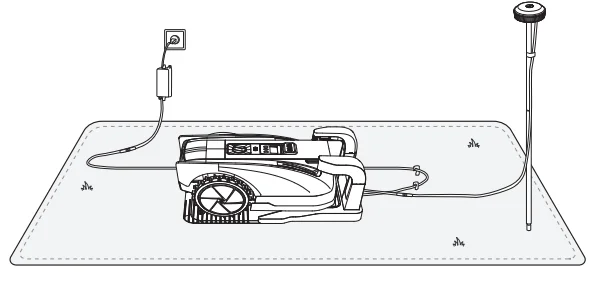
4. Map Your Garden
4.1 Notes Before Mapping
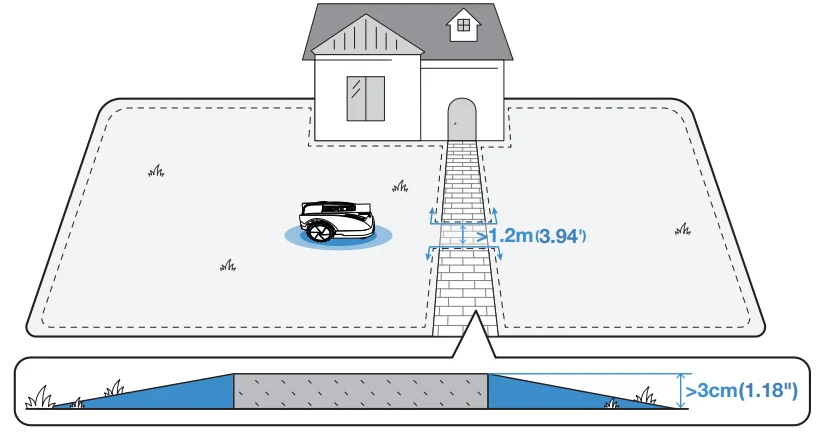
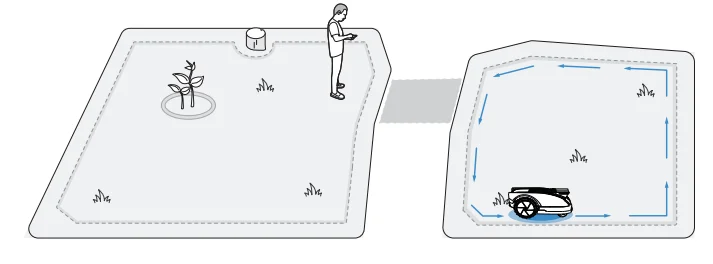
- If your lawn is split into two parts by a road with a height of less than 3 cm (1.18″), you can create a path to connect the two parts when mapping.
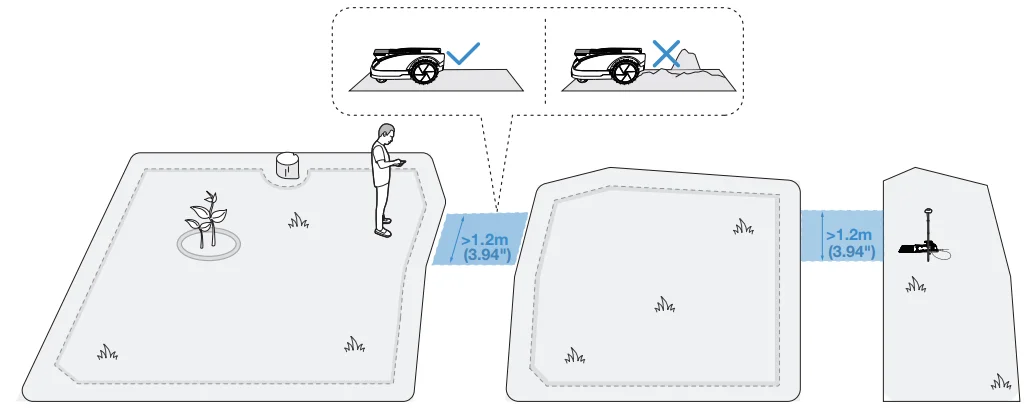
- If your lawn is split into two parts by a road with a height of more than 3 cm (1.18″), you can place a ramped object (such as an uphill mat) that is as high as the road and wider than 1.2 m (3.94′) before mapping, to create a path to connect the two parts when mapping.

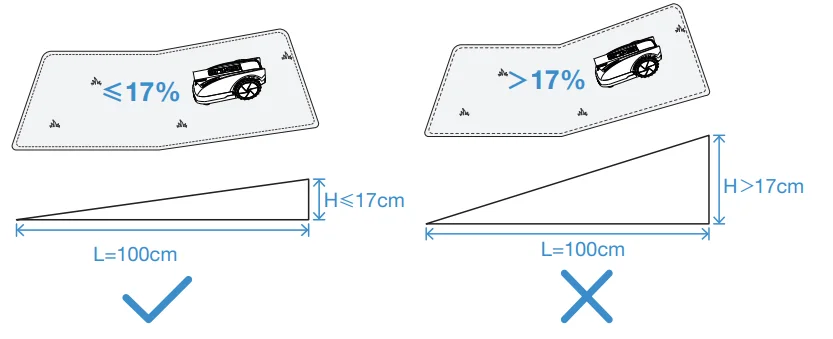
- Do not create the virtual boundary on a slope that exceeds 17%.

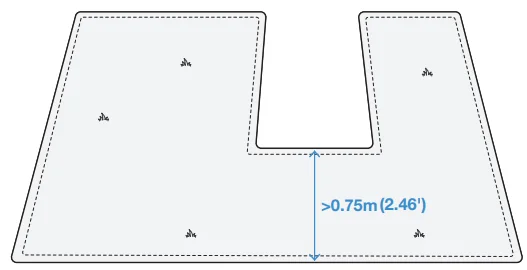
- Note: If the robot needs to pass through a narrow passage, ensure that the minimum width of the passage is greater than 0.75 m (2.46′).

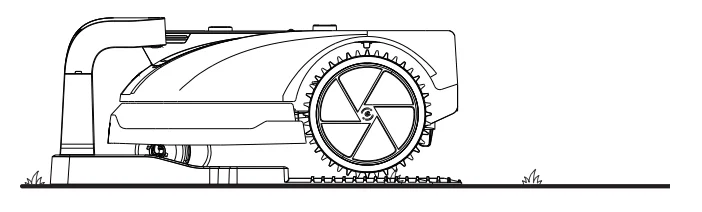
- For the very first attempt at mapping, make sure your GOAT docks properly at the Charging Station and starts from there.

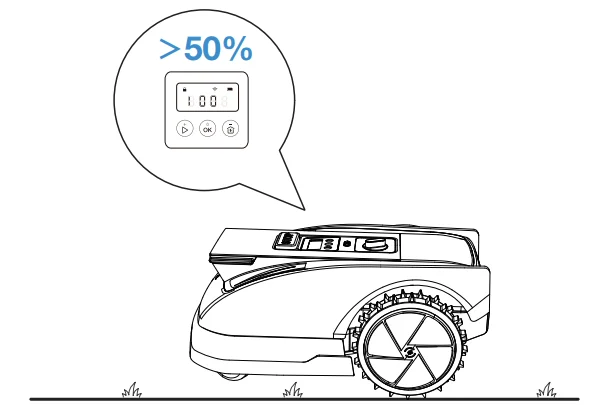
- The battery level of your GOAT is more than 50%.

4.2 Create a Map
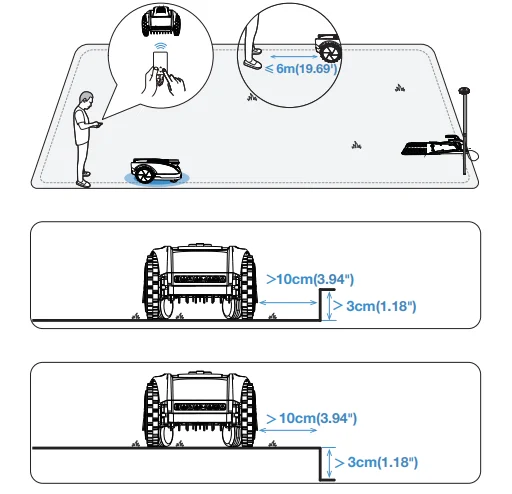
- Control the GOAT on the ECOVACS HOME App and follow it within 6 m (19.69′) for a steady Bluetooth connection. You may switch between different mapping modes as the App indicates.
- If the height difference at the edge of the lawn is more than 3 cm (1.18″), please keep your GOAT at least 10 cm (3.94″) from the edge.

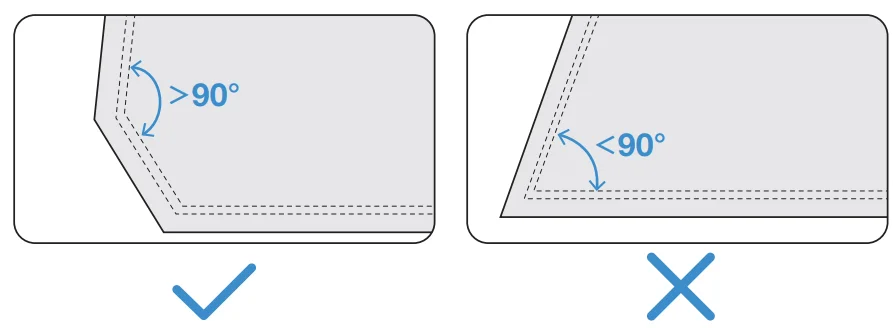
- Make sure that the turning angle is greater than 90°.

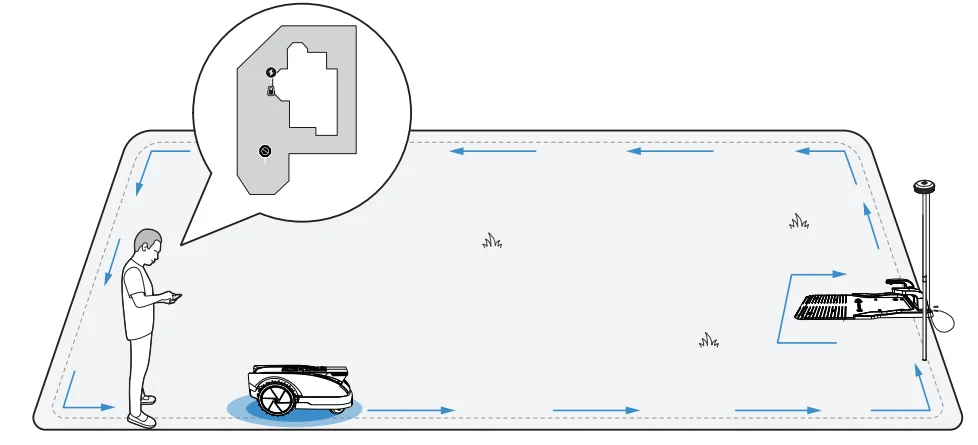
- When finishing mapping, close the loop at the starting point. Follow the App instructions to complete the process. You may continue to map a new area or set up no-entry zones.

4.3 Set up No-Entry Zones, Areas, and Paths
You may explore more mapping features on the App.
1. No-Entry Zones
- Though GOAT can automatically adjust its direction when hitting solid obstacles such as stones or trees, it is still necessary to set up No-Entry Zones for objects you want to protect, such as a flowerbed, trampoline, and vegetable plot.
- To protect your GOAT, areas where GOAT is prohibited from passing should also be set as No-Entry Zones, such as raised tree roots, exposed wire, pools, and slopes that exceed 45%.

- Follow the instructions on the App.
- Control your GOAT to return to the Charging Station after the setup completes.
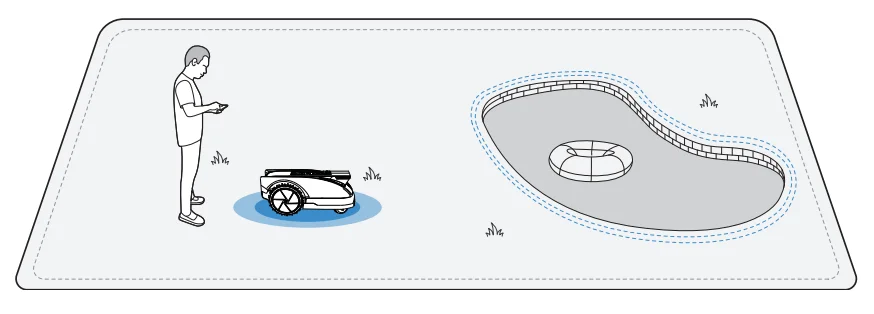
Note: It is recommended to keep GOAT 30 cm (11.8″) away from the boundaries of dangerous areas such as a pond or cliff.
2. New Areas and Area-Connecting Paths
- Control GOAT to the new area to be mapped.
- Map the new area based on the regional environment.

- A path is intended to connect two separate areas or to connect the edge of a lawn to the Charging Station.
- GOAT can automatically generate a path when starting from inside one area and reaching another area. You may edit the path as you like on the App.
- Please ensure that the passable width of the path for GOAT is greater than 1.2 m (3.94″).

8. Troubleshooting
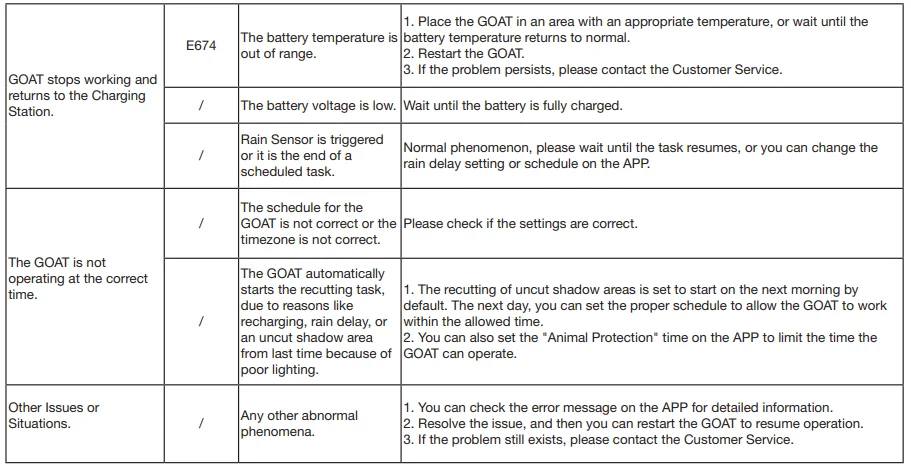
If there is something wrong with your GOAT while working, you can consult the table below. The ECOVACS HOME App will also send detailed problem notifications. Please contact Customer Service if the problems still exist.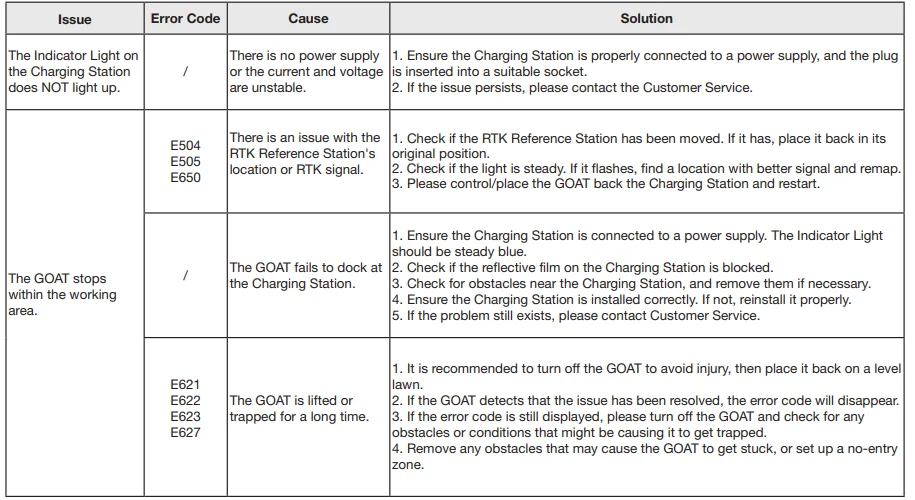
For More Manuals By ECOVACS, Visit ManualsLibraryy.
Ecovacs GOAT 0800 RTK-FAQs
What is the Ecovacs GOAT O800 RTK robotic lawn mower?
The Ecovacs GOAT O800 RTK is a wire-free robotic lawn mower designed for lawns up to 800 square meters. It uses RTK navigation, LiDAR, AI cameras, and obstacle avoidance technology to mow accurately without boundary wires while supporting smart mapping and app-based controls.
Does the Ecovacs GOAT O800 RTK require boundary wires?
No, the GOAT O800 RTK uses wireless RTK positioning and AI-assisted mapping instead of physical boundary wires. Users can create virtual mowing zones directly in the app, making setup faster and reducing the installation effort commonly required by traditional robotic lawn mowers.
How large a lawn can the Ecovacs GOAT O800 RTK handle?
The mower is designed for lawns up to 800 square meters and supports multiple mowing zones. Its intelligent path planning and U-shaped mowing patterns improve efficiency, making it suitable for medium-sized gardens with narrow passages, slopes, and moderately complex layouts.
How accurate is the GOAT O800 RTK navigation system?
The mower uses LiDAR-enhanced RTK navigation with positioning accuracy as precise as 2 centimeters. It can connect to up to 45 satellites across multiple signal bands, improving navigation stability and helping maintain reliable mowing performance even in partially shaded garden environments.
Can the Ecovacs GOAT O800 RTK avoid obstacles automatically?
Yes, the mower includes AIVI 3D obstacle avoidance using AI cameras and 3D-ToF LiDAR sensors. It can recognize more than 200 obstacle types, including garden furniture, pets, and small animals, helping reduce collisions while maintaining safer autonomous mowing operations.
How well does the GOAT O800 RTK handle slopes and uneven ground?
The mower can climb slopes up to 45 percent or 24 degrees and cross small obstacles around 3 centimeters high. Many users report reliable performance on gently uneven lawns, although strong shade and difficult terrain may occasionally affect RTK signal stability.
What are the common problems reported with the GOAT O800 RTK?
Some users mention occasional RTK signal issues, Bluetooth connectivity problems, and inconsistent edge mowing. Others report the mower sometimes leaving uncut strips or being overly sensitive around plants and borders, though many software-related concerns may improve through future firmware updates.
Is the Ecovacs GOAT O800 RTK easy to set up?
Most users find the setup relatively simple because the mower does not require buried boundary wires. The automated mapping system can usually create mowing zones within about 15 minutes, although finding an ideal RTK antenna location may take additional experimentation in some gardens.
Is the Ecovacs GOAT O800 RTK quiet during operation?
Yes, the mower operates at approximately 57 decibels, making it quieter than many traditional lawn mowers. This lower noise level allows it to run regularly without causing significant disturbance, which is especially useful in residential neighborhoods or during evening mowing schedules.
Is the Ecovacs GOAT O800 RTK worth buying?
The GOAT O800 RTK is considered a strong option for homeowners wanting wire-free robotic mowing with advanced navigation and smart features. While some software quirks and RTK placement challenges exist, many users praise its quiet operation, accurate mowing, and convenient automated lawn maintenance.