
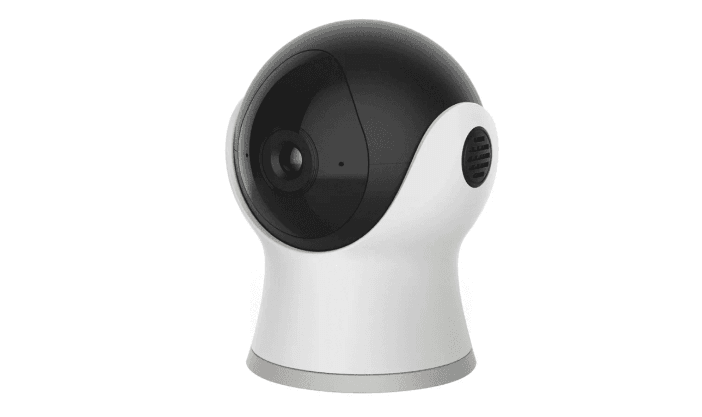

MEARI Mini 6S Wi-Fi Camera

What’s in the box
Consult the checklist below for all components.
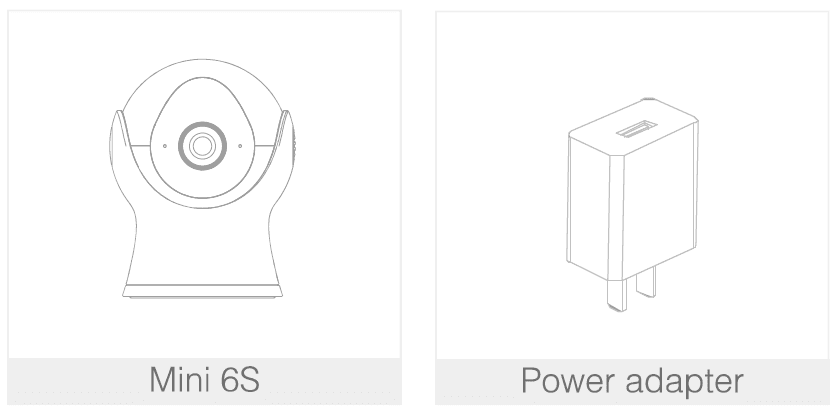
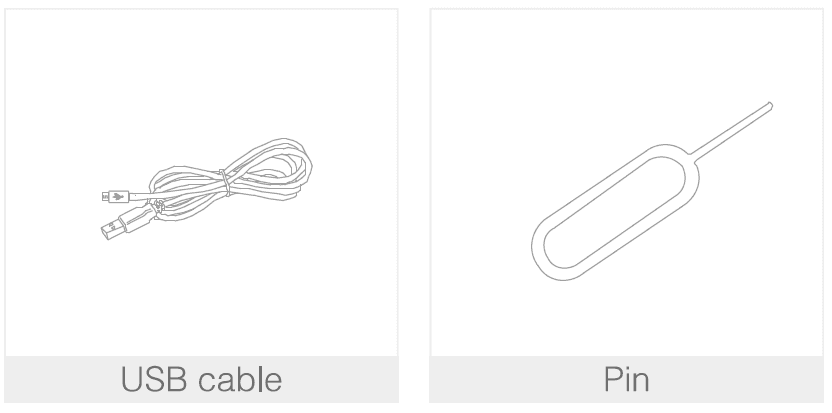
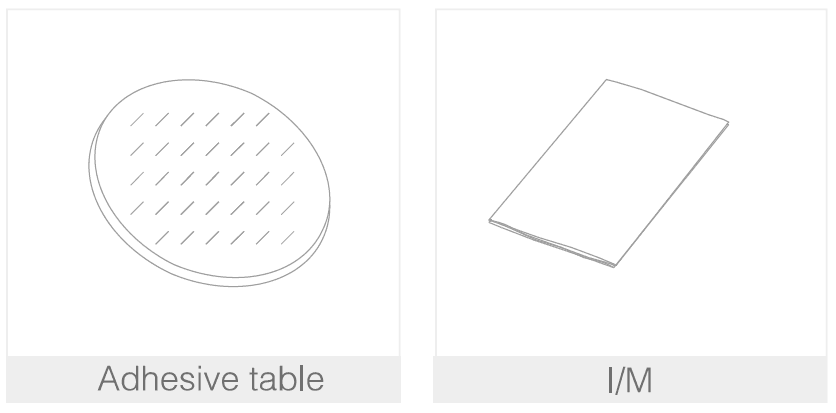
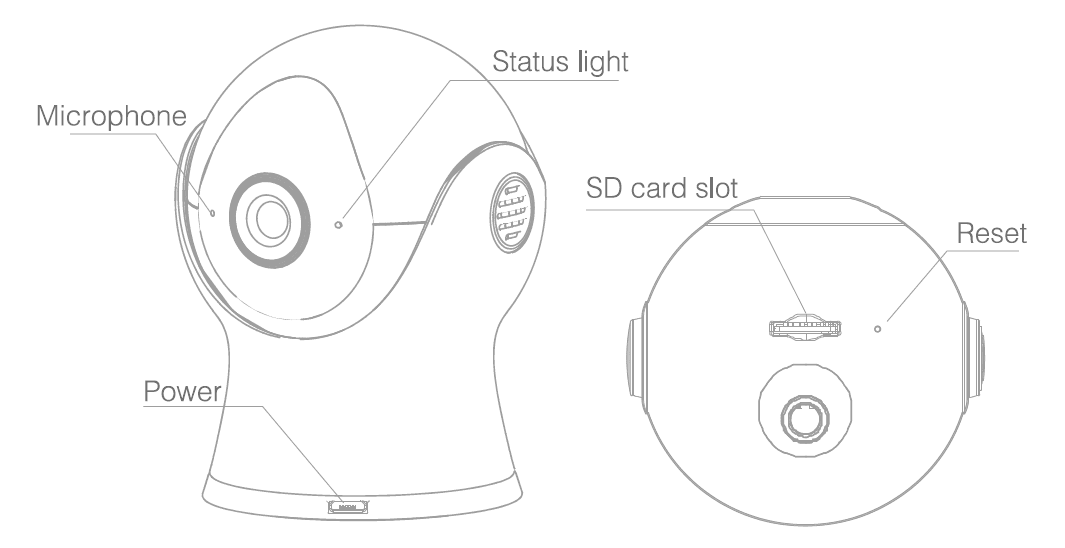
Description
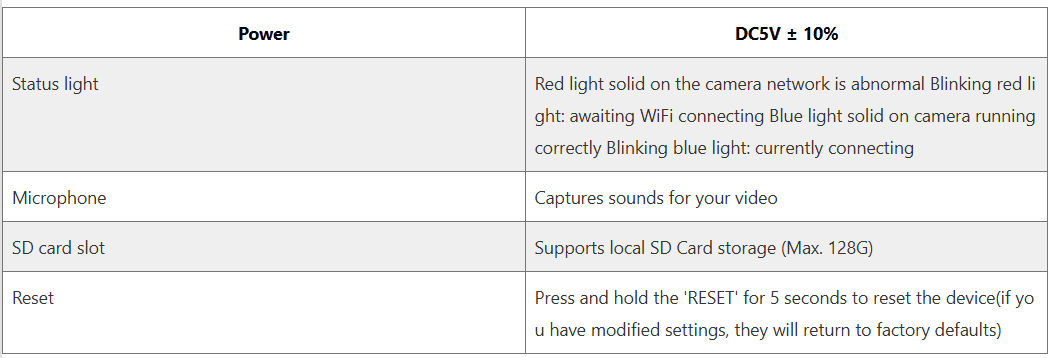
Install
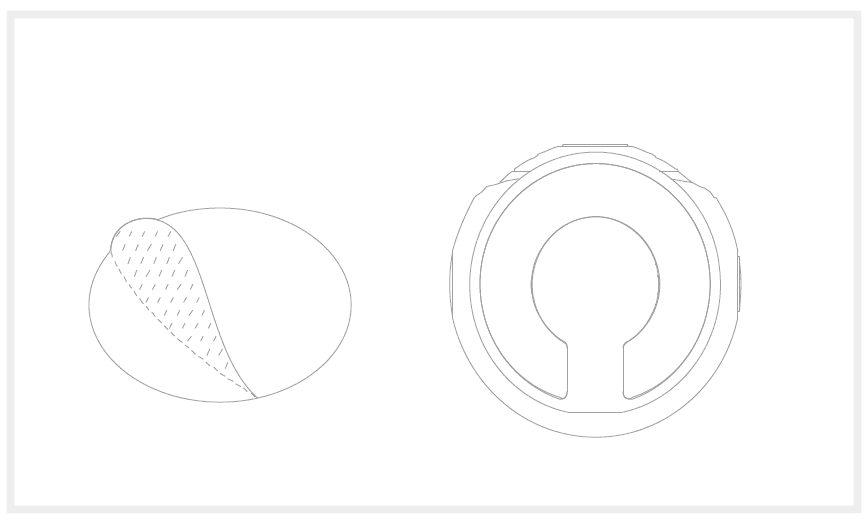
- Stick the Adhesive tape in the middle of the camera’s bottom

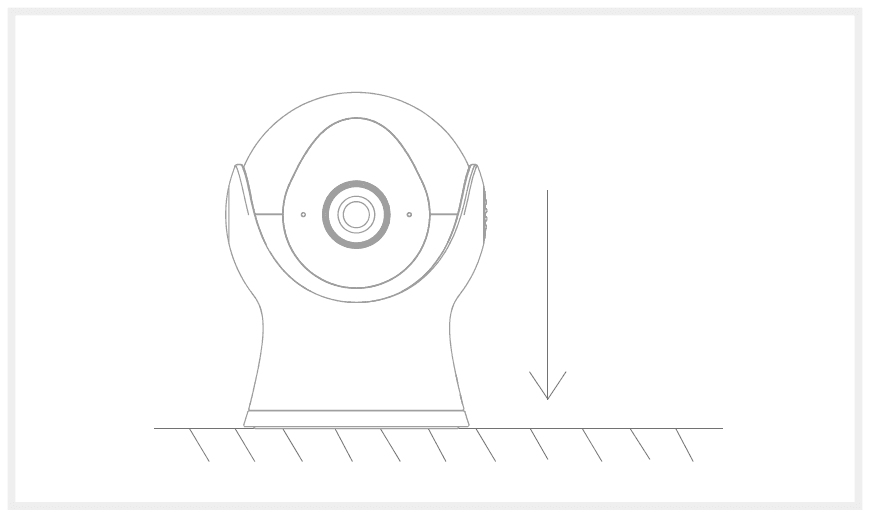
- Put the camera on a clean plane

Connect
Download
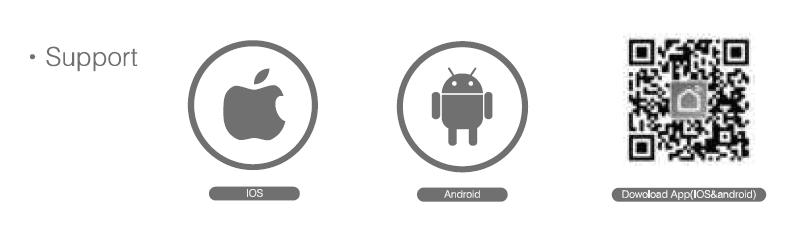
Smart Life is available for both iOS and Android OS. Research the name ‘Smart Life’s App Store or Android Market, or scan the upper QR-Code to download the App. Smart Life is available for both iOS and Android OS. Search the name ‘Smart Life’s App Store or Android Market, or scan the upper QR-Code to download the App.
Set up router
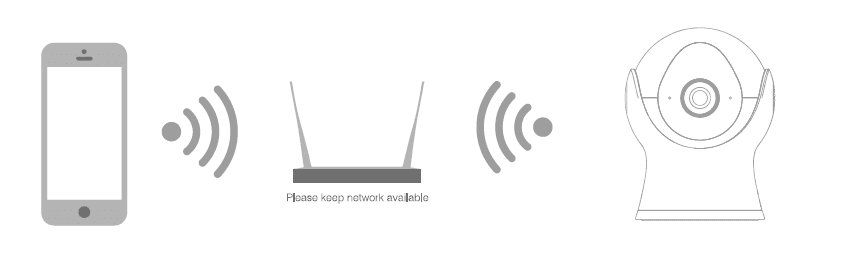
This device only supports a 2.4GHz frequency band router, does not support a 5GHz frequency band router, please set the relevant parameters of the router before WiFi configuration, WiFi passwords do not include special characters such as 1@#$%&(). When the device is configured in WiFi, the mobile phone and device are as close as to the router, which can speed up the configuration of the device.
Registration process
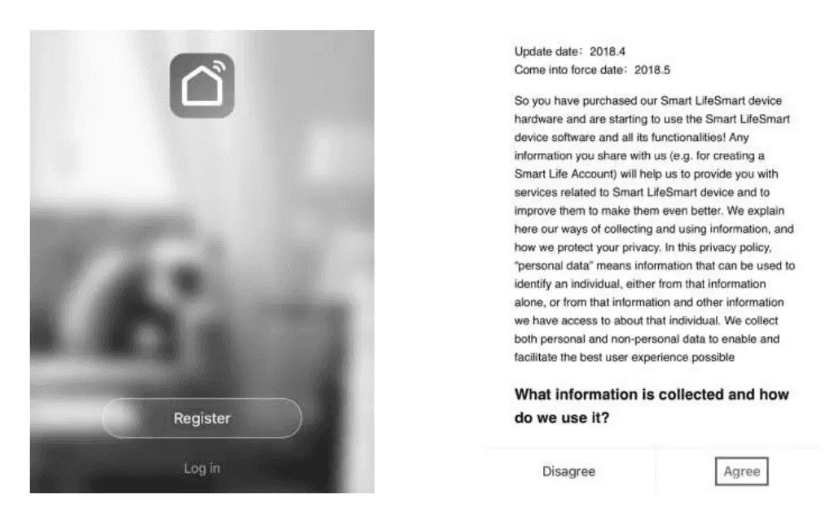
- Step 1: Open the Smart Life App, click “Register’, read the “Privacy Policy” and click ‘Agree’.

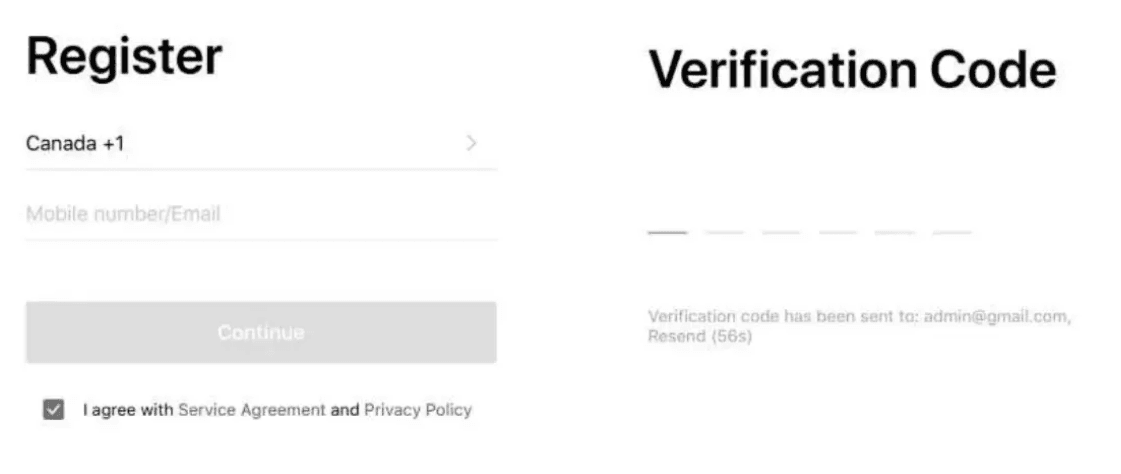
- Step 2: input a legal and valid Mobile number or Email address and click “Continue”. Input Verification Code, then log in the app.

OR Code Configuration
Getting started
- Please follow the instructions and make sure the passwords are input correctly.
- One device can only be added with one App account, if the device has been added with another account already, then it can’t be added to any other account again.
- The device will be unbound from the previous account after being deleted from the App. Further, the device will be reset automatically once from blue light to red light.
Process
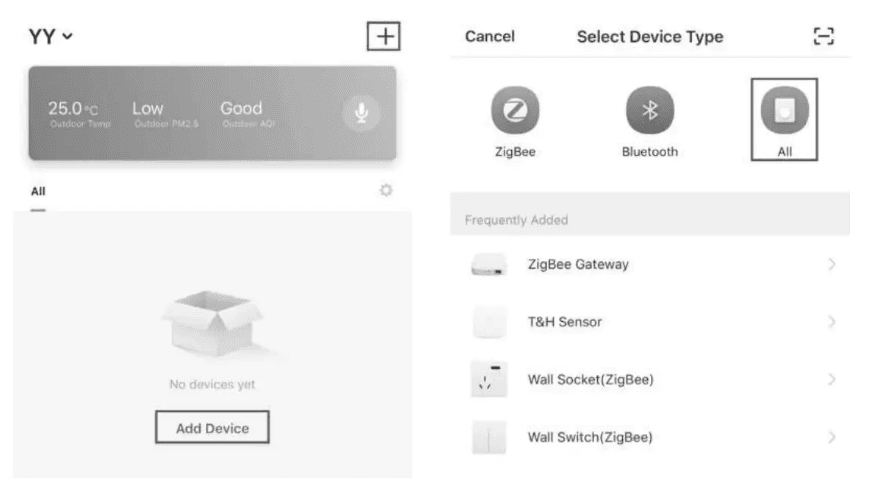
- Step 1: Open the Smart Life App, click”+” or “Add Device. Then select ‘All” on the “Select Device Type” page.

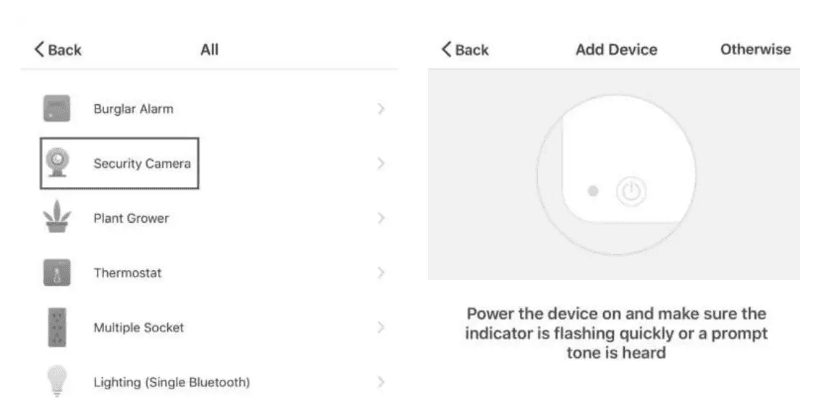
- Step 2: Select “Security Camera“. Power the device on and make sure the indicator is flashing quickly or a prompt tone is heard.

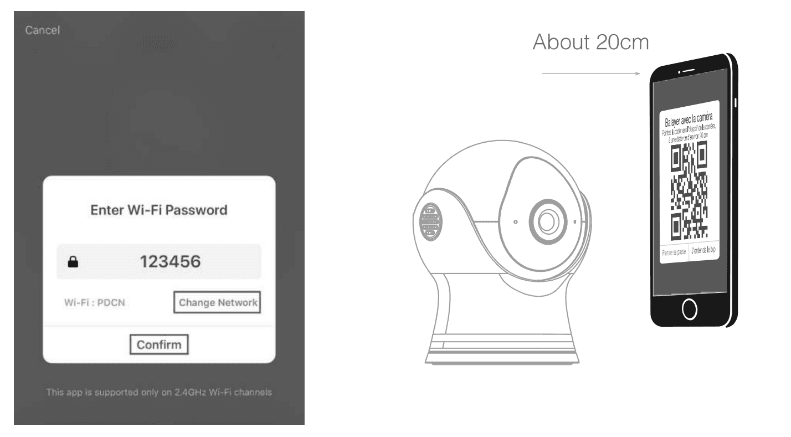
- Step 3: Input WiFi passwords and click “Confirm”, scan the QR Code with a device. (You can change the network connection)

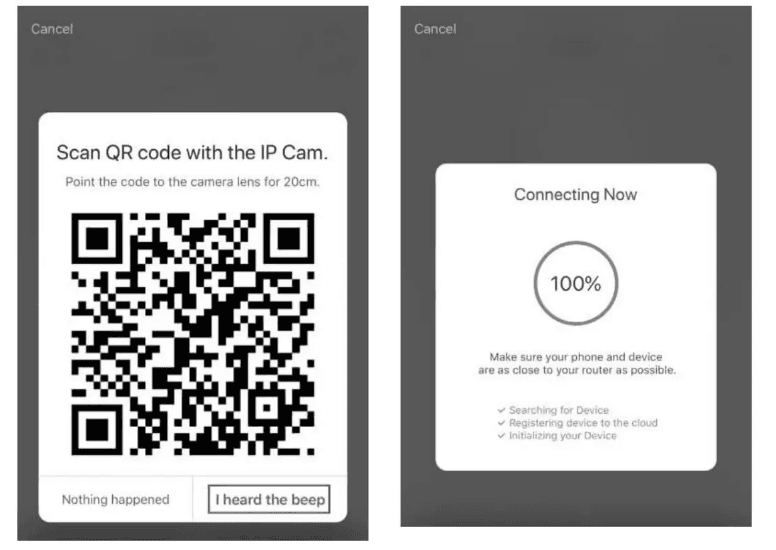
- Step 4: Click “I heard the beep” when the device comes out “dong dong dong”. And you can complete the configuration in about 30s.

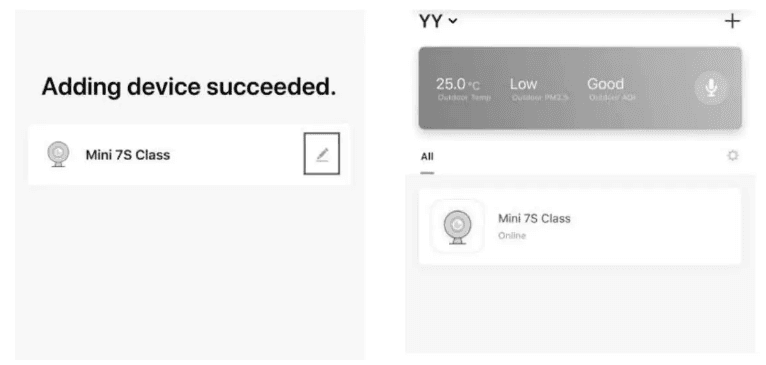
- Step 5: The device is added, and the device nickname can also be changed in this interface.

Functions
Video flip
Flip your video stream up or down for maximum flexibility.
Motion detection
Built-in motion sensors detect movement, and the camera will send you to push notifications and app alerts.
Record
Support 24H continuous recording with high-capacity SD storage.
Day & Night
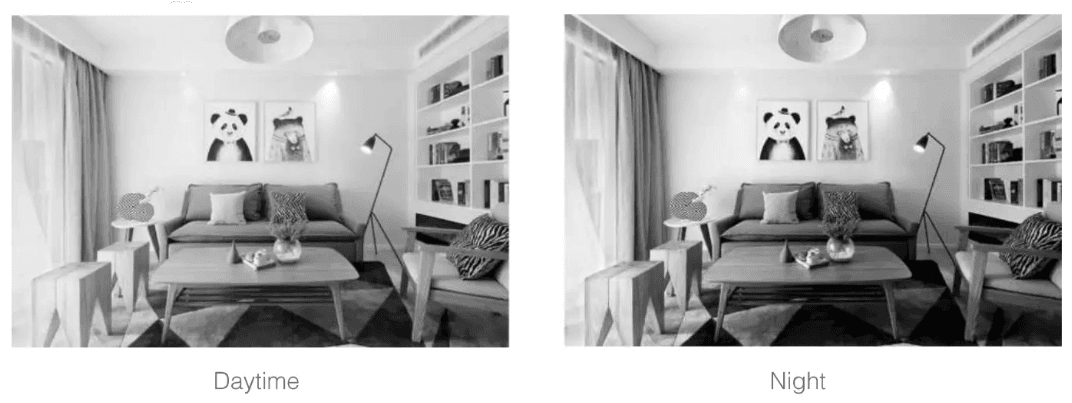
Never miss a moment, even in complete darkness, with powerful night-vision technology.
FCC Statement
This equipment has been tested and found to comply with the limits for a Class B digital device, pursuant to part 15 of the FCC Rules. These limits are designed to provide reasonable protection against harmful interference in a residential installation. This equipment generates, uses, and can radiate radio frequency energy and, if not installed and used in accordance with the instructions, may cause harmful interference to radio communications. However, there is no guarantee that interference will not occur in a particular installation. If this equipment does cause harmful interference to radio or television reception, which can be determined by turning the equipment off and on, the user is encouraged to try to correct the interference by one or more of the following measures:
- Reorient or relocate the receiving antenna.
- Increase the separation between the equipment and the receiver.
- Connect the equipment to an outlet on a circuit different from that to which the receiver is connected.
- Consult the dealer or an experienced radio/TV technician for help.
FCC Radiation Exposure Statement
This device complies with FCC radiation exposure limits set forth for an uncontrolled environment and it also complies with Part 15 of the FCC RF Rules. This equipment must be installed and operated in accordance with provided instructions and the antenna(s) used for this transmitter must be installed to provide a separation distance of at least 20 cm from all persons and must not be co-located or operating in conjunction with any other antenna or transmitter. End-users and installers must be provided with antenna installation instructions and consider removing the no collocation statement.
This device complies with Part 15 of the FCC Rules. Operation is subject to the following two conditions:
- this device may not cause harmful interference, and
- this device must accept any interference received, including interference that may cause undesired operation.
Caution! Any changes or modifications not expressly approved by the party responsible for compliance could void the user’s authority to operate the equipment
For more manuals by MEARI, visit ManualsLibraryy
MEARI Mini 6S Wi-Fi Camera-FAQs
How do I set up my MEARI Mini 6S camera?
Download the compatible app, power on the camera, and follow the on-screen instructions to connect it to your Wi-Fi network. Make sure your phone and camera are on the same 2.4GHz Wi-Fi during setup.
What should I do if my camera doesn’t connect to Wi-Fi?
Ensure you’re using a 2.4GHz Wi-Fi network, not 5GHz. Restart your router and the camera, then try reconnecting. You may also try resetting the camera and starting the setup again.
How do I reset the MEARI Mini 6S camera?
Press and hold the reset button (usually located on the bottom or back of the camera) for about 5–10 seconds until you hear a voice prompt or see the LED blinking rapidly.
Can I view the camera remotely when I’m not at home?
Yes, once the camera is connected to the internet, you can use the app to access live footage from anywhere with an active internet connection.
Does the MEARI Mini 6S support night vision?
Yes, it features infrared night vision, allowing clear monitoring even in low-light or dark conditions.
How do I store footage from the camera?
You can save video recordings either to a microSD card (if supported) or subscribe to cloud storage through the app for online backups.
Can I use the camera without Wi-Fi?
Wi-Fi is required for setup, live viewing, and remote access. However, some cameras may continue to record to a microSD card without Wi-Fi, depending on settings.
Is the MEARI Mini 6S camera compatible with voice assistants?
Some models support Amazon Alexa or Google Assistant for voice control. Check your app or product specifications to confirm compatibility.
How do I update the camera’s firmware?
Open the app, go to the camera settings, and check for firmware updates. If available, follow the prompts to install the latest version.
What should I do if the live feed is lagging or blurry?
Check your internet speed and signal strength. Try moving the camera closer to the router or reducing other devices using the same network.