
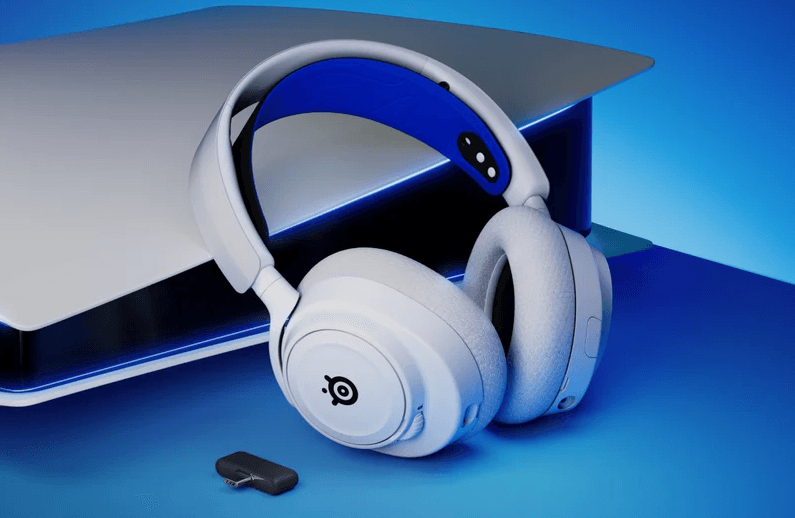

SteelSeries Arctis Nova 7P Wireless Gaming Headset
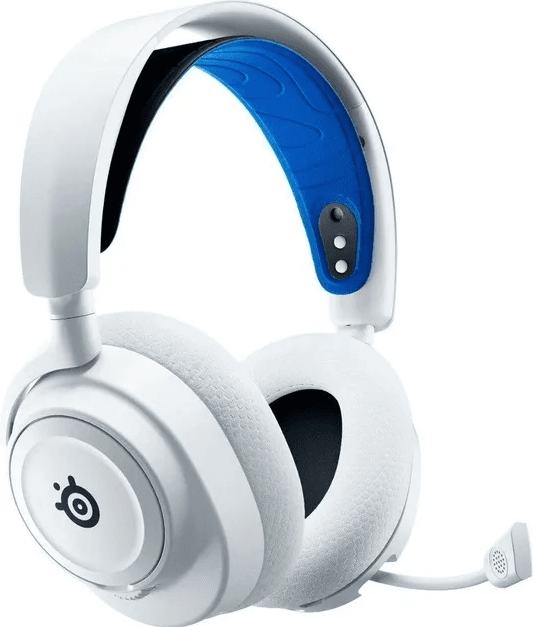
GENERAL
PACKAGE CONTENTS
- Arctis Nova 7P Wireless Headset
- Wireless Dongle
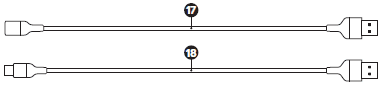
- USB-A adapter Cable
- Charging Cable
SYSTEM COMPATIBILITY
- PlayStation 5
- PlayStation 4
- PC
- Mobile
- Nintendo Switch
- Mac
SOFTWARE
Use the Engine inside SteelSeries GG to set custom equalizer settings and control your mic.
GG also has other amazing apps like Sonar, a breakthrough in gaming sound, that allows you to hear what matters most, through cutting-edge audio tools.
DOWNLOAD NOW
PRODUCT OVERVIEW
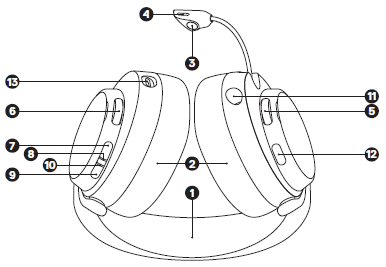
HEADSET
- Elastic Headband
- Airweave Ear Cushions
- Retractable ClearCast Microphone
- Microphone Mute LED
- Volume Wheel
- Sidetone Dial
- Power Button
- Power Indicator LED
- Bluetooth Button
- Bluetooth Indicator LED
- 3.5 mm Wired Audio Jack
- Microphone Mute Button
- USB-C Charging Jack

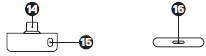
WIRELESS DONGLE
- Wireless Dongle
- Pairing Button
- Status LED

ACCESSORIES
- USB-A Adapter Cable
- Charging Cable

SETUP
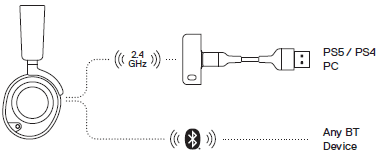
CONNECTION TO USB-A
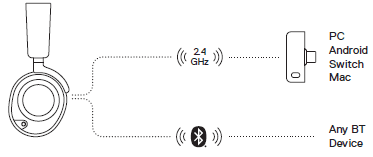
CONNECTION TO USB-C
PLAYSTATION 5 AUDIO SETTINGS
PS5 SETTING > AUDIO OUTPUT
Output to Headphones, All Audio
PS5 SETTING > AUDIO OUTPUT > VOLUME
Headphones, Set to Max
POWER
POWER ON/OFF
Press and hold the Power Button (7) for 1 second to power the Headset On/Off.
When the Headset is powered on and connected, the Dongle’s Status LED (16) increases brightness.
CHARGING
To charge the headset, connect the Charging Cable (18) from the Headset’s USB-C Charging Jack (13) to any USB power source.
The color of the Power Indicator LED (8) indicates the battery level.
- Green 100–50 %
- Yellow 49–15 %
- Red 14–5 %
- Red (fast blink) 4–1 %
PAIRING
Note: The headset and dongle come paired.
If you need to re-pair:
- Connect the Wireless Dongle (14) to your gaming device.
- Press and hold the Dongle’s Pairing Button (15) for 4 seconds until the Power Indicator LED (8) blinks rapidly.
- With the headset off, press and hold the Power Button (7) for 4 seconds until the Power Indicator LED (8) blinks rapidly.
- When pairing is successful, you will hear a tone, and the Dongle’s Status LED (16) will turn solid.
BLUETOOTH
BLUETOOTH POWER
Bluetooth can be powered on / off independently of the 2.4 GHz wireless by pressing and holding the Bluetooth Button (9) for 1 second.
PAIRING
With Bluetooth Off, press and hold the Bluetooth Button (9) for 4 seconds.
MULTIMEDIA CONTROL
- Answer/End Voice Call, Single-press the Bluetooth Button (9)
- Play/Pause Music, Single-press the Bluetooth Button (9)
- Skip Track, Double-press the Bluetooth Button (9)
- Previous Track, Triple-press the Bluetooth Button (9)

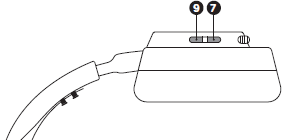
Note: The Power Button (7) can be used for Multimedia control in the same way.
SIDETONE
Use the on-headset Sidetone Dial (6) to adjust the level of your voice you hear in the headset.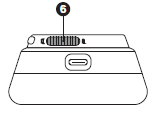
MICROPHONE
RETRACTABLE MICROPHONE
Out of the box, the Retractable ClearCast Microphone (3) is retracted. To use the microphone, slide it away from the headset until it reaches full extension.
POSITIONING
Position the Retractable ClearCast Microphone (3) close to the corner of your mouth with the front surface facing you.
Note: The microphone should not be used when retracted.
PERFECT FIT
RETRACTABLE MICROPHONE
- There are two ways to adjust the fit of your headset
- Change the position of the Elastic Headband (1) on one or both sides to achieve the desired tension and flex.
For more Manuals by SteelSeries, visit ManualsLibraryy
SteelSeries Arctis Nova 7P Wireless Gaming Headset-FAQs
Does the Arctis Nova 7P have noise cancelling?
Yes, it features Active Noise Cancellation and 360° Spatial Audio powered by Sonar Software, creating an immersive gaming experience.
Does the Arctis Nova 7P support Bluetooth?
Yes, the headset offers both 2.4GHz wireless and Bluetooth connectivity, allowing you to connect to multiple devices including PlayStation, PC, Switch, mobile, and VR.
Can I use the Arctis 7P while it’s charging?
Absolutely. The headset comes with a 3-foot charging cable, so you can continue using it even while it’s charging.
What is the battery life of the Nova 7P?
The Arctis Nova 7P offers up to 38 hours of battery life, ensuring long-lasting use without frequent charging.
Does the Nova 7P have mic monitoring (sidetone)?
Yes, the headset includes mic monitoring, also known as sidetone, which lets you hear your own voice while speaking to avoid shouting.
Does the Arctis Nova 7P support 3D audio?
Yes, it supports 360° Spatial Audio and is fully compatible with PS5 Tempest 3D Audio, delivering rich, immersive soundscapes.
How long does the Arctis 7P battery last?
The Arctis 7P+ model offers up to 30 hours of battery life on a single charge.
How do I reset the Arctis Nova 7P headset?
To reset, locate the small pinhole under the right ear cup cushion. Press and hold the internal reset button with a paperclip for about 1 second.
Can I use the Arctis Nova 7P with a wired connection?
Yes, it includes a 3.5mm audio cable, allowing for wired use with devices that support AUX input, including full mic compatibility.