


Pix Star Wireless Digital Picture Frame
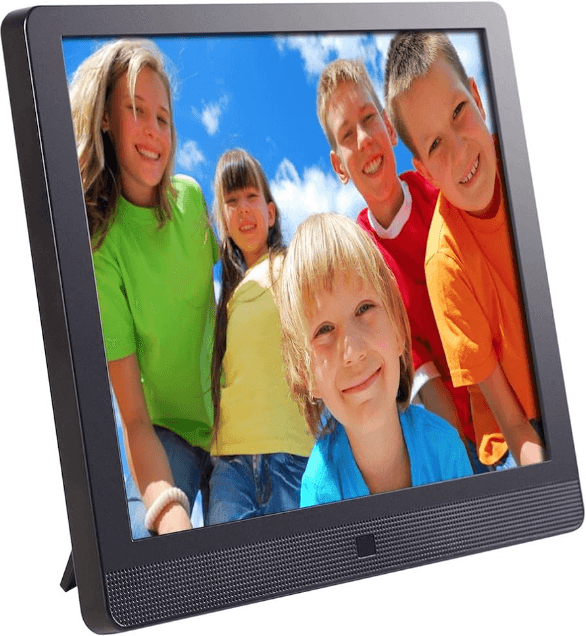
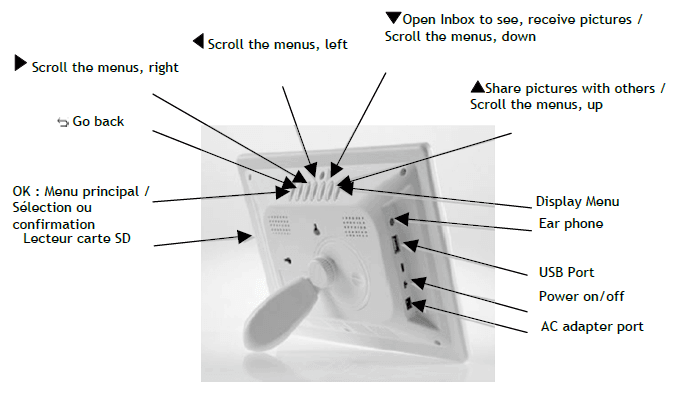
Overview of the device
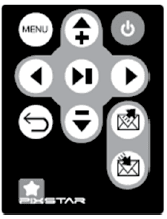
- Play/pause when in slideshow mode. To enter a sub-menu in menu mode. To confirm the selection.
- Move left in the menu mode. Move to the previous picture in slideshow mode.
- Move right in the menu mode. Move to the next picture in the slideshow mode.
- Move up in the menu mode. Increase volume in the slideshow mode.
- Move down in the menu mode. Decrease the volume in the slideshow mode
- Share: Open the contact list to send/share pictures
- Inbox: Open the inbox to view pictures received by email
- Switch On/Off the LCD (Standby mode)
- To move back to the previous menu in menu mode
- Display slide show menu. Display the main menu

Box contains :
- 1 x remote control
- 1 x user manual
- 1 x Pix-Star photo frame
- 1 x frame stand
- 1 x power adapter AC 100/220V
- 1 x Pix-Star Warranty
Note: The remote control is delivered with a 3V lithium battery already installed. Remove the plastic tab to start using the remote control.
ATTENTION: This battery can not be recharged!
How to change the battery of the remote control
When the remote control has stopped working, please replace its lithium battery (CR2025) with a new one.
- Pull the battery drawer out. At the back of the remote control, press the small button on the side of the battery drawer and pull it out at the same time.
- Take the used battery out of the drawer, and then insert a new battery. Insert the “+” side of the battery up.
- Put the drawer back in the remote control.
CAUTION
In case of bad manipulation, the battery might explode. Do not attempt to reload it, disassemble it, or throw it into the fire.
Installation
First, plug the AC adapter into the DEVICE. Its plug is located on the side of the device. Then, plug the AC adapter into a power line.
To power on the device, move the switch button located on the side of the device, on the left. After that, the device should display a logo on its screen. Wait for a while, the device needs about 30 seconds before being ready to be used.
Introduction to the main interface
After you power the device on and wait for a while, pictures should be displayed.
Using the buttons behind the device, you can enter the menus and browse them. To open the main menu, press the Menu button twice. To enter the desired menu, press the PLAY/PAUSE button.
Note: The Back button on the remote control allows you to go back to the previous menu or to leave the main menu.
WiFi and internet setup
Connect the device to the WiFi wireless network
Each device has a dedicated email address which makes it possible for the device to receive pictures directly from the Internet. To be able to receive pictures the device must be connected to the Internet through a WiFi gateway.
Here is how to do that using your WiFi network:
Press the Menu button to open the main menu. Scroll to the Settings item and press Menu again.
Then scroll to the WiFi settings item and press “PLAY/PAUSE”. The device starts an automatic scanning process for available wireless networks.
Note: A DHCP server must be running on your network and provide an IP address to the device. Most personal WiFi networks run a DHCP server.
Register and manage the device on the WEB
If it is your first time using the frame, you should register online by following the instructions below:
Go to the Pix-Star webpage and click on “I want to register and choose an email address for my Pix-Star”. Fill the form, and your device will be ready to use! You can find the device ID in the Basic Information menu of the Settings menu of your device. Choose a password and the email address you want to be assigned to your device.
Receive pictures by email directly on the device
To put a picture on your device, simply send an email with your picture attached to the email address of your device.
When a new picture is received on the device, a small “Inbox” icon will be displayed on the upper right side of the screen.
If you choose to delete a picture from the frame, this one will still be backed up on the website.
Therefore, you will be able to view it or remove it permanently
Note: You can send several pictures in the same email, but you must be sure that the size of your email does not exceed 20 megabytes.
Share pictures with friends directly on the device
The device allows you to share your pictures with your friends. To do so, press the  button while the picture you want to send is displayed. Then, a menu composed of several items appears:
To web albums:
When you choose this item, the picture will be sent to the selected web album. You will be able to see it in your personal area on the website.
To another Email:
This item allows you to send the picture to another device or to an email address. Select it and input the email address you want to send the picture to.
To my friends:
This item is linked to your contact list (of your friend’s frames or personal emails), which is recorded on the server. You can quickly send pictures to them by selecting them. If you want to add more contacts, log in to the website.
View pictures from your online albums on the device
The device is able to display a slide show of the pictures stored inside your online album created on the website.
To manage the device-associated album online, log on to your personal area on the device website.
Choose the “My web albums” menu, where you can upload new albums or delete some. You can also define which album to display on the device.
Once the pictures have been uploaded onto the device website, they are visible immediately on the website and usually less than 1 minute on the device.
When in the web album slide show mode, the device will automatically and periodically synchronize its content with the website.
When a picture is added to the online web album, the device will later add it to its local slide show. When a picture is removed from the online album, the device later removes it from its local slide show. The update of the device with the online album is done at least every minute.
How to use it on the website?
How to manage the automatic Sleep mode of the device?
Having your device turned on all day does not mean you are wasting energy!
In the “Power settings” menu, you can activate the automatic sleep mode of your device and decide when the LCD of your frame shall be turned on or off. Select “Activate daily auto switch on/off mode on my Pix-Star”, and decide at what time your device will be automatically switched on and off.
How to select the weather forecast of the cities and countries of your choice?
From the website, you can choose how to display your forecasts on your device. In “Weather Forecast”, each city will be ranked by country (where every country is an album). In “My weather,” you can display in the same album a mix of cities and countries all together.
The weather forecast will be visible on the device in “My web albums” on the main menu.
How to select and listen to your favorite web radio stations?
All web radio stations are accessible on the device, sorted by genres and countries. Additionally, on the “Web radio” section of the website, you can create customized playlists of your favorite radio stations directly on the device. Two options:
- Create a playlist and select your radio from the predefined list. If your radio is missing, submit it to us by email at [email protected] (please specify its name and its related URL)
- Or link the audio stream of your own web radio!
How to proceed?
Every web radio is broadcast via a specified stream. If you add a URL related to this stream, you can listen to your web radio directly on the device.
How to manage your contacts?
Easily adding contacts directly from www.pix-star.com will create a contact list visible from your device. It will be useful to send direct emails to your friends, no need to type their address in the frame. You can easily modify, add, or delete a contact from this list.
Moreover, you can build groups and instantly send your favorite photos to all the members of this group.
How to filter your emails?
You may choose to apply filtering to all incoming emails to better control who is allowed to send pictures to your Pix-Star photo frame. You can choose the following options:
- No filtering (Anyone who knows your Pix-Star email address can send pictures to your photo frame)
- Refuse all incoming emails except the ones coming from the “white list” of your authorized persons
- Accept all incoming emails except those coming from the “black list” of unauthorized persons
Overview of other functionalities
The device includes the following useful functionalities:
Pause
The device usually displays the pictures as an automatic slideshow. However, if you want to display a single static picture, you can interrupt the slideshow by choosing the Pause button of the main menu. To play the slideshow again, choose the Play item.
Setting
Several options can be modified from the Settings menu.
Removable devices
The device is also able to read pictures stored in an SD card or in a USB Mass storage dongle. Plug one of them into the device, select the right storage area in the files manager menu, and choose browse the directories to find the one that includes your picture, then click to display a slideshow composed of their pictures.
Picture management
The device allows you to manage your pictures. Enter the file management menu and select the memory where your pictures are located. Then, you can perform several actions such as delete, copy.
Music
Music can also be played with the picture frame. Put some MP3 files on a SD Card or a USB Mass storage dongle and plug it into the device. Then, you can use the “My audio” menu to play your favorite music.
Bluetooth
A Bluetooth dongle can be plugged into the USB port of the device and used to transfer pictures. You can use any Bluetooth device, such as a mobile phone or PC, to send your pictures to the device.
Technical characteristics
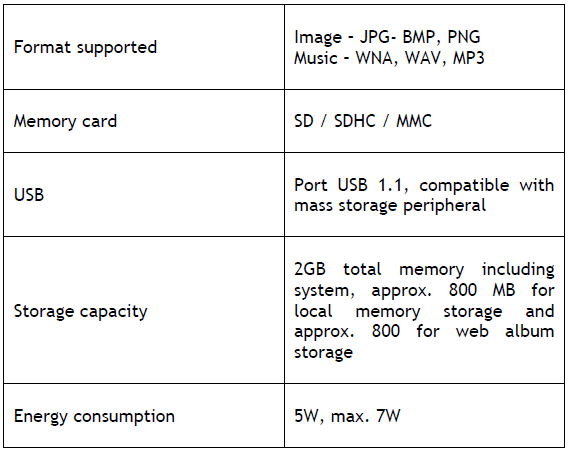
All data is provided as reference only. The manufacturer reserves the right to modify the specifications without any prior notice.
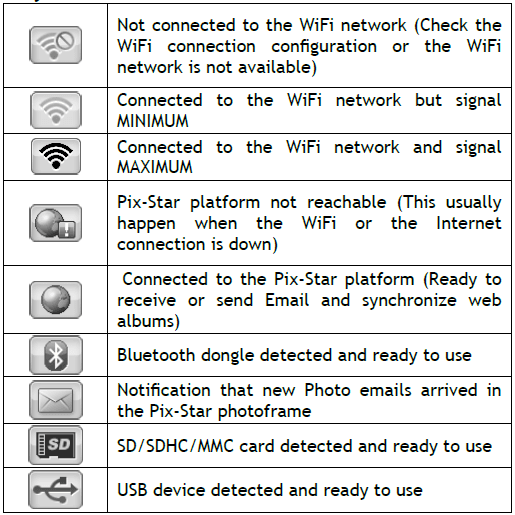
Signification of menu icons
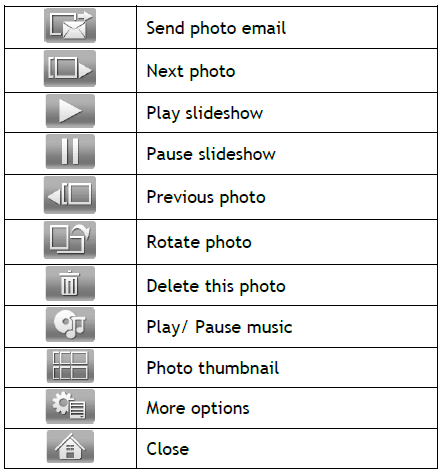
Significance of thumbnail icons
Files manager
How to create a new folder in a repository?
Choose a location where you want to add this folder, then press the “Menu” button of the remote control, and select “New folder”. A pop-up will appear and ask you to choose a name for this new folder.
How to copy a file to another folder?
Select the files you want to delete by clicking on the central button of the remote control (PLAY/PAUSE). Click on the “Menu” button of the remote control, and select “copy selected files to…” Go back and select the folder of your choice. Click on “Menu” again and “select”. The copied files will appear in this folder.
How to delete a file?
Select the file(s) you want to remove with the central button of the remote control (PLAY/PAUSE), press “Menu”, and “Delete files”.
For more Manuals by Pix Star, visit ManualsLibraryy
Pix Star Wireless Digital Picture Frame-FAQs
How does the Pix-Star frame work?
The Pix-Star Snap mobile app allows you to:
Send up to 250 photos to multiple frames at once.
Share videos & audio messages directly from your phone.
Easily manage photos via an intuitive interface.
How many photos can the Pix-Star frame hold?
8GB internal storage (holds 20,000–30,000 photos, depending on resolution).
Optimized for native frame resolution for best display quality.
Can the Pix-Star frame play music?
Yes, but only via USB/SD card (must remain inserted).
Supports MP3 & other common audio formats.
How do digital frames store photos?
Each frame has a unique email address for receiving photos.
Photos are saved internally for offline viewing.
Can I use the Pix-Star frame without Wi-Fi?
Yes, but with limitations:
Works via USB/SD card (no cloud sync).
Wi-Fi recommended for full functionality.
What’s the best way to store digital photos?
Cloud backups (Google Drive, iCloud, Dropbox) for safety.
External hard drives as secondary storage.
Can the Pix-Star frame play videos?
Yes, but with restrictions:
Max resolution: 1280×960.
Must resize larger videos before uploading.
How long do digital frames last?
~1,000 hours of continuous display (no screen burn-in).
Built for long-term use with proper care.
Is 32GB storage enough for a digital frame?
Yes, for thousands of HD photos & short videos.
Pix-Star has 8GB internal storage (expandable via USB/SD).