
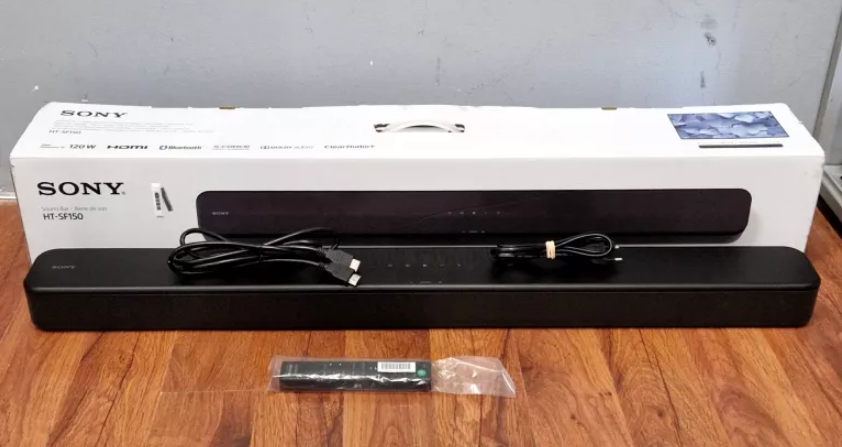

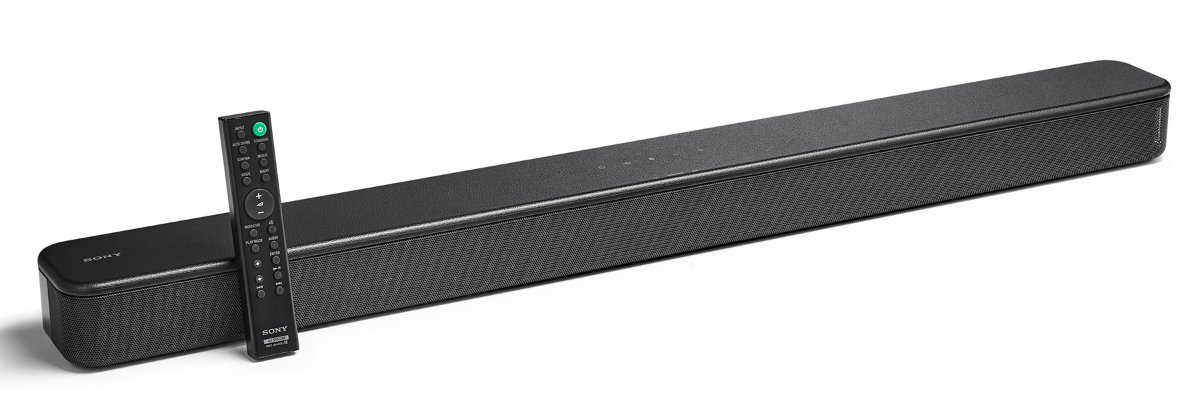
Sony HT-SF150 2CH Sound Bar
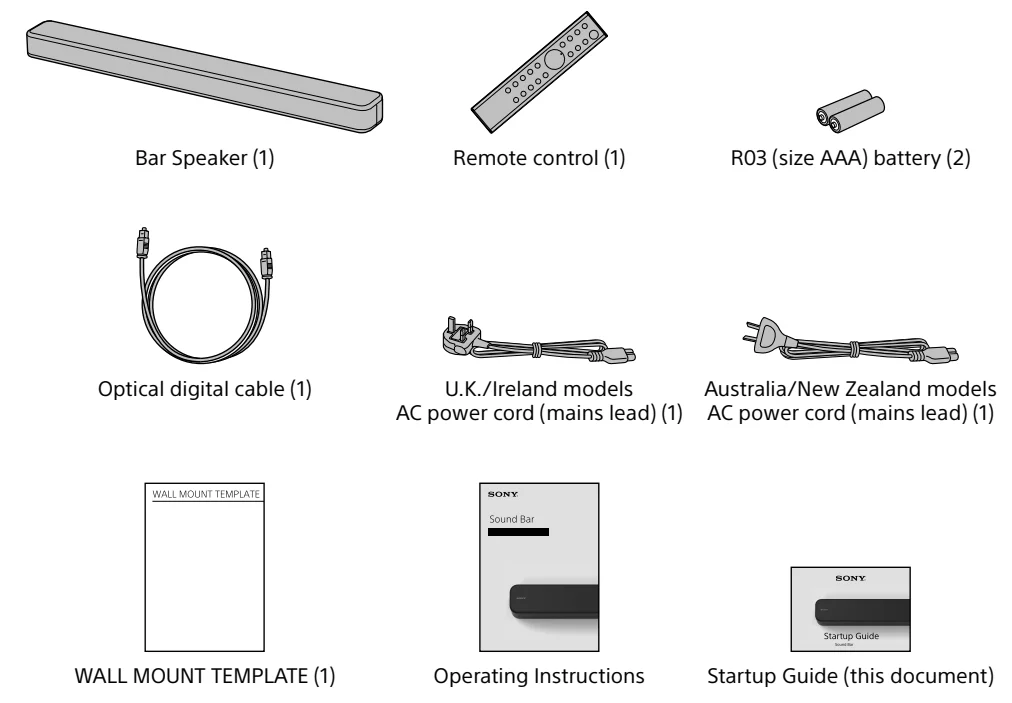
What’s in the box
Connecting with a TV
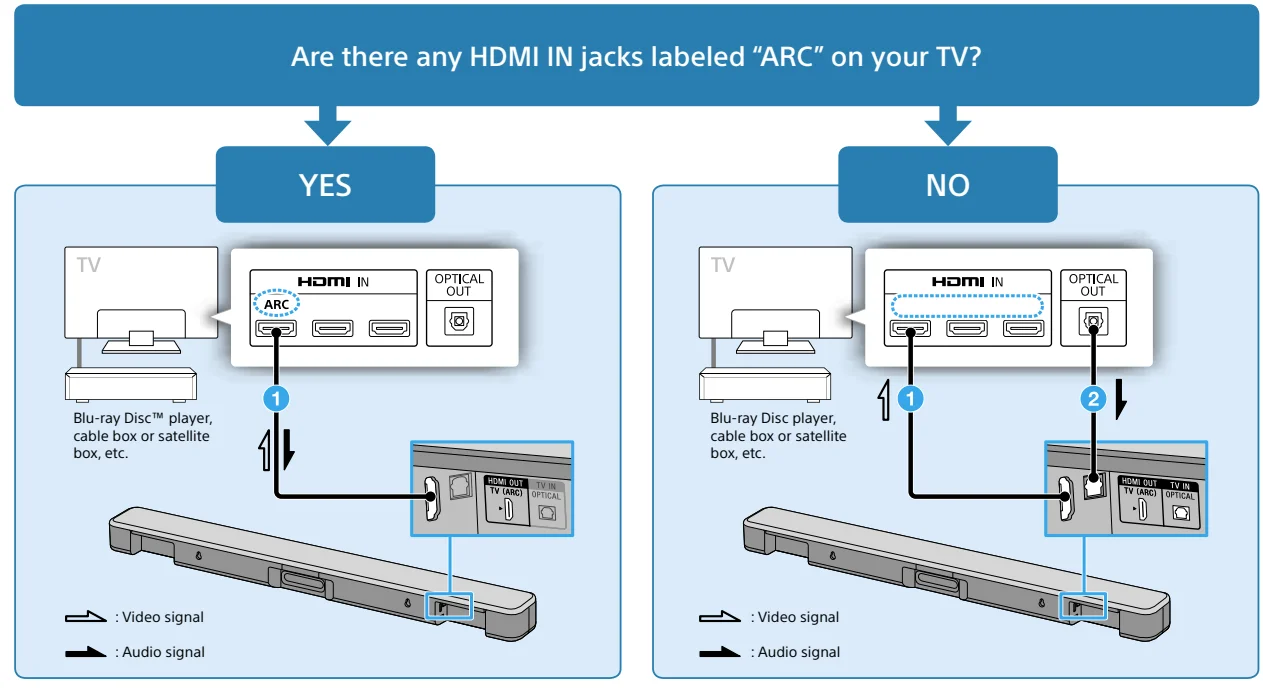
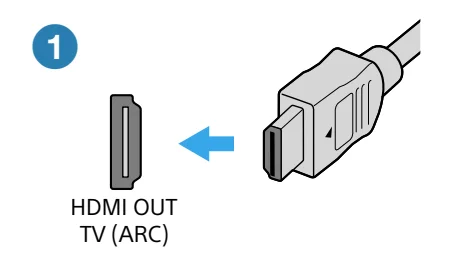
Use an HDMI cable (not supplied) to connect an HDMI IN jack on your TV and the HDMI OUT (TV (ARC)) jack on the Bar Speaker.
Note
- Make sure that the cable is firmly inserted.
- When your TV does not have an HDMI IN jack labeled “ARC,” you also need to connect the TV and the Bar Speaker via the optical digital cable (supplied) as instructed in step 2. There will be no sound output from the TV if the TV and the Bar Speaker are connected only via the HDMI cable.
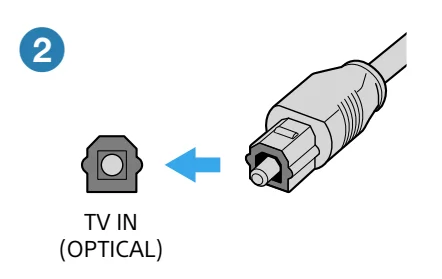
When there is no HDMI IN jack labeled “ARC” on your TV, use the optical digital cable (supplied) to connect an optical out jack on your TV and the TV IN (OPTICAL) jack on the Bar Speaker.
Note
- Check the shape of the optical digital cable’s connectors and the jacks on the TV and the Bar Speaker. Insert the connectors into the jacks in the right directions. If you forcibly insert the connectors in the wrong directions, the connectors and the jacks may be damaged.
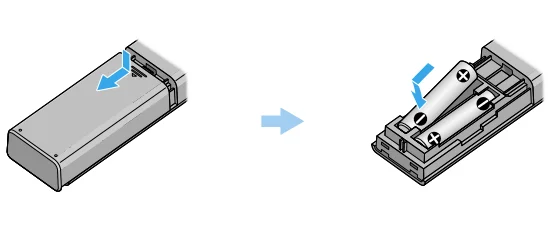
Setting up the remote control
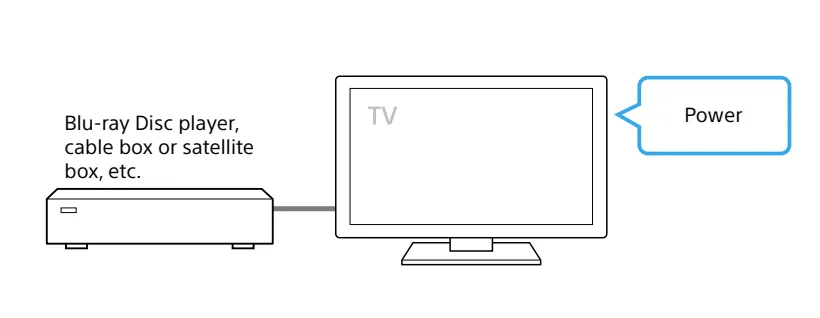
Turning on the TV
Turning on the Bar Speaker
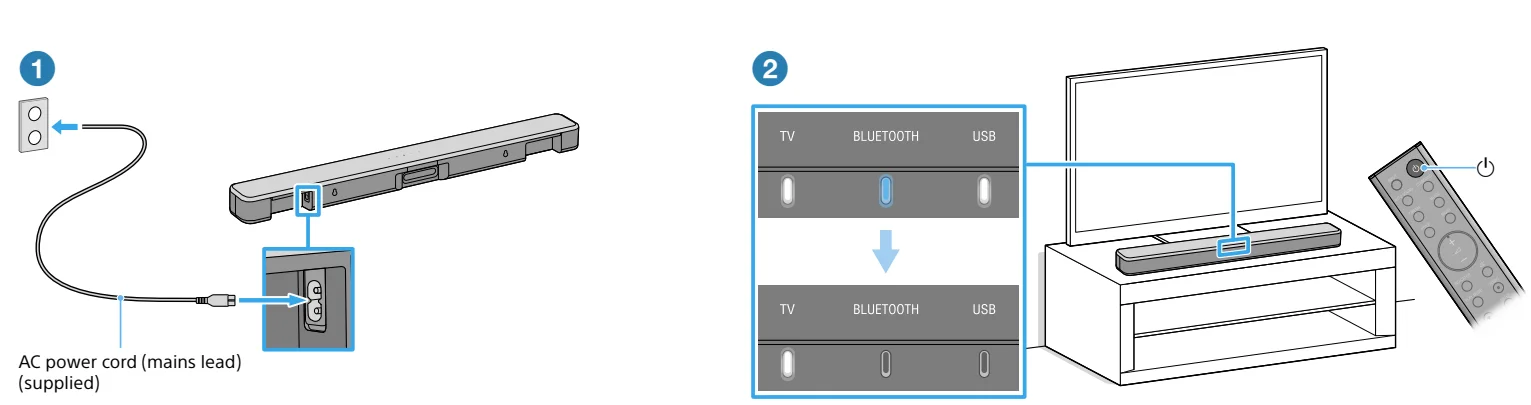
- Connect the AC power cord (mains lead) to the Bar Speaker and then connect the AC power cord (mains lead) to the AC outlet (mains).
- Press
 (power) on the remote control of the Bar Speaker. After the TV, BLUETOOTH, and USB indicators light up in sequence for a few seconds, only the TV indicator lights up.
 (power) on the remote control of the Bar Speaker. After the TV,
 Note
- Do not place magnetic cards on the Bar Speaker or near the Bar Speaker.
Listening to the sound
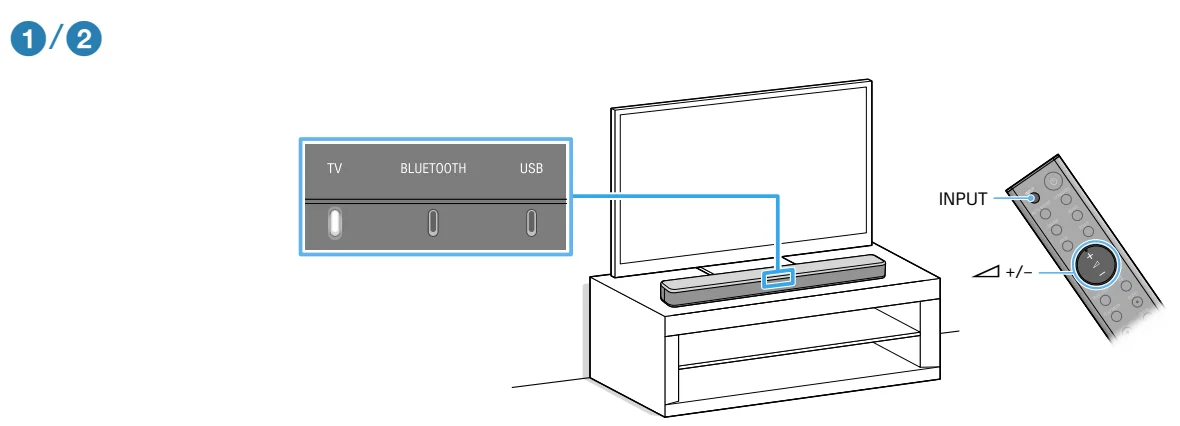
- Make sure that the TV indicator on the Bar Speaker lights up.
When the TV indicator on the Bar Speaker does not light up, press INPUT on the remote control of the Bar Speaker to select the TV input. - Adjust the volume by pressing
 the remote control of the Bar Speaker.
 the remote control of the Bar Speaker.
Note
- Depending on the order in which you turn on the TV and the Bar Speaker, the Bar Speaker may enter muting mode. In this case, turn on the TV first, then the Bar Speaker.
For more manuals by Sony, visit ManualsLibraryy
Sony HT-SF150 2CH Sound Bar- FAQs
How do I set up the Sony HT-SF150 for the first time?
Place the soundbar under your TV → connect HDMI ARC → power on both devices → set TV audio output to External Speakers / HDMI ARC.
How do I access the soundbar settings?
On most Sony TVs, press Quick Settings on the remote → go to Display & Sound → choose Audio System → adjust soundbar settings.
Is the Sony HT-SF150 a good soundbar?
It delivers clear dialogue, decent volume, and simple operation. It’s great for everyday TV use but not meant for high-end, cinematic sound.
What are common soundbar problems and fixes?
Frequent issues include loose cables, wrong input selection, overheating, and TV audio settings set to “TV speakers.” Recheck connections and audio output settings.
How many speakers does the HT-SF150 have?
It has a 2-speaker (2.0 channel) setup built into one compact bar.
How do I reset the Sony HT-SF150?
Hold Power + Volume + + Input on the soundbar for 5 seconds, unplug it for a moment, then reconnect power.
How do I activate Dolby Atmos on a Sony soundbar?
The HT-SF150 does not support Dolby Atmos. Atmos options apply only to higher-end models.
Which HDMI port should I use for the soundbar?
Always connect to the port labeled ARC or eARC.
How do I get sound from my TV to the Sony soundbar?
Ensure your TV audio output is set to HDMI ARC / Audio System and not to “TV Speakers.”
What does the white light mean on my Sony soundbar?
A solid or flashing white LED shows system status—power on, pairing, or function change.