
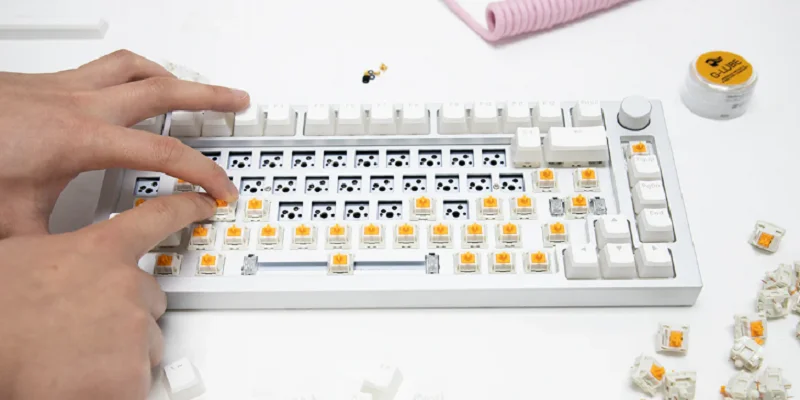

GamaKay LK67 RGB Modular DIY Mechanical Keyboard

Backlight mode
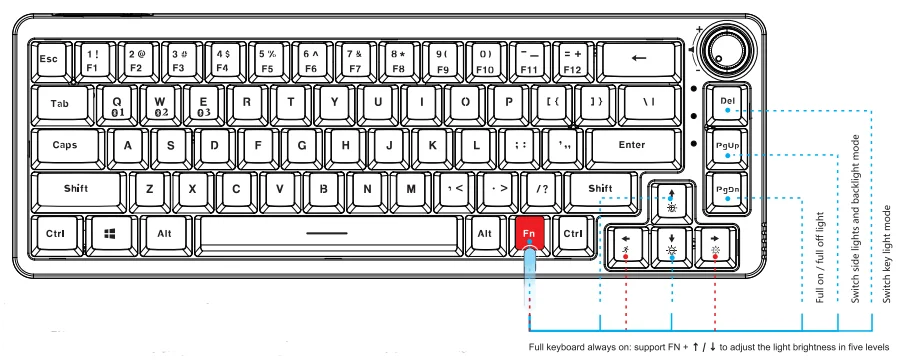
- Press FN + Del to switch the Backlight Mode.
- The constant light mode cannot adjust the backlight speed, and other backlight modes can adjust the lamp efficiency speed and brightness. There are seven levels of brightness, and the default is the maximum brightness. There are five speeds in total, and the third speed is the default.
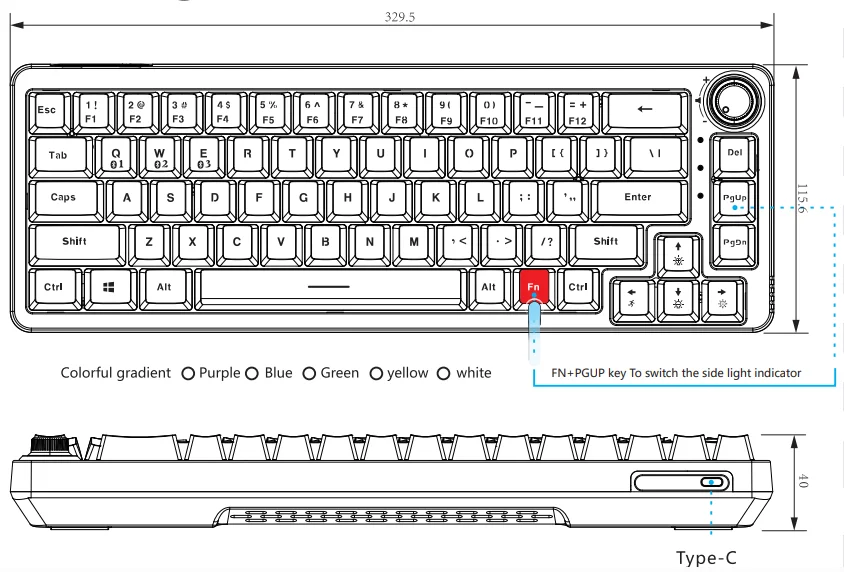
- The function of the FN + PgUp combination key is to adjust the side light and back light. The light sequence is red, orange, yellow, green, green, blue, purple, and neon.
- The function of the FN + PgDn combination key is to turn on or off the backlight effect.
Backlight recording mode
Long-press the FN + Del combination key for 3 seconds to switch to the custom backlight mode and start recording. During recording, the third independent indicator flashes to indicate that the custom recording function is being used. Press the FN + Del combination key again to exit the recording mode. The default WASD and direction keys of the custom mode are on.
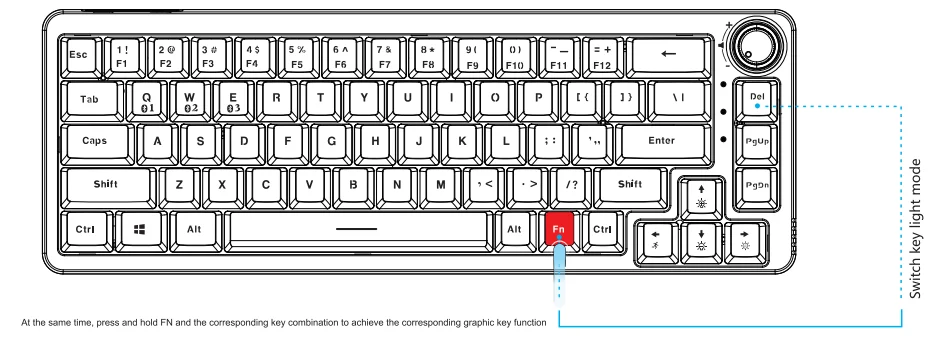
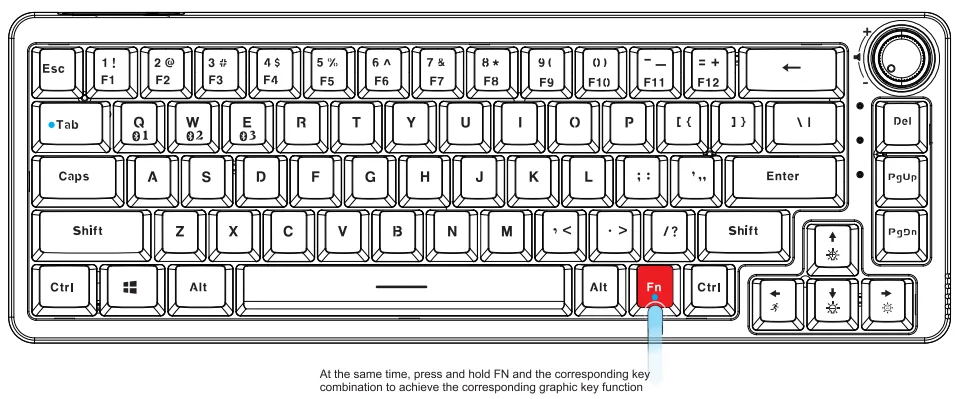
List of special key functions
FN+1=F1 FN+2= F2 FN+3=F3 FN+4=F4 FN+S•FS FN+6=F6 FN+7=F7 FN+8=F8 FN+9=F9 FN+0=F10 FN+•• F11 FN++=F12
- FN+Q Bluetooth device 1
- FN+W Bluetooth device 2
- FN+E Bluetooth device 3
- FN+Q Bluetooth device 1
- FN+ ↑ Brightness plus
- FN + ↓ Brightness reduction
- FN+ → Speed up
- FN + ← Speed decreases
- FN+Win Lock win key
- Ctrl + Alt + restores the default settings
- FN+U PRT SCR
- FN+I ScrIk
- FN+O Pause
- FN + S Pause/ Play
- FN+A Last song
- FN+A Next song
- FN+J INS
- FN+K HOME
- FN+› END
- FN + Del switch lights
- FN + Pg Up Switch Decorative Light mode
- FN + Pg Dn Turn Off Backlight
Mode introduction
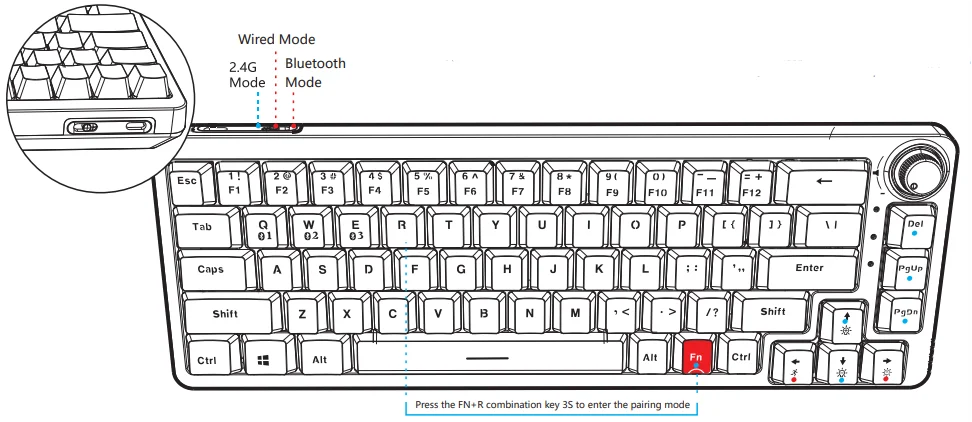
Toggle the switch to the far left: 2.4G Mode.
After the keyboard is powered on, press the FN + R combination key for 3S to enter the pairing mode, and the indicator flashes. At this time, insert the receiver, exit the pairing after successful pairing, the indicator is always on for 10s, and exit the pairing mode 30s after the pairing device is not found, the indicator goes out, and the keyboard enters sleep.
Toggle switch to middle: wired connection Mode
Toggle the switch to the right: Bluetooth connection Mode
Long-press the FN + Q / W / E combination key for 3s, the keyboard enters the code matching state, the indicator flashes, and the connected device indicator is always on for 10s. If the device is not connected, the indicator goes out, and the keyboard enters sleep.
Knob function definition
The knob function can be customized by driving
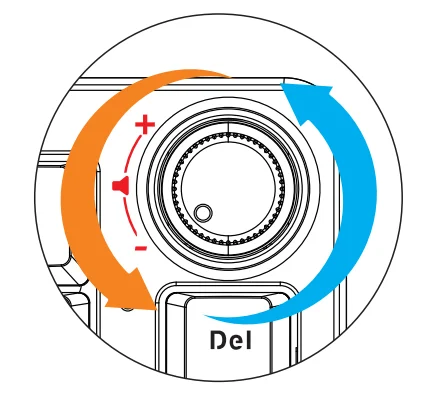
 Clockwise Rotation = volume increase
 Counterclockwise = volume down
 Press the knob switch = play/ pause
 Clockwise Rotation = volume increase
 Counterclockwise = volume down
 Press the knob switch = play/ pause
Backlight mode
Product parameters
- Size : 329.5 * 115.6 * 40MM
- Wire length: 1.5m
- Weight: 980G
- Number of keys: 67key
- Shaft type: hot plug mechanical shaft
- Backlight: RGB
- Side lights: RGB
- Voltage: 4.4 ~ 5.25V
- Current : 5V / 200mA
- Interface: Type-C
- Operating frequency: 2402-2480MHz 2402-2479MHz
- Bluetooth connection back time: less than or equal to 5S
- Service distance : > 10m 360 °
- Working mode: wired, 2.4G, Bluetooth 3.0, Bluetooth 5.0
- RF power: the keyboard works with an RF power of 30dBm. When the receiver works, the RF power is 30dBm
- Sleep time: the device will automatically enter the sleep state 2 minutes after no operation, and press any key to wake up
- Compatible system: Windows XP / Vista / 7 / 8 / 1,0 Mac
FCC Requirement
Any changes or modifications not expressly approved by the party responsible for compliance could void the user’s authority to operate the equipment.
This device complies with Part 15 of the FCC Rules. Operation is subject to the following two conditions:
- This device may not cause harmful interference, and
- This device must accept any interference received, including interference that may cause undesired operation.
Note: This equipment has been tested and found to comply with the limits for a Class B digital device, pursuant to Part 15 of the FCC Rules. These limits are designed to provide reasonable protection against harmful interference in a residential installation. This equipment generates, uses, and can radiate radio frequency energy, and if not installed and used in accordance with the instructions, may cause harmful interference to radio communications. However, there is no guarantee that interference will not occur in a particular installation. If this equipment does cause harmful interference to radio or television reception, which can be determined by turning the equipment off and on, the user is encouraged to try to correct the interference by one or more of the following measures:
- Reorient or relocate the receiving antenna.
- Increase the separation between the equipment and receiver.
- Connect the equipment into an outlet on a circuit different from that to which the receiver is connected.
- Consult the dealer or an experienced radio/TV technician for help.
For more manuals by GamaKay, visit ManualsLibraryy
GamaKay LK67 RGB Modular DIY Mechanical Keyboard- FAQs
Q1. How do I connect the GamaKay LK67 via Bluetooth?
Toggle the switch to the right, then press and hold FN + Q/W/E for 3 seconds to enter pairing mode. Select the keyboard in your device’s Bluetooth settings.
Q2. How do I use the LK67 in 2.4G wireless mode?
Set the switch to the left, insert the USB receiver, then press and hold FN + R for 3 seconds to pair. The indicator light confirms connection.
Q3. Can I use the GamaKay LK67 in wired mode?
Yes. Move the switch to the middle position, then connect the keyboard to your device with the provided USB-C cable.
Q4. How do I turn on or change the RGB lighting?
Press FN + PgUp to cycle through colors, or FN + Right Ctrl to switch among 18 RGB effects. Use FN + PgDn to toggle backlight effects on or off.
Q5. Is the GamaKay LK67 hot-swappable?
Yes. The keyboard supports hot-swappable switches, allowing you to replace mechanical switches without soldering.
Q6. What does “modular” mean in this keyboard?
Modular means you can customize switches, keycaps, and layouts easily, making the keyboard fully adaptable to your typing or gaming style.
Q7. Does RGB lighting affect battery life in wireless mode?
Yes. Enabling RGB effects increases power consumption, which may reduce battery life between charges.
Q8. What is the function of the Fn key on the LK67?
The Fn (Function) key allows secondary commands like switching modes, controlling RGB, and adjusting shortcuts on a compact keyboard layout.