
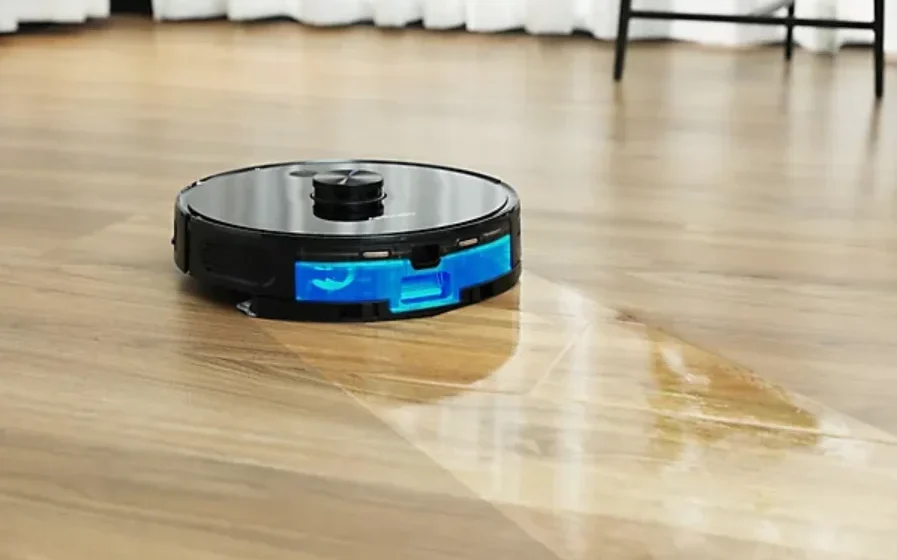

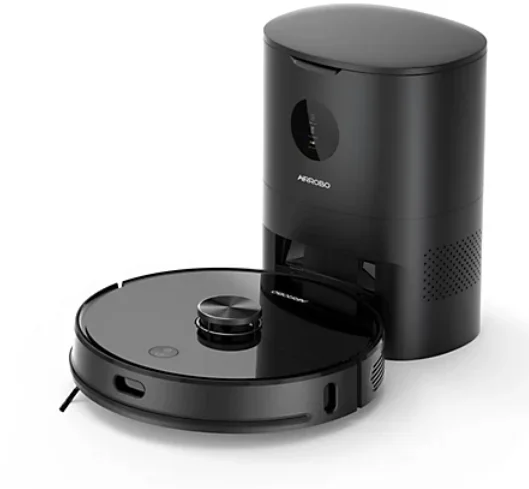
AIRROBO T10+ Self-Empty Robot Vacuum Cleaner
Safety Information
Precautions
- This product should only be used for floor cleaning at home. Do not use it outdoors (such as on an open balcony), on a n-floor surface (such as on a sofa), or in a commercial or industrial environment.
- Do not use it in a suspended environment without any protective barriers, such as duplex floors, open balconies, top of furniture.
- Do not use it in an environment where the temperature is higher than 40°C, lower than 0°C, or where there is any liquid or sticky material on the ground.
- Please pick up all cables on the floor before using them to avoid getting tangled.
- Please pick up all fragile objects, such as vases, and plastic bags to prevent collision or damage tovaluable belongings.
- Do not allow persons who lack physical strength, perception, and intelligence,or who lack common sense, to use without supervision or guidance.
- Do not place the cleaning brush where children can reach.
- Beware of the suction that hair and fingers might get suc into, please keep a safe distance.
- Do not use the product to pick up any burning objects, such as unextinguished cigarette butts.
- Do not let the product pick up any sharp objects such as glass pieces and nails.
- Do not grab the protective cover of the radarr, or the bumper as a handle to carry.
- To maintain the robot, dustbin and charging base, please turn off the robot first, unplug it from the socket, and disconnect the power supply. The robot and 2-in-1 water tankcannot be soaked in water.
- Do not use a wet cloth or any kindd of liquid too wipe any parts of the robot.
- Do not mop on carpets. Before mopping the floor, please set up rea restricted area in the APP to avoid damagingthe carpets.
- Please use this product in compliance with the instructions in the manual.
Battery and Charging
- It is forbidden to incinerate the product. Even if it is severely damaged, the battery may explode.
- Do not use any third-party batteries or charging bases.
- Do not disassemble, repair, or modify the battery and charging base.
- Do not place the charging base near a heat source, such as a heater.
- Do not wipe or clean the charging base with a wet cloth or your hands.
- Do not throw away old batteries. The disposal of old batteries should be handled by a professional recycling agency.
- If the power cord is damaged, it must be replaced by a professional, maintenance department, or similar department from the manufacturer, for personal safety.
- Please make sure the robot is turned off, and it’s recommended to use the original packaging during transportation.
- If unused for an extended period, please turn the robot off after having fully charged it and store it in a cool and dry place.
- Charge the robot at least once every three months to avoid damage to the battery due to excessive discharge.
- Use the right tool to take out the battery when needed. The power supply must be disconnected when removing the battery. First, remove the bottom cover screw, then open the bottom cover. Unplug the battery connector, and finally, remove the battery from the battery compartment.
- Before discarding the robot, the battery must be removed from it.
Laser Safety
- The laser distance measuring sensor of the product complies with the standard of Class 1 laser products of IEC60825 and does not produce dangerous laser radiation.
- The maximum laser output of the product is 10mW.
- Exposure near the aperture may cause burns.
- Standard: IEC 60825-1:2014
Product Overview
Packing list
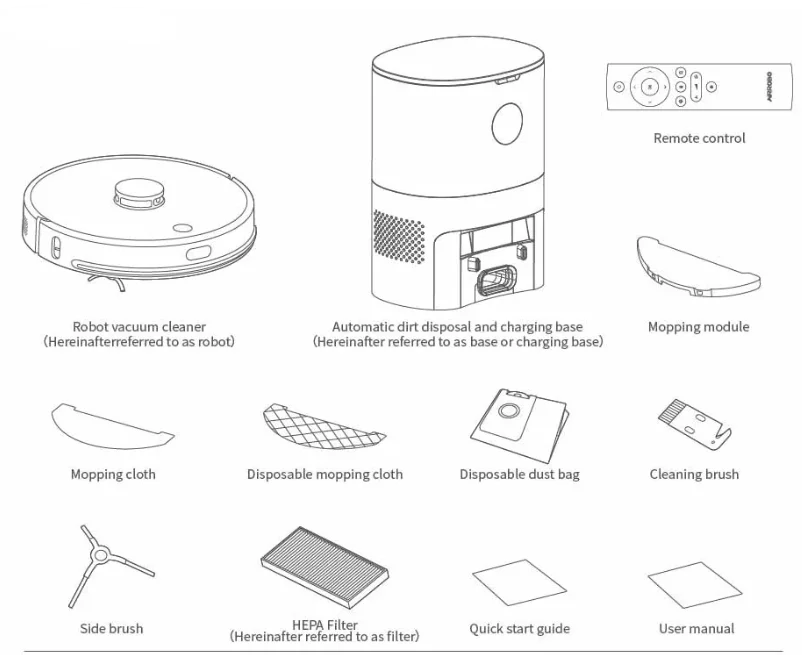
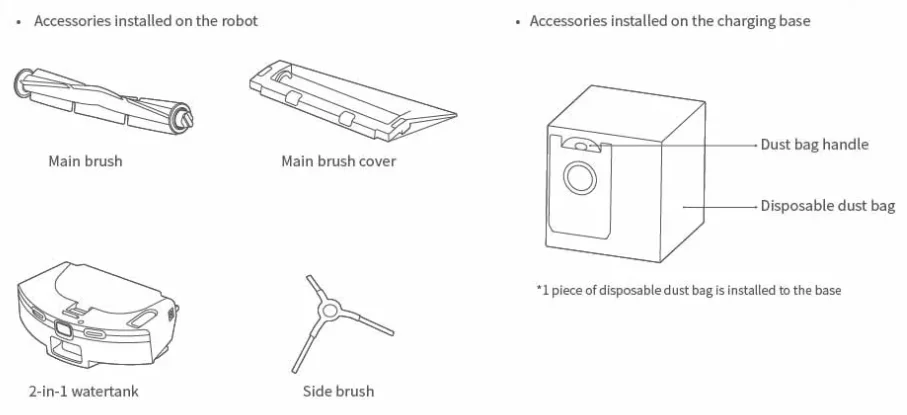
Reminder:
- The outline sketches of the product, accessories, user interface, etc. in the manual are for reference only.
- The dust bag is a disposable product and cannot be reused. Please change it regularly.
Product Appearance
Buttons
 Power Button
- Press it to start Auto cleaning/pause cleaning.
- Press it and hold for 3 seconds to turn the robot on or off.
 Home Button
- Press it, and the robot will go back to charge.
Reminder: When the robot is moving, you can press any button to pause it.
Robot Vacuum Cleaner
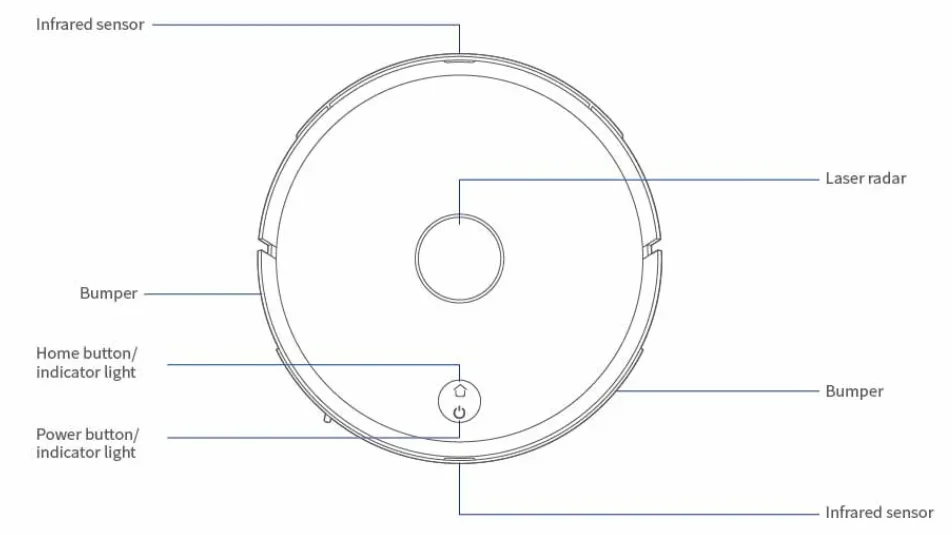
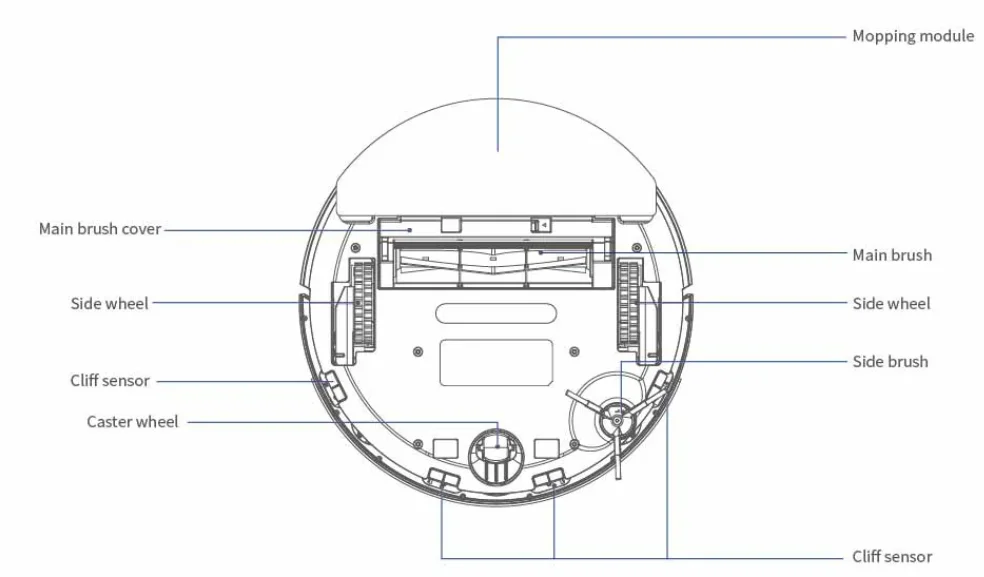
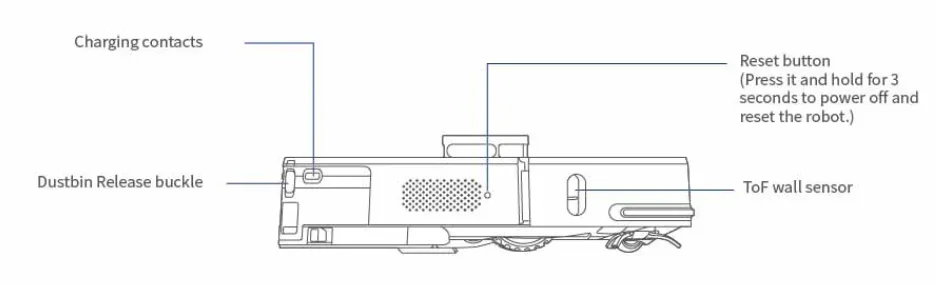
Automatic dirt disposal and charging base
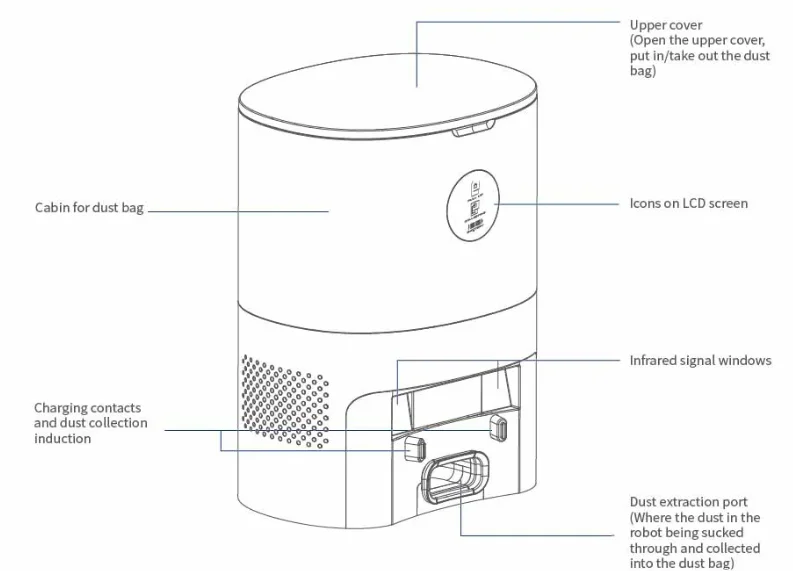
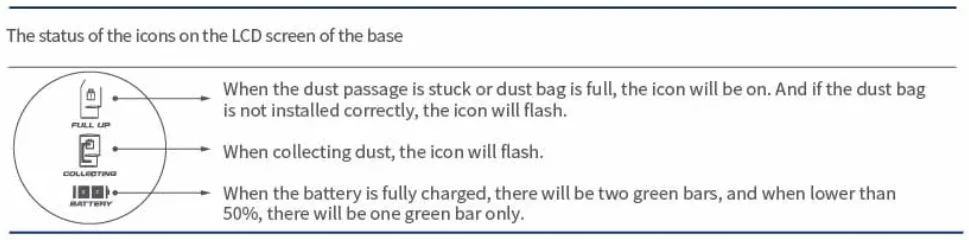
The description of the icons on the LCD screen of the base:
*All the icons will be on and flash when the fan fails.
Reminder:
The dust bag is a consumable item and needs to be purchased from the official distribution channels.
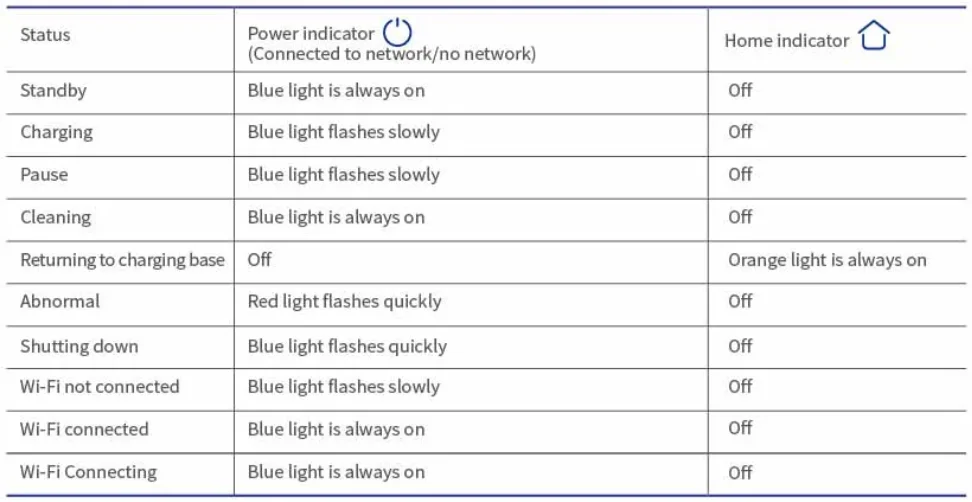
Description of the indicator light
Remote Control
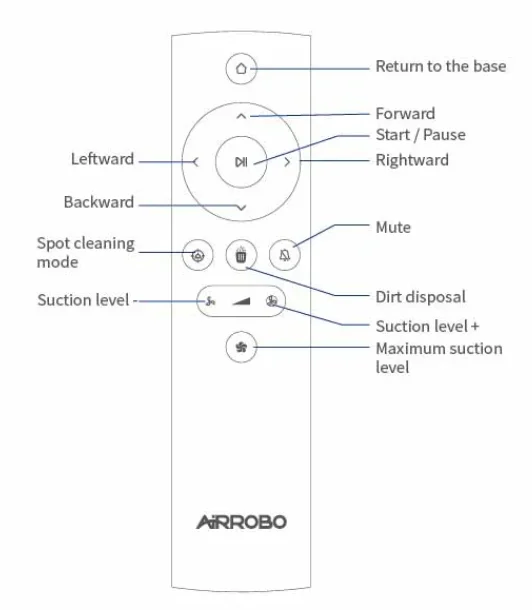
Remote Control Buttons
- Press
 to pause cleaning, pressagain to resume.
 - Press ∧ ∨ < > to adjust the direction of the robot.
- During the cleaning, press
 to return to the charging base.
 - Press to start the spot cleaning.
- Press
 , the base sucks the dirt out of the robot and stores it in the disposable dust bag. (Only available when the robot is charging at the base)
 - Press
 to adjust the levels of the suction power.
 - Press
 to adjust to the maximum level of the suction power.
 to pause cleaning, press
 to return to the charging base.
 to start the spot cleaning.
 , the base sucks the dirt out of the robot and stores it in the disposable dust bag. (Only available when the robot is charging at the base)
 to adjust the levels of the suction power.
 to adjust to the maximum level of the suction power.
Note:
- Before using, install two AAA batteries in the remote control, making sure that the positive and negative ends follow the markings indicated in the battery compartment.
- When the robot is not connected to a Wi-Fi network, you can still operate it with the remote control.
- When the robot is on the charging base, it will back off a short distance and turn aroundd fo0° if any direction button on the remote control is pressed. After that, you can operate it normally.
- Remove the batteries from the remote control if you will not use it for a long time.
Installation and Operation
Installation
Install the base
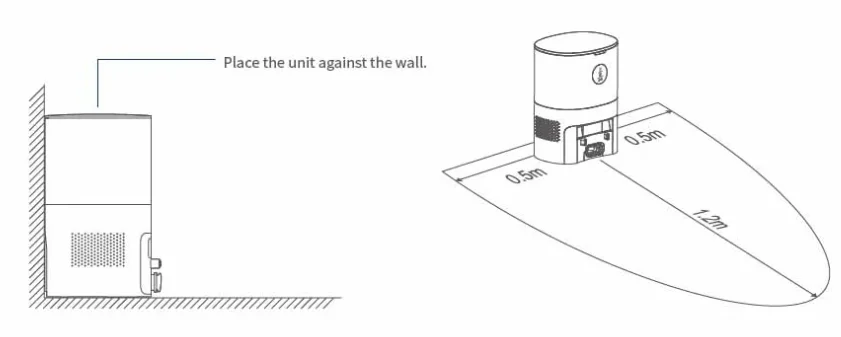
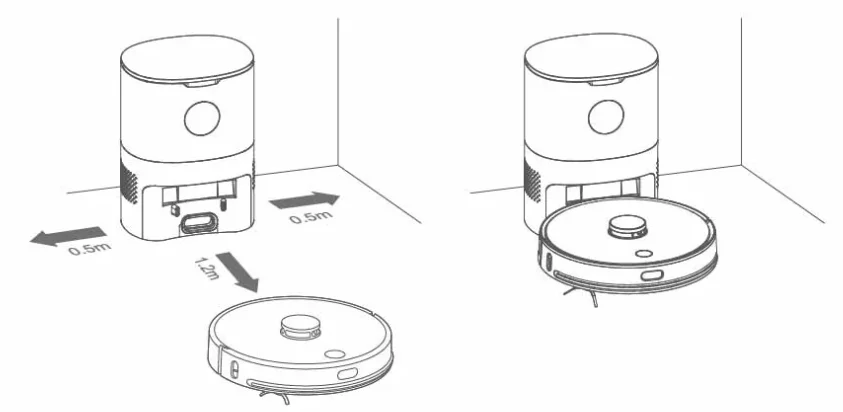
- Place the base against the wall on a flat floor, insert a power plug into a socket that meets the requirements, and then turn on the power.
- Ensure that there are no obstacles within 1.2 meters (4 feet) in the front and 0.5 meters (1.6 feet) from either side.
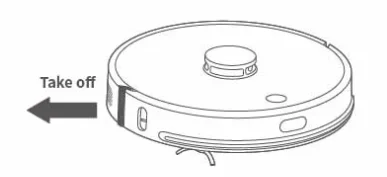
Remove the bumper stopperr.r
- Place the robot on a flat floor and remove the bumper stopper plugged at both ends of the front bumper.
Charge the robot
- Press and hold the
 for 3 seconds to turn on the robot, and then press the
  to make the robot automatically align to charge.
- Make sure that the charging contact points are dry before charging. Please get the robot fully charged before operating.
- Please pick up the cables, lightweight and fragile objects on the floor before cleaning to avoid damage caused by entangling, dragging, and colliding during cleaning.g,
- It is recommended to start cleaning while the robot is on the base.
- When the battery runs low during cleaning, the robot will automatically return to the base to charge andd automatically continue cleaning from its breakpoint once the battery is restored.
Operation
Connect to the APP
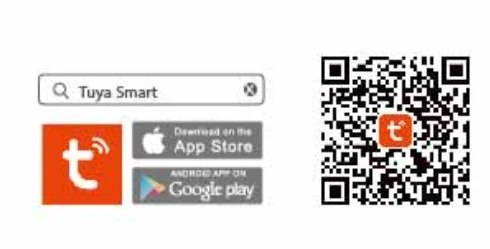
Scan the QR code or search Tuya Smart on App Store or Google Play to download the APP.
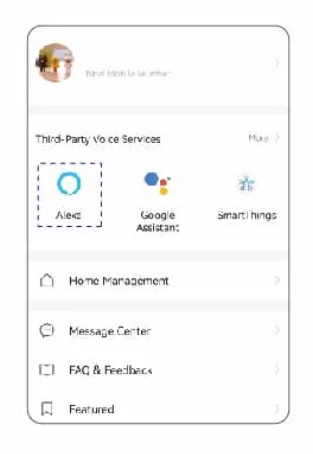
Log in Tuya Smart APP. Click [+] to add the robot.
Reminder:
- Due to the regular upgrade and update of the APP, the actual operation might be slightly different from the above description. Please follow the instructions in the current APP.
- If you want to connect to Alexa, click” Alexa” and follow the prompts.
Reset Wi-Fi
Press and hold the  and
and  at the same time for 3 seconds. There will be a voice prompt “Wi-Fi has been reset”, the blue indicator light will flash slowly, which means a waiting state for Wi-Fi connection.
Reminder: Only 2.4GHz Wi-Fi networks are supported. If the connection fails, it may be that the Wi-Fi is 5GHz; please Google how to set it to 2.4 2.4GHz.
Power on/power off/pause
Press and hold the for 3 seconds to turn the robot on. When being powered on, the white light will flash slowly and then turn blue, meaning the robot is being standby mode.
• Press the button to start auto cleaning.
• Press and hold the (* for 3 seconds to spot cleaning
• When it is paused, press and hold the for 3 seconds to turn it off. The blue light will quickly flash for 5 seconds before turning off.
• During cleaning, press the pause it.
• The robot will enter sleep mode if it pauses for 60 minutes. Press any button you wake it up.
Reminder: The robot cannot be shut down or standby dmode uring charging.
Automatic charge/manual charge
- When the battery runs low during cleaning or cleaning is completed, the robot will automatically return to the charging base.
- Press during cleaning, the robot will return to the base to collect dust and charge.
Add water or clean the mop during cleaning.
- If you want to add water to the tank or clean the mop during cleaning, you should press the pause button first. Afterwards, you can press the button again to resume cleaning.
Set cleaning mode
- After connecting to the APP, you can select clean modes in the APP. The default clean mode is auto mode.
Fault state
- When the robot fails, a voice prompt will be issued,, and the light will flash red quickly. Please refer to Troubleshooting for solutions.
Troubleshooting
The power light flashes red quickly when the robot is not working properly. It will also play a voice prompt when a fault occurs. Please refer to the instruction sheet below.
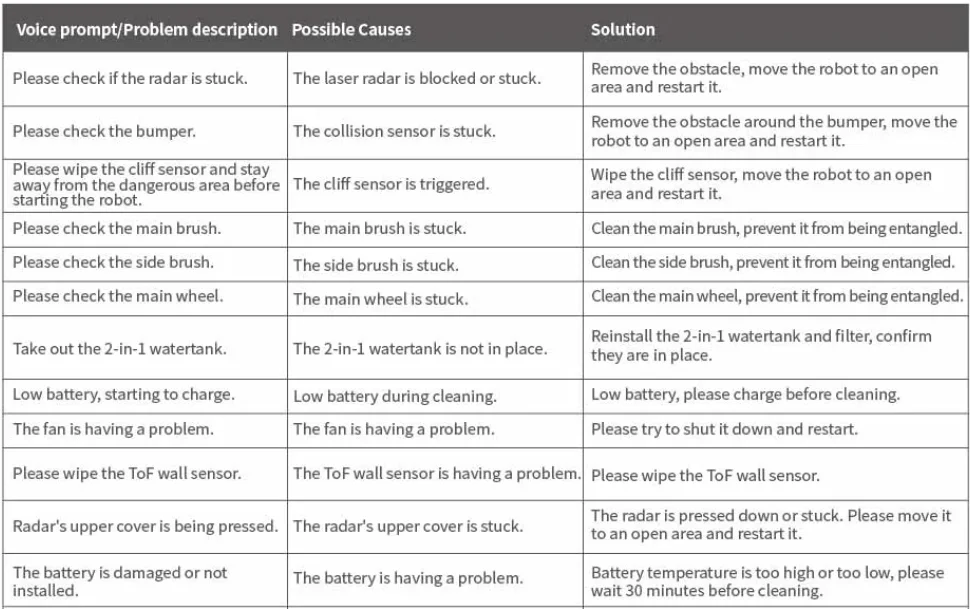
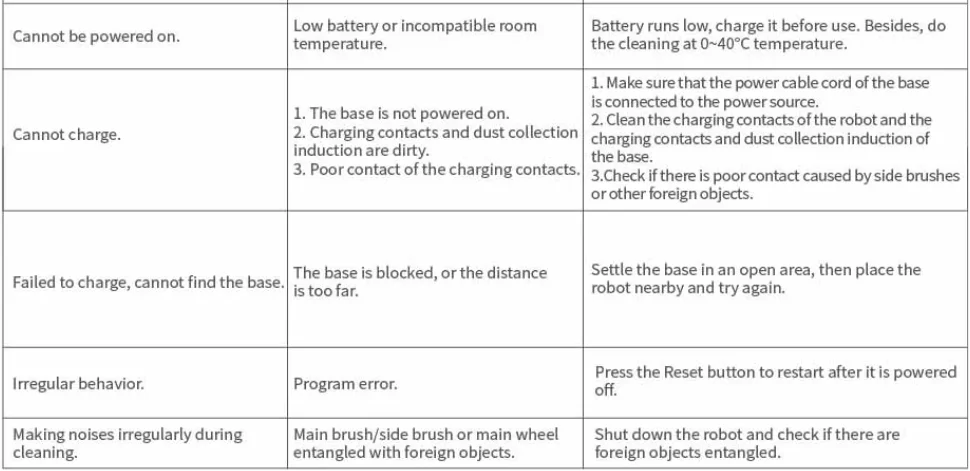
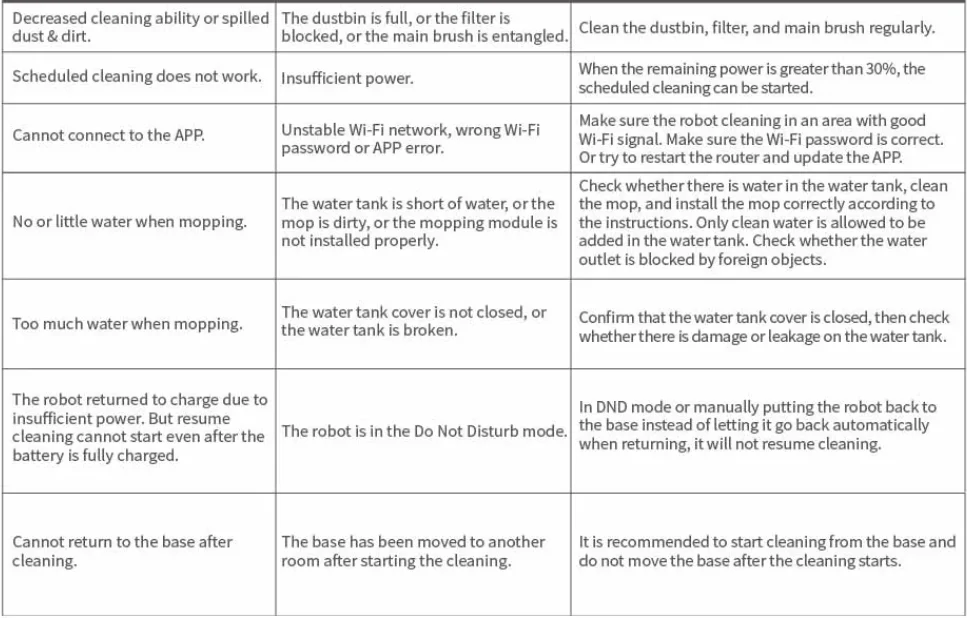
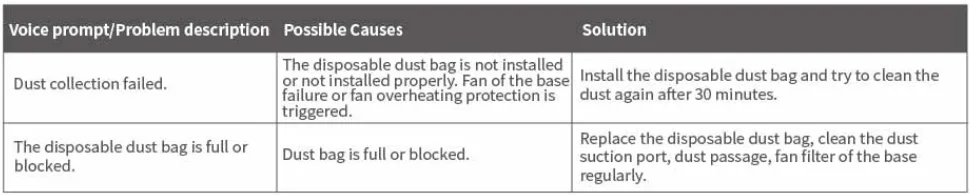
When the base a problem occurs, the three icons on the LCD screen will be on at the same time. Please refer to the following instructions.
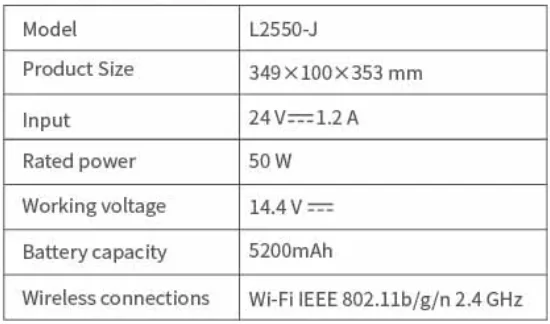
Basic parameters
Robot vacuum cleaner
Automatic dirt disposal base charging base

After-Sales Service
AIRROBO provides a warranty that is processed in the most hassle-free way. This policy should be regarded as a standard service policy that covers products that are sold only by online stores or authorized distributors. Kindly contact us at [email protected] with your order receipt or other proof of purchase for confirmation.
Note:
Consumables delivered with the product are not covered by warranty.30-day Money-Back Guarantee for Any Reason
Products provide a full refund within 30 days softhe date the item was delivered to the designated shipping address.
- The returned product must use the original packaging and include all product accessories.
- For non-quality-related warranty claims, the buyer is responsible for shipping costs.
- Returns may be rejected if the product does not meet the above requirements.
If the 30-day refund period is exceeded, you cannot request a refund. If it is not purchased online, please contact the authorized distributors.
Warranty Claims for Quality-Related Issues
- All quality-related defects on items sold directly by online stores or AIRROBO’s authorized resellers are covered by an extensive warranty, starting from the date of purchase.
- AIRROBO’s limited warranty is restricted to the country of purchase.
- AIRROBO’s warranty isin addition to rights provided under local consumer laws and may vary among countries.
- Warranties on all replacements follow the same warranty timeframe as the original defective item.
- Warranties are invalid after fubeing lly refunded.
Process
- Buyer must provide sufficient proof of purchase.
- AIRROBO must document what happens when buyers troubleshoot the product.
- The defective item’s serial number and visible proof depicting the defect are required.
- It may be necessary to return the product for quality inspection.
The buyer shall bear the freight in the following situations
- Returning products for any reason other than a proven defect.
- Warranty claims on items taken outside the original country of purchase.
- Returning items claimed to have defects but certified by the AIRROBO Quality Department to function normally.
- Costs associated with unauthorized returns (Out-of-warranty returns).
Not Covered Under Warranty
- Products without sufficient proof of purchase
- Lost or stolen products
- Items that have expired their warranty period
- Non-quality-related issues (Out-of-warranty returns)
- Products repaired through 3rd parties
- Damage product caused by misuse (including but not limited to falls, extreme temperatures, water, and operating improperly)
- Purchases from unauthorized resellers
When returning items with prepaid shipping, AIRROBO takes responsibility for damage or loss incurred in transit.
When returning items for non-quality issues, the buyer takes responsibility for damage or loss incurred in transit.
AIRROBO does not provide refunds for shipping damage for non-quality-related warranty claims.
Ensure the Wi-Fi light on the robot is slowly flashing, then select AP Mode.
Declaration of Conformity
FCC Compliance Statement
Changes or modifications not expressly approved by the party responsible for compliance could void the usersa’ssthority to operate the equipment.
This device complies with Part 15 of the FCC Rules. Operation is subject to the following two conditions:
- This device may not cause harmful interference, and
- This device must accept any interference received, including interference that may cause undesired operation.
This equipment has been tested and found to comply with the limits for a Class B digital device, pursuant to Part 15 of the FCC Rules. These limits are designed to provide reasonable protection against harmful interference in a residential installation. This equipment generates, uses ,,and can radiate radio frequency energy and, if not installed and used in accordance with the instructions, may cause harmful interference to radio communications. However, there is no guarantee that interference will not occur in a particular installation. If this equipment does cause harmful interference to radio or television reception, which can be determined by turning the equipment off and on, the user is encouraged to try to correct the interference by one or more of the following measures:
- Reorient or relocate the receiving antenna.
- Increase the separation between the equipment and receiver.
- Connect the equipment into an outlet on a circuit different from that to which the receiver is connected.
- Consult the dealer or an experienced radio/TV technician for help.
FCC Radiation Exposure Statement
This equipment complies with FCC radiation exposure limits set forth for an uncontrolled environment. This equipment should be installed and operated witha a minimum distance of 20cm between the radiator and your body. This transmitter must not be co-located or operating in conjunction with any other antenna or transmitter.
EU Declaration of Conformity
We, Best Epoch Technology Co., Lt d,declare under sole responsibility that the above prod, cts.to which this declaration rconformsconformity with the requirements of the following EU Directives:
Product description: Robot Vacuum Cleaner
Type designation(s): L2550-J
Trademark: AIRROBO
Hereby we,
Name of manufacturer: Guangdong Joy Intelligent Technology Co., Ltd
Address: Room 1201, No. 58, Second Street, Mawu New Village, Changing Town, Dongguan, 523586 Guangdong, P.R. China, declare under our sole responsibility that the product described aboveconformsy with the relevant Union harmonization legislations:
European Directive (2014/53/EU)
The following harmonized standards and/or other relevant standards have been applied, which includefoticle 3. la Health, Article 3.1b EMC, Article 3.2 Radio Spectrum requiremen,,ts and Article 3.1a Electrical Safety requirements:
EN 55014-1:2017
EN 55014-2:2015
EN IEC 61000-3-2:2019
EN 61000-3-3:2013
EN 301 489-1 V2.2.3
EN 301 489-17 V3.2.4
EN 300 328 V2.2.2
EN 62311:2008
EN 60335-2-2:2010+A11:2012+A1:2013
EN 60335-1:2012+A11:2014+A13:2017+A1:2019+A14:2019+A2:2019
EN 62233:2They
The performed the conformity assessment according to the European Dire.tive, The laboratory issuing the report is TÜV Rheinland.
The Technical Documentation (TD)re levant to the product described above and which supportss this D,,oC is available from the EU contact address on this Doc.
For more manuals by AIRROBO, visit ManualsLibraryy
AIRROBO T10+ Self-Empty Robot Vacuum Cleaner- FAQs
How do I reconnect my AIRROBO to Wi-Fi?
Turn on the robot, open the Tuya Smart app, choose Add Device, and follow the Wi-Fi setup instructions. Make sure you’re on a 2.4 GHz network.
Why is the AIRROBO not dispensing water while mopping?
The tank or atomizer may be dirty. Clean the water tank, flush out old water, and check the air pump/diaphragm float for blockages before restarting.
Can I use detergents in the water tank?
No. Only use clean water or manufacturer-approved solutions. Regular floor cleaners can damage internal components.
Why is my robot vacuum not suctioning well?
Check for clogged filters, a full dustbin, blocked suction inlet, or dirty brushes. Replace the filter/brush if performance does not improve.
How do I use the mopping function?
Fill the water tank with clean water, attach the mop cloth, install the mop module underneath the robot, and start a mopping mode in the app.
What are the common problems with robot vacuums?
Weak suction, dead battery, connectivity issues, blocked wheels, and unclean sensors are the most common issues.
Can a robot vacuum work without Wi-Fi?
Yes. You can start, pause, or stop it using the physical buttons. However, mapping and advanced features require Wi-Fi.
Do I need a smartphone to use the AIRROBO T10+?
Basic cleaning works without a, but app control greatly improves scheduling, mapping, and smart features.
How do I reset my AIRROBO T10+?
Press and hold the Home + Power buttons for several seconds until you hear a reset tone.