
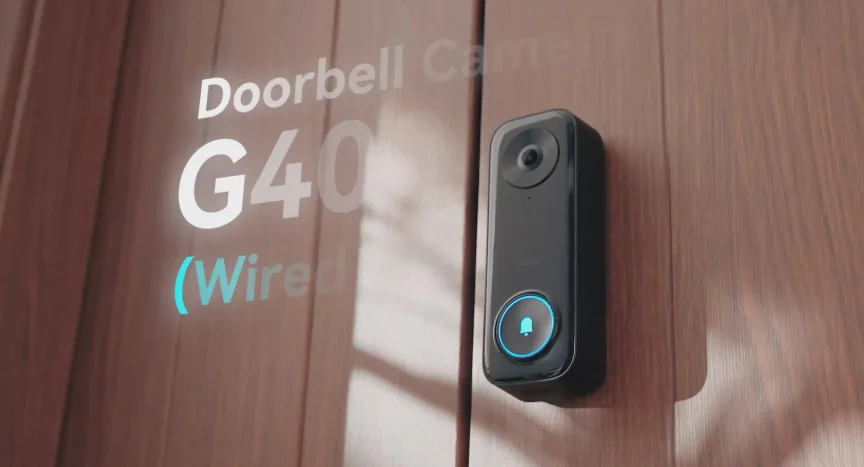

Aqara Doorbell Camera G400
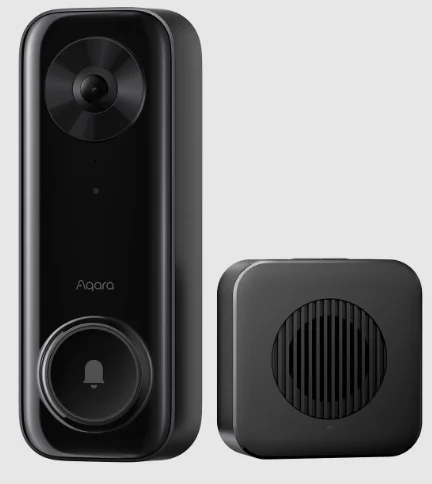
Product Introduction
The Aqara Doorbell Camera G400 is a newly upgraded wired smart doorbell, consisting of an outdoor main unit and an optional chime. It is equipped with a 3-megapixel lens and a 165° wide-angle field of view. Its image sensor adopts a 3:4 aspect ratio, capable of clearly presenting full-body images of visitors. On the basic security level, it supports local motion, person, and intrusion zone detection. After activating HomeGuardian services, AI functions such as package detection and facial recognition can be unlocked. Additionally, the G400 introduces a quick reply function, allowing users to select recommended voice responses or customize phrases to answer visitors in the App.
This product features dual-band 2.4/5GHz Wi-Fi 6 connectivity and an IP65 protection rating, supports local recording on a MicroSD card, and is compatible with the ONVIF protocol, enabling integration with third-party NVR or software platforms. This product does not have a battery-powered mode and requires a low-voltage or PoE power source for installation. Besides being able to connect to Aqara Home, this product can also be integrated into third-party ecosystems such as Apple Home, Google Home, and Amazon Alexa.
What’s in the Box
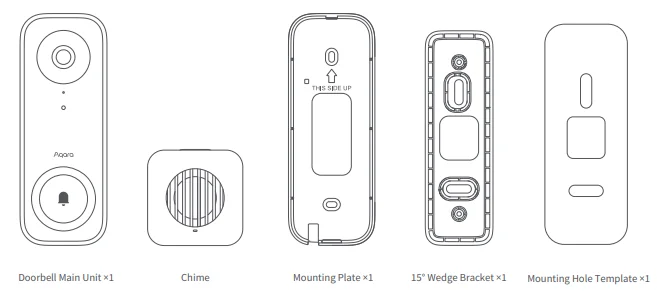
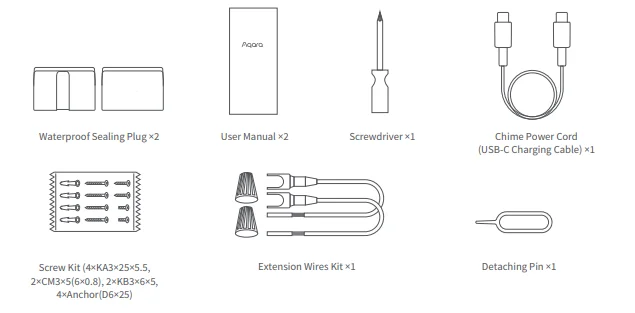
Outdoor Doorbell
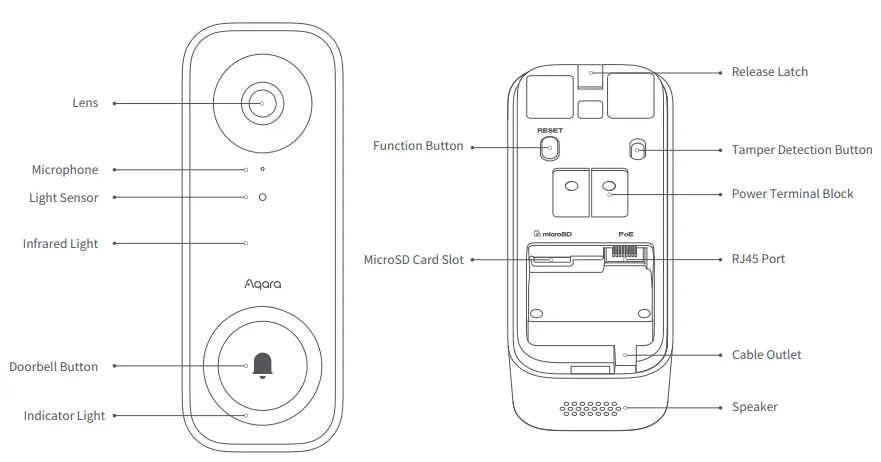
Outdoor Doorbell Buttons
- Doorbell Button: Press once, and both the doorbell and chime will ring once simultaneously.
- Function Button: Long-press for 10 seconds to reset the network, and quickly press 10 times to restore factory settings.
- Tamper Detection Button: When the detection function is enabled in the app, if the outdoor doorbell is detected to be detached from the wall mount bracket, it will trigger an alarm sound from the doorbell.
Chime
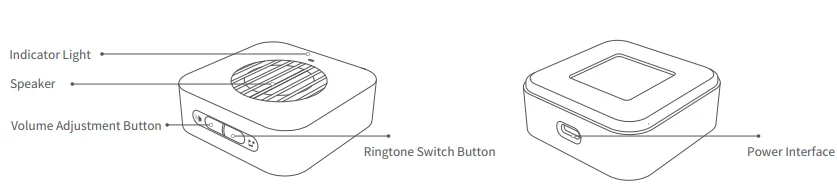
Chime Button
- Short-press the volume adjustment button once to cycle through volume levels.
- Short-press the ringtone switch button once to cycle through ringtones.
- Long-press the Ringtone Switch button for 10 seconds to unpair the chime from the doorbell.
Doorbell and Chime Pairing
Simultaneously, long-press the doorbell button and the chime volume adjustment button for 5 seconds: Pair the doorbell and chime (a single doorbell can be paired with up to 5 chimes).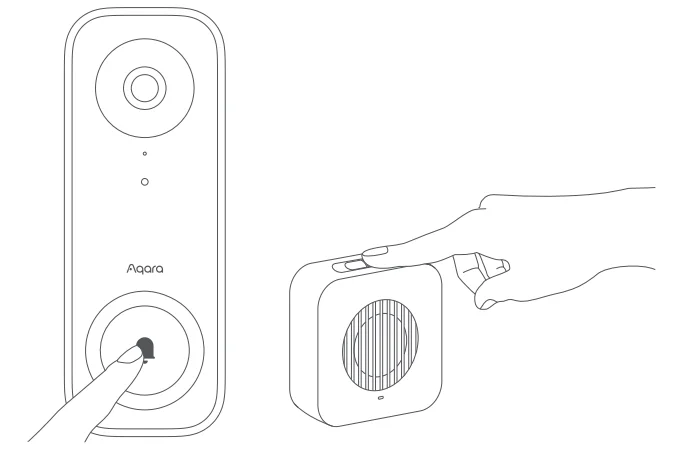
Backplate Bracket and wedge bracket
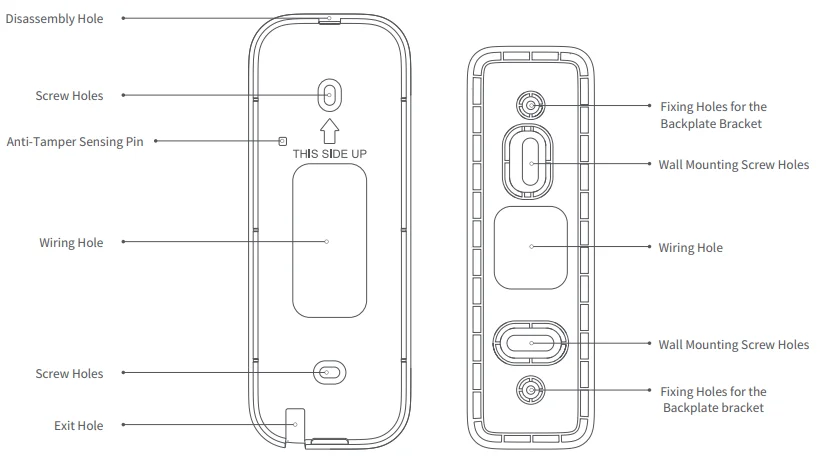
Product Installation
1. Choose Installation Location
- When installing the doorbell on a yard wall or fence (at a location far from the wireless router with a weak Wi-Fi signal coverage), it is recommended to power the doorbell and provide network connection using the PoE method, as shown in the diagram below (PoE network cable installation should be completed in advance). The distance between the doorbell and the chime should be kept within 30m (when separated by only one wall with a thickness of ≤24cm).

- When installing the doorbell at the entrance door (at a location close to the wireless router with good Wi-Fi signal coverage), you can use the low-voltage power (8-24V AC or DC) at the door position to power the doorbell, while connecting the doorbell to the router via your Wi-Fi network. The doorbell supports a dual-band 2.4/5GHz Wi-Fi 6 network, with a distance controlled within 15m (when separated by only one wall with a thickness ≤24cm). You can adjust the signal strength at the door by moving the position of the indoor wireless router.

- The recommended installation height for the doorbell is 1.3-1.4 meters from the ground to the top edge of the doorbell. The lower the installation position, the smaller the vertical blind spot.

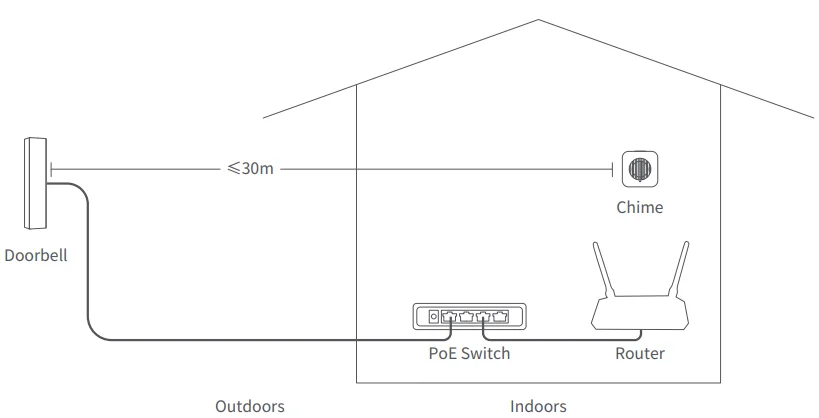
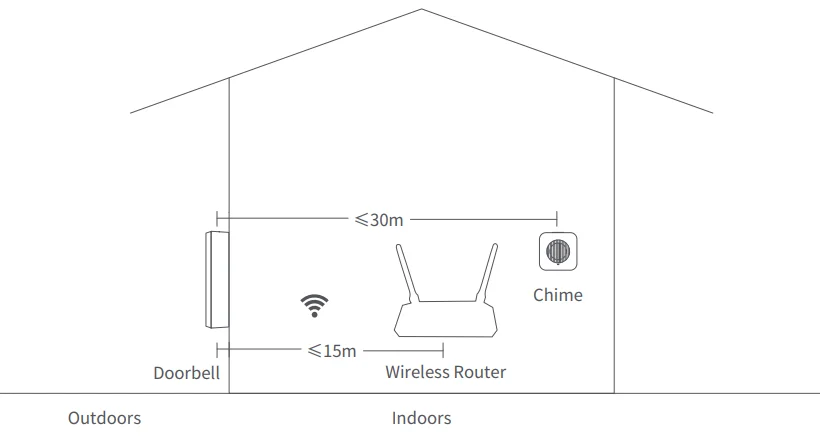
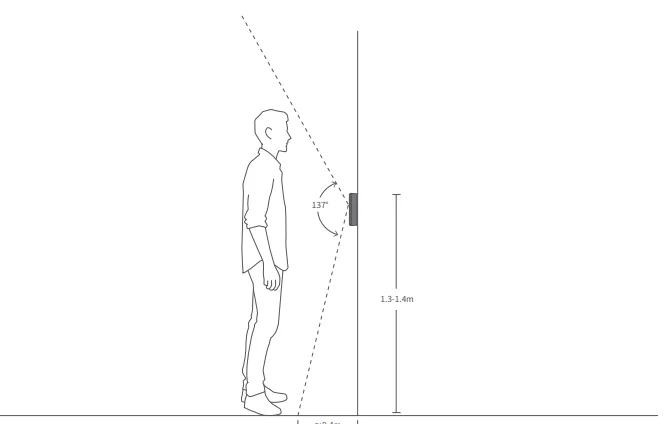
2. Choose the Power Supply Method
Low-Voltage Power Supply Method
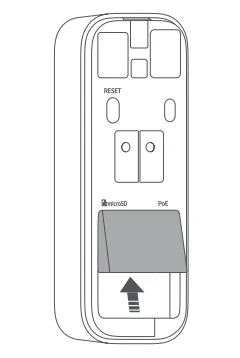
- Please first remove the default waterproof silicone plug installed on the back of the doorbell (the default plug is designed to accommodate a PoE power supply, with a network cable groove on the back of the plug). *The silicone plug is an auxiliary waterproof accessory. If it affects the installation of the network cable, it can be removed without affecting the overall waterproof performance of the doorbell.

- Please select the fully enclosed waterproof silicone plug (without a network cable groove on the back) from the accessories in the packaging box, and snap it back into the groove on the back.

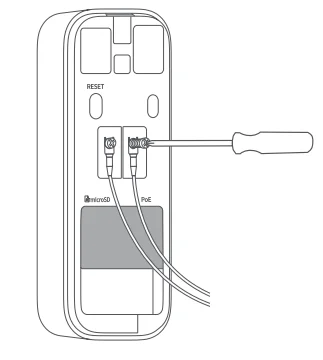
- Use a screwdriver to loosen the screws on the power terminal block, insert the U-shaped terminal into the gap between the screw and the terminal block, then tighten the screws. Be careful to avoid short-circuiting the power wires.

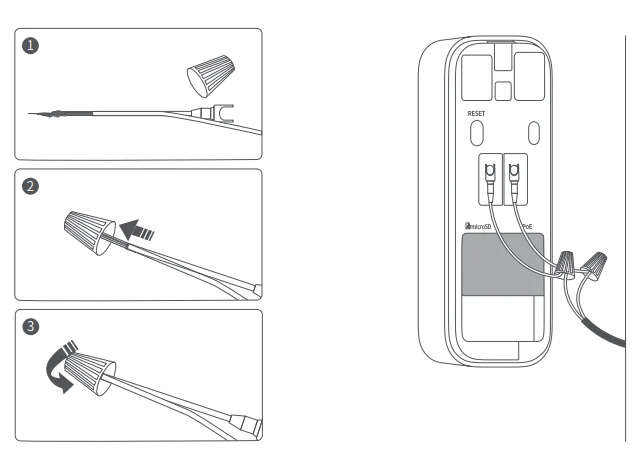
- After connecting the end of the extension cord to the main power line, secure the wire nut over the connection point of the two wires and twist it tight. Then, tuck the extension cord portion into the wall cavity.

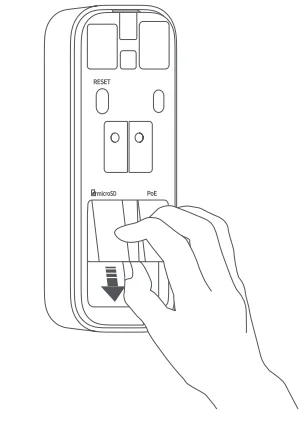
PoE Power Supply Method
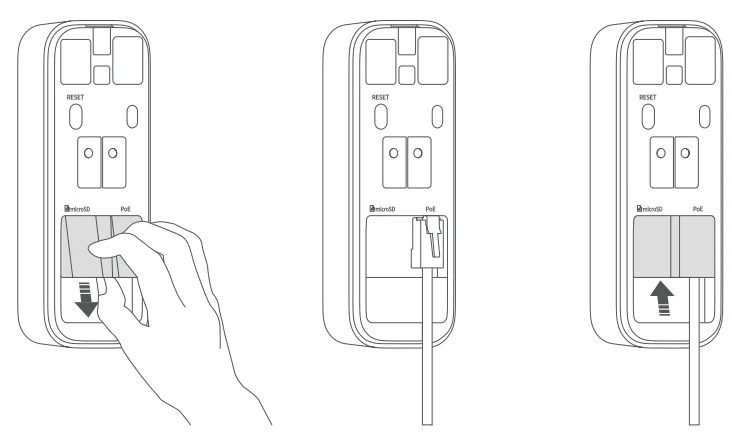
- Remove the default waterproof silicone plug installed on the back of the doorbell.
- Insert the network cable into the RJ45 port.
- Snap the silicone waterproof plug back into place, ensuring the surface is flat.

- The network cable can be routed through the cable outlet at the bottom of the doorbell, as shown in figure D, or it can be folded into a U-shaped harness in the rear groove, adhering to the buried cable groove of the silicone waterproof plug, and finally passing through the wall via the wiring hole in the wall-mounted bracket (as shown in figure 2).

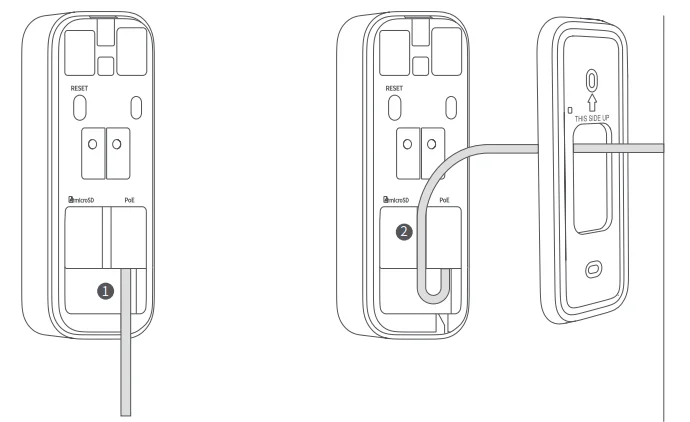
3. Choose a Mounting Method for the Doorbell
Using Adhesive Mounting
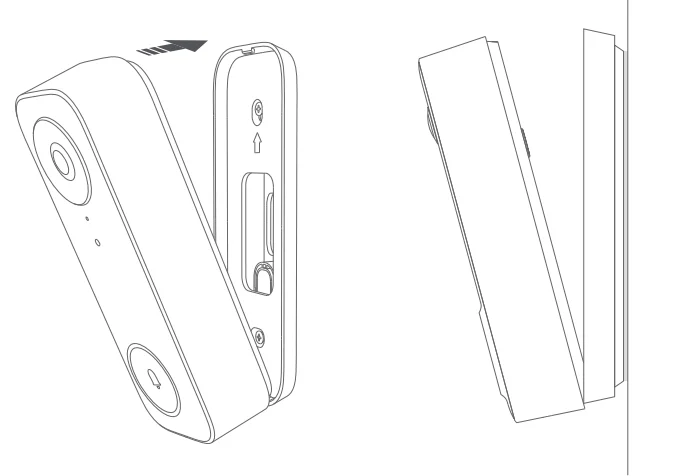
Suitable for installation on wooden doors, tiles, or other flat surfaces where drilling holes is not convenient. The installation steps and diagram are as follows:
- First, determine whether you need to install the 15° wedge bracket. The wedge bracket is suitable for adjusting the horizontal angle of the doorbell. The wedge bracket supports adjustment in both left and right directions; simply flip the wedge bracket 180° to adjust the left or right rotation direction.

- Use the two shorter self-tapping screws (specification: KB3x6x5.0 mm) from the accessories to securely fasten the wedge bracket and the backplate bracket together.

- Remove the backing from the adhesive on the back of the wedge bracket, firmly attach the entire bracket assembly to a flat wall surface, and press down firmly.

- Align and tighten the bottom of the doorbell with the bottom of the backplate bracket first, then snap the entire doorbell onto the bracket assembly.

- If you don’t need to install the wedge bracket, start directly from step three by attaching the backplate bracket to the wall, then snap on the doorbell body.
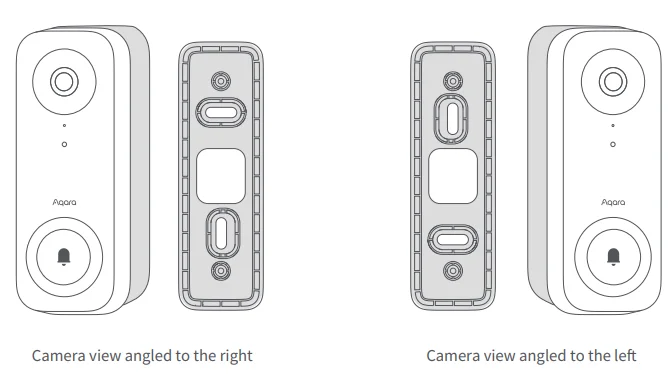
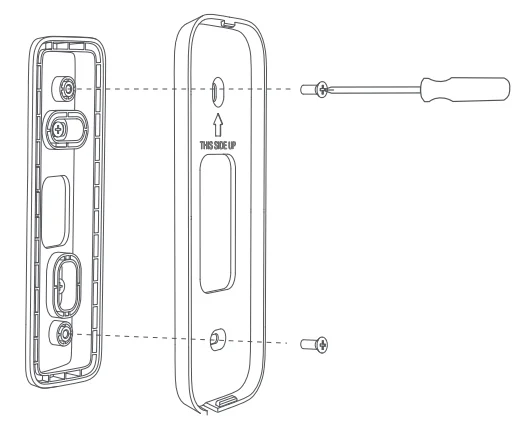
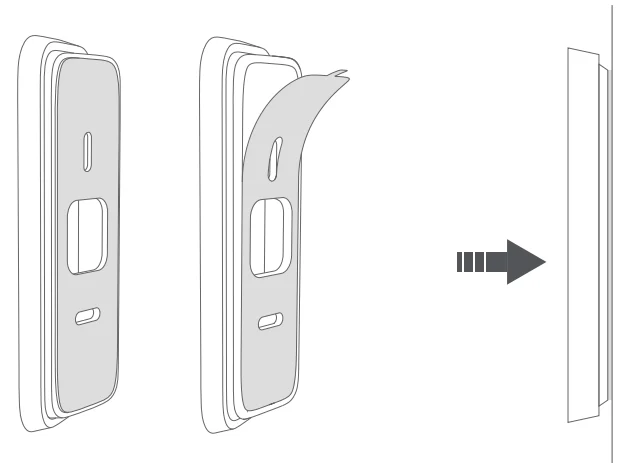
Using the Drilling Method for Mounting
Suitable for use when the installation surface is uneven or when there are high requirements for the overall stability of the device. The installation steps and diagram are as follows:
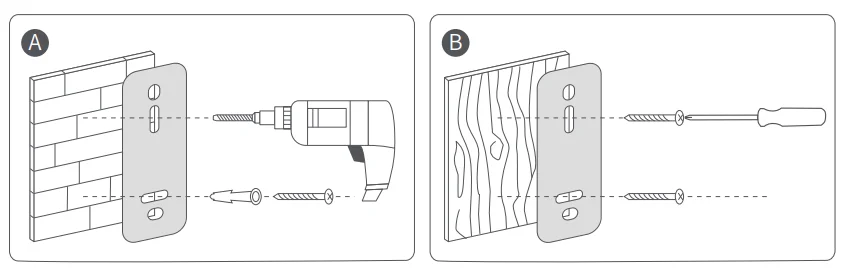
- First, you need to determine whether you need to install the wedge bracket. If needed, the first step is to attach the mounting hole template to the installation surface.
- Use a tool to drill holes in the wall at the two oval positions inside the mounting hole template (Note: If the installation surface is wood or another lightweight structure, you can directly use self-tapping screws to secure it without the need for additional holes or expansion plugs).

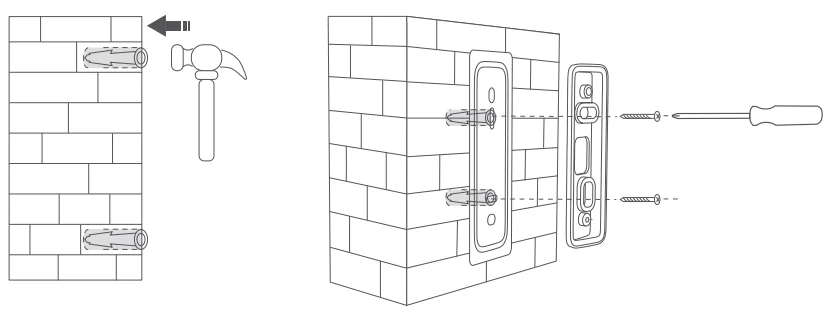
- Hammer the expansion anchors (specification: D6*25 mm) into the holes, ensuring that the end of the anchor is flush with the wall surface. Use the 2 longer self-tapping screws (specification: KA3*25*5.5 mm) from the accessories to securely fasten the wedge bracket to the wall.

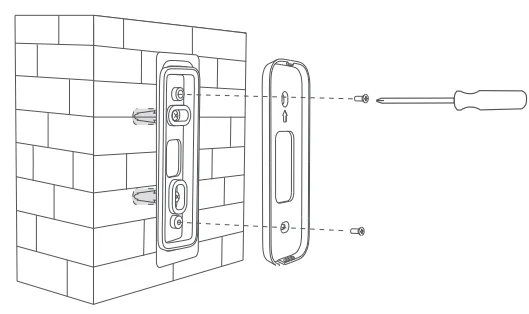
- Then securely fasten the backplate bracket onto the wedge bracket.

- If you don’t need to install the wedge bracket, then in the first step, choose the two oval positions on the outside of the mounting hole template for drilling.

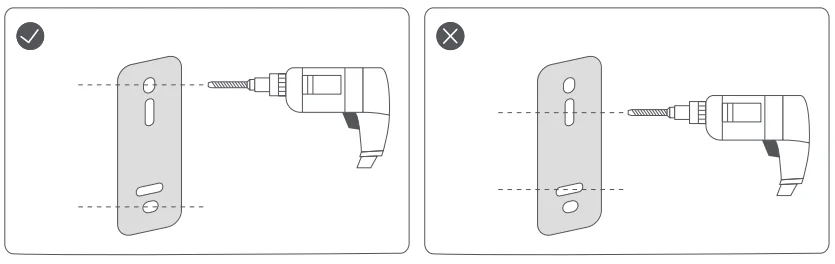
4. Removing the Doorbell
To remove the doorbell main unit for maintenance, insert a pin into the small hole at the top of the doorbell to press the internal movable latch, then remove the doorbell main unit.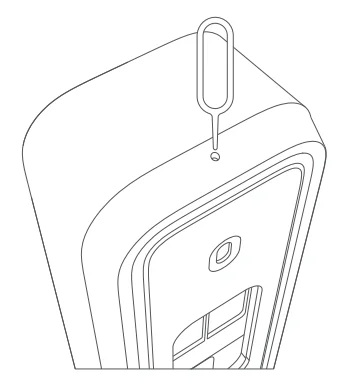
5. Mount and Power On the Chime
Peel off the protective backing from the adhesive on the back of the chime, firmly attach it to a flat wall surface, and connect it to power.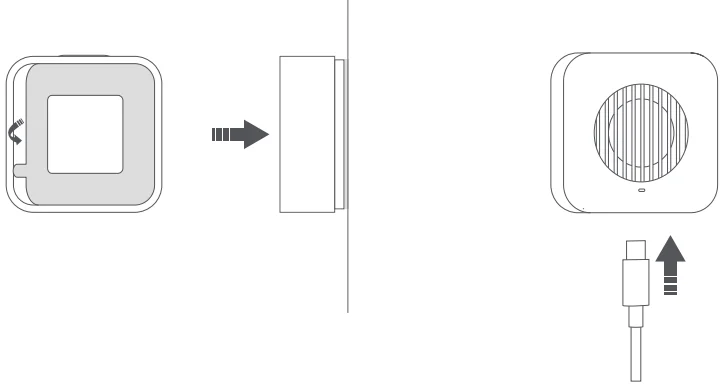
Connect device
1. App Download
Search for “Aqara Home” in the app store or scan the QR code below to download the “Aqara Home” app.
2. Add Device
Connecting to Aqara Home
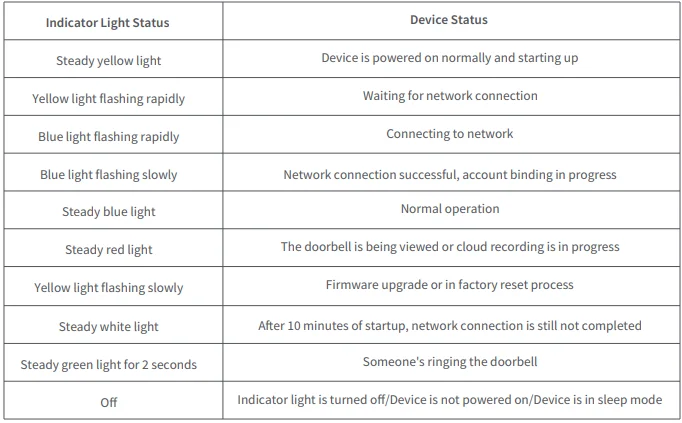
Ensure that your phone is connected to the Wi-Fi network that the doorbell will be connecting to. When the doorbell status indicator light is flashing yellow, open the Aqara Home app. The device will be automatically discovered and displayed on the device addition page in the app. Select the discovered device and follow the app’s prompts to complete the device connection process. Alternatively, you can select the “+” in the top right corner of the app’s home page, select “Doorbell Camera G400”, and follow the app’s instructions. After successfully connecting, the doorbell status indicator light will remain solid blue.
- The doorbell main unit and chime have been paired at the factory, and users do not need to rebind them.
- When connecting to the app, you need to scan the QR code information on the back of the doorbell. Please complete the network connection before installing the doorbell.
- After the doorbell is powered on for 10 minutes without connecting to Aqara Home or another ecosystem, the device will enter a cut-off state indicated by a steady white light. If you want to make the doorbell re-enter pairing mode, please disconnect and reconnect the power, or quickly press the function button 10 times to restore the doorbell to factory settings. When the indicator light changes to rapid yellow flashing, you can add the device again.
- When pairing, please keep your phone as close as possible to the doorbell, and ensure that your phone’s Bluetooth function is turned on and that the app is authorized to use the Bluetooth function.
Connect to the Apple “Home” App
Open the Apple “Home” App, tap “+” in the upper right corner to enter the Add Accessory page, scan or manually enter the HomeKit setup code (HomeKit QR code) on the back of the doorbell to bind the device to HomeKit. Common HomeKit addition failure reasons and solutions:
- Prompt “Unable to add accessory”: Due to repeated failed attempts, the error message cached by the iOS system cannot be released. Please restart the iOS device (iPhone or iPad) and reset the doorbell before trying again.
- Prompt “Accessory has been added”: Please restart the iOS device and reset the doorbell, then add the device by manually entering the HomeKit setup code.
- Prompt “Accessory not found”: Please reset the doorbell, wait for 3 minutes, then re-add by manually entering the HomeKit setup code.
Note: Please keep the QR code on the product body safe. If the addition fails, please press and hold the product function button for 10 seconds to reset the network, then add the doorbell again.
Note: Please keep the QR code on the product body safe. If the addition fails, please press and hold the product function button for 10 seconds to reset the network, then add the doorbell again.
3. Other Functions
For more device features, please log in to the Aqara Home app to explore.
Explanation of Indicator Light Statuses
Product Specifications
- Doorbell Camera G400
- Video Resolution: 1536×2048
- Viewing Angle: 165° (diagonal)
- PoE Input: IEEE 802.3af (48V)
- Power Input: 8-24V AC, 1.3A 50/60Hz or 8-24V DC, 0.8A
- Connectivity: Ethernet, IEEE 802.11 a/b/g/n/ac/ax Wi-Fi 6 @2.4GHz/5GHz, Bluetooth, RF433MHz
- Local Storage: microSD Card (not included). CLASS 10 or above is supported, up to 512GB storage.
- Operating Temperature: -20°C~50°C (-4°F ~ 122°F)
- Operating Humidity: 0~95% RH, no condensation
The radio transmission equipment model approval code for this product is printed on the product body.
Chime
- Power Input: 5V 1A
- Transmission Mode: RF433MHz
- Operating Temperature: -10°C~40°C (14°F~104°F)
- Operating Humidity: 0~95% RH, no condensation
Works with Apple
The use of the badge “Works with Apple” means that this accessory has been specifically designed to work with the technology identified in the badge and has been certified by the developer to meet Apple performance standards. Apple is not responsible for the operation of this device or its compliance with safety and regulatory standards. HomeKit Secure Video supports recording up to 10 days of video and securely storing it in iCloud.
You can view it in the Apple Home app on iPhone, iPad, or Mac. Additionally, you need to have a 50GB iCloud storage plan to support one camera, a 200GB storage plan supports up to five cameras, and a 2TB plan supports an unlimited number of cameras. Recording videos does not count towards your iCloud storage space. Apple, Apple Watch, HomeKit, HomePod, HomePod mini, Siri, and iPhone are trademarks of Apple Inc., registered in the U.S. and other countries.
Warning
- Do not connect the doorbell to a power source exceeding 24V (non-PoE power supply), as it may result in device burnout or fire.
- Do not install the doorbell in a position where the lens may be directly exposed to sunlight, as this will cause irreversible physical damage to the image sensor.
- When installing the doorbell on the wall using adhesive backing, ensure that the installation surface is flat and clean, and that the adhesive has sufficient contact area with the installation surface. The installation surface material is best if it’s smooth glass, tiles, marble, latex paint on the wall, etc.
- Do not install the product near heat sources.
- When powering the doorbell with a DC power supply, the power terminal blocks do not distinguish between positive and negative poles. Either terminal block can be connected to the positive or negative pole. Please ensure that there is no short circuit between the terminal blocks.
- When using PoE to power the doorbell, please ensure that the length of the network cable between the doorbell and the PoE power supply device is ≤100 meters. It is recommended to use Cat5e or higher specification network cable.
- Please do not attempt to repair this product yourself; this should be done by authorized professionals.
- The Chime is suitable for installation at a height of ≤2 meters.
- Online Customer Service: www.aqara.com/support
- Manufacturer: Lumi United Technology Co., Ltd.
- Address: Room 801-804, Building 1, Chongwen Park, Nanshan iPark, No. 3370, Liuxian Avenue, Fuguang Community, Taoyuan Residential District, Nanshan District, Shenzhen, China.
- Email: [email protected]
- Made in China
For More Manuals By Aqara, Visit ManualsLibraryy.
Aqara Doorbell Camera G400-FAQs
What is the Aqara Doorbell Camera G400, and how does it work?
The Aqara Doorbell Camera G400 is a wired smart video doorbell designed for continuous front-door monitoring. It captures 2K video and uses built-in AI to detect motion and people, sending alerts directly to your phone while allowing live viewing and two-way communication from anywhere.
Does the Aqara G400 require batteries or constant power?
No, the G400 is not battery-powered and requires a wired connection. It supports Power-over-Ethernet or existing low-voltage doorbell wiring, ensuring reliable 24/7 operation without the need for charging or battery replacements, making it ideal for uninterrupted home security.
What video quality and field of view does the G400 offer?
The G400 provides 2K resolution with a 165° ultra-wide field of view and a 3:4 aspect ratio. This design enables head-to-toe visibility, allowing you to clearly see visitors as well as packages placed near your door.
Does the Aqara G400 support night vision?
Yes, the G400 includes infrared night vision with 940nm LEDs, allowing it to capture clear footage in complete darkness. This ensures consistent monitoring throughout the night without visible light, making it discreet while maintaining strong image clarity.
Can I talk to visitors using the Aqara Doorbell Camera G400?
Yes, the G400 features two-way audio and instant video calls. When someone presses the doorbell, you receive a real-time call on your smartphone, allowing you to see, speak, and respond to visitors from anywhere.
What smart home platforms are compatible with the G400?
The G400 works with major platforms, including Apple HomeKit, Google Home, Amazon Alexa, and SmartThings. It also supports HomeKit Secure Video and can integrate with Home Assistant using RTSP or ONVIF for advanced customization.
Does the Aqara G400 offer local storage or require a subscription?
The G400 supports local storage via a microSD card up to 512GB and can also back up recordings to a NAS system. While optional cloud services offer additional AI features and storage, basic functionality does not require a subscription.
What kind of smart detection features does the G400 include?
The G400 uses both local and cloud AI to detect motion, people, and intrusion zones. Advanced cloud detection can also identify faces, packages, vehicles, and animals, providing more detailed alerts and reducing unnecessary notifications.
Is the Aqara Doorbell Camera G400 suitable for outdoor use?
Yes, the G400 is designed for outdoor installation with an IP65 rating for dust and water resistance. It can operate in various weather conditions, ensuring reliable performance throughout the year without compromising durability.
Does the Aqara G400 support continuous recording?
Yes, the G400 supports 24/7 continuous recording when a microSD card is installed. This feature allows you to review full-day footage rather than just event-based clips, offering a more complete view of activity around your front door.