

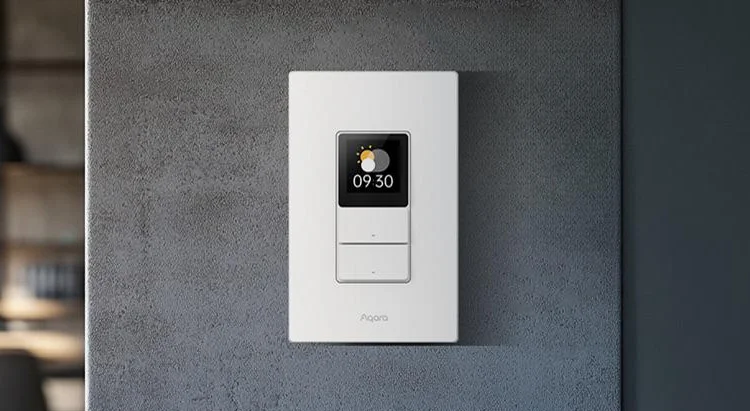

Aqara Touchscreen Switch S100
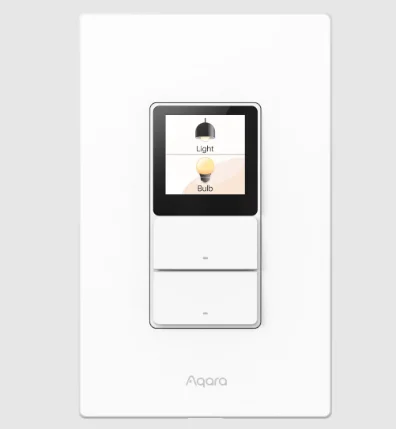
Product Introduction
The Touchscreen Switch S100 Horizontal is a smart switch with a touchscreen that supports multiple wireless protocols, including Wi-Fi, Thread, and BLE. It offers light control, automation scene settings, and multi-device interconnection. Equipped with a 1.3-inch high-definition touchscreen, it supports gesture swiping and quick scene switching. The device also supports the Thread Border Router function and features two relay channels. Additionally, it allows for remote control via an app, real-time power consumption monitoring, and monthly energy consumption statistics. Users can join the Aqara Home ecosystem or a third-party supported Matter ecosystem based on their own needs.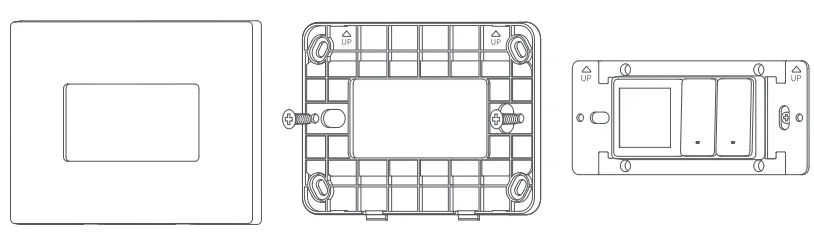
Note:
- Matter Ecosystem: A Matter-compatible hub is required to use this device with Matter.
- Aqara Ecosystem: For Aqara Home integration, you will need the Aqara Home app and an Aqara hub that supports Matter.
- Functionality: Please note that certain advanced features are exclusive to the Aqara Home app.
Warnings
- Installing this product involves high voltage electricity, and it must be conducted by professionals in accordance with the electrical specifications and the product specifications as detailed in the product manual for installation.
- Keep away from moisture; do not spill water or other liquids on this product.
- This is a hard-wired device. An easily accessible disconnection device (like a disconnect switch) should be installed externally. Both the disconnection device and the equipment must be installed by professionals.
- Updating the device’s firmware and system with unauthorized software may pose security risks, such as rendering the device unusable or leaking your personal information. It is recommended to update online.
- Do not attempt to repair this product by yourself. All repairs should be performed by an authorized professional.
- This product is for indoor use only; please do not use it in a humid environment or outdoors.
- Do not place this device near a heat source.
- Do not scratch the touch screen with sharp objects.
Installation Method
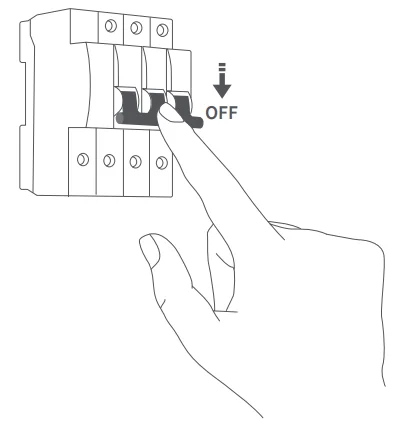
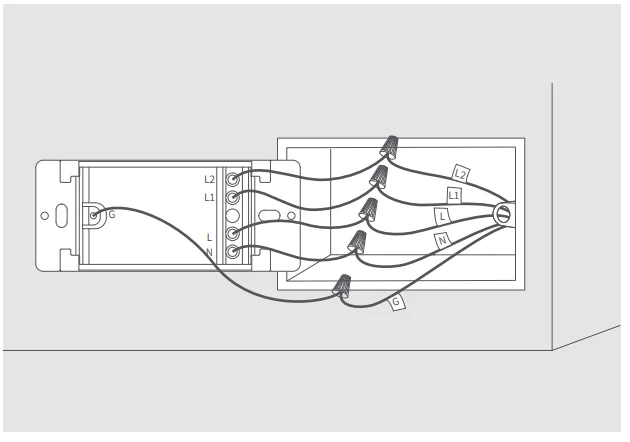
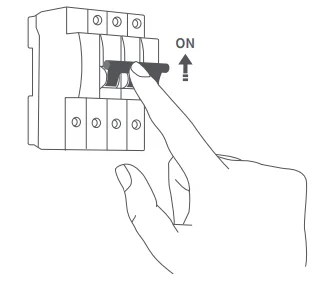
- Please make sure that the power at the circuit breaker or fuse box is turned off before wiring!

- Please follow the instructions below to determine your home’s circuit type and wire it correctly. We recommend seeking assistance from a professional electrician.

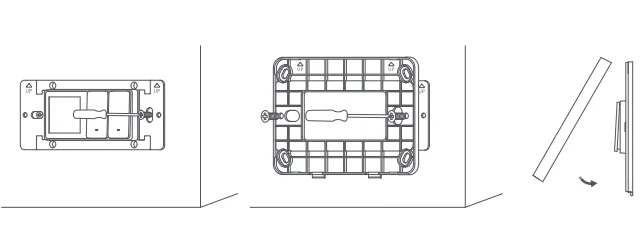
- Mount the switch unit to the electrical box with the attached screws. Then mount the frame to the switch unit with screws, and attach the faceplate cover to the frame.

- Turn on the main power switch. If the screen turns on normally, the switch is working properly.

Getting Started
- Set Up Your Matter Hub: Choose a Matter-compatible hub from your preferred platform (such as Apple Home, Google Home, or Amazon Alexa). Ensure your phone and the hub are connected to the same Wi-Fi network.
- Add the Device: Connect your phone to the same Wi-Fi network as the hub and ensure Bluetooth is enabled. Open your chosen smart home app and scan the Matter code on the device screen (make sure the device is in pairing mode). Follow the in-app instructions or voice prompts to complete the setup.
- We recommend using the Aqara Home app to access the full range of advanced features and settings, such as device/scene linking and screen layout.
- Multi-Platform Control: To add your device to another ecosystem, do not reset it. Instead, use your existing app to generate a Matter pairing/sharing code. Then, open the second platform’s app and use that code to connect. Note that each platform requires its own Matter-compatible hub.
How to use
- Firmware Update
- To ensure the best user experience, please update the device firmware to the latest version via the Aqara Home App after a successful network connection before use.
- Protocol Switching
- This device supports only the Matter platform using Wi-Fi and does not support protocol switching (like Zigbee).
- Relay Switch (Wired Light Control)
- This device supports 2 relays (provides smart on/off control for two wired light circuits), enabling on/off control via a single press. Monitor energy usage via the Aqara Home app. Includes safety sensors for overload and over-temperature protection.
- Button Mode: This feature can only be configured on the device screen: scroll down on the screen > “Settings” icon > Button Mode
- Dual Mode: Maintains the essential function of a wall switch (controlling the wired light) while also allowing the button press to be used as a trigger for smart automations.
- Standard Mode: Only functions as a standard light switch for manual on/off control. Disables the button’s wireless function, hence no automation is triggerable via “single-press”.
- Wireless Mode: Isolates the wired light from manual pressing, ensuring the light remains consistently on or off. Press for automation only.
- Wireless Switches
- This device supports 8 wireless switches. Wireless switches 1-6 are completely virtual buttons on the screen, while 7 and 8 are bound to the 2 physical buttons below the screen. The screen supports wireless switches 1-8 to be displayed/removed on the screen (Aqara Home). For non-Aqara Matter platforms, wireless switches 1-6 will be displayed on screen by default; only their automation is configurable.
- Wireless switches can be used to trigger automation/scene, e.g., a single pressing of Wireless Switch 1 triggers the Good Morning scene.
- The upper and bottom physical buttons correspond to wireless switches 7 and 8 when used in wireless/dual mode. They can not only be triggered via pressing the respective physical button but also be displayed on screen for straightforward access.
- Network Reset
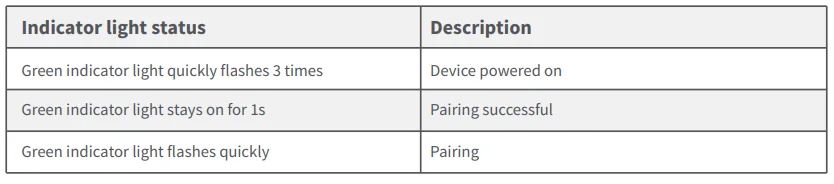
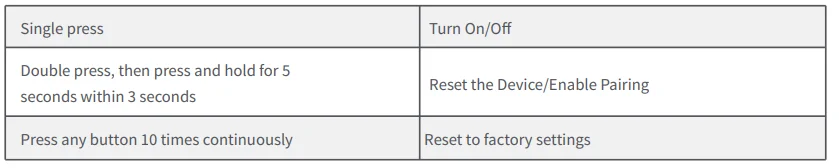
- Double-press any physical button, then hold for 5 seconds until the green light flashes. After the device reboots (the screen will turn black for a while), the Matter code will appear on the screen, initiating the network pairing process.
- Factory Reset
- Press any physical button ten times in a row to restore factory settings. All local and cloud data will be erased, and the device will enter the Matter code pairing page after device reboot (screen will turn black for a while).
Aqara Home Exclusive Features
Connecting to the Aqara platform enables the following unique features:
- Theme Switching
- Locate the device in the Aqara Home App, navigate to its control page, and find “Theme Library” under “Configure”. Tap to access themes and switch between them.
- Screen Configuration
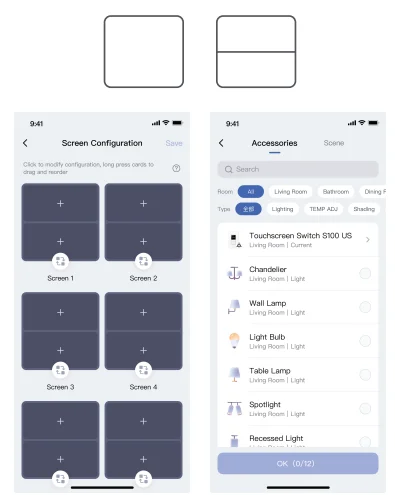
- If no layout is set, the app will show “Configure Now”. You can choose between a Full Screen or Split-Screen (2-Layout) view. Screen layout and item visibility can only be configured via the Aqara Home app. On other platforms (such as Apple Home or Google Home), a standard fixed 2-card layout will be applied on screen.
- Aqara Home allows you to choose exactly which scenes and devices appear on the screen. You can easily hide items you don’t use to keep the display clean.

Presence Detection
1. Device Installation Suggestion
Please try to avoid facing large areas of metal, glass, and other highly reflective surfaces. Also, avoid placing objects such as air conditioning vents, curtains, and fans within the device’s detection range, as they may cause slight movement and interfere with presence detection.
2. Presence Detection Range
The maximum detection distance of the device is 3m, and the detection angle is 120 degrees horizontally (the theoretical distance in an ideal laboratory environment). The detection range may vary slightly depending on the actual environment, installation height, and angle of different spaces. At large angles, the maximum detection distance will be correspondingly shorter.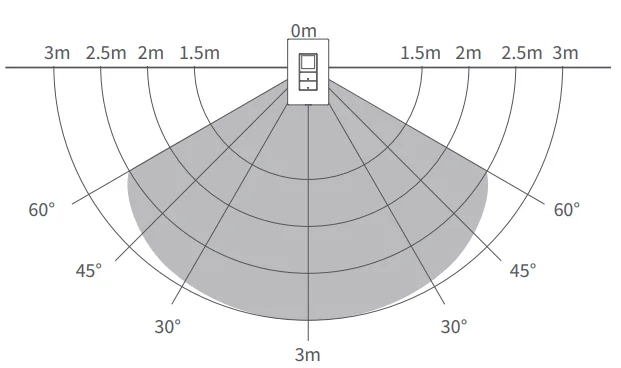
3. Presence Detection Application
- Auto On/Off (Presence Trigger)
- Once the device is added, scroll down on the screen, tap the “settings” icon, and find “Presence Detection” > “Presence Trigger”. This allows the respective button to automatically turn on/off the light wired behind it based on presence detection.
- Presence-based Automations
- In the device automations, presence/absence detected can be used as a trigger condition.
For example, if no one (absence) is detected, turn off all living room lights.
- In the device automations, presence/absence detected can be used as a trigger condition.
Indicator Light Description
Button Operation
Product Specifications
- Model: WS-K16D
- Wireless Protocols: Wi-Fi IEEE 802.11 a/b/g/n/ac/ax 2.4GHz/5GHz, Bluetooth, Thread
- Dimensions: 119 × 86 × 42.95 mm (4.69 × 3.39 × 1.69 in.)
- Operating Temperature: -10°C ~ 40°C (14°F ~ 104°F)
- Operating Humidity: 0 ~ 95% RH, no condensation
- Input Power: 100-240V~, 50/60Hz
- Rated Load: Max. 10A (Incandescent Lamp), Max. 400W (LED/CFL)
- What is in the Box: Touchscreen Switch S100 US × 1, Compliance Statement × 1, User Manual × 1, Screw Kit × 1, Wire Nuts Kit × 1, Wiring Sticker Sheet × 1
In-app and on-device (local) Setting Comparison
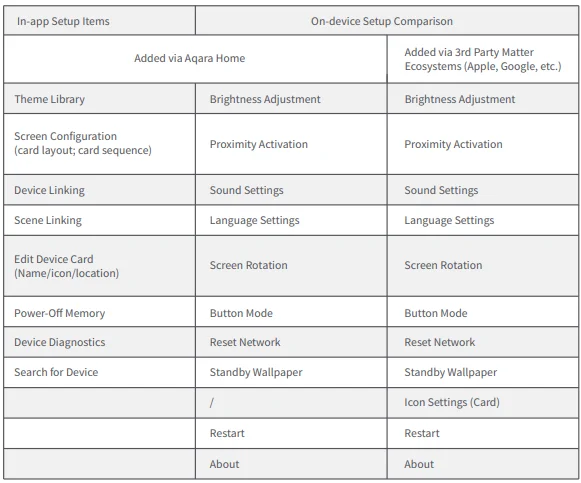
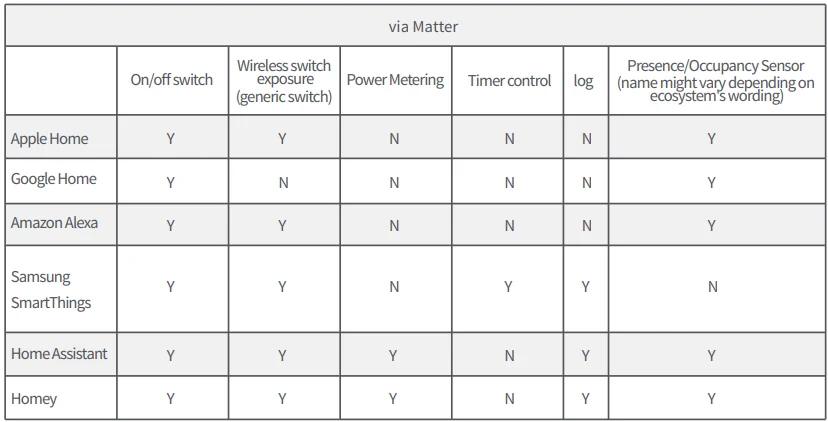
Third-Party Ecosystem Function Comparison
For More Manuals By Aqara, Visit ManualsLibraryy.
Aqara Touchscreen Switch S100-FAQs
What is the Aqara Touchscreen Switch S100, and how does it work?
The Aqara Touchscreen Switch S100 is a hybrid smart wall switch combining physical buttons with a touchscreen interface. It controls wired lights while also managing smart devices, scenes, and automations directly from the display, reducing reliance on mobile apps or voice commands.
What makes the S100 different from standard smart switches?
Unlike typical smart switches, the S100 features a built-in touchscreen that acts as a control panel for your entire smart home. It supports both physical control and customizable on-screen controls, offering a more interactive and centralized experience for managing devices and scenes.
Does the Aqara S100 support Matter and Thread?
Yes, the S100 supports Matter over Wi-Fi and includes a built-in Thread Border Router. This enables seamless connectivity with a wide range of smart home ecosystems while improving network stability and allowing communication with Thread-based devices.
How many devices or scenes can the S100 control?
The S100 can manage multiple devices and scenes through its touchscreen, offering up to eight programmable wireless buttons. These can trigger automations, control lights, or activate scenes, making it a versatile control hub for various smart home functions.
Can the touchscreen be customized on the Aqara S100?
Yes, the S100 allows users to customize the display layout, including device cards, scenes, and even wallpapers. You can arrange controls based on priority and personalize the interface to suit your daily routines and preferences for easier access.
Does the Aqara S100 require a hub to function?
The S100 can work directly with Matter-compatible ecosystems over Wi-Fi, but some advanced features and integrations may still require a compatible hub depending on your setup. This flexibility allows both standalone use and deeper ecosystem integration.
What smart home platforms are compatible with the S100?
The S100 is compatible with major platforms such as Apple Home, Google Home, Amazon Alexa, and SmartThings through Matter. This ensures cross-platform interoperability and allows users to control devices from different brands within a single unified system.
Does the Aqara S100 support energy monitoring?
Yes, the S100 includes energy monitoring features that allow users to track power consumption in real time and over time. This helps identify usage patterns, reduce energy waste, and optimize automation settings for better efficiency.
How is the Aqara Touchscreen Switch S100 powered and installed?
The S100 is a wired smart switch designed to replace traditional wall switches. It connects to your home’s electrical system and supports standard voltage ranges, making it suitable for typical residential installations with proper wiring.
Can the S100 be used for advanced home automation scenarios?
Yes, the S100 is ideal for advanced automation, allowing users to trigger complex routines with a single tap. It can integrate multiple devices, enabling scenarios like “Away Mode” or “Movie Night,” all controlled directly from the wall-mounted touchscreen.