
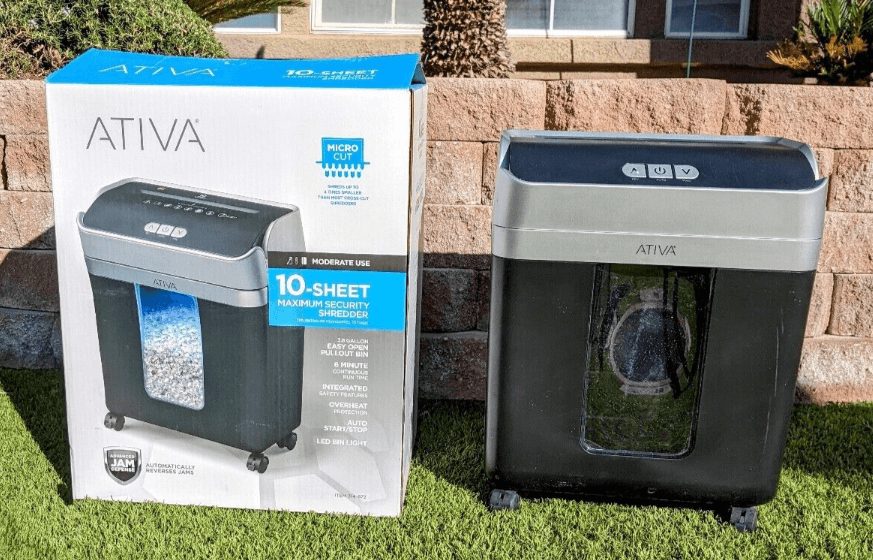

Ativa A10MC19 10 sheet micro-cut shredder

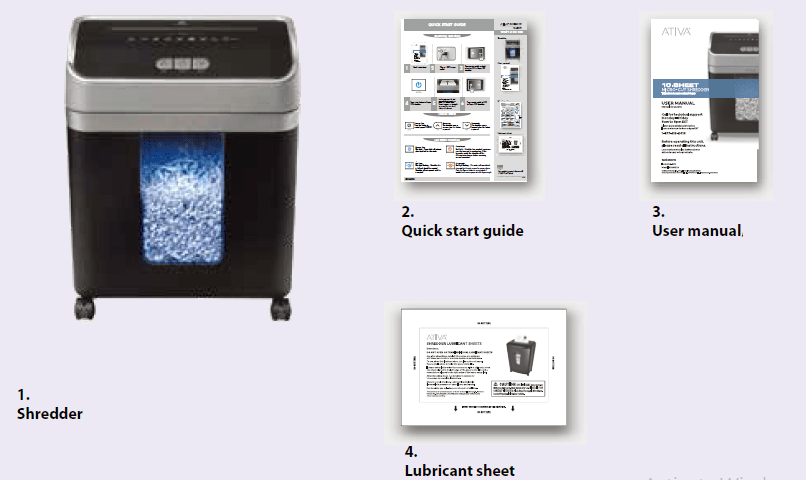
What’s in the box
Important instructions
WARNING: Read all instructions prior to operation.
- Read instructions before use.
- Do not spray or keep any aerosol products in or around the shredder.
- Avoid touching the document feed opening with your hands.
- The product is not intended for use by children (the product is not a toy).
- Shredder oil only.
- This equipment is not intended for use by children. Avoid touching the media feed opening with your hands, clothing, or hair. Unplug this equipment when not in use for an extended period of time.
- Avoid loose clothing or jewelry touching the document feed opening.
- Avoid getting hair near the document feed opening.
- Sharp edges. Do not touch.
- Warning! Before switching the machine on, make sure that you observe all safety instructions.
DO NOT SHRED: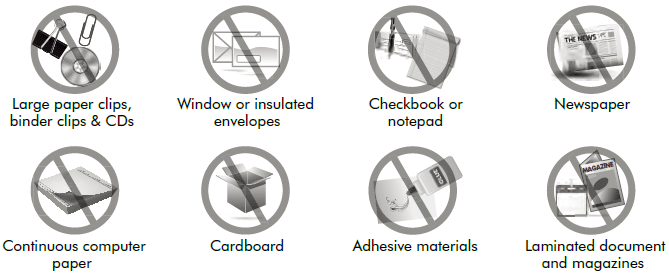
- Always turn the shredder off and unplug the power cord when: not in use, before cleaning it, moving it, or emptying the waste basket.
- RISK OF FIRE. Never use any petroleum-based or flammable oils or lubricants in or around the machine, and do not dispose of flammable chemicals or materials in the shredder basket.
- A socket outlet should be near the equipment and be easily accessible.
- Do not place the shredder near water or any heat source. Do not use the shredder if the power cord is damaged in any way.
- Do not attempt to service this product yourself, as doing so may expose you to sharp cutting blades and/or electricity and will void the manufacturer’s warranty.
- Never try to clean or clear the shredder blade.
KNOW YOUR ATIVA SHREDDER
Product Specifications:
- Sheet Capacity: 10 Sheets of 20 lb. bond paper
- Paper Shred Size: 0.16 in. x 0.47 in. pieces, 4 mm x 12 mm pieces. Security level: P-4
- Paper Entry Width: 8.7 in / 220 mm
- Credit Card Capacity: 1 at a time
- Duty Cycle: Shred time: 6 min. Cool down time: 50 min.
- Voltage: 120V~60Hz / 2.0 A
NOTE: ONE FOLDED SHEET OF PAPER EQUATES TO 2 SHEETS OF PAPER
Heavier paper (above 20 lb.), humidity may reduce shredding capacity below 10 sheets per pass.
Voltage: Use in other countries outside of the USA is not recommended.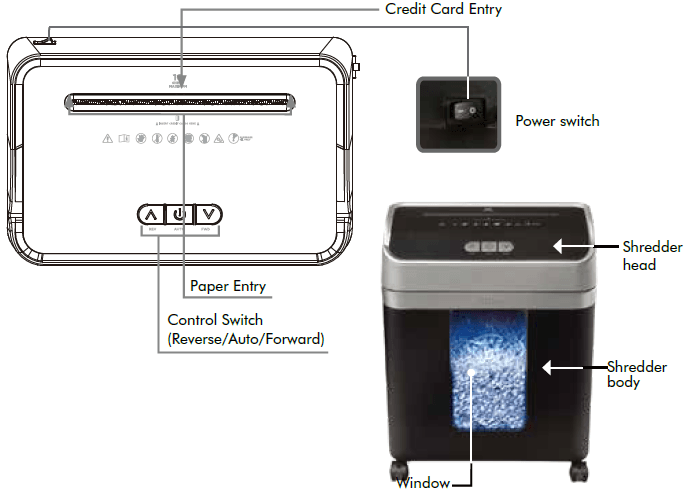
OPERATION
Shredding operation:
- Plug into a grounded standard US household power outlet (120 Volt).
- Press the master switch on the back of the unit to ON to Power ON the shredder.
- Press the Auto button to Power ON the shredder.
- Make sure you do not exceed the sheet count per pass (10 sheets max). Insert the paper as straight as possible into the feed slot and release.
- Insert one credit card at a time into the middle of the feed slot.
- Press the master switch to OFF to Power OFF the shredder.
Special Feature:
Overload feature
The motor will immediately stop and start to auto-reverse for paper release. Press the Reverse button to reverse mode if needed and remove paper at a 45-degree angle.
Control Switch:
Power On/Off: Press this button to control power ON/OFF.
Reverse: The shredder runs in reverse when this button is pressed.
Forward: The shredder runs in forward when this button is pressed.
LED Status Indicators:
Power On: Blue light – Power light will activate when switched to Auto mode.
Overheat: Red light – Shredder has reached maximum running time and is overheating. If this happens, switch the shredder off for 50 minutes or longer before resuming normal operation.
Bin Full: Blue light flashing – Shredder bin is full and should be emptied. Shredder will not operate until the bin is emptied.
Overload: Red light flashing – The motor will immediately stop and start to auto-reverse for paper release. Press the Reverse button to reverse mode if needed and remove paper at a 45-degree angle.
MAINTENANCE
Warning: Failure to properly maintain your shredder will void the warranty.
Keep your shredder running with ultimate reliability with the following Ativa shredder supplies: Oil the shredder blades every month with Ativa brand lubricant sheets or Office Depot brand oil.
- To maintain with shredder oil: Simply apply a bead of lubricant across a sheet of paper and feed it into the shredder, or apply lubricant directly into the paper feed entrance.
- To maintain with a shredder sheet: Simply insert the shredder sheet into the feed slot the same way you would a piece of paper.
Lubricant Procedure:
- Turn OFF the shredder.
- Apply shredder oil across the paper entry or insert a shredder sheet into the feed slot.
- Turn ON the shredder.
- Press the reverse button for 3-5 seconds.
To dust/clean the shredder:
- Always UNPLUG the shredder first.
- Take a soft, dry cloth and wipe the shredder body.
- Do not clean the shredder with spray or liquid cleaners or water. Do not immerse the shredder in water.
TROUBLESHOOTING
WARNING: DO NOT ATTEMPT TO REPAIR BY OPENING THE SHREDDER HEAD. THIS WILL VOID THE PRODUCT WARRANTY. If you continue to have problems, please contact customer support at our Service Center at 1-877-419-2616.
No power to the shredder
- Check the power outlet. Make sure the power cord is plugged into a functioning 120V standard household power outlet, or try using a different working outlet.
- Check the master switch on the back of the unit. Make sure the master switch is turned ON.
- The auto icon should be lit on the LCD. The Blue Power On icon should be lit when the shredder is in Auto. Check that the bin is not open.
Shredder is Jammed
- Reverse to remove paper
- Turn off the shredder
- Turn on the shredder
- Reduce sheets to resume shredding
Warning: DO NOT USE ANY SPRAY CANS OR AEROSOLS.
When the shredder detects over-capacity shredding, the motor will immediately stop and start auto-reverse for paper release.
- Press and hold the REV button to release paper if needed. Pull the paper at a 45-degree angle to remove jammed paper (as much as possible).
- Turn off the shredder. Apply shredder oil to the feed slot. Let the oil soak into the paper and machine for 30 minutes. Note: Repeat steps 1 & 2 if needed
- Press the power button to Auto/On. Use thick paper stock or a greeting card to push the jam through.
- Reduce the number of sheets being fed (count pages to be sure not to exceed the maximum sheet count). Re-feed the paper.
Shredder does not feed or shred paper
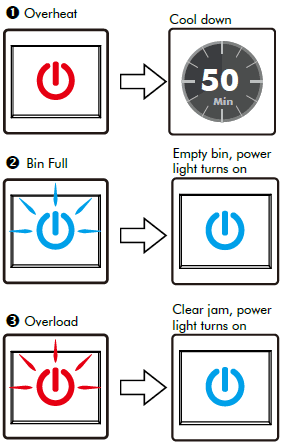
- If the Overheat icon is lit in Red, turn the shredder off and let it cool down for 50 minutes. Turn the shredder on, check the icon light again, and restart shredding only when the icon light is not Red.
- If the Bin Full icon is flashing Blue, empty bin.
- If the Overload icon is flashing Red light, the motor will immediately stop and start to auto-reverse for paper release. Press the Reverse button to reverse mode if needed and remove paper at a 45-degree angle.
Shredder does not feed or shred credit cards or small pieces of paper
- Position a credit card or a small piece of paper over the credit card section of the Feeder (center position).
- Try again.
Shredder runs continuously
Warning: DO NOT USE CANNED AIR.
- Unplug the machine from the wall socket.
- Find the activation sensor in the center of the feed slot. Use a cotton swab to gently wipe away any dust or debris that has collected on the sensor.
FAQ
How to register my product?
There is no need to register your product. The product warranty requires that you keep your proof-of-purchase (invoice, order confirmation, or receipt during the warranty period.
What should I do to maintain my shredder?
Once a month, use shredder oil or a shredder sheet. Please see page 5. Proper maintenance helps to prevent paper jams and prolong your shredder’s life.
Can my shredder handle paper clips and staples?
Yes, it can. This machine can accept #1 or regular-sized paper clips. No jumbo paper clips or vinyl-coated (typically colored) paper clips. It can also accept standard-size staples. It does not accept heavy-duty staples.
Can I use aerosol lubricants or cooking/vegetable oil to lubricate my shredder?
Never use spray/aerosol lubricant or cooking/vegetable oil to lubricate the shredder. Both of these options cause shredded particles to stick together, and they will remain stuck in the shredder blades. Please only use shredder oil or shredder sheets. See the Maintenance section in this manual on page 5 for more information. Spray/aerosol products may also cause a fire hazard when sprayed on or near the shredder.
Who should I contact if I need product support or warranty question/issue?
Please call 1-877-419-2616. Please have your sales receipt and your user manual handy when you call.
For more Manuals by Ativa, visit ManualsLibraryy
Ativa A10MC19 10 sheet micro-cut shredder-FAQs
How do I turn on the shredder?
Plug it into a power outlet.
Slide the power switch to “Auto.”
The indicator light (usually blue) will show it’s ready.
What does the red light mean?
The red light signals:
Overheating (let it cool for 30–60 minutes).
Motor overload (reduce shredding volume).
What’s the purpose of a shredder?
To destroy sensitive documents by cutting them into strips or fine particles, preventing data theft.
Is micro-cut shredding secure?
Yes! Micro-cut offers high security (P-4 to P-7 level), ideal for confidential data like financial or legal documents.
How do I troubleshoot a jammed shredder?
Unplug the shredder.
Empty the bin and check for stuck paper.
Apply shredder oil, then run in reverse & forward to loosen the jam.
Do shredders have fuses?
Yes. If the shredder won’t turn on, check:
The plug fuse.
The internal fuse (replace if blown).
Why does my shredder overheat?
Possible causes:
Overuse (shred in small batches).
Blocked blades (check for staples/paper clips).
Dull blades (sharpen with aluminum foil).
How do I unlock a jammed shredder?
Unplug the shredder.
Switch to reverse mode to eject stuck paper.
Manually remove debris if needed.