
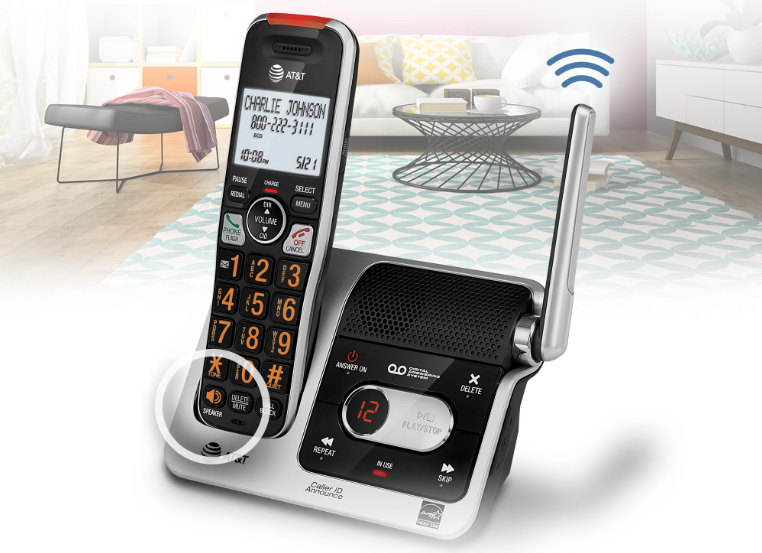

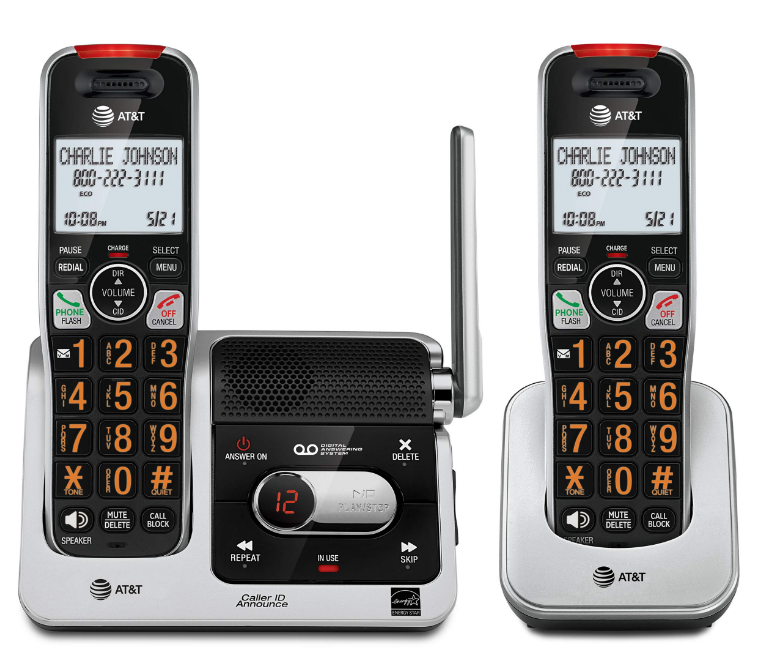
AT&T BL102-2 Handset Cordless Phone
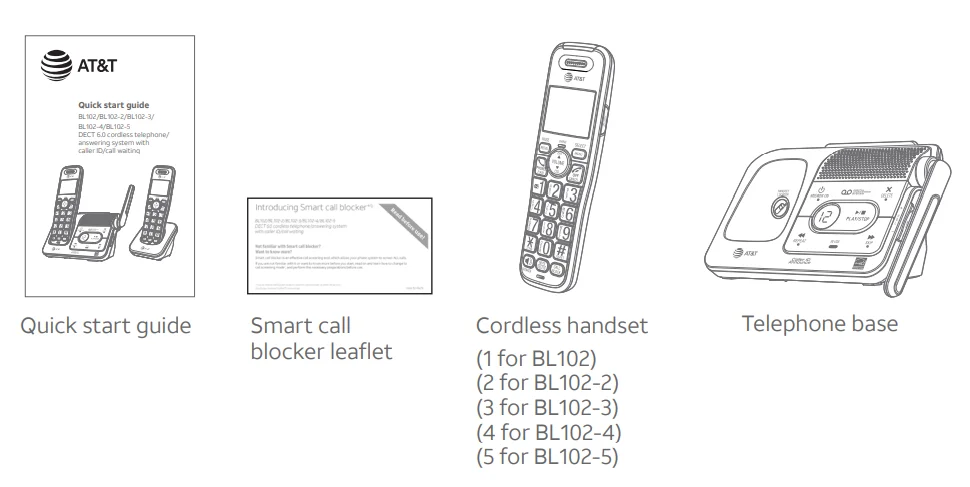
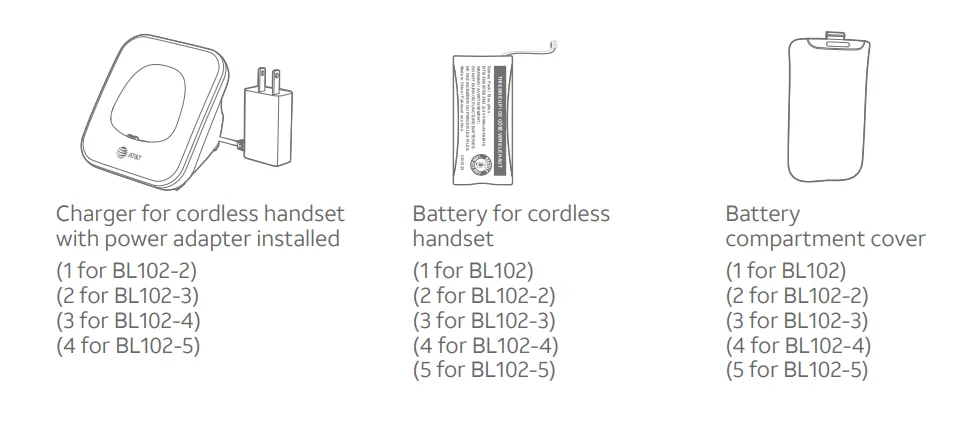
Parts checklist
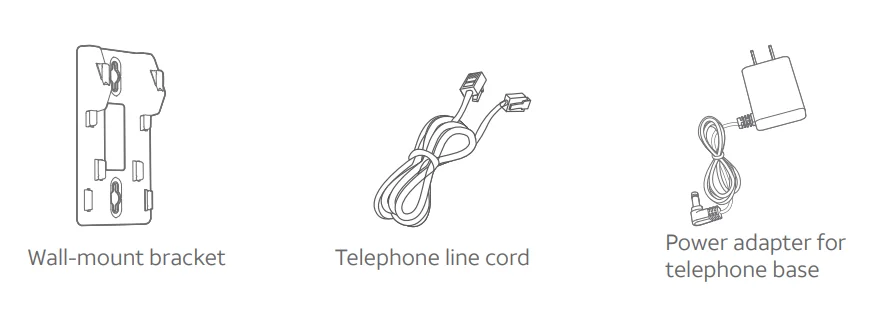
Your telephone package contains the following items. Save your sales receipt and original packaging in the event that warranty service is necessary.
Getting started
Quick reference guide – handset
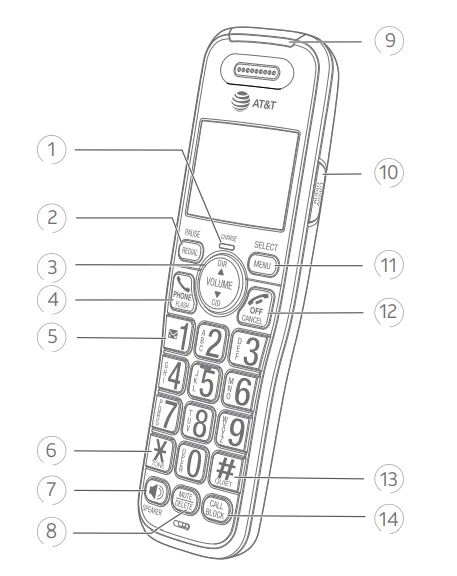
- CHARGE indicator
- When the handset is charging in the telephone base or charger.
- REDIAL/PAUSE
- Press repeatedly to view the last ten numbers dialed (page 25).
- While entering numbers, press and hold to insert a dialing pause (page 35).
- ▲DIR/VOLUME
- Press ▲DIR to show directory entries when the handset is not in use (page 37).
- Press to scroll up while in menus.
- While entering names or numbers, press to move the cursor to the right.
- Press to increase the listening volume when on a call (page 27), or to increase the message playback volume (page 82).
▼ CID/VOLUME - Press ▼CID to show the caller ID log when the handset is not in use (page 41).
- Press to scroll down while in menus.
- While entering names or numbers, press to move the cursor to the left.
- Press to decrease the listening volume when on a call (page 27), or to decrease the message playback volume (page 82).
 PHONE/FLASH
- Press to make or answer a call (page 24).
- During a call, press to answer an incoming call when you receive a call waiting alert (page 27).
- During message playback, press to call back the caller if the caller’s number is available (page 82).

- While reviewing a caller ID log entry, press repeatedly to add or remove 1 in front of the telephone number before dialing or saving it in the directory (page 42).
- Press and hold to set or to dial your voicemail number (page 19).
- TONE

- Press to switch to tone dialing temporarily during a call if you have pulse service.
 /SPEAKER
- Press to make or answer a call using the speakerphone (page 25).
- Press to switch between the speakerphone and the handset (page 25).
- MUTE/DELETE
- During a call, press to mute the microphone (page 27).
- When the handset is ringing, press to mute the ringer temporarily (page 24).
- While reviewing the caller ID log, directory, redial memory, block list, allow list, or star name list, press to delete an individual entry.
- While predialing, press to delete digits.
- During message or announcement playback, press to delete the playing message or the recorded announcement.
- Visual ringer indicator
- Flashes when there is an incoming call.
- AUDIO ASSIST®
- Voices will sound louder and clearer when you press AUDIO ASSIST® while on a call using the handset (page 29).
- MENU/SELECT
- When the handset is not in use, press to show the menu.
- While in the menu, press to select an item or save an entry or setting.
 OFF/CANCEL
- During a call, press to hang up (page 24).
- While in a menu, press to cancel an operation, back up to the previous menu, or exit the menu display; or press and hold this button to exit to idle mode.
- When the handset is ringing, press to mute the ringer temporarily (page 24).
- Press and hold while the telephone is not in use to erase the missed call indicator (page 40).
- QUIET# (pound key)
- Press repeatedly to display other dialing options when reviewing a caller ID log entry (page 42).
- Press and hold to enter the QUIET mode setting screen, or to deactivate QUIET mode (page 23).
- CALL BLOCK
- Press to block the incoming call when the telephone is ringing (page 45) or during the call (page 72).
- When the handset is not in use, press to show the Smart call blocker menu (page 49).
 PHONE/FLASH
 /SPEAKER
Audio Assist® is a registered trademark of Advanced American Telephones.
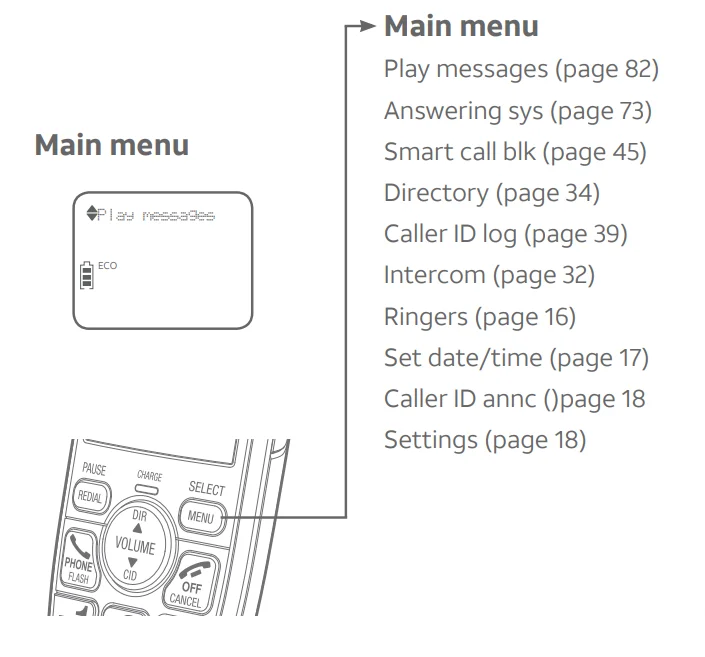
Using menus
- Press MENU/SELECT to show the menu.
- Press ▼CID or ▲ DIR to scroll through menu items.
- Press MENU/SELECT changes to a highlighted menu item.
- Press OFF/CANCEL to cancel an operation, back up to the previous menu, or exit the menu display.
Quick reference guide – telephone base
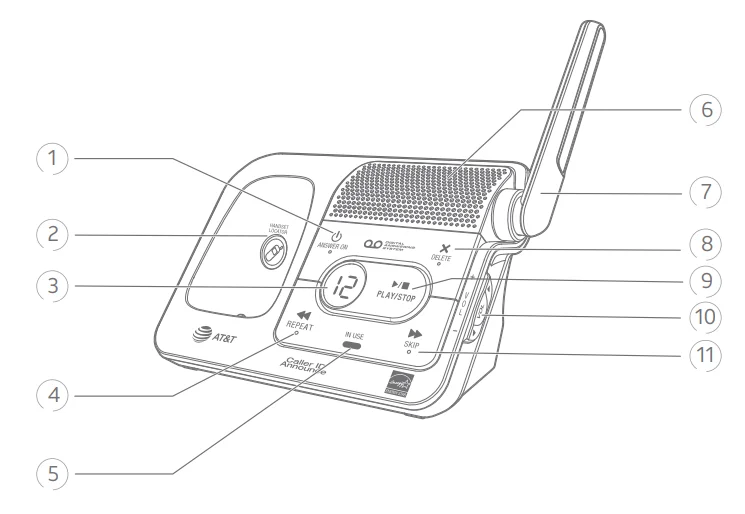
 /ANSWER ON
- Press to turn on the built-in answering system on or off page 74).
 /HANDSET LOCATOR
- While the phone is idle, press to page all handsets (page 31). Message counter
- Shows the number of messages or other answering system information.
 /REPEAT
- Press to repeat a message.
- Press twice to play the previous message (page 82).
- IN USE indicator
- When the handset is in use, or when the answering system is answering an incoming call.
- Flashes when another telephone is in use on the same line.
- Flashes when there is an incoming call.
- Speaker
- Antenna
- X/DELETE
- Press to delete the message currently playing (page 82).
- Press twice to delete all old messages when the phone is not in use (page 83).
 /
/ /PLAY/STOP
- Press to start or stop message playback (page 82).
- ▼ VOLUME ▲
- During message playback, press to adjust the listening volume (page 82).
- While in idle mode, press to adjust the base ringer volume.
 /SKIP
/SKIP- Press to skip a message (page 82).
 /ANSWER ON
 /HANDSET LOCATOR
 /REPEAT
 /
/ /PLAY/STOP
 /SKIP
/SKIPInstallation
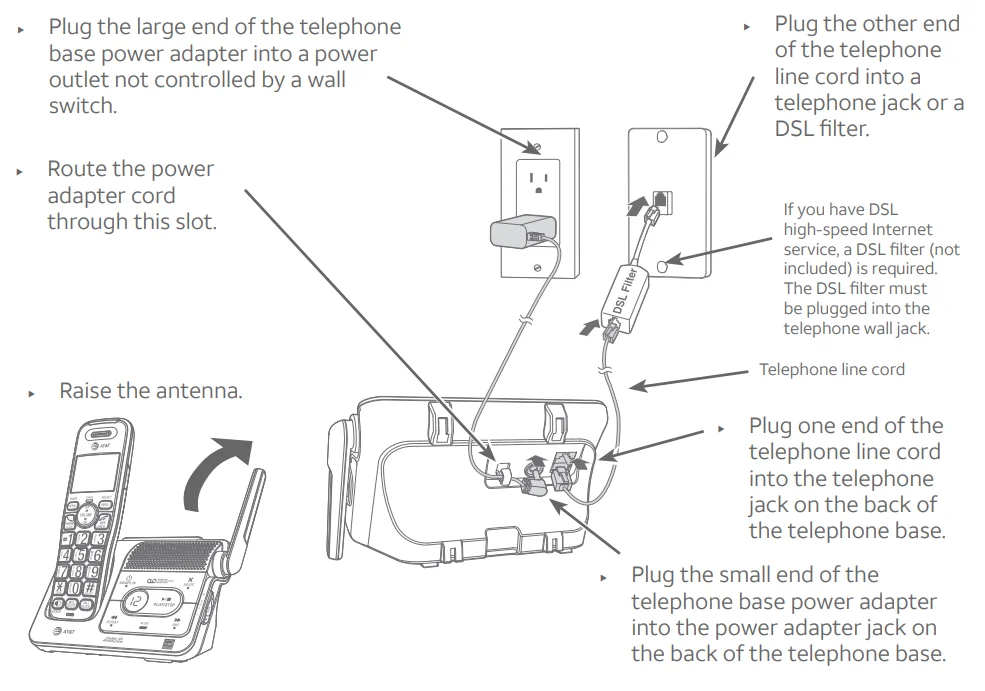
Install the telephone base close to a telephone jack and a power outlet not controlled by a wall switch. The telephone base can be placed on a flat surface or vertically mounted on the wall (see page 13). For optimum range and better reception, place the telephone base in a central and open location.
If you subscribe to high-speed Internet service (DSL – digital subscriber line) through your telephone line, you must install a DSL filter between the telephone line cord and the telephone wall jack (see the following page). The filter prevents noise and caller ID problems caused by DSL interference. Please contact your DSL service provider for more information about DSL filters.
Your product may be shipped with a protective sticker covering the handset or telephone base display – remove it before use. For customer service or product information, visit our website at www.telephones.att.com or call 1 (800) 222-3111. In Canada, dial 1 (866) 288-4268.
Avoid placing the telephone base and charger too close to:
- Communication devices such as television sets, VCRs, or other cordless telephones.
- Excessive heat sources.
- Nice sources such as windows with traffic outside, motors, microwave ovens, refrigrators and flourescent lightings.
- Excessive dust sources, such as a workshop or garage.
- Excessive moisture.
- Extremely low temperature.
- Mechanical vibration orshoc,, such as on top of a washing machine or workbench.
Telephone base and charger installation
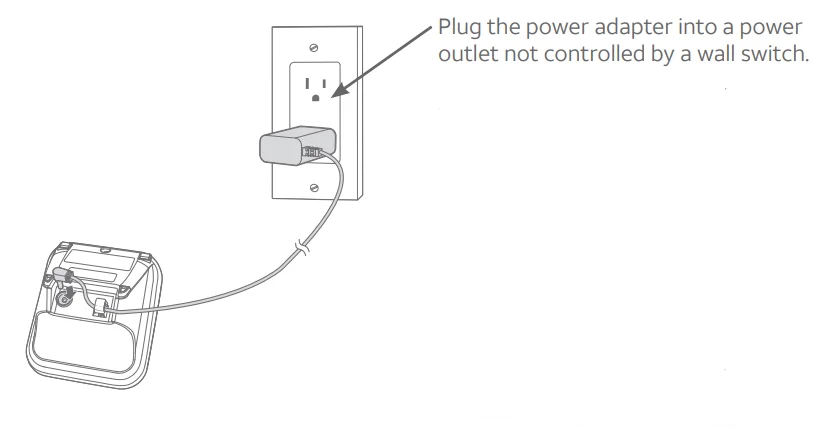
Install the telephone base and charger, as shown below.
The telephone base is ready for tabletop use. If you want to change to wallmounting, see Installation options on page 13 for details.
Telephone base installation
Charger installation
IMPORTANT INFORMATION
- Use only the power adapter(s) supplied with this product. To order a replacement power adapter, visit our website at
www.telephones.att.com or call
1 (800) 222-3111. In Canada, dial
1 (866) 288-4268. - The power adapters are intended to be correctly oriented in a vertical or floor mount position. The prongs are not designed to hold the plug in place if it is plugged into a ceiling, under-the-table, or cabinet outlet.
Battery installation and charging
Install the battery, as shown below. Once you have installed the battery, the screen indicates the battery status (see the following table). If necessary, place the handset in the telephone base or charger to charge the battery. For best performance, keep the handset in the telephone base or charger when not in use. The battery is fully charged after 10 hours of continuous charging. See the table on page 110 for battery operating times.
If the screen shows Place in charger and flashes, you need to charge the handset without interruption for at least 30 minutes to give the handset enough charge to use the telephone for a short time. The following table summarizes the battery charge indicators and actions to take.
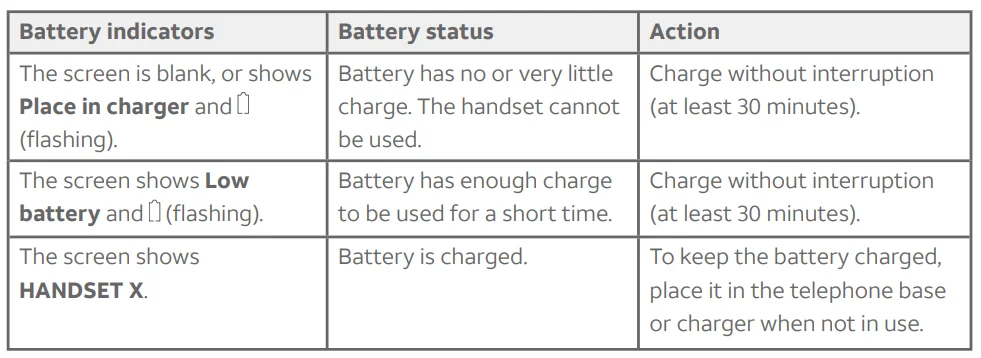
NOTE: If you are on a phone call in low battery mode, you hear four short beeps every minute.
Step 1
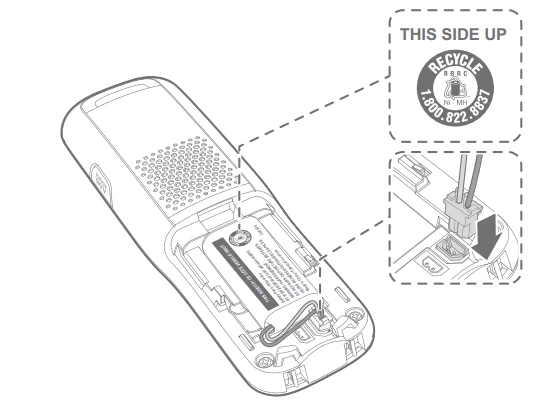
Plug the battery connector securely into the socket inside the handset battery compartment. Insert the supplied battery with the label THIS SIDE UP facing up, as indicated.
Step 2
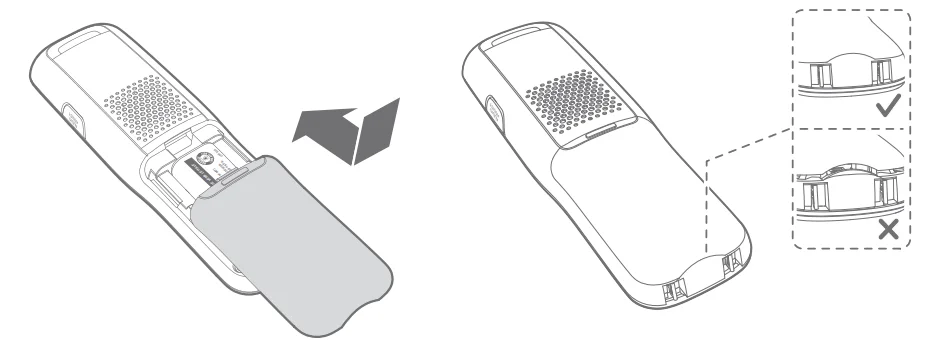
Align the cover flat against the battery compartment, then slide it upwards until it clicks into place.
Step 3
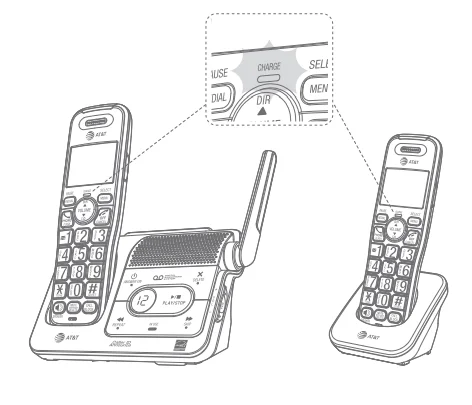
Charge the handset by placing it face forward in the telephone base or charger. The CHARGE light on the handset is on during charging.
IMPORTANT INFORMATION
- Use only the supplied rechargeable battery or replacement battery (model BT183342/ BT283342). To order, visit our website at www.telephones.att.com or call 1 (800) 222 3111. In Canada, dial 1 (866) 288-4268.
- If you do not use the handset for a long time, disconnect and remove the battery to prevent possible leakage.
Initial setups
After you install your telephone or power returns following a power outage, the handset will prompt you to set the date and time. For instructions, see Set date/time on page 17. To skip setting the date and time, press  OFF/CANCEL.
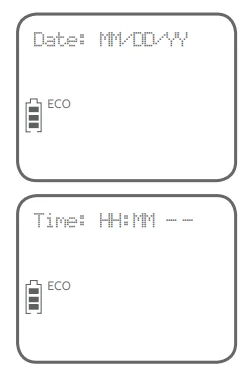
After the date and time setting is done or skipped, the handset then prompts if you want to set Smart call blocker. Press MENU/SELECT on the handset to start the Smart call blocker setup via voice guide. To skip the setup, press OFF/CANCEL on the handset.
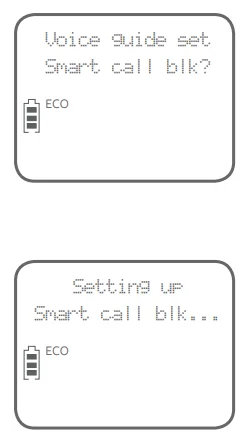
Voice guide to set Smart call blocker:
If you choose to set Smart call blocker via voice guide, you hear a voice prompt, “Hello! This voice guide will assist you with the basic setup of Smart call blocker…”. Listen to the instructions and then choose one of the following options.
On the handset:
- Press 1 if you want to screen calls with telephone numbers that are not saved in your directory, allow list, or star name list; or
- Press 2 if you do not want to screen calls and want to allow all incoming calls to get through.
If you select option 1 to screen all incoming calls, we recommend that you add the phone numbers of your family members and friends, and desired businesses to your Directory (see page 34) or Allow list (see page 56), or add their names to the Star name list (see page 61). This will avoid Smart call blocker to screen their calls.
For more details, see Smart call blocker on page 45.
Note: You can restart the voice guide to set Smart call blocker by resetting your ‘handset’spower.
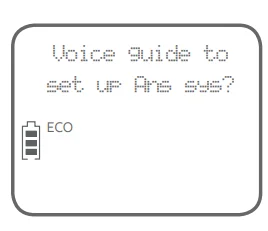
After the smart call blocker setting is done or skipped, the handset will prompt if you want to set up the answering system. Press MENU/SELECT to start the answering system setup via voice guide. For more details, see the Voice guide on page 75. To skip the setup, press OFF/CANCEL on the handset.
Installation options
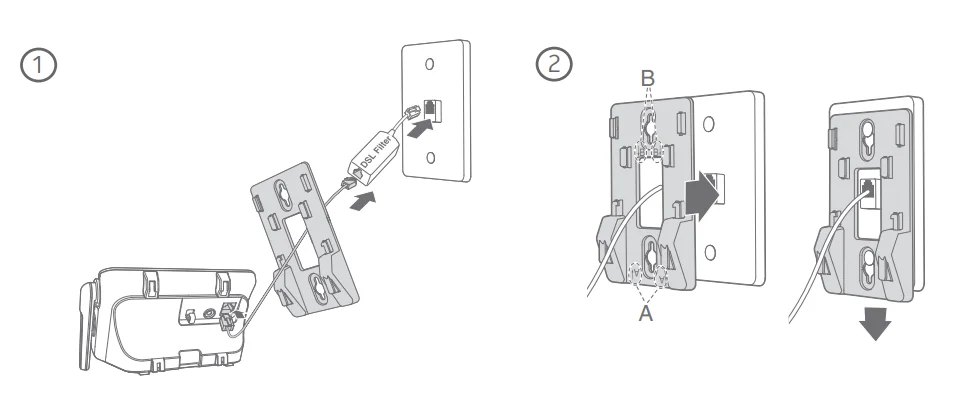
Your telephone base is ready for tabletop use. If you want to mount your telephone on a wall, use the provided wall-mount bracket to connect with a standard dual-stud telephone wall-mounting plate. If you do not have this mounting plate, you can purchase one from many hardware or consumer electronicsretailers. You might need a professional to install the mounting plate.
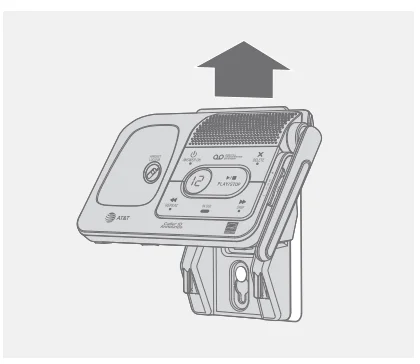
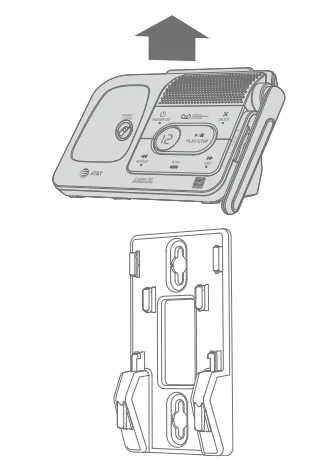
Tabletop to wall-mount installation
- Plug the telephone line into the telephone base. If you are using a DSL
filter, plug the other end of the telephone line into the filter. Route the telephone line cord (or DSL filter) through the wall mount bracket hole. - Align the holes on the wall-mount bracket with the standard wall plate and slide the wall-mount bracket down until it locks securely.
- Position the telephone base, as shown below. Insert the extended tabs of the wall-mount bracket into the slots on the back of the telephone base. Push the telephone base down until it is securely in place.
- Plug the power adapter into a power outlet not controlled by a wall switch. Plug the other end of the power adapter into the telephone base. Bundle the telephone line cord and power adapter cord neatly with twist ties.
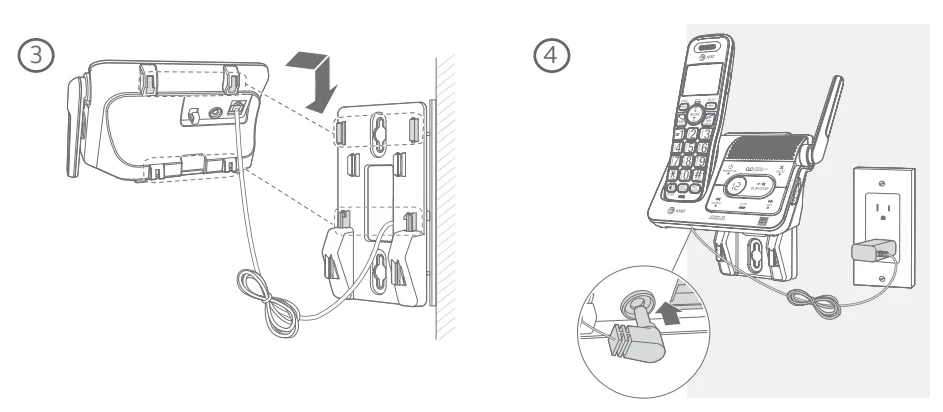
Wall-mount to tabletop installation
- Unplug the large end of the power adapter from the electrical outlet.
- If the telephone line cord and power adapter cord are bundled, untie them first. Slide the wall-mount bracket up and remove it from the wall- mounting plate.

- Unplug the telephone line cord or the DSL filter from the telephone wall jack. Push the telephone base up and away from the wall-mount bracket to detach it from the wall-mount bracket.

- See the telephone base and charger installation on page 8.
Telephone settings
Use the menu to change the telephone settings.
- Press MENU/SELECT when in idle mode (when the phone is not in use) to enter the main menu.
- Press ▼CID or ▲ DIR to scroll to the feature to be changed.
- Press MENU/SELECT to select the highlighted item.
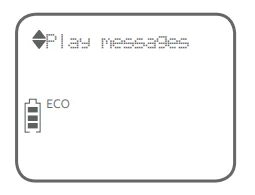
NOTE: Press OFF/CANCEL to cancel an operation, back up to the previous menu, or exit the menu display. Press and hold OFF/CANCEL to return to idle mode.
Ringer volume
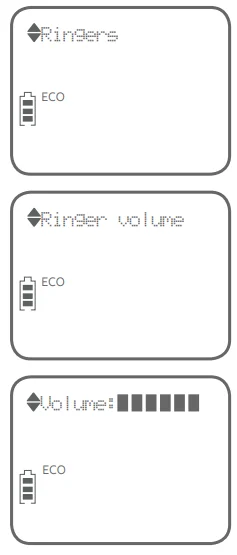
You can set the ringer volume level (1-6) to one of six levels or turn the ringer off. When the ringer is off,  appears on the screen.
- Press MENU/Select in idle mode to enter the main menu.
- Use ▼CID or▲ DIR to scroll to Ringers, then press MENU/SELECT.
- Press MENU/SELECT again to select Ringer volume.
- Press ▼CID or ▲DIR to sample each volume level.
- Press MENU/SELECT to save your preference. There is a confirmation to, ne, and the screen returns to the previous menu.
NOTES:
- The handset ringer volume also determines the ringer volume for intercom calls.
- If the ringer volume is set to off, that handset is silenced for all incoming calls. However, the handset still plays the paging tone when responding to the handset locator.
- If the ringer volume is set to off, the caller ID will not be announcednced and the screen will briefly display Caller ID won’t be announced.
Ringer tone
You can choose one of 10 ringer tones.
- Press MENU/SELECT in idle mode to enter the main menu.
- Use ▼CID or ▲DIR to scroll to Ringers, then press MENU/SELECT.
- Press ▼CID or ▲DIR to scroll to Ringer tone, then press MENU/SELECT.
- Press ▼CID or ▲DIR to sample each ringer tone.
- Press MENU/SELECT to save your preference. There is a confirmation tone, and the screen returns to the previous menu.
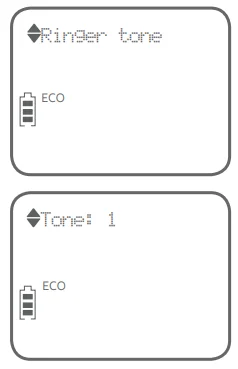
NOTE: If you turn off the ringer volume, you do not hear ringer tone samples.
Set date/time
The answering system announces the day and time of each messagebeforeo playing it. Before using the answering system, set the date and time as follows. If you subscribe to a caller ID service, the day, month, and time are set automatically with each incoming call. The year must be set so that the day of the week can be calculated from the caller ID information. You can turn off the date and time settings of the caller ID service and set the date and time manually (see Use caller ID to automatically set date and time on page 22).
After a power failure or handset registration, the system reminds you to set the date and time.
Follow the steps to set the month, day, year, and time.
- When the handset is in idle mode, press MENU/Select to enter the main menu.
- Press ▼CID or ▲ DIR to scroll to Set date/time and then press MENU/SELECT.
- Press ▼ CID or ▲ DIR to choose the month, then press MENU/SELECT, or enter the number using the dialing keys.
- Press ▼ CID or ▲ DIR to choose the day, then press MENU/SELECT, or enter the number using the dialing keys.
- Press ▼ CID or ▲ DIR to choose the year, then press MENU/SELECT, or enter the number using the dialing keys, then press MENU/SELECT to move on to set the time.
- Press ▼ CID or ▲ DIR to choose the hour, then press MENU/SELECT, or enter the number using the dialing keys.
- Press ▼ CID or ▲ DIR to choose the minute, then press MENU/SELECT, or enter the number using the dialing keys.
- Press ▼ CID or ▲ DIr to choose AM or PM, or press 2 for AM or 7 for PM. Then, press MENU/SELECT to confirm. There is a confirmation toneee and the screen returns to the previous menu.
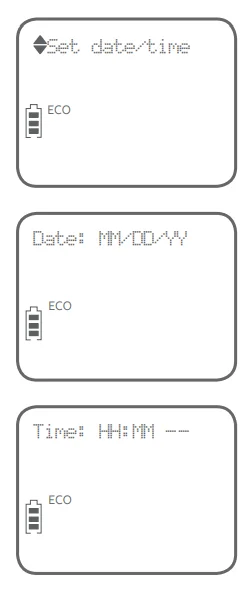
NOTE: If the clock is not set when a message is recorded, the system announces, “Time and day not set,” before it plays the message.
LCD language
You can select the language used for all screen displays.
- Press MENU/SELECT in idle mode to enter the main menu.
- Use ▼CID or ▲DIR to scroll to Settings, then press MENU/SELECT.
- Press MENU/SELECT to choose LCD language.
- Press ▼ CID or ▲ DIR to highlight English, Français, or Español, then press MENU/SELECT to confirm.
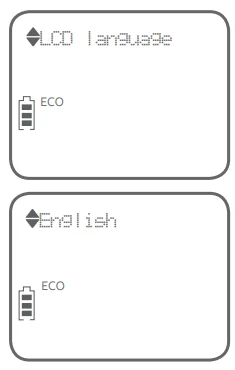
NOTE: If you accidentally change the LCD language to French or Spanish, you can reset it back to English without going through the French or Spanish menus. Press MENU/SELECT in idle mode, then enter *364#. There is a confirmation tone.
Caller ID announcement
The caller ID announce feature lets you know who’s calling without having to look at the display. When you have an incoming call, the handset and/or base speaks “Call from…” and the name of the caller based on the directory or caller ID information. If the caller’s name is private or unknown, the phone number up to the last 11 digits will be spoken. If the caller’s phone number is also private or unknown, no information will be spoken. By default, the caller ID announce feature is programmed on.
To turn on/off the caller ID announcement on your handset or base:
- Press MENU/SELECT in idle mode to enter the main menu.
- Use ▼CID or ▲DIR to scroll to >Settings, then press MENU/SELECT.
- Use ▼CID or ▲DIR to scroll to >Caller ID and then press MENU/SELECT.
- Use ▼CID or ▲DIR to highlight the desired option, then press MENU/SELECT.
- Set all on/off – Change the setting for the base and all handsets.
- Local handset – Change the setting for that handset only.
- Base – Change the setting for the telephone base only.

- Use ▼CID or ▲DIR to highlight >On or >Off, then press MENU/SELECT. There is a confirmation tone, and the screen returns to the previous menu. If you change the setting for set all on/off, the screen shows CID Annc ON/OFF on all HS & BS.
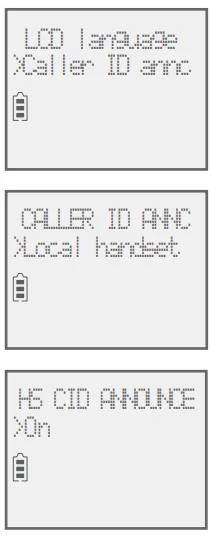
NOTES:
- To use the caller ID announce feature, you must subscribe to the caller ID service from your telephone service provider.
- When there are up to five handsets registered, the telephone system supports caller ID announce for all handsets. If six or more handsets are registered, the system supports caller ID announce for the first four registered handsets only.
- This feature does not announce information for call waiting calls.
- It takes at least two rings for the phone to receive caller ID information and announce it. If the phone is answered before the end of the second ring, the phone won’t have time to announce the caller’s information.
- Pronunciation of names may vary with this feature. Not all names may be pronounced correctly.
- The caller ID announcement is available in English only.
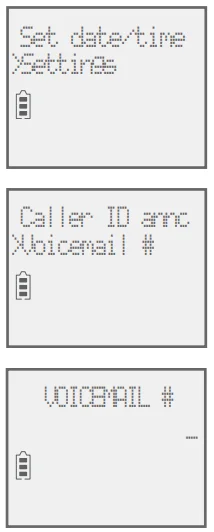
Set speed dial voicemail number.
This feature lets you save your voicemail number for easy access when you press and hold the  key.
key.
To set your voicemail number:
- Press MENU/SELECT in idle mode to enter the main menu.
- Use ▼CID or ▲DIR to scroll to >Settings, then press MENU/SELECT.
- Use ▼CID or ▲DIR to scroll to >Voicemail #, then press MENU/SELECT.

- Use the dialing keys to enter the voicemail access number provided by your telephone service provider (up to 30 digits) when prompted.
- Press ▼CID or ▲DIR to move the cursor tttohe left or right.
- Press MUTE/DELETE to erase a digit.
- Press and hold MUTE/DELETE to erase all digits.
- Press REDIAL/PAUSE to enter a three-second dialing pause (a p appears).
- Press MENU/SELECT to save. Voicemail # saved shows on the handset.
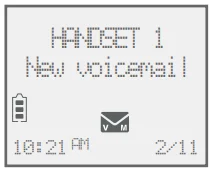
Voicemail (visual message waiting) indicator
If you subscribe to a voicemail service offered by your telephone service provider, this feature provides a visual indicator when you have new voicemail messages.
The new voicemail and the icon appear on the handset screen.
NOTES:
This feature does not indicate new messages recorded on your phone’s built-in answering system.
- For more information about the difference between your answering system and voicemail, see page 47.
Clear voicemail indicator
Use this feature when the telephone indicates there is new voicemail, but there is none. For example, when you have accessed your voicemail while away from home. This feature only turns off the displayed New voicemail and the icon ; it does not delete your voicemail messages. As long as you have new voicemail messages, your telephone service providercontinues to send the signal to turn on the indicators.
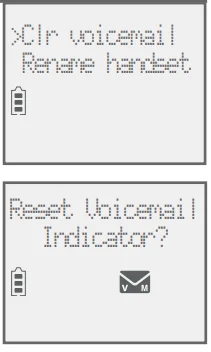
To manually turn off the new voicemail indicator:
- Press MENU/SELECT when in idle mode to enter the main menu.
- Use ▼CID or ▲DIR to scroll to >Settings, then press MENU/SELECT.
- Use ▼CID or ▲DIR to scroll to >Clr voicemail, then press MENU/SELECT. The screen shows Reset Voicemail Indicator?.
Press MENU/SELECT again to turn the voicemail indicator off. There is a confirmation,e and the screen turns to the previous menu.
NOTES:
- Your telephone service provider’s voicemail might alert you to new messages with a stutter (broken) dial tone. Contact your telephone service provider for more details.
- For information about using your voicemail service, contact your telephone service provider.
For more manuals by AT&T, visit ManualsLibraryy
AT&T BL102-2 Handset Cordless Phone- FAQs
How long does it take to fully charge the AT&T BL102-2 handset?
The handset requires up to 16 hours for a full initial charge. For best daily performance, place the handset back on the charger when not in use.
How can I tell if my cordless phone is charging properly?
When placed correctly on the base, the charging icon appears on the screen, and the handset fits securely on the charging contacts.
What are common AT&T cordless or landline phone problems?
The most common issues include no dial tone, static on the line, phone not ringing, and battery not holding a charge.
Why is my AT&T BL102-2 phone not ringing?
Dirty charging contacts, a loose battery cover, or an aging battery may prevent charging. Clean the contacts and reseat the battery.
How long does a cordless phone stay charged?
A fully charged battery typically provides several hours of talk time and multiple days of standby, depending on usage and battery condition.
Can leaving the handset on the charger damage the battery?
Modern cordless phones are designed to prevent overcharging, but keeping the handset docked continuously may reduce long-term battery life.