
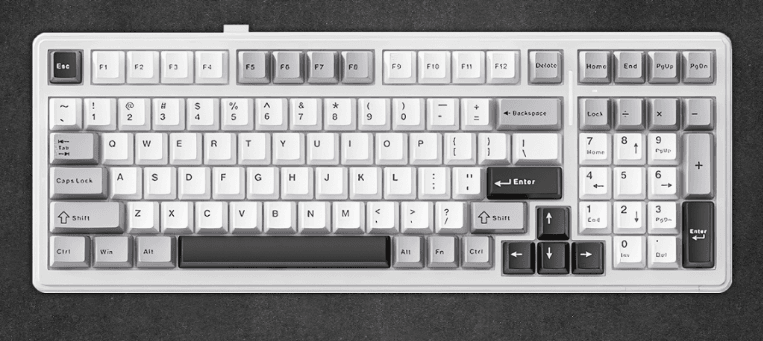
AULA F99 Wireless Mechanical Gaming Keyboard
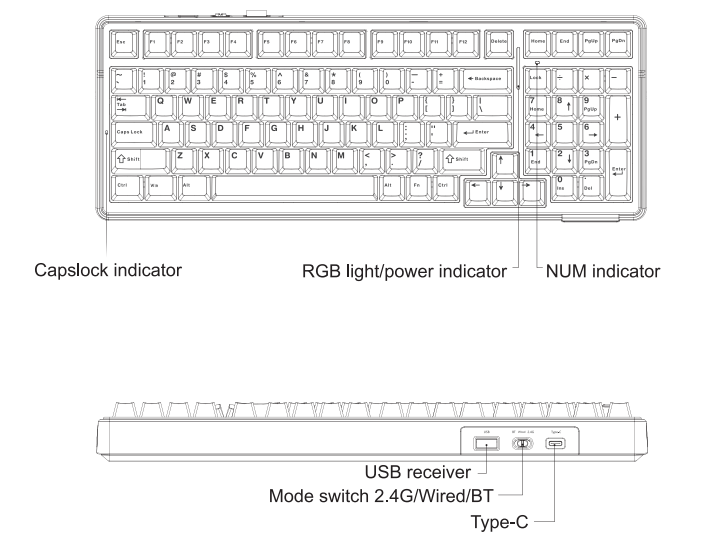
Functions and Indicators
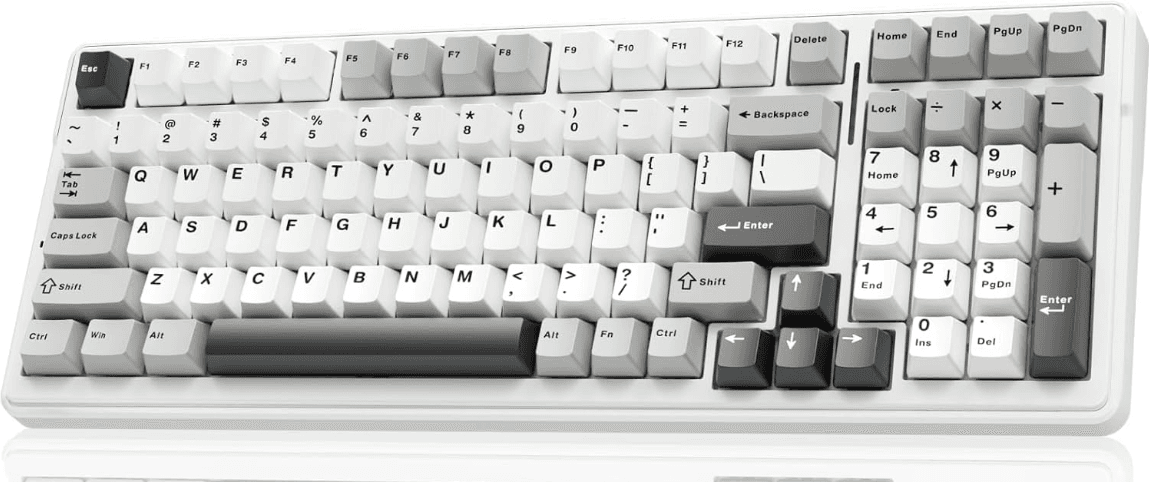
Product features
Stylish design with Gasket construction and a fine, soft and flexible feel. Keycaps and mechanical switches are pluggable. A 4000mAh*2 large-capacity lithium battery can be recharged, with a power switch, environmental protection and energy saving, saving worry and money, effectively extending battery life.
FN+| key combination to switch between 15 RGB light effects. With the drive with music rhythm RGB lighting effect, there are 5 lighting effect modes to choose from under this lighting effect. Cooperate with the drive keys with custom functions and macro definitions. Humanised design of the keyboard, adding a series of commonly used shortcuts.
Specifications
- Connection: Type-C wired & 2.4G wireless & BT
- With Gasket construction
- Number of keys: 99 keys
- Pluggable mechanical switch
- RGB switchable lighting effects
- Lithium battery: rechargeable lithium battery 4000mAh *2
- Charging voltage/current: DC 5V/ = 830mA
- Rated voltage: DC 3.7V
- Battery life: = 53 hours (default lighting effect) ≥400 hours (with backlight and side lights off)
- Dimensions: 390.63 (L) x 146.78 (W) x 42.57 (H) ≤0.5mm
- Weight: 1183g
- Operating system: WIN XP7/8/10/Android/IOS/MAC
Description of shortcut keys (you have to switch to the corresponding mode FN+ \~/1/2/3 in the upper left corner to be able to long-press on the code)
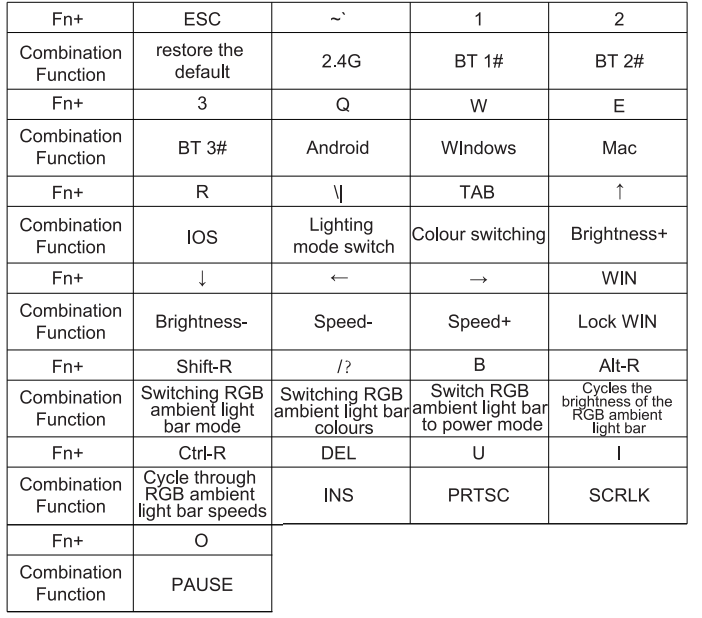
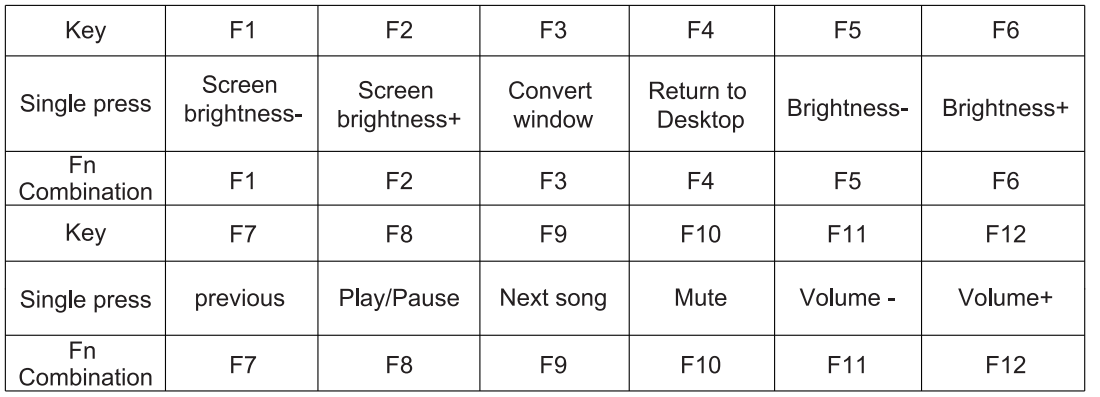
FN+Q = Android system (Q button red light flashes for 3s), F area single press function and F area FN combination function.

FN+W = Windows system (W key red light flashes for 3s), F area single press function and F area FN combination function.

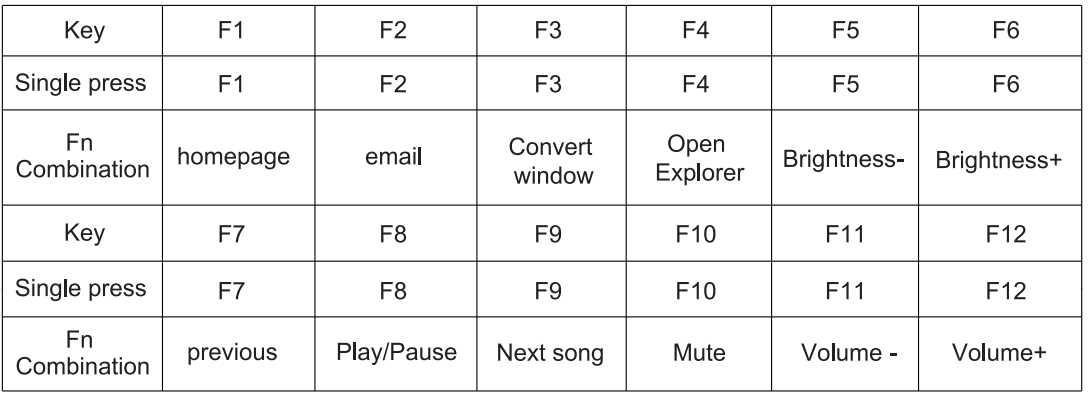
FN+E = Mac system (E button red light flashes for 3s), F zone single press function and F zone FN combination function.

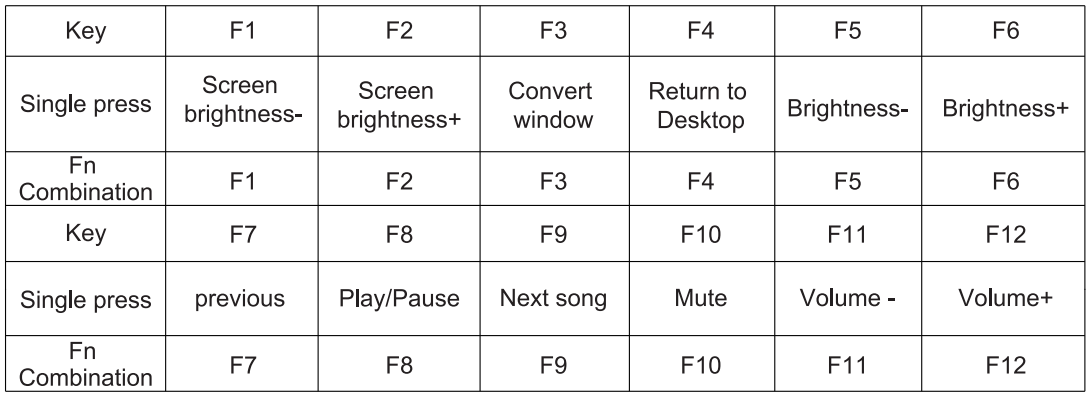
FN+R = IOS system (R key red light flashes for 3s), F-zone single press function and F-zone FN combination function.
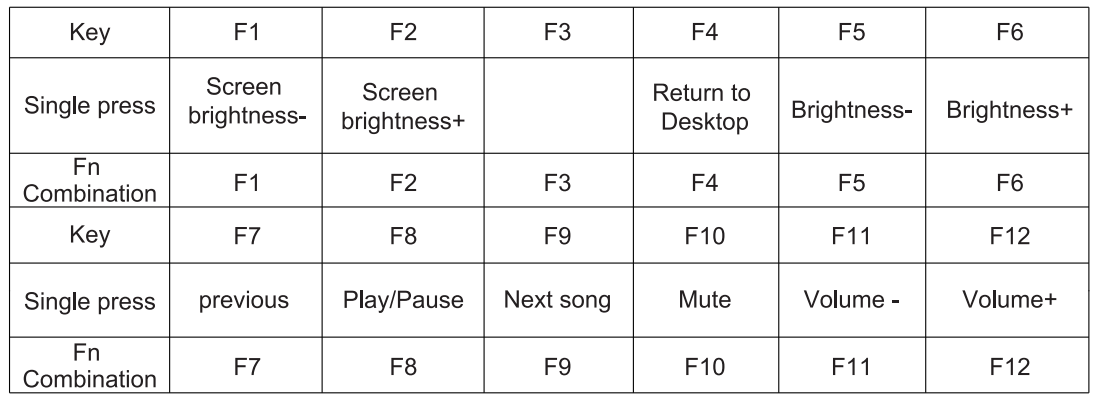
Operating instructions
- 2.4G mode: the upper left switch is dialled to 2.4G mode, the cyan light of the \~ key blinks slowly, and then press FN+ \~ key for 3 seconds to enter the code pairing state, then plug in the receiver to finish the code pairing, the cyan light of the \~ key is on for 2s, the 2.4G connection is successful. The factory default has been the pairing code.
- BT Mode: Top left switch toggle to Bluetooth mode BLE5.0/BLE3.0 (device name AULA-F99 3.0/AULA-F99 5.0), can connect 3 devices:
- FN+1 = BT 1, the blue indicator light under the key is flashing fast, back to the connection is flashing slowly, the blue light is on for 2s when connected.
- FN+2 = BT 2, the blue indicator light under the key is fast flashing, back to connect slow flashing, connect to blue light 2s.
- FN+3 = BT 3, the blue light under the key is flashing fast, back to connect the slow flash, connect the blue light 2s.
- Wired mode: Top left switch to centre position = wired mode, white light on “4” button lights up for 2s.
- Fn+Esc long press for three seconds = Restore default. The original connected BT device save will not be cleared.
- FN+Shift-R = Switch light bar light mode, FN+/? = switch light bar colour; FN+Alt-R = light bar brightness cycle, FN+Ctrl-R = light bar speed cycle.
- Fn+1 = Brightness+
- Fn+| = Brightness-
- Fn+< = Speed-
- Fn+→ = Speed+.
- FN+Q = Android
- FN+W = Windows
- FN+E = Mac
- FN+R = IOS
- Fn+Tab = Toggle light effect colour.
- Fn+WIN-L = Lock/open left WIN window key (Lock WIN indicator light is always on when locking WIN, under WIN system). After switching to the Mac/IOS system, WIN-L/ALT-L position is swapped (without locking WIN).
- FN+B = RGB ambient light bar can show keyboard power level, charging streaming light display. Full, long, bright green, 5 lights; each green light indicates 20% battery. Low battery, all red indication.
Charging instructions
- It is recommended to use only the computer USB port to charge the keyboard.
- Please do not use fast-charging mobile phone chargers to charge the keyboard.
- Please do not use an inferior non-standard power adapter to charge the keyboard.
- Please do not use an overvoltage or overcurrent power adapter to charge the keyboard.
- When charging, please keep away from high-temperature equipment.
- The indicator light is on when charging, and the indicator light is off when fully charged.
- Please turn off the power switch when not in use for a long time.
For Technical Support Visit: www.aulastar.com
For More Manuals By AULA, Visit ManualsLibraryy.
AULA F99 Wireless Mechanical Gaming Keyboard-FAQs
Q1. What is the main function of the AULA F99 keyboard?
The AULA F99 is a tri-mode wireless mechanical keyboard that supports Bluetooth 5.0, 2.4GHz wireless, and USB Type-C wired connections. It features an 8000mAh battery, making it ideal for gaming, work, and multitasking.
Q2. How do I turn on the backlight of the AULA F99?
Press and hold the FN key, then press 0 to cycle through the 15 RGB lighting effects.
Q3. How can I switch between different lighting effects?
Use Fn + number keys to toggle lighting modes and explore different effects, including music rhythm sync modes.
Q4. How do I turn off the keyboard lights completely?
Press FN + Right ALT repeatedly to lower brightness until the lights turn off.
Q5. How can I change the light bar color on the AULA F99?
Press FN + Shift + R to switch modes, and use FN + /? to change the color of the light bar.
Q6. How do I know if my AULA F99 is charging?
The indicator light stays on while charging and turns off when fully charged.
Q7. How big is the battery of the AULA F99?
It has a powerful 8000mAh rechargeable battery for long-lasting performance.
Q8. How do I lock or unlock the Windows key?
Press Fn + WIN + L to enable or disable the Windows key.
Q9. Does the AULA F99 have software support?
Yes, it comes with configuration software that allows key customization, macro programming, and lighting adjustments.
Q10. Is the AULA F99 loud while typing?
No, it uses a gasket-mounted design that reduces noise and vibrations, giving a smooth and responsive typing feel.