
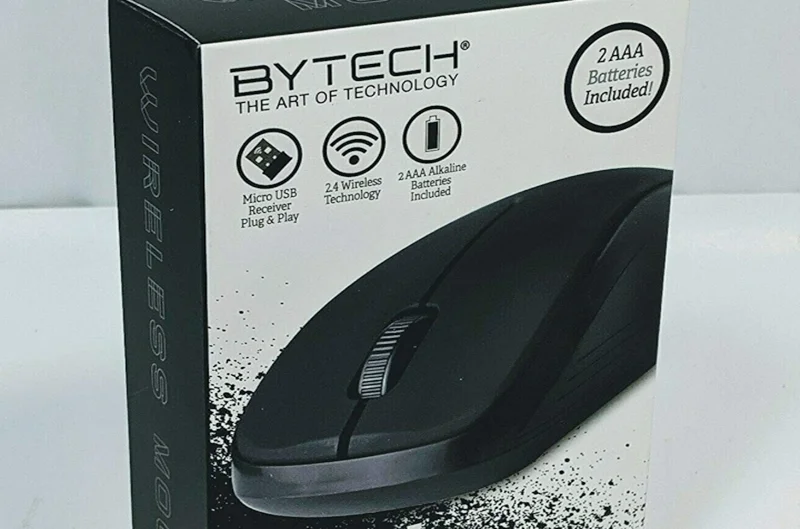

Bytech MSWS104 Wireless Optical Mouse
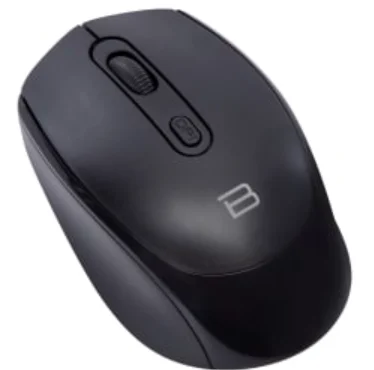
INCLUDED ITEMS:
- 1 (One) Optical Wireless Mouse 3.9in. x 2.4in. x 1.4in. (9.9сm x 6.2cm x 3.5cm)
- 1 (One) USB Receiver .75in. x .625in. x .25in. (1.9cm x 1.6cm x .6cm)
- 1 (One) User Manual
FEATURES
- Adjustable DPI: 800/1200/1600.
- 4 buttons with a scroll wheel.
- No pairing required, Plug and Play via 2.4Ghz USB receiver.
- Auto power function saves and prolongs battery life.
HOW TO USE
- Insert the USB receiver into your computer’s USB port.
- Place 1 (One) X AA 1.5V Alkaline Battery (not included) into the battery compartment of the mouse.
- Your computer should recognize the mouse instantly. Be sure to check your computer’s settings if it is not detected.
- Please remember to remove the USB receiver when you are not using the device.
TROUBLESHOOTING
If the device won’t connect, try the following:
- Be sure the USB receiver is connected to your computer.
- Be sure the USB receiver is not damaged.
- Check your computer’s input settings.
- Try a new battery in the mouse.
- Restart your computer.
FCCID: 2AHN6-MSWS104
FCC ID:2AHN6-DE1
Note: This equipment has been tested and found to comply with the limits for a Class B digital device, pursuant to part 15 of the FCC Rules. These limits are designed to provide reasonable protection against harmful interference in a residential installation. This equipment generates, uses, and can radiate radio frequency energy and, if not installed and used in accordance with the instructions, may cause harmful interference to radio communications.
However, there is no guarantee that interference will not occur in a particular installation. If this equipment does cause harmful interference to radio or television reception, which can be determined by turning the equipment off and on, the user is encouraged to try to correct the interference by one or more of the following measures:
- Reorient or relocate the receiving antenna.
- Increase the separation between the equipment and receiver.
- Connect the equipment into an outlet on a circuit different from that to which the receiver is connected.
- Consult the dealer or an experienced radio/TV technician for help.
Caution: Any changes or modifications not expressly approved could void the user’s authority to operate the equipment.
FCC Radiation Exposure Statement:
This equipment complies with FCC radiation exposure limits set forth for an uncontrolled environment. This device complies with Part 15 of the FCC Rules. Operation is subject to the following two conditions:
- This device may not cause harmful interference, and
- This device must accept any interference received, including interference that may cause undesired operation.
SPECIFICATIONS:
- Wireless optical mouse
- Adjustable DPI: 800/1200/1600
- 4 buttons with a scroll wheel
- No pairing required, Plug and Play via USB receiver
- 2.4Ghz USB receiver
- USB receiver stores conveniently in the battery compartment
- Supports Windows® 7-11 and Mac OS®
WARRANTY- 12 MONTH
Please visit our website Bytechintl.com/warranty. ©2022 BYTECH NY INC. Bytechi™ is a registered trademark of Bytech NY INC.
- All Trademarks and copyrights are the property of the respective companies. Windows is a registered trademark of Microsoft Inc.
- Photos are for illustration purposes only.
- Requires 1 (One) X AA 1.5V Alkaline Battery (Not Included).
BYTECH
Contact Info:
2585 West 13th Street,
Brooklyn, NY 11223
BYTECHintl.com
© 2022 BYTECH NY INC.
WARNING: TO AVOID BATTERY LEAKAGE
- Be sure to insert the battery correctly, and always follow the toy/game and battery manufacturers’ instructions.
- Always remove a weak or dead battery from the product.
- Remove the battery if the product is left unused for a long period of time
For More Manuals By Bytech, Visit ManualsLibraryy.
Bytech MSWS104 Wireless Optical Mouse-FAQs
How do I set up the Bytech MSWS104 mouse?
Insert the USB receiver into your computer, place one AA battery in the mouse, and your computer should recognize it automatically.
Can I use this mouse without the USB receiver?
Yes, if your computer supports Bluetooth, you can pair the mouse via the pairing button on the bottom.
What is an optical mouse?
An optical mouse uses a light sensor (LED) to detect movement instead of a mechanical ball, providing smoother and more precise cursor control.
Why isn’t my mouse working?
Check the battery, make sure the USB receiver is properly connected, and ensure the sensor and surface are clean.
Can I use the mouse on multiple devices?
Yes, the mouse can be paired with different computers, but it can only actively control one device at a time.
Can I use this mouse on a Chromebook or iPad?
Yes, it works with most devices that support USB receivers or Bluetooth, including PCs, Chromebooks, and tablets.
Is 2.4 GHz better than Bluetooth?
2.4 GHz offers a more stable connection with lower latency, ideal for fast or precise movements like gaming or design work.
Where is the pairing button located?
It is on the bottom of the mouse. Press and hold it to enter pairing mode.