
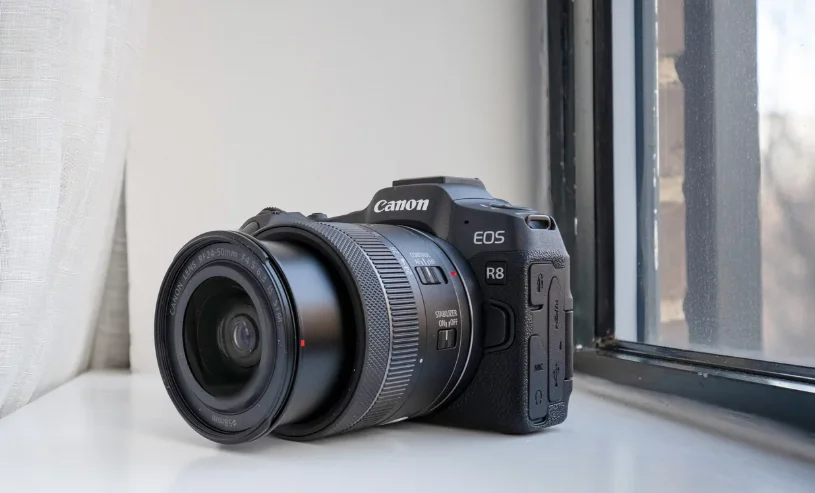

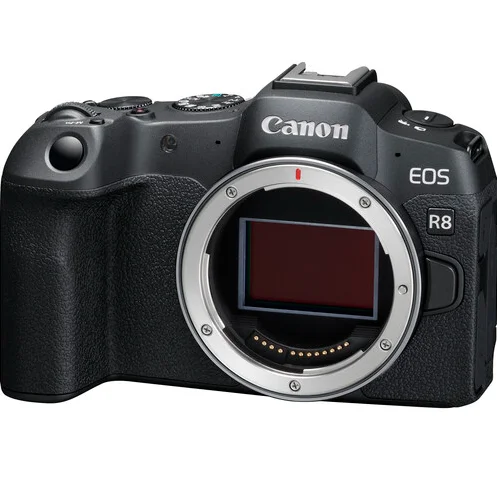
Canon EOS R8 Mirrorless Camera
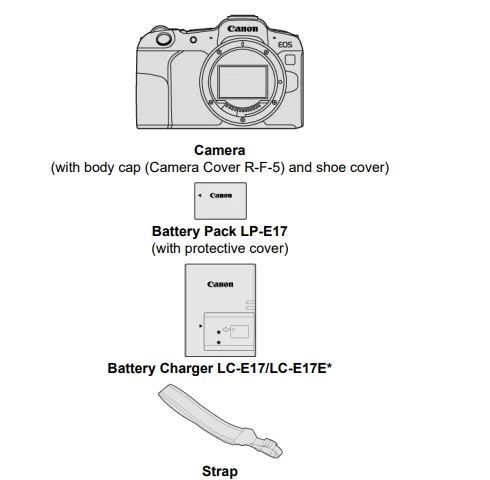
Package Contents
Before use, make sure the following items are included in the package. If anything is missing, contact your dealer.
- Battery Charger LC-E17 or LC-E17E is provided. (The LC-E17E comes with a power cord.)
- The camera does not come with a memory card, interface cable, or HDMI cable.
- If you purchased a Lens Kit, check that the lenses are included.
- Be careful not to lose any of these items.
- No software CD-ROM is included. Software can be downloaded from the Canon website.

Caution
- When you need Lens Instruction Manuals, download them from the Canon website.
- Lens Instruction Manuals (PDF files) are for lenses sold separately, and when a lens kit is purchased, some accessories included with the lens may not match those listed in the Lens Instruction Manual.
Quick Start Guide
1. Insert the battery.
- Upon purchase, charge the battery to start using it.

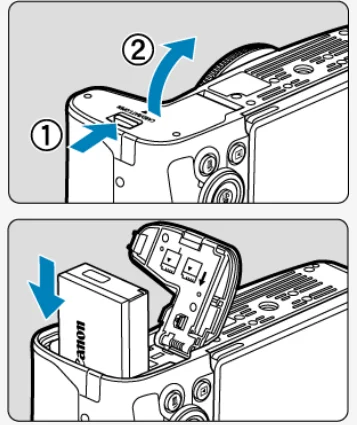
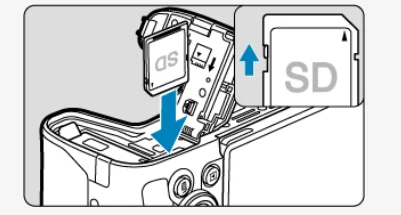
2. Insert the card.
- Insert the card with the label facing the back of the camera until it clicks into place.

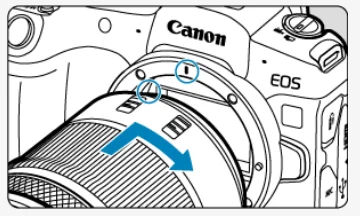
3. Attach the lens.
- Align the red mount index on the lens with the red mount index on the camera to attach the lens.

4. Set the power switch to <ON>.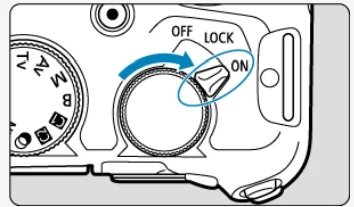
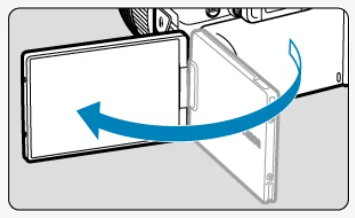
5. Flip out the screen.
- When the date/time/zone setting screen is displayed, see Date/Time/Zone.

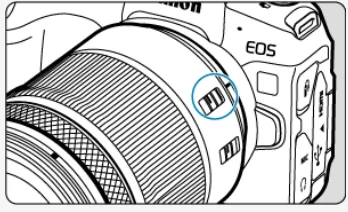
6. Set the focus mode to AF.
- Set the lens’s focus mode switch to <AF>.

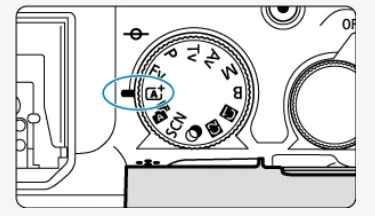
7. Set the Mode dial to <A+>.
- All the necessary camera settings are set automatically.

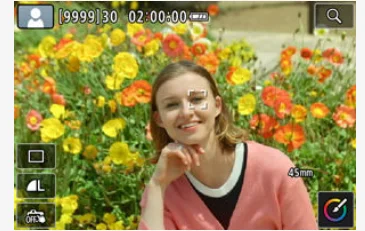
8. Focus on the subject.
- An AF tracking frame [[ ]] appears near the eyes when a face is detected.
- Press the shutter button halfway, and the camera will focus on the subject.

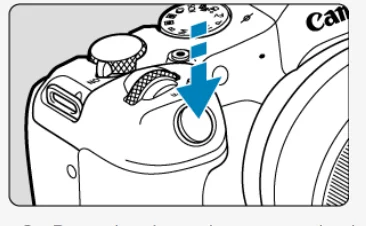
9. Take the picture.
- Press the shutter button completely to take the picture.

10. Review the picture.
- The image just captured will be displayed for approx. 2 sec. on the screen.
- To display the image again, press the
 button.
 button.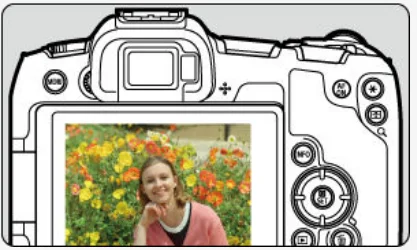
Basic Assumptions for Operational Instructions and Sample Photos
- Before following any instructions, make sure the power switch is set to <ON> and the Multi-function lock feature is off.
- It is assumed that all the menu settings and Custom Functions are set to their defaults.
- Illustrations in this guide show the camera with the RF24-50mm F4.5-6.3 IS STM lens attached as an example.
- The sample photos displayed on the camera and used in this guide are for instructional purposes only.
- In references to using EF or EF-S lenses, it is assumed that a mount adapter is used.
Handling Precautions
Camera care
- This camera is a precision instrument. Do not drop it or subject it to physical shock.
- The camera is not waterproof and cannot be used underwater.
- The camera’s terminal cover, card/battery compartment cover, and other areas providing internal access must be securely closed to maintain dust and water resistance. Also, attach the shoe cover to the multi-function shoe.
- This camera is designed to be dust- and drip-resistant, in order to help prevent sand, dust, dirt, or water that falls on it unexpectedly from getting inside, but it is impossible to prevent dirt, dust, water, or salt from getting inside at all. As far as possible, do not allow dirt, dust, water, or salt to get on the camera.
- If water gets on the camera, wipe it off with a dry and clean cloth. If dirt, dust, or salt gets on the camera, wipe it off with a clean, well-wrung wet cloth.
- Using the camera in dusty or dirty locations may lead to damage.
- Cleaning the camera after use is recommended. Allowing dirt, dust, water, or salt to remain on the camera may cause a malfunction.
- If you accidentally drop the camera into water or are concerned that moisture (water), dirt, dust, or salt may have gotten inside it, promptly consult the nearest Canon Service Center.
- Never leave the camera near anything having a strong magnetic field, such as a magnet or electric motor. Also, avoid using or leaving the camera near anything emitting strong radio waves, such as a large antenna. Strong magnetic fields can cause camera malfunction or destroy image data.
- Do not leave the camera in excessive heat, such as in a car in direct sunlight. High temperatures can cause the camera to malfunction.
- The camera contains precision electronic circuitry. Never attempt to disassemble the camera yourself.
- Do not block the shutter curtain operation with your finger or other objects. Doing so may cause a malfunction.
- Only use a commercially available blower to blow away dust on the lens, viewfinder, or other parts.
- Do not use cleaners that contain organic solvents to clean the camera body or lens. For stubborn dirt, take the camera to the nearest Canon Service Center. Do not touch the camera’s electrical contacts with your fingers. This is to prevent the contacts from corroding. Corroded contacts can cause a camera malfunction.
- If the camera is suddenly brought in from the cold into a warm room, condensation may form on the camera and internal parts. To prevent condensation, first put the camera in a sealed plastic bag and let it adjust to the warmer temperature before taking it out of the bag.
- If condensation forms on the camera, to avoid damage, do not use the camera or remove the lens, card, or battery. Turn the camera off and wait until the moisture has fully evaporated before resuming use. Even after the camera is completely dry, if it is still internally cold, do not remove the lens, card, or battery until the camera has adjusted to the ambient temperature.
- If the camera will not be used for an extended period, remove the battery and store the camera in a cool, dry, well-ventilated location. Even while the camera is in storage, press the shutter button a few times once in a while to check that the camera is still working.
- Avoid storing the camera where there are chemicals that result in rust and corrosion, such as in a chemical lab. If the camera has not been used for an extended period, test all its functions before using it.
- If you have not used the camera for some time or if there is an important shoot, such as a foreign trip, coming up, have the camera checked by your nearest Canon Service Center, or check the camera yourself and make sure it is working properly.
- The camera may become hot after repeated continuous shooting or still photo/movie shooting over an extended period. This is not a malfunction.
- If there is a bright light source inside or outside the image area, ghosting may occur.
- When shooting with backlighting, keep the sun sufficiently away from the angle of view. Always keep intense light sources such as the sun, lasers, and other intense artificial light sources out of the image area and not near it. Concentrated intense light may cause smoke or damage the image sensor or other internal components.
- Attach the lens cap to prevent direct sunlight and other light from entering the lens when you are not shooting.
Screen and viewfinder
The following does not affect images captured by the camera.
- Although the screen and viewfinder are manufactured with very high-precision technology with over 99.99% effective pixels, 0.01% or fewer of the pixels may be dead, and there may also be spots of black, red, or other colors. This is not a malfunction.
- If the screen is left on for a prolonged period, screen burn-in may occur, where you see remnants of what was displayed. However, this is only temporary and will disappear when the camera is left unused for a few days.
- The screen display may seem slightly slow in low temperatures or may look black in high temperatures. It will return to normal at room temperature.
Cards
To protect the card and its recorded data, note the following:
- Do not drop, bend, or wet the card.
- Do not subject it to excessive force, physical shock, or vibration.
- Do not touch the card’s electronic contacts with your fingers or anything metallic.
- Do not affix any stickers, etc., on the card.
- Do not store or use the card near anything that has a strong magnetic field, such as a television, speakers, or magnets. Also, avoid places prone to having static electricity.
- Do not leave the card in direct sunlight or near a heat source. Store the card in a case.
- Do not store the card in hot, dusty, or humid locations.
- Cards may become hot after long sessions of repeated continuous shooting or still photo shooting/movie recording. This is not a malfunction.
Lens
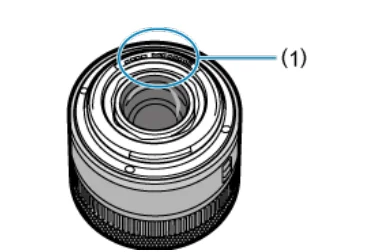
- After detaching the lens from the camera, put down the lens with the rear end up and attach the rear lens cap to avoid scratching the lens surface and electrical contacts (1).

Smudges on the image sensor
Besides dust entering the camera from outside, in rare cases, lubricant from the camera’s internal parts may adhere to the front of the sensor. If smudges are visible on images, have the sensor cleaned by the nearest Canon Service Center.
Part Names
- Mode dial
- <OFF/LOCK/ON> Power/multi-function lock switch
 Main dial
- <M-Fn> Multi-function button
- Shutter button
- Movie shooting button
- Self-timer lamp/AF-assist beam
- Grip (battery compartment)
- Contacts
- Lens mount
- Shoe cover
 Focal plane mark
- Flash sync contacts
- Multi-function shoe
- RF lens mount index
 Still photo shooting/movie recording switch
- Strap mount
- Microphone
- Image sensor
- Lens release button
- Lens lock pin
- Body cap
 Main dial
 Focal plane mark
 Still photo shooting/movie recording switch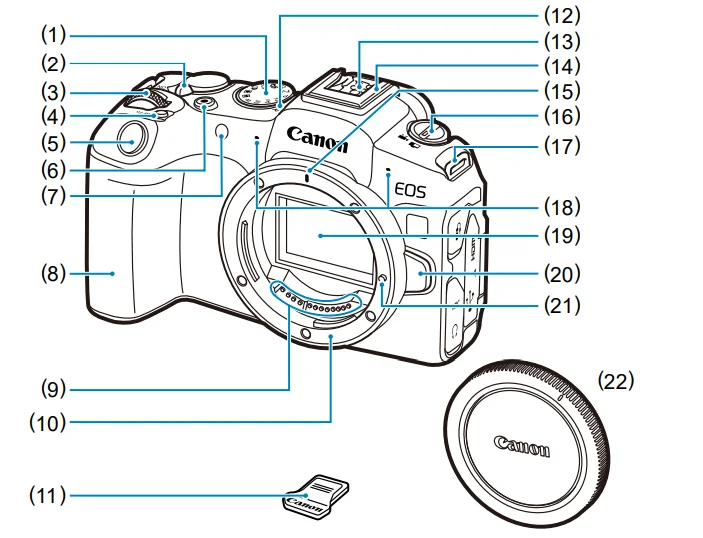
- Eyecup
- Viewfinder eyepiece
- Dioptric adjustment knob
- Terminal cover
 Quick control dial
 AF start button
- <INFO> Info button
 Cross keys
 Quick Control/Set button
- Viewfinder sensor
- <◀> Left button
- <▼> Down button
- <▲> Up button
- <▶> Right button
 Erase button
 Playback button
 Remote control terminal
- <HDMI OUT> HDMI micro OUT terminal
- <MIC> External microphone IN terminal
 Digital terminal
 Headphone terminal
 Quick control dial
 AF start button
 Cross keys
 Quick Control/Set button
 Erase button
 Remote control terminal
 Digital terminal
 Headphone terminal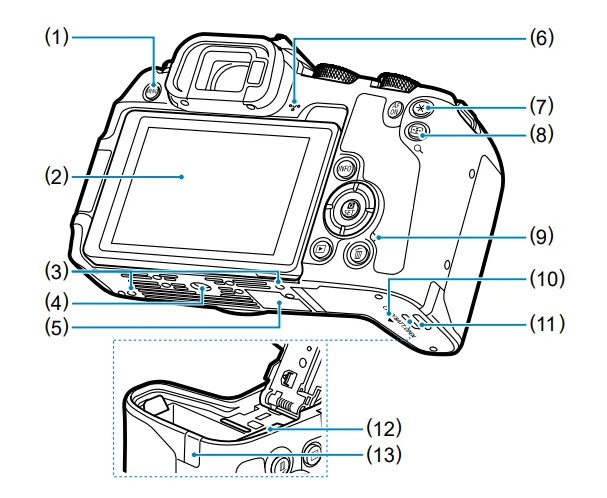
- <MENU> Menu button
- Screen
- Accessory positioning hole
- Tripod socket
- Serial number (body number)
- Speaker
 AE lock button
 AF point selection/index/magnify/reduce button
- Access lamp
- Card/battery compartment cover
- Card/battery compartment cover lock
- Card slot
- DC cord hole

 AE lock button
 AF point selection/index/magnify/reduce button
Software/App Overview
This section summarizes the software used with EOS cameras. Note that installing the software requires an internet connection. The software cannot be installed in environments without an internet connection.
Computer software
- EOS Utility: Enables you to transfer captured images from the camera to a connected computer, set various camera settings from the computer, and shoot remotely from the computer.
- Digital Photo Professional: Software recommended for users who shoot RAW images. Enables image viewing, editing, printing, and more.
- Picture Style Editor: Enables you to edit existing Picture Styles or create and save original Picture Style files. This software is for users who are familiar with image processing.
Smartphone apps
- Camera Connect: Enables you to transfer captured images from the camera to a smartphone over a wired or wireless connection, set various camera settings from the smartphone, and shoot remotely from the smartphone.
- Digital Photo Professional Express: App for RAW image processing and image editing on a smartphone or tablet. Requires a paid subscription.
Installing Computer Software
Always install the latest version of the software. In this case, previous versions are overwritten.
Caution
- Do not install software while the camera is connected to the computer. The software will not be installed correctly.
- Installation is not possible without an internet connection.
- Older versions of the software do not support RAW image processing or correct display for images from this camera.
1. Download the software.
Connect to the internet from a computer and access the following Canon website: https://cam.start.canon/. Depending on the software, you may need to enter the camera’s serial number. The serial number is on the bottom of the camera.
2. Extract the installer on the computer.
- For Windows: Click the displayed installer file to start the installer.
- For macOS: Double-click the dmg file to open the installation window. Double-click the icon in this window to start the installer.
3. Follow the on-screen instructions to install the software.
Installing Smartphone Apps
- Always install the latest version.
- Apps can be installed from Google Play or App Store.
- You can also access Google Play and App Store from the following Canon website: https://cam.start.canon/.


Charging the Battery
1. Detach the protective cover provided with the battery.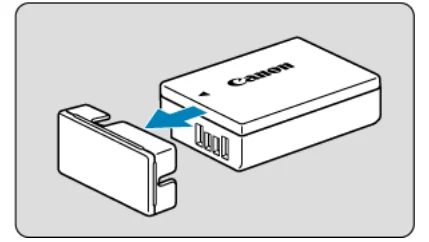
2. Fully insert the battery into the charger.
- Do the opposite to remove the battery.

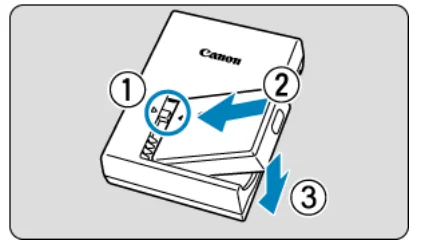
3. Charge the battery.
LC-E17:
- Flip out the charger prongs as shown and plug the charger into a power outlet.

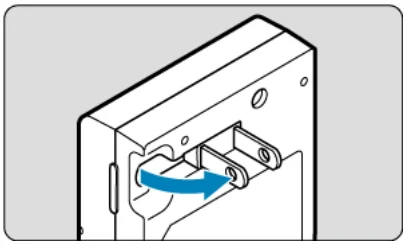
LC-E17E: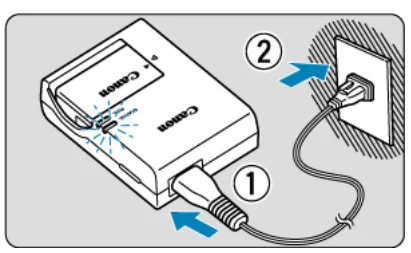
- Connect the power cord to the charger and insert the plug into a power outlet.

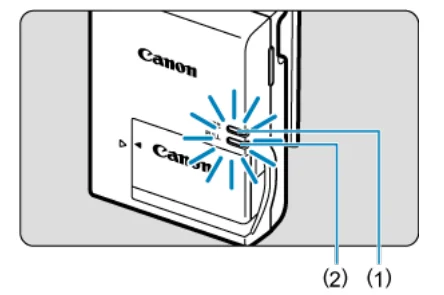
- Charging starts automatically, and the charge lamp (1) lights up in orange.
- When the battery is fully charged, the full-charge lamp (2) will light up in green.
- Charging a depleted battery takes approx. 2 hr. at room temperature (23°C/73°F). The time required to charge the battery will vary greatly depending on the ambient temperature and the battery’s remaining capacity.
- For safety, charging in low temperatures (5–10°C / 41–50°F) takes longer (up to approx. 4 hr.).
Upon purchase, the battery is not fully charged.
Charge the battery on the day before or on the day it is to be used. Charged batteries gradually lose their charge, even when they are not used.
After charging the battery, remove it and disconnect the charger from the power outlet.
When not using the camera, remove the battery.
If the battery is left in the camera for a prolonged period, a small amount of power current will keep being released, resulting in excess discharge and shorter battery life. Store the battery with the protective cover attached. Storing the battery when it is fully charged may lower the battery’s performance.
The battery charger can also be used in foreign countries.
The battery charger is compatible with a 100 V AC to 240 V AC 50/60 Hz power source. If necessary, attach a commercially available plug adapter for the respective country or region. Do not attach any portable voltage transformer to the battery charger. Doing so may damage the battery charger.
If the battery becomes exhausted quickly even after having been fully charged, the battery has reached the end of its service life.
Check the battery’s recharge performance (☑) and purchase a new battery.
Caution
- After disconnecting the charger’s power plug, do not touch the prongs for approximately. 5 sec.
- The provided charger cannot charge any battery other than Battery Pack LP-E17.
Inserting/Removing the Battery and Card
Insertion
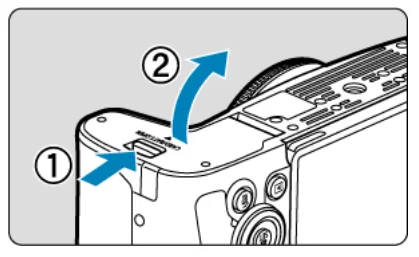
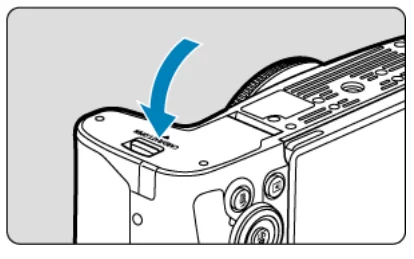
- Slide the card/battery compartment cover lock and open the cover.

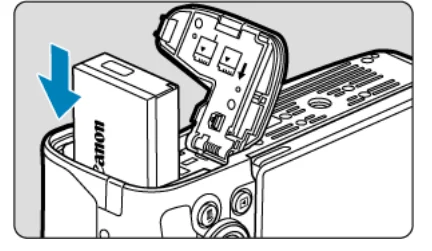
- Insert the battery.
- Insert the end with the electrical contacts.
- Insert the battery until it locks in place.

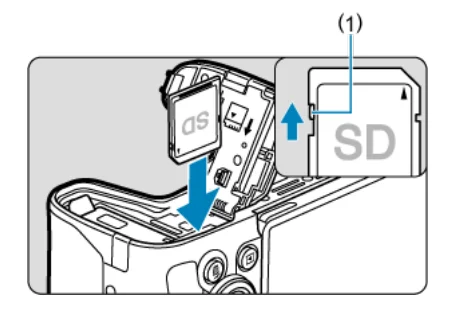
- Insert the card.
- Insert the card with the label facing the back of the camera until it clicks into place.

- Close the cover.
- Press the cover until it snaps shut.

Formatting the Card
If the card is new or was previously formatted (initialized) by another camera or computer, format the card with this camera.
Removal
1. Slide the card/battery compartment cover lock and open the cover.
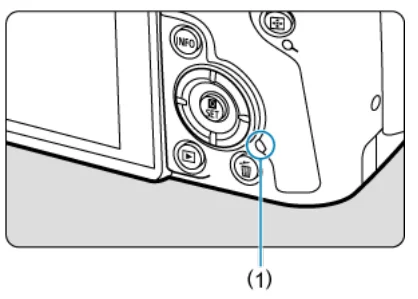
- Set the power switch to <OFF>.
- Make sure the access lamp (1) is off before opening the card/battery compartment cover.
- If [Saving…] is displayed on the screen, close the cover.

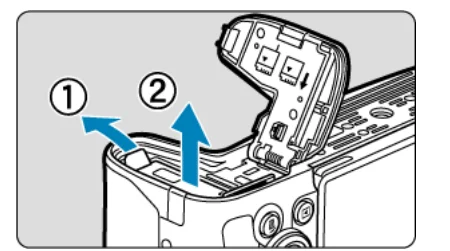
2. Remove the battery.
- Press the battery lock lever as shown by the arrow and remove the battery.
- To prevent short-circuits, always attach the included protective cover to the battery.

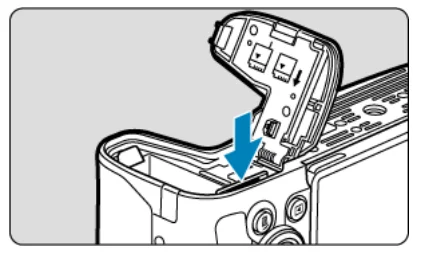
3. Remove the card.
- Gently push in the card, then let it go to eject.

- Pull the card straight out, then close the cover.

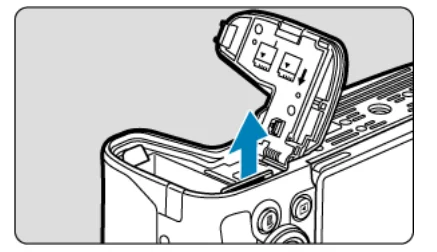
Caution
- When the access lamp is lit or blinking, it indicates that images are being written to, read from, or erased from the card, or data is being transferred. Do not open the card/battery compartment cover. To avoid corrupting image data or damaging cards or the camera, never do any of the following while the access lamp is lit or blinking:
- removing the card,
- removing the battery,
- shaking or striking the camera,
- unplugging or plugging in a power cord (when using optional household power outlet accessories).
- If the card already contains recorded images, the image number may not start from 0001.
- If a card-related error message is displayed on the screen, remove and reinsert the card. If the error persists, use a different card. If you can transfer images from the card to a computer, transfer all the images and then format the card with the camera. The card may then return to normal.
- Do not touch the card’s contacts with your fingers or metal objects. Do not expose the contacts to dust or water. If smudges adhere to the contacts, contact failure may result.
- Multimedia cards (MMC) cannot be used. (Card error will be displayed.)
- Use of UHS-II microSDHC/SDXC cards with a microSD to SD adapter is not recommended. When using UHS-II cards, use SDHC/SDXC cards.
For More Manuals By Canon, Visit ManualsLibraryy.
Canon EOS R8 Mirrorless Camera-FAQs
When was the Canon EOS R8 released?
The Canon EOS R8 was officially announced on February 8, 2023, and launched on April 18, 2023, with a retail price of around $1,499 (body only).
How do I connect my Canon EOS R8 to my phone?
Download the Canon Camera Connect app (free on Android and iOS). Turn on the camera’s Wi-Fi or Bluetooth, open the app, and follow the on-screen instructions to pair your phone with the R8 for easy image transfer and remote shooting.
Does the Canon EOS R8 have Wi-Fi and Bluetooth?
Yes. The R8 includes built-in 2.4GHz Wi-Fi and Bluetooth BLE 4.2, allowing you to connect your camera to smartphones, tablets, or computers for image sharing and remote control.
How do I use autofocus on the Canon R8?
Point the AF frame at your subject and press the shutter button halfway. When focus is achieved, the AF point turns green (One-Shot AF) or blue (Servo AF), and the camera beeps (in One-Shot AF mode). If focus fails, it appears orange.
Can I charge the Canon EOS R8 via USB-C?
Yes, the Canon R8 supports USB-C charging when using a compatible PD (Power Delivery) charger, making it convenient for travel and on-the-go shooting.
How long does the Canon EOS R8 battery last?
Battery life depends on usage, but it typically lasts for about 290 shots (viewfinder) or 440 shots (LCD screen) on a full charge.
What autofocus mode is best for different scenes?
Use Single-Point AF for still subjects like landscapes or portraits, and Servo AF for moving subjects like sports or wildlife. The R8’s advanced Dual Pixel CMOS AF II system ensures precise tracking in both cases.
How do I shoot HDR photos on the Canon EOS R8?
Go to [ : HDR Mode], select HDR Mode Shoot, and choose your desired setting. The camera will automatically capture multiple shots and merge them into one high-dynamic-range image.