
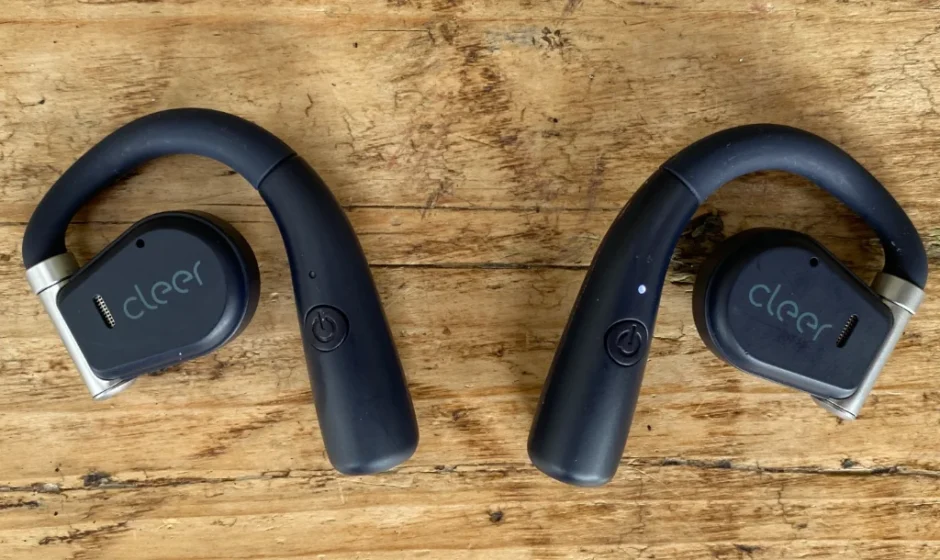
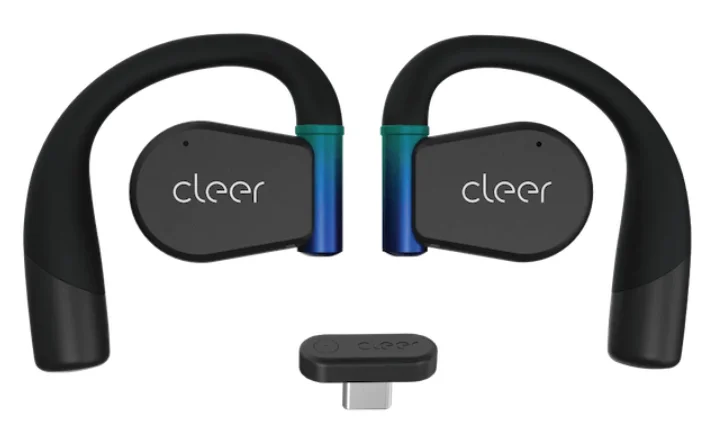
Cleer Arc 3 Open Ear Headphones
Overview
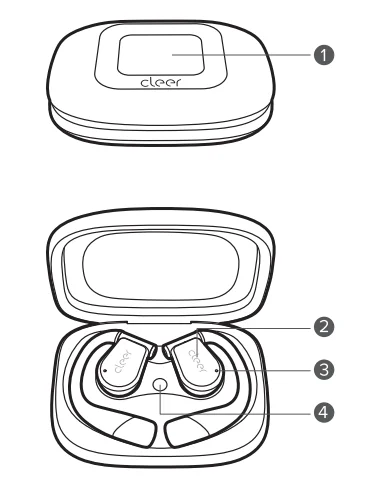
- Touch screen
- Touch control area
- LED indicators
- Multi-Function Button
First-use
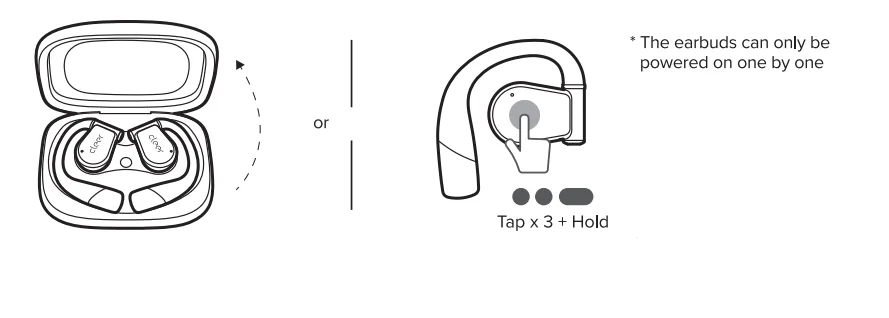
For the first use, tap and hold the Multi Function Button for 2 seconds to power on.
- When unboxing for the first time. Please remove the protective film.
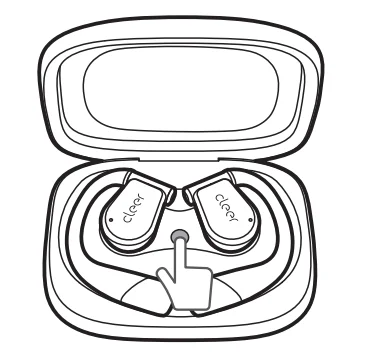
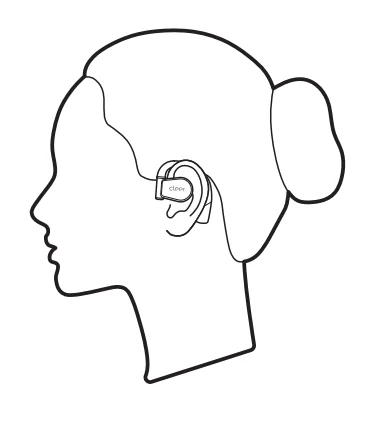
Correct fitting position
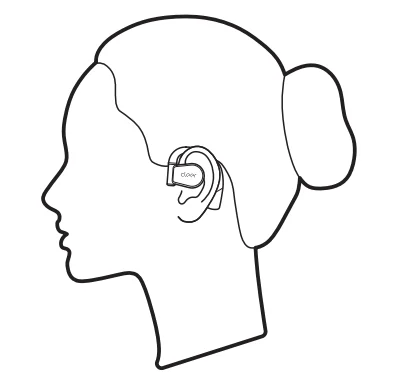
Fitting
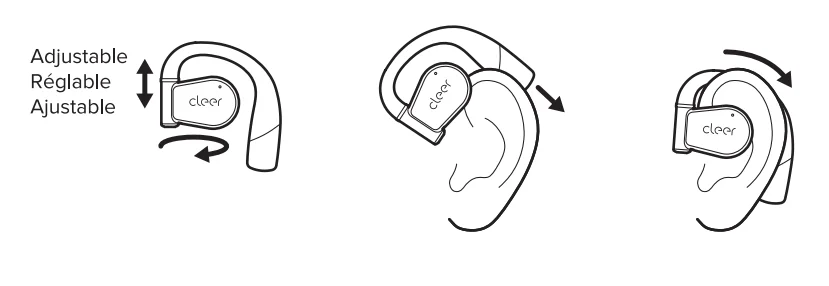
Rotate the earbud and slide the ear hook behind your ear until it rests gently over the top of your ear. Adjust the hinge to find the position that works best for you.
Cleer+ App
Get even more control and personalization of your listening experience with this free app.
Power on
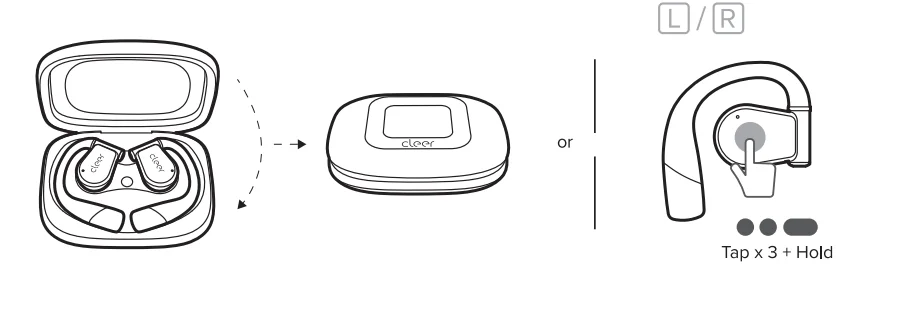
Power off
Bluetooth pairing
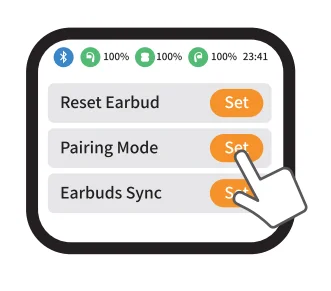
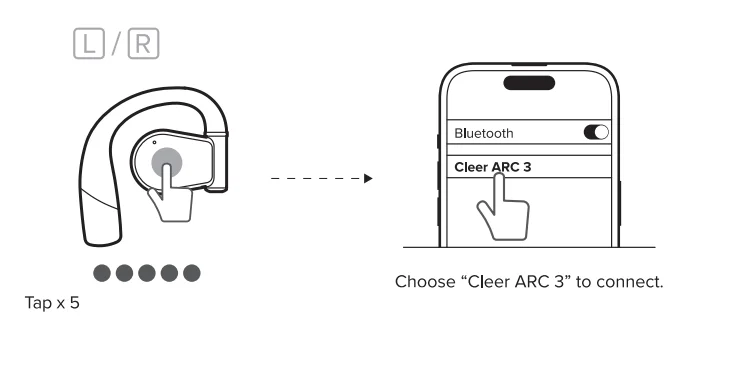
Put both earbuds back in the charging case, close the case, slide to the left or right on the touch screen to the pairing page, select “Pairing Mode”, and then take out the earbuds. After that, the earbuds will enter Bluetooth Pairing Mode and can be searched by other devices.
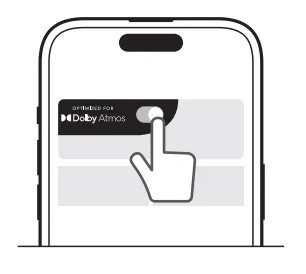
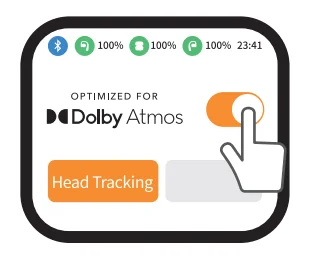
OPTIMIZED FOR

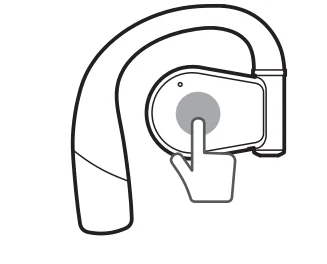
This function is deactivated by default. You can quickly activate or deactivate the function according to your needs in the following ways:
- Operate on the home page of the Cleer+ App.

- Operate on the Dolby page of the charging case touch screen.

- Tap and hold the touch area of either earbud for more than 2 seconds.

Voice control
* Default to be closed, activated in the Oeer+ App.
When using the earbuds, simply say the following statements to control the earbuds.
- Previous song/Next song
- Play music/Pause music
- Volume up Volume down
- Pick up/Reject call
Head motion control (Call)
- Default to be closed, activated in the Cleer+ App.
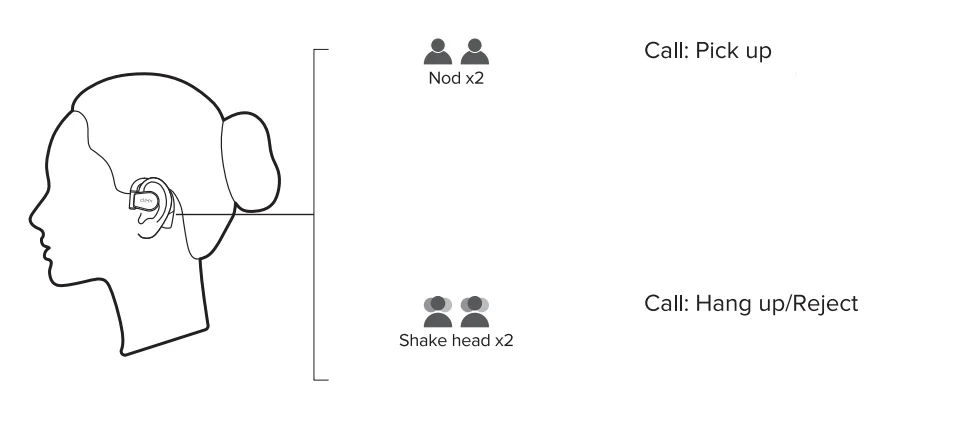
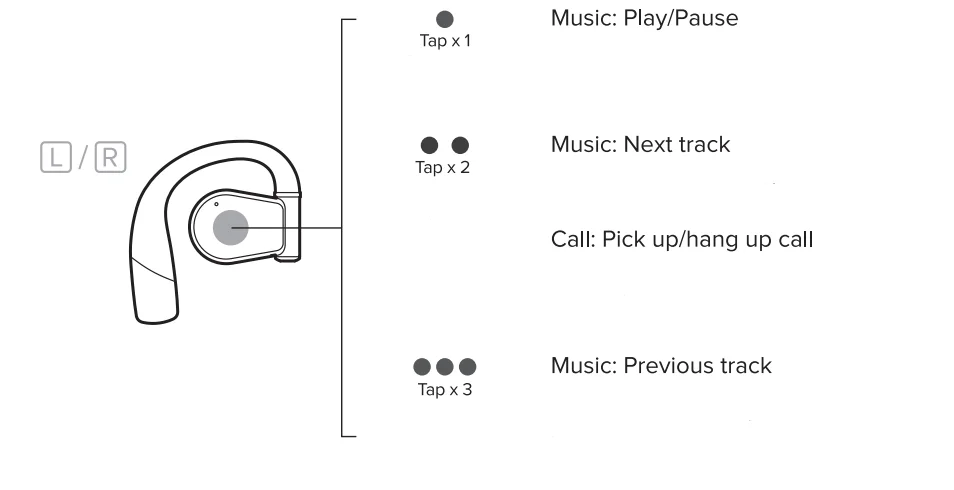
Earbuds control (Playback and call)
* You can customize the touch on the Cleer+ App by yourself
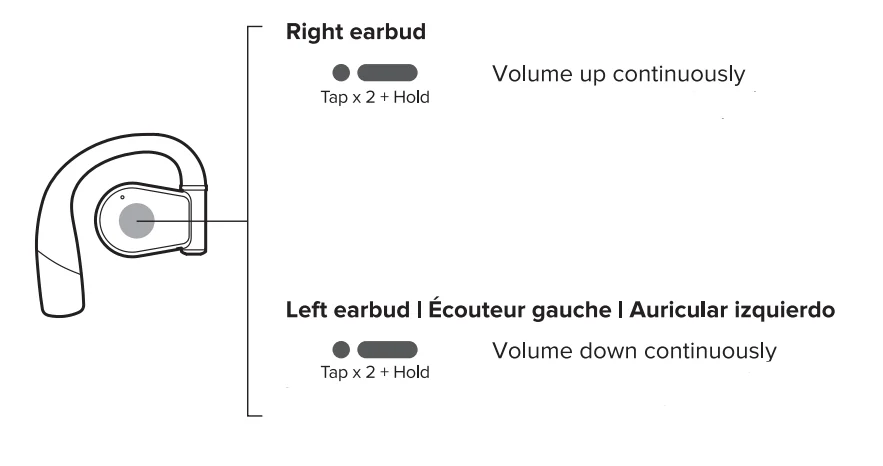
Earbuds control (Volume)
* This function is not 8Y8llable when using a single earbud.
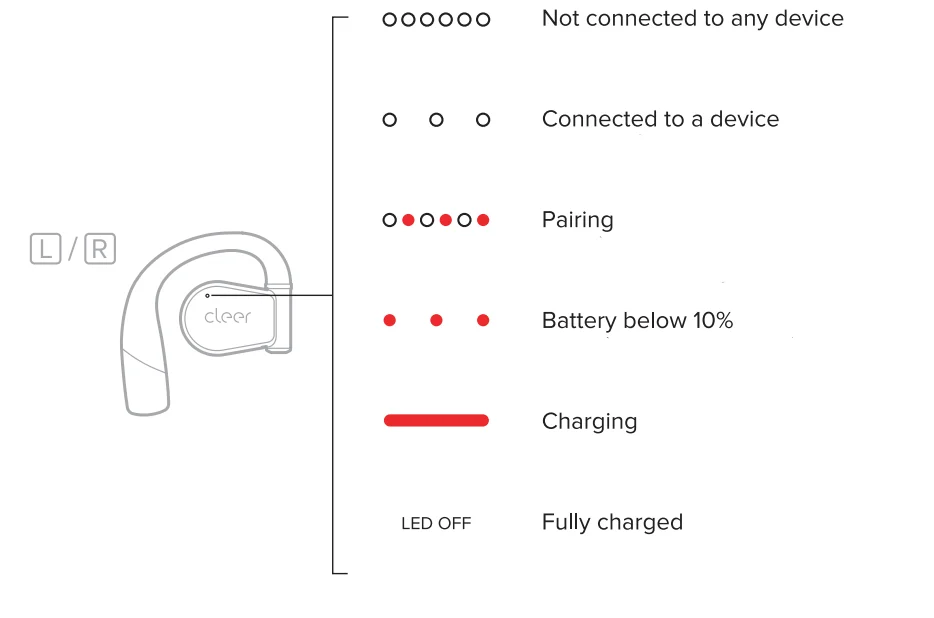
LED behavior
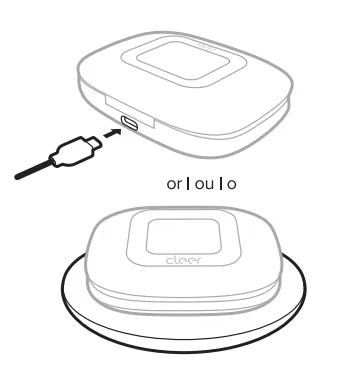
Charging
Sterilization with UV-C light
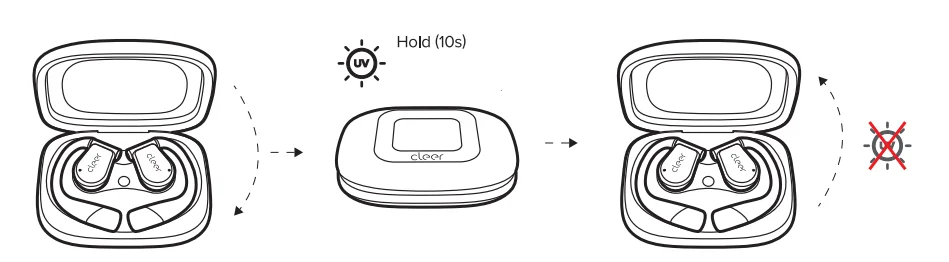
* The data comes from authorized third-party testing Institutions. All the data is obtained at the laboratory and is for reference only. The sterilization can effectively kill 99.9% or more harmful bacteria such as Staphylococcus aureus, Escherichia coli, Candida alblcans, Salmonella, Klebslella pneumonlae, and Pseudomonas aeruginosa at the corresponding area on the earbuds.
Restore factory settings
Using the Cleer+ App, click[  ]+[More Settings] +[Factory Reset] successively, to complete the operation.
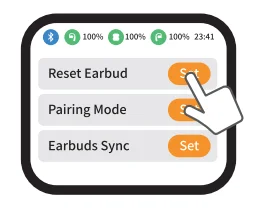
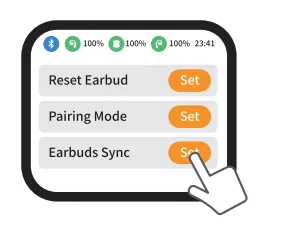
Using the charging case, put both earbuds into the charging case, slide to the left or right on the operation interface to click[Auxiliary] +[Reset Earbud] to complete the operation.
Restore factory settings for charging c..asa.
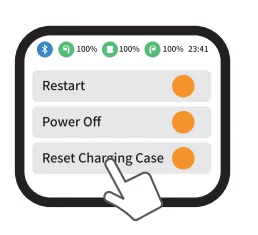
Put both earbuds back into the charging case, close the charging case, slide to the left or right on the operation interface to find [Reset Charging Case], and tap Restore Factory Settings to complete the operation.
Earbuds sync mode
When an earbud is lost, put the replacement new earbud and the old earbud into the charging case, slide to the left or right on the operation interface to click[Auxiliary]+[Earbuds Sync] to complete pairing.
Specifications
- Driver: 16.2mm neodymium dynamic driver
- Audio CODEC support: aptx™ Lossless, aptX™ Adaptive, LDAC, AAC, SBC
- Frequency response range: 50-40kHz
- Connections: USB-C cable for charging, Charging current 5V/2A
- UVC: UVC 270±10nm
- Battery charging (earbuds): A 5-minute charge will give 1.5 hourss of playtime; less than 2.5 hours for a full charge (when charging via USB-C cable).
The charging case is fully charged by wireless charging in 4 hours - Playback time: Up to 10 hours*, in total 50 hours with charging case
- Support: Bluetooth 5.4, A2DP v1.3.2, AVRCP v1.6.2, HFP v1.9
- Weight: 12g (per earbud), 130g (earbuds and case)
*Data comes from Cleer Lab. The playtime is tested by AAC-encoded audio at 50% volume on an Apple mobile device. Specific battery life will vary depending on the volume, connected device,, and usage habits. Please refer to your mobile device when you use it.
Tips
- How to set up your iPhone to answer calls with Bluetooth earbuds: [Settings]+ [Accessibility Functions]+[Touch]+[Call Audio Routing]+ [Bluetooth Headsets]
- Volume sync setting
- iPhone and earbuds volume are automatically synchronized, namely, the volume displayed on the iPhone is the volume of the whole system of the earbuds.
- Android phones (not volume) synchronizewith the earbuds volume, so users need to set up the volume synchronization on their Android phones. Ways of setting are different based on phone brands; you need to consult with phone manufacturers to confirm.
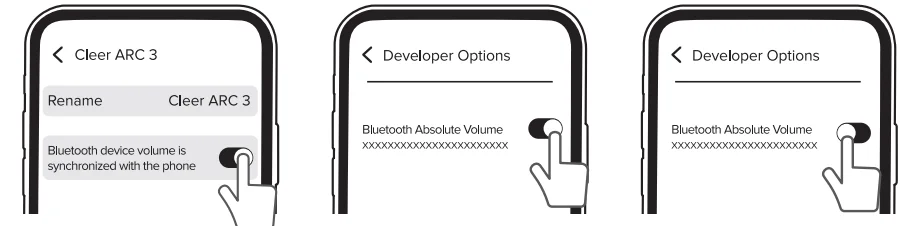
* HarmonyOS setting reference: Settings+ Bluetooth + Setting Icon of Earbuds + Bluetooth device volume is synchronized with the phone.
** For Huawei EMUI system NIVOO/OPPO phones, find Developer Options in Settings, and then find Bluetooth Absolute Volume (the function is deactivated by default). Bluetooth earbuds will be synchronized with the phone volume after the function is activated.
*** Generally, for other Android phones, it is most likely also to find the Absolute Volume function in Developer Options.
Quick troubleshooting
- Earbuds don’t charge in the charging case: first, make sure the charging case is charged. Then check the charging contacts of the earbuds and the charging case respectively, and use a soft cloth to clean up the dirt on the coacts,, and then try again.
- Touch screen of charging case does not respond: open the charging case, tap and hold the Multi Function Button for 8 seconds,, and the charging case will be reset.
- Earbuds are hot when charging: when charging earbuds in a charging case, especially the earbuds with 0% battery level. It Is normaisistslightlyghtiy hot for the earbuds during fast charging. After taking the earbuds out of the charging case, the temperature of the earbuds will return to normal. But when the earbuds become extremely hot, take them out of the charging cimmediatelytely and contact the after-sales service for further processing.
Maintenance
- If the earbuds are exposed to dust, sweat, Ink, oll, pollen, or chemicals (such as soap, hand sanitizer, shampoo, shower gel, laundry detergent, detergent, cosmetics, anti-UV products, antibacterial spray, high-concentration alcohol, Insecticide, and mosquito repellent) and other substances that may cause damage to the earbuds, please wet a piece of cloth with less water and wipe the earbuds. Then, wipe them with a piece of dry, hairless soft cloth and dry them In tinin air.
- Do not use any chemicals or organic solvents (such as soapy water, hand sanitizer,, or other acid-base solvents) to clean the earbuds, or the residual may cause skin Irritation.
- Please regularly use a soft, hairless cloth to wipe the earbuds. Do not use paper towels or cloth containing wood fibers. Do not use dirty or abrasive cloth.
- When you put the earbuds back into the charging case for charging, please make sure that the earbuds are dry and clean.
- When the charging of the earbuds falls, please check whether the charging contact point of the charging case and earbuds are dirty. If yes, please wipe them clean with a piece of cloth or cotton, then try again.
Warranty
Cleer Limited Warranty
Cleer Limited warrants this product against defects in material or workmanship for (1) year as set forth below when purchased directly from Cleer Limited or a Cleer Limited authorized retailer. Pursuant to this Limited Warranty, Cleer Limited will, at its option, (I) repair the product using new or refurbished parts or (11) replace the product with a new or refurbished product. For purposes of this Limited Warranty, “refurbished” means a product or part that has been returned to its original specifications. In the event of a defect, these are your exclusive remedies.
Labor
For a period of (1) year from the original date of purchase of the product (“Labor Warranty”), Cleer Limited will, at its option, repair or replace with new a or refurbished prodthe the uct, product determined to be defective. If Cleer Limited elects to replace the product after this Labor Warranty has expired but while the parts warranty is still in effect, it will do so for the applicable labor charge.
Parts
For a period of (1) year from the original date of purchase of the product (“Parts Warranty”), Cleer Limited will supply new or refurbished replacement parts in exchange for parts determined to be defective.
This Limited Warranty covers only the hardware components packaged with the Product. It does not cover technical assistance for hardware or software usage,, anitIt does not cover any software products whether,, or not coninined In the Product; any such software is provided “AS IS” unless expressly provided for in any enclosed software Limited Warranty. Please refer to the End User License Agreements Included with the Product for your rights and obligations with respect to the software.
Instructions
To obtain warranty service, you must deliver the Product, freight prepaid, in either its original packaging or packaging affording an equal degree of protection to originallnal Cleer Limited retailer (point of purchase) or Cleer Limited Customer Service. It is your responsibility to back upp any data, software,, or other materials you may have stored or preserved on your unit.. It is unlikely that such data, software,, or other materials will be lost or reformatted during service, and Cleer Limited will not be responsible for any such damage or loss. A dated purchase receipt from Cleer Limited or a Cleer Limretaileraller is required. For specific Instructions on how to obtain warranty service for your product, visit the Cleer Limited website: www.cleeraudlo.com
Following warranty service, youroriginall Product or a replacement Product will be returned to you as your Product was configured when orlgoriginallychased.
Repair/ Replacement Warranty
This Limited Warranty shall apply to any repair, replacement part, or replacement product for the remainder of theoriginall Limited Warranty period or for (90) days, whichever is longer. Any parts or productss replaced under this Limited Warranty will become the property of Cleer Limited.
This Limited Warranty shall not apply to:
- consumable parts, such as batteries that are designed to diminish over time, unless failure has occurred due to a defect in materials or workmanship;
- cosmetic damage, including but not limited to scratches, dents, and broken plastic on ports;
- defects caused by normal wear and tear or otherwise due to the normal aging of the device;
- damage caused by accident, negligence, abuse, misuse, fire, earthquakes, acts of God,, or damage resulting from liquid outside of the approved levels;
- damage caused by operating the device outside CleeLimited’sed published guidelines;
- damage caused by service performed by anyone who is not a representative of Cleer Limited or a Cleer Limited authorized service provider;
- Products whose seals have been tampered;
- Produc with withts whose serial numbers have been removed or defaced from such Product;
- modifications, alterations or repa,,irs to the Product made by a party other than Cleer Limited or a party authorized by Cleer Limited;
- any failure by End User or a third party to comply wenvironmentaltal and storage requirements for the Product specified by Cleer Limited, Including, without limitation, temperature or humidity ranges; or
- usUsef the Prodint In combination with any third-party devices or products that have not been provided or recommended by Cleer Limited.
LIMITATION ON DAMAGES: CLEER LIMITED SHALL NOT BE LIABLE FOR ANY INCIDENTALL OR CONSEQUENTIAL DAMAGES FOR BREACH OF ANY EXPRESS OR IMPLIED WARRANTY ON THIS PRODUCT.
DURATION OF IMPLIED WARRANTIES: EXCEPT TO THE EXTENT PROHIBITED BY APPLICABLE LAW, ANY IMPLIED WARRANTY OF MERCHANTABILITY OR FITNESS FOR A PARTICULAR PURPOSE ON THIS PRODUCT IS LIMITED TO THE DURATION OF THIS WARRANTY.
DISCLAIMER: THE LIMITED WARRANTY SET FORTH HEREIN IS EXCLUSIVE AND ININSTEAD OFLL OTHER WARRANTIES OR CONDITIONS RELATING TO THE PRODUCT, WHETHER EXPRESS OR IMPLIED, AND CLEER LIMITED EXPRESSLY DISCLAIMS ALL OTHER WARRANTIES AND CONDITIONS WHETHER EXPRESS, IMPLIED OR STATUTORY, INCLUDING ANY IMPLIED WARRANTIES OF MERCHANTABILITY, NON-INFRINGEMENT, FITNESS FOR A PARTICULAR PURPOSE, AND ANY WARRANTIES ARISING OUT OF COURSE OF DEALING OR USAGE OF TRADE AND AGAINST HIDDEN DEFECTS, TO THE FULLEST EXTENT PERMITTED BY LAW. CLEER LIMITED DOES NOT WARRANT THAT THE PRODUCT WILL MCUSTOMERSR’S REQUIREMENTS OR THAT USE OF THE PRODUCT WILL BE UNINTERRUPTED OR ERROR FREE. NO ADVICE OR INFORMATION, WHETHER ORAL OR WRITTEN, OBTAINED FROM CLEER LIMITED OR ELSEWHERE WILL CREATE ANY WARRANTY NOT EXPRESSLY STATED IN THIS WARRANTY.
Notice
Recycling

Your product is designed and manufactured with hihigh-qualityaterials and components, which can be recycled and reused. When you see the crossed-out wheel bin symbol attached to a product, it means the product is covered by the European Directive 2002/96 EC:

Never dispose of your product with other household waste. Please inform yourself about the local rules on the separate collection of electrical and electronic products. The correct disposal of your old product helps prevent potentially negative consequences on the environment and human health. Your product contains batteries covered by the European Directive 2006/66/EC, which cannot be disposed of with normal household waste.
The device complies with RF specifications when the device used at 0mm from your body. Hereby, Cleer Limited. Declares that the product complies with the essential requirements and other relevant provisions of Directive 2014/53/EU.
Compliance with FCC rules
- This device complies with Part 15 of the FCC Rules. Operation is subject to the following two conditions:
- This device may not cause harmful interference.
- This device must accept any interference received, including interference that may cause undesired operation.
- Changes or modifications not expressly approved by the party responsible for compliance could void the user’s authority to operate the equipment.
NOTE: This equipment has been tested and found to comply with the limits for a Class B digital device, pursuant to Part 15 of the FCC Rules. These limits are designed to provide reasonable protection against harmful interference in a residential installation.
This equipment generates and uses can radiate radio frequency energy and, if not installed and used in accordance with the instructions, may cause ham,harmfulerference to radio communications. However, there is no guarantee that interference will not occur in a particular installation. If this equipment does cause harmful interference to radio or television reception, which can be determined by turning the equipment off and on, the user is encouraged to try to correct the interference by one or more of the following measures:
- Reorient or relocate the receiving antenna.
- Increase the separation between the equipment and receiver.
- Connect the equipment into an outlet on a circuit different from that to which the receiver is connected.
- Consult the dealer or an experienced radio technician for help.
Radiation Exposure Statement
This equipment complies with the FCC radiation exposrequirementssme.nt The device can be used in portable expoconditionssition without RF restriction.
This device complies with Industry Canada licence-exempt RSS standard(s). Operation is subject to the following two conditions:
- This device may not cause interference, and
- This device must accept any interference, including interference that may cause undesired operation of the device.
RF warning statement
The device has been evaluated to meetthe genethe ral RF exporequirementsement. The device can be used in portable exposureconditionssn without restriction. Register your product and get support at www.cleeraudio.com
©2024 Cleer Limited. All rights reserved.
The Bluetooth® word mark and logos are registered trademarks owned by Bluetooth SIG, In,,c. and any use of such marks by Cleer Limited is under license. Other trademarks and trade names are those of their respective owners.
Qualcomm aptX is a product of Qualcomm Technologies International, Ltd. Qualcomm is a trademark of Qualcomm Incorporated, registered in the United States and other countries, used with permission. aptX is a trademark of Qualcomm Technologies International, Ltd., registered in the United States and other countries, used with permission.
Made in China.
For more manuals by Cleer, visit ManualsLibraryy
Cleer Arc 3 Open Ear Headphones- FAQs
How do I connect Cleer Arc 3 headphones?
Place both earbuds in the charging case and close it. On the case display, go to Pairing Mode, then remove the earbuds. They will automatically enter Bluetooth pairing and appear in your device’s Bluetooth list.
How do I turn on the Cleer Arc 3?
The earbuds power on automatically when you take them out of the charging case. If they are off, press the power button on either earbud to turn them on.
How do I put Cleer Arc 3 in pairing mode manually?
If they do not enter pairing mode automatically, place the earbuds in the case, select Pairing Mode on the screen, then take them out. The LEDs will blink to confirm pairing mode.
How do I increase or decrease the volume on Cleer Arc 3?
Double-tap the right earbud to increase volume and double-tap the left earbud to decrease it.
Is the Cleer Arc 3 good for calls?
Yes. The Arc 3 offers clear call quality with noise-reduction microphones and supports Bluetooth 5.4 for stable, multi-device connectivity.
How do I reset Cleer Arc 3 to factory settings?
Put the earbuds in the charging case and open the interface. Select Auxiliary → Reset Earbud. This clears all pairing records.
How long is the battery life of Cleer Arc 3?
The Arc 3 provides long, all-day listening time. (If you want, I can insert the exact hours from the official spec.)
How do I get sound to play through my headphones?
Open your device’s sound settings and make sure Arc 3 is selected as the output device. Check that the volume is not muted on both earbuds and the device.
Why are my Arc 3 connected but no sound is coming out?
Ensure the headphones are set as the default audio output. Check for dirt in ports, low Bluetooth volume, or muted system settings.