

DJI Flight Hub 2 Drone
Introduction
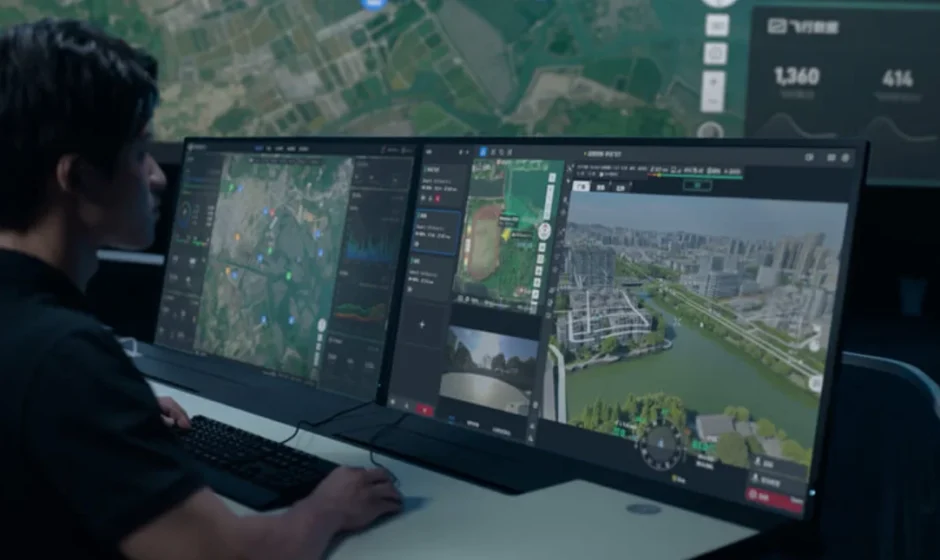
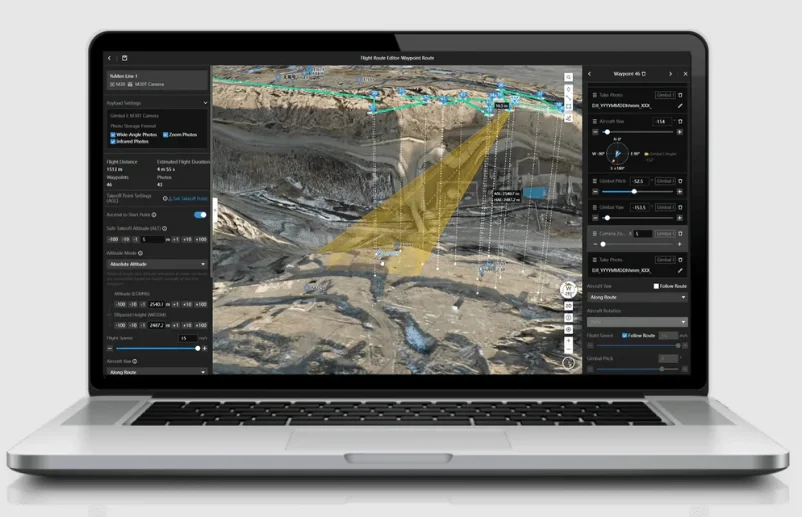
DJI FlightHub 2 is a cloud-based aircraft task management platform, providing member, device, annotation, model, media file, and flight task management functions. By planning flight routes on the web and distributing tasks to the DJI Dock and supported aircraft, DJI FlightHub 2 makes remote access to real-time task information possible and improves team productivity and efficiency.
Before Using
Supported Devices
Supported devices include DJI Dock, Matrice 350 RTK, the Matrice 30 series, Matrice 300 RTK, DJI Mavic 3E, and DJI Mavic 3T. Using the DJI Dock together with the Matrice 30 series dock version to perform flight tasks on the DJI FlightHub 2.
Hint & Tip: The Zenmuse H20 series are supported payload. If a different payload is mounted onto the aircraft, some or all of the functions of DJI FlightHub 2 may not be supported.
Operating Requirements
- Browsers that can run DJI FlightHub 2 should be Chrome 92 and above, Safari 13 and above, or Firefox 90 and above.
- The DJI Pilot 2 app version should be later than v4.0. The app should be later than v6.1 if dock-related functions are used.
Roles and Permissions
There are five roles within an organization: super administrator, organization administrator, device maintainer, organization member, and temporary member. There can be multiple projects within an organization, and each project has two roles: project administrator and project member. Users with different roles are granted different permissions, and permissions at the organization and project levels are independent of each other.
Organization Roles and Permissions
User permissions at the organization level are as follows:
- Super Administrator: Manages the organizational life cycle and owns all permissions of an organization administrator. There should be at least one super administrator within an organization and the super administrator can only leave the organization when the role is transferred to another member.
- Organization Administrator: Manages members, devices, and projects within the organization.
- Device Maintainer: Manages all devices within the organization.
- Member: Views project information, adds devices, and exits the organization.
- Temporary Member: Has limited operation permissions within the joined project.
Project Roles and Permissions
User permissions at the project level are as follows:
- Project Administrator: Manages the project life cycle and owns all project permissions. There should be at least one project administrator within a project.
- Member: Has basic operation permissions within the project.
Registration and Login
Users can visit https://fh.dji.com, create a DJI account, and log in to DJI FlightHub 2.
Organization Management
Create an Organization
If users have not joined any organizations, they will be directed to the Organization Management page. Click Create Organization and enter an organization name to create an organization. The user who creates the organization will be assigned as a super administrator. At the next login, users will be directed to the Projects page and be able to switch organizations in the upper left corner of the page.

Users can click the user account in the upper right corner and select User Center to view the account and organization information and add a mobile number or email address for service subscription. After the service is subscribed to, the system will automatically send a message or email to notify users of an emergency or failed task. Users can also select My Organization to edit the name or exit the organization.

Create a Project
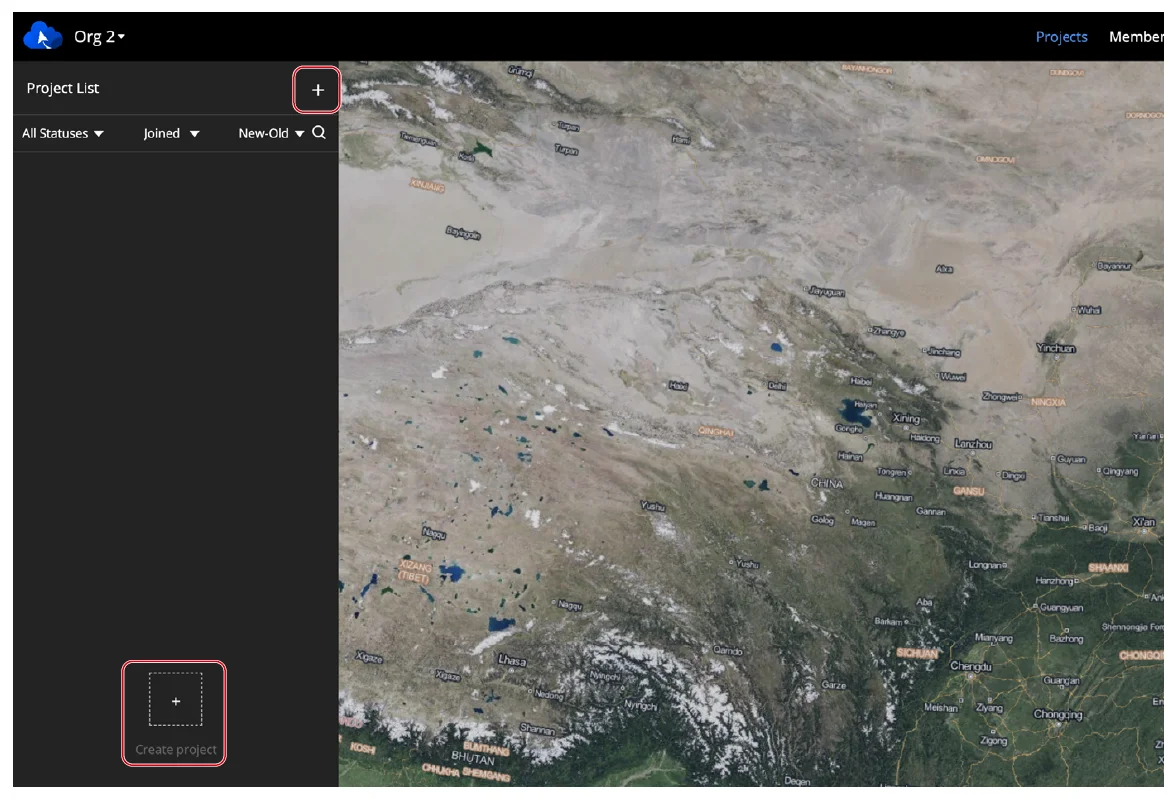
Administrators can click “+” in the middle of the project list panel or on the upper right corner to create a project.
The location information of the administrator will be requested when creating a project, and the geographic location obtained will be used as the default project point of interest. Fill in the following information to create a project.
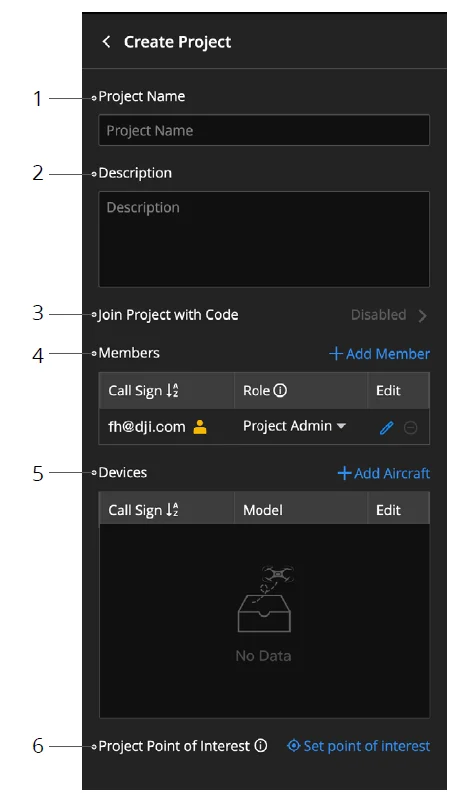
- Project Name
The project name is required and should be within 40 characters. - Description
The project description is optional. - Join Project with Code
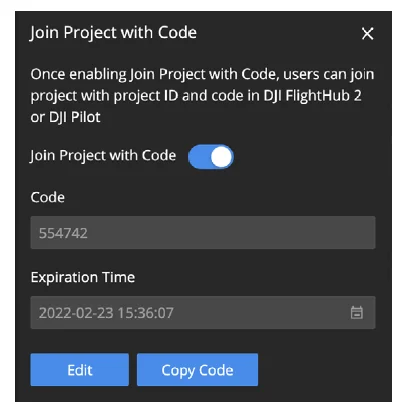
Administrators can enable Join Project with Code after creating a project. Click Copy Code to copy the project ID and code as well as the project link and send them to members who wish to join the project. DJI FlightHub 2 users can click the link or enter the project ID and code on the My Organization page to join the project. DJI Pilot 2 users can log in to the DJI FlightHub 2 cloud service and join the project with the project ID and code. For users who are not organization members but join projects under the organization, their organization roles will be assigned as temporary members. - Members
Click Add Member to add organization members to the project. Users can also join the project with the project ID and code.
- Devices
Devices include the docks and the aircraft that are bound to the current project.- Users can deploy a dock in DJI Pilot 2 and assign the dock to a project. The dock information will automatically be displayed on the panel.
- For DJI Pilot 2 users who enter the project, once their aircraft are linked with remote controllers, the aircraft information will be automatically displayed on the device list. Click Add Aircraft to add aircraft to the project.
- Project Point of Interest
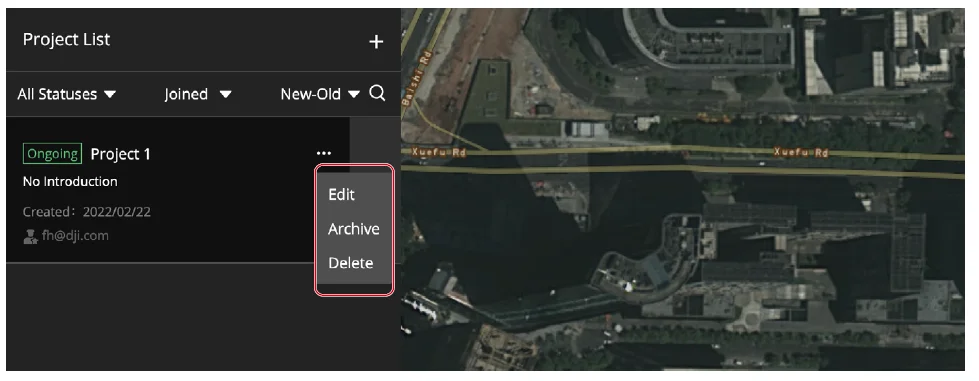
Click Set Point of Interest. The set point will be displayed in the middle of the web page when users enter the project. Click Create Project to create the project. Both super and organization administrators can edit, archive, and delete projects. They can also activate archived projects. The project administrator can edit, archive, activate, and delete projects they manage. Other members can only view information of joined projects.
Hint: DJI Pilot 2 users cannot view or work on archived projects.
Member Management
Both super and organization administrators can manage members on the Members page.
Add members
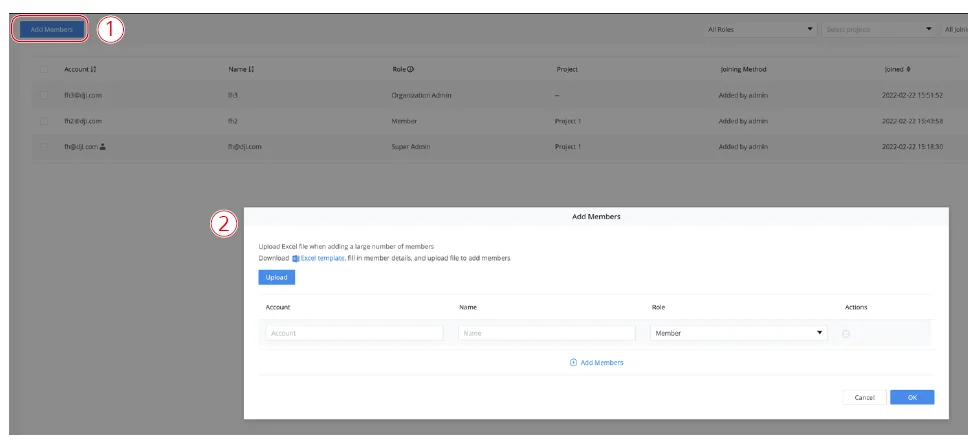
Click Add Members and fill in members’ accounts, organization names, and roles. To add multiple members at once, administrators can also download an Excel template, fill in the members’ information, and then upload the file.
Change Member Information
Administrators can edit member information and delete members.

Hint: The organization administrator cannot change the role or delete the account of the super administrator.
Administrators can also select multiple accounts and change member roles or delete all accounts at once.

Device Management
Aircraft Management
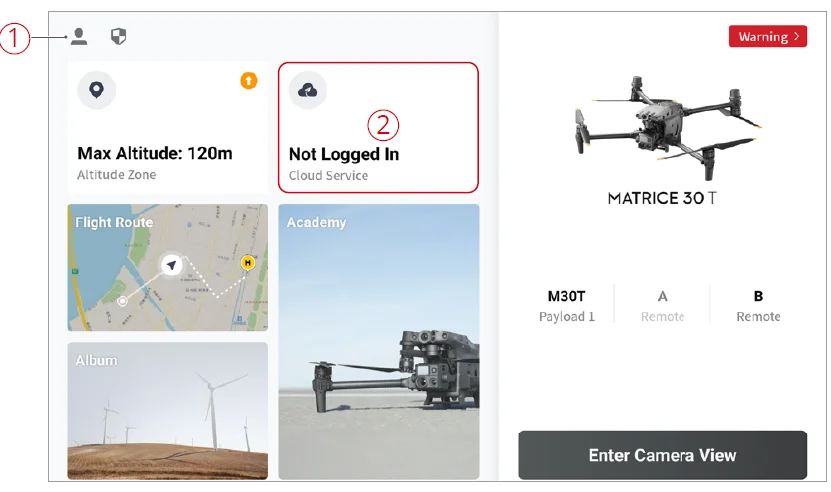
DJI Pilot 2 users can bind their aircraft to DJI FlightHub 2 organizations. Make sure that the remote controller is connected to the internet. Open DJI Pilot 2 and enter the home screen.
- Tap Settings on the upper left corner and log in with a DJI account.
- Tap Cloud Service and select the DJI FlightHub 2 cloud service. Users need to select the organization and project they want to join upon their first login. At subsequent logins, they will be directed to the project page they entered last time. If users have not joined any organization, they can contact the administrators for details.

- After logging in, the project information will be displayed on the screen. Click Device Binding to bind the aircraft to the organization.

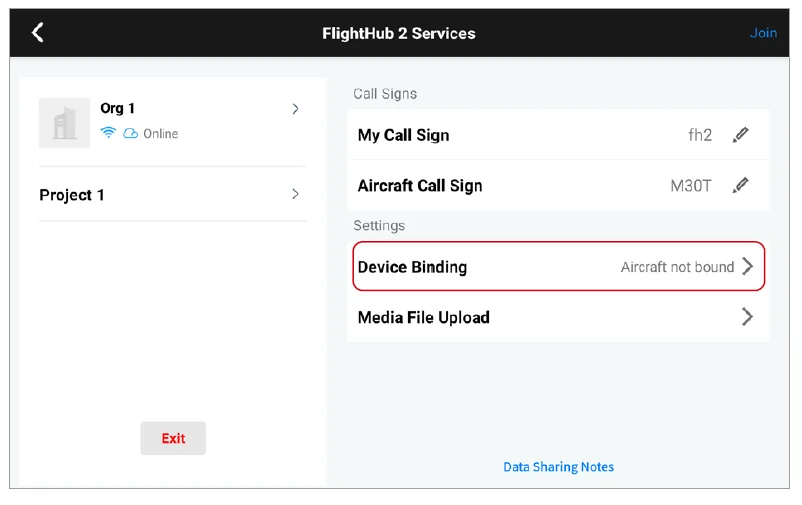
The administrators can manage the aircraft on the Devices page after the aircraft is bound to the organization.

Dock Management
Bind to an Organization
The dock can be bound to a DJI FlightHub 2 organization in DJI Pilot 2. Make sure that the dock is connected to the cable or 4G network. Open DJI Pilot 2 and enter the home screen.
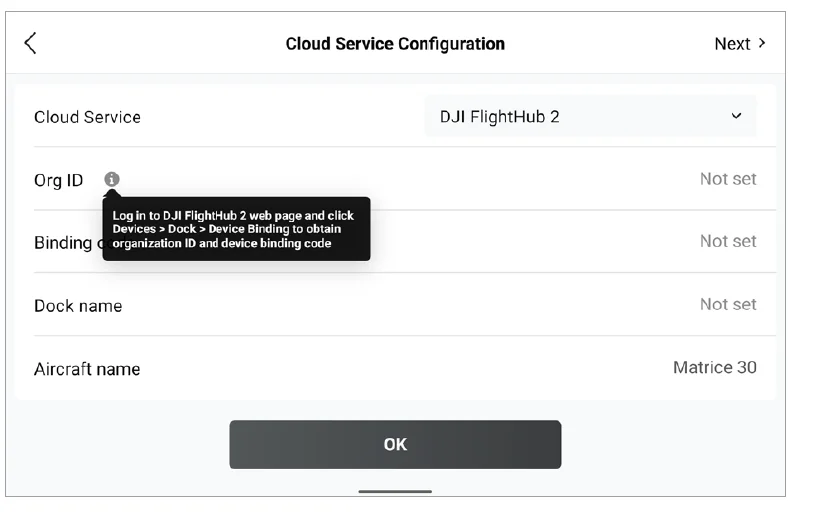
- Connect the USB-A port on the dock to the USB-C port on the remote controller with a USB cable.
- Follow the on-screen instructions to deploy the dock. Input the organization ID, device binding code, and dock and aircraft names on the Cloud Service Configuration screen.
- Tap OK after completing the information, and the dock will be bound to the organization.
Manage in the Cloud
The administrators can manage the dock on the Devices page after the dock is bound to an organization. Users can also view the warning messages and maintain the dock remotely.
Real-Time Project Information
DJI FlightHub 2 users can view online project information, device details, and livestreams on the Team page.
Online Project Information
After joining a project, project members can view the online devices, dock status, and member list on the left. Online members include users who have logged in to FlightHub 2 on the web, and also whose remote controller is powered on but not yet connected to the aircraft.
Online Devices
Project members can view online independent aircraft and its connected remote controllers on the Online Devices panel.
Hints and Tips:
- Device statuses include:
- When a device is online, its information will be displayed on the panel.
- When a device is offline for less than five minutes, its information will be displayed in gray.
- When a device is offline for more than five minutes, its information will not be displayed.
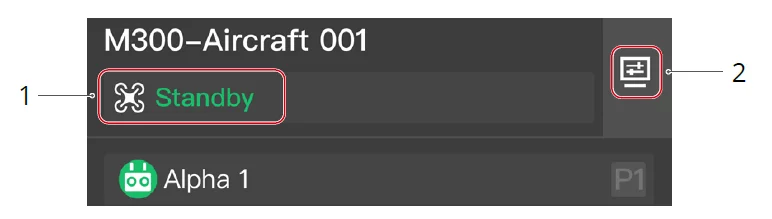
- The aircraft statuses include Standby, Powering off, Powering on, Prepare to take off, Ready to take off, Manual flight, Auto takeoff, Task in progress, Returning to home, Landing, Updating firmware, Auto avoidance, Forced landing, and Not connected.
- Click to view device details and livestreams. Aircraft status details include the aircraft status, image transmission, satellite status, battery level and status, altitude, horizontal speed, and distance to the Home Point. Click the camera view button to view the FPV or payload camera view. During the livestream, users can click the camera type to switch between camera views and click
 to start recording. The recorded video will automatically be stored to Media Files.
 to start recording. The recorded video will automatically be stored to Media Files.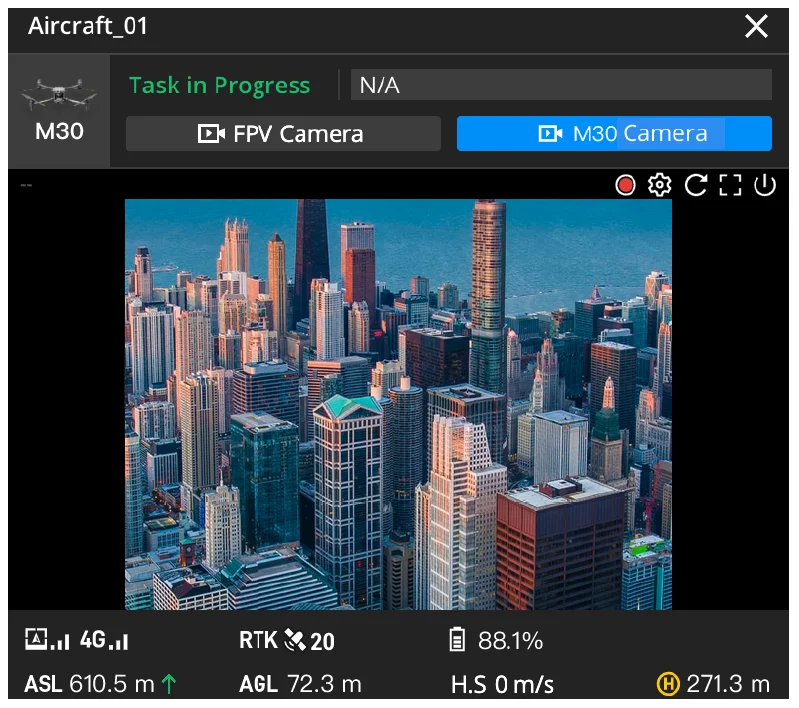
When the aircraft is disconnected, the aircraft’s last recorded time and coordinates will be displayed. Users can click the information to center the aircraft location on the map and then right-click to create a PinPoint to help locate the aircraft during searching.
Dock
Users can view the task status, the dock and connected aircraft statuses, and the warning messages, and open the device status window.
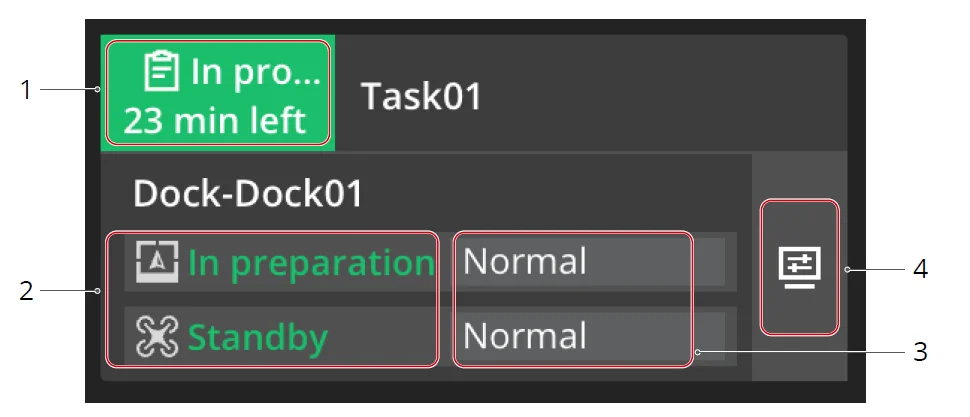
- Dock statuses include Planned Flight Task and Live Flight Controls statuses.
- Planned flight task statuses include No task, To be performed, In progress, Task failed, and Task ended. The task start time will be displayed on the panel when the task is to be performed, and the remaining time will be shown when the task is in progress. Users can click the flight task status to view the task schedule of the day.
- Live Flight Controls statuses include Live Flight Controls, Live Flight Controls (Manual Flight), and Live Flight Controls (Auto Flight).
- Live Flight Controls: When the aircraft control is obtained by a user.
- Live Flight Controls (Manual Flight): When the aircraft control is obtained by a user and the user is operating the aircraft with keyboard commands.
- Live Flight Controls (Auto Flight): When the aircraft control is obtained by a user, and the aircraft is automatically performing tasks.
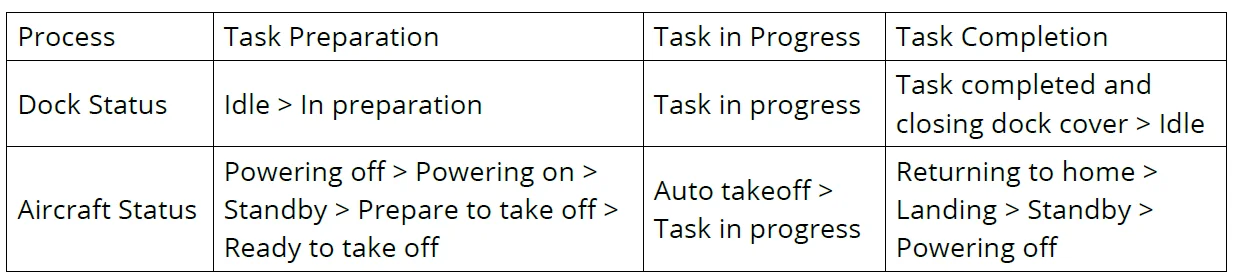
- The dock statuses include Idle, In preparation, Task in progress, Task completed, closing dock cover, and Offline. The aircraft statuses include Standby, Powering off, Powering on, Prepare to take off, Ready to take off, Manual flight, Auto takeoff, Task in progress, Returning to home, Landing, Updating firmware, Auto avoidance, Forced landing, and Not connected. The dock and aircraft statuses are shown below when performing flight tasks.

- The warning messages include the message description and number. Users can click to view the history of warning messages.
- Click to view device details and livestreams.
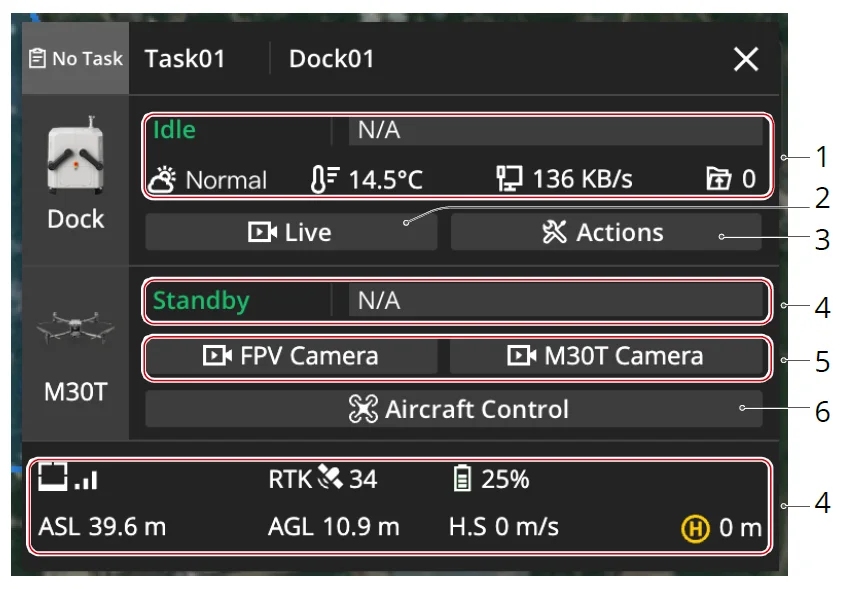
- Dock status details include the dock status, wind speed, environment temperature, rainfall scale, internet speed, media file upload status, and warning messages. Users can hover the mouse over the dock icon to view the dock model and SN, and double-click to center the dock location on the map.
- Live: Project members can click Live to view the dock livestream.
- Actions: Users can click Actions to view more information about the dock and aircraft. The administrators can operate the devices remotely.

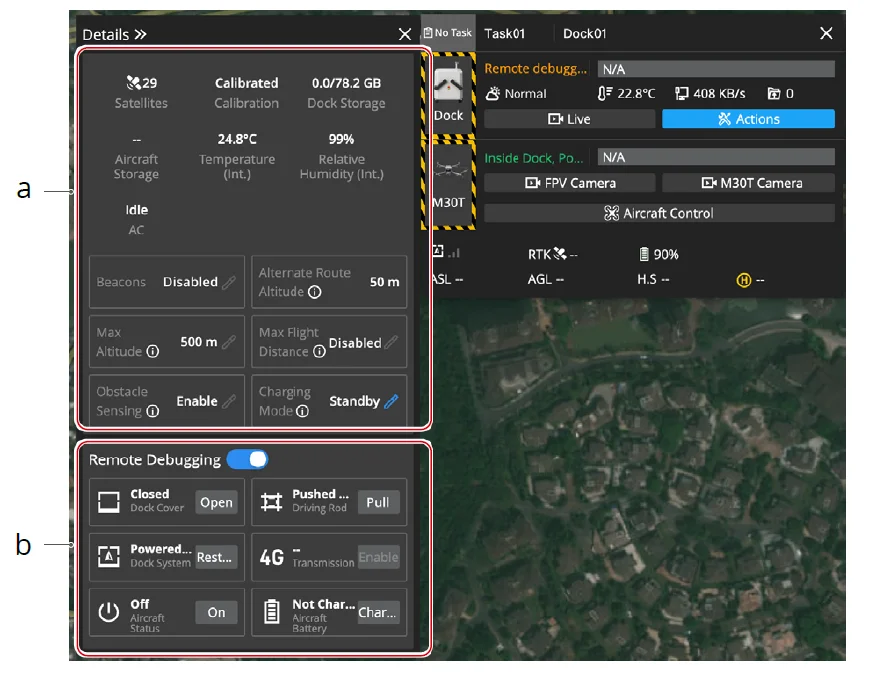
- Users can view the detailed information of the dock and aircraft on the Details panel. The beacon status, maximum flight altitude and distance, obstacle sensing status, and charging mode can be modified.
- The administrators can click to enable Remote Debugging. The operator can remotely control the dock cover, driving rods, and dock system, enable the LTE transmission, and change the
aircraft battery and charging status. After Remote Debugging is enabled, yellow and black strips will appear around the dock and aircraft images. Users can hover the mouse over the image to view the operator account.
- The dock aircraft status details include the aircraft status, image transmission, satellite status, battery level and status, altitude, horizontal speed, and distance to the Home Point. Users can hover the mouse over the aircraft icon to view the aircraft model and SN, and double-click to center the aircraft location on the map.
- Livestream: When the aircraft is powered on, users can click the camera view button to view the FPV or payload camera livestream. During the livestream, users can click the camera type to switch between camera views and clickto start recording. The recorded video will automatically be stored to Media Files.
- Aircraft Control: Project administrators can remotely operate the aircraft after clicking Aircraft Control. See Live Flight Controls for more details.
Live Flight Controls
FlightHub 2 supports sending commands directly to the docked aircraft and remotely operating the aircraft.
Hins & Tips: The dock firmware version should be later than v01.03.0902, and the aircraft version should be later than v06.02.0803 before using Live Flight Controls.
Aircraft Control
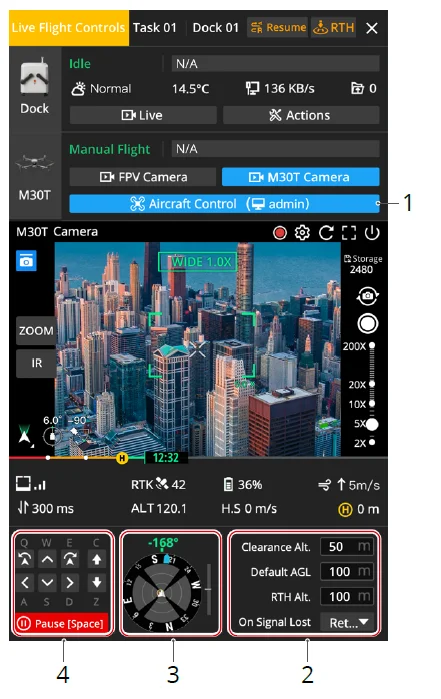
- Obtain Aircraft Control
Users can right-click the dock or aircraft icon on the map or click Aircraft Control on the device status window to enable Live Flight Controls. - Parameter Settings
- Clearance Altitude: Aircraft altitude relative to the takeoff point before flying away from the dock (Altitude range: 8 m – 1500 m).
- Default AGL: Default aircraft altitude relative to the ground when the aircraft is performing FlyTo tasks (Altitude range: 20 m – 1500 m).
- RTH Altitude: Aircraft altitude relative to the takeoff point when returning to the Home Point (Altitude range: 20 m – 1500 m). On the premise of flight safety, it is recommended that the RTH altitude should be close to the real-time aircraft altitude relative to the takeoff point when the aircraft is returning home, to reduce the impact of high-altitude wind on the aircraft’s flight time.
- On Signal Lost: Users can choose from Return to Home, Hover, or Continue. The dock aircraft will perform signal lost action when the aircraft is disconnected from the dock. To ensure flight safety, it is recommended to set the signal lost action as Return to Home.
- Situation Awareness: Users can view the Home Point location, aircraft and payload orientation, and obstacle sensing information in the Navigation Display.
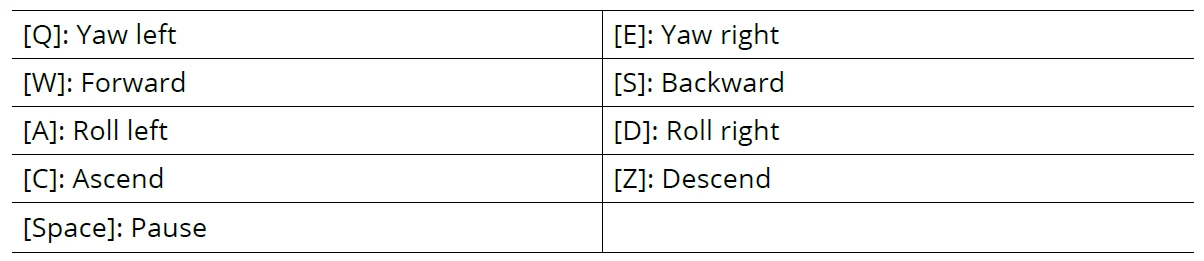
- Keyboard Commands: Users can click the buttons or press the keyboard keys to control aircraft movements.

- Take Off: When the aircraft is inside the dock, users can click Take Off and the aircraft will ascend to the Clearance altitude and hover. Users can continue operating the aircraft with keyboard commands. When the aircraft is performing tasks, the remaining flight distance and time will be displayed on the device status window.
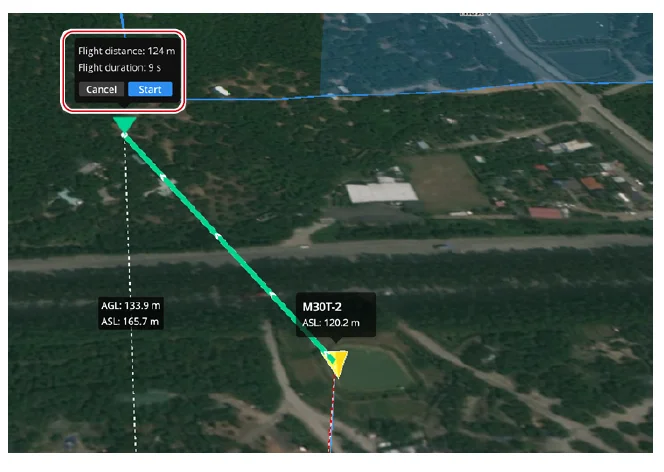
- FlyTo Tasks: Users can right-click on the map or a PinPoint to set a FlyTo location. After the FlyTo location is set, a virtual flight route will be displayed on the map. Users can click Start, and the aircraft will fly directly to the location.
Hint & Tips:
- If Live Flight Controls is enabled when the aircraft is performing a flight task, users can click Resume to resume the task, or click RTH to disable Live Flight Controls, and the aircraft will return to home automatically.
Warning:
- When Low Battery RTH is triggered, DO NOT cancel RTH or enable Live Flight Controls during RTH; otherwise, the aircraft will exit RTH and may not be able to return to the dock.
- When the remaining battery level is only enough for the aircraft to descend from its current altitude, the aircraft will land automatically, and the automatic landing cannot be canceled.
- DO NOT control the aircraft to land on the dock using keyboard commands; the aircraft will not be able to stop propellers after landing and return to the dock automatically.
Take Photo (Fixed Angle) Camera Action Settings
Panel Introduction
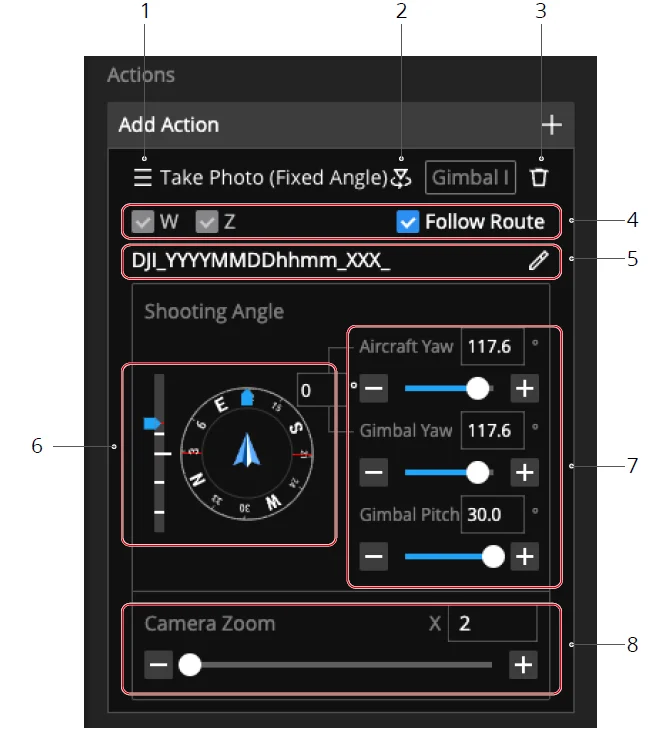
- Drag to change the performance sequence of waypoint actions.
- Click to enter the FPV view of the waypoint action.
- Delete the waypoint action.
- Select the media file storage format. Users can choose Follow Route or customize the settings of each waypoint.
- Set the media file name.
- View the aircraft and gimbal attitude indicator.
- Users can input or adjust the slider to change the aircraft and gimbal attitude value.
- Users can input or adjust the slider to change the zoom ratio.
FPV View
User Interface Introduction
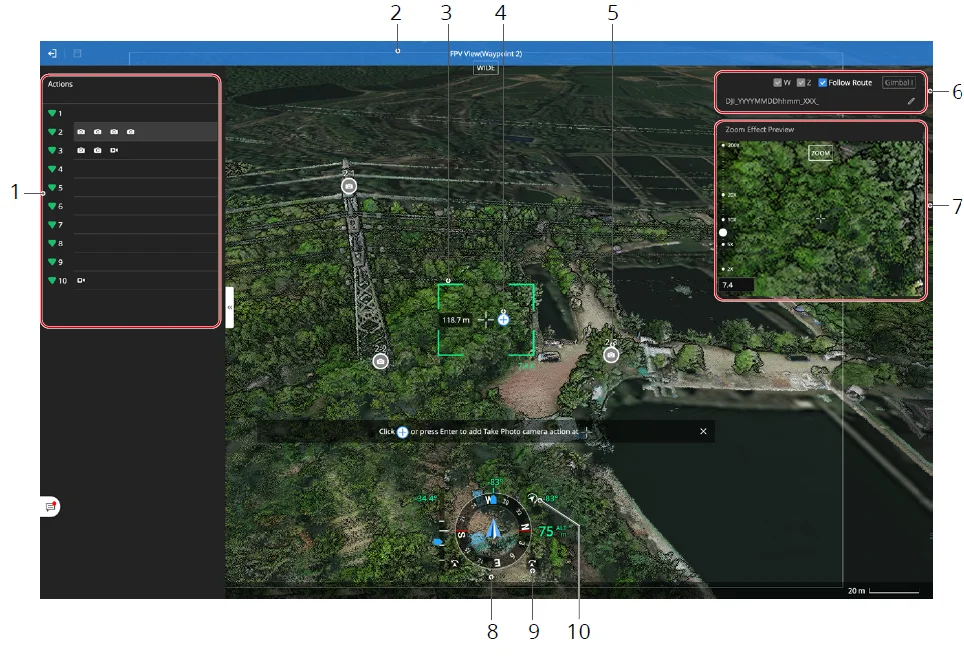
- Displays the waypoint actions
- Indicates the wide-angle frame
- Indicates the zoom frame
- Click to add a camera action
- Indicates the unselected camera action
- Set the media file storage format and name
- Preview the zoom effect and adjust the zoom ratio
- Indicates the aircraft and gimbal attitude
- Click to fine-tune the aircraft yaw attitude
- Click to switch between the Free and Lock gimbal modes. The aircraft heading and the gimbal camera direction are parallel when the gimbal is in the Lock mode. In the Free mode, the gimbal camera will rotate freely.
Sync Flight Routes
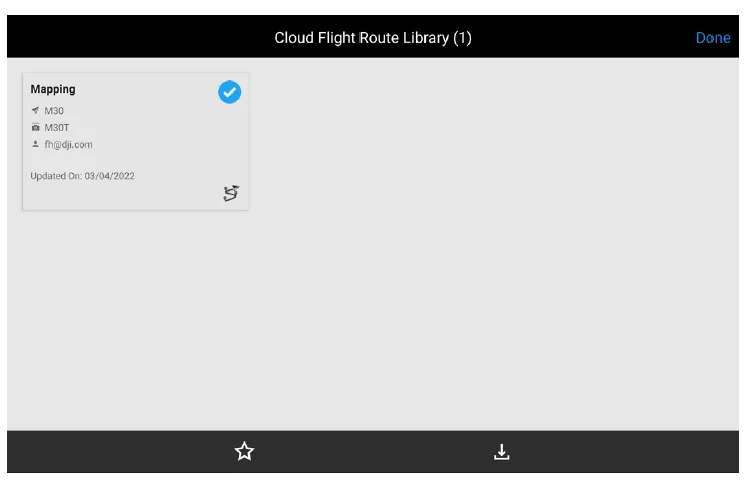
DJI Pilot 2 users can log in to the DJI FlightHub 2 cloud service and access cloud flight tasks. Enter the home screen of DJI Pilot 2, tap Flight Route, and select Cloud to view flight routes created on DJI FlightHub 2.
Manage Task Plans
Project members can view the task plan details, including planned and actual task time, task status, type, plan name, route name, device name, plan creator, and media file upload status. Project administrators can perform actions on the task plan.
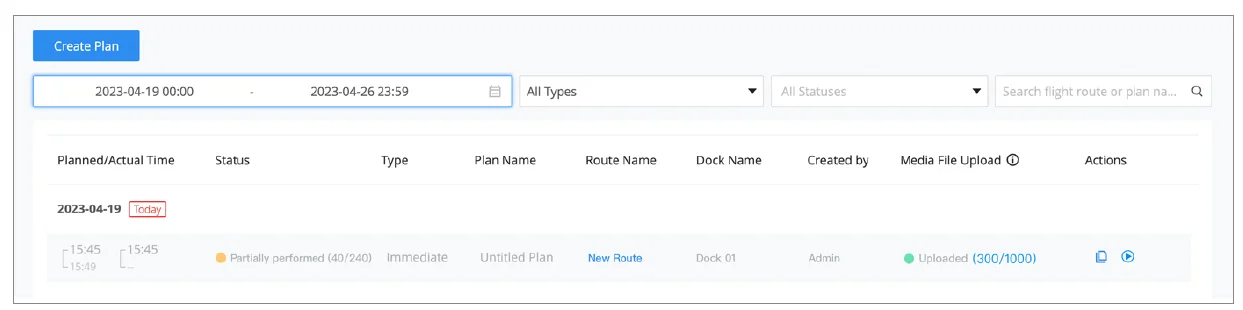
- Planned/Actual Time: Displays the planned time of the task plan and the actual time when the task is performed. The planned time is estimated and can only be used as a reference.
- Status: Includes To be performed, In progress, Task completed, Partially performed, Task failed, Task ended, and Suspended.
- Type: Includes Immediate, Timed, Recurring, and Continuous.
- Route Name: Displays the flight route duplicate name. Click to view the duplicate in the editor. Editing and saving the duplicate are not supported.
- Media File Upload: Displays the media file upload status, including the number of uploaded files and the total number. The media file upload statuses include Waiting to upload, Uploading, and Uploaded. Click to view media files in the Media Files library. The upload sequence of the media files is as follows:
- Media files of the Immediate flight task will be uploaded first. Media files of the Timed and Recurring tasks will be uploaded according to their actual completion time.
- Users can click Upload Now to prioritize the upload of the selected media files.
- Actions:
- For the flight tasks that are to be performed, users can edit, suspend, or delete the tasks. After the flight tasks are suspended, the aircraft will not perform the tasks. Users can resume the task so that the aircraft can continue performing the task. If the flight task exceeds the planned time, the task will be shown as failed.
- For the flight tasks that are performed, users can click to copy the flight task, enter the flight route editor, and edit to create a new task plan.
- For the flight tasks that are partially performed, users can choose to resume the flight from the breakpoint. After clicking
 , a new task will automatically be generated, and the aircraft will resume the flight from the breakpoint and complete the task after being fully charged.
 , a new task will automatically be generated, and the aircraft will resume the flight from the breakpoint and complete the task after being fully charged.
For more manuals by DJI, visit ManualsLibraryy
DJI Flight Hub 2 Drone-FAQs
What is DJI FlightHub 2?
DJI FlightHub 2 is a cloud-based drone fleet management platform that allows teams to plan missions, monitor flights in real time, annotate maps, and collaborate remotely from a single dashboard.
What are the key features of FlightHub 2?
It offers real-time flight monitoring, live map sharing, multi-device data annotation, route planning, team position synchronization, and mission playback. These tools help improve coordination during enterprise drone operations.
Which drones are compatible with DJI FlightHub 2?
FlightHub 2 supports enterprise models such as DJI Matrice 350 RTK, DJI Matrice 30 Series, DJI Matrice 400, and DJI Mavic 3 Enterprise Series, along with DJI Dock systems.
How do I activate DJI FlightHub 2?
Create or log into your DJI enterprise account, bind your supported drone or dock, and follow the on-screen steps inside the DJI Pilot or enterprise management interface to activate cloud services.
Can I monitor multiple drones at once?
Yes, FlightHub 2 allows simultaneous monitoring of multiple drones, making it ideal for search and rescue, inspections, mapping, and security operations.
Does FlightHub 2 support real-time collaboration?
Yes. Team members can share annotations, mission details, and live map views instantly, allowing better coordination between pilots and command centers.
Can DJI drones fly at night?
Some DJI drones, such as the DJI Air 2S, can capture night footage. However, flight legality depends on your country’s aviation authority rules.
Are DJI drones currently banned?
As of recent updates, DJI drones remain legal for operation in many countries, including the U.S., though regulations may change. Always check your local aviation authority guidelines before flying.
Can I fly a DJI drone in the rain?
Most consumer DJI drones are not waterproof and should not be flown in rain. Enterprise drones may have limited weather resistance.
Do DJI drone batteries lose charge when not in use?
Yes. DJI Intelligent Flight Batteries automatically self-discharge after several days to protect battery health. Slight warming during discharge is normal.