


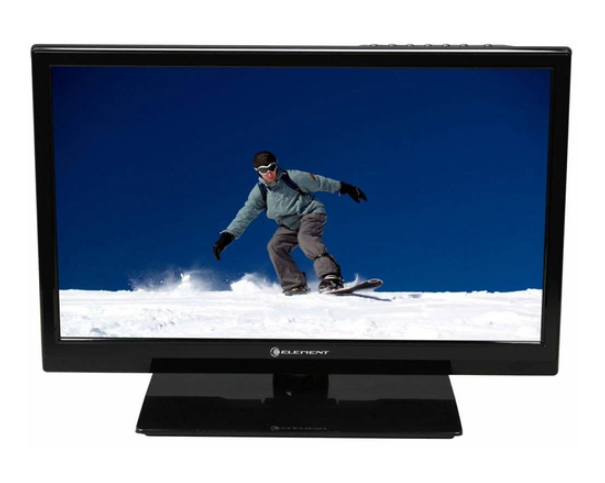
Element ELEFW195 LED TV
Important Safety Instructions
- Read these instructions.
- Keep these instructions.
- Heed all warnings.
- Follow all instructions.
- Do not use near water.
- Clean only with a dry cloth.
- Do not block any ventilation openings. Install in accordance with the manufacturer’s instructions.
- Do not install near any heat sources such as radiators, heat registers, stoves, or other apparatus (including amplifiers) that produce heat.
- Do not defeat the safety purpose of the polarized or grounding-type plug. A polarized plug has two blades with one wider than the other. A grounding type plug has two blades and a third grounding prong. The wide blade or the third prong is provided for your safety. If the provided plug does not fit into your outlet, consult an electrician for replacement of the obsolete outlet.
- Protect the power cord from being walked on or pinched, particularly at plugs, convenience receptacles, and the point where they exit from the apparatus.
- Only use attachments/accessories specified by the manufacturer.
- Use only with the cart, stand, tripod, bracket, or table specified by the manufacturer, or sold with the apparatus. When a cart is used, use caution when moving the cart/apparatus combination to avoid injury from tip-over.
- Unplug this apparatus during lightning storms or when unused for long periods of time.
- Refer all servicing to qualified service personnel. Servicing is required when the apparatus has been damaged in any way, such as power-supply cord or plug is damaged, liquid has been spilled or objects have fallen into the apparatus, the apparatus has been exposed to rain or moisture, does not operate normally, or has been dropped.
- Apparatus shall not be exposed to dripping or splashing, and no objects filled with liquids, such as vases, shall be placed on the apparatus.
- WARNING: To reduce the risk of fire or electric shock, do not expose this apparatus to rain or moisture.
- The mains plug or appliance coupler is used as the disconnect device, shall be readily operable.
WARNING: The battery (battery or batteries or battery pack) shall not be exposed to excessive heat, such as sunshine, fire, or the like.
SAFETY PRECAUTIONS
- Put the TV on a stable surface.
- Do not place any material on the TV.
- Do not use the TV with fixtures other than those provided or suggested by the manufacturer.
- Do not block or cover the ventilation openings on the TV. If you have a wall mount, check that it is steady.
- Power cords and cables must be properly placed and protected to prevent people from stepping on them and causing the TV to fall.
- Keep the TV dry and away from humidity.
- Keep the TV away from heat sources.
- Unplug the TV before cleaning it. Do not use a solvent or liquid to clean the TV. Only clean the TV with a soft and dry cloth.
- In case of troubleshooting, do not use spare parts other than those suggested by the manufacturer. Using inadequate spare parts can lead to electric shocks, short-circuits, fire, or other incidents.
- Unplug the TV during lightning storms or when unused for long periods of time.
IN THE CARTON
- LED TV SET
- Remote Control
- AAA Batteries
- Warranty Card
- USER’S MANUAL
- Quick Start Guide
- Remote Control Guide
FRONT/BACK CONNECTIONS OF TV
Front View
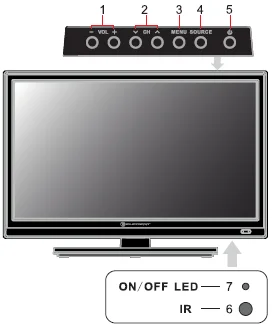
- Press“VOL+” or “VOL-” to increase or decrease the volume.
- Press“CH ∧” or “CH ∨” to scan through channels.
- Press“MENU ” to bring up the main menu on the screen.
- Press “SOURCE” to select the input source.
- Press the “POWER” button to turn the TV on or off.
- REMOTE SENSOR: Infrared sensor for the remote control.
- POWER INDICATOR: Shows red in standby mode. Shows blue when your TV is turned on.
Back View and Control Connections
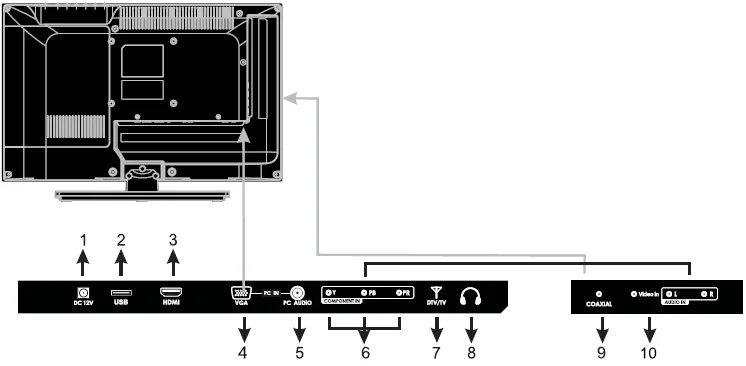
- DC 12V: 12V adapter input.
- USB Port: Update the firmware only; it cannot play multimedia files.
- HDMI: HDMI (High-Definition Multimedia Interface) provides an uncompressed, all-digital audio/video Interface between this TV and any HDMI-equipped A/V equipment. HDMI supports enhanced, or high-definition video, plus digital audio.
- VGA (PC): Connects to a personal computer’s video output connector.
- AUDIO (PC): Connects to a personal computer’s audio output connector.
- YPbPr/AUDIO/(L/R): Connect the YPbPr/Audio output jack of the DVD or VCR.
- DTV/TV: RF input that connects to your cable or VHF/UHF antenna.
- Headphones: Connect to the headphones.
- Coaxial: Connects to the coaxial audio input of your digital stereo equipment.
- VIDEO/AUDIO(L/R): Connect the Video Audio output jack of the DVD or VCR.
TV INSTALLATION DRAWINGS
Power Cord Connection
- Connect the power cord correctly as shown.
- Press the Power button of your LED TV to turn it on the LED TV. The power indicator on the front panel lights up in blue.
Antenna Connection
To ensure a good picture and sound, the TV antenna system needs to be installed. The antenna system, as shown, can be sourced from TV equipment shops, which will provide service for correct installation and connection. After installation, insert the 75-ohm antenna plug into the antenna jack as shown.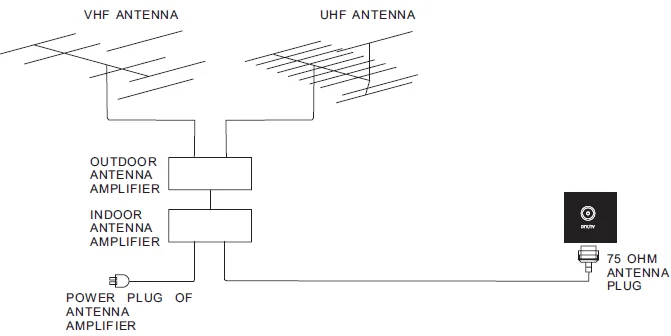
AV Connection
Connect the VIDEO and AUDIO output jack of the DVD or VCR to the VIDEO jacks on the set using the RCA cable. Match the jack colors: Video is green, Audio left is white, and Audio right is red. Select the AV input source using the SOURCE button on the remote control.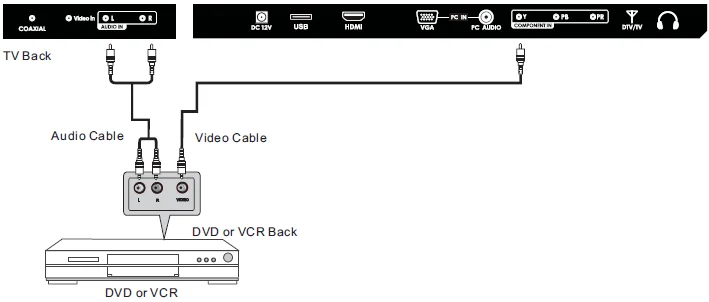
YPbPr(Connection) Connection
Connect the YPbPr output of the DVD or VCR to the YPbPr input on the set. The picture quality is improved compared to connecting a regular VCR to the video input. Connect the Audio output of the DVD or VCR to the Audio input jacks on the set using the RCA cable.
Match the jacks’ colors: Y is green, Pb is blue, Pr is red. The audio left is white and the Audio right is red. Select the component input source using the SOURCE button on the remote control.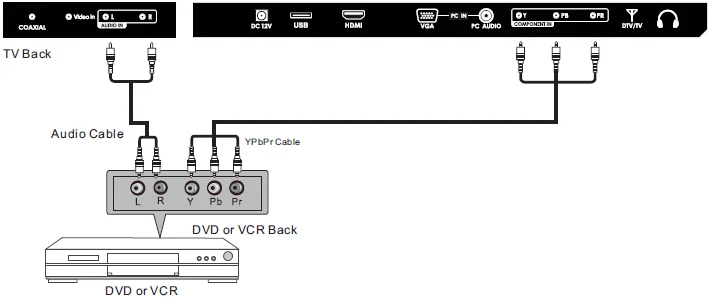
VGA(PC) Connection
Connect the RGB output of the PC to the VGA(PC )jack on the set. Connect the AUDIO output of the PC to the PC AUDIO jack on the set. Select the VGA input source using the SOURCE button on the remote control.
COAXIAL Connection
Connect to Audio Amplifier device to the Coaxial output jack on the TV.
HDMI Connection
An HDMI plug that replaces the HDMI connection allows the transfer of all audio-video/control signals through one cable only. These signals are transferred digitally.
Wall Mounting
The TV is provided with mounting holes for a VESA-approved wall mounting bracket (NOT SUPPLIED). Remove the screws holding the base to the base bracket and lift the base away(do not remove the base mounting brackets. Mount the VESA bracket using 4XST3x10F isometric threaded screws(not supplied).
Do not use a screw longer than 20mm; damage will occur to the internal parts.
Caution: Your new TV is heavy; please consult with a professional wall-mount installer to perform this installation.
REMOTE CONTROL
Remote Control Instructions
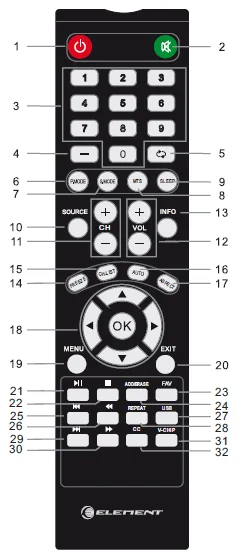
Note: The picture of the remote controller is only for reference and is subject to the real one.
- Turn the LED TV ON or OFF.
- Press to mute the sound. Press again or press Vol+ to unmute the TV.
- NUMBER BUTTONS: Press 0-9 to directly change the TV channel.
- -: Press this button to enter a program number for multiple program channels, such as 2-1, etc.
- Return to the previous channel viewed.
- PMODE: Press repeatedly to cycle through the available video picture modes.
- SMODE: Press to cycle through the different sound settings.
- MTS: Choose Mono, stereo, or SAP for analog TV input. Choose English, French, or Spanish for DTV input.
- SLEEP: Sleep button, setting the TV power off time.
- SOURCE: Press SOURCE to display the OSD input source, press ∧ ∨ to select an input source, and then press OK to confirm.
- CH+/CH-: Press to scan through channels.
- VOL-/VOL+: Press to increase/decrease the sound level.
- INFO: Press to display the source and channel’s information.
- FREEZE: Freeze picture for TV. (Note: This function is not available when playing a DTV HD signal that is not available.)
- CH LIST: Press to display the TV program list.
- AUTO: Automatically adjust the Horizontal/Vertical position in PC (VGA) mode.
- ASPECT: Press to select Aspect Ratio. (As follows: Normal, Wide, Zoom, Cinema, etc.) (Note: This function is used when playing a DTV HD signal.)
- THUMBSTICK (∧, ∨, <, >, OK): Allows you to navigate the on-screen menus and adjust the system settings to your preference.
- MENU: Display the main TV menu.
- EXIT: Press the Exit to exit the operation.
- Press to play or stop the current program.
- Press the button to stop the current program.
- FAV: Press to display the favorite list in TV mode.
- ADD/ERASE: Add or erase favorite channels.
- To play the previous chapter, title, or track.
- Press to scan in reverse.
- USB: Press the USB source.
- REPEAT: Set repeat points.
- To play the next chapter, title, or track.
- Press to scan in forward.
- V-CHIP: Press to enter the V-CHIP menu.
- CC: Press to display the closed caption.
Remote Control Setup
- Open the cover.
- Use two AAA-size batteries. When inserting the batteries, make sure the correct polarities + and – marks on the batteries line up correctly with the compartment markings.
- Replace the battery cover.
To prevent battery leakage, which may result in bodily injury or damage to the remote:
- Install all batteries correctly, and as marked on the remote control.
- Do not mix old and new batteries, and do not mix alkaline, standard (carbon-zinc), or rechargeable (Ni-Cad, Ni-MH, etc) Batteries.
- Remove batteries when the remote is not used for a long period of time.
MENU OPERATION
Basic Operations
Press ∧, ∨ button to select your desired mode, then press OK to enter.
Select Your Onscreen Language Preference
Note: If using your LED TV for the first time, you should select the language that will be used for displaying menus and information boxes.
- Press ∧ ∨ the button to select Menu Language.
- Press < > buttons to select your desired language.
- When you are satisfied with your choice, press ∧ ∨ the button to select the Auto Scan. Press > button to search the channel.
Volume Adjustment
- Press VOL +/- to adjust the volume
- If you want to switch the sound off, press the MUTE button, and press it again to resume.
Navigating the Onscreen Display
- Press the MENU button to display the main menu.
- Use ∧ ∨ buttons to navigate and select the available menus.
Choosing a TV Channel
- Press the CH ∧/CH ∨ at the side of the panel or CH+/CH- on the remote control to scan through channels
- Enter the channel number with the 0-9 remote keys, then press ‘OK’ to confirm.
Selecting Input Source
You can display the input screen menu by pressing SOURCE on the remote control or SOURCE at the side of the panel, pressing the ∧ ∨ button to select, and pressing “OK” to confirm.
Information
Motion Picture Association of America (MPAA) Rating System
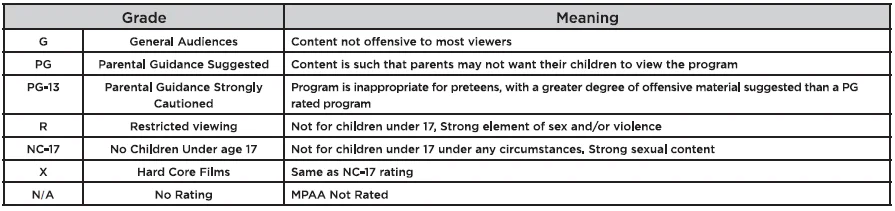
TV Parental Guideline Rating System

Canadian Rating:
Canadian English is used throughout all of English-speaking Canada (C, C8+, G, PG, 14+, 18+). Canadian French is used in Quebec (G, 8 ans+, 13 ans+, 16 ans+, 18 ans+)
Note: The V-Chip will automatically block certain categories that are “more restrictive”. If you block the TV-Y category, then TV-Y7 will be automatically blocked. Similarly, if you block the TV-G category, then all the categories in the “young adult” will be blocked (TV-G, TV-PG, TV-14, and TV-MA).
TROUBLESHOOTING
Please check if you can solve problems by troubleshooting yourself.
No signal
Please check that all cables are correctly plugged in.
No color shades
Adjust the contrast, the color, and the brightness.
Stain on the screen
Maybe the result of a lighting signal from a car, motor, neon light, or other electrical devices or appliances.
Double or multiple display image
Maybe the result of an electrical wave disturbance from other TVs, computers, game machines, or the Radio.
Snow on the screen
The cables of the antenna are not correctly plugged in.
The remote control does not work
Please check the battery order and alignment. Check that the IR of the remote control is not hidden by something.
“Zip” made noise on the TV cover
Even if the display image is correct, the noise may come from an unsteady fixation of the panel.
No sound
Make sure that you have not pressed the MUTE button on the remote control.
MAINTAINING
- Do not use your TV in areas that are too hot or too cold, because the cabinet may warp or the screen may malfunction. Your TV works best in temperatures that are comfortable to you.
- Storage temperatures are 32° to 122°F (0° to 50°C).
- Working temperatures are 32° to 104°F (0° to 40°C).
- Do not place your TV in direct sunlight or near a heat source.
For more Manuals by Element Electronics, visit ManualsLibraryy
Element ELEFW195 LED TV-FAQs
How do I set up my Element TV for the first time?
Plug your TV into a power outlet, then press the Power button on the remote or TV. Follow the on-screen setup steps to choose your language, region, and input source.
How do I turn on my Element TV?
Press the Power button on your remote control or use the manual power button on the TV, usually located underneath or on the side of the screen.
Where is the power button located on my Element TV?
You’ll typically find the power button along the bottom edge or back panel of the TV. Some models may have it on the side panel near the input ports.
How can I turn on my TV without a remote?
You can press the Power button directly on the TV to turn it on or off. If your remote isn’t working, you can also use a universal remote or smartphone app to control it.
How do I switch input on an Element TV?
Press the Input or Source button on your remote or TV panel to cycle through HDMI, AV, and other sources. Stop when your desired input (like HDMI 1 or HDMI 2) appears on screen.
How do I connect my Element TV to Wi-Fi?
Go to Menu > TV Settings > Network, then select Wi-Fi. Choose your network from the list, enter your password, and press OK to connect.
How do I manually connect my TV to Wi-Fi without a remote?
Use the buttons on the TV panel to navigate through the on-screen menu. Select Network Settings, then connect to your Wi-Fi network manually.
Why is my Element TV not connecting to Wi-Fi?
Make sure your Wi-Fi is active and your password is correct. Restart both your TV and router, or try resetting your TV’s network settings and reconnect.
Is the Element ELEFW195 a smart TV?
The ELEFW195 is a standard LED TV, not a smart model. You can, however, make it smart by connecting devices like Roku, Fire Stick, or Chromecast via HDMI.
How do I control my Element TV with my phone?
If your TV supports casting, open a streaming app and tap the Cast icon to connect. Otherwise, download a universal TV remote app compatible with Element TVs.