

Enabot EBO AIR

Device Connection

- Register on EBO APP and click“ +” to connect

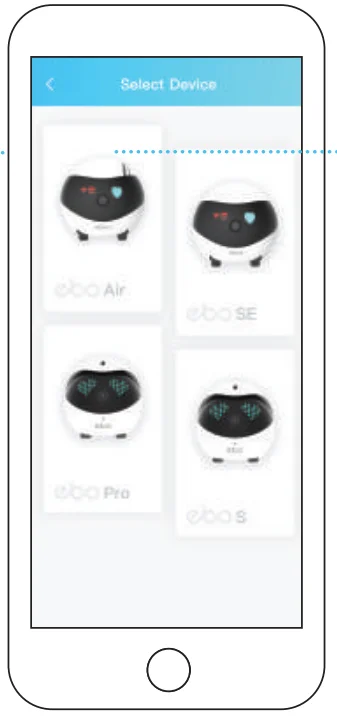
- Select your device (EBO Air).

- Place EBO on the charging dock

Place EBO on the charging dock, connecting when all the indicator lights are on (see the figure).
*Updates are ongoing and subject to the actual interface of the APP
- Connect to your Wi-Fi network

- Scan the QR code using EBO’s camera

- Pairing successful!


Scan the QR code using EBO’s camera. When “ ” and “
 ” are both off, the pairing is successful.
Interface Instructions


Function Description

- Add Device: Click the + sign in the upper left corner of the page to quickly pair a device.
- Message: About Device, Detection Warning, Friends Share;
- EBO View: Remote Control, Talk to your Family, Take Photos/Videos, Play with your Pets;
- Settings: Wi-Fi, Device Volume, Device Light, Do-Not-Disturb Mode;
- Invite Members: EBO supports one admin user and multiple guest users.
- Media Files: Local files (stored in the local SD card), Downloaded files (files downloaded from | the local SD card to the phone), Like (Archived files);
- Security: EBO will protect your home as scheduled.
- Pet Mode: Electronic EBO will become your pet as scheduled.
- About: About (Device Model, Parameters), Device Report (Robot Status-Check), Log Upload (Click and Upload Log files);
- Tutorial: How to use EBO;
- Sleep (Camera On/Off): In Sleep Mode, both the camera and the speaker are automatically disabled.
- Edit: Can help you make video files quickly.
General Instructions

Need to power on/off or reset EBO?
Use the smaller end of the pin t o press RESET
- POWER ON: Press RESET f or 2 seconds (or place EBO on the charging dock)
- POWER OFF: Click RESET twice
- REBOOT: Click RESET 1 time when EBO is on
- RESET: Press RESET f or 5 seconds unit you hear “ebo”
How to clean the wheels
Open the two black buckles a t the bottom at the same time t o disassemble the wheel module for cleaning.

Note For Charging EBO:
Place the back side of the charging dock along the wall and away from any obstruction as indicated in the image.
Equipment And Parameters

Precautions:
- For daily use, it is recommended t o place EBO on the charging dock t o ensure that EBO is always online.
- EBO is not waterproof. Please keep EBO away from water.
- Do not apply the “forward” function when EBO is near the stairs.
- The char ger is not a toy. Children must have adult supervision.
- Children under 3 must have adult supervision.
- If you have any issues while using EBO, please contact our Customer Service at [email protected].
For more manuals by Enabot, visit ManualsLibraryy
Enabot EBO AIR-FAQs
How do I connect EBO AIR to Wi-Fi?
To connect your EBO AIR, download the EBO HOME app and create or log into your account. Tap “Add Device,” select EBO AIR, and choose your 2.4 GHz Wi-Fi network. Enter your Wi-Fi password and follow the in-app pairing instructions. Make sure the robot is powered on and close to your router during setup. Once connected, you can control it remotely through the app.
Does EBO AIR require Wi-Fi to work?
Yes, EBO AIR needs a Wi-Fi connection for full functionality. The robot must stay connected to Wi-Fi to stream live video, enable two-way audio, and allow remote control. Your phone, however, can use either Wi-Fi or mobile data. Without internet, basic movement may work locally, but remote monitoring and smart features will be unavailable.
Can I use EBO AIR from another country?
Yes, you can control EBO AIR even when you’re abroad. As long as the robot is connected to Wi-Fi at home and your phone has internet access, you can view live video and drive it remotely through the app. However, you may experience slight delays depending on network speed and distance between locations.
How does EBO AIR work?
EBO AIR is a mobile pet camera robot equipped with a smart AI tracking system. It can automatically detect and follow pets or people, record video clips, and stream live footage directly to your phone. The built-in two-way audio lets you talk and listen in real time. It also includes interactive features like a laser toy for engaging pets.
Does EBO AIR support two-way audio communication?
Yes, EBO AIR allows real-time two-way communication. You can speak through your smartphone, and your voice will play through the robot’s speaker. At the same time, you can hear sounds from your home through the built-in microphone. This feature is useful for calming pets, communicating with family members, or checking in while away.
Do I need a subscription to use EBO AIR?
No subscription is required for standard features. You can access live video streaming, remote driving, AI tracking, and two-way audio without paying monthly fees. Some advanced cloud storage options may vary by model or region, but core monitoring and interaction features are available immediately after setup.
What is the difference between EBO AIR and EBO AIR 2?
The main difference is camera quality and viewing angle. EBO AIR typically offers 1080p resolution, while EBO AIR 2 upgrades to a sharper 2K camera with a wider field of view. The newer model may also include enhanced AI features and improved tracking performance, providing clearer footage and broader home coverage.
Does EBO AIR work on carpets?
EBO AIR is designed to move smoothly on flat indoor surfaces and low-pile carpets. It can cross small obstacles and thin rugs, but thick or high-pile carpets may limit movement. For best performance, keep floors clear of large objects or cords to allow uninterrupted navigation.
Is EBO AIR worth buying for pet owners?
EBO AIR is ideal for pet owners who want interactive monitoring rather than a fixed security camera. Its low camera angle, mobility, and AI tracking make it especially useful for watching cats and dogs. If you want remote engagement, live communication, and playful interaction while away from home, it offers strong value for its price.