
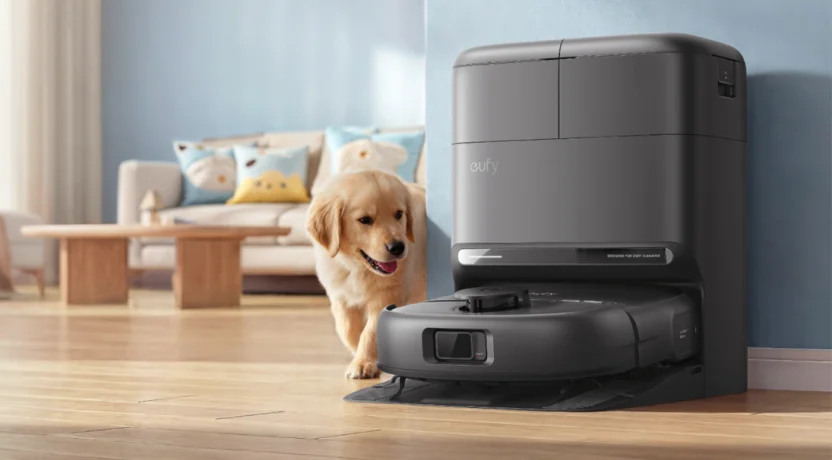

Eufy Omni C28 Robot Vacuum
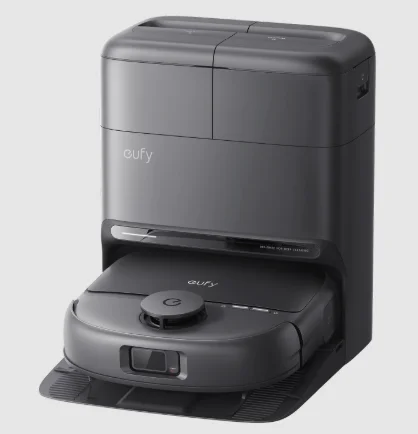
1. About Your Omni C28
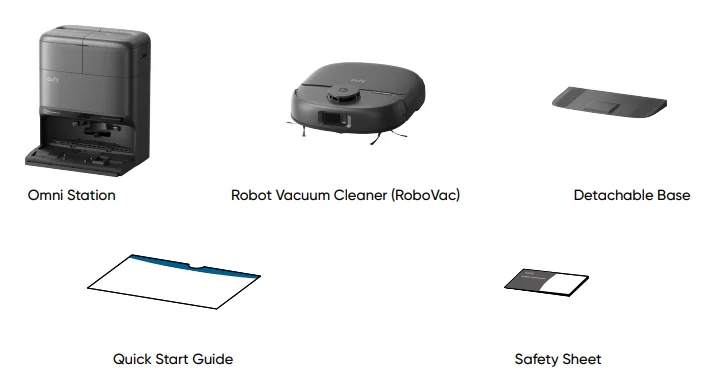
1.1 What’s in the Box
1.2 Overview
1.2.1 RoboVac
Front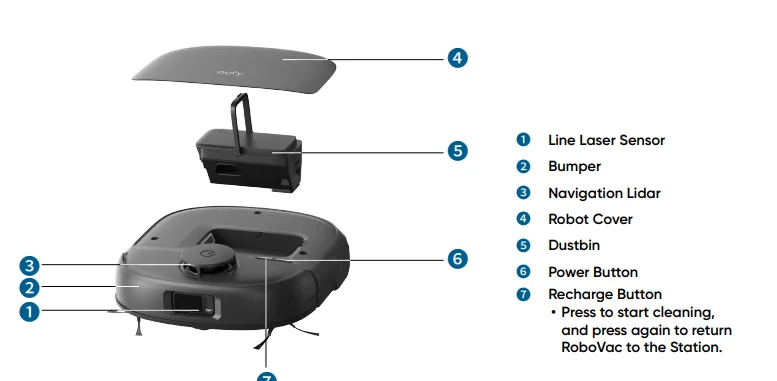
Font
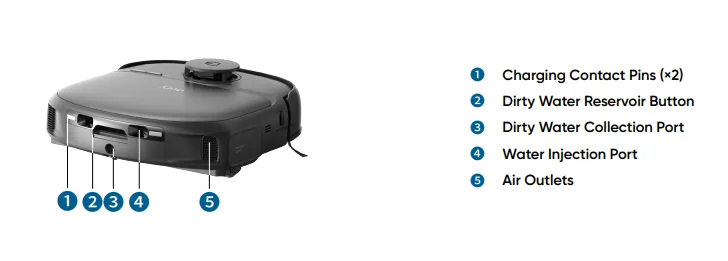
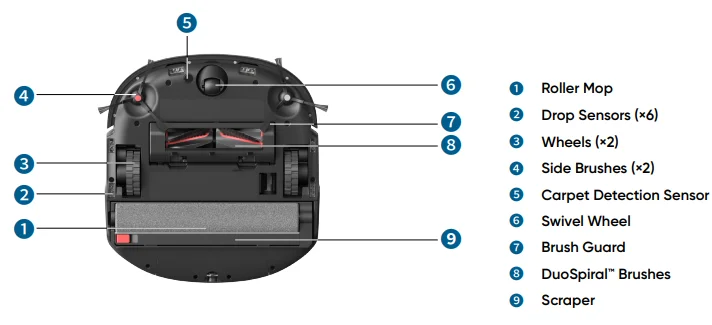
Back
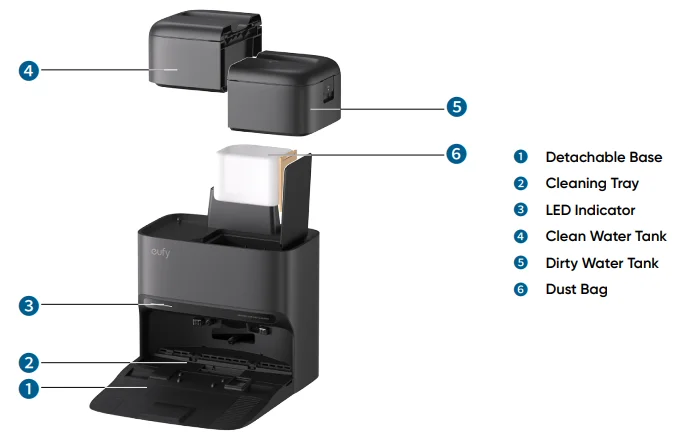
1.2.2 Omni Station
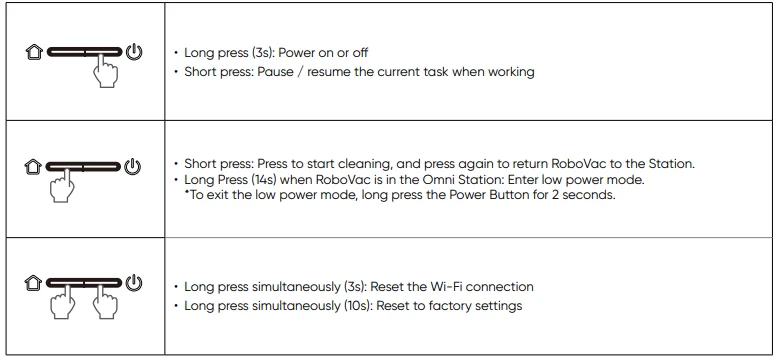
1.3 Button Controls
1.4 LED Indication
You can see the status of RoboVac and Omni Station from the LED indicators.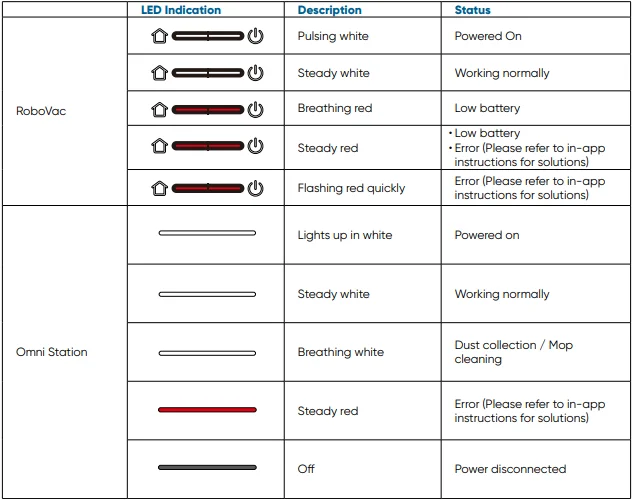
2. Preparing Your Omni C28
2.1 Install the Omni Station
- Remove the protective film on the Omni Station.

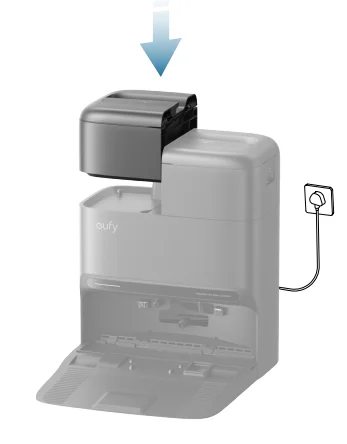
- Install the detachable base by pressing down firmly on both sides.

 Make sure the detachable base is seamlessly connected to the Omni Station; otherwise, the robot will fail to return to the Omni Station smoothly.
- Place the Omni Station in a location that has a strong Wi-Fi signal and the robot can easily access. It is recommended to place it against a wall and on a hard, level surface. Then, plug the station into a wall outlet. When the Omni Station connects to AC power, the LED indicator will light up in white.

- The recommended clearance in the illustration is a suggested value based on testing to ensure the robot operates optimally, returns to the station for charging, and cleans the designated area effectively. You may adjust the clearance distance as necessary to suit the actual working environment of the robot.
- Do not place the station on carpets.
- Always keep the station plugged in to ensure the infrared connection between the robot and the station is successful; otherwise, the robot will not automatically return to it.
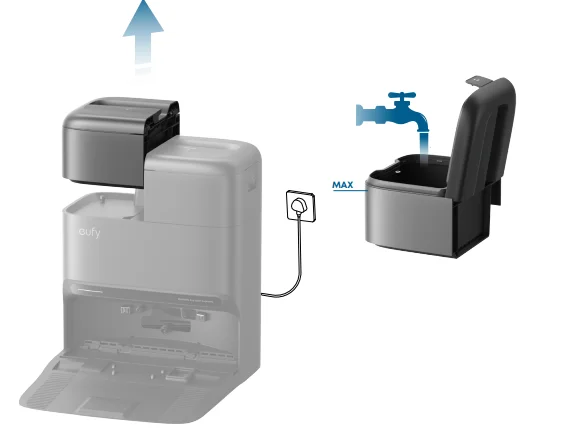
- Take out the clean water tank. Add clean water until it reaches the MAX water line.

 Please do not add hot water to the tank to avoid shortening its service life.
- Please do not add non-Eufy cleaning solutions or homemade cleaning liquids to avoid damaging the machine.
- Reinstall the clean water tank. Ensure that both the clean water tank and dirty water tank are securely locked; otherwise, the station will not operate normally during subsequent use.

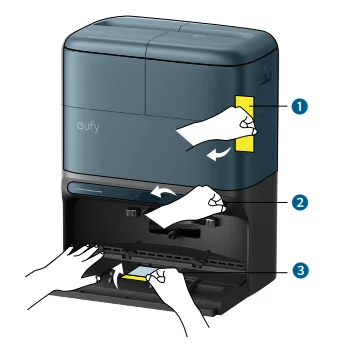
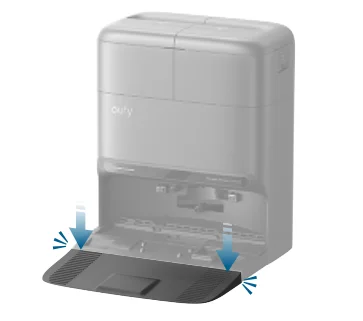
 Make sure the detachable base is seamlessly connected to the Omni Station; otherwise, the robot will fail to return to the Omni Station smoothly.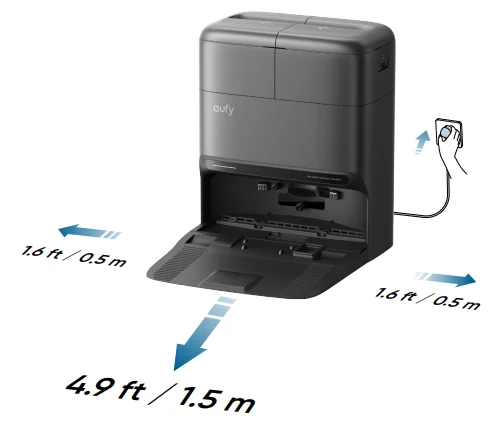
2.2 Charge Your RoboVac
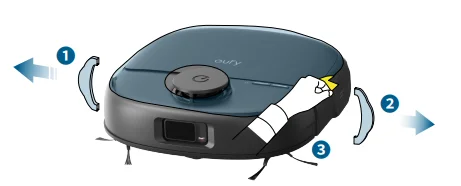
- Remove the foam blocks and protective film from the robot.

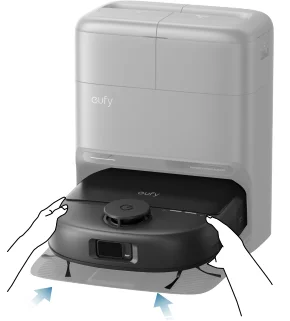
- Attach the robot to the Omni Station. Then the robot will automatically power on.

 Fully charge the robot before use to ensure optimal performance.
- Upon successful docking, you’ll hear a voice prompt of “charging”.
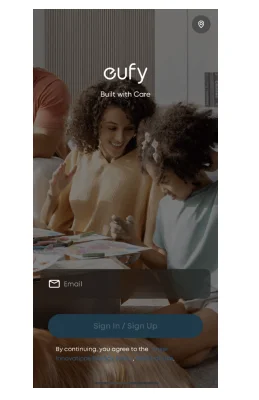
2.3 Download the eufy App
To enjoy all the available features, it is recommended to download the eufy app.
- Download the app from the App Store (iOS devices) or Google Play (Android devices). You can also get the app by scanning the QR code printed on the Quick Start Guide (included in the package).
- Open the app. Create a new account or log in to your own eufy account.

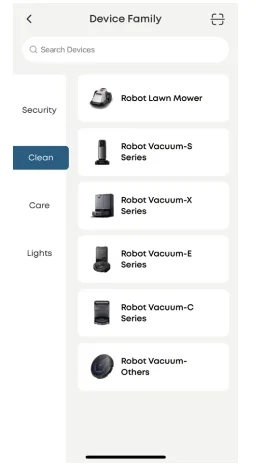
- Tap the “+” icon to add the device.

- Follow the instructions in the app to set up the 2.4G Wi-Fi network.
- Use a 2.4GHz network.
- Do not use a VPN or proxy servers.
- The Wi-Fi name cannot contain special characters.
- If you still cannot connect, please contact us.
2.4 Reset the Wi-Fi Connection
If you bump into issues when connecting your RoboVac to the app, try to reset the Wi-Fi connection. Press and hold the Recharge and Power buttons simultaneously for 3 seconds until you hear a voice prompt.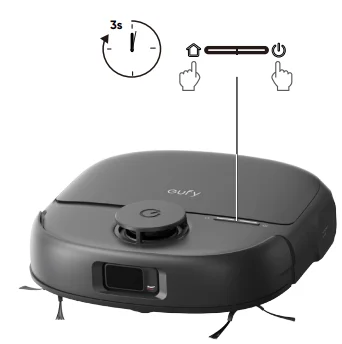
You will hear a voice prompt when the Wi-Fi connection has been reset, and the LED indicators on RoboVac will quickly flash white. Now you can follow the instructions in the app to set up the Wi-Fi connection.
3. Using Your Omni C28
All UI images shown in this section are for illustration only, and they may be subject to change due to software updates. Please refer to the actual app interface for the most accurate information.
3.1 Important Tips Before Use
- Remove power cords and small objects from the floor that may entangle RoboVac.
- Fold tasseled edges of rugs underneath to prevent tangling the RoboVac. Avoid cleaning high-pile rugs or rugs thicker than 0.71 in / 18 mm, as they may cause the RoboVac to malfunction.
- It is strongly recommended to place physical barriers in front of fireplaces and certain areas (i.e., air vents) that may cause damage to RoboVac if entered.
- Avoid vacuuming large amounts of water, as it will potentially damage the device.
- RoboVac may climb on top of objects less than 0.79 in / 20 mm in height. Remove these objects if possible.
- Anti-drop sensors will prevent RoboVac from tumbling down stairs and steep drops in most cases. Sensors are less effective if dirty or used on carpeted / reflective floors. Place physical barriers or set a “No-Go” zone to block off areas where RoboVac may fall.
3.2 Mapping
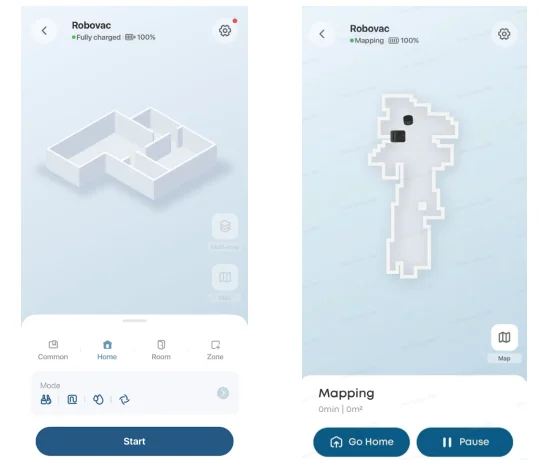
This feature is designed to help your RoboVac efficiently learn the layout of your home, ensuring thorough and systematic cleaning. By creating a detailed floor plan, your RoboVac can navigate and clean with precision. To maximize the efficiency and accuracy of the mapping process, please follow these steps:
- Open All Doors: Ensure all doors within the cleaning area are open. This allows the robot to access and map each room seamlessly.
- Block Off Restricted Areas: If there are specific zones you don’t want the robot to enter, use physical barriers to block these areas. This can enhance mapping accuracy and prevent the robot from entering unwanted spaces. After the mapping is completed, you can remove physical barriers and set up restricted areas to prevent the robot from entering those areas.
- Remove Obstacles: Clear any objects, such as toys, cables, or small furniture, that might obstruct its path or become entangled in its brushes. This helps RoboVac move freely and map the area without interruptions.
- Do Not Move the Base Station: Once the floor plan is created, avoid relocating the base station. RoboVac relies on the base station as a reference point for navigation and mapping. Moving it may disrupt the accuracy of the floor plan.
- To start the mapping process, tap “Start” in the app.

3.3 Set Up No-Go Zone and No-Mop Zone
With the eufy app, you can set up a “No-Go Zone” or “No-Mop Zone” as a restricted area. This eliminates the need to use physical barriers, including boundary strips. This feature is only designed for dividing the cleaning zones, not for isolating hazardous areas.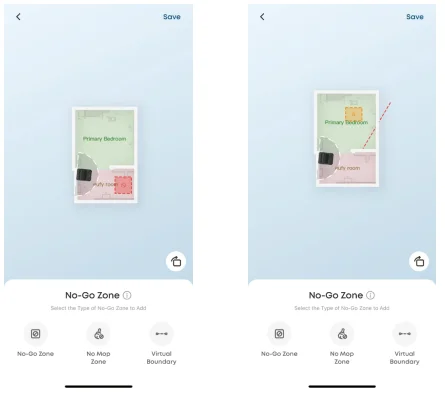
3.4 Schedule Cleaning
With the eufy app, you can schedule RoboVac to start cleaning at a particular time.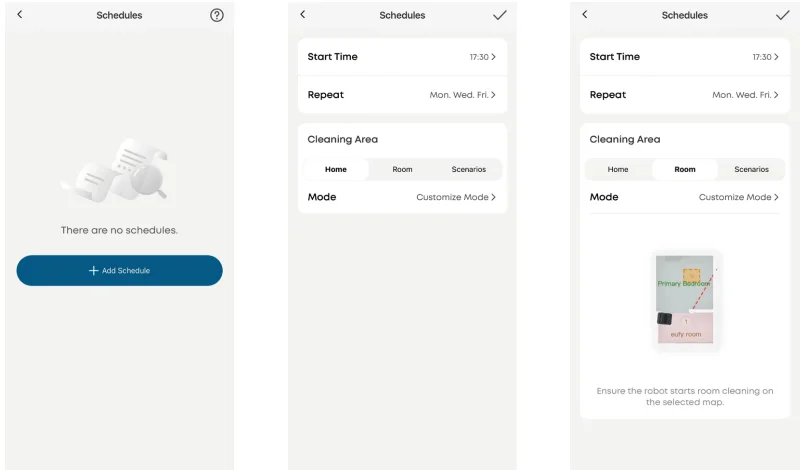
- You can set the time and customize cleaning schedules from Sunday to Saturday on the eufy app. This function is only available in the app.
- During the Do Not Disturb period, RoboVac will remain silent, with automatic dust collection and voice notifications disabled.
3.5 Select a Cleaning Mode
You can start/pause cleaning or select the desired cleaning mode via the eufy app. In each cleaning mode, you can further customize the modes, cleaning intensity, water level, suction level, and other settings.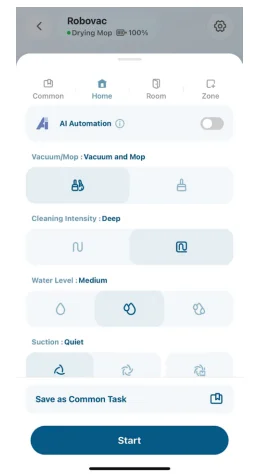
3.5.1 House Cleaning Mode
Tap “Start” in the eufy app to enable House Cleaning mode. After startup, RoboVac moves from the Omni Station and automatically determines its cleaning route. When cleaning is finished, RoboVac automatically returns to the Omni Station.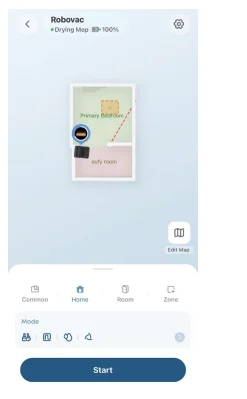
3.5.2 Room Cleaning Mode
In this mode, your house is automatically divided into several rooms for cleaning in the eufy app. You can also customize your room settings in the app. RoboVac will clean the selected rooms only and return to the Omni Station after cleaning.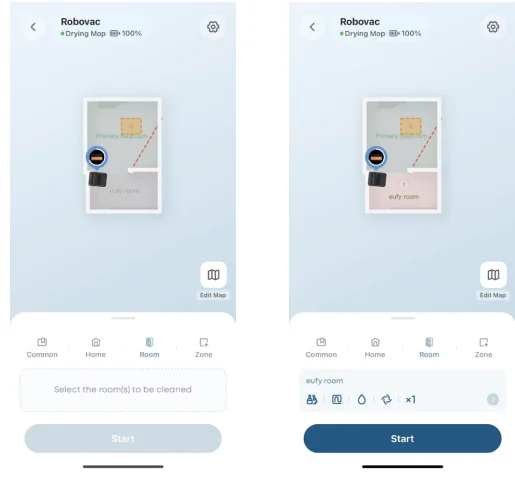
3.5.3 Zone Cleaning Mode
In this mode, you can set up a cleaning zone and customize its size in the eufy app. RoboVac will clean the selected zone only.
4. Using the Mopping System
- Start cleaning. RoboVac will automatically vacuum and mop. During mopping, you can choose between three water levels via the eufy app.
- To prevent the development of odors in the roller mop, be sure to activate the drying function after each mopping task. We strongly recommend setting the drying mode to “Standard Drying” every time to ensure optimal drying results and reduce unpleasant smells.
- Regularly empty and clean the dirty water tank to prevent mildew or unpleasant smells. For instructions on how to clean the dirty water tank, refer to the “Cleaning and Maintenance” section in this User Guide.
- Using RoboVac with Alexa, Siri, or Google Assistant Compatible Devices
With Alexa, Siri, and Google Assistant compatibility, your RoboVac is just a voice command away from cleaning every corner of your house.
Before you start, make sure:
- RoboVac is attached to the Omni Station to ensure there is enough power.
- RoboVac is connected with the eufy app.
- To control your RoboVac with Siri, make sure you have an iPhone or iPad running a recent version of iOS.
To control RoboVac with Alexa, Siri, or Google Assistant:
- Click on the top left corner of the eufy app’s main interface, then find “Smart Integrations” in the dropdown menu.
- Follow the on-screen instructions to complete the setup.
3. Enabling / Disabling Child Safety Lock
Activate the child safety lock in the eufy app: More Settings > Child Lock. Once the child safety lock is enabled, all buttons will be locked to prevent children from damaging the device or accidentally getting hurt. Network configuration and factory reset are not affected by the child safety lock.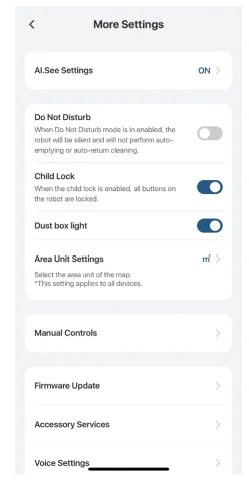
4. Cleaning and Maintenance
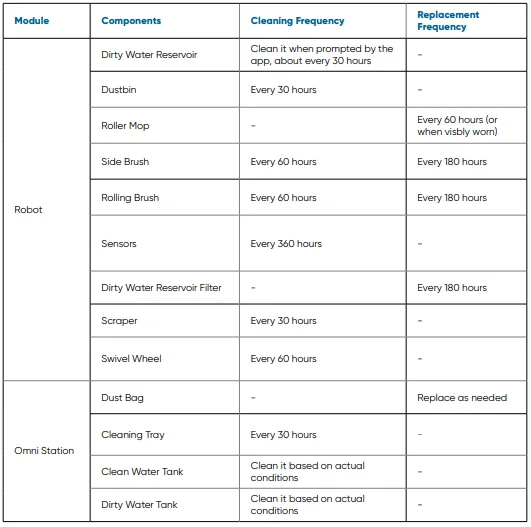
Before cleaning and maintaining, power off the device and unplug the power adapter. Any other servicing should be performed by an authorized service representative. For optimal performance, follow the instructions below to clean and maintain Omni C28 regularly. The cleaning and replacement frequency will depend on your usage habits.
Recommended Cleaning and Replacement Frequency
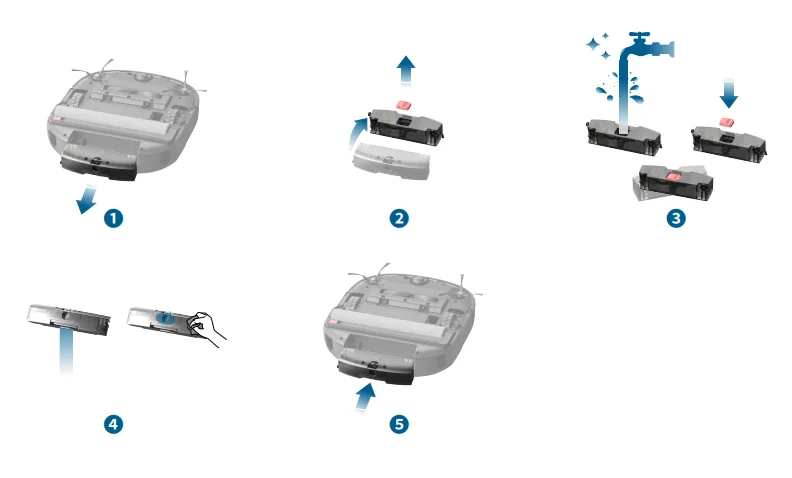
7.1 Clean the Dirty Water Reservoir
- Remove the dirty water reservoir by pressing the release button.
- Detach the filter from the reservoir.
- Fill the reservoir with clean water and shake to clean thoroughly.
- Empty the water after cleaning, and wipe the suction port of the dirty water reservoir.
- Reinstall the filter and the dirty water reservoir.

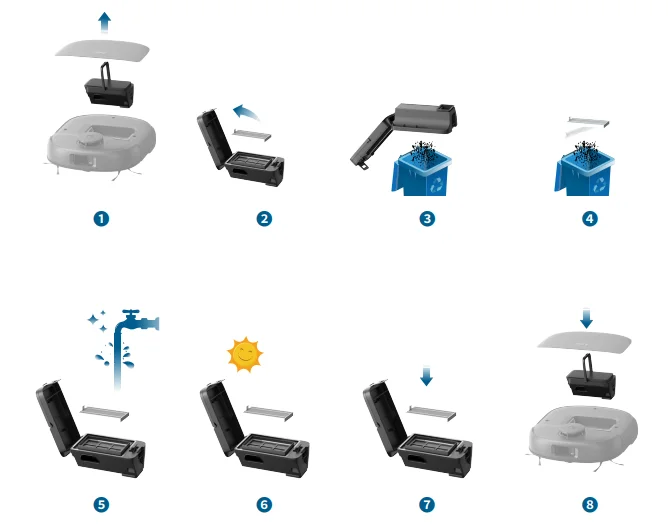
7.2 Clean the Dustbin and Filter
- Open the robot cover and take out the dustbin.
- Pull the release latch to open the cover. Take out the filter.
- Empty the dustbin.
- Tap the filter to remove dust.
- Rinse the dustbin and filter thoroughly with water.
- Air-dry the dustbin and filter completely before next use.
- Place the filter back into the dustbin.
- Push the dustbin back into the main unit and close the robot cover.

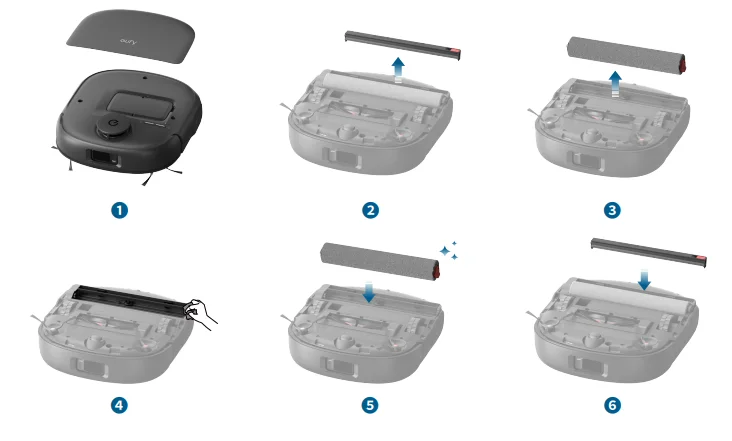
7.3 Replace the Roller Mop
- Power on. The roller mop bracket will pop out after the machine is flipped.
- Remove the scraper.
- Remove the roller mop.
- Wipe the inside of the roller mop with a damp paper towel.
- Place the new mop and press down until you hear a “click”.
- Reinstall the scraper.

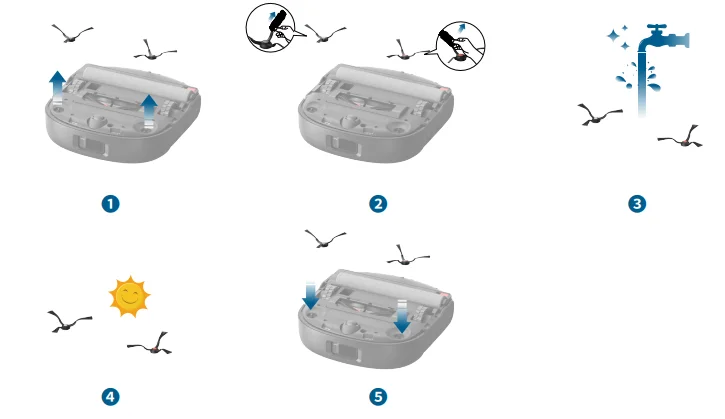
7.4 Clean the Side Brush
Foreign substances, such as hair, can easily get tangled in the side brush, so it is best to clean them regularly.
- Remove the side brush.
- Carefully unwind and pull off any hair or substances attached to the side brush.
- Clean the side brush with water.
- Air-dry the side brush before next use.
- Reinstall the side brush on the machine.

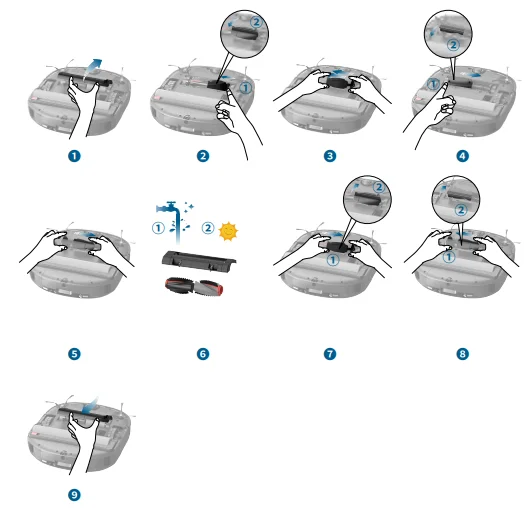
7.5 Clean the Rolling Brush
- Push the release tabs to unlock the brush guard.
- Push the side of one rolling brush inward and gently flip it up.
- Gently twist and pull out the rolling brush.
- Push the side of the other rolling brush inward and gently flip it up.
- Gently twist and pull out the other rolling brush.
- Rinse both rolling brushes and the brush guard with running water. Air-dry the rolling brushes and brush guard completely before next use.
- Reinstall one side of the rolling brush and snap it into place.
- Reinstall the other side of the rolling brush and snap it into place.
- Press down to snap the brush guard into place.

7.6 Clean the Sensors, Cameras, and Charging Pins
To maintain the best performance, clean the sensors and charging contact pins regularly.
- Dust off the sensors and charging contact pins using a soft cloth.

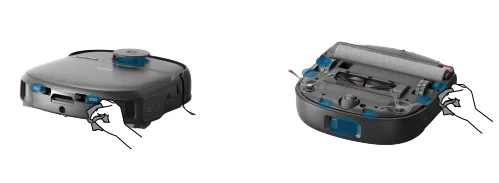
7.7 Clean the Scraper
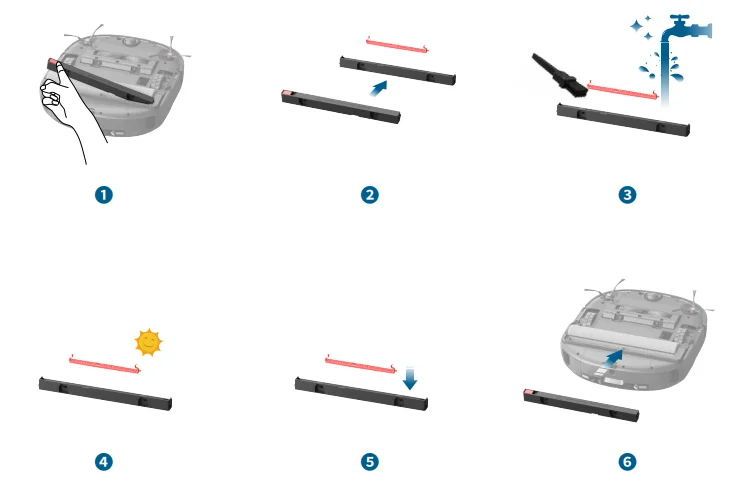
- Remove the scraper from the RoboVac.
- Detach the filter from the scraper.
- Rinse the filter thoroughly with water and clean the scraper with a brush.
- Air-dry the filter and scraper before next use.
- Reinstall the filter by clicking it into place.
- Reinstall the scraper.

7.8 Clean the Swivel Wheel
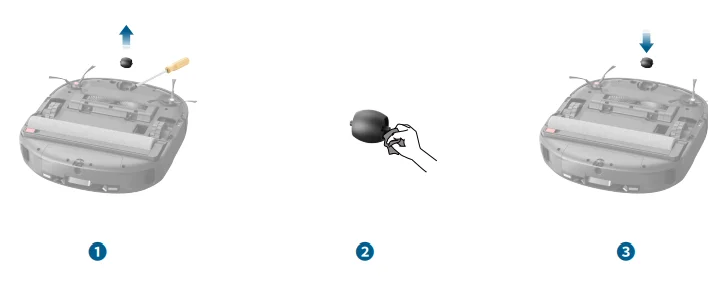
- Pry up the swivel wheel with a screwdriver.
- Clean any hair or debris wrapped around the wheel or entangled inside the wheel cavity.
- Reinstall the wheel by pressing it down.
- You will hear two “click” sounds when it is securely in place.

7.9 Replace the Dust Bag
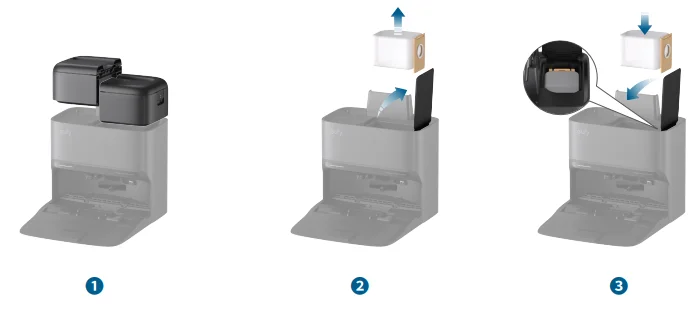
- Remove the clean water tank and dirty water tank.
- Open the cover of the dust bag container.
- Install a new dust bag. Ensure the dust bag is fully inserted, then close the cover.

7.10 Clean the Cleaning Tray
- Remove the cleaning tray from the Omni Station.
- Rinse the cleaning tray thoroughly with water and clean it with a brush.
- Air-dry the cleaning tray before next use.
- Gently tilt the cleaning tray inward and align it with the two clips inside.
- Press down firmly on both sides until it clicks into place.
- The LED indicator on the Omni Station will turn from red to white when it is successfully installed.

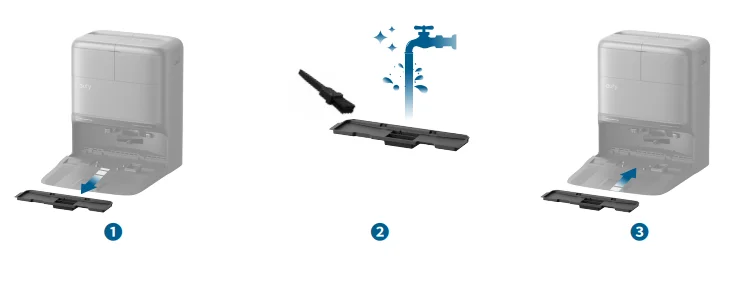
7.11 Clean the Dirty Water Tank
- Remove the dirty water tank from the Omni Station.
- Open and empty the dirty water tank.
- Rinse the dirty water tank thoroughly with running water.
- Close the dirty water tank cover.
- You will hear a “click” when it is securely in place.
- Reinstall the dirty water tank on the Omni Station.

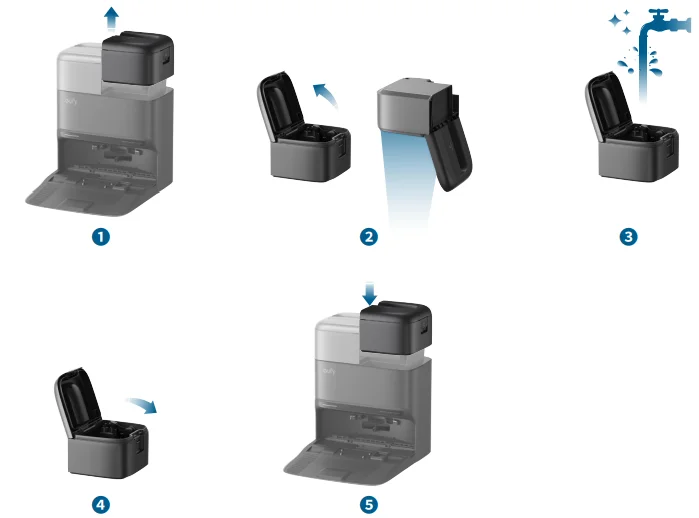
8. Troubleshooting
When an error occurs, please refer to the in-app instructions for solutions. If the problem persists, please contact [email protected] for help.
9. Specifications
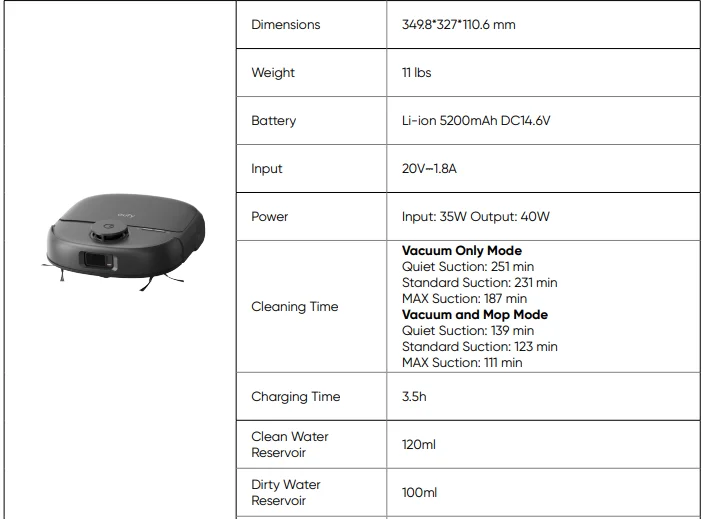
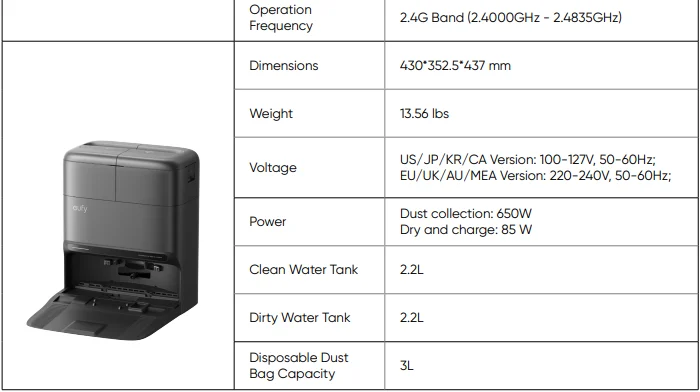
- The C28 Omni Station features a warm air drying function. When the ambient temperature is above 35 °C, the RoboVac will charge first; room-temperature air drying will be used until the RoboVac is fully charged.
- As voltages vary across different countries and regions, we recommend purchasing the machine version specific to your location to avoid potential safety hazards and equipment damage.
- Anker Innovations Limited declares that the radio equipment type T211A complies with Directive 2014/53/EU. The full text of the EU declaration of conformity is available at the following website: https://support.eufy.com/s/articleRecommend?type=DownLoad.
For More Manuals By Eufy, Visit ManualsLibraryy.
Eufy Omni C28 Robot Vacuum-FAQs
How long do Eufy robot vacuums last?
Eufy robot vacuums typically last between one and two years with regular use, though lifespan can vary depending on maintenance, cleaning frequency, and floor type. Replacing consumables like filters and brushes on time and keeping sensors clean can extend usability. Battery health also plays a major role, and performance may gradually decline after extended daily use.
Is the Eufy Omni C28 a good robot vacuum?
The Eufy Omni C28 is designed as a hands-free cleaning solution with automatic features that reduce manual effort. It generally performs well on hard floors and low-pile carpets, offering reliable suction and smart navigation. It is best suited for users who want convenience and automated maintenance without stepping into the ultra-premium price tier.
Can the battery in an Eufy Omni C28 be replaced?
Yes, Eufy robot vacuum batteries are usually replaceable, including models in the Omni lineup. Over time, lithium-ion batteries lose capacity, leading to shorter runtimes. Replacing the battery can restore performance and extend the vacuum’s overall lifespan. It’s recommended to use official or compatible high-quality replacements to ensure safety and proper functioning.
How does the Eufy Omni C28 compare to Dreame robot vacuums?
When compared to Dreame models in a similar category, Eufy robot vacuums often focus on simplicity and ease of maintenance. Dreame units may offer more advanced mopping systems in certain models, while Eufy typically emphasizes dependable debris pickup and user-friendly operation. The better option depends on whether you prioritize mopping performance or balanced everyday cleaning.
Is Eufy better than Shark robot vacuums?
Eufy robot vacuums often require fewer replacement parts and may offer longer runtimes per charge, making them cost-effective over time. Shark models, on the other hand, can excel at maneuvering and may handle certain carpet types more aggressively. The choice depends on your flooring type, budget, and preference for maintenance costs.
What are the common problems with Eufy robot vacuums?
Common issues include navigation errors, difficulty docking, reduced suction due to clogged filters, and battery degradation over time. Most problems are maintenance-related and can be resolved by cleaning sensors, emptying the dustbin regularly, and replacing worn components. Software updates and proper setup also help minimize connectivity or mapping issues.
What are the negatives of robot vacuums like the Eufy Omni C28?
Robot vacuums may struggle with high-pile carpets, cluttered spaces, or very dark flooring that interferes with sensors. They also require routine upkeep, such as cleaning brushes and replacing filters. While convenient, they may not fully replace a traditional upright vacuum for deep cleaning, especially in homes with heavy debris or thick carpeting.
Which Eufy robot vacuum series is best?
The best Eufy series depends on your needs. Omni models are ideal for users wanting automated emptying and mopping features. X-series models are often suited for stronger suction and pet hair management, while entry-level RoboVac models focus on affordability and simplicity. Your floor type and desired level of automation should guide your choice.
Is the Eufy Omni C28 good for pet hair?
The Eufy Omni C28 can handle pet hair effectively on hard floors and low-pile carpets thanks to its suction power and brush system. However, regular maintenance is important to prevent hair from tangling around the roller. Homes with multiple shedding pets may still require occasional manual deep cleaning for best results.
Is Eufy a reliable brand for robot vacuums?
Eufy is generally considered a reliable brand known for practical features, competitive pricing, and user-friendly designs. The company focuses on delivering value without excessive complexity. While premium brands may offer cutting-edge features, Eufy strikes a balance between performance, convenience, and affordability, making it a popular choice for everyday home cleaning.