
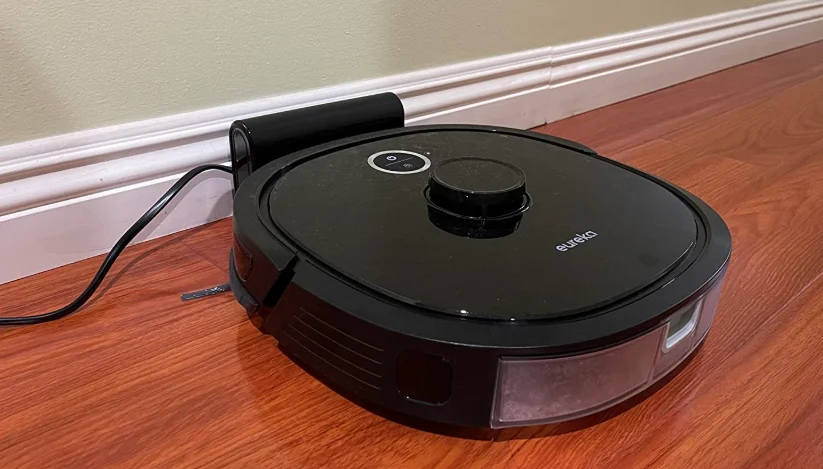

Eureka NER650 Robotic Vacuum Cleaner
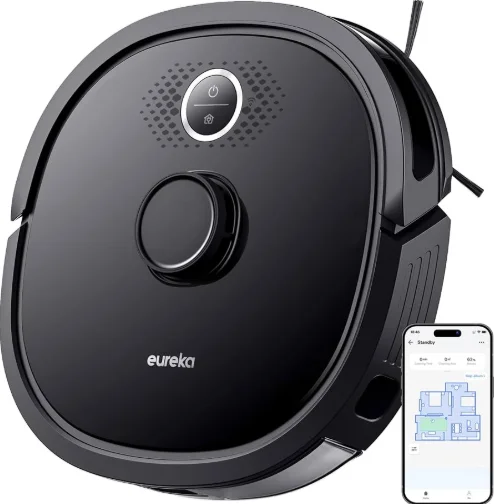
TECHNICAL DATA
- Product Model: NER650
- Host Charging Voltage: 16.7 V
- Host Rated Voltage: 14.4 V
- Host Rated Power: 55 W
- Docking Station Model: DC2106
- Docking Station Input: 100-240V~, 50-60Hz, 24W
- Docking Station Output: 16.7V, 1A
- Battery Model: BP14433A
- Battery Rated Voltage: 14.4V
- Battery Capacity: 3350mAh 48.24Wh
- Charging Limit Voltage: 16.8V
- Midea America Corp 300 Kimball Drive
- Parsippany, NJ 07054, U.S.A
Parts and Components
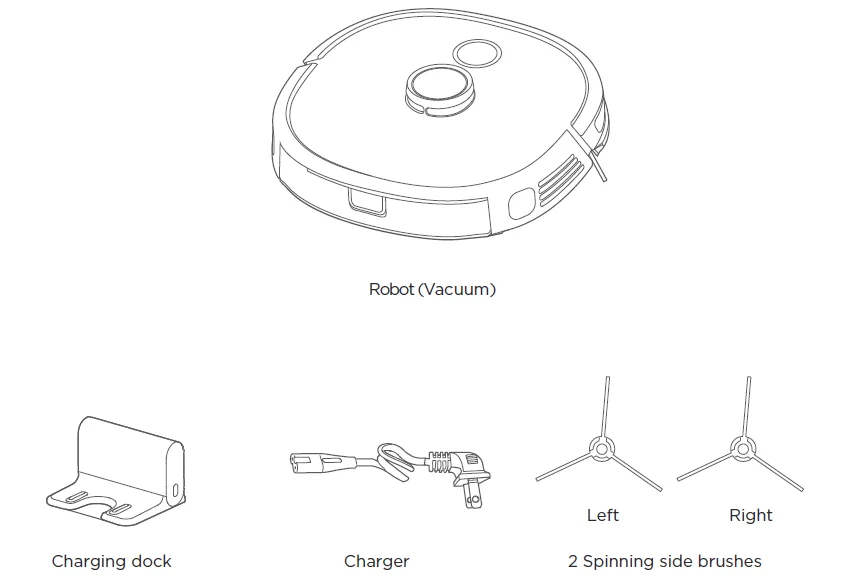
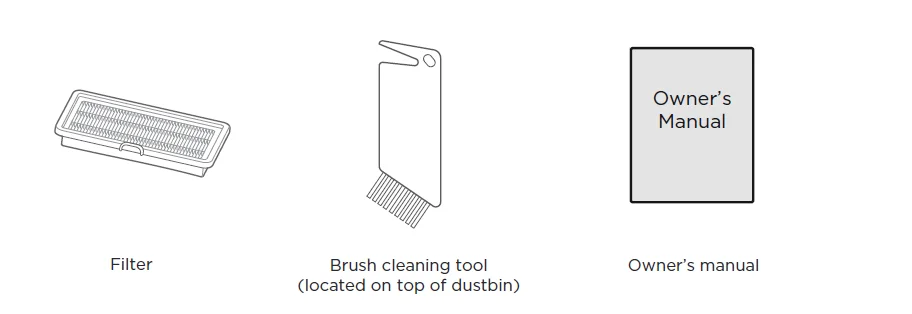
What comes in the box

How to identify parts of your robot
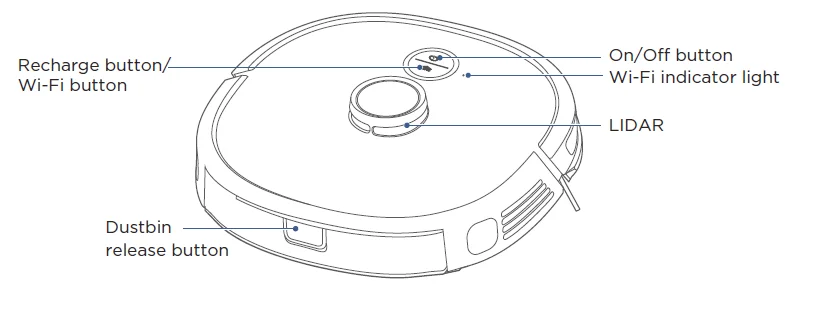
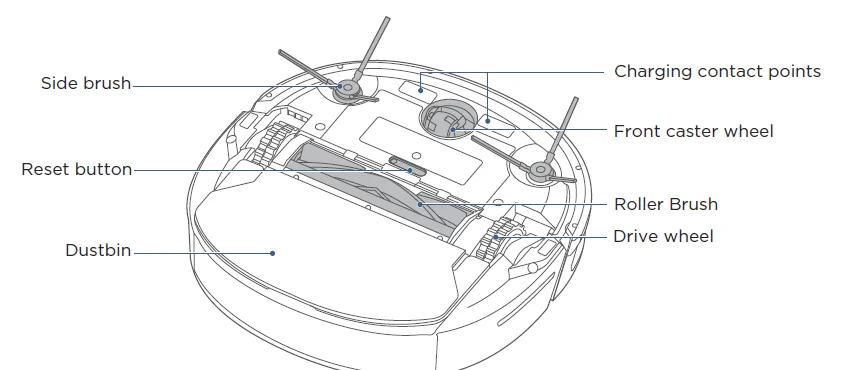
Buttons on Robot
- Press the power button for 1 second to turn the robot on.
- When the robot is on, the power button will be lit up.
- When the robot is on, to start the robot cleaning, press the power button.
- When the robot is running, press the power button to pause it.
- To fully turn off the power, press and hold the power button for 3 seconds; the power indicator begins to flash. The cleaner makes a chord sound, and when the power indicator turns off, the robot shuts down successfully.
Quick Assembly
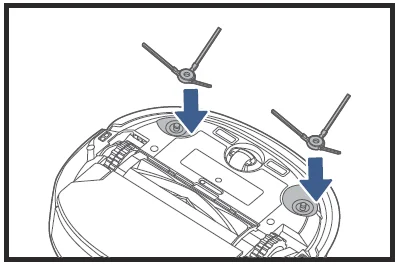
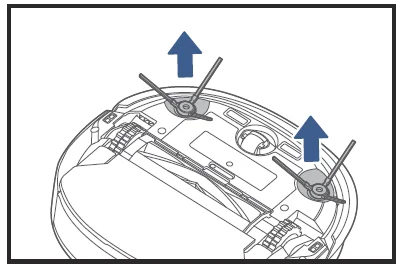
Installation of side brushes
- Attach the correct colour side brush to the matching post and push down until you hear it click into place.

- To remove the side brushes for maintenance, place the robot on a flat surface with the bottom facing up. Use two hands to carefully pull up on the rubber legs of the side brush and remove any caught hair or debris.

Filter installation
The robot comes with a filter installed. Before use, ensure the filter is securely in place. If not, remove the dustbin from the robot, pull up the lid of the dustbin, and make sure the filter is snapped into place. Ensure the dustbin lid and bottom latch are securely closed and place the dustbin back onto the robot.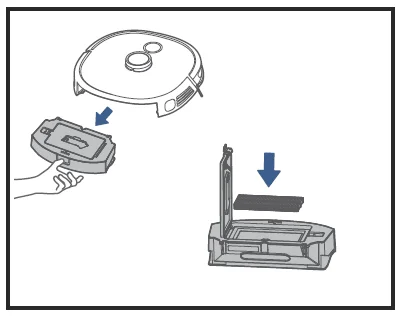
Setting up the charging dock
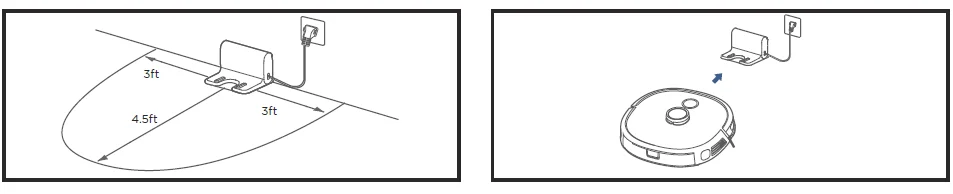
- Place the back of the charging dock flush against a wall and ensure there are at least 3 feet of free space along the wall on either side and 4.5 feet of free space in front of the dock so the robot is not blocked.
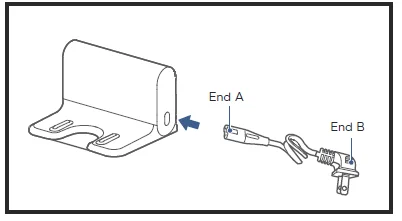
- Connect the end of the charger into the port on the lower right side of the dock, ensuring that it is securely attached. Then plug the other end of the charger into a power outlet.

Charging
NOTES
- Ensure that the charging dock is located in an area covered by a Wi-Fi signal.
- Do not place the charging dock in direct sunlight.
- The charging dock should be placed on a hard floor; do not place it on a carpeted area.
- Regularly dust off the charging dock to keep the charging contacts and the front panel clean, so they operate properly.
- Secure the excess power cord to prevent the robot from dragging the charging dock.
- Keep the charging area dry.
- Place the robot on the charger and ensure that the metal charging contacts on the bottom of the robot and those on the charging dock are touching. When the charging contacts are correctly lined up, the robot will make an audible beep, and the power light will illuminate.
- The white light on the power button will blink while the robot is charging and will turn to a solid white light once the robot is fully charged.
- Before initial use, fully charge the robot for at least 4 hours.
NOTES
When the battery power reaches less than 20% the robot will shut off the suction power and automatically return to the charging dock. The robot may occasionally back up off the charger and then go forward back onto the charger to realign itself if a better connection is needed with the metal charging contacts.
Please note the robot will arrive with a partially charged battery. If you start using it before fully charging the battery, the cleaning cycle will be shorter than normal, as it will return to the dock to recharge when it reaches 20% battery power.
To effectively extend the battery life, you should:
- For the first use, please charge for at least 4 hours.
- When the battery is low, please charge it as soon as possible.
- If you do not use the appliance for an extended period of time, fully charge the battery and store it in a well-ventilated and dry place.
- If the appliance is not used for more than 3 months, charge the appliance for 12 hours.
Initial mapping of your home
- Before use, clear the cleaning area of power cords, pull cords for curtains or blinds, clothing, large debris, and fragile items that the robot may get caught in. Do not operate in a room with lit candles or a lit fireplace. Clean up any liquids before use. Also, be sure to turn on lights in all parts of the house you want the robot to map; if it is too dark, the robot may not enter those zones to map.
- The first use of the robot is a mapping mission so that it can create a map that you can edit, use to create specific cleaning schedules, and set up cleaning zones and no-go zones. Please note that while the robot is on its initial mapping mission, it will not be cleaning; it will just be exploring. Also, during the initial mapping, the robot may bump into furniture, walls, and objects as it learns your house; do not be alarmed. As the robot goes out on more cleaning runs, it will continue to improve its mapping of your house.
- It is recommended to regularly monitor the robot during its initial mapping mission to assist if it gets stuck or runs into issues. If it gets stuck, simply pick it up, move it away from the obstacle, and remove obstacles if necessary. Place it back on the ground and press the start button on the robot for it to resume mapping.
- Once the robot has completed its mapping mission, you can create cleaning zones if you would like to set up cleaning in special areas, such as high traffic spots, add no-go zones, and set cleaning schedules that correspond to the specific areas in your house.
How to use your robot
Startup methods
- In normal operation, it is recommended that cleaning be started using the app or the power button while the robot is on the charging dock.
- To power on the robot, press
 the button for 3 seconds. The power indicator light will flash, and the robot will make a chord sound. The lit power indicator shows that the robot is in standby mode.
 the button for 3 seconds. The power indicator light will flash, and the robot will make a chord sound. The lit power indicator shows that the robot is in standby mode.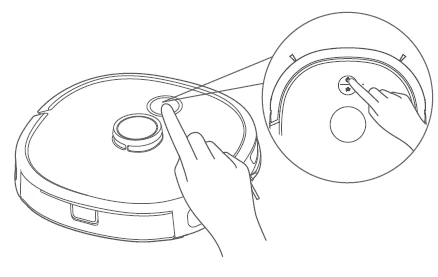
Start the cleaning
- When the robot is in standby mode, briefly press
 the button for 1 second, and it will start to clean the whole room.
Pause the cleaning
- During the cleaning, briefly press
 the button for 1 second, and the robot will pause the cleaning and enter its standby status.
Return to charge
- After completion of the cleaning, the robot will enter its return-to-charge status.
- If return-to-charge is required during the cleaning, proceed as follows:
- When the robot is in standby, briefly press
 the button for 1 second, and the robot will start to return to charge.
 - During the cleaning, briefly press
 the button for 1 second, and the robot will pause the cleaning. Press
 the button for another 1 second, and the robot will start to return to charge.
 - The robot may not be able to return to the charging dock in some situations, for example, if the battery charge level is too low or the robot has become stuck. In these situations, place the robot on the charging dock manually.
 the button for 1 second, and the robot will start to return to charge.
Troubleshooting
- When the robot detects an error, the return-to-charge indicator turns red. Please fix the issue, then briefly press the button for 1 second to return the robot to standby mode.
- Place the robot on the floor, then briefly press the button for 1 second to restart cleaning.
- After completion of the cleaning, the robot will automatically return to charge. It is recommended that the robot be kept in the charging dock.
Shutdown
- If the robot will not be used for a long time and needs to be shut down, long-press
 the button for 3 seconds, and the power indicator begins to flash.
 - The robot makes a sound, and when the power indicator turns off, the robot shuts down successfully.
- The robot cannot fully shut down when it is on the charging dock. If you want to shut down the robot, you must remove it from the charging dock.
NOTES
- The robot will not start cleaning when the battery charge level is too low. Please charge the robot on the charging dock before starting to clean.
- During cleaning, the robot will automatically return to the charge dock when the battery charge level is too low.
- The robot will return to the same position to resume cleaning after the battery is fully charged.
- The robot will enter sleep mode after being in standby mode for more than 10 minutes. When in sleep mode, pressing any key will wake up the robot.
- The power indicator flashes to signal that the battery is charging and is on continuously when the battery is fully charged.
Setting Up the App and Connecting to Wi-Fi
- In the App Store or Google Play, search for Eureka Robot, download, and install the app.
- Open the Eureka app and complete the registration process, which includes an email address confirmation, and once you have confirmed your email address, you can log in and follow the setup instructions in the app.
- Connect your phone to your home Wi-Fi network.
- In the app, select Add Devices and choose Robot NER650.
- Connect your robot to your Wi-Fi.
- After assembling and powering on the robot, press and hold down the button for 3 seconds until a beep is heard. The Wi-Fi indicator light should start to flicker. Follow instructions in the app for next steps.
NOTES
- The app supports iOS versions 10.0 and above and Android versions 6.0 and above. The app is not available for use with tablets.
- This model does not support a WEP-encrypted router.
- The home Wi-Fi name and password must contain only letters, numbers, and standard symbols.
- The network access configuration of the robot requires a Wi-Fi network in the 2.4GHz frequency range.
- The robot must be connected to Wi-Fi to enable controlling the robot using the app. Once you have set up the app and connected the robot to Wi-Fi, the app can be used to control the robot in Wi-Fi/2G/3G/4G/5G network environments.
- If your home Wi-Fi password is changed or the router is replaced, the robot will show as offline in the app; you will need to reconnect the robot to Wi-Fi following the Wi-Fi connection instructions.
Using the Eureka Robot App
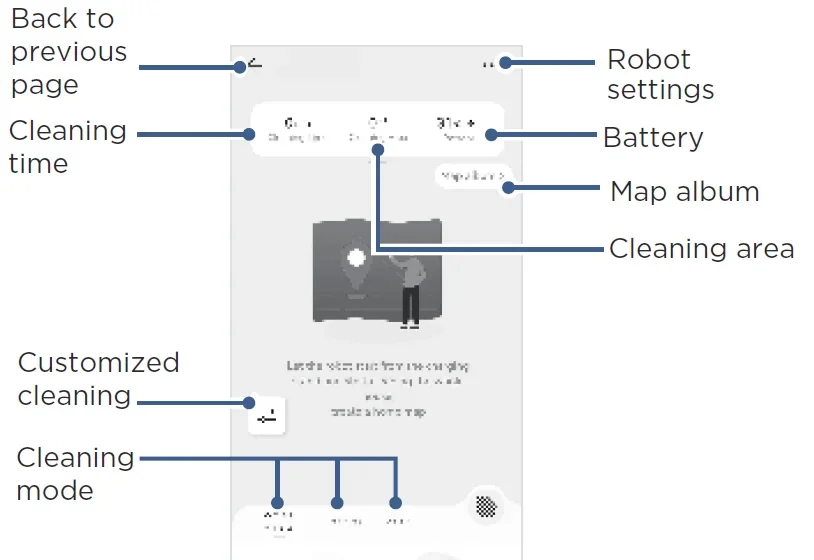
NOTES
If the Wi-Fi in your home is unstable, it may cause issues with the operation of the Eureka Robot App. The content of the Eureka Robot App may change when the version is updated. Please refer to the Eureka Robot interface for details.
Using Amazon Alexa or Google Home
Amazon Alexa
- Open the Amazon Alexa App.
- Select Skills & Games and search for Eureka Robot and select.
- Enable the Eureka Robot skill.
- Your Eureka Robot app will then open, and you will log in using your Eureka Robot app credentials.
- The Eureka Robot skill and the app should now be successfully linked, and this will be indicated on the Amazon Alexa app.
- You can now use the following commands to control the robot:
- “Alexa, tell Eureka robot to start cleaning.”
- “Alexa, tell Eureka robot to stop cleaning.”
- “Alexa, tell Eureka robot to go home.”
Google Home
- Open the Google Home App.
- Search for Eureka Robot and select.
- Link Eureka Robot skill.
- Your Eureka Robot app will then open, and you will log in using your Eureka Robot app credentials.
- The Eureka Robot skill and the app should now be successfully linked.
- You can now use the following commands to control the robot:
- “Ask Eureka robot to start cleaning.”
- “Ask Eureka robot to stop cleaning.”
- “Ask Eureka robot to go home.”
How to maintain your robot
Dustbin maintenance (weekly cleaning recommended)
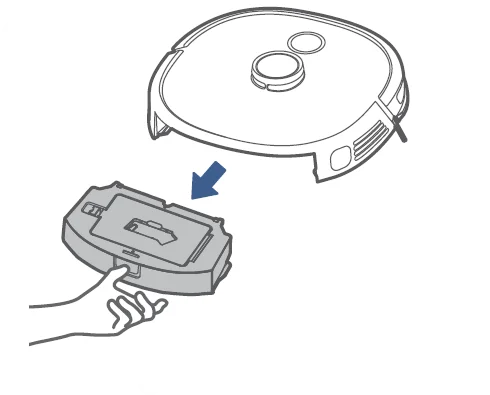
- Press the dustbin release button to pull out the dustbin backwards.

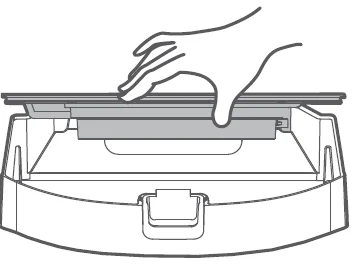
- Open the top cover of the dustbin to pour out dust from the dust.

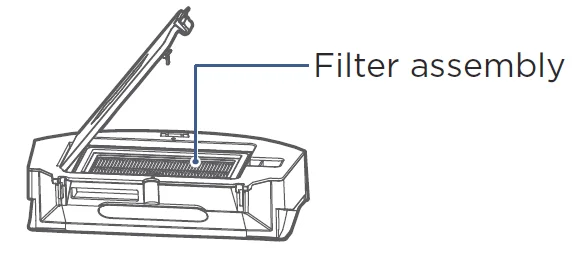
- Remove the filter assembly from the dustbin.

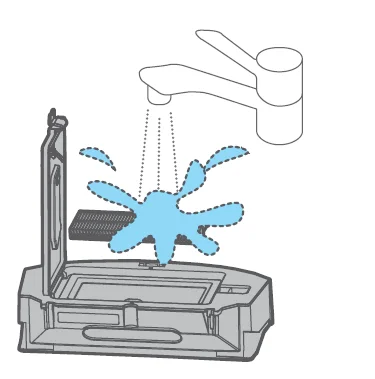
- Wipe clean the dustbin and tap clean the filter assembly, then reinstall them in the robot. If the filter is excessively dirty, it may be washed under a tap, then left to dry completely before reinstallation in the robot. Ensure that the filter and dustbin are installed correctly and the robot’s cover is completely closed.

The Eureka two-year limited warranty
Midea America Corp. (Eureka), subject to the terms and conditions herein, warrants this vacuum cleaner to be free from defects in material and workmanship for a term of two years from the date of original purchase when used in accordance with the Eureka operating and maintenance instructions and under normal household usage. This warranty is granted only to the original purchaser and members of the immediate household and applies only to original purchases from Eureka authorised resellers.
What will Eureka do:
Eureka will, at its option, repair or replace a defective vacuum or vacuum part that is covered by this warranty. Repairs may be performed using new or refurbished parts that meet or exceed Eureka specifications for new parts. If Eureka elects to replace the vacuum, the replacement may be a reconditioned unit. Depending on the availability of products, Eureka reserves the right to provide you with a replacement product that is the same or similar, or a substitute equivalent of the original product. As a matter of warranty policy, Eureka will not refund the consumer’s purchase price.
This warranty doesn’t cover
- Battery module and battery components: The battery module and its components are covered by a separate one-year limited battery warranty.
- Normal wear and tear of the vacuum and vacuum parts that require replacement under normal use, such as disposable dust bags, filters, drive belts, light bulbs, brush-roll, bristles, impellers, and cleaning.
- Damages or malfunctions resulting from improper or unreasonable use or maintenance, abuse, negligence, failure to follow instructions contained in any written materials that accompany the product, deterioration by reason of excess moisture, corrosive atmosphere, lightning, power surges, connections to improper voltage supply, unauthorized alteration, or other external causes such as extremes in temperature or humidity, modifications, scratches or discoloration, accidents, misuse, or acts of God. This warranty also does not cover damage resulting from repair or attempted repair by anyone other than Eureka or an authorised Eureka Warranty Station. This warranty does not apply to any product that has been altered or on which the serial number has been defaced, modified, or removed. Altering, erasing, or forging any proof-of-purchase documents voids any applicable product warranty.
Obtaining warranty service:
To obtain warranty service, you must contact the Eureka Service Team, toll-free, at 1-800-282-2886 or email [email protected] to discuss the warranty claim and procedures to be followed. All warranty claims must include the submission of proof-of-purchase documentation. For additional information, you may also visit www.eureka.com.
Shipping charges:
You will be responsible for any initial shipping and insurance charges if the defective product must be shipped for warranty service or warranty evaluation; however, Eureka or an Eureka Authorised Warranty Station will pay the return shipping charges if repairs are covered by the warranty. When returning parts for repair, you must include the model, type, and serial number located on the rating plate. If any product submitted for warranty service is found to be ineligible, an estimate of repair cost will be furnished, and the repair performed only if requested by the owner and upon receipt of payment or acceptable arrangements for payment.
Any warranty that may be implied in connection with your purchase or use of the vacuum, including any warranty of merchantability or any warranty of fitness for a particular purpose, is limited to the duration of this limited warranty. Some states do not allow limitations on how long an implied warranty lasts, so the above limitations may not apply to you.
Further limitations and exclusions:
Your relief for the breach of this warranty is limited to the relief expressly provided above. In no event shall the manufacturer be liable for any consequential or incidental damages you may incur in connection with your purchase or use of the vacuum. Some states do not allow the exclusion or limitation of incidental or consequential damages, so the above limitation or exclusion may not apply to you. This warranty gives you specific legal rights. You may also have other rights, which may vary by state.
For More Manuals By Eureka, Visit ManualsLibraryy
Eureka NER650 Robotic Vacuum Cleaner -FAQS
How do I set up the Eureka NER650 robot vacuum for the first time?
Place the charging dock against a wall, remove all packing materials, and charge the robot for at least 3 hours. Once fully charged, press the Power/Clean button or connect it to the app if supported.
How do I operate the Eureka NER650 vacuum?
You can start, pause, or send the robot back to the dock using the top buttons. If using the app, you can set schedules, choose cleaning modes, or check battery status.
How do I know if my Eureka robot vacuum is charging?
When charging, the indicator light blinks continuously. If it blinks once and stops, the battery is already fully charged.
How do I know when the robot vacuum is fully charged?
The charging light stops flashing and becomes steady (or turns off on some models) once the robot reaches full charge.
How long does the Eureka NER650 battery take to charge?
The NER650 typically runs for about 30–60 minutes per session based on floor type and cleaning mode.
How long does the battery last during cleaning?
The NER650 typically runs for about 30–60 minutes per session based on floor type and cleaning mode.
Can I use the Eureka robot vacuum without the app?
Yes. You can start, stop, or recharge the robot using the on-board buttons even without a smartphone.
Why is my Eureka vacuum beeping while charging?
Beeping usually indicates charging issues such as dirty contacts, misalignment with the dock, or a weak battery.
How often should I run my robot vacuum?
For homes with pets or heavy dust, daily cleaning is ideal. For low-dust homes, 2–3 times per week is enough.