
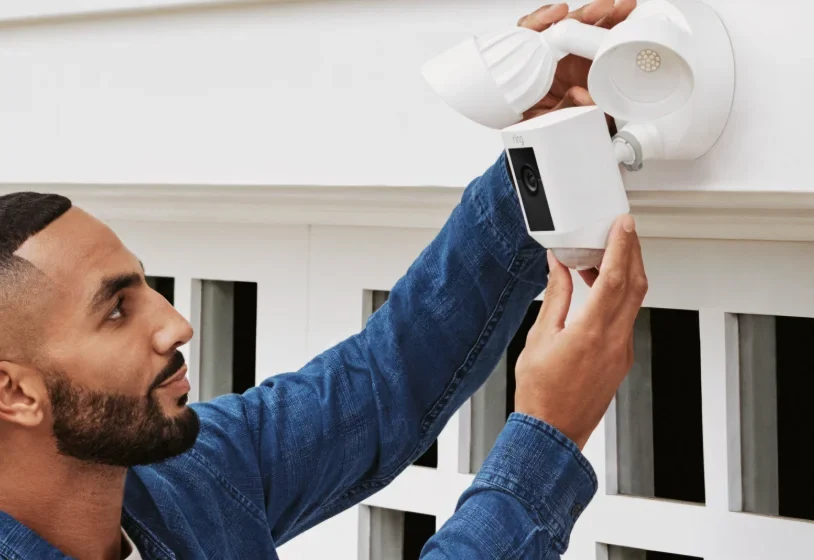

Floodlight Cam
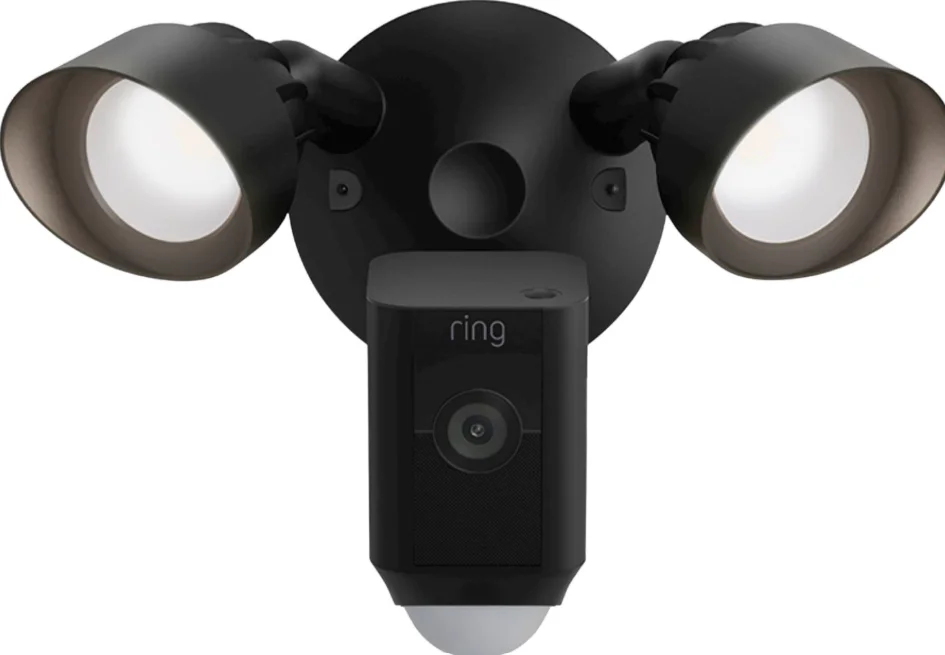
Smart Security at Every Corner of Your Home
Your new Ring Floodlight Cam lets you extend the Ring of Security around your entire property. Now, you’ll always be the first to know when someone’s in your yard, and you can watch over your home from anywhere. Monitor your home, prevent crime, and protect your property – all from your phone, tablet,or PC.
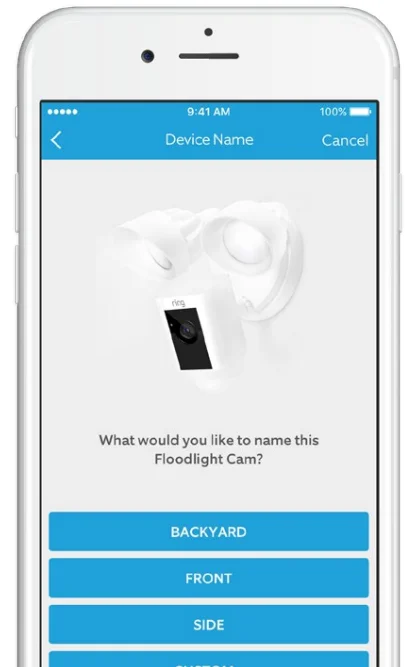
This manual is for informational purposes only. Working with electricity can be dangerous unless proper safety precautions are taken. If you are not comfortable or are inexperienced with the processes and tools described in this manual, we recommend that you hire a licensed electrician. If you are outside of North America, installation and wiring must be performed by a licensed electrician.
Before you begin
Check out all the stuff in the box.
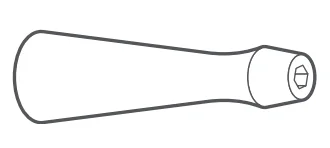
 Screwdriver
Use the screwdriver handle to tighten the cap nuts.
- Phillips Bit
Use the Phillips bit for installing the mounting bracket.
- Mounting Bracket
Use this bracket to attach to your junction box to secure your Floodlight Cam.
- Bag o’ Screws
Find the right ones to attach the mounting bracket to your junction box without running to the hardware store.
- Wire Nuts (3)
Use these to connect Floodlight Cam’s wires to your existing wires.
- Screw Cap Nuts (3)
Use these to secure your Floodlight Cam to the posts on the mounting bracket to complete the installation.
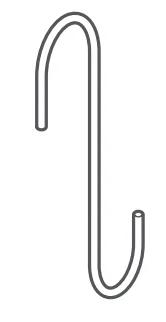
- Hook
Hang your Floodlight Cam while connecting the wires.
 Screwdriver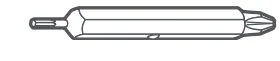
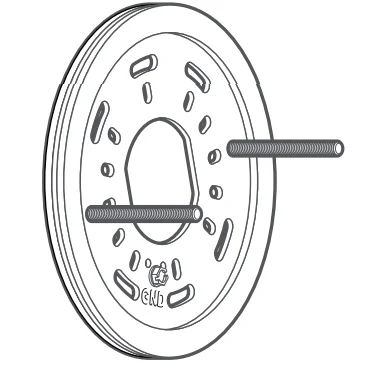
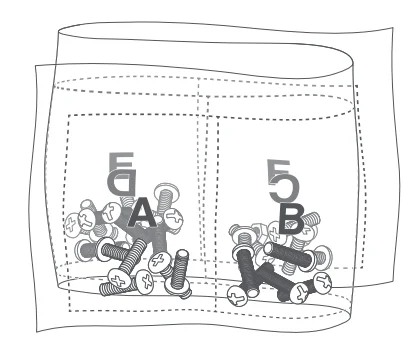
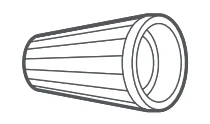

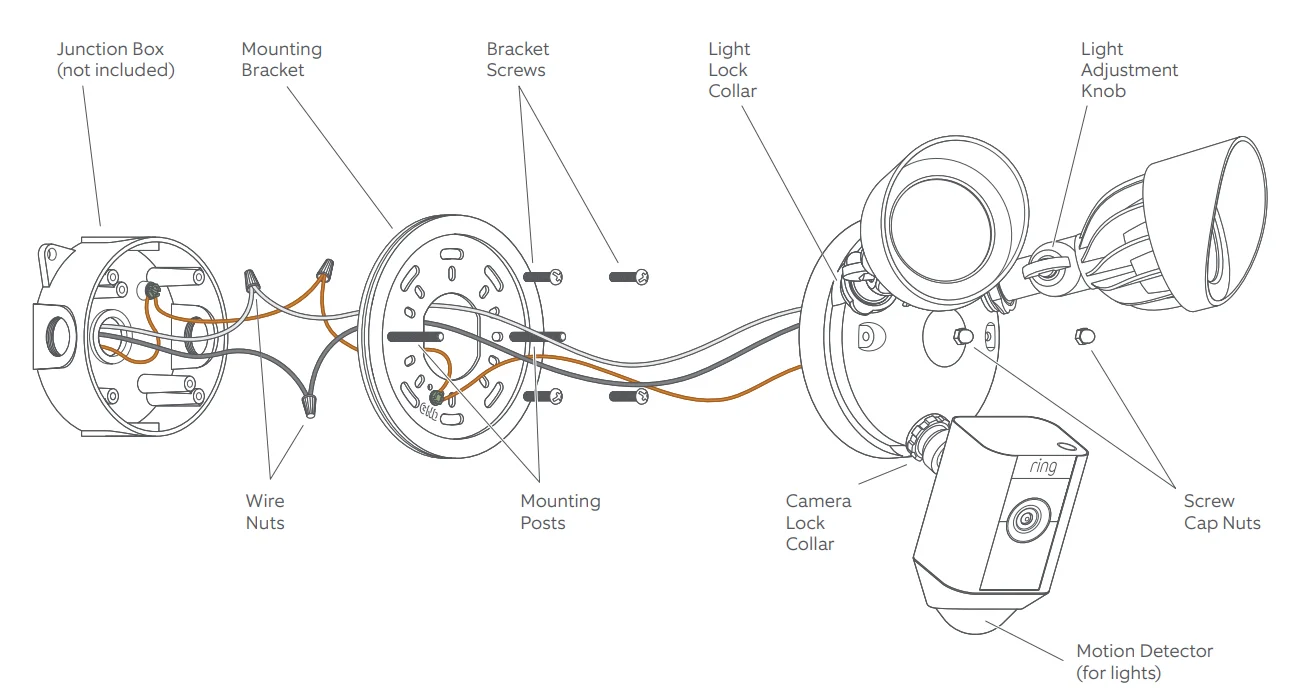
How it all fits together
How installation height affects motion detection
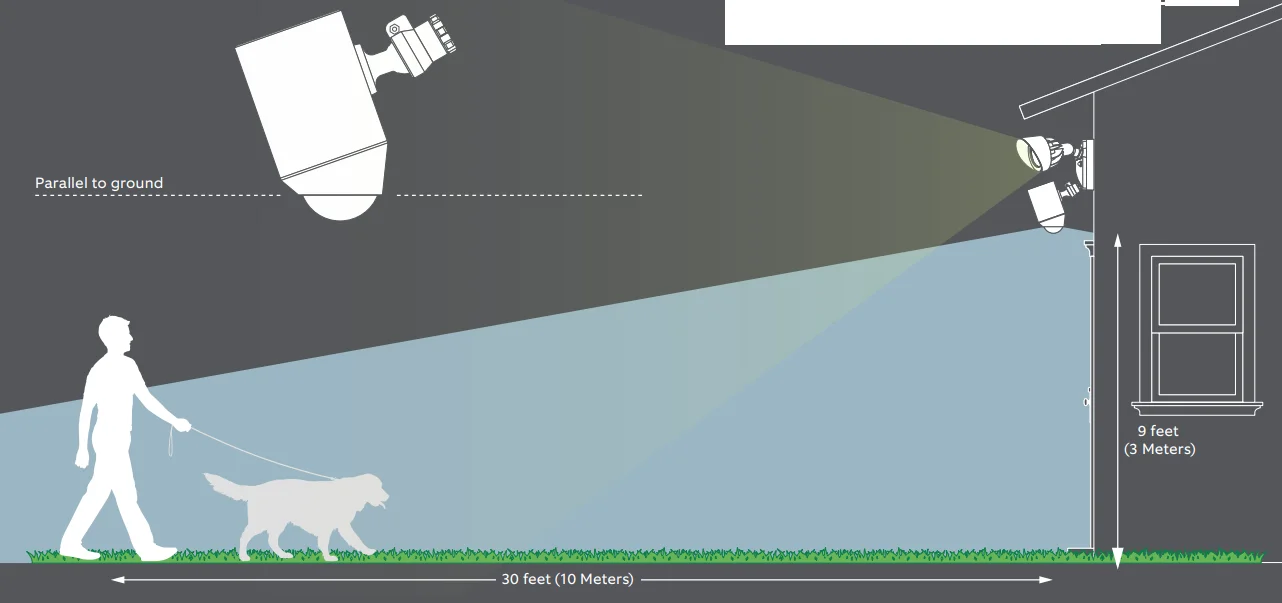
When mounted at 9 feet off the ground, with the motion detector parallel to the ground, the motion sensor is optimized to detect human-sized objects at up to 30 feet.
Shut the power off at the breaker
If you don’t know where your breaker is or how to turn off power to your floodlight circuit, consult with a licensed electrician.
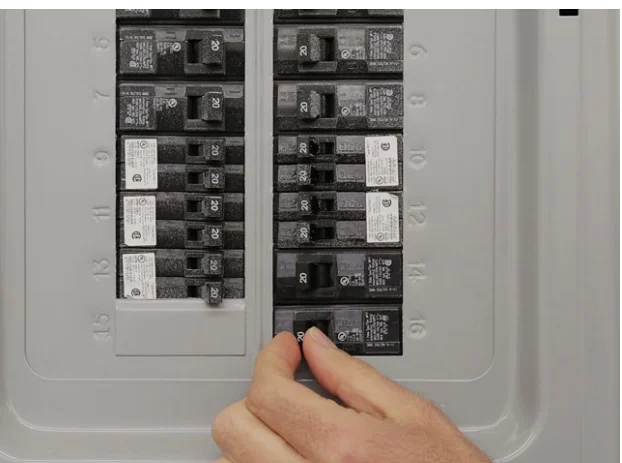
WARNING: Risk of electrical shock.

- Disconnect power at the fuse or circuit breaker before installing.
- Verify that the supply voltage is correct. Connect the fixture to a 100 VAC~240 VAC 50/60 Hz power source.
- Properly ground fixture.
- Always follow code standards when installing wired connections.
- If you are outside of North America, installation and wiring must be performed by a licensed electrician.
CAUTION: Risk of fire - Do not install near combustible or flammable surfaces.
NOTICE - Do not connect this light fixture to a dimmer switch or timer.
- Floodlight Cam must be installed on a wall and on a UL-listed junction box.
Prep your Floodlight Cam for installation
- A. Loosen the knobs on the light fixtures to rotate them out of the way and allow access to the mounting screws.

- B. Rotate the camera 180 degrees since the Floodlight Cam ships with the camera upside down on the fixture.

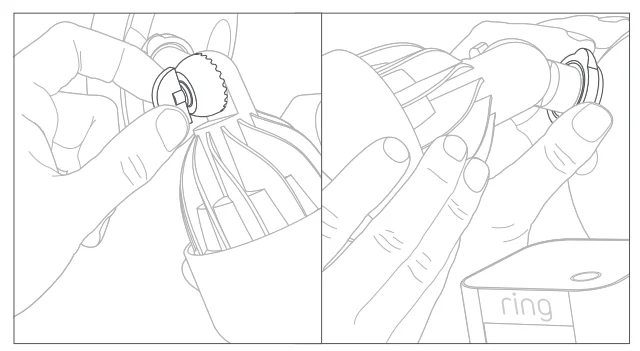
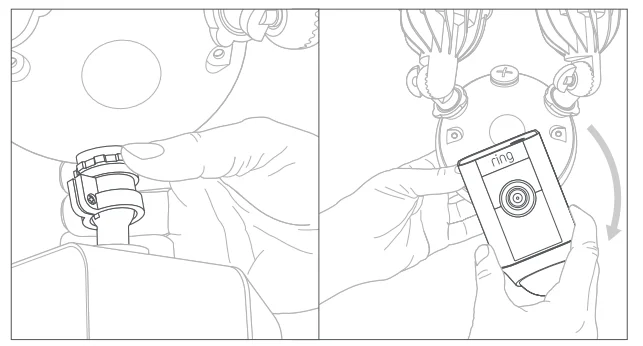
Do not remove your Floodlight Cam from the ball socket on the base.
Remove your existing floodlight
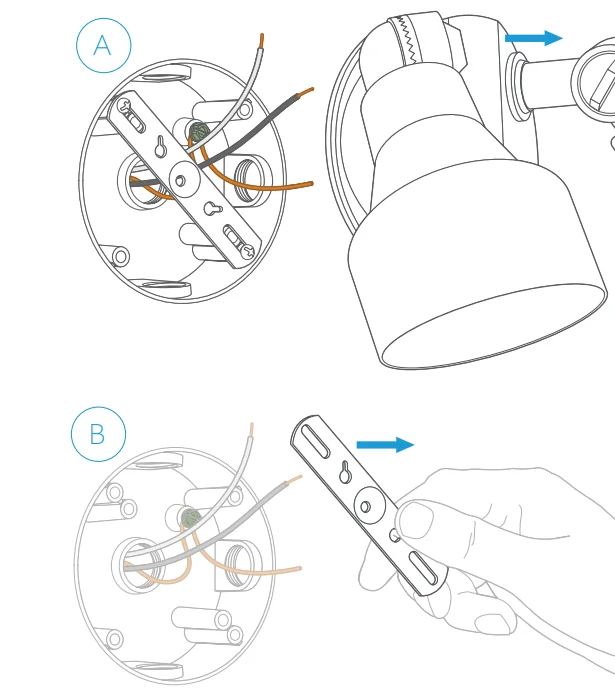
- A. With power off at the breaker, remove your existing floodlight from the junction box it’s attached to and disconnect the wires.
- B. If there is a bracket attached to your junction box, remove that as well. Inspect your junction box to make sure water cannot get into it.
Install the mounting bracket
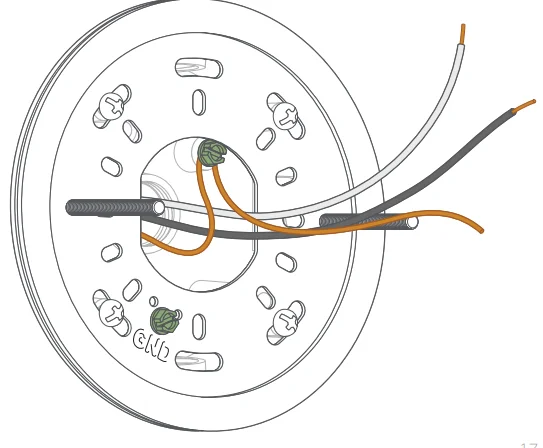
Install the mounting bracket on your wall with the two posts level with the ground.
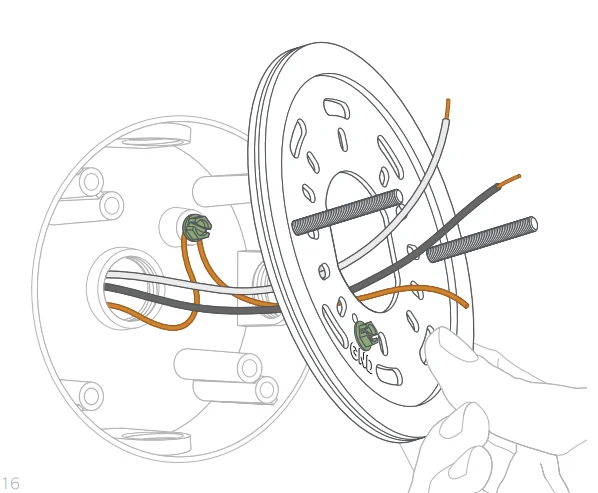
Make sure your existing wires come through the middle of the bracket. Attach the bracket to your junction box using at least two screws.
Hang Floodlight Cam
Use the provided hook to hang Floodlight Cam from the bracket while connecting the wires.
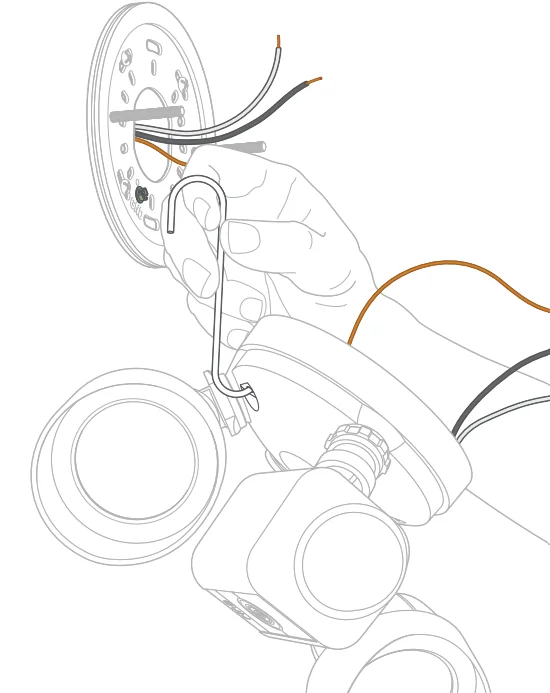
- A Hook one end of the provided hook into one of the mounting holes on your Floodlight Cam.
- B Hook the other end into one of the holes in the bracket.
Connect the ground wire
The copper wire from Floodlight Cam is a ground. Connect the ground wire to the green ground screw on the bracket and the existing ground wire inside your junction box. Use one of the supplied wire nuts
if necessary.
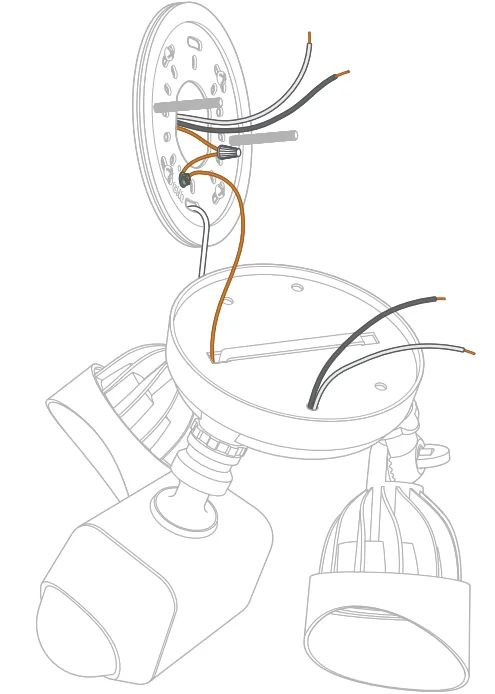
For safety and the proper operation of your Ring Floodlight Cam, the fixture must be properly grounded. If you’re not familiar with the methods for properly grounding this type of fixture, consult a
licensed electrician.
Connect the power wires
The white wire on Floodlight Cam is a neutral wire. Use a wire nut to connect this wire to the white (or neutral) wire coming out of your junction box. The black wire from Floodlight Cam is a hot wire. Connect this
wire to the black (or hot) wire coming out of your junction box using another wire nut.
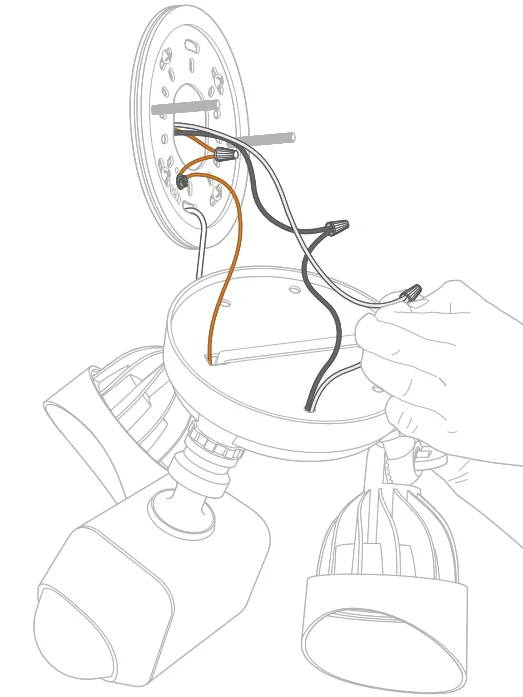
If you don’t have clearly colored black and white wires coming out of your junction box, consult with a licensed electrician.
Place Floodlight Cam on the bracket
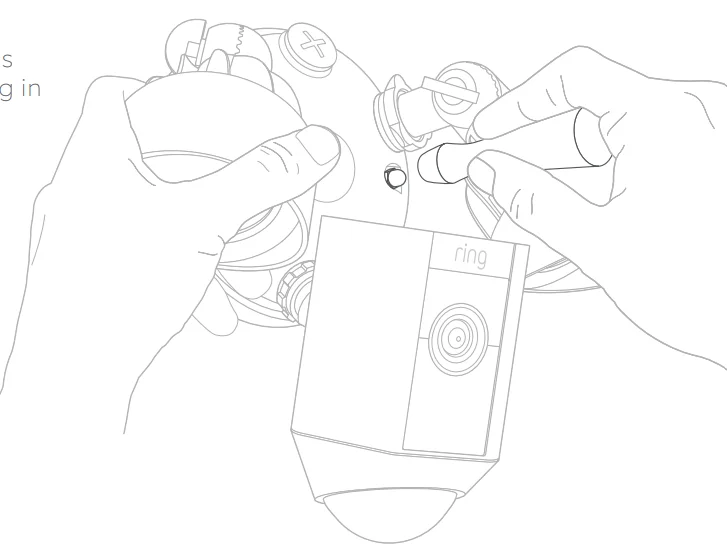
Carefully push all the wires through the large opening in the bracket. Align the mounting posts with the holes on Floodlight Cam and press together, securing the screw cap nuts with the orange screwdriver handle.
Restore power at the breaker
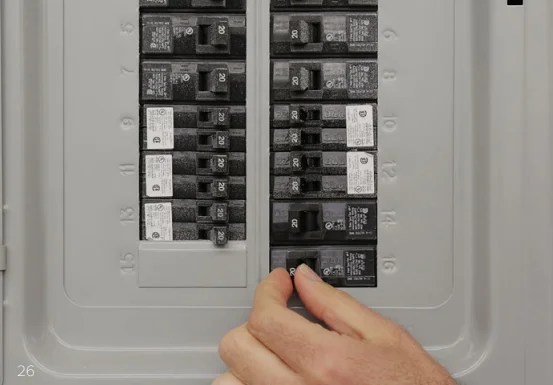
After restoring power, the lights will turn on and your Floodlight Cam will begin speaking to you to let you know it’s in setup mode.
Perform the in-app setup
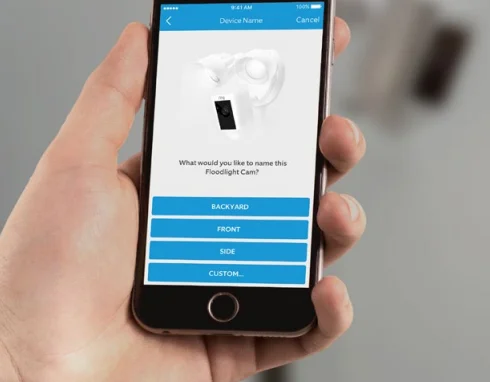
In the Ring app, select Set Up a Device and follow the in-app instructions to connect Floodlight Cam to your Wi-Fi network.
After setup, select your Floodlight Cam in the Ring app
This will bring you to the Device Dashboard, where you can change settings and access various features.
- Manually control the lights.

- Toggle notifications for activity in any of the camera’s motion zones.

- Trigger the siren. It is loud and may be heard by your neighbors. Use it with care.


Select Live View to open a live video stream
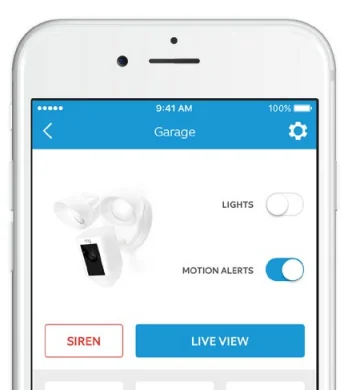
During live video, you can access these features:
 Two-way Talk – Speak to visitors and hear what they have to say.
 Siren – Activate the siren.
 Lights – Turn the lights on and off.
 Ring Neighborhoods – Share suspicious events with your neighbors.
 Two-way Talk – Speak to visitors and hear what they have to say.
 Siren – Activate the siren.
 Lights – Turn the lights on and off.
 Ring Neighborhoods – Share suspicious events with your neighbors.
 Select Motion Settings
 Select Motion Settings
to customize your motion preferences
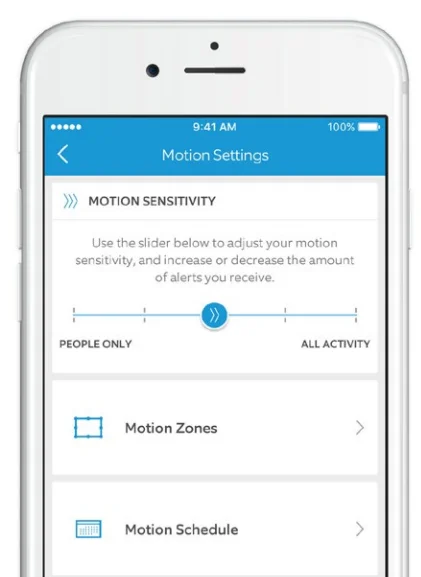
 MOTION SENSTIVITY
Allows you to adjust the amount of alerts you receive. Choose People Only to get motion alerts from humans only. MOTION ZONE
Draw up to three custom areas where you’d like to receive motion alerts and trigger the lights. MOTION SCHADUALE
Schedule times when you don’t want to receive motion alerts.
 MOTION SENSTIVITY
 MOTION ZONE
 MOTION SCHADUALE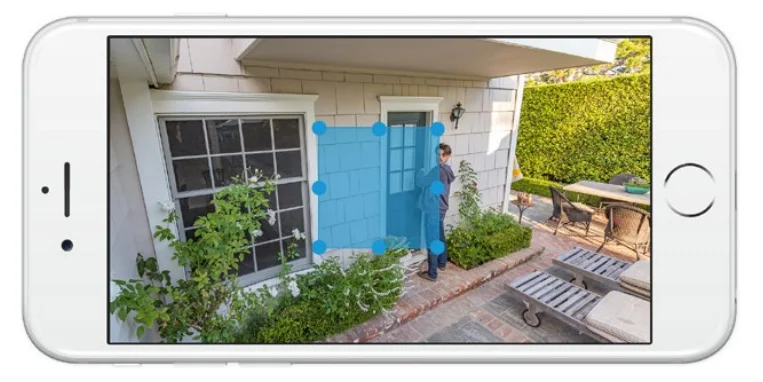
To detect motion, you will need to set up Motion Zones, which is a customizable area you want your Ring to monitor and receive alerts. To set up a Motion Zone, select Motion Settings. On this screen, create up to three Motion Zones. You will need at least one Motion Zone to be active to get alerts.
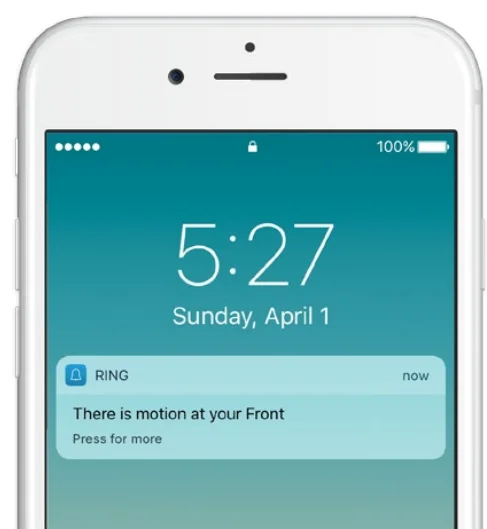
If your phone is locked when the camera captures a live event, you will receive a notification on your home screen. If your phone has a passcode, you’ll need to enter it to access the live event.
 Select Light Settings
 Select Light Settings
to set a schedule for your lights to stay on
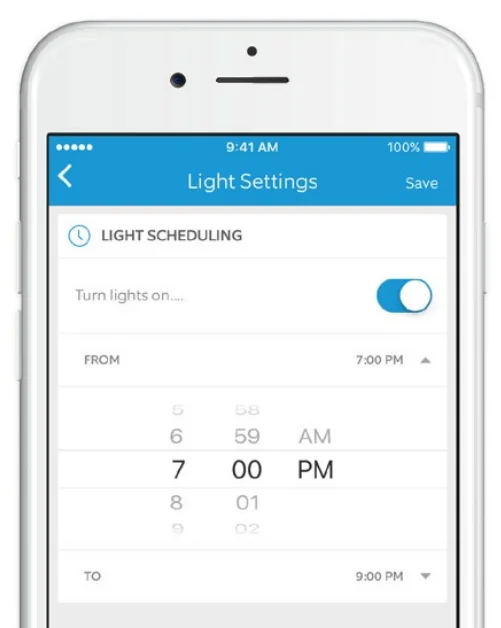
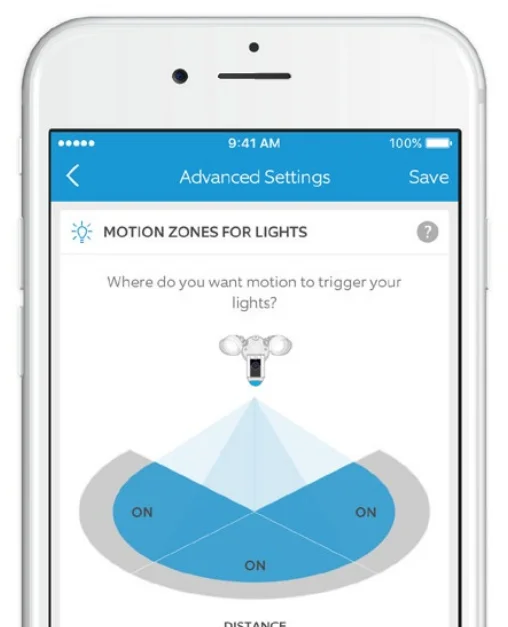
Select Advanced Settings on the Light Settings screen to customize the areas that will trigger the lights and change how long they stay on for.
Troubleshooting Tips
- My lights aren’t turning on when Floodlight Cam detects motion.
The lights only turn on for motion when it’s dark outside. If it is dark out and the lights still aren’t turning on, adjust the motion settings for the lights by selecting Light Settings in the Ring app, and then selecting Advanced Settings. - I’m having issues with video/audio quality and/or load times.
Issues with video and/or audio are usually related to problems with Wi-Fi signal strength or Internet speed. For an optimal experience, we recommend Internet speeds of at least 1–2Mbps. Check your Internet speed by selecting Device Health in the Ring app, then selecting Test Your Wi-Fi. If your Internet speed is sufficient, then look at Signal Strength in Device Health. If the signal strength is not Good, you’ll need to boost the Wi-Fi signal to your Floodlight Cam, which can be done with our product, Chime Pro. - Floodlight Cam is not lighting up when I restore power.
See if there is a light switch controlling power to your floodlight fixture. If so, make sure it is switched on and stays switched on. If your fixture is connected to a timer, you’ll need to turn off the timer functionality. - Floodlight Cam lights up, but I can’t complete the in-app setup.
First, double-check your Wi-Fi password, since this is the most common reason Floodlight Cam can’t complete setup. Second, check the distance to your Wi-Fi router or access point. Installing the Floodlight Cam too far from your access point may prevent setup from completing. In this case, the installation of a Ring Chime Pro can help boost your Wi-Fi signal and provide audible alerts from your Floodlight Cam and other Ring products. Learn more about Chime Pro by visiting: ring.com/chime-pro
For additional help, visit: ring.com/help
Or give us a call…
- US 1 800 656 1918
- UK 01727 263045
- AU 1 300 205 983
- NZ +64 9 887 9871
- Mexico (D.F) 52 55 8526 5445
- Worldwide +1 310 929 7085
For a list of all our customer support numbers, visit: ring.com/callus
For more manuals by Ring, visit ManualsLibraryy
Floodlight Cam-FAQs
How do you set up a Floodlight Cam?
To set up a Floodlight Cam, first turn off power at the circuit breaker for safety. Remove the old floodlight fixture if one is installed and attach the mounting bracket provided with the camera. Connect the electrical wires from the camera to the junction box, then secure the device to the bracket. Restore power and open the camera’s mobile app to complete the setup process. Follow the in-app instructions to connect the camera to Wi-Fi and configure lighting, motion detection, and alerts.
How do you program or activate a Floodlight Cam in the mobile app?
Programming a Floodlight Cam is typically done through the device’s companion mobile app. After installation, open the app and choose Set Up a Device. Scan the QR code printed on the camera or its manual to identify the device. Once detected, follow the on-screen instructions to connect it to your home Wi-Fi network and create settings for motion alerts, lighting schedules, and recording preferences.
How does a Floodlight Cam work?
A Floodlight Cam combines a security camera, motion sensors, and powerful LED floodlights in one device. When motion is detected within the sensor’s range, the lights automatically turn on and the camera begins recording video. The system sends real-time alerts to your smartphone so you can view live footage. Many models also allow two-way audio and remote light control, making them useful for both security monitoring and outdoor lighting.
Where can you find the QR code on a Floodlight Cam?
The QR code used during setup is usually located on the back or underside of the camera unit. It may also appear inside the user manual or on the packaging. This code helps the mobile app quickly recognize and connect to the specific device. If the code cannot be scanned, most apps allow you to manually enter the device ID to continue the installation process.
How do you reset a Floodlight Cam?
To reset a Floodlight Cam, locate the reset button on the camera housing. Using a pointed object such as a paperclip or pen, press and hold the button for a few seconds until the indicator light changes or the device restarts. This process restores the camera to factory settings, which is useful when troubleshooting connection issues or preparing the device for a new setup.
Why is my Floodlight Cam showing offline and how can I fix it?
A Floodlight Cam may appear offline if it loses power or Wi-Fi connectivity. First ensure the breaker switch and wall power supply are turned on. Next, confirm that your router is working and within range of the camera. Restart the router and cycle power to the camera if needed. Reconnecting the device through the mobile app usually restores the connection.
How do you connect a Floodlight Cam to Wi-Fi?
To connect the camera to Wi-Fi, download the device’s official mobile app and select the option to add a new device. Scan the QR code on the camera or manually enter the device code. When prompted, choose your home Wi-Fi network and enter the password. After a few moments, the camera will connect to the network and become accessible for live viewing and remote control.
What settings are available on a motion-sensor floodlight camera?
Most floodlight cameras provide three main motion-sensor settings: sensitivity, duration, and light level. Sensitivity determines how easily motion triggers the lights and camera. Duration controls how long the lights stay on after motion stops. Light level settings allow the device to activate only during certain lighting conditions, such as at night. Adjusting these options helps reduce false alerts and improves security monitoring.
Can you install a Floodlight Cam yourself?
Yes, many homeowners can install a Floodlight Cam if they are replacing an existing wired floodlight fixture. The process usually involves turning off power, mounting the device to the electrical box, and connecting the wires. However, if new wiring is required or you are unsure about electrical work, it is safer to hire a licensed electrician to complete the installation properly.
How do you reboot or restart a Floodlight Cam?
Rebooting a Floodlight Cam is simple and can resolve minor performance issues. Turn off power to the camera at the wall switch or circuit breaker, wait about 10–20 seconds, and then restore power. The camera will restart and reconnect to the network automatically. If problems persist after rebooting, performing a full reset and re-setup may help restore normal operation.