
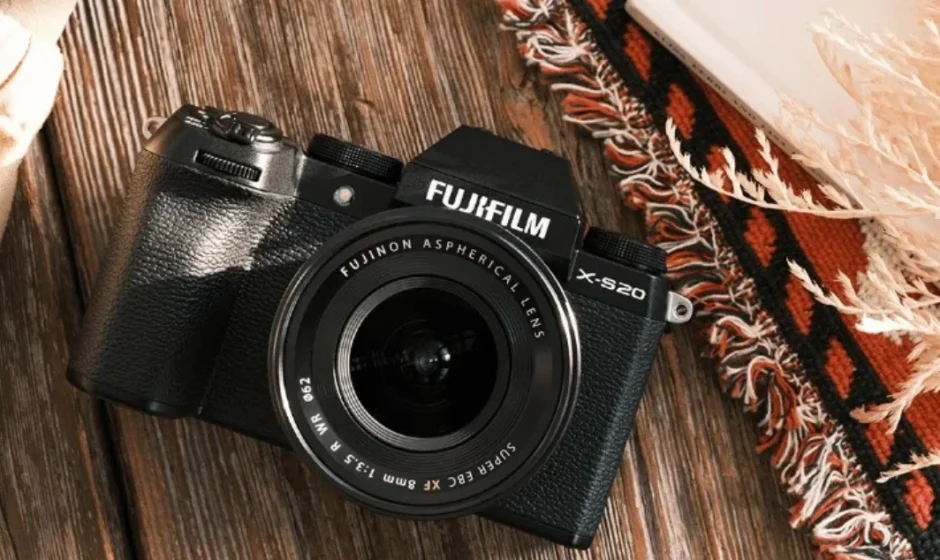

Fujifilm X-S20 Camera
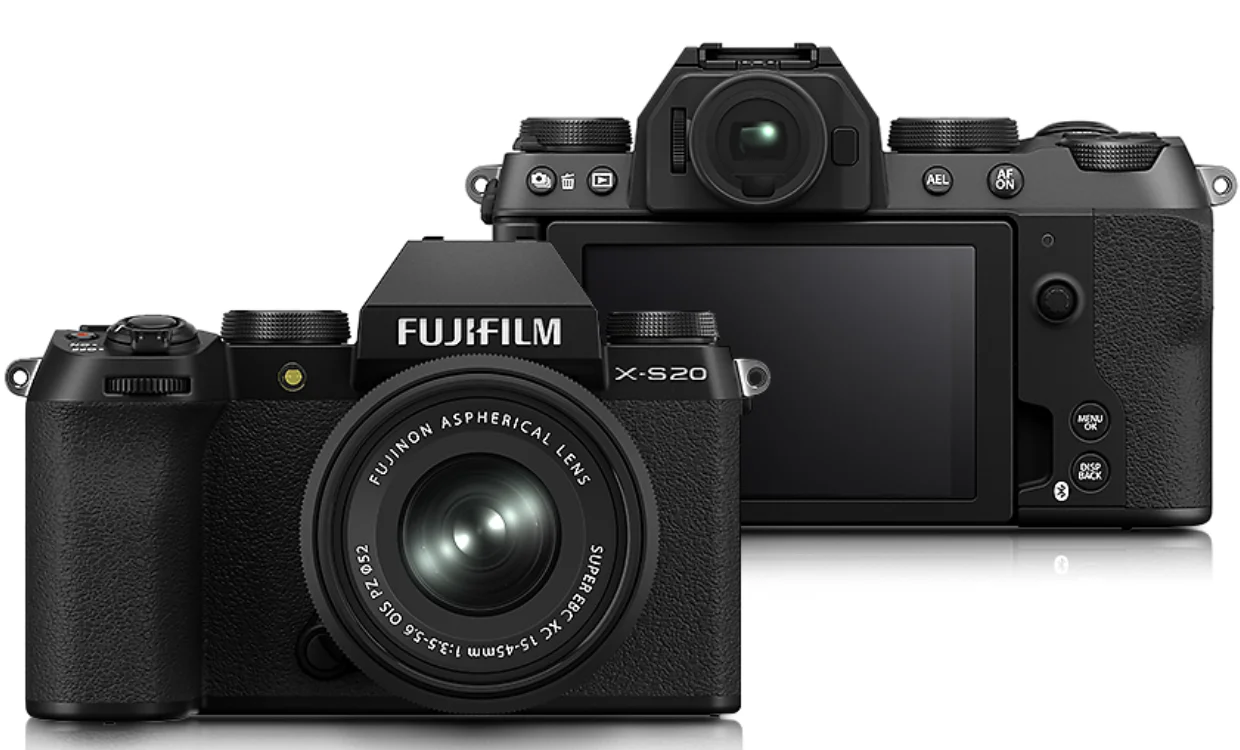
Before You Begin
Parts of the Camera
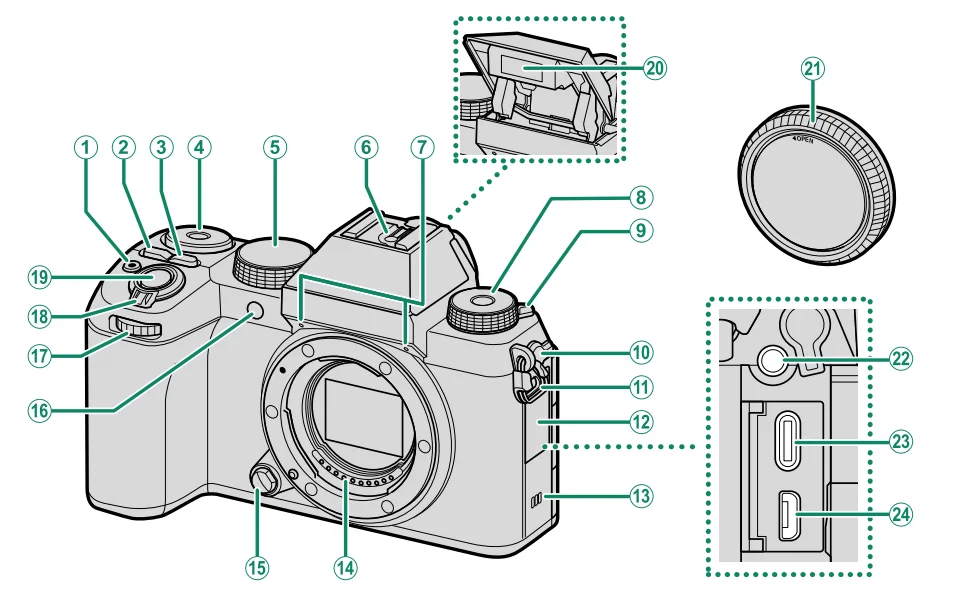
- (movie recording) button
- Q (quick menu) button
- ISO button
- Rear command dial
- Mode dial
- Hot shoe
- Microphone
- Fn (function) dial
- (flash pop-up) lever
- Microphone/remote release connector cover
- Strap clip
- Connector cover
- Speaker
- Lens signal contacts
- Lens release button
- AF-assist illuminator
Self-timer lamp
Tally light - Front command dial
- ON/OFF switch
- Shutter button
- Flash
- Body cap
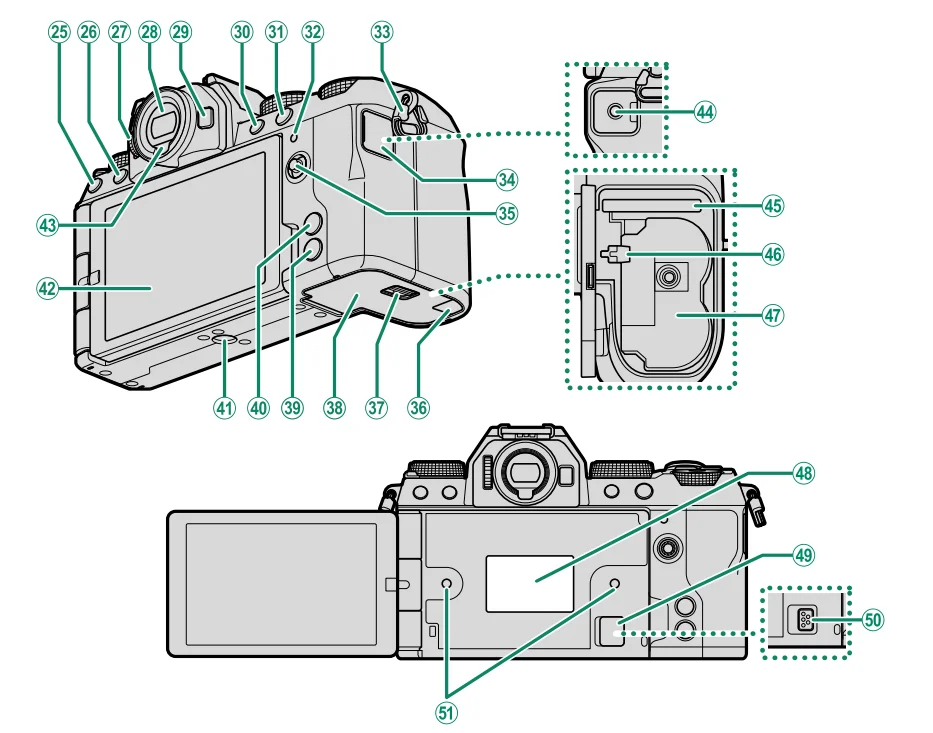
- Use of an optional RR-100 remote release requires a third-party
adapter to convert the three-pin, ⌀2.5 mm connector to a three-pin, ⌀3.5 mm connector. - Microphone/remote release connector (⌀3.5 mm)
- USB connector (Type-C)

- HDMI Micro connector (Type D)
- (drive) button
(delete) button - (playback) button
- Diopter adjustment control
- Electronic viewfinder (EVF)
- Fn button
- AEL (exposure lock) button
- AFON button
- Indicator lamp
Tally light - Strap clip
- Headphone jack cover
- Focus stick (focus lever)
- Cable channel cover for DC coupler
- Battery-chamber cover latch
- Battery-chamber cover
- DISP (display)/BACK button
(Bluetooth) button - MENU/OK button
- Tripod mount
- Vari-angle LCD monitor
Touch screen - Eye sensor
- Headphone jack (⌀3.5 mm)
- Memory card slot
- Battery latch
- Battery chamber
- Serial number plate
- Cooling fan connector cover
- Cooling fan connector
- Hole to screw the cooling fan
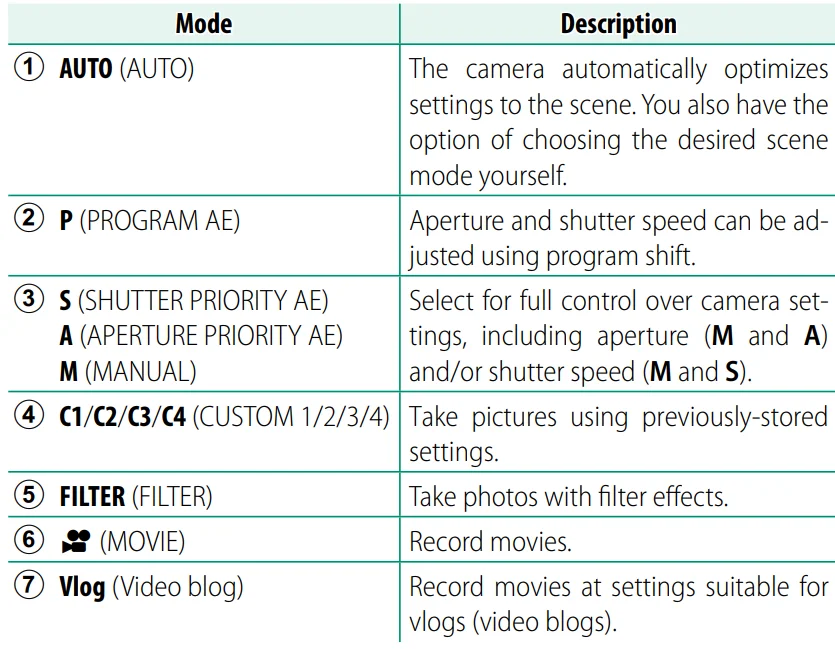
The Mode Dial
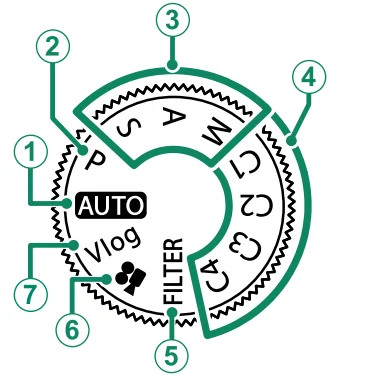
To select a shooting mode, rotate the dial until the icon for the desired mode aligns with the index.
The LCD Monitor
You can adjust the angle of the LCD monitor when framing shots, but be careful not to trap your fingers or other objects.
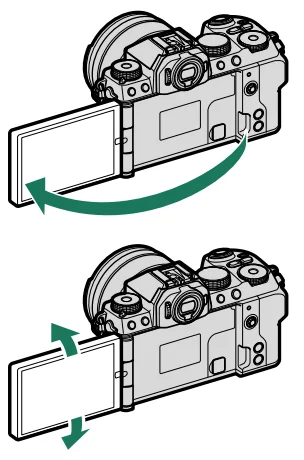
- Do not apply excessive force to the hinge when rotating the LCD monitor, as this could damage the hinge.
- Be careful that the corners of the monitor do not contact the camera body, as this could leave marks.
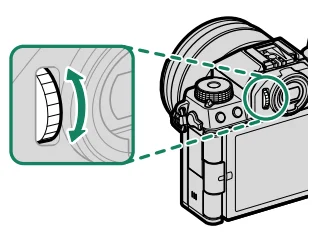
Focusing the Viewfinder
If the indicators displayed in the viewfinder are blurred, put your eye to the viewfinder and rotate the diopter adjustment control until the display is in sharp focus.
Camera Displays
This section lists the indicators that may be displayed during shooting.
- For illustrative purposes, displays are shown with all indicators lit.
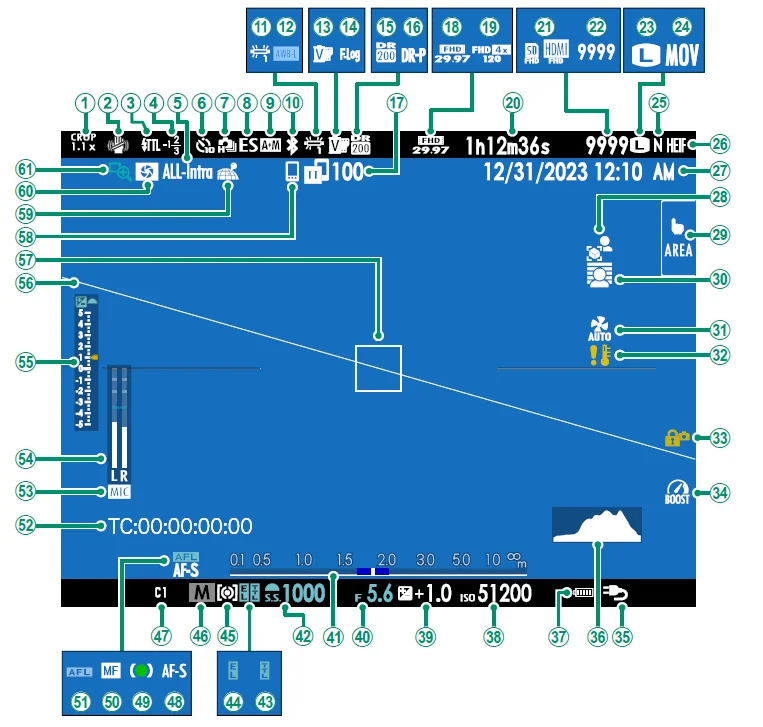
- Crop factor
- IS mode 2
- Flash (TTL) mode
- Flash compensation
- Movie compression
- Self-timer indicator
- Continuous mode
- Shutter type
- AF+MF indicator 2
- Bluetooth ON/OFF
- White balance
- AWB lock
- Film simulation
- F-Log/HLG recording
- Dynamic range
- D-range priority
- Image transfer status
- Movie mode
- High-speed recording indicator
- Recording time available/ elapsed recording time
- Destination for movie recording
- Number of available frames 1
- Image size
- File format
- Image quality
- HEIF format
- Date and time
- Product priority mode
- Touch screen mode
- Background defocus mode
- Cooling fan settings
- Temperature warning
- Control lock 3
- Boost mode
- Power supply
- Histogram
- Battery level
- Sensitivity
- Exposure compensation
- Aperture
- Distance indicator 2
- Shutter speed
- TTL lock
- AE lock
- Metering
- Shooting mode
- Custom modes
- Focus mode 2
- Focus indicator 2
- Manual focus indicator 2
- AF lock
- Time code
- Microphone input channel
- Recording level 2
- Exposure indicator
- Virtual horizon
- Focus frame
- Bluetooth host
- Location data download status
- Depth-of-field preview
- Focus check
- 1 Shows “9999” if there is space for over 9999 frames.
- 2 Not displayed when ON is selected for
 SCREEN SET-UP > LARGE INDICATORS MODE(EVF).
 - 3 Displayed when controls have been locked by pressing and holding the MENU/OK button. The control lock can be ended by pressing and holding the MENU/OK button again.
 SCREEN SET-UP > LARGE INDICATORS MODE(EVF).
The LCD Monitor
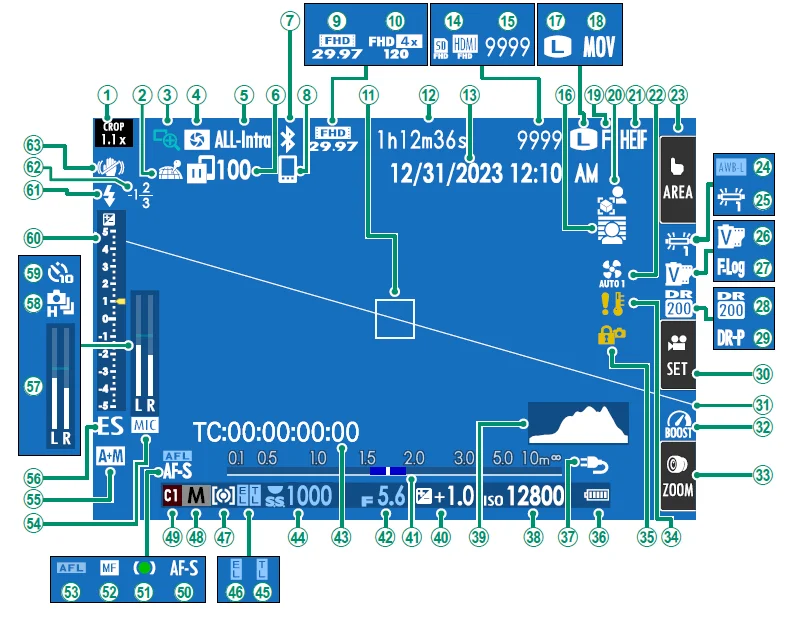
- Crop factor
- Location data download status
- Focus check
- Depth-of-field preview
- Movie compression
- Image transfer status
- Bluetooth ON/OFF
- Bluetooth host
- Movie mode
- High-speed recording indicator
- Focus frame
- Recording time available/ elapsed recording time
- Date and time
- Destination for movie recording
- Number of available frames 1
- Background defocus mode
- Image size
- File format
- Image quality
- Product priority mode
- HEIF format
- Cooling fan settings
- Touch screen mode 3
- AWB lock
- White balance
- Film simulation
- F-Log/HLG recording
- Dynamic range
- D-range priority
- Movie optimised control 3
- Virtual horizon
- Boost mode
- Touch Zoom 3
- Temperature warning
- Control lock 4
- Battery level
- Power Supply
- Sensitivity
- Histogram
- Exposure compensation
- Distance indicator 2
- Aperture
- Time code
- Shutter speed
- TTL lock
- AE lock
- Metering
- Shooting mode
- Custom modes
- Focus mode 2
- Focus indicator 2
- Manual focus indicator 2
- AF lock
- Microphone input channel
- AF+MF indicator 2
- Shutter type
- Recording level
- Continuous mode
- Self-timer indicator
- Exposure indicator
- Flash (TTL) mode
- Flash compensation
- IS mode
- 1 Shows “9999” if there is space for over 9999 frames.
- 2 Not displayed when ON is selected forSCREEN SET-UP > LARGE INDICATORS MODE(LCD).
- 3 Camera functions can also be accessed via touch controls.
- 4 Displayed when controls have been locked by pressing and holding the MENU/OK button. The control lock can be ended by pressing and holding the MENU/OK button again.
Selecting a Menu Tab
To navigate the menus:
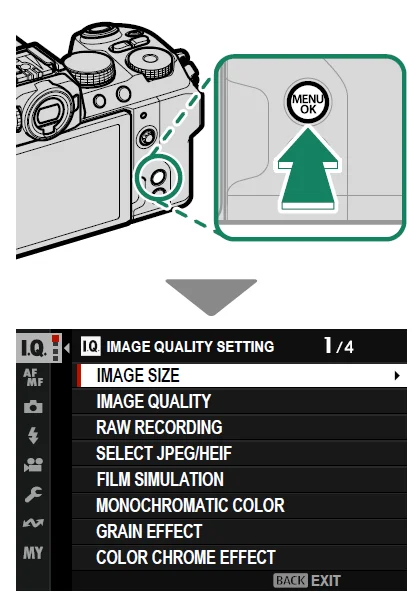
- Press MENU/OK to display the menus.

- Press the focus stick (focus lever) left to highlight the tab for the current menu.
- Press the focus stick up or down to highlight the tab containing the desired item.
- Press the focus stick right to place the cursor in the menu.
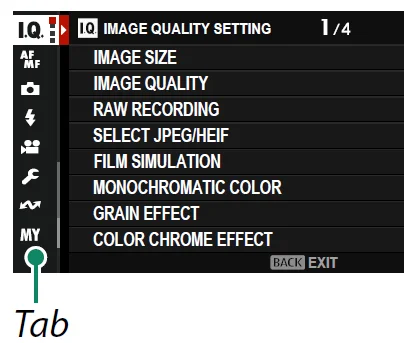
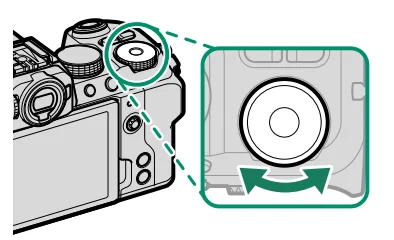
- Use the front command dial to select menu tabs or page through menus, and the rear command dial to highlight menu items.
First Steps
Attaching the Strap
Attach the strap to the two strap clips as shown below.
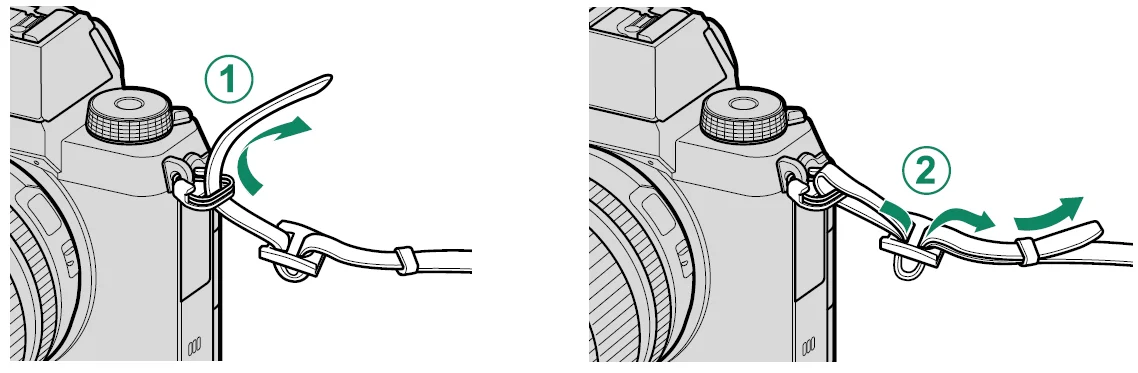
- To avoid dropping the camera, be sure the strap is correctly secured.
Attaching a Lens
The camera can be used with lenses for the FUJIFILM X-mount.
Remove the body cap from the camera and the rear cap from the lens. Place the lens on the mount, keeping the marks on the lens and camera aligned (1), and then rotate the lens until it clicks into place (2).
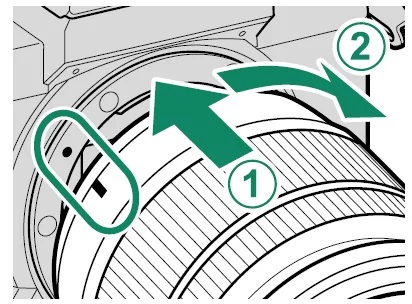
- When attaching lenses, ensure that dust or other foreign matter does not enter the camera.
- Be careful not to touch the camera’s internal parts.
- Rotate the lens until it clicks securely into place.
- Do not press the lens release button while attaching the lens.
Removing Lenses
To remove the lens, turn the camera off, then press the lens release button (1) and rotate the lens as shown (2).
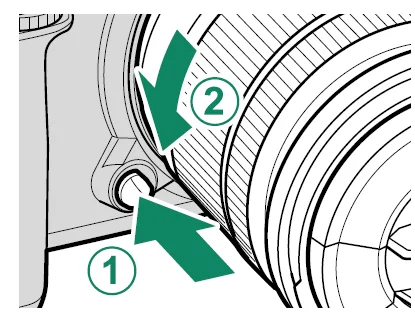
- To prevent dust from accumulating on the lens or inside the camera, replace the lens caps and camera body cap when the lens is not attached.
Lenses and Other Optional Accessories
The camera can be used with lenses and accessories for the FUJIFILM X-mount.
- Observe the following precautions when attaching or removing (exchanging) lenses.
- Check that the lenses are free of dust and other foreign matter.
- Do not change lenses in direct sunlight or under another bright light source. Light focused into the interior of the camera could cause it to malfunction.
- Attach the lens caps before exchanging lenses.
- See the manual provided with the lens for information on use.
Inserting the Battery and a Memory Card
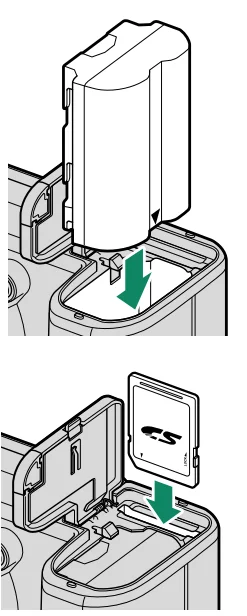
Insert the battery and memory card as described below.
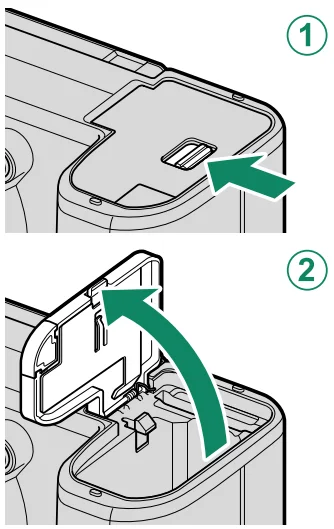
- Open the battery-chamber cover.
Slide the battery-chamber cover latch as shown and open the battery- chamber cover.- Do not open the battery-chamber cover when the camera is on. Failure to observe this precaution could damage image files or memory cards.
- Do not use excessive force when handling the battery chamber cover.

- Insert the battery as shown.
- Insert the battery in the orientation shown. Do not use force or attempt to insert the battery upside down or backwards.
- Confirm that the battery is securely latched.
- Insert the memory card.

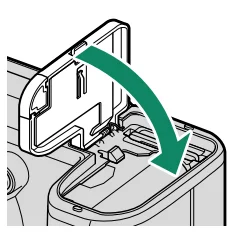
- Close the battery-chamber cover and slide the battery-chamber latch closed.
- If the cover does not close, check that the battery is in the correct orientation. Do not attempt to force the cover shut.
Removing the Battery
Before removing the battery, turn the camera off and open the battery chamber cover. To remove the battery, press the battery latch to the side, and slide the battery out of the camera as shown.
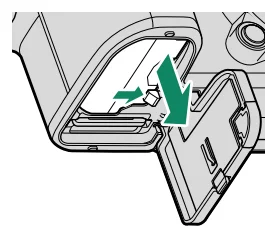
- The battery may become hot when used in high-temperature environments. Observe caution when removing the battery.
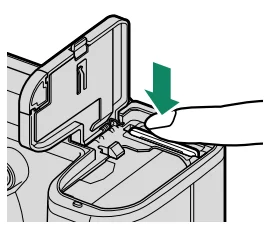
Removing Memory Cards
To remove the memory card, press it in and release it slowly. The card can then be removed by hand.
Basic Photography and Playback
Taking Photographs
This section explains basic photography.
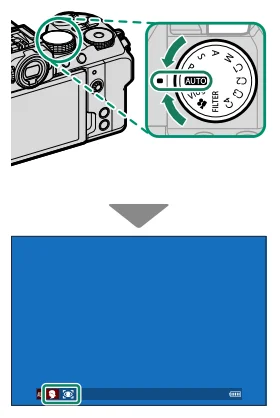
- Rotate the mode dial to AUTO to view the
 shooting display.
The camera will display the type of scene and the focus target detected.
- In(AUTO) mode, the camera continuously adjusts focus and searches for eyes, increasing the drain on the battery; in addition, the sound of the camera focusing may be audible.
- In
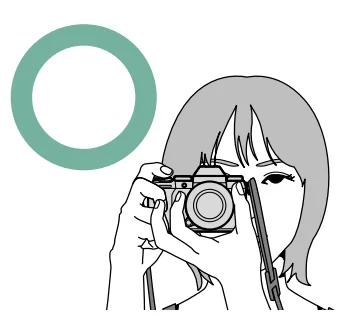
- Ready the camera.

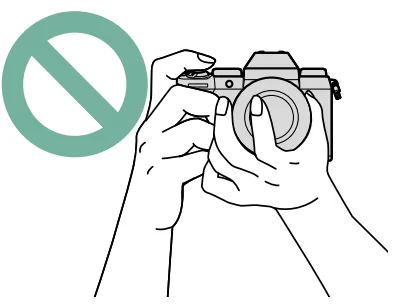
Hold the camera steady with both hands—shaking or unsteady hands can blur your shots.
- To prevent pictures that are out of focus or too dark (underexposed), keep your fingers and other objects away from the lens and AF-assist illuminator.
- Frame the picture.
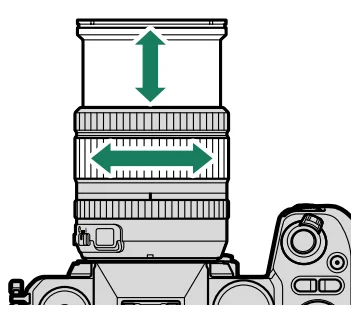
Lenses with Zoom Rings
Use the zoom ring to frame the picture in the display. Rotate the ring left to zoom out, right to zoom in. - Focus.
Press the shutter button halfway to focus.
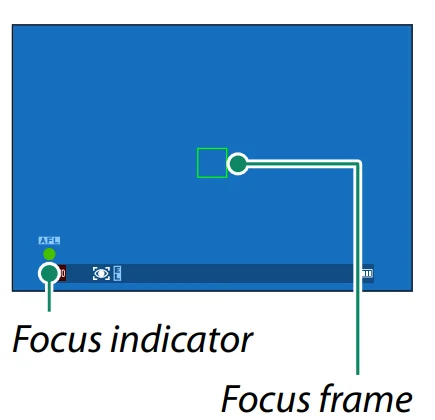
- If the camera is able to focus, the focus frame and focus indicator will glow green.
- If the camera is unable to focus, the focus frame will turn red, will be displayed, and the focus indicator will blink white.
- If the subject is poorly lit, the AF-assist illuminator may light to assist the focus operation.
- Focus and exposure will lock when the shutter button is pressed halfway. Focus and exposure remain locked while the button is kept in this position (AF/AE lock).
- The camera will focus on subjects at any distance in the macro and standard focus ranges for the lens.
- Shoot.
Smoothly press the shutter button the rest of the way down to take the picture.
Taking Photographs
Choosing a Shooting Mode
Choose a shooting mode according to the scene or type of subject.
(AUTO)
The camera automatically detects the subject, adjusts focus and chooses a scene mode appropriately.
Rotate the mode dial to AUTO to view the shooting display for mode.
mode.
The camera automatically displays icons showing the selected scene and the type of subject selected for focus.
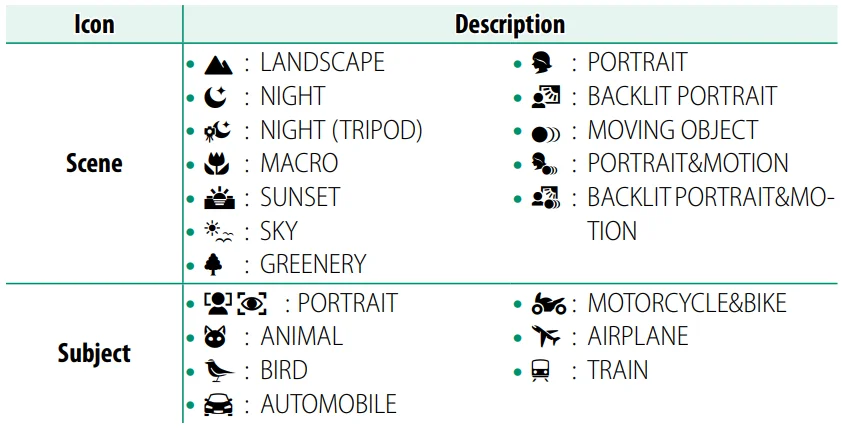
- The mode selected may vary with shooting conditions. The camera may also choose different modes for the same scene depending on shooting conditions. If the mode chosen by the camera does not match the actual scene, you can choose a different mode.
- The additional processing time required in some scene modes may increase save times.
- No icon will be displayed if the camera is unable to determine the type of scene.
Program AE (P)
Let the camera choose shutter speed and aperture for optimal exposure. Other values that produce the same exposure can be selected with program shift.
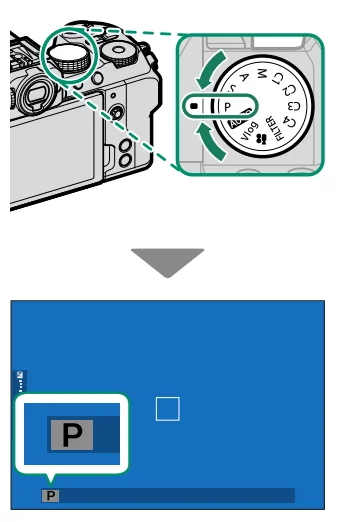
- Rotate the mode dial to P.
P will appear in the display. - If the subject is outside the metering range of the camera, the shutter speed and aperture displays will show “– – –”.
Bulb (B)
Select a shutter speed of BULB for long time exposures, in which you open and close the shutter manually. Use of a tripod is recommended to prevent the camera from moving during the exposure.
- Set shutter speed to BULB.

- Press the shutter button all the way down.
- The shutter will remain open for up to 60 minutes while the shutter button is pressed.
- The display shows the time elapsed since the exposure
started. - Releasing the shutter button closes the shutter, ending the exposure. Processing will begin, and the camera will display the processing time remaining.
The Shooting Menus
IMAGE QUALITY SETTING (Still Photography)
Adjust image quality settings for still photography. To display image quality settings, press MENU/OK in the photo shooting display and select the I.Q (IMAGE QUALITY SETTING) tab.
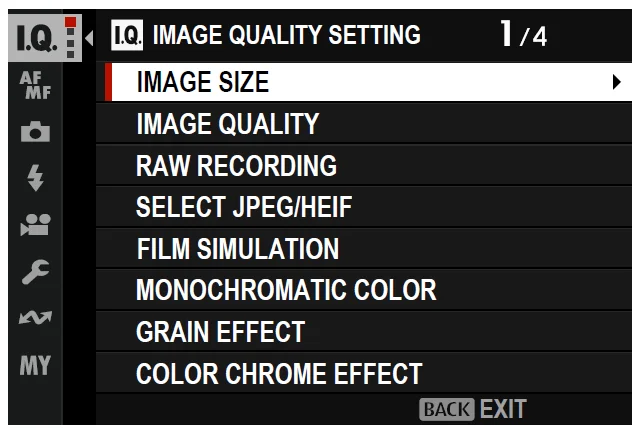
- The options available vary with the shooting mode selected.
IMAGE SIZE
Choose the size and aspect ratio at which still pictures are recorded.
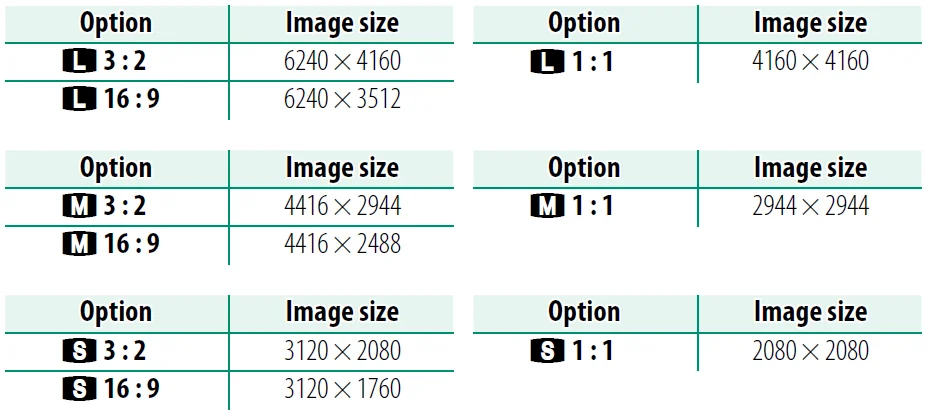
The following options are available in SPORTS FINDER MODE and when 1.25X CROP is selected in burst mode:

- NIMAGE SIZE is not reset when the camera is turned off or another shooting mode is selected.
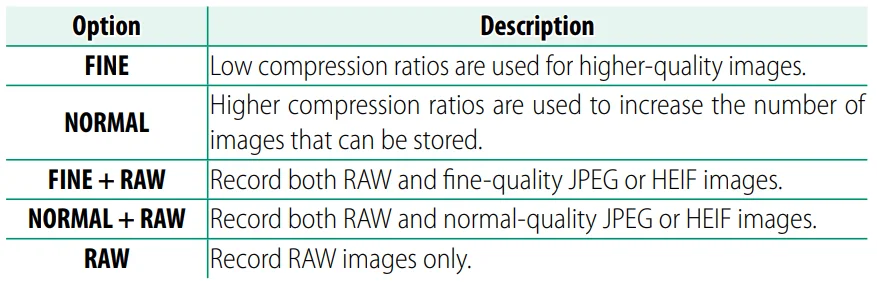
IMAGE QUALITY
Choose a file format and compression ratio.
RAW RECORDING
Choose whether to compress RAW images.
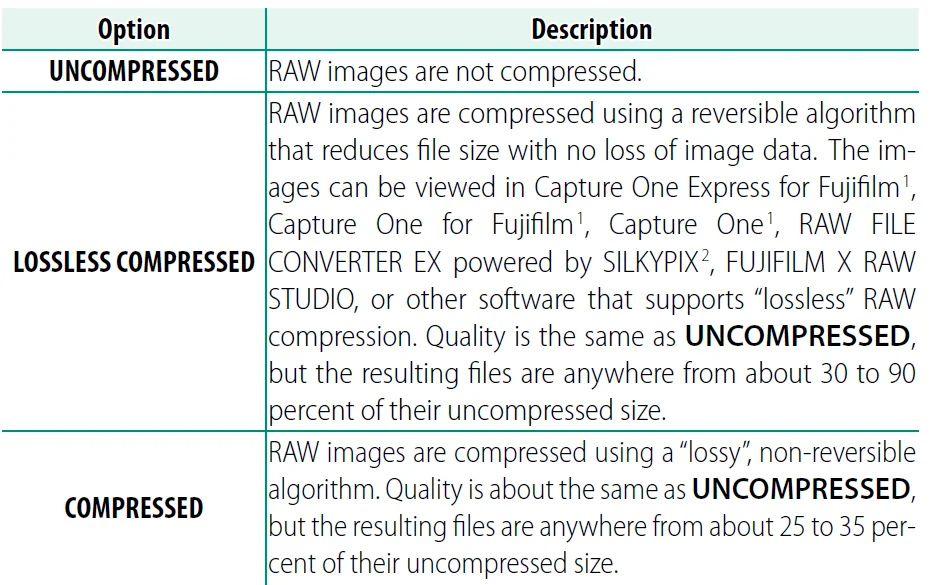
- For information on when support will be available, visit: https://www.captureone.com/
- For information on when support will be available, visit: https://fujifilm-x.com/support/compatibility/software/raw-file-converter-ex-powered-by-silkypix/
SELECT JPEG/HEIF
Choose whether pictures are recorded in JPEG or HEIF.
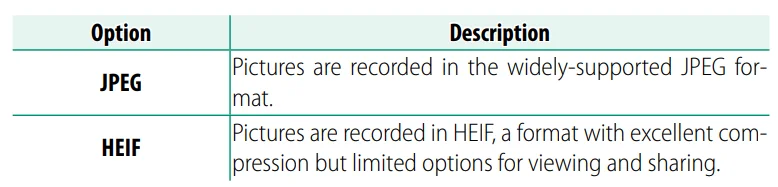
- JPEG is automatically selected in place of HEIF during filter effect, panorama, multiple-exposure, and HDR photography.
- Selecting HEIF disables CLARITY and sets COLOR SPACE to sRGB.
- HEIF pictures are stored on the memory card as files with the extension “.HIF”. Before the pictures can be viewed on a computer, the extension must be changed to “.HEIC”. This occurs automatically when HEIF pictures are uploaded from the camera to a computer via USB.
Playback and the Playback Menu
The Playback Display
This section lists the indicators that may be displayed during playback.
- For illustrative purposes, displays are shown with all indicators lit.
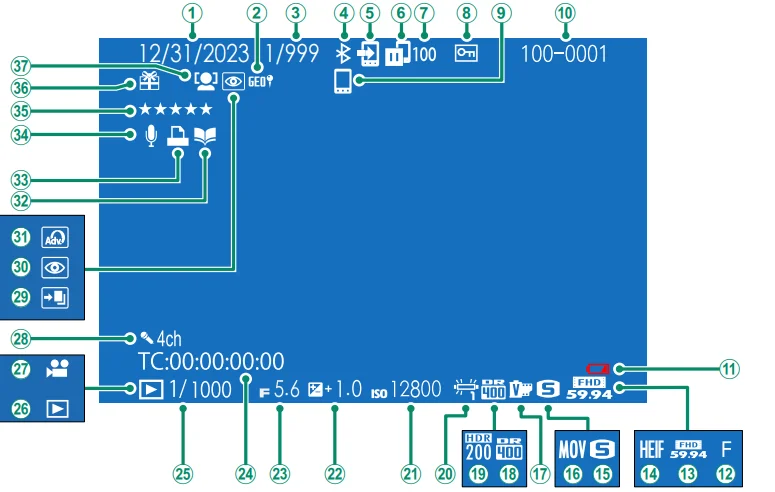
- Date and time
- Location data
- Frame-number display
- Bluetooth ON/OFF
- Image transfer order
- Image transfer status
- Number of frames selected for upload
- Protected image
- Bluetooth host
- Frame number
- Low battery
- Image quality
- Movie mode
- HEIF
- Image size
- Film format
- Film simulation
- Dynamic range
- HDR
- White balance
- Sensitivity
- Exposure compensation
- Aperture
- Time code
- Shutter speed
- Playback mode indicator
- Movie icon
- Four-channel (quadrophonic) audio
- HDR image
- Red-eye removal indicator
- Filter
- Photobook assist indicator
- DPOF print indicator
- Voice memo
- Rating
- Gift image
- Face detection indicator
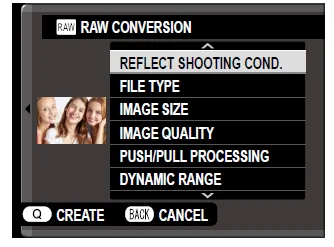
RAW CONVERSION
Even if you don’t have a computer, you can use the camera to modify RAW pictures and save them in other formats.
Saving RAW Pictures in Another Format
- Display a RAW picture.
- Highlight RAW CONVERSION in the playback menu.
- Press MENU/OK.
A list of settings will be displayed.
- Press the focus stick (focus lever) up or down to highlight a setting.
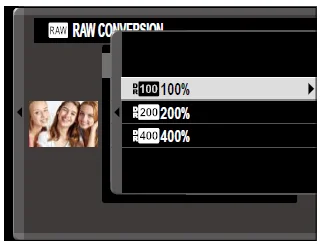
- Press the focus stick right to display options.

- Press the focus stick up or down to highlight the desired option.
- Press MENU/OK to select the highlighted option. The settings
list shown in Step 3 will be displayed. Repeat Steps 4 to 7 to adjust additional settings. - Press the Q button.
A preview of the copy will be displayed. - Press MENU/OK.
The copy will be saved.- RAW conversion options can also be displayed by pressing the Q button when a RAW picture is displayed during playback.
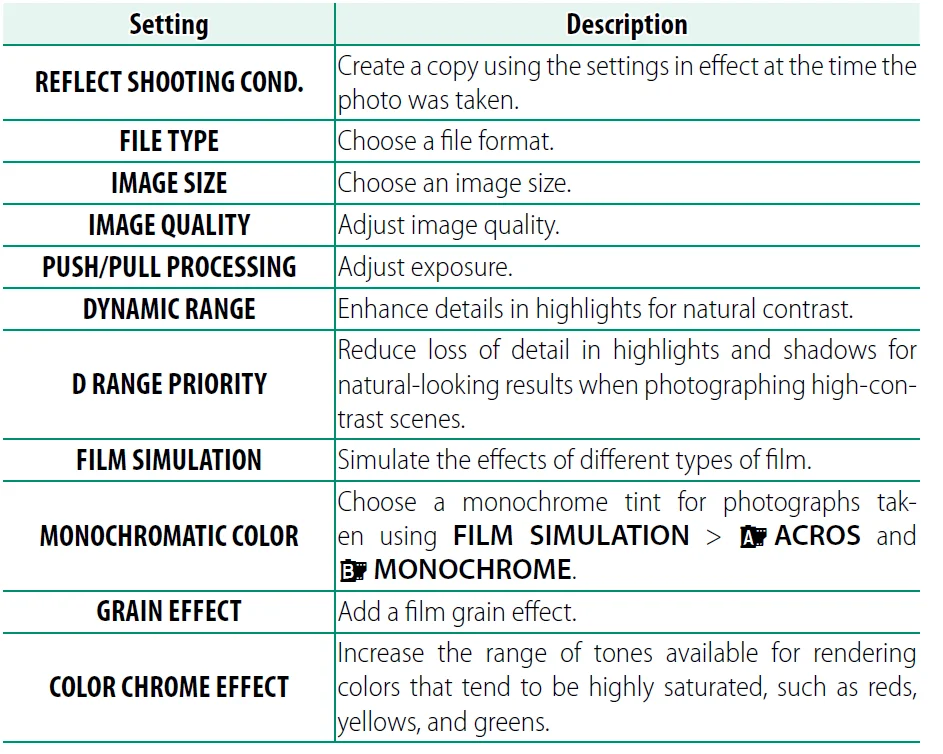
The settings that can be adjusted when converting pictures from
RAW to another format are:
CROP
Create a cropped copy of the current picture.
- Display the desired picture.
- Select CROP in the playback menu.
- Use the rear command dial to zoom in and out and press the focus stick (focus lever) up, down, left, or right to scroll the picture until the desired portion is displayed.
- Press MENU/OK to display a confirmation dialogue.
- Press MENU/OK again to save the cropped copy to a separate file.
Network/USB Features and Settings
Overview
This chapter outlines features that can, among other things, be used to upload pictures to, or control the camera and take pictures remotely from, a smartphone or computer.
Supported Features
This camera supports the following features:
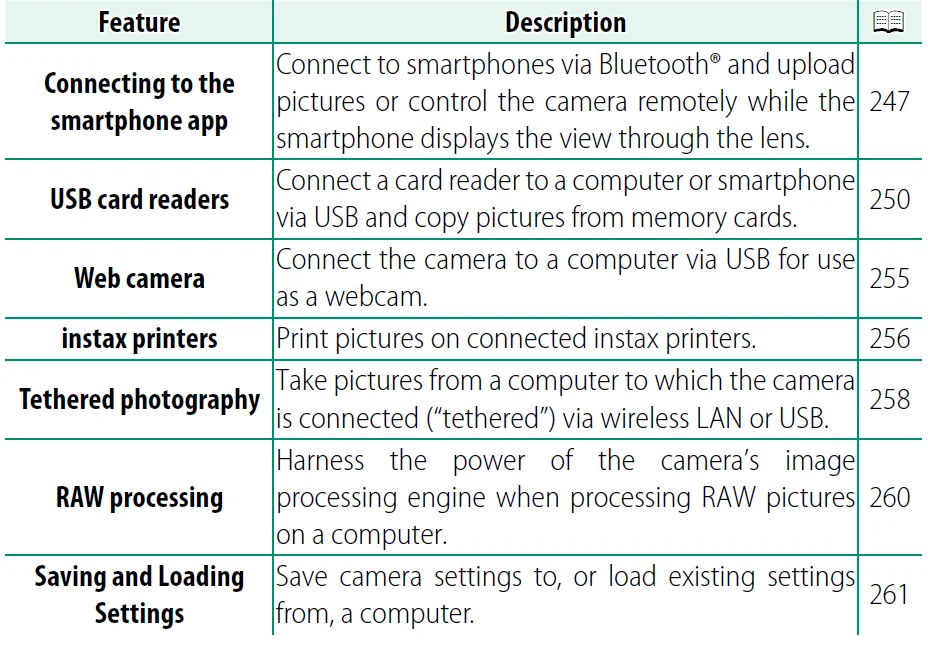
Connecting to Smartphones (Bluetooth)
Connect the camera with a smartphone via Bluetooth® to copy pictures to the smartphone or control the camera remotely while previewing the view through the lens in the smartphone display.
- The camera automatically switches to a wireless LAN connection when copying pictures to the smartphone.
Installing Smartphone Apps
Before establishing a connection between the smartphone and camera, you will need to install at least one dedicated smartphone app. Visit the following website and install the desired apps on your phone. https://app.fujifilm-dsc.com/
- The apps available vary with the smartphone operating system.

Uploading Pictures as They Are Taken
Pictures taken with ON selected for Bluetooth/SMARTPHONE SETTING > AUTO IMAGE TRANSFER ORDER in the network/USB setting menu will automatically be uploaded to the paired device.
- If ON is selected for both IMAGE TRANSFER WHILE POWER OFF and Bluetooth/SMARTPHONE SETTING > Bluetooth ON/OFF in the network/USB settings menu, upload to the paired device will continue even while the camera is off.
- Selecting ON for Bluetooth/SMARTPHONE SETTING > RESIZE
IMAGE FOR SMARTPHONE in the network/USB setting menu enables compression, reducing file size for upload (P 264). - Pictures are uploaded in the format chosen for Bluetooth/ SMARTPHONE SETTING > SELECT FILE TYPE in the network/USB setting menu.
Connecting to Smartphones (USB)
Connect to smartphones and computers via USB to upload
pictures from the camera.
Copying Pictures to a Smartphone
Before connecting to the smartphone to upload pictures via USB, select either AUTO or POWER SUPPLY OFF/COMM ON for USB POWER SUPPLY/COMM SETTING in the network/USB setting menu.
For Customers Using Android Devices
How you connect the camera depends on the type of USB connector with which your smartphone is equipped.
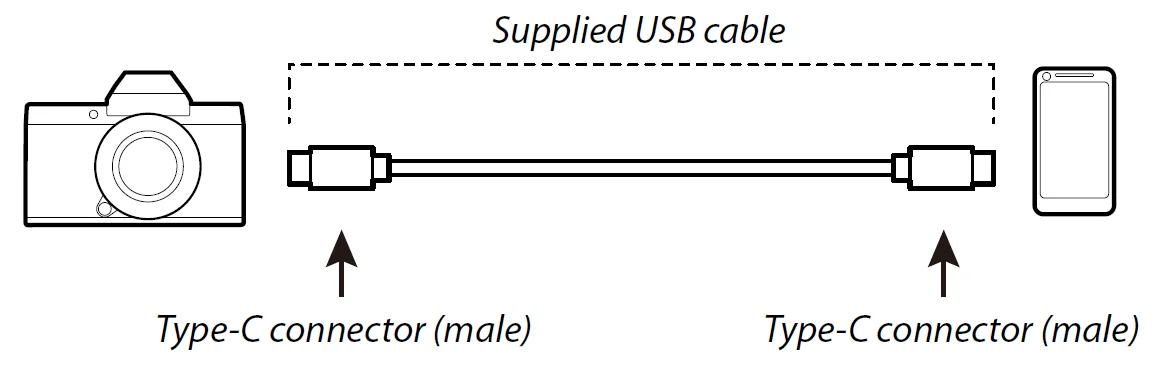
Type-C
Use the supplied USB cable.
Micro-B
Use a USB on-the-go (OTG) cable.
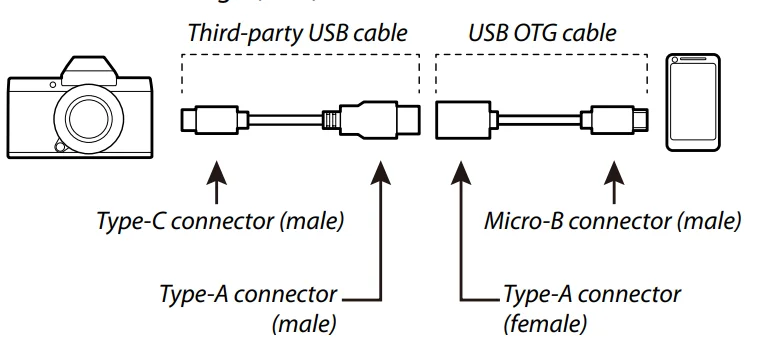
- The smartphone must support USB OTG.
- The desired results cannot be achieved with a USB Type-C to Micro-B cable. Use an OTG cable.
- Select either AUTO or POWER SUPPLY OFF/COMM ON for USB POWER SUPPLY/COMM SETTING in the network/USB setting menu.
- Select USB CARD READER for CONNECTION MODE.
- Connect the camera and smartphone using a USB cable.
- If the smartphone asks for permission for an app other than the “Camera Importer” to access the camera, tap “Cancel” and move on to the next step.
- On your smartphone, tap the notification “Connected to USB
PTP”. - From the recommended apps, select “Camera Importer”. The app will automatically start and allow you to import photos and movies to your smartphone.
- If the message “There is no MTP device connected” appears on the app, please try again from step 3.
Shortcuts
Shortcut Options
Customise camera controls to suit your style or situation. Frequently-used options can be added to the Q menu or a custom “my” menu or assigned to a function button or touch-function gesture for direct access:
The Quick Menu
Use the quick menu for quick access to selected options. To view the quick menu, press the Q button.
The Quick Menu Display
The quick menu offers different options in photo and movie modes. At default, it contains the following items:
Still photography
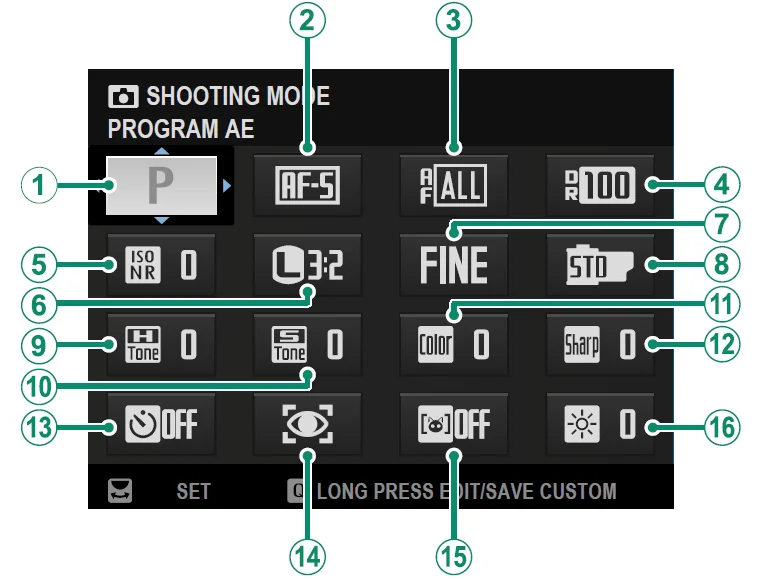
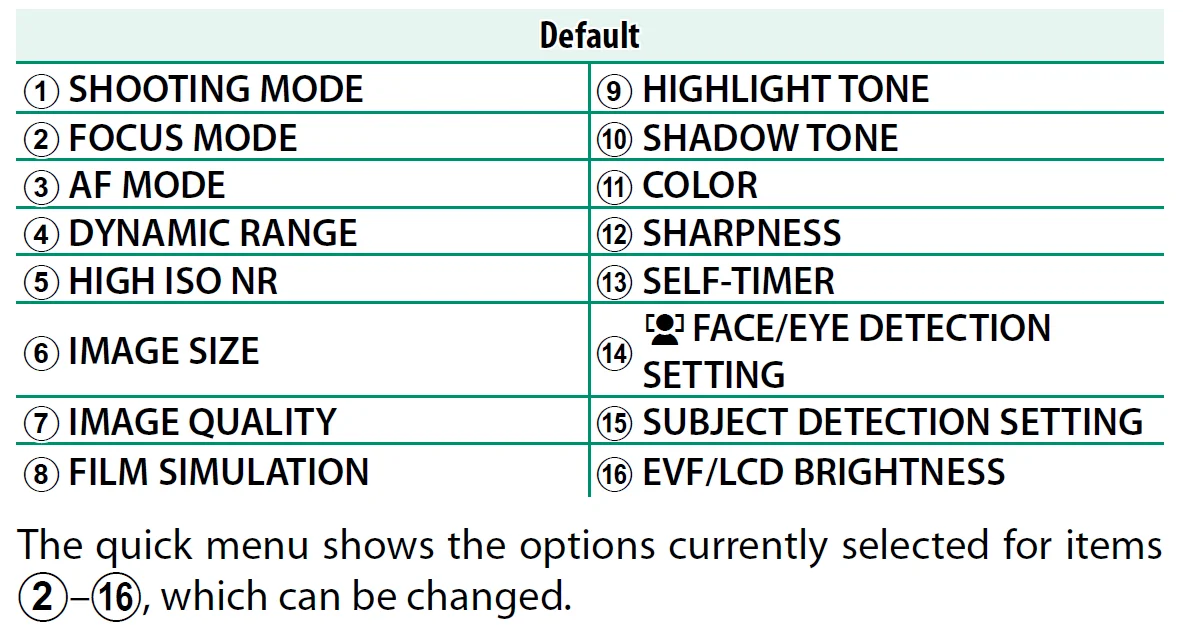
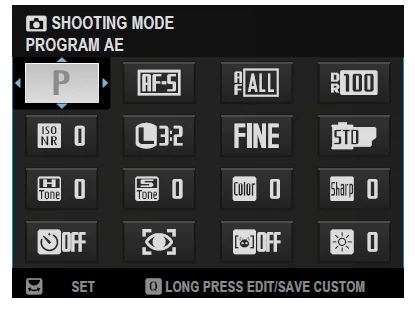
Viewing and Changing Settings
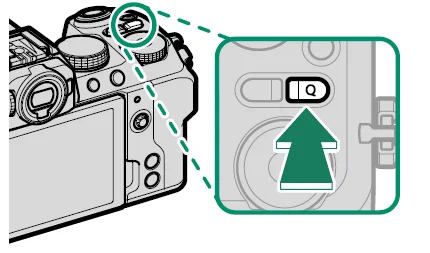
- Press Q to display the quick menu during shooting.


- Use the focus stick (focus lever) to highlight items and rotate the rear command dial to change.
- Press Q to exit when settings are complete.
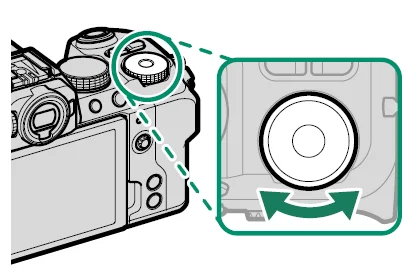
Editing the Quick Menu
To choose the items displayed in the quick menu:
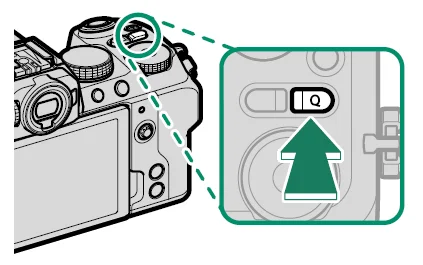
- Press and hold the Q button during shooting.
- Whether the camera displays the photo or movie quick menu depends on the position of the mode dial.
- The current quick menu will be displayed; use the focus stick (focus lever) to highlight the item you wish to change and press MENU/OK.
- Highlight the item you wish to change and press MENU/OK. The following can be assigned to the quick menu.
For more manuals by Fujifilm, visit ManualsLibraryy
Fujifilm X-S20 Camera-FAQs
Is the Fujifilm X-S20 a good camera?
Yes, the Fujifilm X-S20 is an excellent all-round camera designed for both photographers and content creators. It offers strong image quality, advanced video features, and reliable autofocus in a compact body. Whether you’re shooting photos, vlogs, or cinematic videos, it delivers consistent performance. Its balance of power and usability makes it a great choice for users who want professional-level features without a complex setup.
When was the Fujifilm X-S20 released?
The Fujifilm X-S20 was officially announced in May 2023 as the successor to the popular X-S10. It introduced improved processing power, better battery life, and enhanced video capabilities. Since its release, it has become a popular option for hybrid creators looking for a modern mirrorless camera with both photography and videography strengths.
Is the Fujifilm X-S20 suitable for beginners?
Yes, the Fujifilm X-S20 is beginner-friendly despite its advanced features. It includes intuitive controls, automatic shooting modes, and a dedicated vlog mode that simplifies video recording. These features help new users capture high-quality content without needing deep technical knowledge. At the same time, it offers manual controls for growth, making it ideal for beginners who want to improve their skills over time.
Is the Fujifilm X-S20 a DSLR or mirrorless camera?
The Fujifilm X-S20 is a mirrorless camera, not a DSLR. It uses an electronic viewfinder instead of a traditional mirror system, making it lighter and more compact. Mirrorless cameras like the X-S20 also offer faster autofocus and advanced video capabilities, which are especially useful for modern content creators and hybrid shooters.
What video capabilities does the Fujifilm X-S20 offer?
The Fujifilm X-S20 supports high-quality video recording up to 6.2K resolution, along with 4K at 60fps and Full HD slow motion. It also provides 10-bit color for better editing flexibility. These features make it suitable for professional video production, YouTube content, and vlogging, giving creators more control over visual quality and storytelling.
Is the Fujifilm X-S20 good for photography?
Yes, the Fujifilm X-S20 performs very well in photography. It features a 26MP sensor that produces sharp, detailed images with Fujifilm’s signature color science. It is suitable for various styles, including portraits, street photography, and travel shots. Its fast autofocus and image stabilization also help capture clear images, even in challenging lighting conditions.
Does the Fujifilm X-S20 have image stabilization?
Yes, the Fujifilm X-S20 includes in-body image stabilization (IBIS). This feature helps reduce camera shake, especially when shooting handheld photos or videos. It is particularly useful in low-light situations or when using longer lenses. IBIS improves overall image sharpness and makes handheld video footage smoother and more professional-looking.
What are the main improvements over the previous model?
Compared to its predecessor, the X-S20 offers a more powerful processor, longer battery life, and better video performance. It also introduces improved autofocus tracking and enhanced usability features. These upgrades make it more efficient for both photography and video work, especially for creators who need longer shooting sessions and faster performance.
Is the Fujifilm X-S20 good for vlogging?
Yes, the Fujifilm X-S20 is highly suitable for vlogging. It features a fully articulating screen, advanced autofocus, and a dedicated vlog mode that optimizes settings automatically. Its lightweight design makes it easy to carry, while high-quality video output ensures professional-looking content. These features make it a strong option for both beginners and experienced vloggers.
Is the Fujifilm X-S20 weather-sealed?
No, the Fujifilm X-S20 is not weather-sealed. While it can handle light everyday use, it is not designed for harsh weather conditions like heavy rain or dust. Users should take precautions such as using protective gear or avoiding extreme environments to ensure the camera remains in good condition over time.