
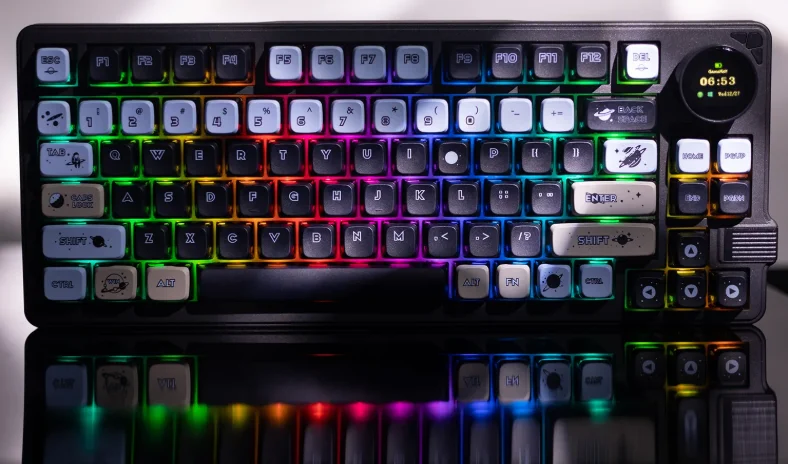

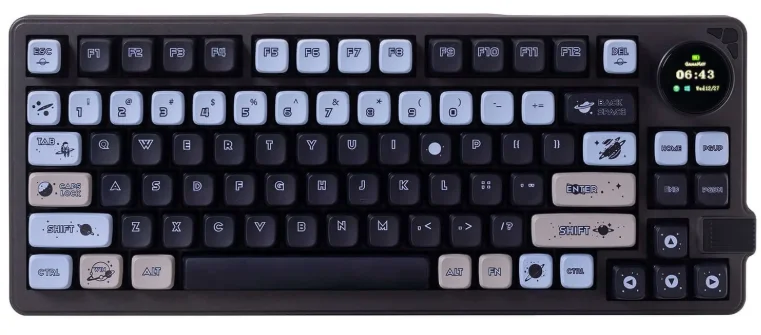
GamaKay LK75 TFT Display Knob Keyboard
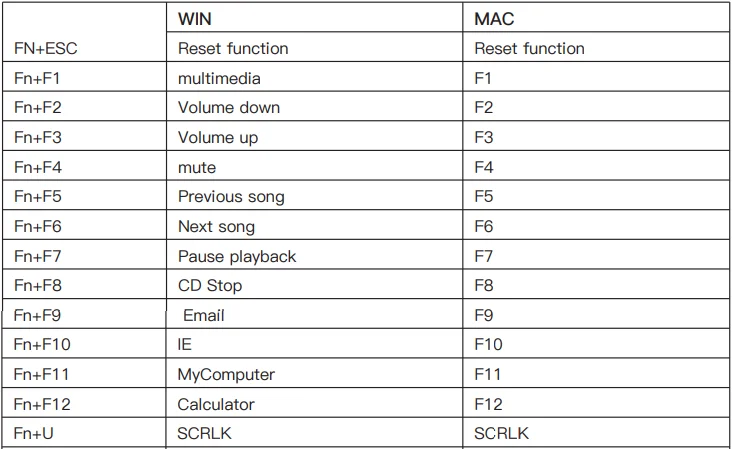
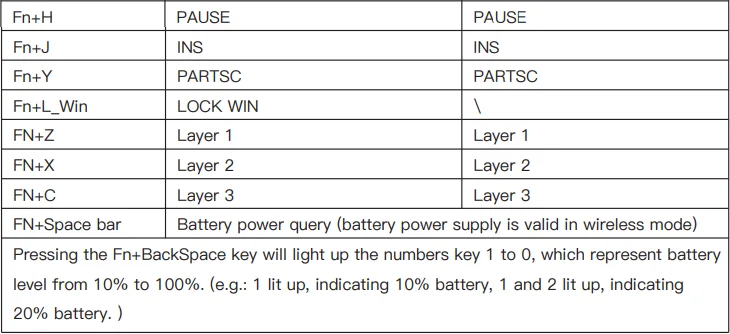
Key combination function
Connection Mode Combination key and connection method
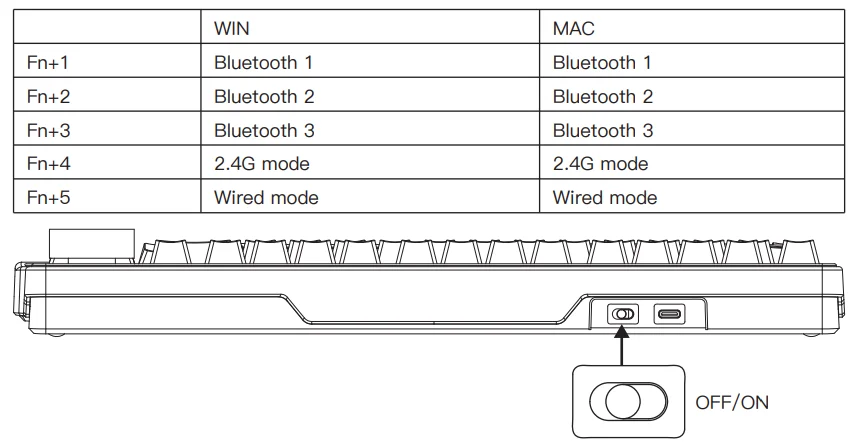
Bluetooth Mode:
- The switch is activated to the right and is in the On state
- Press and hold the FN+1/2/3 key combination for 3S to put the keyboard into pairing mode, 1/2/3 indicator flashes rapidly, and the 1/2/3 indicator stays on for 3S after connecting the device.
- If no device is connected, the indicator goes off, and the keyboard goes into hibernation.

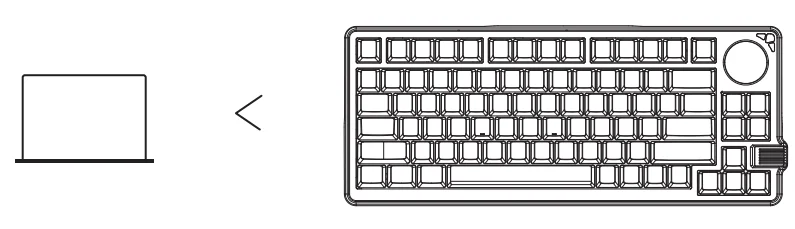
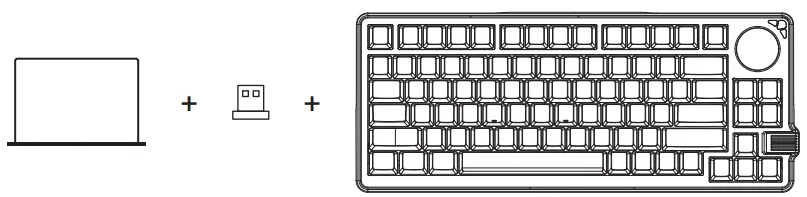
2.4G Mode:
- Switch to the right to activate the ON state, press and hold the FN + 4 key combination 3S, so that the keyboard enters the 2.4G mode.
- The indicator light flashes rapidly. Insert the 2.4G dongle, and exit pairing after successful pairing.
- Exit pairing mode after 30 seconds. If no paired device is found, the indicator light goes off, and the keyboard enters hibernation.

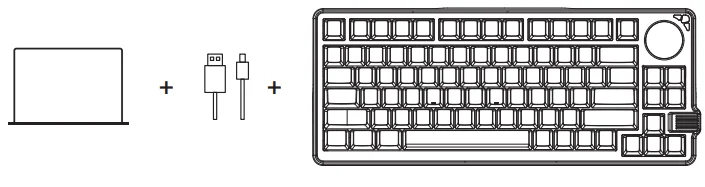
Wired Mode:
- Switch to the left to activate the Off state, plug in the USB-C cable, and press and hold the FN+5
- Key combination 3S to put the keyboard into wired mode.

Warning: If you are changing the keyboard mode to wireless under the wired mode and then, when you press FN+123/4, the keyboard battery will show at 1%. Don’t worry, this problem only happens if you plug the cable into the keyboard, and the battery life is normal.
Notes: Bluetooth mode and 2.4G mode will have three states when entering: Searching, Pairing, Connected.
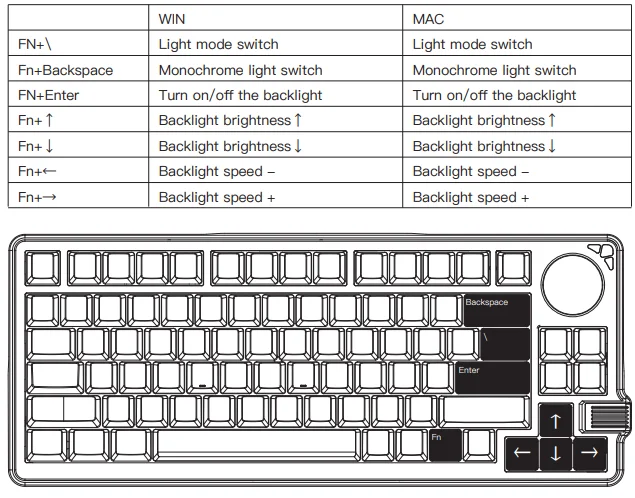
Keyboard lighting setting
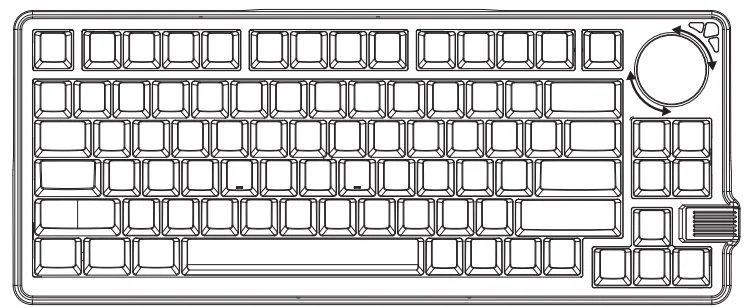
Knob screen Settings
- Knob Default Function: Volume+ / Volume-/ Play / Stop
- FN + Press the knob screen: Enter the screen control mode.

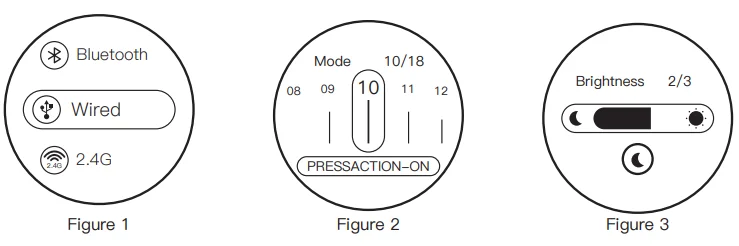
Screen Function:
- Keyboard connection mode (Wired, Bluetooth, 2.4G) (Figure 1). Notes: Bluetooth mode and 2.4G mode will have three states when entering: Searching, Pairing, Connected
- Keyboard light control (Mode, Speed, Brightness) (Figure 2)
- Screen brightness control (Figure 3)
- Picture Settings

For More Manuals By GamaKay, Visit ManualsLibraryy.
GamaKay LK75 TFT Display Knob Keyboard -FAQs
What is the GamaKay LK75 TFT Display & Knob Keyboard?
It’s a 75% mechanical keyboard with an integrated TFT smart display and multifunction knob, offering RGB lighting, hot‑swappable switches, and tri‑mode connectivity for gaming and productivity.
What’s special about the TFT display and knob?
The built‑in TFT display sits inside the knob, showing information like battery level, connection mode, and custom images or GIFs, while the knob controls volume and other functions.
How many keys and layout does the LK75 have?
It has a 75% layout with 83 keys, balancing compact size with essential function and arrow keys.
What connection options does the LK75 support?
The keyboard supports USB‑C wired, Bluetooth 5.0, and 2.4 GHz wireless modes for flexible use with multiple devices.
Are the switches hot‑swappable?
Yes — it supports hot‑swappable 3‑pin/5‑pin mechanical switches, so you can easily change switches without soldering.
Does the LK75 have RGB lighting?
Yes — it features RGB backlighting that can be customized via software or onboard controls.
What battery life does the keyboard offer?
It includes a 5000 mAh battery that supports long wireless use between charges.
Is the TFT screen customizable?
Yes — you can upload your own images or GIFs to display on the TFT screen using companion software.
Is the LK75 good for both gaming and typing?
Yes — its compact layout, customizable switches, and wireless options make it suitable for gaming, typing, and everyday use.
What keycaps and build quality does it have?
It comes with MDA profile keycaps and a sturdy top mount build that offers a comfortable typing experience and solid feel.