


GamaKay MK61 Mechanical Keyboard
Introduction
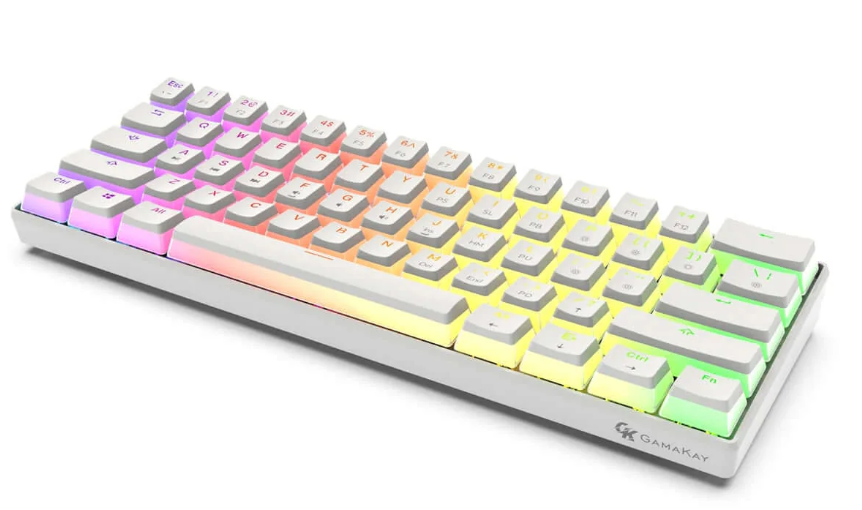
The GamaKay MK61 Mechanical Keyboard is a compact, performance-driven keyboard designed for gamers, creators, and minimal-desk enthusiasts who value speed, style, and customization. Featuring a 60% layout, the MK61 removes unnecessary keys to free up desk space while keeping all essential functions easily accessible through smart key combinations. This makes it ideal for competitive gaming setups and clean workstation aesthetics.
Built with high-quality mechanical switches, the GamaKay MK61 delivers fast response times, consistent keystrokes, and satisfying tactile feedback for both gaming and everyday typing. The keyboard is equipped with vibrant RGB backlighting, offering multiple lighting effects and brightness levels that can be adjusted directly from the keyboard, allowing users to personalize their setup without additional software.
The MK61 supports hot-swappable switches, enabling users to replace switches easily without soldering, making it perfect for beginners exploring mechanical keyboards or enthusiasts who like to fine-tune their typing experience. Its durable construction ensures long-lasting performance, while the detachable USB cable adds portability and convenience.
Compatible with Windows, macOS, and Linux, the GamaKay MK61 Mechanical Keyboard delivers versatility, reliability, and style in a compact form factor—making it an excellent choice for anyone seeking a powerful yet minimalist mechanical keyboard for work or play.
Key Function
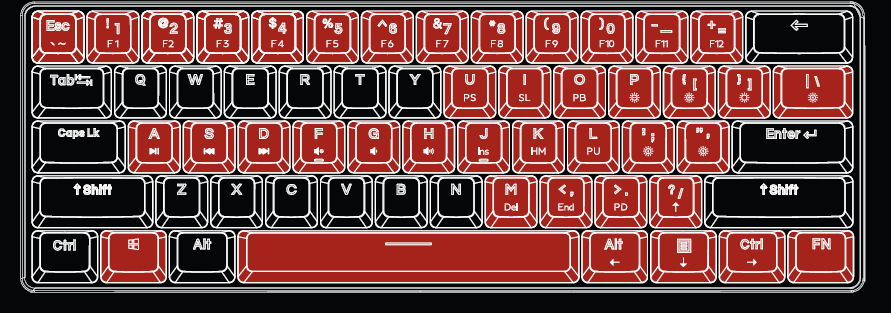
- Fn+U= PS
- Fn+O= PB
- Fn+K= Home
- Fn+M= Del
- Fn+.= PD
- Fn+right ALT= Left
- Fn+right Ctrl= Right
- Fn+P= Light Down
- Fn+1~+= F1~F12
- Fn+A= Play/Pause
- Fn+S= Previous
- Fn+D= Next
- Fn+F= Volume Mute
- Fn+G= Volume Down
- Fn+H= Volume Up
- Fn+J= Ins
- Fn+shift+ESC=~
- Fn+Q= Profile 1
- Fn+W=Profile 2
- Fn+E=Profile3
- Fn+R=Profile4
- Fn+]= User Light Mode
- Fn+\| = Light Mode
- Fn+[= Light Up
- Fn+P= Light Down
- Fn+Enter= Light Color
- Fn+L= PU
- Fn+,= END
- Fn+?= Up
- Fn+menu= Down
- Fn+Backspace= On/Off Light
- Fn + WinKey = Windows key lock / Press again to release Windows key lock. After pressing the Fn, windows key lights up white
- Fn+Tab= Reset (press and hold for 5 seconds)
- Fn+n= Change N/6Key (when it is set to Nkey, the backlight of N key lights up in red)
- Fn+space= Fn lock, and Fn always lights red when it is locked. Press space again to unlock it.
For more manuals by GamaKay, visit ManualsLibraryy
GamaKay MK61 Mechanical Keyboard-FAQs
How do I change the RGB colors on the GamaKay MK61?
Press Fn + Spacebar to switch between RGB modes and single colors. Tap the Spacebar again to return to full RGB effects. You can also cycle through different lighting patterns using Fn + Right Ctrl.
Why do gamers prefer 60% keyboards like MK61?
Gamers like the compact size, customizable keys, and extra mouse space. The smaller layout helps speed, reduces hand movement, and allows more desk flexibility for gaming setups.
Is typing on the MK61 fast and comfortable?
Yes. With mechanical switches and ergonomic layout, users can type quickly and accurately. Many users report speeds of 80 WPM or more with practice.
How do I know when the keyboard is fully charged?
The charging indicator light turns red while charging. Once the battery is full, the light turns off, signaling it’s ready for wireless use.
Can I use the MK61 with Mac, Windows, or Linux?
Yes. The keyboard is compatible with Windows, macOS, and Linux. You may need to adjust modifier keys for Mac to match Ctrl and Command functions.
How long do the RGB lights last?
The keyboard’s RGB LEDs are durable and can last up to 50,000 hours, providing years of consistent lighting without noticeable dimming.
Can I charge the GamaKay MK61?
Yes. Use the USB Type-C cable to connect it to a computer or charger. Turn off Bluetooth while charging. Once fully charged, you can switch back to wireless mode.
Is the GamaKay MK61 hot-swappable?
Yes. You can remove and replace the mechanical switches without soldering. This allows easy customization and upgrading for better typing or gaming experience.
How do I reset the MK61 keyboard?
Hold Fn + Esc for about 5 seconds until the RGB lights flash. This restores factory settings and clears any custom key or lighting changes.