
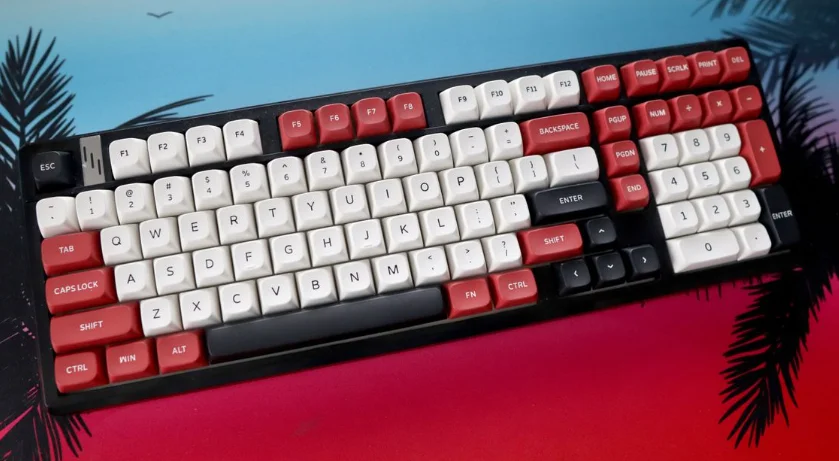

GamaKay TK101 Mechanical Keyboard
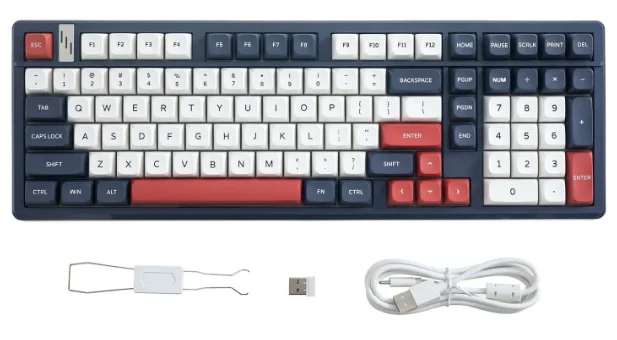
WINDOWS/ MAC OS
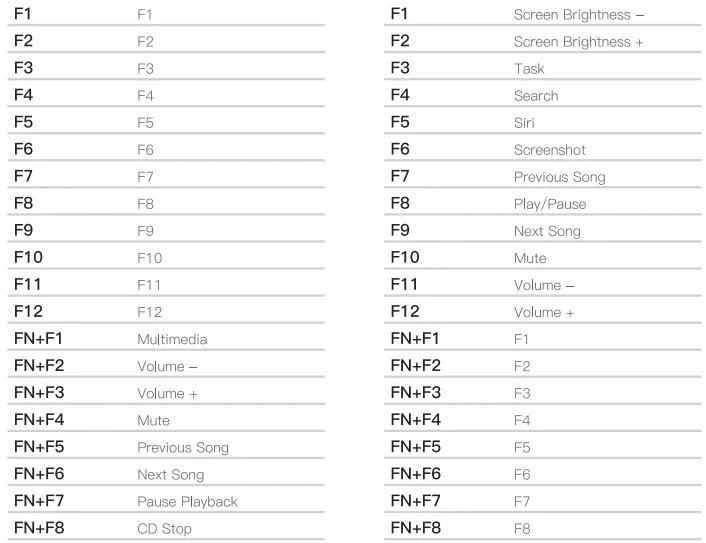
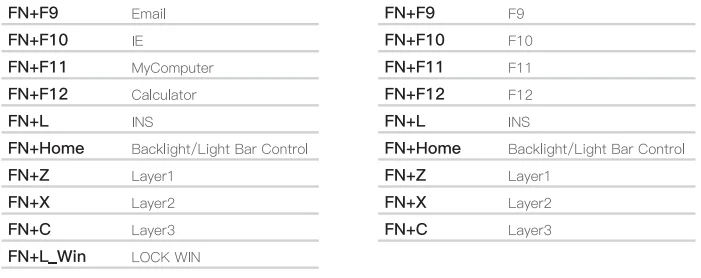
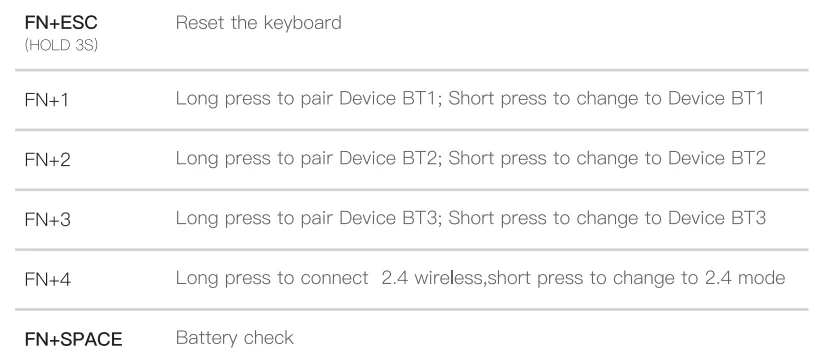
Key Combination Function
Keyboard lighting setting
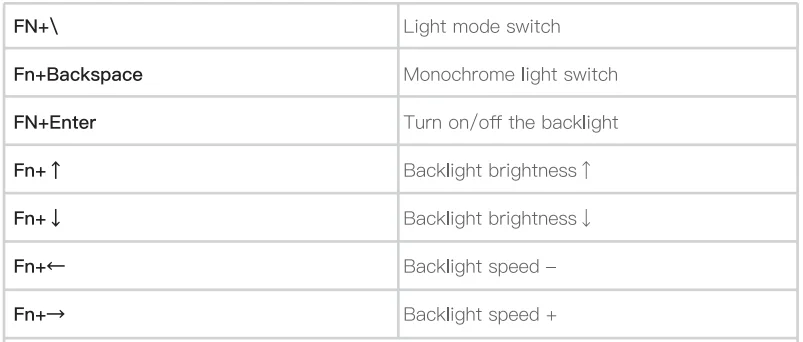
Notes: Gamakay keyboards support full key customization of lights and key values. This can be done in two ways:
- Download the driver from the official website www.gamakay.com/pages/downloads.
- Use the driver directly at www.qmk.top.
- Bluetooth Mode: Toggle the switch to the right, press and hold the FN+1/2/3 key combination for 3 s to make the keyboard enter pairing mode. The 1/2/3 indicator flashes quickly, and the 1/2/3 indicator stays on for 3 s after connecting to the device. If not connected to a device, the lights go off, keyboard goes to sleep.
- 2.4G Mode: Toggle the switch to the left, press and hold the FN+4 key combination for 3 s to make the keyboard enter 2.4G mode. The indicator light flashes quickly. Insert the 2.4G dongle, exit the pairing after successful pairing, and exit the pairing mode after 30 s if the paired device is not found. The indicator light is off, and the keyboard goes to sleep.
- Wired Mode: Move the switch to the center, press and hold the FN+5 key combination for 3 s to make the keyboard enter wired mode.
- Battery check: Hold Fn+Space, the keys from 1 to 0 light up to show the battery percentage; for example, if the keys from 1 to 5 light up when holding Fn+Space, it means that the battery life is currently 50%; if keys of 1-0 light up, battery life is 100%.
Notes: If you plug in the cable while in wired mode and try to switch to wireless mode by pressing FN+1/2/3/4, the system will detect that the keyboard battery is only at 1%.
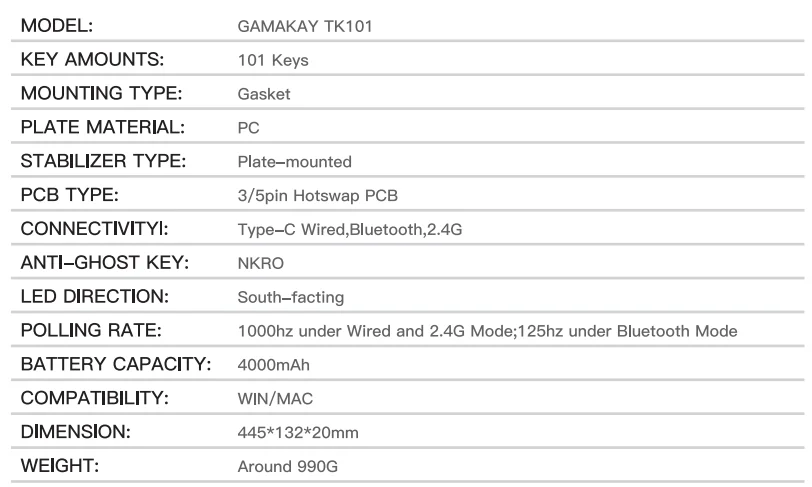
SPECS
For More Manuals By GamaKay, Visit ManualsLibraryy.
GamaKay TK101 Mechanical Keyboard -FAQs
How do you charge the GamaKay TK101 mechanical keyboard properly?
To charge the GamaKay TK101 correctly, connect it to a computer using a Type-C cable. Switch the keyboard from wireless or Bluetooth mode to wired mode before charging. This ensures stable power delivery and faster charging. Avoid charging through wall adapters unless recommended by the manufacturer. Let the keyboard fully charge before switching wireless mode back on to maintain battery health and consistent performance.
Do I need to charge a mechanical keyboard if it also supports wired mode?
If your mechanical keyboard supports both wired and wireless modes, charging is only necessary for wireless use. When used in wired mode, the keyboard draws power directly from the computer and does not rely on the internal battery. However, keeping the battery charged is recommended if you plan to switch to Bluetooth or wireless mode frequently.
How long does the battery of a GamaKay mechanical keyboard usually last?
Battery life on GamaKay mechanical keyboards depends on usage patterns, backlighting, and connection mode. With RGB lighting enabled, battery life may range from several days to a week. Turning off RGB lighting and using Bluetooth efficiently can significantly extend usage time. Regular full charging cycles help maintain long-term battery performance and reliability.
How do you reset a GamaKay mechanical keyboard?
To reset most GamaKay mechanical keyboards, including similar models in the lineup, press and hold FN + ESC for a few seconds until the keyboard resets. This restores factory settings and can resolve connection, lighting, or input issues. Resetting is often recommended after firmware updates or when switching between multiple devices.
What are the disadvantages of using a mechanical keyboard like the GamaKay TK101?
Mechanical keyboards can be more expensive than membrane keyboards and may produce noticeable noise, depending on the switch type. Some users also experience a short learning curve when adjusting to key travel and actuation force. Additionally, wireless mechanical keyboards require battery management, which may be inconvenient for users who prefer completely maintenance-free peripherals.
How long can a mechanical keyboard last with regular use?
A quality mechanical keyboard can last between 10 and 15 years with proper care. Mechanical switches are rated for tens of millions of keystrokes, making them far more durable than membrane keyboards. Regular cleaning, careful cable handling, and avoiding liquid exposure can significantly extend the lifespan of a GamaKay mechanical keyboard.
Can you change the LED lighting on a GamaKay mechanical keyboard?
Yes, GamaKay mechanical keyboards typically support customizable LED lighting. Users can change colors, effects, and brightness using built-in key combinations or compatible software, depending on the model. This allows personalization for gaming, productivity, or low-light environments. RGB features may slightly reduce battery life when used in wireless mode.
Is a compact mechanical keyboard better for gaming and desk space?
Compact layouts are popular among gamers because they save desk space and allow more room for mouse movement. While the TK101 offers a more complete layout, compact keyboards reduce hand movement and can improve ergonomics in fast-paced gaming. The best choice depends on whether you prioritize portability and space or dedicated keys for productivity tasks.
What is the correct way to switch between wired and wireless modes on a GamaKay keyboard?
To switch modes on a GamaKay mechanical keyboard, first locate the physical mode switch or use the designated key combination specified for your model. When using wired mode, connect the Type-C cable directly to your computer and disable Bluetooth or wireless mode. For wireless use, unplug the cable and switch back to Bluetooth or 2.4G mode. Always ensure the keyboard has sufficient battery charge before switching to wireless mode.