
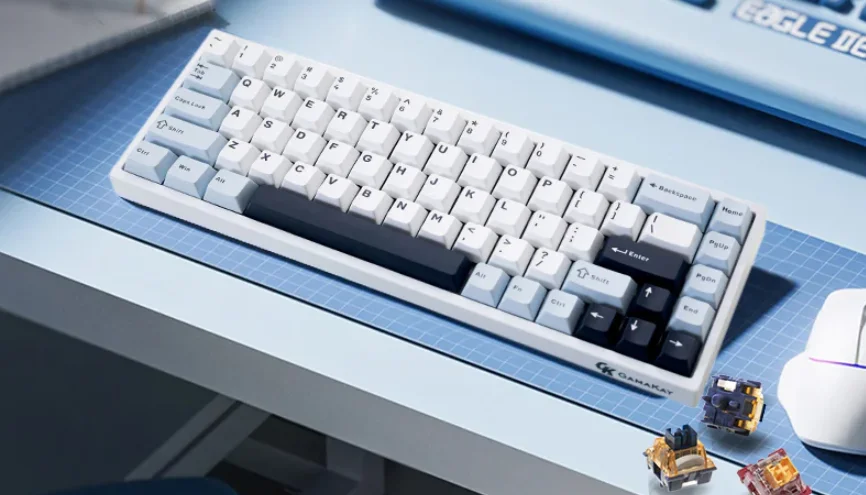

GamaKay TK68-HE Magnetic Keyboard
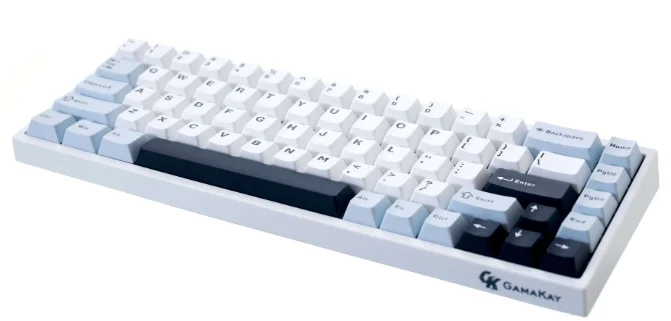
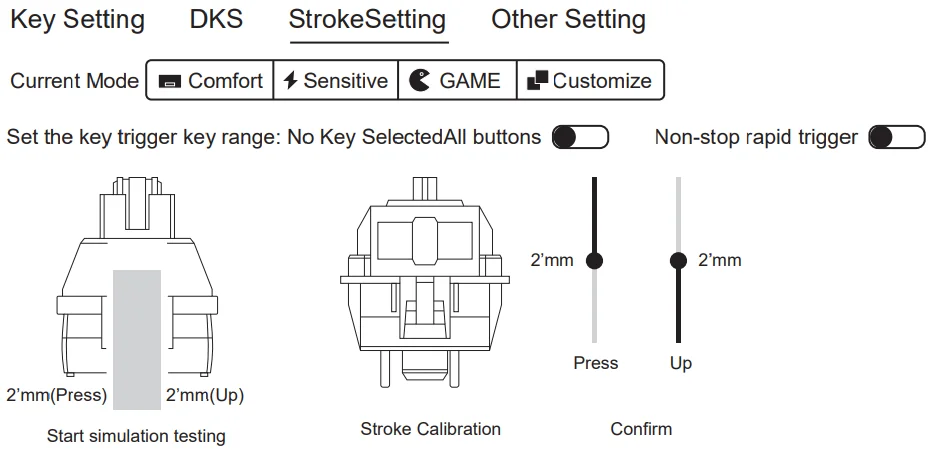
Key combination function
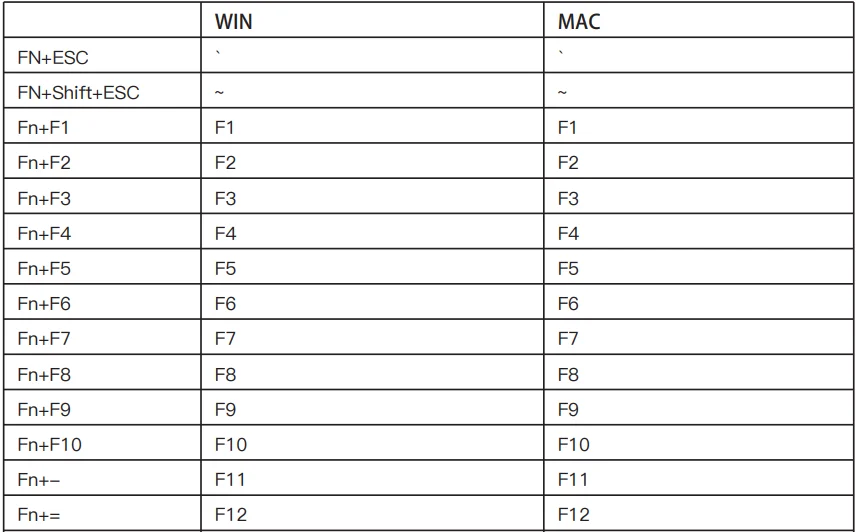
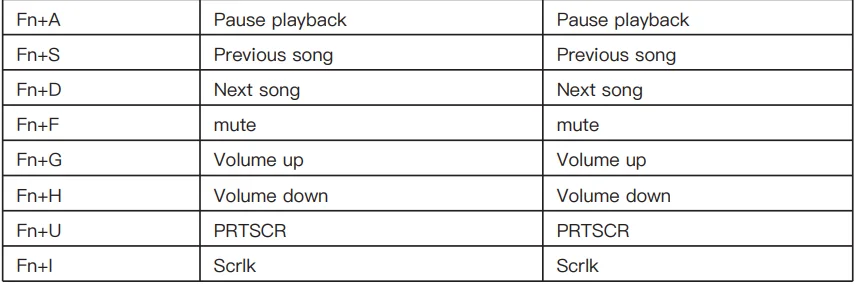
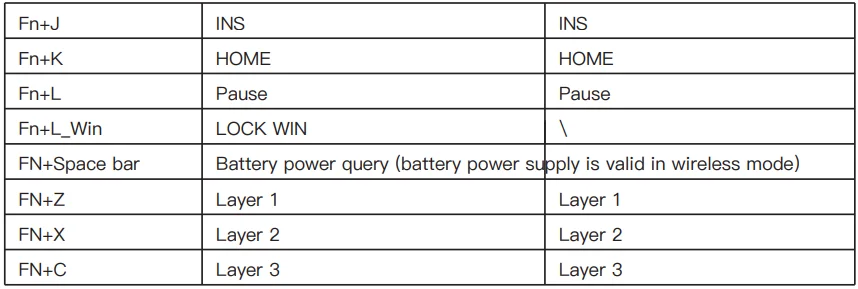
Keyboard lighting setting
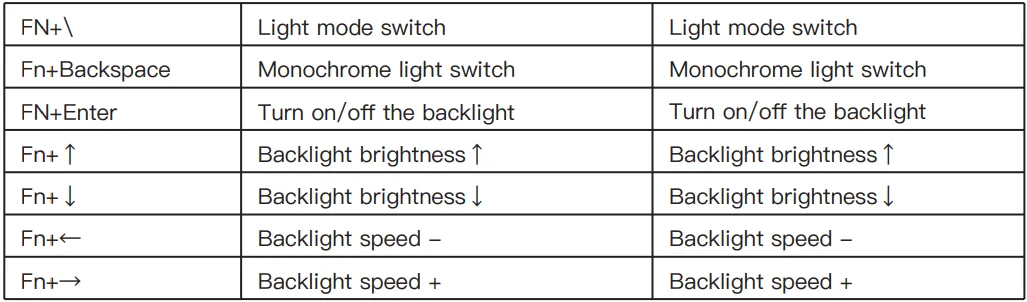
Customized key travel

- Comfort mode: Triggered by pressing the button around 1.5mm; FN+PGUP switches this mode
- Sensitive mode: button trigger at 0.5mm; FN+PGDN switches this mode
- Game mode: Press the button to trigger at 0.5mm, release the trigger stroke at 2mm, and turn on continuous rapid triggering (RT); FN+END switches this mode
- Custom DIY mode: You can set the trigger stroke of each button in the driver and choose
whether to turn on the continuous rapid trigger (RT) function. FN+DEL switches this mode.
Connection Mode Combination key and connection method
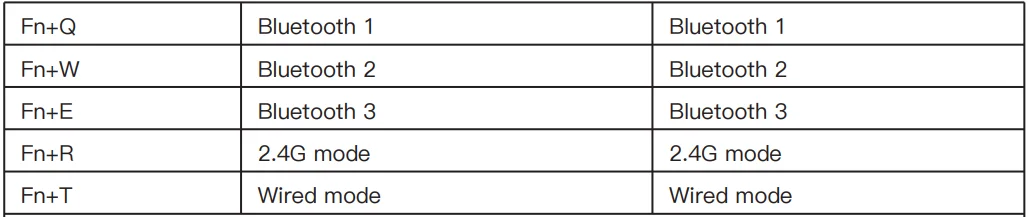
- Bluetooth Mode: Turn on the power switch, press and hold the FN + (Q / W) / E key combination for 3S to make the keyboard enter pairing mode, the Q/W/E indicator flashes quickly, and the Q/W/E indicator stays on for 3S after connecting to the device, if not connected to a device, the lights off, keyboard goes to sleep.
- 2.4G Mode: Turn on the power switch, press and hold the FN+R key combination for 3S to make the keyboard enter 2.4G mode, the indicator light flashes quickly, insert the 2.4G dongle, exit the pairing after successful pairing, and exit the pairing mode after 30s if the paired device is not found, the indicator light is off, the keyboard go to sleep.
- Wired Mode: Turn off the power switch, press and hold the FN+T key combination for 3S to make the keyboard enter wired mode.
Warning: If you plug in the cable while in wired mode and try to switch to wireless mode by pressing FN + QWE / R, the system will detect that the keyboard battery is only at 1%.
For More Manuals By GamaKay, Visit ManualsLibraryy.
GamaKay TK68-HE Magnetic Keyboard -FAQs
What is the GamaKay TK68-HE Magnetic Keyboard?
The TK68-HE is a 65% compact keyboard featuring Hall Effect magnetic switches for responsive typing and gaming with adjustable actuation and rapid trigger features.
What are Hall Effect magnetic switches?
These switches use magnetic sensors instead of metal contacts, detecting key presses through magnetic field changes for precise, durable performance.
Does the TK68-HE support wireless connectivity?
Yes — it supports tri-mode connection: Wired (USB-C), Bluetooth, and 2.4GHz wireless, and can connect to multiple devices.
What gaming features does the TK68-HE offer?
It includes Rapid Trigger for faster key actuation, Snap Tap priority input for directional changes, and Dynamic Keystroke (DKS) for multiple actions per key press.
What layout does the TK68-HE use?
The keyboard uses a 65% layout with 68 keys, which saves desk space while keeping essential keys and arrow functions.
Can I customize actuation and travel distance?
Yes — you can adjust the actuation point and travel distance of keys (from very shallow to deeper presses) to suit your style.
Does the keyboard have RGB lighting?
Yes, it comes with RGB backlighting that can be customized in various modes and effects through software.
Is the TK68-HE suitable for both work and gaming?
Yes — its responsive Hall Effect switches and compact design make it great for both productivity typing and gaming sessions.
Can the TK68-HE connect to Mac and Windows devices?
Yes, it supports both Windows and macOS systems with full feature compatibility.
What keycaps and build quality does it have?
It typically comes with PBT keycaps and a solid build featuring a polished metal knob for volume or function control.