
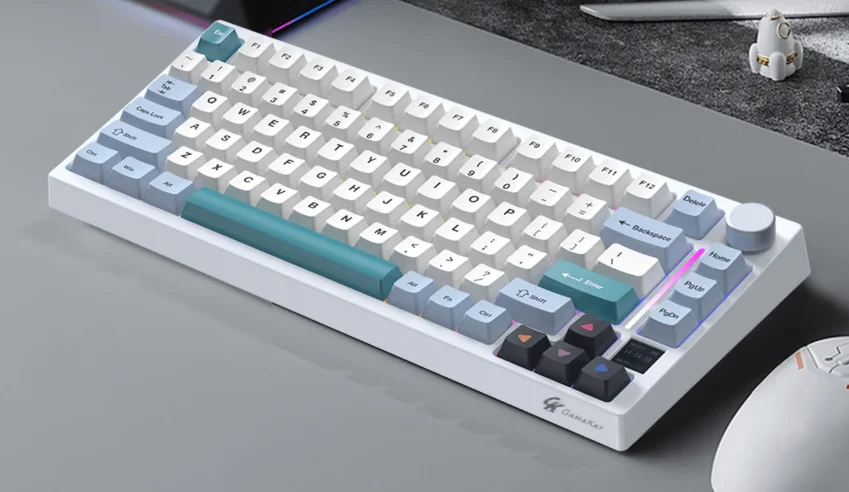

GamaKay TK75 V2 Silent Mechanical Keyboard
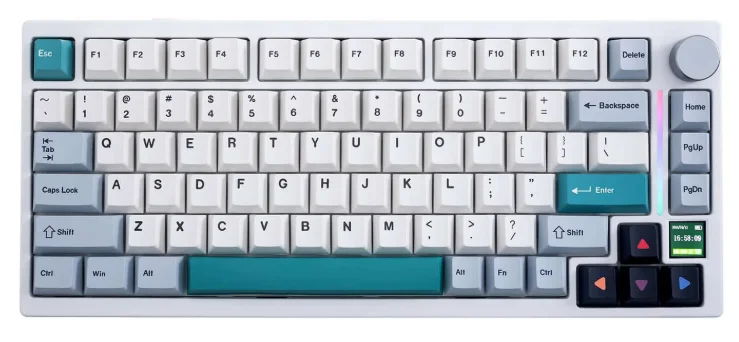
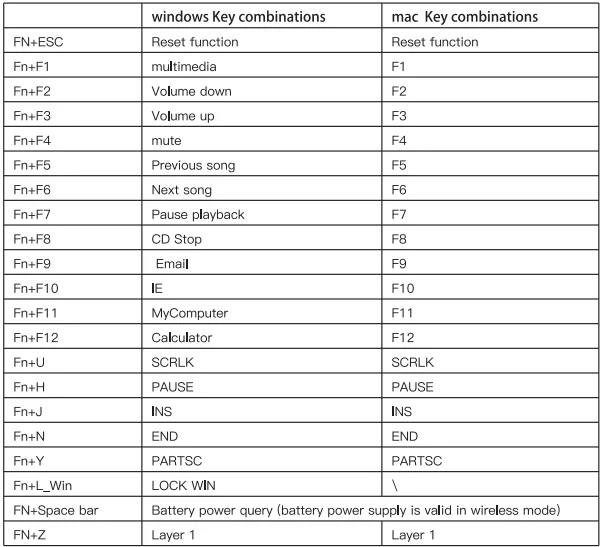
Key combination function

Keyboard lighting setting
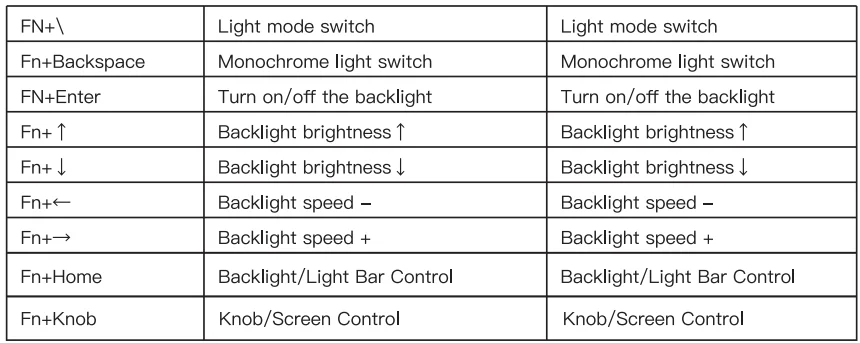
Dual light control:
- The keyboard’s main backlight/side light bar can be controlled separately
- Default key lighting control
- Press FN+HOME to switch main backlight/light bar control
- Same key combination as the above table after switching
How to use the display:
- Turn the knob left: display selects upward flip
- Turn the knob right: the display selects downward
- Press the knob to confirm the content of the display
- Toggle knob default setting– FN + Press the knob
- Default function of knob: Volume + / Volume/Toggle Mute
Connection Mode Combination key and connection method
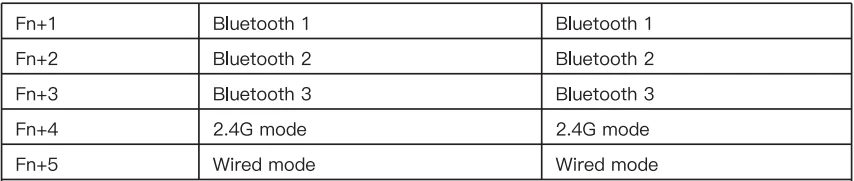
- Bluetooth Mode: Turn on the power switch, press and hold the FN+1/2/3 key combination for 3S to make the keyboard enter pairing mode, the 1/2/3 indicator flashes quickly, and the 1/2/3 indicator stays on for 3S after connecting to the device. If not connected to a device, the lights go off, keyboard goes to sleep.
- 2.4G Mode: Turn on the power switch, press and hold the FN+4 key combination for 3S to make the keyboard enter 2.4G mode, the indicator light flashes quickly, insert the 2.4G dongle, exit the pairing after successful pairing, and exit the pairing mode after 30s if the paired device is not found, the indicator light is off, the keyboard go to sleep.
- Wired Mode: Turn off the power switch, press and hold the FN+5 key combination for 3S to make the keyboard enter wired mode.
Warning: If you plug in the cable while in wired mode and try to switch to wireless mode by pressing FN+123/4, the system will detect that the keyboard battery is only at 1%.
For More Manuals By GamaKay, Visit ManualsLibraryy.
GamaKay TK75 V2 Silent Mechanical Keyboard -FAQs
What is the GamaKey TK75 V2 Silent Mechanical Keyboard?
It’s a 75% mechanical keyboard designed for quiet typing and gaming, using silent switches to reduce noise while maintaining a smooth key feel.
What makes the TK75 V2 a “silent” keyboard?
It uses silent mechanical switches with dampened stems that minimize both bottom-out and return noise compared to standard mechanical switches.
Is the GamaKey TK75 V2 good for office or shared spaces?
Yes, its low-noise switches make it suitable for offices, shared rooms, and late-night use without disturbing others.
What layout does the GamaKey TK75 V2 use?
It uses a 75% layout, removing the number pad while keeping arrow keys and essential function keys.
Does the GamaKey TK75 V2 support hot-swappable switches?
Yes, it supports hot-swapping, allowing users to replace compatible mechanical switches without soldering.
What type of switches come with the TK75 V2?
It typically comes with GamaKey silent switches, designed for smooth and quiet linear keystrokes.
Is the GamaKey TK75 V2 suitable for gaming?
Yes, it offers fast response, consistent actuation, and reduced noise, making it good for both casual and competitive gaming.
Does the TK75 V2 have RGB lighting?
Yes, it features customizable RGB backlighting with multiple effects controlled via software or shortcuts.
Can the GamaKey TK75 V2 be used for typing?
Absolutely. The silent switches and compact layout make it comfortable for long typing sessions.
How is the GamaKey TK75 V2 different from Hall Effect versions?
The TK75 V2 Silent uses traditional mechanical switches, while Hall Effect versions use magnetic sensors and adjustable actuation.