
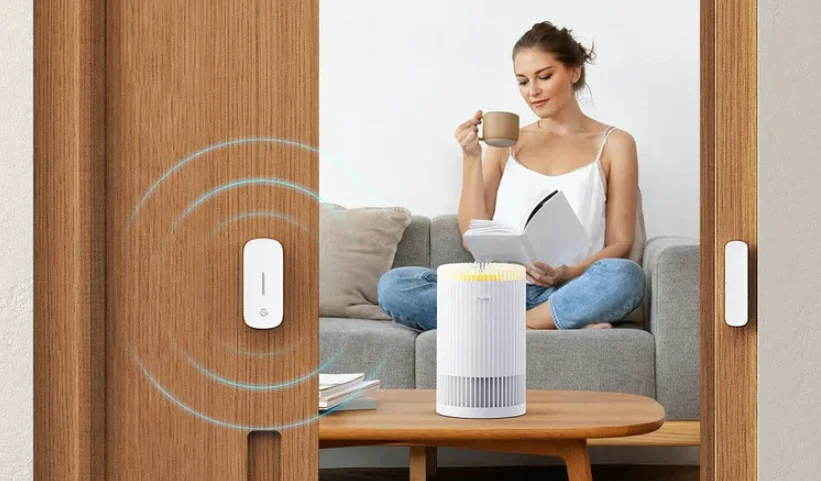

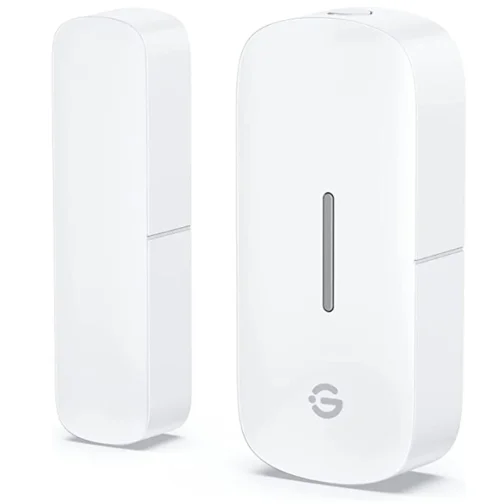
GoveeLife H5123 Door and Window Sensor
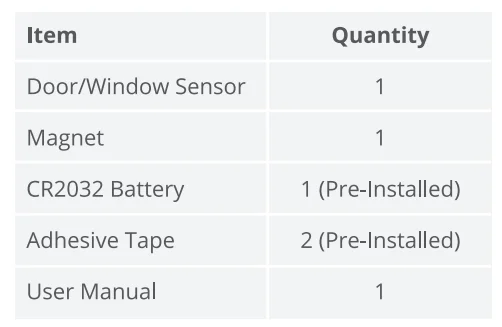
Included in the Box
Introduction
The Govee Door/Window Sensor has a built-in high-precision reed switch and a precision circuit. It can detect the open/closed status of doors, windows, drawers, etc., and can be fixed to most indoor surfaces with adhesive tape. Based on the Bluetooth communication with Govee’s unique distributed gateway, it can transfer the detected open/close status as a condition to trigger automation and send the information to Govee Home App or execute commands from other Govee products to achieve multiple intelligent scenarios.
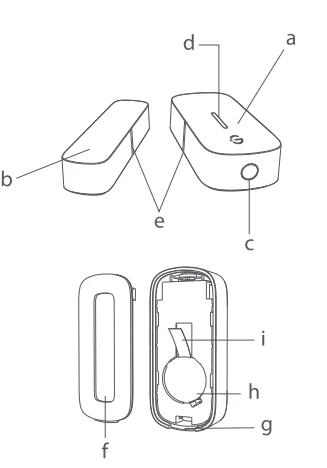
Part Names
- a. Door/Window Sensor
- b. Magnet
- c. Function Button
- d. Indicator Light
- e. Marker Lines
- f. Bottom Cover
- g. Open Slot
- h. Battery
- i. Insulation Sheet

Controls
Function Button
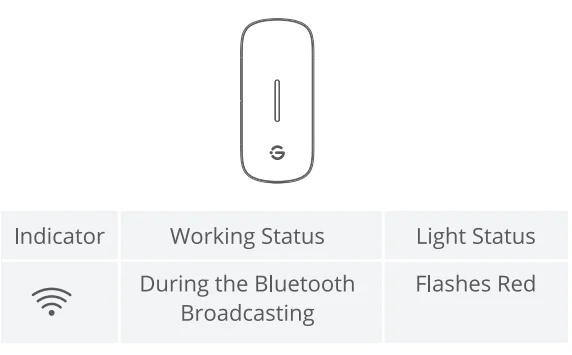
Press and hold the function button for 3 seconds. When the indicator light flashes slowly, it means that the device has entered the Bluetooth Broadcast Mode. Please follow the in-app instructions to complete pairing.
Indicator Status
Functions
Open/Close Status Detection
The sensor can monitor the open/closed status of objects. You can set the triggering instructions in the app.
Getting Started
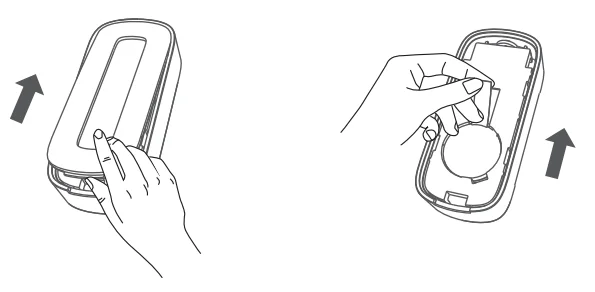
- Open the packaging. Open the bottom cover from the open slot as shown in the picture. Pull out the insulation sheet and tighten the bottom cover.

- Press and hold the function button for 3 seconds to enter the pairing mode. Follow the in-app steps to complete the pairing.
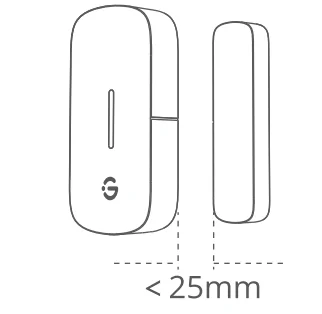
- Remove the liner of the adhesive tape and fix the device where you need it to be. It is recommended to fix the door/window sensor on the stationary surface and the magnet on the moving surface. The gap between the sensor and the magnet should be less than 25 mm.

- Effective Communication Distance Verification: After completing the pairing, you can verify it in the app.
Note:
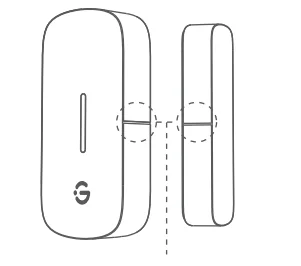
- Try to align the marker lines on the sensor and the magnet.

- Please ensure the surface is clean and dry.
- To ensure the detection accuracy, please do not install it on metallic surfaces.
- For indoor use only.
Govee Home App
You can access more features using the Govee Home App.
Downloading Govee Home App
To download the Govee Home App, scan the QR code or search for “Govee” in the Apple App Store® (iOS) or Google Play Store (Android). For FAQs and more information, please visit: www.govee.com.
Note:
- Choose “Allow” for the permissions requested when opening the Govee Home App for the first time. These permissions allow the app’s features to function normally and are not used to record personal, private information.
- Due to ongoing updates, the Govee Home App may be slightly different from what is shown in this manual. In case of any differences, always follow the in-app instructions.
Pairing with Govee Home App
- Turn on your smartphone’s Bluetooth.
- Open Govee Home App, tap the “+” icon in the top right corner, and search for “H5123.”
- Tap the device icon and follow the on-screen instructions to complete pairing.
Note:
- Govee Home App is being continually updated, and its features expand.
Troubleshooting
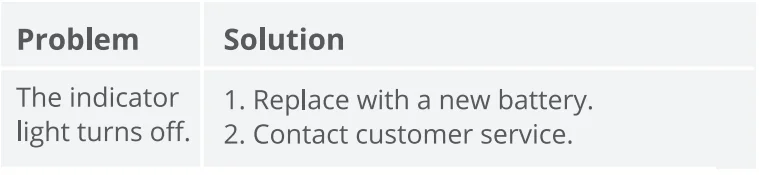
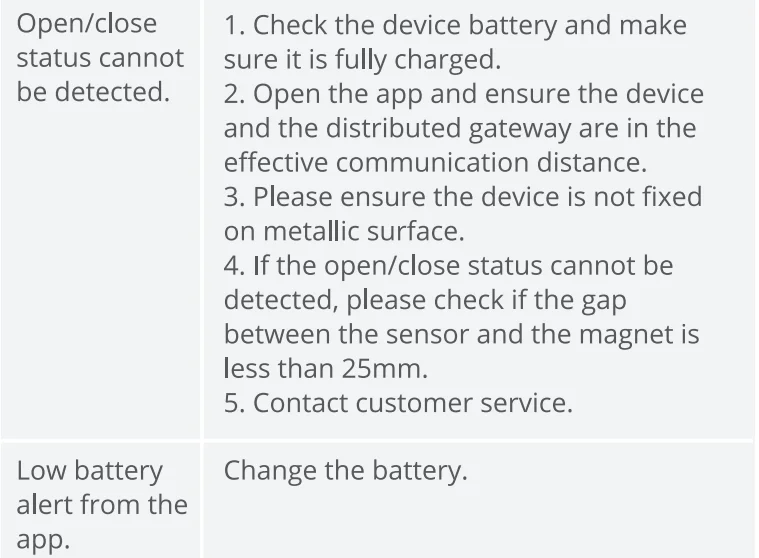
The troubleshooting section below is for solving frequently asked questions. If your problem persists, please contact customer support.
For Motion Sensor
For App & Connectivity
- Cannot connect to Govee Home App.
- Make sure your smartphone is powered on and is not connected to other Bluetooth devices.
- Enable the smartphone’s Location Services.
- Try connecting with another smartphone.
- Make sure your app is updated to the latest version.
- Make sure you connect to your Wi-Fi router’s 2.4 GHz network and that the network is working correctly.
- Make sure the Wi-Fi password you entered is correct.
- Shorten the distance between the sensor, the distributed gateway, and the smartphone.
- Make sure your sensor and the distributed gateway are away from appliances that produce electromagnetic radiation (e.g., microwave ovens, refrigerators, etc.).
- If you are using a VPN, try turning it off and then connecting the sensor.
- Disable portal authentication for your Wi-Fi network. If portal authentication is enabled, this sensor will not be able to access your Wi-Fi network, and setup will fail. Portal authentication means that you need to sign in to your Wi-Fi network through a web page before you can use the Internet.
- Cannot find the device on the Bluetooth Device Nearby page of the app.
- The sensor may be connected to another smartphone. Disconnect it from the other smartphone first.
- The sensor is offline.
- Make sure the sensor is plugged in and powered on, then refresh “My Devices” in the Govee Home App by swiping down on the screen. Make sure your router is connected to the Internet, and your smartphone’s network connection is working.
- If the Wi-Fi password has been changed, the sensor will automatically go offline. Try connecting it to the network again.
- Delete the offline sensor from the Govee Home App, then add and reconfigure the sensor again in the app.
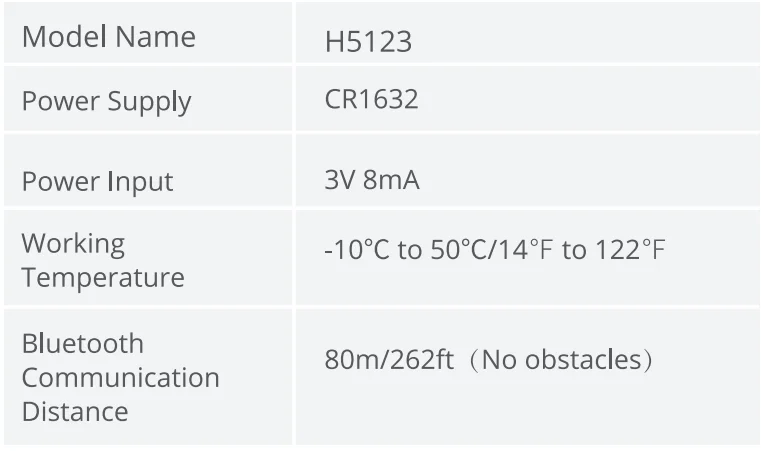
Specifications
FCC Statement
This device complies with Part 15 of the FCC Rules. Operation is subject to the following two conditions:
- This device may not cause harmful interference, and
- This device must accept any interference received, including interference that may cause undesired operation.
Warning: Changes or modifications not expressly approved by the party responsible for compliance could void the user’s authority to operate the equipment.
NOTE: This equipment has been tested and found to comply with the limits for a Class B digital device, pursuant to Part 15 of the FCC Rules. These limits are designed to provide reasonable protection against harmful interference in a residential installation. This equipment generates, uses, and can radiate radio frequency energy and, if not installed and used in accordance with the instructions, may cause harmful interference to radio communications.
However, there is no guarantee that interference will not occur in a particular installation. If this equipment does cause harmful interference to radio or television reception, which can be determined by turning the equipment off and on, the user is encouraged to try to correct the interference by one or more of the following measures:
- Reorient or relocate the receiving antenna.
- Increase the separation between the equipment and receiver.
- Connect the equipment into an outlet on a circuit different from that to which the receiver is connected.
- Consult the dealer or an experienced radio/TV technician for help.
FCC Radiation Exposure Statement
This equipment complies with FCC radiation exposure limits set forth for an uncontrolled environment. This equipment should be installed and operated with a minimum distance of 20cm between the radiator and your body.
Responsible party:
Name: GOVEE MOMENTS(US) TRADING LIMITED
Address: 13013 WESTERN AVE STE 5 BLUE ISLAND IL 60406-2448
Email: [email protected]
Contact Information: https://www.govee.com/support
 INDOOR USE ONLY
CAUTION:
- RISK OF EXPLOSION IF BATTERY IS REPLACED BY AN INCORRECT TYPE.
- DISPOSE OF USED BATTERIES ACCORDING TO THE INSTRUCTIONS.
WARNING:
The batteries (battery pack or batteries installed) shall not be exposed to excessive heat, such as sunshine, fire, or the like. Extremely low air pressure that may result in an explosion or the leakage of flammable liquid or gas. Be aware that a discharged battery may cause fire or smoke; tape the terminals to insulate them. The Bluetooth® word mark and logos are registered trademarks owned by Bluetooth SIG, Inc., and any use of such marks by Shenzhen Qianyan Technology LTD. is under license. The trademark Govee has been authorised by Shenzhen Qianyan Technology LTD. Copyright © 2021 Shenzhen Qianyan Technology LTD. All Rights Reserved.
For More Manuals By GoveeLife, Visit ManualsLibraryy.
GoveeLife H5123 Door and Window Sensor-FAQs
Does Govee make a door sensor?
Yes, Govee makes a door and window sensor under its GoveeLife line, including the H5123 model. This sensor is designed to detect when doors or windows are opened or closed and send alerts through the Govee Home app. It supports a wide gap allowance of up to 25mm, making it suitable for most doors, windows, cabinets, drawers, and even refrigerators.
What is the GoveeLife H5123 Door and Window Sensor used for?
The GoveeLife H5123 sensor is used to monitor entry points in your home and notify you when a door or window is opened. It can enhance home security, track activity, or even automate other Govee devices. For example, you can set up smart routines so lights turn on automatically when a door opens, improving convenience and safety.
How does a door and window sensor work?
A door and window sensor typically consists of two magnetic components. One piece is attached to the door or window, while the other is fixed to the frame. When the door or window is closed, the magnets remain aligned. Once opened, the magnetic connection breaks, triggering the sensor to send an alert through the connected app or hub.
Does the GoveeLife H5123 require WiFi?
The GoveeLife H5123 usually connects through a compatible Govee gateway or hub, which then links to your WiFi network. Basic door sensors themselves often use short-range wireless communication, but WiFi is required for remote alerts and smart automation features. Without network connectivity, you may not receive notifications on your smartphone.
How do I set up the GoveeLife Door and Window Sensor?
To set up the sensor, install the battery, download the Govee Home app, and follow the in-app pairing instructions. Mount the two magnetic pieces close together on the door and frame, ensuring proper alignment. Once paired, you can customize alerts and automation settings within the app for seamless integration with other Govee devices.
How do I replace the battery in the GoveeLife H5123 sensor?
To replace the battery, remove the rubber stoppers on the back of the transmitter to access the screws. After unscrewing the back panel, you can replace the battery with a 12V 23A battery. Once installed, securely close the panel and test the sensor through the app to ensure it reconnects properly.
Can I control Govee devices from my phone?
Yes, Govee devices, including the H5123 sensor, can be managed through the Govee Home app. The app allows you to monitor device status, receive alerts, create automation routines, and control compatible lighting products. Remote access depends on proper WiFi connectivity and successful pairing with your Govee account.
Are door and window sensors worth it?
Door and window sensors are considered worthwhile for enhancing home awareness and security. While cameras provide visual monitoring, sensors add another layer of protection by instantly alerting you when entry points are opened. They are discreet, affordable, and effective for covering areas that cameras may not fully monitor.
Is Govee a reliable brand?
Govee is a technology company headquartered in Shenzhen, China, known for smart lighting and home automation products. The brand has gained popularity for offering affordable smart home devices with app integration and automation features. While experiences may vary, many users appreciate Govee products for their ease of use and value for money.
What are common issues with Govee sensors?
Common issues can include connectivity problems, delayed notifications, or battery-related interruptions. These are often linked to weak WiFi signals, gateway placement, or low battery levels. Ensuring proper alignment of the magnetic components and maintaining stable network connectivity usually resolves most problems quickly and keeps the sensor functioning reliably.