

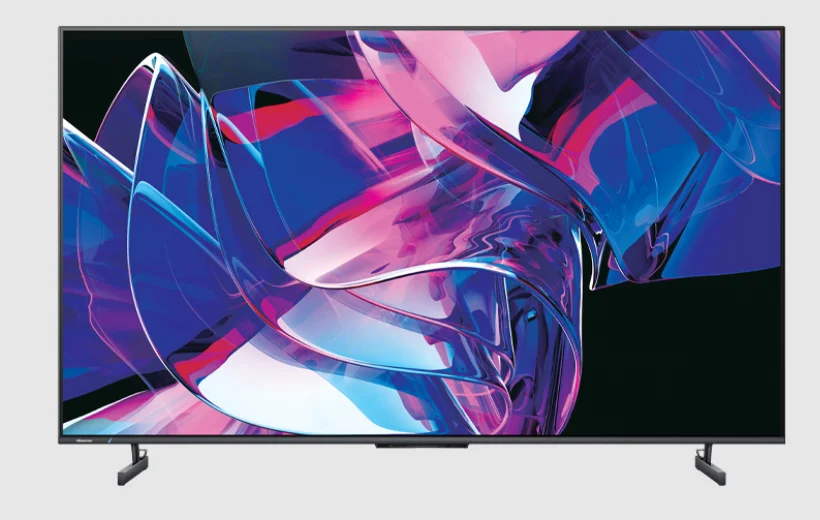
Hisense U7K Mini-LED TV
First-Time Use
Using the E-Manual
View the embedded E-Manual that contains information about your TV’s key features.
Disclaimer: Instructions and images in this manual are only for reference and may differ from the actual product.
Launch the E-Manual
Press button on your remote control to select Settings > System > Advanced System > E-Manual. Scan the QR Code with your smartphone to open the E-Manual on your device.
Note:
- The black background icon stands for the button on the remote control.
- The grey background icon stands for the icons on the TV screen for selection.
Use the Buttons in the E-Manual
Search
You can use icon at the top of the E-Manual to search for the product feature information, and the E-Manual will provide all the titles and content that contain the search information.
Setting
You can use icon at the top of the E-Manual home screen to adjust the text size.
Home Screen
All TV functions can be accessed from the Home screen.
Display the Home Screen
Press button on your remote control to enter the Home screen. To exit the Home screen, use your remote control or use the navigation buttons on the screen to move the cursor to other icons, press
 button to enter, and select your desired service.
Connecting to the Internet
To get access to the Internet using a wired connection or by connecting to an available wireless network.
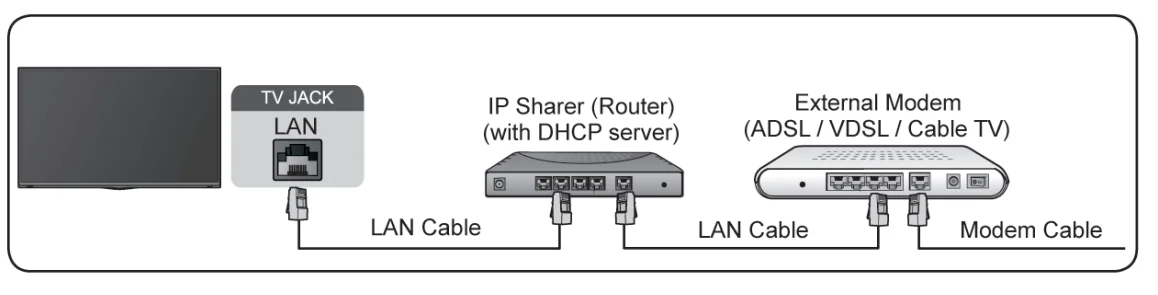
Connect to a Wired (Ethernet) Network
To get access to the Internet using a wired connection, it is recommended to use a modem or router that supports Dynamic Host Configuration Protocol (DHCP). Modems and routers that support DHCP automatically provide the IP address, subnet mask, gateway, and DNS, so you do not have to enter them manually. Most home networks already have DHCP.
See the illustration below.
After connecting to a wired (Ethernet) network:
Pressbutton on your remote control to select Settings > Network & Internet. Go to the ETHERNET section, and set the TV network by pressingbutton to enter the submenu.
- Connection Type
Show whether the Ethernet is connected. - Proxy settings
You can set the proxy server. - IP settings
Configure the IP setting for your network connection.
Connect to a Wireless Network
To connect to an available wireless network, make sure that you turn on your wireless router and have the wireless router’s SSID and password before attempting to connect.
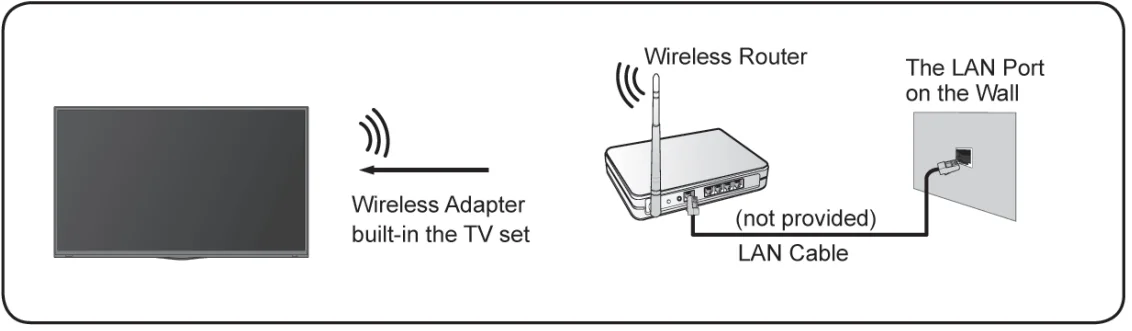
To get access to the Internet using a wireless connection: Pressbutton on your remote control to select Settings > Network & Internet > Wi-Fi. To get access to the Internet wirelessly:
- Turn on your Wi-Fi.
- The list of networks will display automatically.
- Select a wireless network from the list, and input the password.
- If the network connection does not appear in the list, select See all to display the list, or select Add new network to input a wireless network name, select the type of security mode, and enter the password.
Internet Related Features
- Content Sharing
To view media content, like videos, music, or photos saved in your Android/iOS/PC device on your TV screen. For more information, please refer to Benefits of Smart TV > Content Sharing in this manual. - Sharing your smartphone/Computer Screen on the TV
To mirror your mobile device or computer screen to the TV. For more information, please refer to Connecting to External Devices > Sharing your smartphone/Computer Screen on the TV in this manual.
Prepare Live TV
Connect the antenna/cable to the TV
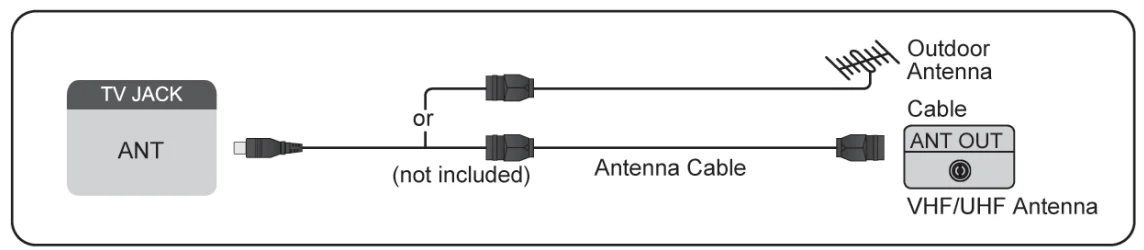
Note:
- TV jacks may vary, and antenna/cable function may not be applicable in some models/countries/regions.
- You may also connect devices that can receive broadcast signals such as a Set Top Box.
Start auto scan or manual scan
- INPUT > TV
- Press
 button on your remote control to select Settings > Channels & Inputs > Channels > Auto Channel Scan/Manual Scan.
Enjoy Live TV
Channel Scan
You can scan for channels automatically or manually.
Note: Antenna/cable function may not be applicable in some models/countries/regions.
Auto Channel Scan
Automatically scan for channels to view programs from your TV source.
 > TV
> TV
 > TV
> TVIf no TV channels were saved before, you will be prompted to do a channel search. In Live TV, > Channels > Auto Channel Scan
Before you select Auto Channel Scan, you can press> Channels > Tuner Mode to select Antenna or Cable.
Manual Scan
In Live TV,> Channels > Manual Scan. Type in a channel to add it manually to your TV.
Live Menu
You can obtain quick access to the channel list, favorite channel list or use relevant features with ease when watching TV programs.
Display Channel List
In Live TV,press the button on the remote control to display the Channel List menu.
Learn about the channel list sub-menu.
In Live TV,>
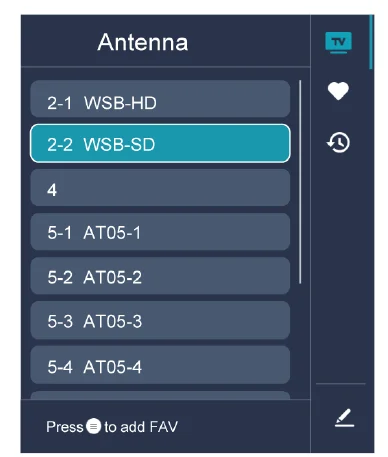
- TV List
Display Live TV channel categories, such as Cable and Antenna. - Fav
Display favorite lists. - History
Display the channels that have been watched for a period of time. - Edit
Edit the channel list.
Note:- The sub-menu options may vary by model, country, or region.
Benefits of Smart TV
Using a Google Account
Sign in with Google to get apps, Google Assistant, and personalized recommendations.
Signing into an account
When you turn on the TV for the first time, you can select Set up Google TV to sign into a Google Account by the setup guide. If you select Set up basic TV, you can also set it up later by pressingSet up Google TV.
- Set up with the Google Home app
- Set up on TV instead
Before signing into your Google account, make sure your TV is connected to the network. For more about network settings, please refer to Connect to the Internet > Connect to a Wired (Ethernet) Network or Connect to a Wireless Network in this manual. After the network is connected, enter your email/phone and password, select Sign In.
Adding a kid’s account
You can create a personalized space for your kid with access to content they love and tools to help keep you in control.
- After the network is connected,> Settings > Accounts & Sign-in > Add a kid
- Set up Google TV for a kid in your family, you can do the same for more kids later.
Adding another account
You can use other accounts within Google apps like YouTube, but you won’t see recommendations for those accounts on the Google TV home screen. Before creating a new account, make sure your TV is connected to the network. For more about network settings, please refer to Connect to the Internet > Connect to a Wired (Ethernet) Network or Connect to a Wireless Network in this manual.
- After the network is connected,> Settings > Accounts & Sign-in > Add another account
- Enter E-mail/phone and password.
- Press
 .
.
Using Voice Control
Set up a voice assistant to control your TV just by your voice.
Google Voice Setup
Voice Control may not be applicable in some models/countries/regions.
Google Assistant
You can ask for information, search for your favorite movies, control your TV, and more, just by asking Google Assistant. Before setting up Google Assistant, connect your TV to the network.
How to start Google Assistant
You can choose this way to start Google Assistant:
- Press
 button on your remote control.
 button on your remote control.
Note:
- The Google Assistant function may not be applicable in some models/countries/regions.
- The setup steps above may vary depending on the actual products.
Hands-free Voice Control
Google Assistant can answer your questions or help you change the TV configuration. Before using this function, connect the TV to the Internet and sign in to your Google account by pressing, select Settings > Accounts & SignIn
Note:
- Hands-free Voice Control may not be applicable in some models/countries/regions.
How to set up Hands-free Voice Control
- Switch the control button on the bottom of the TV to to turn on Google Assistant.
- Start a conversation by saying “Hey Google”, and the dialog bar appears at the top of the TV screen. At the same time, indicator lights illuminate.
- Continue speaking, such as “What’s the weather” or “volume up”.
Screenless mode > Settings > System > Advanced System >
Screenless Mode
>Settings > System> Advanced System > Screenless Mode
Talk to Google Assistant when the screen is off. In Screenless Mode, Google Assistant is always available to help even when the screen is not on. Just say “Hey Google”. This feature will affect standby power consumption. To turn it off, pressbutton, select Settings > System > Advanced System > Screenless Mode
Note:
- Google Assistant and some features are available in limited countries/regions/languages.
- Screenless mode is only for models with a far-field Google Assistant.
Alexa Setup
Set up to control your TV with any Alexa-enabled device. Alexa can help you change the TV configuration. Using just your voice, you can change inputs, volume, channels, and more. Just ask Alexa. What is required to control your TV with Amazon Alexa?
- Android TV models that support the Alexa skill.
- Amazon Echo device or Alexa App.
- Amazon account for the Alexa App or the Echo device, if you don’t have the account, please create one before the setup process.
- To link your TV to the Hisense account, you can create it before the setup process or in the setup process.
- Home network with Wi-Fi capabilities.
- For issues of accessing your Amazon account and using the Alexa app during setup, please visit amazon.com for help.
How to set up Alexa
- Press, select Settings > System > Advanced System > Amazon Alexa Service
- Select Set up now.
- Link the TV to the Hisense account. Scan the QR code with your phone, or visit the website on your phone or computer, sign in to your Hisense account, and enter the code shown on the TV. The webpage and code will expire after 15 minutes.
- Next, your TV screen shows a list of TV names. Select one from it or enter a custom name. Then, your TV will appear in the device name list on your phone or computer.
- Download the Alexa app on your smartphone. Open the app and sign in with your Amazon account.
- In the Alexa app, select Skills section, search, and enable the Hisense Smart TV skill. Follow the instructions to link your Amazon account by entering the same Hisense account that you’ve signed into on your TV.
- On your TV, select Skill enabled and Done.
- Now, you can ask Alexa to try some functions available for TV.
Note:
- Use external Alexa-enabled devices (e.g., Alexa App, Echo) to control your smart TV by using just your voice.
- After your Hisense account is created, but you can’t see the Link your TV step on your phone or computer, please sign out account and re-visit URL and sign in again.
- If you do not see “Amazon Alexa Service” in the System settings, then your TV does not support Alexa.
- The Alexa function may not be applicable in some models/countries/regions.
- The setup steps above may vary depending on actual products.
Voice Service Other Issues
If you want to turn on your TV with Alexa-enabled devices (e.g. Echo, Echo show) or Google Home devices (e.g. Google Home, Google Nest Hub), please:
- Turn on Screenless Mode at> Settings > System > Advanced System
- Make sure your TV and Alexa-enabled devices/Google Home devices are connected to the same network environment.
Note:
- Only Alexa (Alexa skill is enabled) and Google Smart Home Service support turning on your TV with Alexa Echo or Google Home.
- This function may not be applicable in some models/countries/regions.
Content Sharing
Content Sharing allows you to view media content, like videos, music or photos saved in your Android/iOS/PC device on your TV screen.
Connecting to External Devices
Remote & Accessories
Connect remote controls or other accessories, such as a keyboard, mouse, or gamepad, to your Smart TV easily.
Connect Remote Control
Pair the Bluetooth remote control with the TV.
- After you power the TV on for the first time, there will be instructions on how to pair the remote control.
- If your remote control fails to pair with the TV, keep the remote control within 10 feet (304.8 cm) from the TV, hold
 and
and at the same time at least 3 seconds to start pairing until you see the light pulsing on the remote control.
 and
andNote:
- If your remote control fails to pair with the TV, check that the Bluetooth is set to On by pressingbutton to select Settings > Remotes & Accessories > Bluetooth to On.
- This function may not be applicable in some models/countries/regions.
- If an error occurred while trying to pair the remote control, it could have been caused by interference. Try to remove what is causing the interference and try pairing again.
- If an error occurred with the remote control while using sufficiently charged batteries, you can take out the batteries for 1~2 seconds, then insert them again. Now the remote control will work normally.
- The remote control cannot be paired to the TV while the TV is in standby mode.
Use HDMI&CEC
Use the TV’s remote to control external devices that are connected to the TV by an HDMI cable. The external devices need to support HDMI&CEC function.
Connecting an external device through HDMI&CEC function
Pressbutton to select Settings > Channels & Inputs > Inputs > HDMI control.
- Set the HDMI control to On.
- Connect an HDMI&CEC compliant device to the TV.
- Turn on the connected external device. The device is automatically connected to the TV. After the connection is finished, you can access the menu of the connected device on your TV screen using your TV remote control and control the device.
Enabling device auto power off
Pressbutton to select Settings > Channels & Inputs > Inputs > Device auto power off. Set to On to turn off CEC-compatible external devices when the TV is turned off.
Enabling TV auto power on
Pressbutton to select Settings > Channels & Inputs > Inputs > TV auto power on. Set to On to turn on the TV when CEC-compatible external devices are turned on.
Note:
- HDMI cables must be used to connect HDMI and CEC compatible devices to your TV.
- The HDMI&CEC feature of the connected device must be turned on.
- If you connect an HDMI device that is not HDMI&CEC compatible, all the HDMI&CEC control features do not work.
Depending on the connected HDMI device, the HDMI&CEC control feature may not work. - The HDMI&CEC feature are supported: One Touch Play, Routing Control, System Standby, Device OSD Name Transfer, Remote Control Pass Through, Give Device Power Status, and System Audio Control.
Connecting a PC
You can connect a PC to the TV with an HDMI cable to use your TV as a PC monitor. After connecting the PC, press the INPUT button. Select the connected PC as the input source.
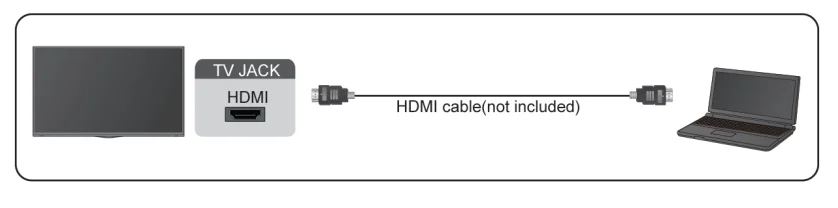
Note:
- For better image quality, set the PC’s resolution, and make sure the resolution is supported by the TV.
- If there is no sound from your TV, change the PC’s audio settings.
- If you want to connect your PC and TV wirelessly, please refer to Benefits of Smart TV > Content Sharing or Connecting to External Devices > Sharing your Smart Phone/Computer Screen on the TVin this manual.
Settings Overview
Picture
Adjust picture mode, picture size, and other advanced picture settings.
Use the Backlight
Pressbutton on your remote control to select Settings > Display & Sound > Picture > Backlight. You can change the overall brightness of the screen.
- Dynamic Backlight Control (or Local Dimming if supported)
Enable the TV to automatically adjust the backlight by sections according to the changes in the image and increase the contrast. - Backlight Level
Adjust the brightness you want images to appear; lower settings create darker images. - Automatic Light Sensor
Enable the TV to automatically adjust the picture settings according to the amount of ambient light in your
room. - Light Sensor Shift
Adjust the lower point of the dynamic backlight adjustment scope. This is a money-saving feature because it reduces power consumption.
Note:
- Some functions above may not be applicable in some models/countries/regions.
Choose a picture mode
Pressbutton on your remote control to select Settings > Display & Sound > Picture > Picture Mode. You can select the picture mode that provides the best viewing experience.
Note:
- Options may differ depending on your model/country/region and the content you are watching. Please refer to the specific product.
When you use a normal signal
If you would like to configure the settings for your picture, then there are some types of picture modes available:
- Vivid
You can enjoy a vivid experience. - Standard
Use Standard mode for watching normal content, such as News, Drama, or Documentaries. - Energy Saving
Energy Saving mode can save energy. - Game
Enable Game Mode to optimize the TV’s settings to enjoy a better gaming experience with a PC or a game console connected to the TV. - Sports
Optimized picture for watching sports. - Theater Day
Theater Day corresponds to the quality effect of different ambient brightness scenes. - Theater Night
Theater Night corresponds to the quality effect of different ambient brightness scenes. - FILMMAKER MODE
A picture quality mode.
Note:
- There is no Game mode in the tuner and USB source.
Low Blue Light for TUV Certification
Theater Day and Theater Night are designed to reduce the level of blue light to protect your eyes. Go to Settings > Display & Sound > Picture > Picture Mode, and select Theater Day/Theater Night. To reduce eye strain and protect your eyes when you watch TV for a period of time, you are suggested to:
- Take regular and frequent breaks to avoid watching TV for a long period of time. A long time may cause eye fatigue. It is not recommended to watch TV for more than one hour.
- Look away from the TV screen and look at distant objects during the breaks for at least 10 minutes for eye care.
- Relax during a break by doing eye exercises or outdoor activities.
- The best recommended viewing distance is 3 times the vertical height of the TV screen.
Proper breaks and exercises have been proven to be excellent help in relieving eye strain and fatigue.
Note:
- This feature may not be applicable in some models/countries/regions. Low blue light certification may vary by model.
Troubleshooting
FAQ
In this section, you will find the answers to the most frequently asked questions.
Note:
- The images are only for reference and may differ from the actual product.
There is no picture, or the picture is black and white.
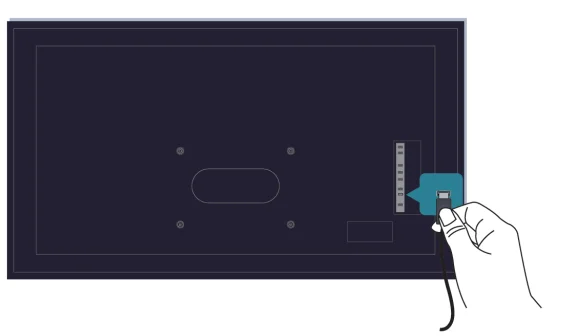
Check input cable connections.
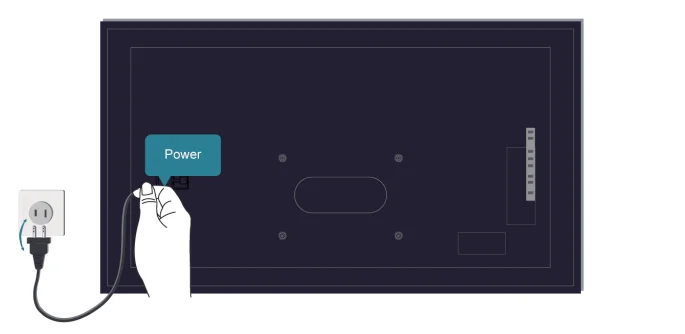
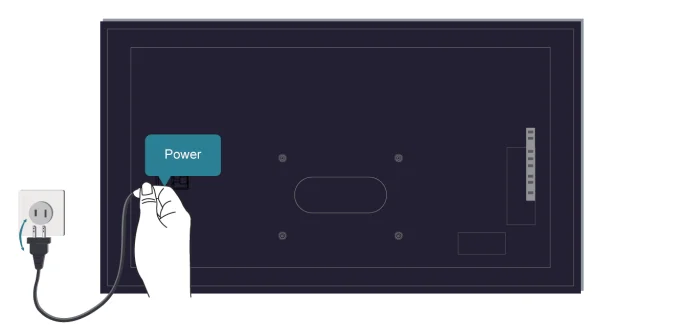
Unplug the TV power cord from the AC outlet and re-plug after 60 seconds.
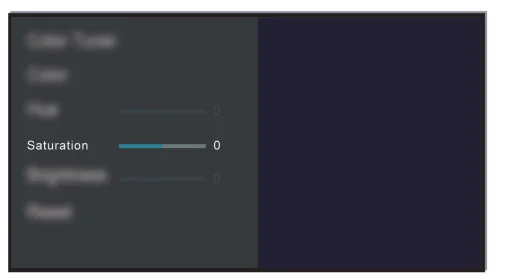
Check if the color saturation is set to 50 or higher at> Settings > Display & Sound > Picture > Calibration Settings > Color Tuner > Saturation.
There is no sound or the sound is too low.
There is no sound or the sound is too low at maximum volume.
- Check if Mute mode is set to on.
- Check the volume settings.
- Check the volume control of the device (cable or satellite box, DVD, Blu-ray, etc.) connected to your TV.
Make sure that the audio cable is connected to the correct audio output connector on the external device.
For more manuals by Hisense, visit ManualsLibraryy
Hisense U7K Mini-LED TV-FAQs
Is the Hisense U7K Mini-LED TV a good choice?
Yes, the Hisense U7K Mini-LED TV is generally considered a very good mid-range TV. It delivers excellent brightness, strong contrast, and impressive reflection handling, making it suitable for both bright and dark rooms. The TV also offers solid image processing, so streaming content and lower-resolution videos still look clear. Overall, it provides strong performance and features for its price, making it a popular option for everyday viewing and gaming.
What makes the Hisense U7K different from the U7H model?
The U7K improves on the earlier U7H model in several ways. It features better local dimming technology, which enhances contrast and produces deeper blacks in dark scenes. It also handles reflections better, making it more comfortable to watch in bright rooms. While both models have similar brightness levels, the U7K offers improved picture quality and overall viewing performance.
What is the refresh rate of the Hisense U7K TV?
The Hisense U7K comes with a native 120Hz refresh rate and supports up to 144Hz in certain gaming modes. This high refresh rate helps deliver smoother motion during sports, fast-paced movies, and video games. It also reduces motion blur, making action scenes look clearer and more fluid compared with standard 60Hz televisions.
How does the Hisense U7K compare to the Hisense U6K?
The Hisense U7K is considered a step above the U6K. While both models use Mini-LED technology, the U7K provides better contrast, improved black uniformity, and enhanced motion performance. This means darker scenes appear deeper and more detailed. The U7K also tends to offer stronger gaming features and overall picture quality, making it a better option for users who want a more premium experience.
What is the difference between the Hisense U7K and U8K TVs?
The U8K is a higher-tier model compared with the U7K. It typically offers higher peak brightness, improved color volume, and more advanced local dimming zones. While the U7K still provides excellent performance for its price, the U8K delivers more premium picture quality and stronger HDR highlights. However, the U7K remains a great value option for most viewers.
Is Hisense a reliable TV brand?
Hisense has grown into a well-known and reliable television brand worldwide. The company produces a wide range of TVs that often provide strong features and good picture quality at competitive prices. Many users choose Hisense TVs because they deliver excellent value for money, especially in the mid-range and budget categories.
How does the Hisense U7K compare with Samsung TVs?
Samsung TVs are often more expensive, especially in similar size categories. However, Hisense models like the U7K frequently compete well by offering advanced features such as Mini-LED backlighting and high refresh rates at a lower price. While Samsung still leads in premium models and brand reputation, the U7K provides impressive performance and value for users looking for a feature-rich TV.
Is the Hisense U7K good for gaming?
Yes, the Hisense U7K is a strong option for gaming. It supports a 120Hz panel and up to 144Hz for compatible devices, which helps deliver smoother gameplay. The TV also offers low input lag and modern gaming features that enhance responsiveness. These features make it suitable for console gamers and even PC gamers who want fast and fluid visuals.
Is the Hisense U7K worth buying?
For many buyers, the Hisense U7K is a great value TV. It combines Mini-LED backlighting, high brightness, strong contrast, and advanced gaming features at a competitive price. If you want a high-performance 4K TV without paying premium flagship prices, the U7K is often considered a smart and practical choice.