
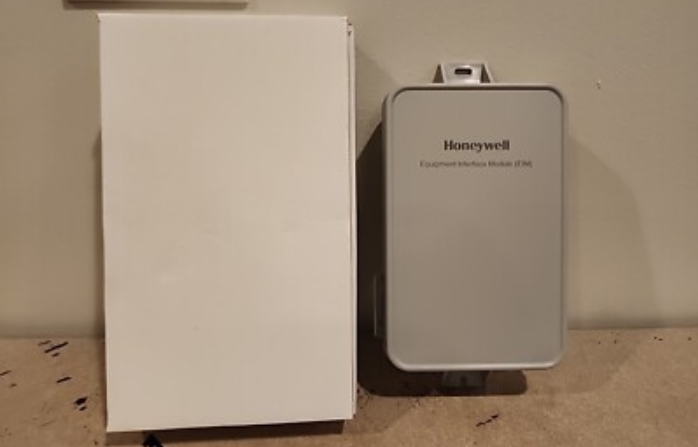

Honeywell THM5421R1021 Prestige IAQ Equipment Interface Module
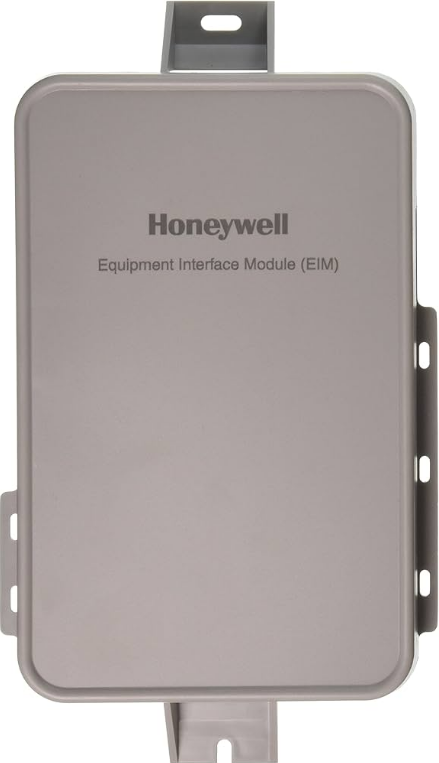
Reference to key features

Getting started
Follow these basic steps to install this thermostat, link it with the equipment interface module (EIM) and wireless accessories, and set installer options.
- Installing the Equipment Interface Module (EIM)
- Installing the thermostat
- Powering optional RedLINK 2.0 accessories
- Performing initial setup
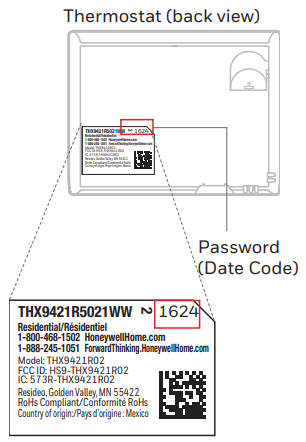
- Finding your password (Date Code)
- To add or remove RedLINK 2.0 accessories
- To make changes to the Installer Setup
- To perform an Installer Test
- To view Data Logs
Installing the equipment interface module (EIM)
Mount EIM.

Mount the EIM near the HVAC equipment or on the equipment itself. Use screws and anchors as appropriate for the mounting surface.
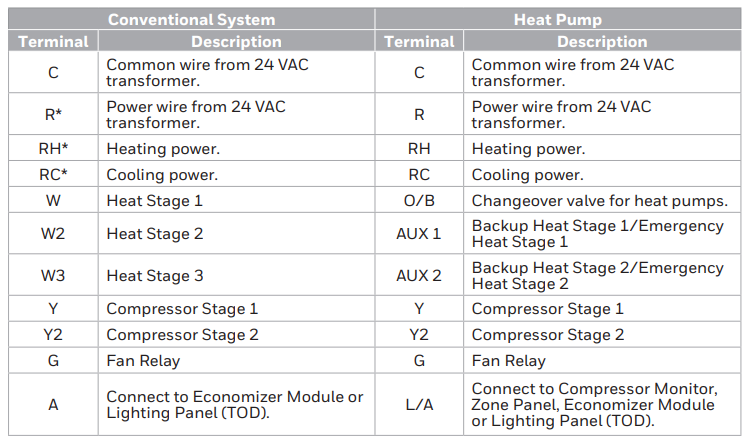
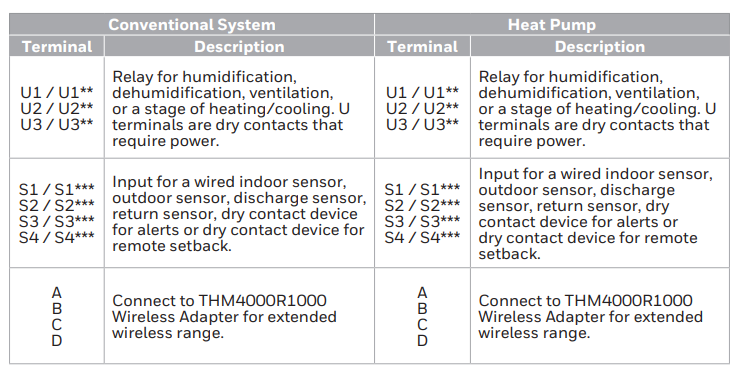
Wire EIM as shown. Refer to the table and wiring diagrams on pages 3-5.
Terminal Designations
Wiring dry contact devices to display alerts
DISCONNECT POWER BEFORE INSTALLATION.
Do not apply power to S1, S2, S3, or S4 terminals.
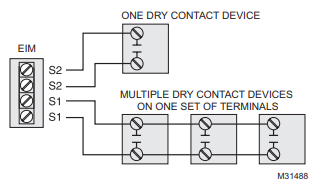
Connect a dry contact device, such as a water sensor, to the S1, S2, S3, or S4 terminals. The thermostat displays an alert when a problem is detected.
Connecting a stage of heating or cooling to a relay (U1, U2, U3)
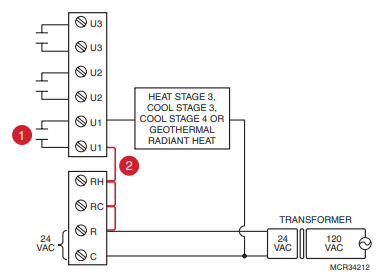
- U1, U2, and U3 are normally open dry contacts when set up for a stage of heating or cooling.
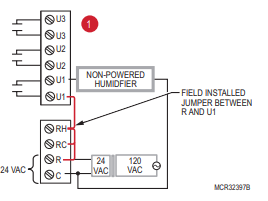
- You must install a field jumper if the stage of heating or cooling is powered by the system transformer. Do NOT install a field jumper if the stage of heating has its transformer.
Wiring humidification, dehumidification, and ventilation
Typical hookup of a powered humidifier

Typical hookup of a non-powered humidifier
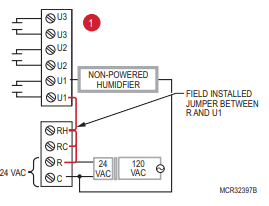
Typical hookup of powered ventilation

Typical hookup of non-powered ventilation
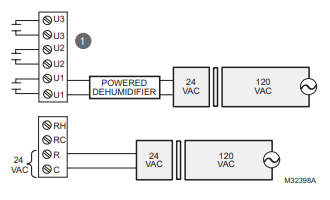
Typical hookup of a powered dehumidifier (whole-house dehumidifier)
Typical hookup of a variable-speed blower for dehumidification at low speed

- Any combination of relays (U1, U2, U3) can be used. They are set in the thermostat
installer setup. - Wire the EIM relay to the low-speed fan for dehumidification control at the equipment. The EIM relay can be set to be normally open or normally closed in the
thermostat installer setup.
Installing the thermostat
Separate the wallplate from the thermostat.
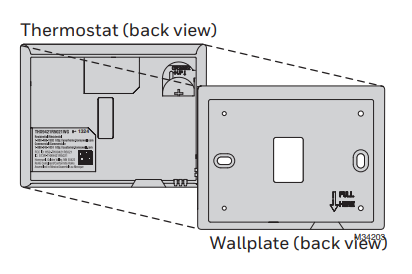
Mount the wallplate as shown.
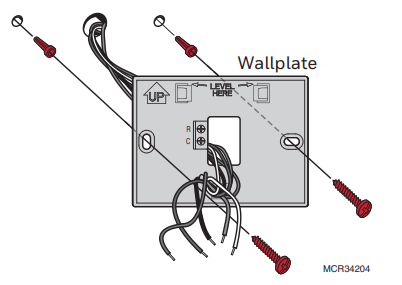
Mount the new wallplate using the screws and anchors included with the thermostat.
Drill 3/16-in holes for drywall. Drill 7/32-in holes for plaster.
Connect the power to the thermostat.
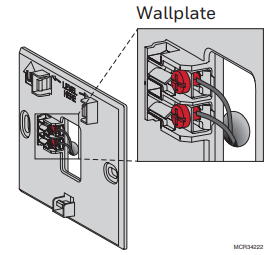
- Connect the thermostat to the R and C terminals at the EIM or to a separate
24-volt transformer (not provided). - Push excess wire back into the wall opening.
Insert a coin cell battery.

Place the coin cell battery in the thermostat as shown with the + side up.
Mount the thermostat on the wallplate.
Align the thermostat to the wallplate and snap it into place.
Powering optional RedLINK 2.0 accessories
Install batteries in RedLINK 2.0 accessories.
- Portable Comfort Control*
- Wireless Outdoor Sensor*
- Wireless Indoor Sensor*
- Wireless Entry/Exit Remote*
- Wireless Vent and Filter Boost Remote*
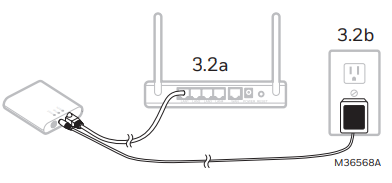
Connect the gateway to the internet and connect to power.

- Connect RedLINK 2.0 Internet Gateway to router or modem with Ethernet cable (RJ45).
- Connect the gateway’s power cord to an electrical outlet that is not controlled by a
wall switch.
Performing initial setup
Initial setup options define the type of system you are installing:
- Residential or commercial
- Non-zoned or zoned
- Used with or without an Equipment Interface Module (THM5421)
- Used with or without the TrueZONE Wireless Adapter (THM4000)
Follow prompts on the screen to select appropriate options.

Link the thermostat to the equipment interface module.
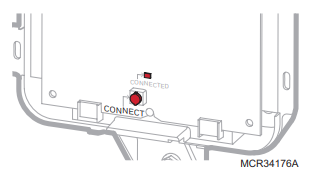
Press and quickly release the CONNECT button on the EIM. Make sure the “Connected” light is flashing green.
- Green Flashing: In Listening Mode – system is ready to add RedLINK 2.0 devices.
- Green Steady: RedLINK 2.0 devices are communicating.
- Red: RedLINK 2.0 device(s) are NOT communicating. Check EIM and RedLINK 2.0 devices.

While the “Connected” light is flashing green on the EIM, press Next on the thermostat. After a short delay, the screen will display Device Connected.
When you see the prompt Do you have RedLINK 2.0 accessories to connect? Touch Yes or No
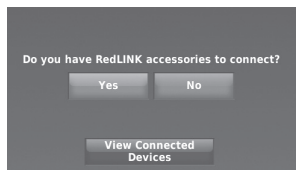
- If you select Yes, you will be prompted to Press Connect on all new accessories. Continue to Step 4.4.
- If you select No, continue to Step 4.5.
Connect each RedLINK 2.0 accessory.
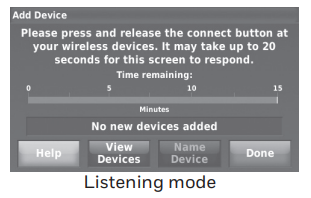
- While the Add Device screen is displayed (listening mode), press and quickly release the CONNECT button on each new RedLINK 2.0 accessory.
- After a short delay (up to 20 seconds), check the thermostat to confirm the connection of each RedLINK 2.0 accessory.

- Touch Done at the thermostat after all new RedLINK 2.0 accessories are connected.

Finish the initial setup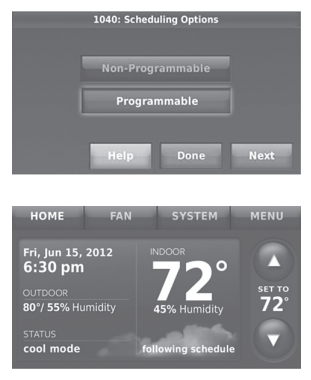
Finish the setup by selecting the desired options. Touch Done after you select the last option you want to change. The thermostat now displays its Home screen, and the thermostat setup is complete.
Finding your password (Date Code)
- To add or remove RedLINK 2.0 accessories
- To make changes to the Installer Setup
- To perform the Installer Test
- To view Data Logs
Finding your password

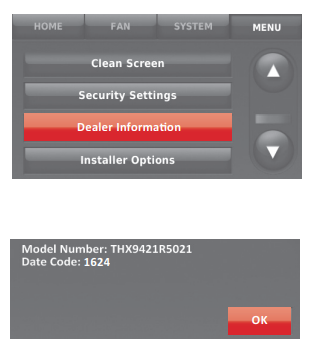
You can find the Date Code on the back of the thermostat, or
- Touch Menu.
- Select Dealer Information.
Linking RedLINK 2.0 accessories to the thermostat
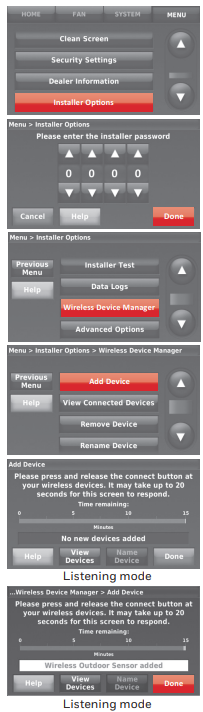
- Touch Menu.
- Select Installer Options.
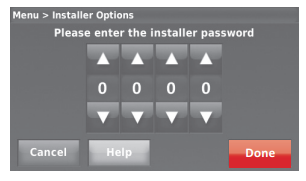
- Enter the password (date code) and touch Done.
- Select Wireless Device Manager.
- Select Add Device to display the Add Device screen. The thermostat is now in listening mode.
- 5a: Press and quickly release the CONNECT button on each new RedLINK 2.0 accessory.
- 5b: After a short delay (up to 20 seconds), check the thermostat to confirm the connection of each RedLINK 2.0 accessory.
- 5c: Touch Done at the thermostat after all new RedLINK 2.0 accessories are connected.
Making changes to the Installer Setup and performing the Installer Test
Follow these steps to set system options after initial installation
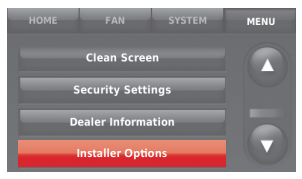
- Touch Menu.
- Select Installer Options.

- Enter the password (date code) and touch Done.

- Select Create Setup or Installer Test.
- Follow prompts on the screen to select the desired setup options or to perform an equipment test.

Mounting outdoor and indoor sensors
Mounting an outdoor sensor

- Mount the sensor on a vertical exterior wall, at least 6 inches below any overhang. Choose a location protected from direct sunlight.
- Place the sensor securely in the bracket, facing away from the wall.
Mounting an indoor sensor

- Remove the wallplate and mount it 4 to 6 feet above the floor on an interior wall. Drill 3/16-inch holes for drywall, 7/32-inch for plaster.
- Attach the sensor securely to the wallplate as shown.
Indoor sensor operation
Temperature control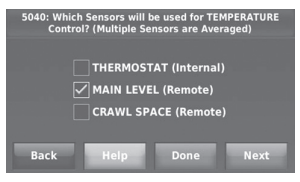
The thermostat can be set to respond to its internal temperature sensor or an optional remote indoor sensor. If multiple sensors are selected, the thermostat will respond to an average of the temperatures detected at each sensor.
Humidification control 
If optional remote indoor sensors are installed, you can choose which sensor you want to use for humidification control. You can use a different sensor for dehumidification.
Dehumidification control

If optional remote indoor sensors are installed, you can choose which sensor you want to use for dehumidification control. For example, you can use one sensor for humidification control, and another for dehumidification.
Using a USB device for setup, data logs, and software upgrades
- Visit https://www.resideo.com/us/en/pro/thermostat-setup/ to enter your dealer information and contractor logo, or load a new thermostat software.
- After setup is complete, save Installer Setup, Holiday Schedules, and Custom Reminders to a USB device.

To use the USB device in the thermostat:
- Slide the USB device into the bottom of the thermostat.
- Select the item to load or save.
- Follow the prompts on the screen for the item you selected.
- To add information from the USB device to the thermostat, select Load into Thermostat.
- To put thermostat information on the USB device, select Save to USB.
To replace a thermostat
When you replace a thermostat, you must reset the RedLINK 2.0 accessories before connecting them to the new thermostat. Follow the instructions below.
At the Portable Comfort Control:
Press and hold the blank space (or arrow) in the lower right corner of the screen until the display changes (hold for about 4 seconds). Press REMOVE, then YES to disconnect the old thermostats. To reconnect the thermostat, go to Step 4.3.
At the Indoor Sensor, RedLINK 2.0 Internet Gateway, Entry/ Exit Remote, Vent-Filter Boost Remote, or TrueSteam Wireless Adapter:
Press and hold the CONNECT button on the accessory until the status light glows amber (hold for about 10 seconds). To reconnect the thermostat, go to Step 4.3.
At the Equipment Interface Module (EIM):
Press and hold the CONNECT button on the EIM until the CONNECTED LED glows amber (hold for about 10 seconds). Follow the prompts on the screen to connect the new thermostat to the EIM. To reconnect the thermostat, go to Step 4.2.
Specifications and replacement parts
Operating Ambient Temperature
- Thermostat: 32 to 120° F (0 to 48.9° C)
- Portable Comfort Control: 32 to 120° F (0 to 48.9° C)
- Wireless Outdoor Sensor: -40 to 140° F (- -40 to 60° C)
- Wireless Indoor Sensor: 0 to 120° F (-17.8 to 48.9° C)
- -For Optimal Battery Life: 35 to 114° F (1.7 to 45.6° C)
- Equipment Interface Module: -40 to 165° F (- -40 to 73.9° C)
- Return Air Sensor: 0 to 200° F (-17.8 to 93.3° C)
- Discharge Air Sensor: 0 to 200° F (-17.8 to 93.3° C)
- RedLINK 2.0 Internet Gateway: 32 to 120° F (0 to 48.9° C)
Operating Relative Humidity
- Thermostat: 5% to 90% (non-condensing)
- Portable Comfort Control: 5% to 90% (non-condensing)
- Wireless Outdoor Sensor: 0% to 100% (condensing)
- Wireless Indoor Sensor: 5% to 90% (non-condensing)
- Equipment Interface Module: 5% to 95% (non-condensing)
- RedLINK 2.0 Internet Gateway: 5% to 95% (non-condensing)
Physical Dimensions (height, width, depth)
- Thermostat: 4-1/2 x 3-1/2 x 7/8 inches (115 mm x 88 mm x 22 mm)
- Equipment Interface Module: 9-5/16 x 4-13/16 x 1-19/32 inches (91 x 147 x 42 mm)
- Wireless Outdoor Sensor: 5 x 3-1/2 x 1-11/16 inches (127 x 89 x 43 mm)
- Wireless Indoor Sensor: 2-7/8 x 1-7/8 x 15/16 inches (74 x 48 x 24 mm)
- Portable Comfort Control: 6-1/4 x 3-1/8 x 1-5/8 inches (158 x 80 x 38 mm)
- RedLINK 2.0 Internet Gateway: 3-7/8 x 3-9/16 x 1-1/8 (99 x 91 x 29 mm)
RedLINK 2.0 Communication
- Frequency: 900 MHz frequency range
- Re-Sync Time: RedLINK devices re-establish communication within 6 minutes after AC power resumes.
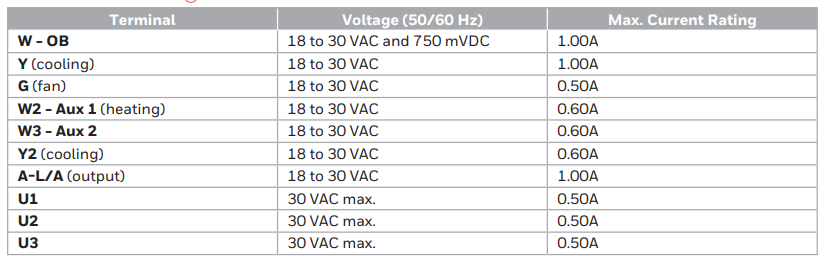
Electrical ratings
Accessories and replacement parts

FOR MORE MANUALS BY HONEYWELL, VISIT MANUALSLIBRARYY
Honeywell THM5421R1021 Prestige IAQ Equipment Interface Module-FAQs
Q1: What does the EIM do?
Acts as a wireless bridge between your RedLINK thermostat and your HVAC equipment.
Q2: Why would I need one?
To install a thermostat without running new wires from your furnace.
Q3: Does it work with any thermostat?
No, only with compatible Honeywell RedLINK thermostats (e.g., Prestige series).
Q4: Where do I install it?
Mounted near your furnace/air handler, where it connects to the control wiring.
Q5: Does it need power?
Yes, it draws standard 24VAC power from your HVAC system.
Q6: What is RedLINK?
Honeywell’s own wireless protocol for HVAC gear. It’s separate from your home’s Wi-Fi.
Q7: How many heating/cooling stages does it support?
Controls up to 4 heat/2 cool stages for advanced systems.
Q8: How do I connect it to the app?
You don’t connect the EIM directly. Your thermostat links to a separate RedLINK Wi-Fi Gateway for app control.