
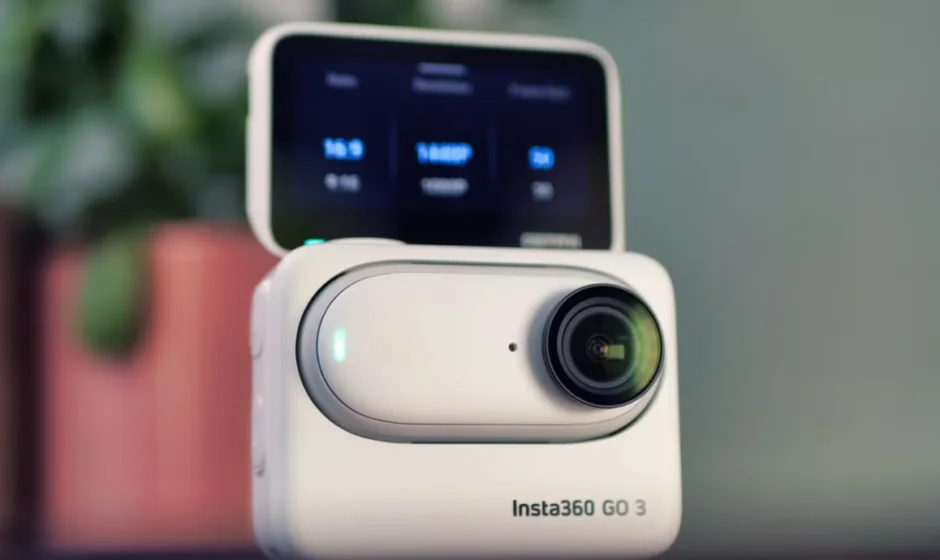

Insta360 GO 3 Camera
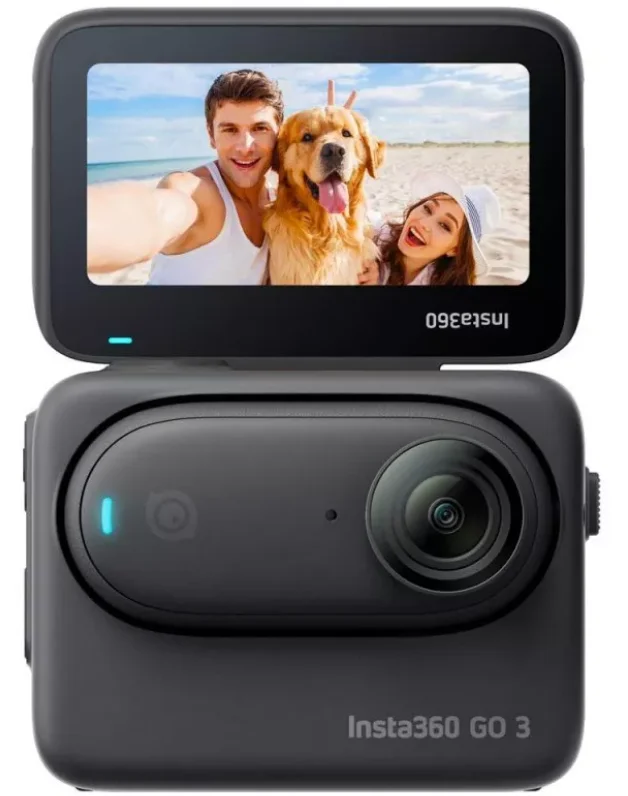
Product Introduction
GO 3 Introduction
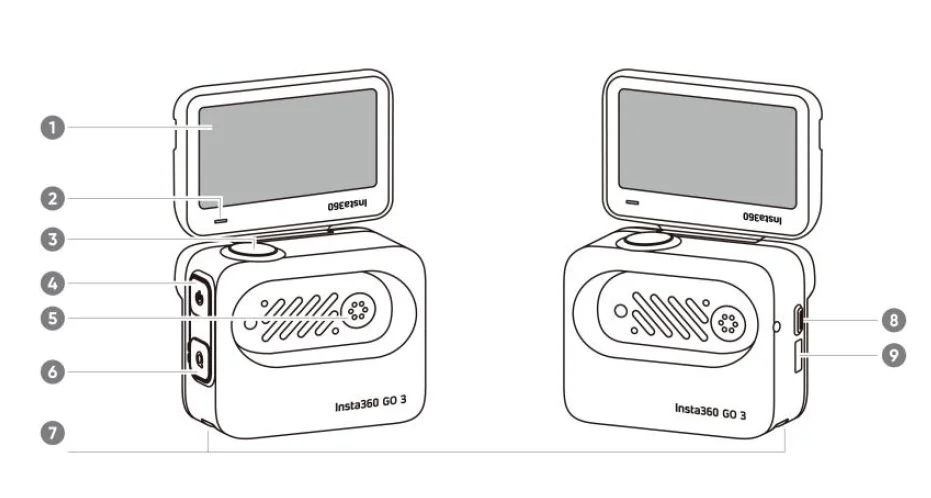
- Flip Touchscreen
- Action Pod Indicator Light
- Shutter Button
- Power Button
- Charging Point
- Quick Button
- Mounting Latch
- Release Switch
- Type-C Charging Port
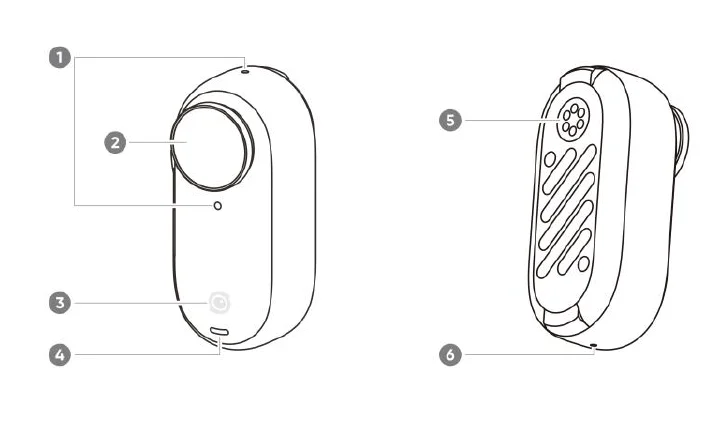
- Microphone
- Lens
- GO 3 Button
- Camera Indicator Light
- Charging Point
- Speaker
Standard Accessories
GO 3 and the Action Pod can be mounted on different accessories for flexible shooting wherever you go.
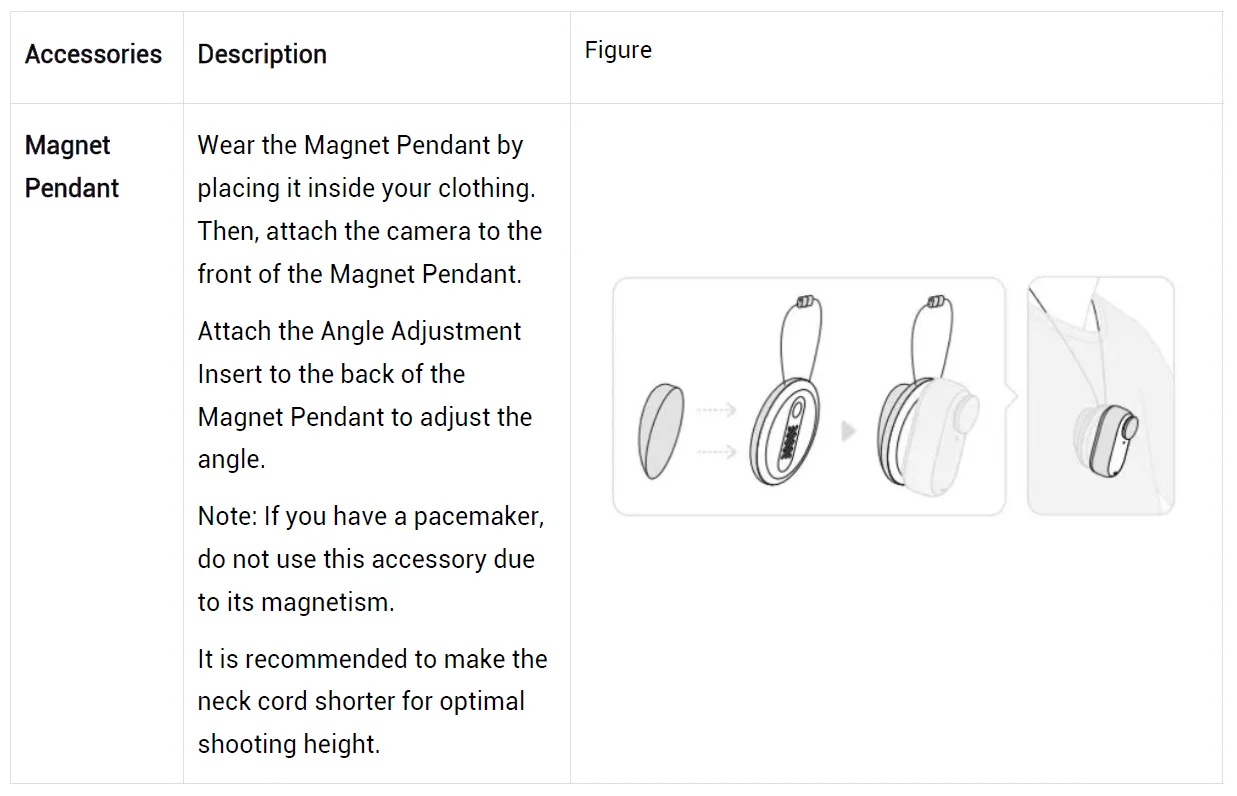
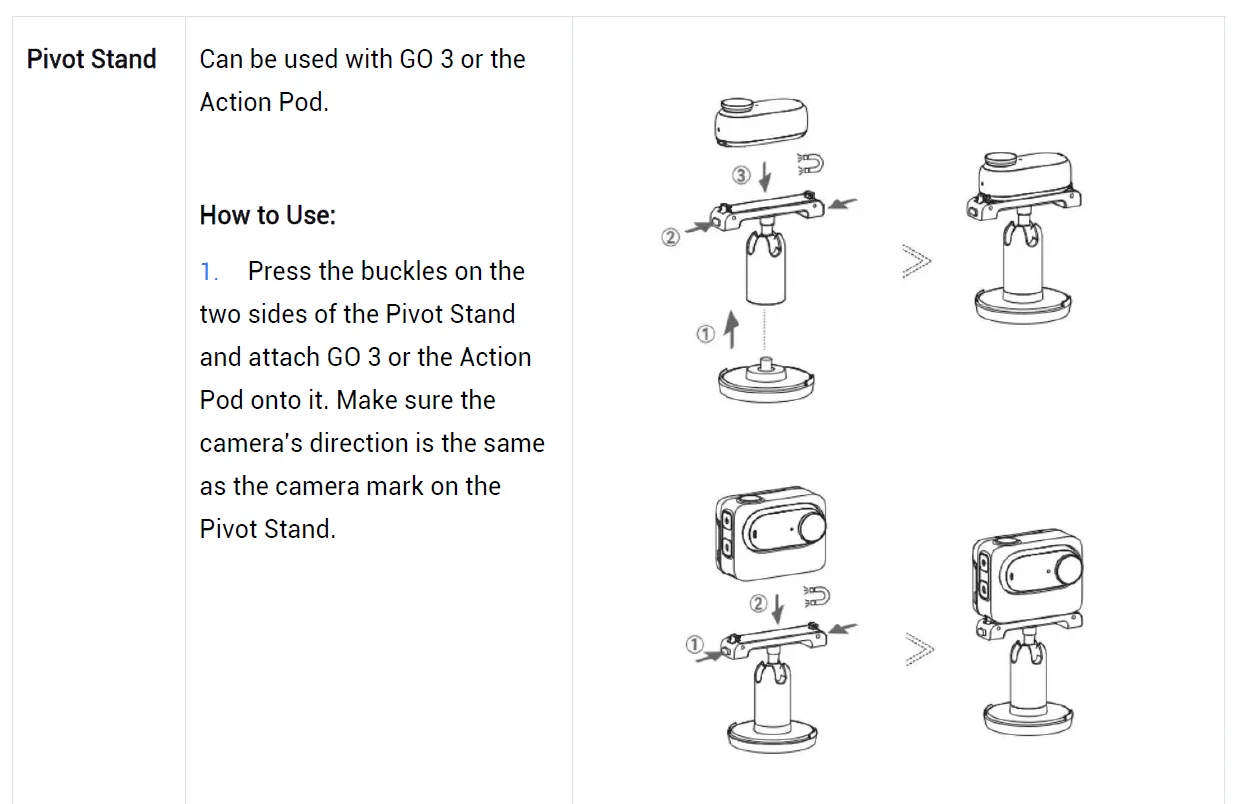
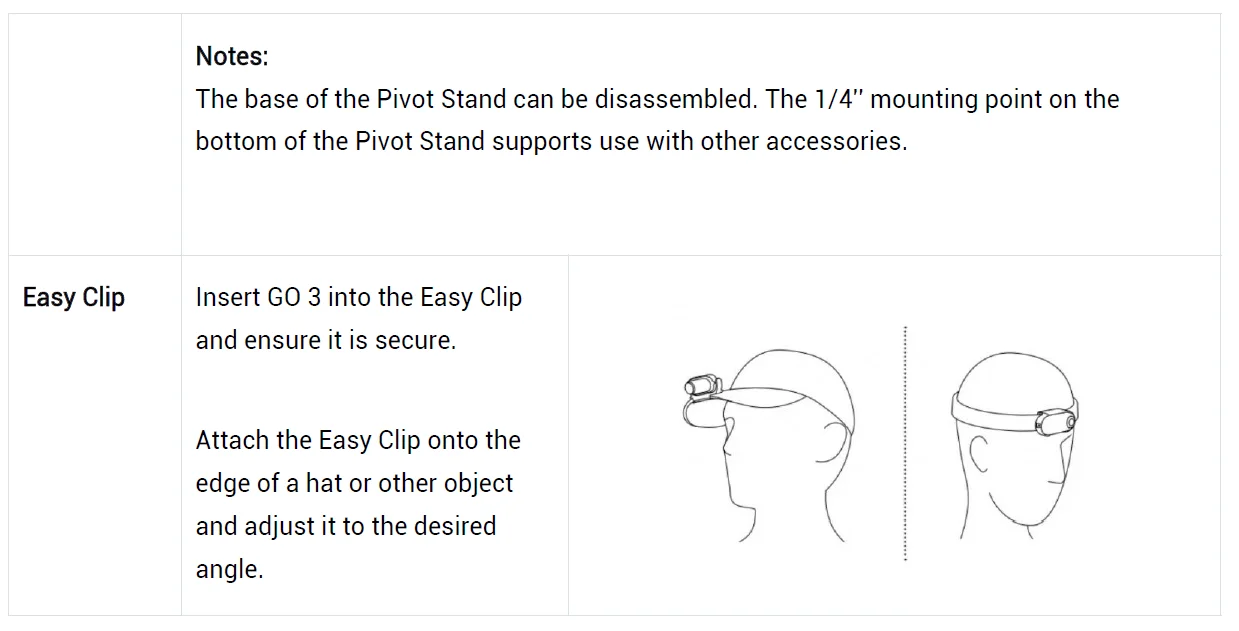

First Use
Charging
Use the Type-C to Type-A fast charging cable included in the box to connect the USB-C port of the GO 3 Action Pod to a USB-C charger. When charging while the device is powered off, the Action Pod Indicator Light will be red. The Indicator Light will turn off once the battery is fully charged. It takes approximately 47 minutes to charge up to 80% and around 65 minutes for a full charge.
GO 3 Charging Time
- 23 minutes – 80%
- 35 minutes – 100%
Action Pod Charging Time
- 47 minutes – 80%
- 65 minutes – 100%
Place the GO 3 camera inside the Action Pod and connect the charging cable to the Action Pod. While charging, both the camera and the Action Pod’s indicator light will be solid red. The corresponding indicator light will turn off when the device is fully charged. Once both indicator lights turn off, both devices are fully charged.
Note: It is recommended to use a dedicated charger for GO 3. If it’s connected to a USB port on a computer or other portable power source, there may be an insufficient power supply to charge the camera and Action Pod simultaneously.
Activation
You need to activate GO 3 in the Insta360 app before using it for the first time.
Steps:
- Click here to download the Insta360 app. Alternatively, search “Insta360” in the App Store or Google Play Store to download the Insta360 app.
- Press the Power Button to turn on GO 3.
- Enable Wi-Fi and Bluetooth on your smartphone.
- Open the Insta360 app and click the camera icon at the bottom of the page [icon]. Select the device you want to connect to in the pop-up window, then follow the on-screen instructions to complete the connection. The name of your camera is “GO 3 ******” by default, where ****** is the last six digits of the serial number on the box your GO 3 came in. The first time you connect to GO 3, you will need to confirm the connection on the Action Pod screen.
- After successfully connecting the camera, follow the on-screen instructions to activate your camera. The app will prompt you to update the firmware if there is a new version available. Please follow the on-screen prompts to update the firmware of the GO 3 and the Action Pod.
Basic Use
Action Pod Button Instructions
Power Button:
- Press once:
- Power on GO 3.
- Wake GO 3 up(when GO 3 is not in the Action Pod).
- Turn the Action Pod’s touchscreen on/off.
- Long-press for 2 seconds: Power off (release the button when the power-off animation appears).
- Long-press for 7 seconds: Force shutdown.
Shutter button

- Press once:
- Take a photo or start/stop video recording.
- Quickly power on the camera and start recording (if GO 3 is powered off and in the Action Pod).
- Confirm connection on the app (when connecting for the first time).
Quick Button

- Single press:
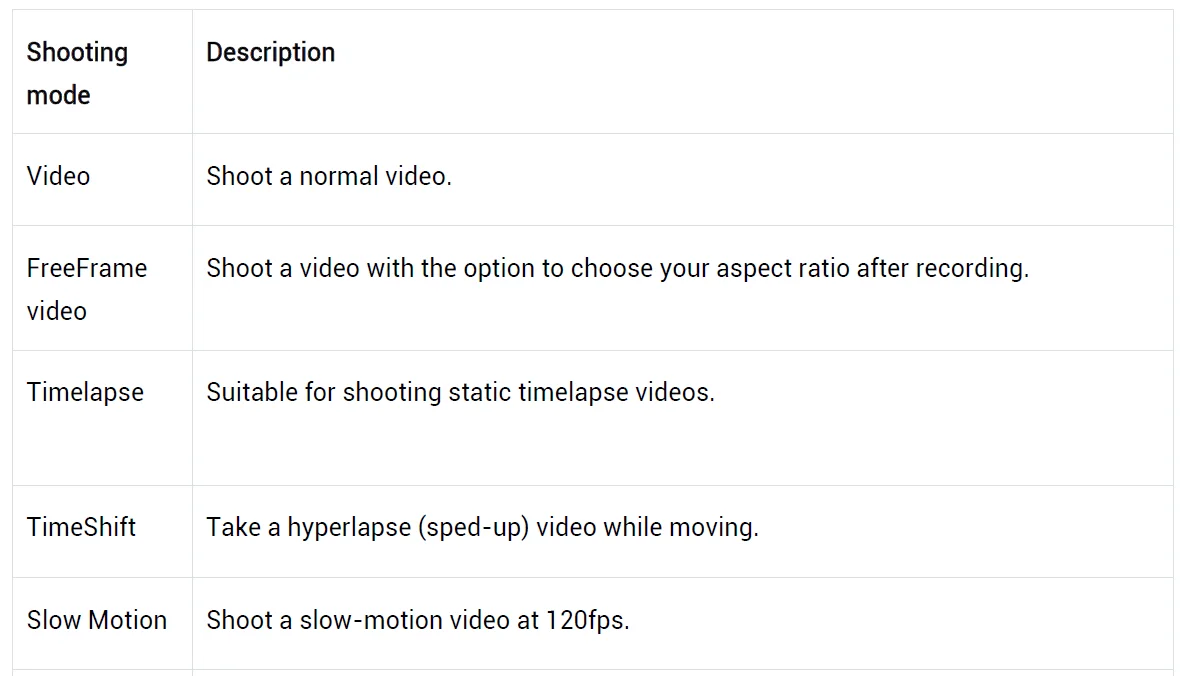
Press once to enter the preset menu or switch shooting modes. Press again to switch between different modes or presets. The first time you press this, it will enter the Shooting Mode page by default. Tap the switch icon in the upper left corner to enter the Presets page.
GO 3 Button Instructions
- Press once:
- Take a photo or start/stop video recording.
- Confirm connection on the app (when connecting for the first time).
- Quickly power on the camera and start recording (if GO 3 is powered off and out of the Action Pod).
- Long-press for 2 seconds: Power off.
- Long-press for 7 seconds: Force shutdown.
Button functions can be customized through the app or the Action Pod.
Using GO 3 and Action Pod
- Using them together:
When the camera is in the Action Pod, it functions as one action camera, and the buttons on the camera body are disabled. You can control the camera with the buttons on the Action Pod or via the app.
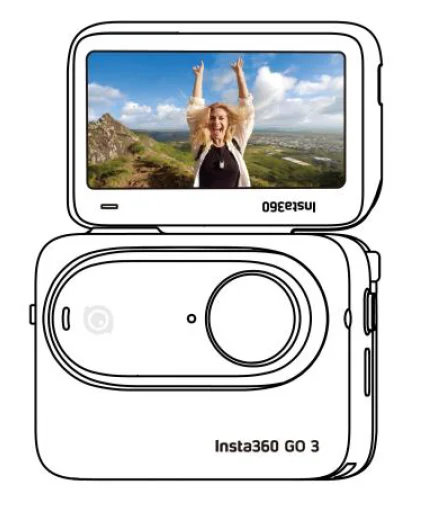
- Using them separately:
When GO 3 is taken out of the Action Pod, you can use the Action Pod for remote control and live preview up to 16ft (5m) away. The buttons on the camera body are enabled.
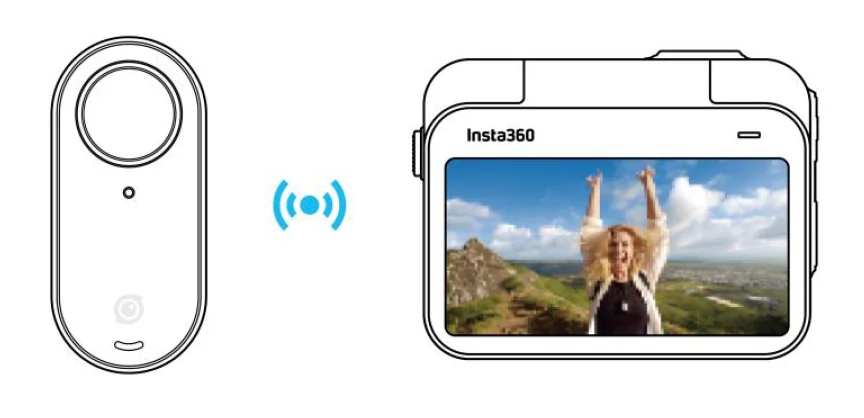
Note: When using the Action Pod for remote preview, the data is transmitted via Bluetooth. The quality of the preview footage is reduced. The actual footage will not be affected by remote use.
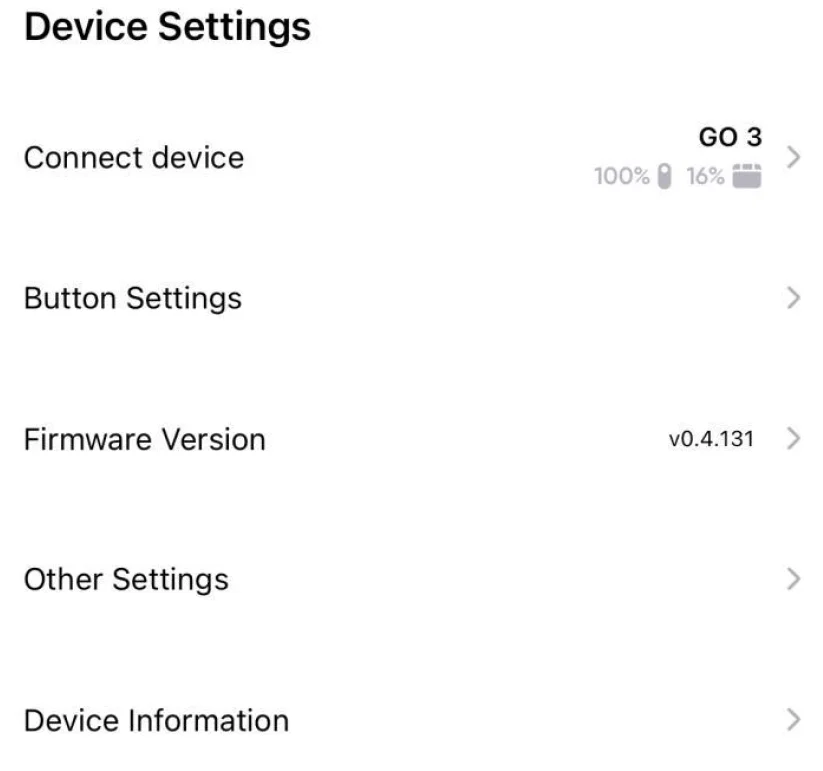
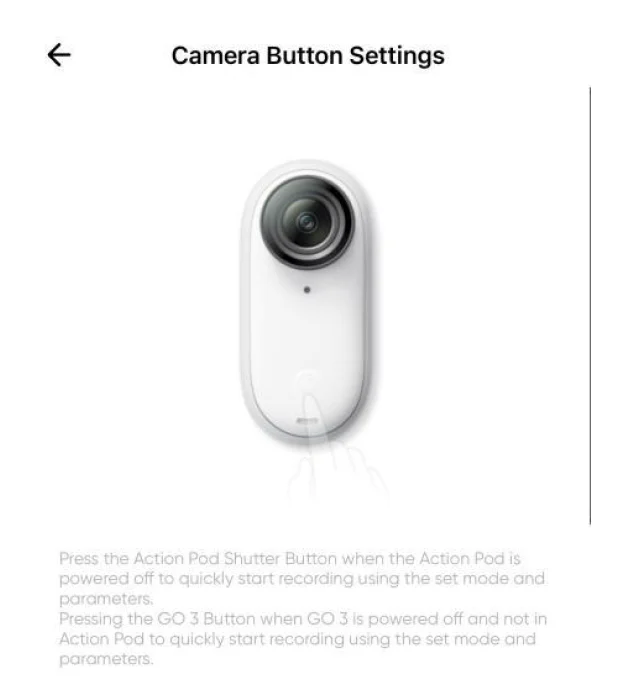
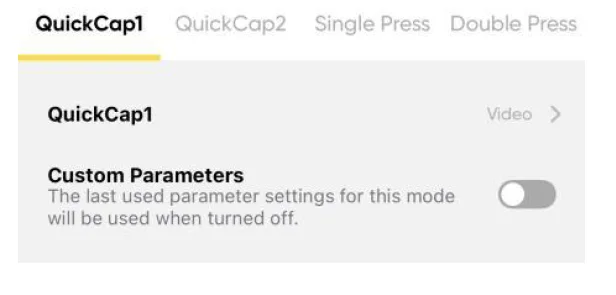
GO 3 Camera Button customization:
The button functions of the GO 3 camera can be customized according to your preferences. You can adjust them through the app settings page or within the Action Pod.
Using the Touchscreen
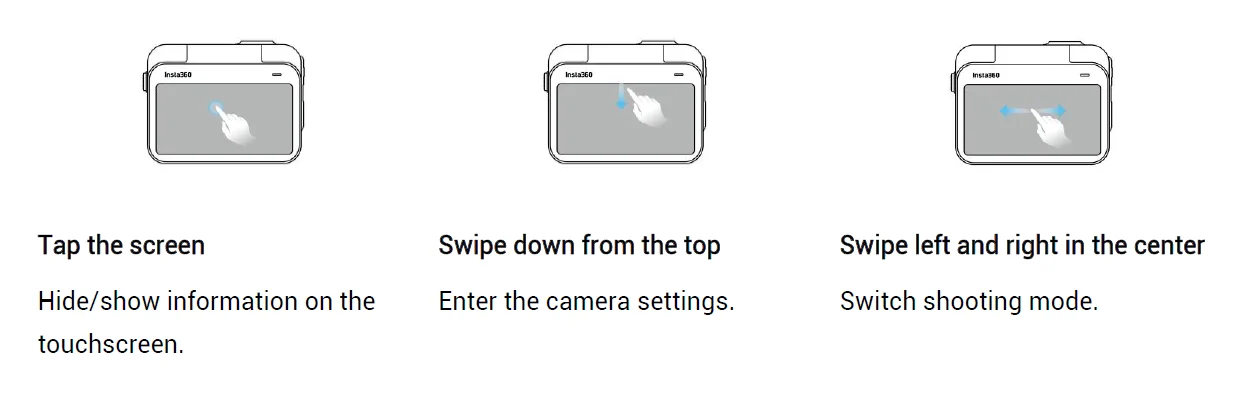
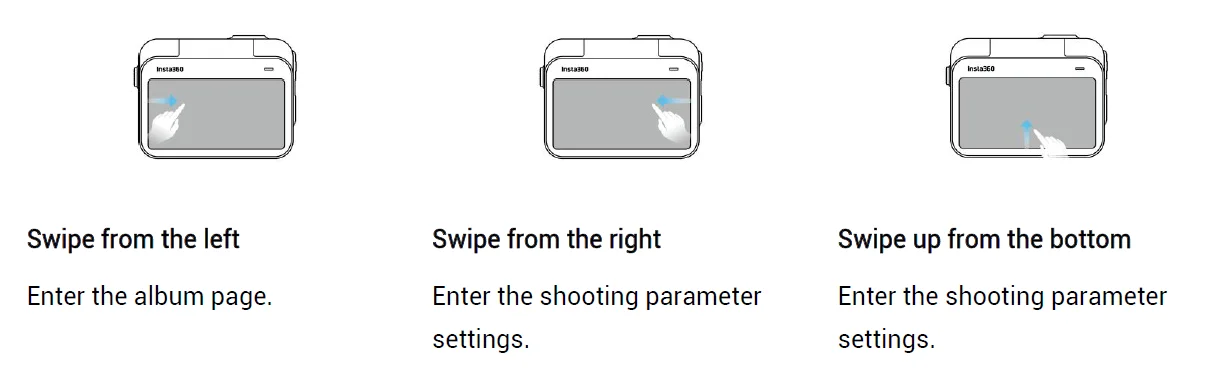
The touchscreen’s main display shows the current camera shooting mode. The menu bar shows battery level, storage capacity, and current shooting parameters. By swiping or tapping the screen, you can achieve the following:
Shortcut Menu
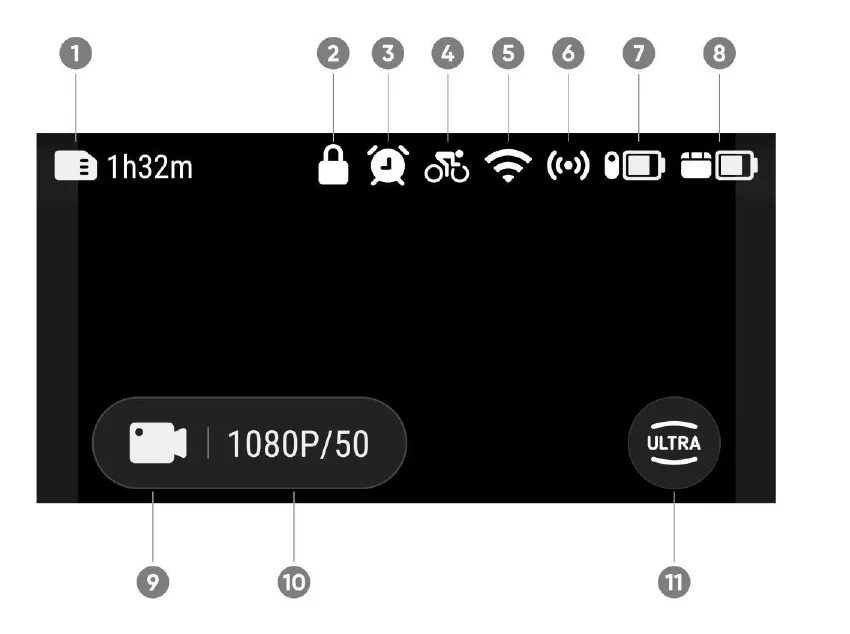
- Storage: Shows the remaining number of photos or the length of video footage that can be stored on the microSD card.
- Lock screen
- Timed Capture
- Preset
- Wi-Fi Signal
- Bluetooth: This will be displayed when the camera is not in the Action Pod.
- GO 3 Battery Status
- Action Pod Battery Status
- Shooting Mode: Click the icon and swipe to select a different shooting mode.


- Shooting specifications: See the current shooting mode parameters.
- Field of View: Change the Field of View. There are three options: UltraWide, ActionView, and Linear.
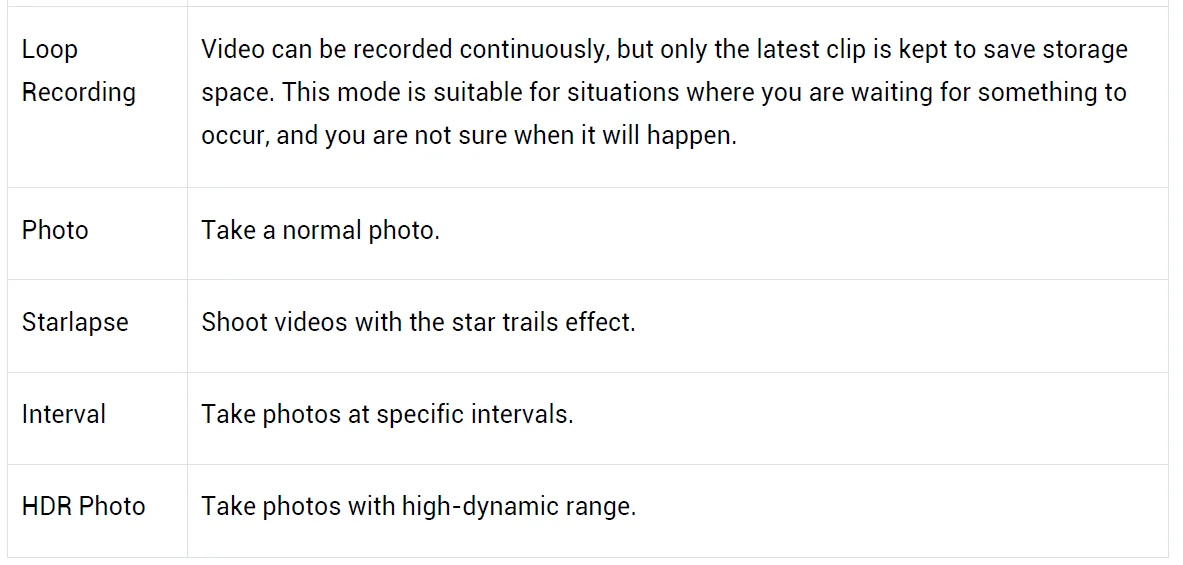
Camera Settings
Swipe down on the touchscreen to view camera settings.
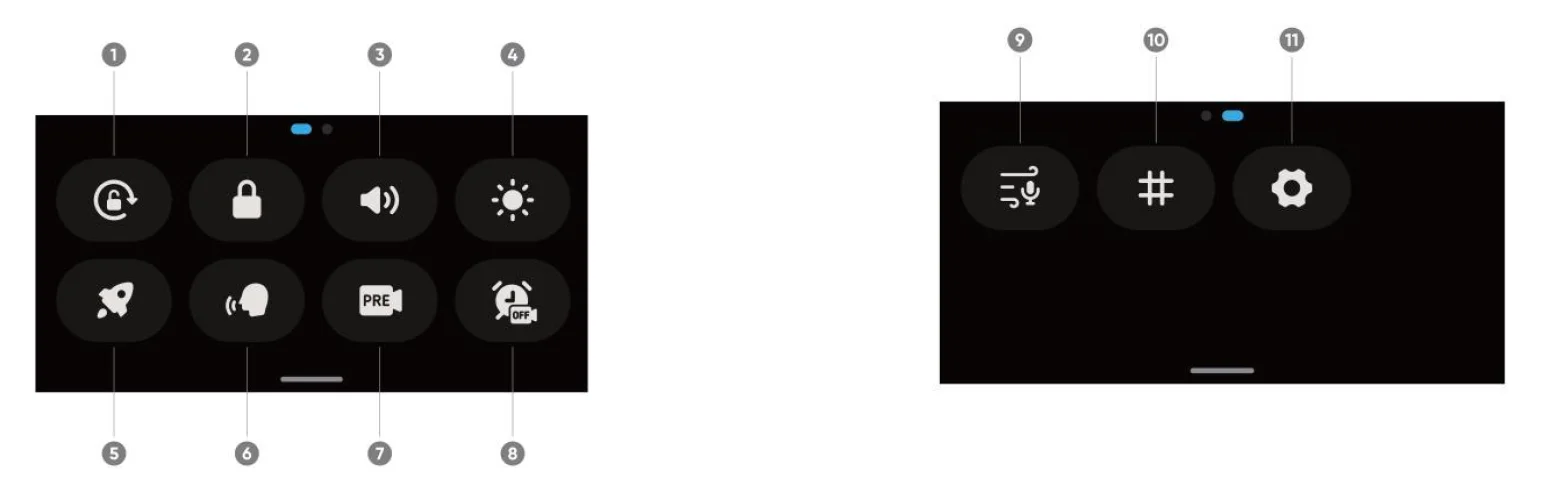
- Screen Orientation: Turn on/off. It is turned on by default.
- Lock Screen: Tap to lock the screen. Swipe up on the touchscreen to unlock.
- Volume Control: Set the camera speaker volume. There are four options: High, Medium, Low, and Mute. The default is Medium.
- Adjust Brightness: Slide the bar to adjust the screen brightness.
- QuickCapture: Turn on/off.
- Voice Control: Turn on/off.
- Stabilization: Change the FlowState stabilization level based on the shooting scenario. There are four options: Level 1, Level 2, Level 3, and Off. The default is Level 1.
- Timed Capture: Use the Timed Capture function. Supported in the following shooting modes: Video, FreeFrame Video, Photo, Interval, and Time-lapse.
- Audio Settings: Switch audio mode. Choose between Wind Reduction, Stereo or Direction Focus.
- Grid: Turn on/off.
- Settings: See camera settings.
Shooting Specification Settings
Swipe up from the bottom of the touchscreen to view shooting specification settings.
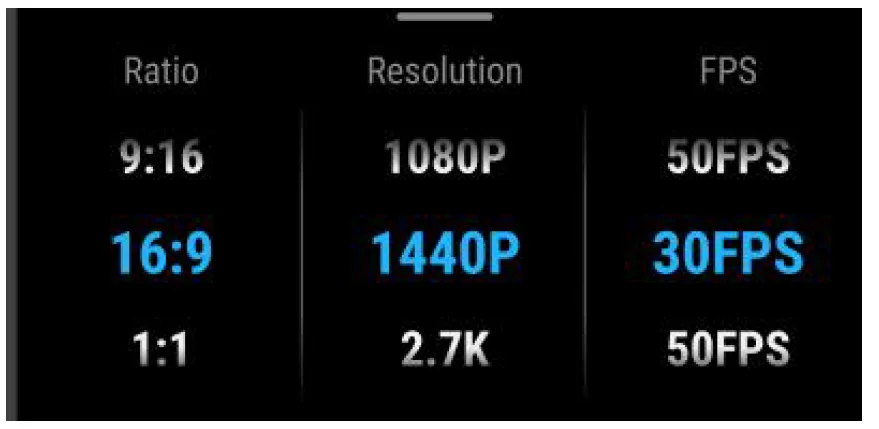
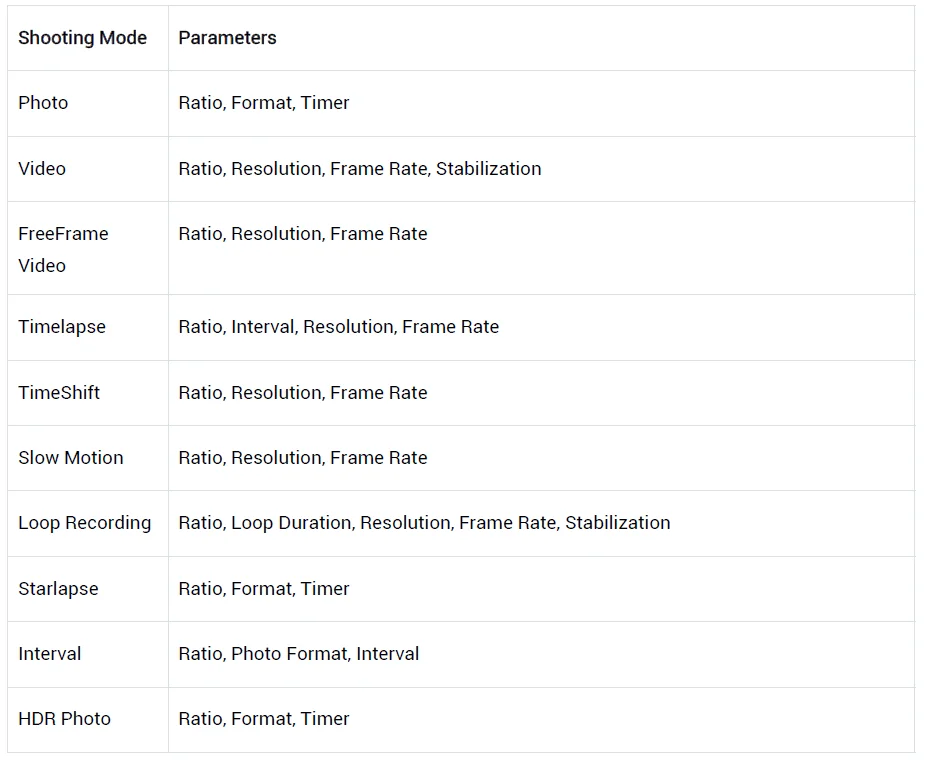
Shooting Parameter Settings
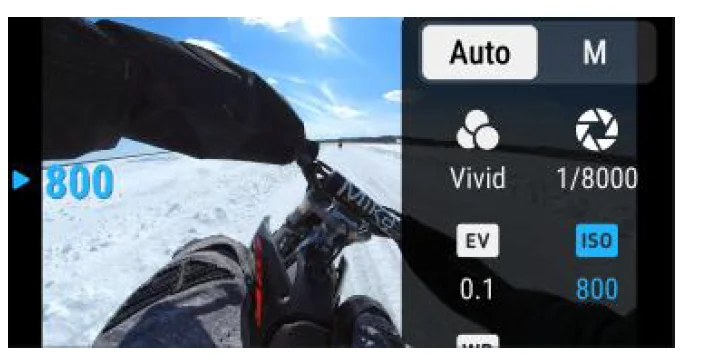
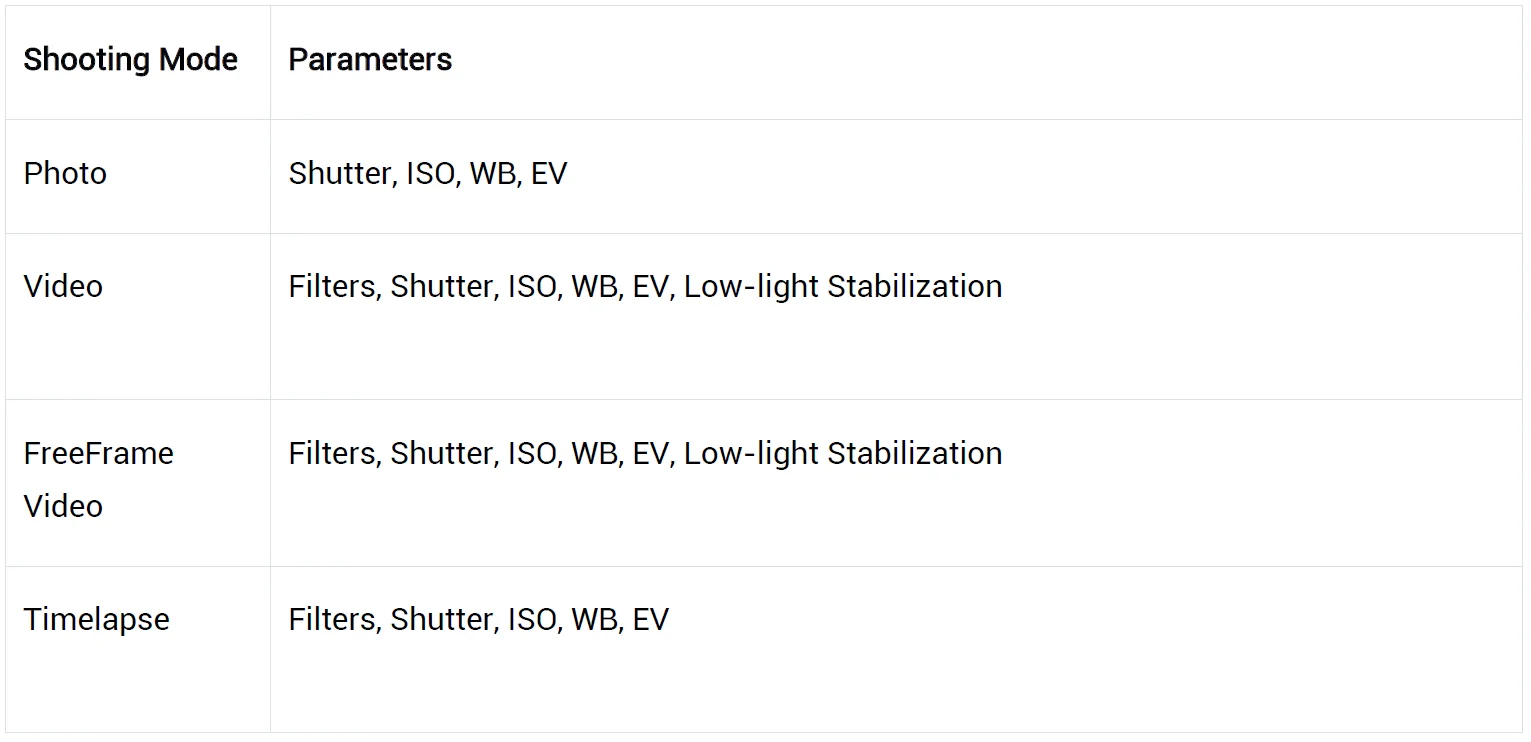
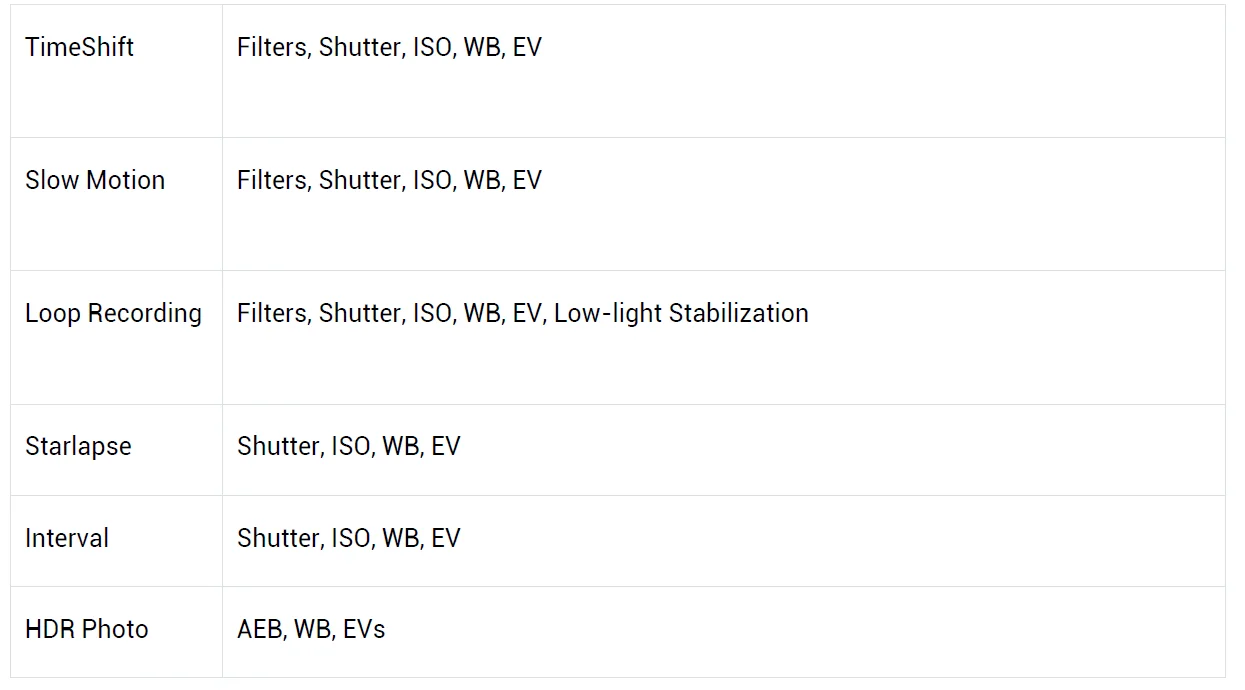
Swipe left from the right edge of the touchscreen to see the shooting parameter settings.
- Shutter Speed: Choose between Auto Mode (Auto) and Manual Mode (M)
- Sensitivity (ISO)
- Exposure Compensation (EV): Available in Auto Mode (Auto) and Manual Mode (M)
- White Balance (WB)
- Metering: Choose between Face and Matrix
- Low-light Stabilization
- AEB
Album Page
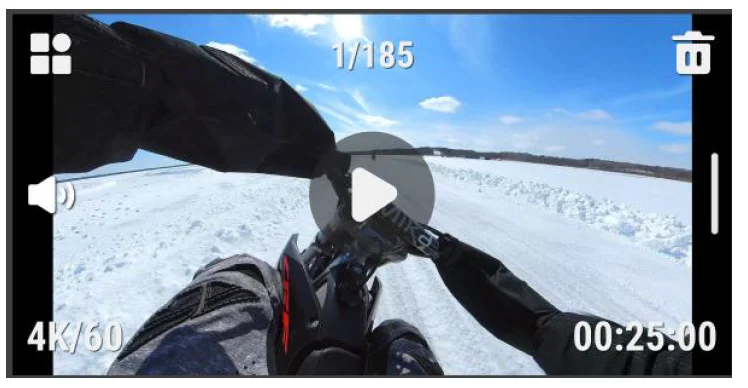
Swipe right from the left of the Touchscreen to enter the Album page.
Storage
There are three options available for GO 3’s internal storage capacity: 32GB, 64GB, and 128GB. The actual usable space for file storage will be slightly less than the total capacity, as the system occupies some space.
Indicator Lights
GO 3 and the Action Pod have separate LED status indicator lights.
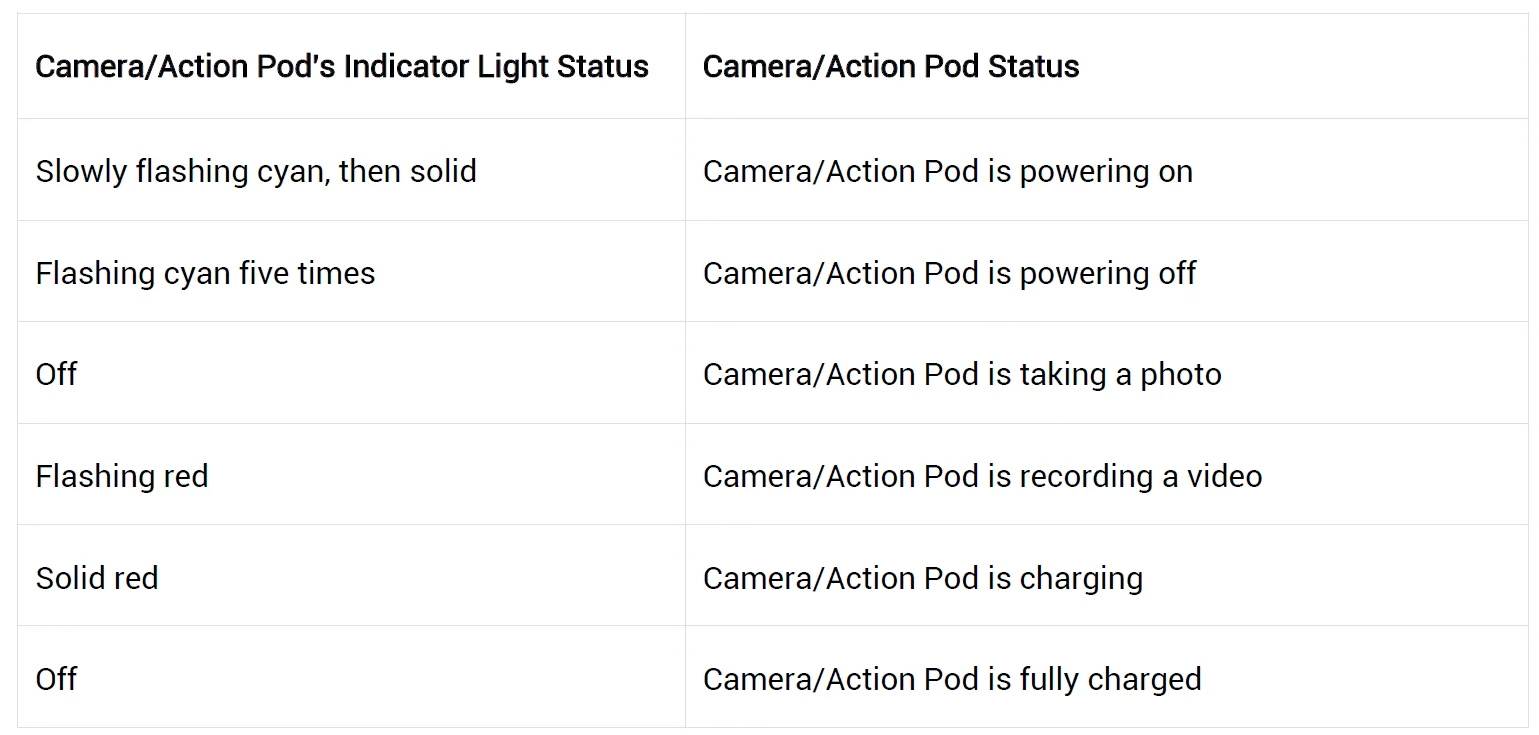
Other states
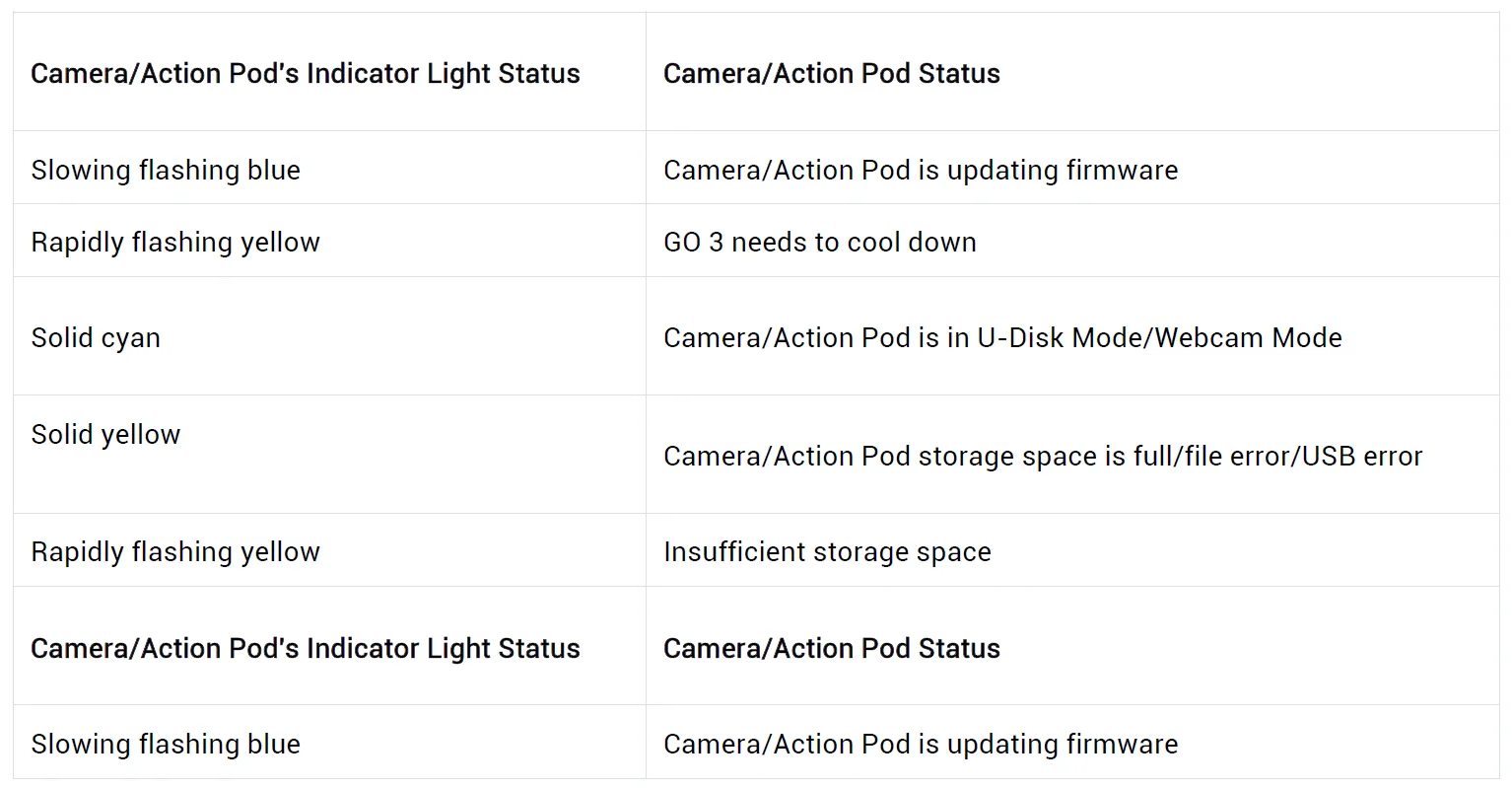
Note: The indicator lights can be turned on/off through the camera’s system settings.
Insta360 App
Connect to the Insta360 app
- Click here to download the Insta360 app. Alternatively, search “Insta360” in the App Store or Google Play Store to download the Insta360 app.
- Press the Power Button to turn on GO 3.
- Enable Wi-Fi and Bluetooth on your smartphone.
- Open the Insta360 app and click the camera icon at the bottom of the page. Follow the on-screen Instructions to activate your camera.
- If you connect to the Insta360 app for the first time, you need to authorize the connection on the touchscreen.
If you are unable to connect to the app, go to your smartphone’s Wi-Fi settings, find your GO 3, and enter the password (the password is “88888888” by default)and return to the app.
Note: You can change the camera’s Wi-Fi password in the app’s settings page.
Still can’t connect to the Insta360 app?
- Check if the Insta360 app has permission for the following: network permission, Bluetooth permission, or local network permission.
- In the Action Pod Settings, check that the Wi-Fi option is enabled and turned on.
- Make sure GO 3 is close enough to the phone.
Android Mode
- Place the GO 3 camera in the Action Pod and connect GO 3 to your Android phone with the USB-C cable.
- A notification for Android Mode will pop up.
- Open the Insta360 app to control the camera and access the camera’s footage.
App Interface
Enter the shooting interface of the app and the following icon functions can be seen. Some of the icon functions are only available in some shooting modes.
File Transfer
You can download GO 3’s files to your phone or PC, then use the Insta360 app or Insta360 Studio to edit and export.
Step
Download files from GO 3 to the Insta360 app
- Connect GO 3 to your phone via the Insta360 app; Learn how to connect.
- Enter the Album page, then select Camera.
- Tap the multi-select icon in the upper right corner of the page and select the files you want to download. Tap the download icon in the bottom right corner to download (do not exit the app or lock the phone screen when downloading).
Download files from GO 3 to your PC
- Connect GO 3 to your PC via the official cable.
- Open the DCIM > Camera01 folder, then copy the photos/videos you want to your PC.
Transfer files between the Insta360 app and your Windows PC
– iPhone
- Install iTunes on your PC. Connect your iPhone to your PC, open iTunes, and then complete the authorization process according to the instructions.
- After successful authorization, click the iPhone icon in the top left corner, and the iPhone’s files will appear.
- Click “File Sharing” and choose “Insta360” from the list. Then do one of the following:
- Transfer from iPhone to Windows PC: Find the DCIM folder, then click Save. Choose your desired path and click Save.
- Transfer from Windows PC to iPhone: Create a new folder and name it IMPORT, then copy the photos/videos to the IMPORT folder. Replace the IMPORT folder in the Insta360 app.
– Android
- Connect your Android phone to your PC, then choose “Manage Files” under “USB Connected” on the phone.
- Click “My Computer / This Computer”, find your phone model, and click “Internal Storage”.
- Find “data > com.arashivision.insta360akiko > files > Insta360OneR > galleryOriginal”, then do one of the following:
- Transfer from Android to Windows PC: Copy the folder or files to your PC.
- Transfer from Windows PC to Android: Copy files to this folder from your PC.
Transfer files between the Insta360 app and your Mac
iPhone
- Connect your iPhone to your Mac.
- In the Finder window on your Mac, select your iPhone.
- At the top of the Finder window, click Files, then do one of the following:
- Transfer from Mac to iPhone: Drag a file or a selection of files from your Mac onto the Insta360 app in the list.
- Transfer from iPhone to Mac: Click the small triangle beside the Insta360 app to see its files on your iPhone, then drag the desired files to a folder on your Mac.
Android
- Install Android File Transfer on your Mac.
- Connect your Android phone to your Mac.
- Open Android File Transfer.
- Browse the files and folders on your Android device, then copy and paste them to a folder on your Mac.
Maintenance
Firmware Update
Firmware updates will be regularly available for both GO 3 and the Action Pod to ensure that they run efficiently. Please update to the latest version for optimal results. Before updating, make sure that GO 3 and the Action Pod have at least 25% battery remaining.
Update via Insta360 app:
Connect GO 3 to the Insta360 app. The app will notify you if there is a new firmware update available. Follow the on-screen instructions to update the firmware. If the camera firmware update fails, check the following and try the update again:
- Ensure GO 3 is in the Action Pod and close to your phone(remove the red sticker on the back of the GO3 camera).
- Keep the Insta360 app running and do not exit or minimize it.
- Ensure your phone has a strong and stable network connection.
Update via Computer
- Make sure GO 3 is in the Action Pod and powered on.
- Connect the camera to the computer using the USB Type-C cable and select USB Mode.
- Download the latest version of the firmware from the official Insta360 website on your computer.
- Once the computer has recognized GO 3, copy the “Insta360GO3FW.pkg” file to GO 3’s root directory.
Note: Do not change the file name. - Disconnect GO 3 from the computer. GO 3 will automatically power off.
- Power on GO 3, and the firmware update will start. The indicator light will slowly flash blue.
- GO 3 will automatically restart once the update is complete.
Waterproofing
- GO 3 (when taken out of the Action Pod) is waterproof up to 16ft (5m). The included Lens Guard must be installed on the camera for underwater use.
- The Action Pod is IPX4 water-resistant only when GO 3 is installed. It protects against light rain and snow, but should not be submerged in water or used for activities involving high-velocity water, such as action sports during rainy weather, surfing, and waterskiing.
- For extended underwater use, use the GO 3 Dive Case. Both the camera and the Action Pod are waterproof to 196ft (60m) with the GO 3 Dive Case.
- After using the camera underwater, dry it thoroughly with a soft cloth. Do not place it in the Action Pod until the magnetic Charging Points are completely dry.
Note: After every use in seawater, soak the camera in fresh water for 15 minutes, gently rinse it, and then dry it thoroughly.
To maintain the waterproofing of GO 3:
- Do not use a hair dryer to dry the camera, as it may affect the microphone and speaker and damage the internal waterproofing ability.
- Avoid operating the GO 3 camera for extended periods (>1 hour) outside the recommended temperature range (-4°F to 104°F/-20℃ to 40℃) or in humid environments.
- Do not store the camera in high-temperature or high-humidity environments.
- Do not disassemble the camera.
For more manuals by Insta360, visit ManualsLibraryy
Insta360 GO 3 Camera-FAQs
How does the Insta360 GO 3 work for beginners?
The Insta360 GO 3 is designed to be extremely simple for beginners. You just press the shutter button to start recording, and the camera captures stabilized video automatically. It uses smart features like horizon leveling and AI editing, so you don’t need advanced skills. After recording, you can quickly edit and export clips through the Insta360 app for easy sharing.
How do you start recording on the Insta360 GO 3?
Starting a recording is quick and convenient. You can press the camera button once to power it on and begin recording instantly using QuickCapture. When connected to the Action Pod, you can also use the touchscreen to select modes and start recording. This makes it ideal for capturing spontaneous moments without navigating complicated menus.
What are the best video settings for Insta360 GO 3?
For most users, shooting in 2.7K resolution at 30fps offers the best balance between quality and battery life. If you want smoother motion or slow-motion effects, you can switch to higher frame rates. Enabling high bitrate and keeping ISO low in good lighting will help improve clarity and overall video quality.
Can the Insta360 GO 3 be used while charging?
Yes, the camera can be used while connected to a power source. When placed inside the Action Pod, it can continue recording while powered externally. However, continuous use while charging may slightly impact long-term battery health, so it’s best used occasionally for extended shooting sessions.
Does the Insta360 GO 3 take photos as well as videos?
Yes, the camera supports both photo and video modes. You can switch to photo mode using the Action Pod or app and capture standard photos, HDR shots, or interval images. Despite its small size, it delivers good image quality suitable for casual photography and social media use.
Do you need a memory card for Insta360 GO 3?
No, the Insta360 GO 3 does not require a memory card because it comes with built-in storage. All your photos and videos are saved internally. You can later transfer files to your phone or computer using the Insta360 app or accessories like a quick reader.
Can you use Insta360 GO 3 without Wi-Fi?
Yes, you can still use the camera without Wi-Fi. Basic recording functions work independently, and you can connect it to your phone using a wired connection if needed. However, for full control, live preview, and editing features, using the Insta360 app with a connection is recommended.
What are common issues with Insta360 GO 3 and how can you fix them?
Some users may face issues like the camera not turning on, unresponsive buttons, or connectivity problems. These can usually be fixed by charging the device fully, restarting it, or updating the firmware. Ensuring proper connections and keeping the camera clean also helps maintain smooth performance.
Can the Insta360 GO 3 be used as a regular camera?
Yes, although it’s a compact action camera, it can function like a regular camera. You can shoot standard videos and photos without using any 360 features. Its wide-angle lens and stabilization make it suitable for everyday recording, vlogging, and capturing daily moments.
How can you improve video quality on the Insta360 GO 3?
To get clearer footage, shoot in well-lit environments and keep ISO as low as possible to reduce noise. Adjust frame rates based on motion—30fps for normal use and 60fps for action shots. Using proper mounting and keeping the lens clean also ensures sharper and more stable results.