
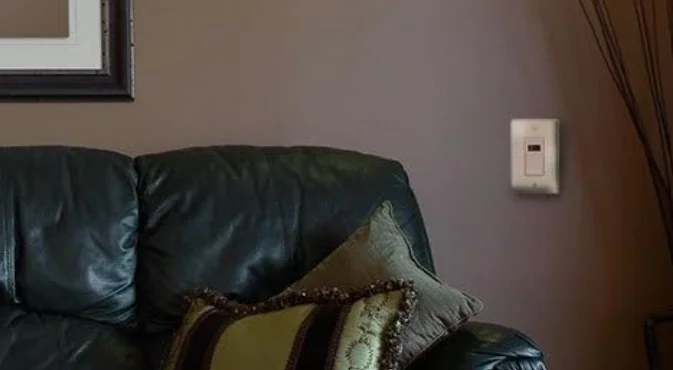

Intermatic ST01 Heavy-Duty Programmable Digital Timer
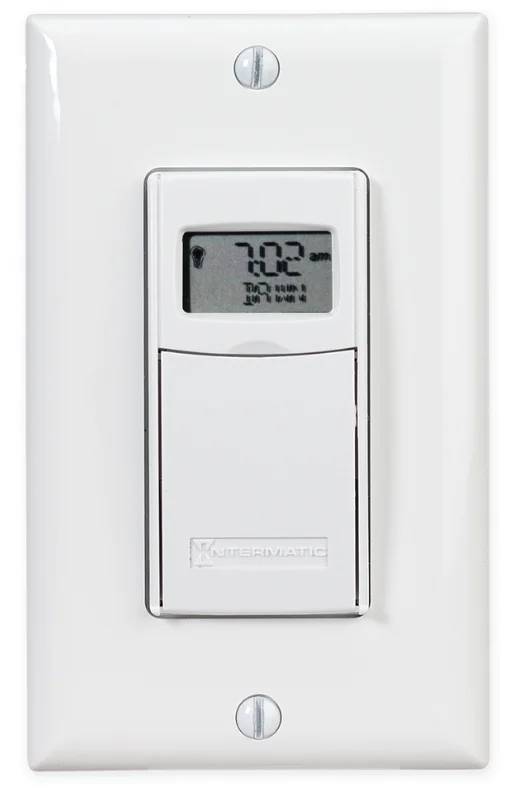
Installation and User Instructions
Ratings
- Resistive (heater) 15 Amp, 120-277 VAC
- Tungsten (incandescent) 15 Amp @ 120 VAC, 6 Amp @ 208-277 VAC
- Ballast (fluorescent) 8 Amp @ 120 VAC, 4 Amp @ 208-277 VAC
- Motors 1 H.P. @ 120 VAC, 2 H.P. @ 240 VAC
- DC Loads 4 Amp @ 12 VDC, 2 Amp @ 28 VDC
WARNING
- Electrical shock hazard. Risk of injury or death. Remove electrical power at the service panel before installing.
- Risk of fire or burns from a used battery. Do not recharge, disassemble, heat above 100˚ C, crush, or incinerate the lithium battery. Keep the battery out of reach of children. Replace only with Panasonic type CR2 or equivalent CR2 battery approved by Underwriters Laboratories (UL). Use of a different battery type may present a risk of fire or explosion upon disposal of the battery.
- Risk of fire. Do not use a timer to control devices that could have dangerous consequences due to inaccurate timing, such as sun lamps, saunas, heaters, crock pots, etc.
NOTICE
- Follow local electrical codes during installation.
- Risk of timer damage due to leakage if a weak battery is not replaced promptly.
- Dispose of used batteries promptly per local regulations.
Before installing the Switch Timer, install and check the battery
Before installing the switch timer into the wall, make sure the supplied battery is installed and working.
- Open the access door to reveal the battery tray, located below the ON/OFF keypad.
- If there is a pull tab at the battery tray, remove the tab to connect the installed battery. Make sure the battery tray is pushed fully into place. Proceed to Step 6.
- If the battery was supplied loose, pry open the battery tray and remove it from the timer.
- Place the supplied “CR2” battery into the tray, observing + and – markings on the tray.
- Replace the battery tray in the switch timer.
- The display will initialize itself, then flash “12:00 AM” in Manual mode.
- Press the ON/OFF button. The switch timer should “click.”
NOTE: If the display doesn’t flash “12:00 am”, the battery may be dead. Replace the battery before installing the switch timer. For new installations, it is recommended that you set up and program your timer before installing it in your wall. This will make it easier to follow the instructions while programming the timer. Since the timer is battery-powered and does not need AC power to program, all of your settings will be saved in the timer and ready to be used once the timer is installed.
Intro to Programming: Read Before You Begin
- Your ST01 timer will display the event’s information slightly differently if the event has never been programmed (Figure 14), or if it has had information entered into it before (Figure 25).
- If you are programming into an uninitialized event location (Figure 14), note that the display may flash DAWN or DUSK momentarily when the ON/OFF key is pressed (Section 6, Step 3).
- Your timer does not force you to program ON and OFF times in pairs; you must be sure to program a corresponding OFF time for every ON time you enter into the timer. Each ON and each OFF setting will use a different numbered program. This allows greater flexibility while programming your timer.
- As you use the menus to program, it will be helpful to have an overview of how they are organized. Press the MODE button to rotate through the switch timer’s modes: SET UP, PROGRAM, AUTO, RANDOM, and MANUAL. All menus “loop”, so they repeat when you get to the end. AUTO and RANDOM modes are skipped until there is at least one ON/OFF setting.
- Once you reach a Mode you want to work with, press the ON/OFF button to rotate through the loop of settings available for that Mode, returning to the beginning. For example, in SET UP mode, you will see HOUR, MINUTE, AM/PM, Year, Month, etc.
- Use the + or – buttons to change a setting when it is FLASHING (e.g., the correct hour). Holding the button makes the numbers scroll faster. Pressing ON/OFF again advances to the next setting and automatically saves — whether you changed the setting or not. Saving is automatic; there’s no extra step.
- If you’re interrupted during programming, your work to that point is automatically saved after 5 minutes.
- Press MODE when you’re finished to navigate to the mode you want to operate the switch timer: Auto, Manual, or Random.
Clear Any Existing Programming
It’s unlikely that the new switch timer has any existing programming, but to make sure, use this procedure before setting the time.
- Open the front cover.
- Hold down ON/OFF.
- Using a pen or paper clip, press and release RESET, which is the small round button to the lower right of the + button.
- When the screen displays INIT, release ON/OFF. The screen will initialize, then flash “12:00 am” in Manual mode.
All previous settings are now deleted.
Set the Date and Time
In order for the Astronomic Feature and automatic Daylight Saving Time settings to function properly, the CALENDAR settings must be entered correctly.
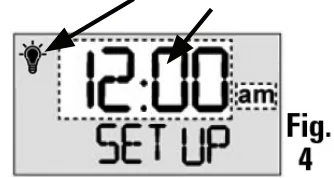
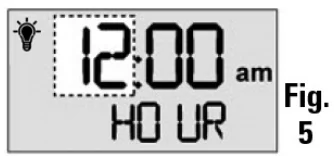
WHAT IT MEANS: The icon of the LIGHT BULB indicates whether the switch timer is ON or OFF. The WHITE area of the example screens is what will be flashing on your switch timer.
- Press MODE until the screen displays SET UP. The first time, the hours/minutes display will be flashing (Fig. 4).

- Press ON/OFF to display HOUR (Fig. 5), then press + until the correct hour and AM/PM are shown.

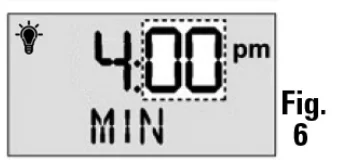
NOTE: If you go too far, press the – button to back up, or press + until you loop back. - Press ON/OFF to display MIN ( Fig. 6), then press + until the correct minute is shown.

- Repeat this routine for YEAR, MONTH, DATE.
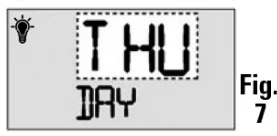
- Verify that the day of the week is correct (Fig. 7). If wrong, press + or – to loop back, then reset the calendar information.

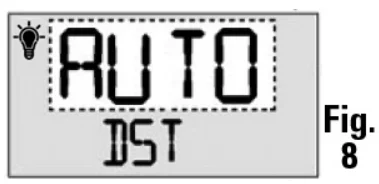
- Press ON/OFF to display DST (Fig. 8), and set whether you want to adjust automatically for Daylight Saving Time (DST).

- If you use DST, press + for AUTO.
- If you do not use DST, press + for MANual.
- Press ON/OFF to set your ZONE (Fig. 9). This feature tracks changes in sunrise and sunset times. Press + to select your local zone: NoRTH, CENTer, or SOUth (Fig. 10).


- You can set DAWN or DUSK to your exact time in your area according to your newspaper or online. Use the following procedures to do so, or press ON/OFF 3 times to skip.
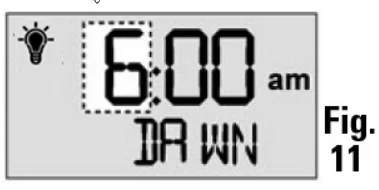
- Press ON/OFF to set your exact local time for DAWN (Fig 11), then press + to set the correct HOUR.

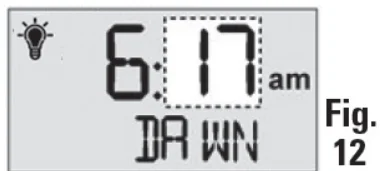
- Press ON/OFF to display MIN (Fig. 12), then press + until the correct minute is shown.

- Repeat Steps a and b to set the exact local time for DUSK.
- Press ON/OFF to set your exact local time for DAWN (Fig 11), then press + to set the correct HOUR.
- Press ON/OFF again and you’ll loop back to SET UP. CHECK YOUR SETTINGS: Press ON/OFF repeatedly to loop back around to review your date and time settings. If anything is wrong, make corrections using the above steps.


Set Initial Pair of ON and OFF Times
You have many options with up to 40 timer settings:
- Set to a specific ON/OFF time.
- Set to DAWN and DUSK, which automatically adjust as the seasons change. This is the ASTRONOMIC feature.
- Set to activate ALL days, M-F, Weekend, or individual days.
Programs are created in two procedures: setting an ON time followed by setting an OFF time. You must set it each time separately. The instructions below will guide you as follows:
- First, for setting an ON time, which can be DAWN or DUSK, or a specific time such as 6:00 pm,
- Then for setting an OFF time, which can also be DAWN or Dusk, or a specific time.
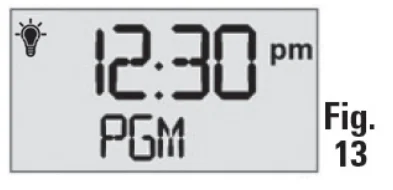
- Press MODE until the screen displays ProGraM below the time of day (Fig. 13).

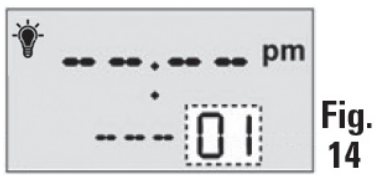
- Press ON/OFF to display the program number, then press + until you see the program number you want to set (Fig. 14).

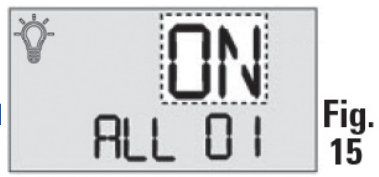
- Press ON/OFF, then press + if necessary, to display ON for setting the ON time (Fig. 15). Continue to press + for OFF (if setting an OFF time) or SKIP (if deleting a setting).

- Press ON/OFF, then press + to display whether you want ON to be set for DUSK, DAWN, or a specific time, which would be shown as “12:00” (until you change it).
If ON is to be at Dawn or Dusk:
NOTE: Some people like to set DUSK as an ON time and match it with a specific time, such as 11:00 pm for OFF.
- Press + to display DUSK (Fig. 16). Continue to press + for DAWN (if setting DAWN as the on time).

- Press ON/OFF to display the days you want the setting to be active, then press + to select either ALL days, M-F, Weekend, or an individual day. Fig. 17 shows ALL as an example.

- Press ON/OFF again. The display will briefly show SAVE.
- Press + to display DUSK (Fig. 16). Continue to press + for DAWN (if setting DAWN as the on time).
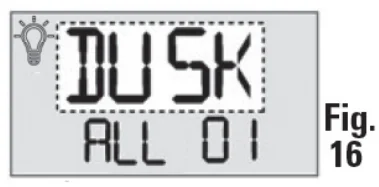
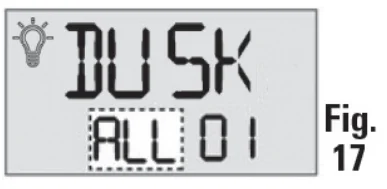
You have successfully set the ON time as DUSK, and must now repeat this procedure to set the OFF time to go with it. The display will loop back to Step 2 above, ready for you to set another program. Press + to display a flashing “02” (Fig. 18).
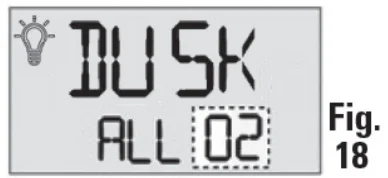
- To set PROGRAM 2, follow this procedure again, beginning at Step 2 above.
- When you’re finished, press MODE to exit from programming and automatically save your new settings.
If ON is to be at a Specific Time, such as 8:15 pm:
- Press + to display “12:00” (Fig. 19).

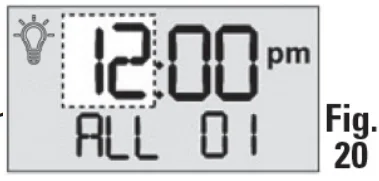
- Press ON/OFF to display the hour (Fig. 20), then press + until the correct hour is shown.

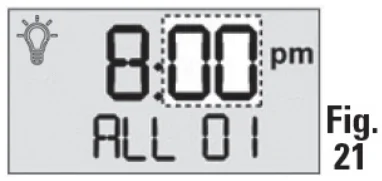
NOTE: If you go too far, press the – to back up, or press + until you loop back around. - Press ON/OFF to display the minutes (Fig. 21), then press + until the correct minute is shown.

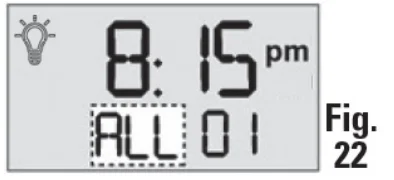
- Press ON/OFF to display the days you want the setting to be active, then press + to select either a specific day of the week, ALL days, M-F (work week only), or WKD (weekend only). Fig. 22 shows ALL as an example.

- Press ON/OFF again. The display will briefly show SAVE.
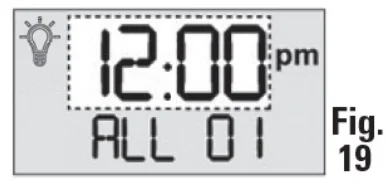
You have successfully set the ON time to 8:15 pm, and must now repeat this procedure to set the OFF time to go with it.
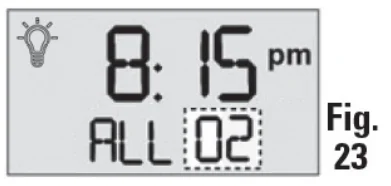
The display will loop back to Step 2 above, ready for you to set another program. Press + to display a flashing “02” (Fig. 23).
- To set PROGRAM 2, follow the procedure beginning at Step 2 on the other side of this sheet. Repeat these steps to create up to 40 unique ON/OFF settings.
- When you’re finished, press MODE to exit from programming and automatically save your new settings.
Selecting AUTO, RANDOM, or Manual Operation
Once set up, you have three choices for using the switch timer. To make a selection, open the front cover and press the MODE button until you see your choice of the following options:
- AUTO — uses the timer settings you have programmed.
- Random — gives your home a “lived-in” look by varying your settings by a random amount of ± 20 minutes or so.
- Manual — makes the switch into a standard ON/OFF switch without timer settings. Press on the door of the switch timer for ON, press again for OFF.
About the Battery
- The single lithium CR2 battery operates the ON/OFF function (“click-click”) and maintains the time of day and date. The screen flashes “BATT” when the battery is getting low.
- It is recommended to remove AC power when changing the battery.
- You have about one minute to swap batteries before the switch timer “forgets” the date and time settings. Afterwards, if the display is wrong or flashes “12:00 AM”, reset the time and date. All other settings (your ON/OFF programming) remain in memory indefinitely without battery or AC power.
- To test the battery, press the ON/OFF button. The timer should “click.”
- Replace the battery per Section 1 Instructions as soon as possible after the low “BATT” message appears.
- Do not leave an exhausted battery in the Switch Timer. (Risk of leakage.)
- Replace only with a Panasonic Type CR2 lithium battery or an equivalent CR2 battery approved by Underwriters Laboratories (UL).
- Dispose of the used battery promptly according to local regulations. Keep the battery away from children. Do not disassemble and do not dispose of the battery in a fire.
Deleting an ON or OFF Setting
Use these steps to delete an existing ON or OFF setting that you no longer want (for example, special settings from a vacation)
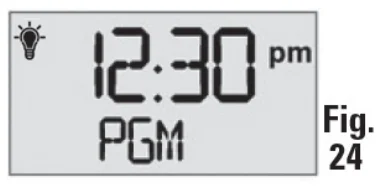
- Press MODE until the screen displays ProGraM below the time of day (Fig. 24).

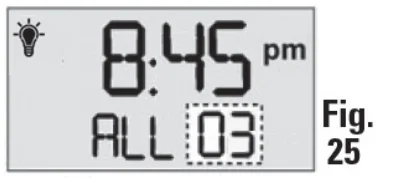
- Press ON/OFF to display the program number, then press the + button until you see the program number you want to delete (Fig. 25).

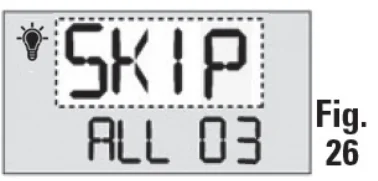
- Press ON/OFF, then the + button until SKIP is displayed (Fig. 26). The switch timer will now suppress this setting.

- Press ON/OFF again to cycle through the program until the display briefly shows SAVE.
- Press MODE to exit from programming and automatically save your new settings.
NOTE: Repeat this step and select ON or OFF to reactivate the setting.
Revising an ON or OFF Setting
Use these steps to revise an existing ON or OFF setting.
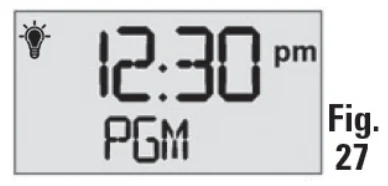
- Press MODE until the screen displays ProGraM below the time of day (Fig. 27).

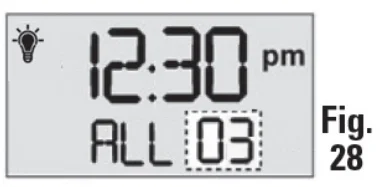
- Press ON/OFF to display the program number, then press the + button until you see the program number you want to revise (Fig. 28).

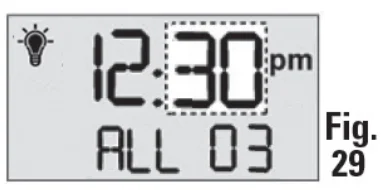
- Press the ON/OFF button as many times as necessary to display the setting you want to revise, for example, the MINUTE (Fig. 29).

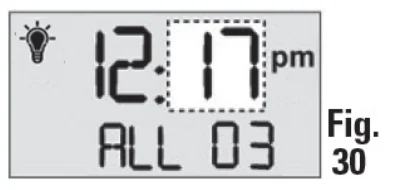
- Now press the + button again to display the new minute you want to set (Fig. 30).

- Press MODE to exit from programming and automatically save your new settings.
Installing the Switch Timer
- Turn off power at the service panel by REMOVING THE FUSE or TURNING THE CIRCUIT BREAKER OFF.
- Remove the existing wall switch.
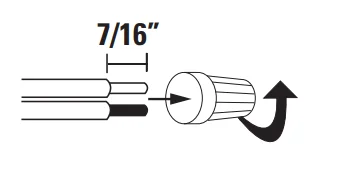
- Trim building wires to 7/16” as shown.
If a Single Switch Setup:
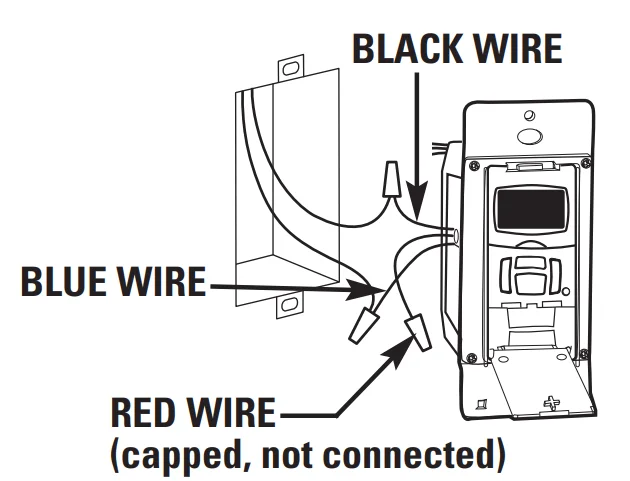
- Connect one of the two wires from the wall to the black wire from the switch timer, using the twist connectors provided.
- Connect the other wire from the wall to the blue wire from the switch timer, using the twist connectors provided.
NOTE: The RED wire is not used in single-switch installations. Cap with a twist connector. - Connect the GREEN wire to the grounding screw in the box. If a plastic box is connected to ground as supplied.
- Make sure all twist connectors are tight.
If a 3-Way Switch Setup:
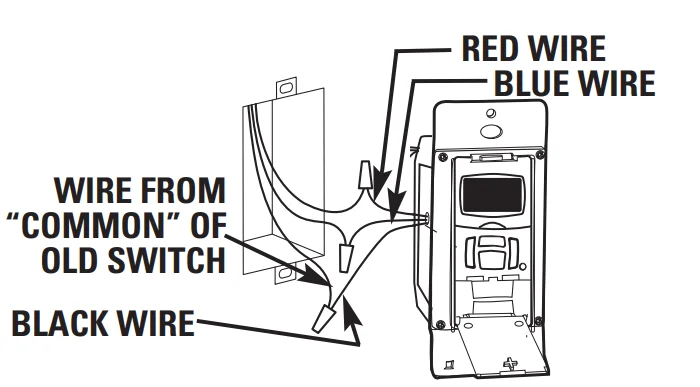
NOTE: The distance between the switch timer and the remote switch must not exceed 100 feet.
- Locate the COMMON wire connected to the first old switch. It might be attached to a different colored screw, or find markings on the old switch.
- Connect the BLACK wire from the switch timer to the COMMON wire, using a twist connector.
- Connect the other two wires from the old switch to the Blue and RED wires from the switch timer.
- Connect the GREEN wire to the grounding screw in the box. If a plastic box is connected to ground as supplied.
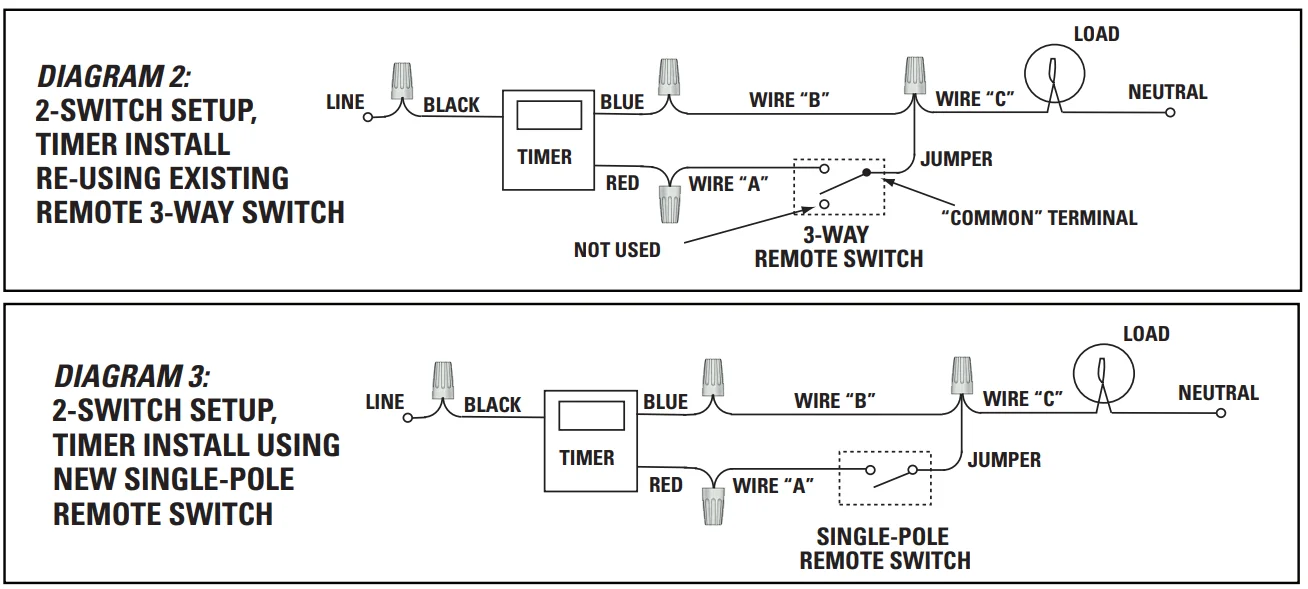
- Using diagram #1 below. Identify and remove wire “C” from the “Common” terminal of your existing remote switch.
- Using diagram # 2 below, remove and reconnect wires “B” and “C” to the “Common” terminal of your remote switch, using the supplied piece of jumper wire, if necessary. Follow diagram # 3below, if using a new single-pole remote switch.

NOTE: For new construction or to replace a dimmer switch, a lighted switch, or a 3-way switch without screw terminals, a single-pole switch can be used at the remote location, as shown.
NOTE: If the building’s wiring colors don’t allow you to tell wire “A” from “B,” just pick one of the two wires and connect as if it is wire “B.” After the installation is complete, if the controlled light or device will not turn on properly, simply reverse the wires “A” and “B.” See Steps J and K for how to check. - Tuck wires into the timer wall box, leaving room for the timer.
- Using the screws provided, mount the switch timer into the wall box, then install the wall plate.
- Install the remote 3-way switch in its box and install the wall plate. Turn the power back on at the service panel.
- Make sure the switch timer displays “MAN” mode. Do the following test with the remote switch in each of its 2 positions: Press the ON/OFF button on the switch timer several times. Each time that you push the ON/OFF button, the switch timer should “click,” and the controlled light or device (the “load”) should turn on or off. If so, proceed to Step K.
- If the timer clicks but the load does not operate, re-check your wiring and make sure the load is functional.
- If the timer clicks but the load only operates when the remote switch is in one of its 2 positions, you need to turn off the power at the service panel, then reverse wires “A” and “B.” You can reverse wires “A” and “B” at the remote switch wall box, or you can reverse wires “A” and “B” where they connect to the red and blue wires of the switch timer. Then turn the power back on at the service panel and repeat Step J.
- Verify that the controlled load turns on or off each time that the remote switch is operated.

If a Multiple Switch Timer Setup:
Multi-switch applications using the ST01 Series switch timer are wired differently from when using conventional toggle switches.
Read the following installation instructions carefully.
- Multiple switch timers may be mounted in an unlimited number of adjacent junction box slots.
- No derating is required for multiple switch timers.
For a three-switch setup:
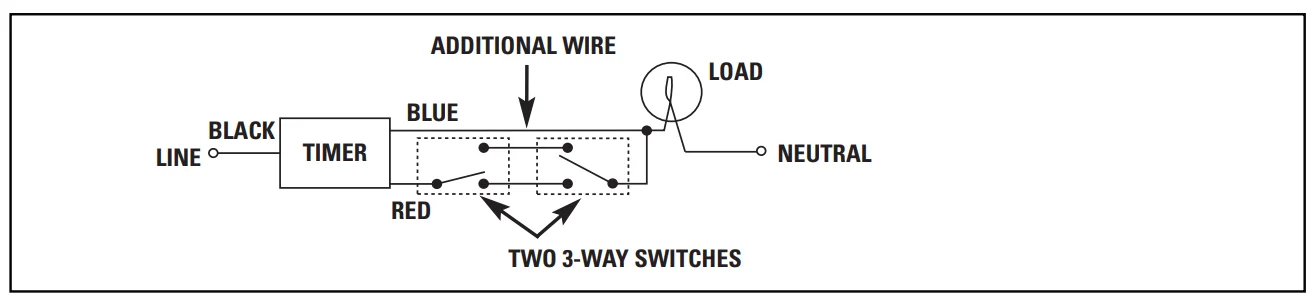
For four or more switch setups:
Use the preceding 3-switch installation diagram and wire 4-way switches between the two 3-way switches.
NOTE: The remote switch(es) may not function reliably when the accumulated wire length to the remote switch(es) exceeds 100 feet or if the wiring to the remote switch(es) is buried underground. Contact Intermatic Customer Service for details.
NOTE: Used remote switches from a previous conventional installation may not function reliably with an electronic timer. Try a brand new remote switch if the function is intermittent.
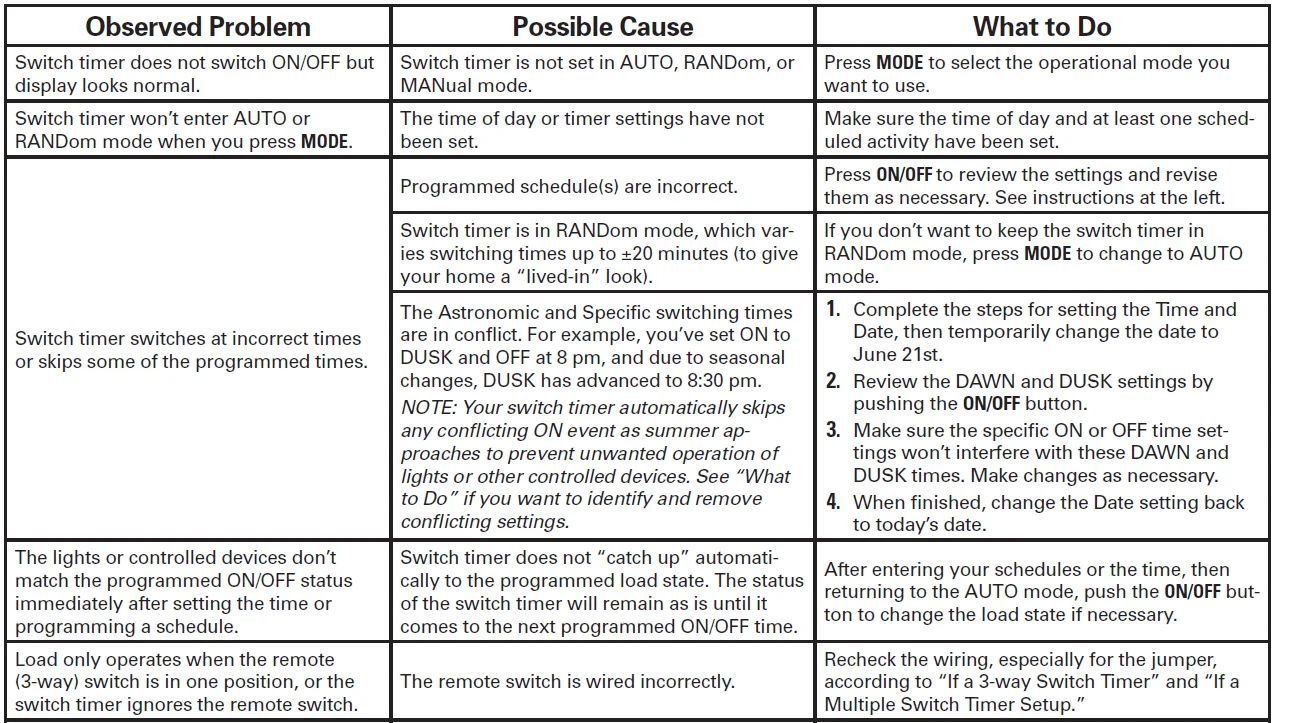
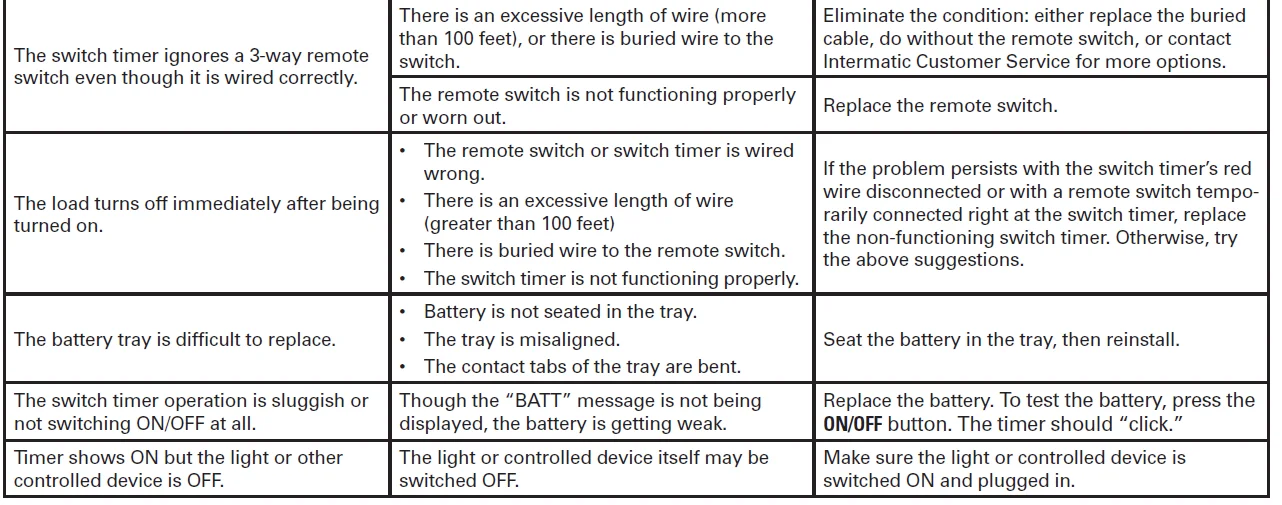
Troubleshooting Guide
LIMITED ONE-YEAR WARRANTY
If within the warranty period specified, this product fails due to a defect in material or workmanship, Intermatic Incorporated will repair or replace it, at its sole option, free of charge. This warranty is extended to the original household purchaser only and is not transferable. This warranty does not apply to:
- damage to units caused by accident, dropping or abuse in handling, acts of God or any negligent use;
- units which have been subject to unauthorized repair, opened, taken apart or otherwise modified;
- units not used in accordance with instructions;
- damages exceeding the cost of the product;
- sealed lamps and/or lamp bulbs, LED’s, and batteries;
- the finish on any portion of the product, such as surface and/or weathering, as this is considered normal wear and tear;
- transit damage, initial installation costs, removal costs, or reinstallation costs.
INTERMATIC INCORPORATED WILL NOT BE LIABLE FOR INCIDENTAL OR CONSEQUENTIAL DAMAGES. SOME STATES DO NOT ALLOW THE EXCLUSION OR LIMITATION OF INCIDENTAL OR CONSEQUENTIAL DAMAGES, SO THE ABOVE LIMITATION OR EXCLUSION MAY NOT APPLY TO YOU. THIS WARRANTY IS IN PLACE OF ALL OTHER EXPRESS OR IMPLIED WARRANTIES. ALL IMPLIED WARRANTIES, INCLUDING THE WARRANTY OF MERCHANTABILITY AND THE WARRANTY OF FITNESS FOR A PARTICULAR PURPOSE, ARE HEREBY MODIFIED TO EXIST ONLY AS CONTAINED IN THIS LIMITED WARRANTY, AND SHALL BE OF THE SAME DURATION AS THE WARRANTY PERIOD STATED ABOVE. SOME STATES DO NOT ALLOW LIMITATIONS ON THE DURATION OF AN IMPLIED WARRANTY, SO THE ABOVE LIMITATION MAY NOT APPLY TO YOU.
This warranty service is available by either
- returning the product to the dealer from whom the unit was purchased or
- completing a warranty claim online at www.intermatic.com. This warranty is made by: Intermatic Incorporated Customer Service/7777 Winn Rd., Spring Grove, Illinois 60081¬9698/815-675-7000 http://www.intermatic.com
For more manuals by Intermatic, visit ManualsLibraryy
Intermatic ST01 Heavy-Duty Programmable Digital Timer-FAQs
How do I set the time on the Intermatic ST01 timer?
To set the time, press the MODE button until “SETUP” appears on the display. Then press ON/OFF to confirm. Use the “+” and “–” buttons to adjust the hour and minutes, ensuring AM/PM is correct. Press ON/OFF again to save. This ensures your timer runs accurately according to your schedule.
How do you program an Intermatic ST01 timer?
Programming involves setting ON and OFF times for your connected device. Enter programming mode, then choose the desired schedule. Use the “+” and “–” buttons to set times for each event. You can create multiple schedules for different days. Once done, confirm your settings so the timer runs automatically.
What type of battery does the Intermatic ST01 use?
The Intermatic ST01 timer uses a CR2 3-volt lithium battery. This battery powers the timer’s internal clock and switching mechanism. It ensures that your programmed settings are maintained even during power outages. Always use a compatible, high-quality battery for best performance and reliability.
How do I replace the battery in the ST01 timer?
To replace the battery, carefully remove the timer from the wall. Open the battery compartment and take out the old CR2 battery. Insert a new one with the correct polarity. After replacement, reinstall the timer and check if settings need to be reconfigured to ensure proper operation.
Can I change or update timer settings easily?
Yes, updating settings is simple. Enter programming mode and adjust the existing ON/OFF schedules using the control buttons. You can modify times, delete schedules, or add new ones as needed. Always confirm changes before exiting to ensure the timer follows your updated schedule correctly.
How long does an Intermatic timer typically last?
Intermatic timers are built for durability and can last several years with proper use. However, components like the battery may need periodic replacement. Environmental factors such as moisture or dust can affect lifespan, so regular inspection and maintenance are recommended to ensure long-term performance.
Can the Intermatic ST01 control lights automatically?
Yes, the ST01 timer is designed to automate lighting and appliances. You can schedule specific ON and OFF times to control lights without manual operation. This helps improve convenience, energy efficiency, and home security by making it appear like someone is present even when you’re away.
What are common problems with the ST01 timer?
Common issues include incorrect programming, dead batteries, loose wiring, or the timer not switching properly. Sometimes, the timer may not turn devices on/off due to wrong settings. Regularly checking the battery and ensuring correct setup can prevent most of these problems.