
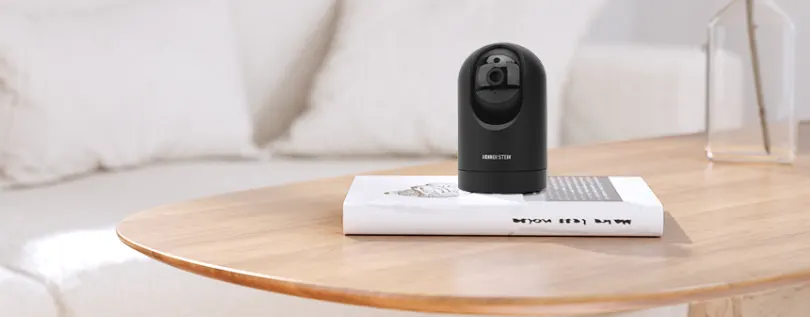
Konnek Stein QC21SE Indoor Security Camera
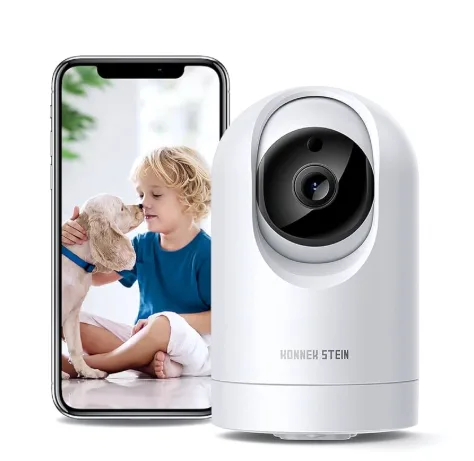
Product Introduction
Camera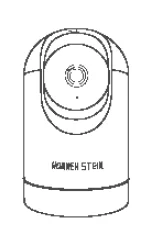
USB Power Cord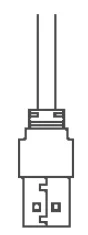
Power Adapter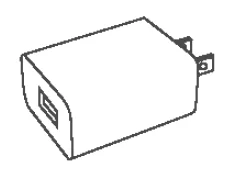
Screw Accessories Package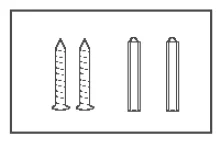
Mounting Brackets
Manual
Camera Information
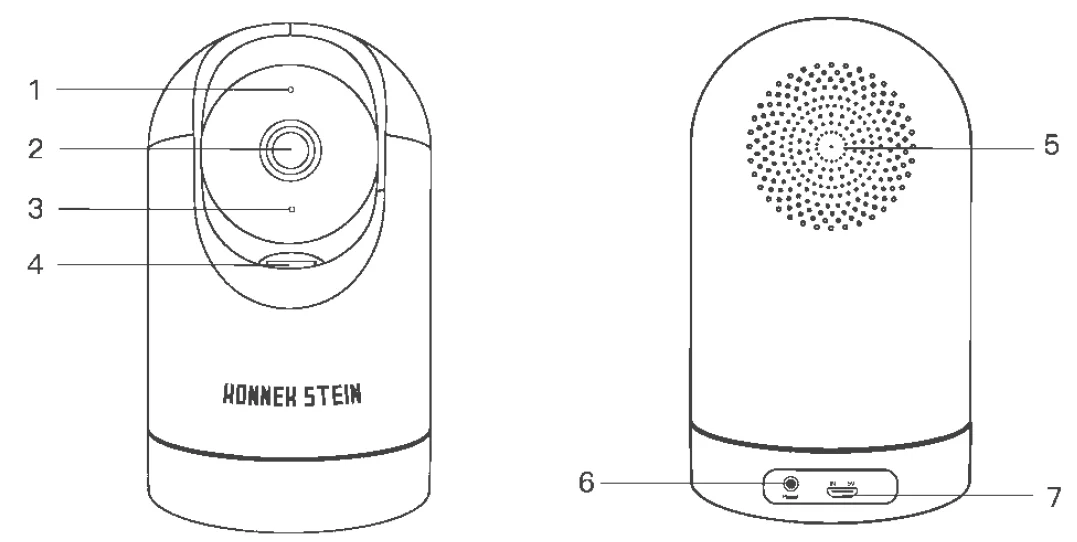
- Light Sensor
- Lens
- Microphone
- TF Card Slot
- Speaker
- Reset Botton
- Power Interface
Product Installation
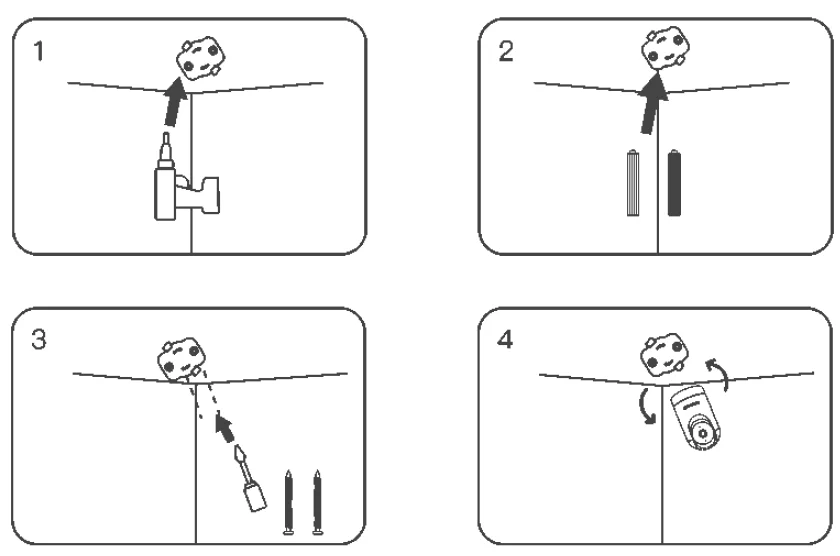
- Place the fixing bracket on the wall before punching, mark it with a marker pen, and then punch the hole.
- Put the plastic anchors into the holes.
- Secure the Mounting brackets to the wall with the screw handle and screws.
- Then install the camera on the fixed bracket.
Basic Parameters
- Product Name: Indoor Security Camera
- Product Model: QC21 SE
- Pixel: 2.0MP
- Video Compression: H.264 High Profile
- Image Enhancement: Digital Wide Dynamic 3D Noise
- Reduction Local Storage: MicroTF card
- Wireless Encryption: WEP/WPA/WPA2 Encryption
- Power Input: 5V1 A(Min)
- Total Power Consumption: 5W (Max)
- WirelessStandard: 2.48 802.11 b/g/n
- Support Platform: Android/iOS
Note
- Reset Button: Long-press “reset” hole 5sec, reset success.
- It is recommended to insert an 8 648B high-speed Micro TF card; otherwise, it will not be able to store, view historical video, and support Important functions such as firmware upgrading.
- Storage data adopts encrypted protection in order to protect user privacy. Even if TF cards are lost, they can eliminate the video disclosure. (The device’s TF storage data cannot be copied to the computer.)
Install App
- Scan the QR code below to download and install.
- Search “Smart Life” in App Store or Google Play and download.
Add the Device-Scan QR code mode
- Make sure Wi-Fi is available and connected to the Internet.
- Connect the camera to the power, and then the system startup is complete.
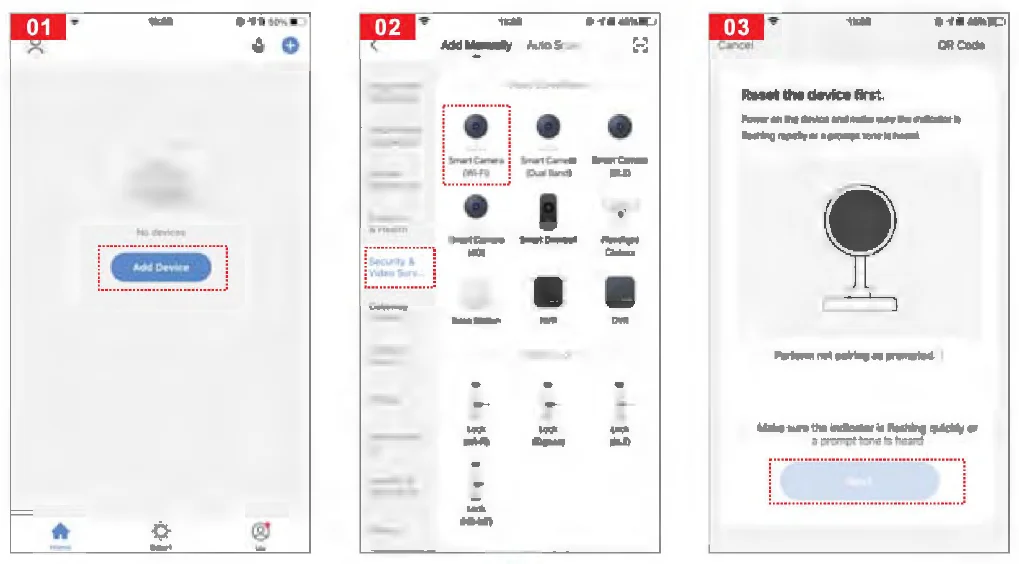
- Open the “Smart Life” APP, press the”+” in the upper right corner of the main screen (Figure 01 ), choose”Security & Sensor”, click “Smart Camera” (Figure 02) to add a camera, and then click “Next step” (Figure 03).

- Make sure Wi-Fi is available and connected to the Internet.
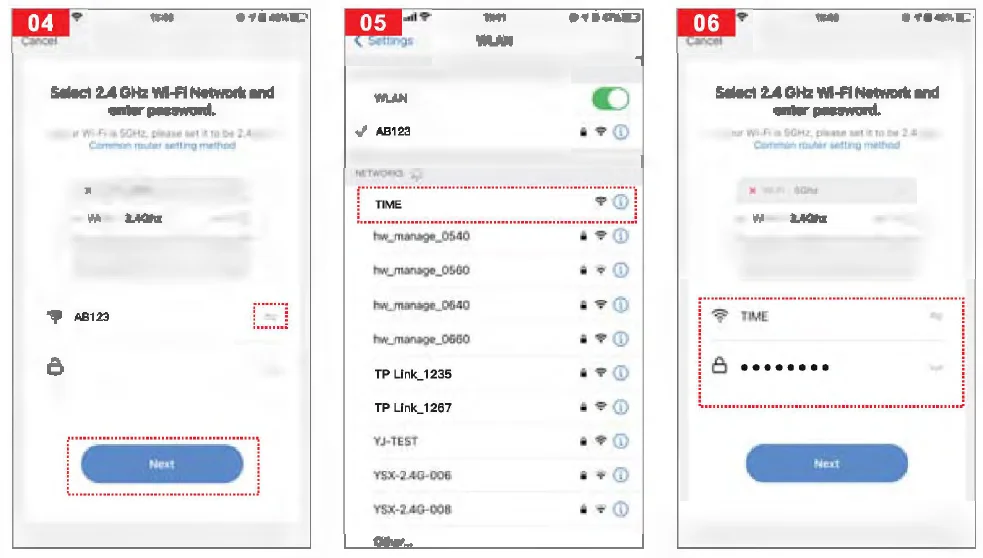
- It will jump to the WLAN interface and connect to Wi-Fi (Figure 05). Please note that only a 2.4 GHZ Wi-Fi network is supported.
- If the phone is connected to Wi-Fi (Figure 06).

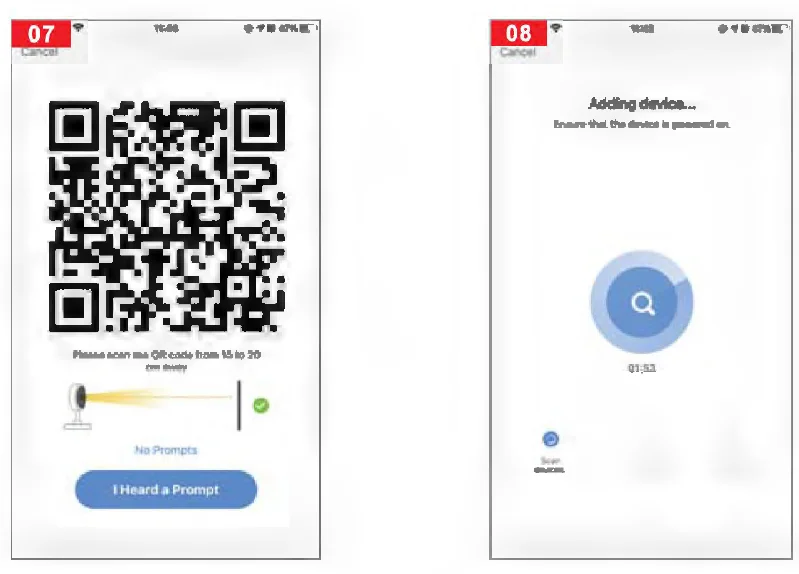
- A QR code will appear on your screen, and you need to scan it with the Smart Camera (the camera is about 20-30 cm away from the mobile phone lens). Then click”I Hear a Prompt “when you hear the tone (Figure 07).
- “Connecting” (Figure 08).

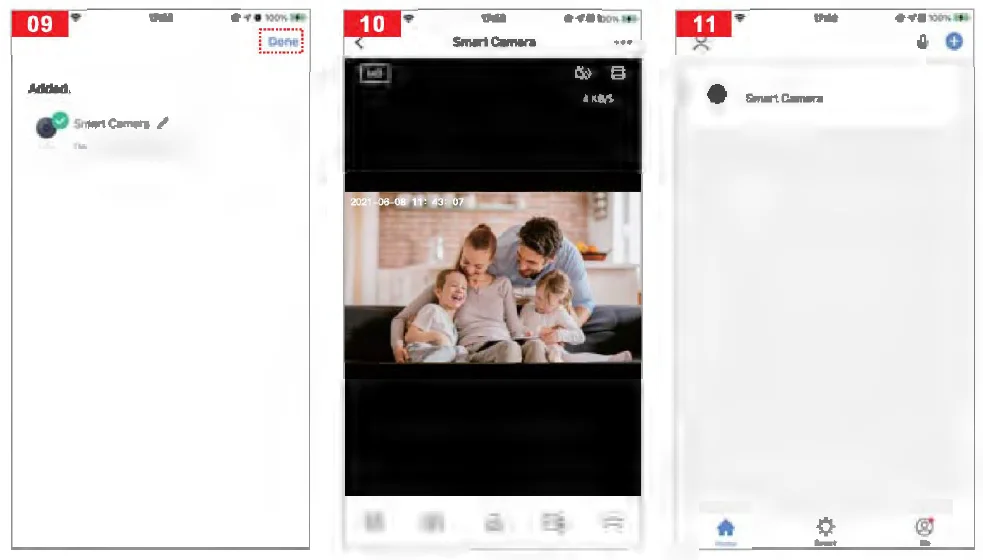
- Connection completed(Figure 09), and click “Done”.
- Then jump to the preview interface (Figure 1 0).
- After closing the device preview interface, the interface returns to the APP home page. At this time, the connected device will appear on the APP home page (Figure 11 ). Then you can click directly to the device interface to see the monitoring situation without re-adding afterwards.
Add The Device-AP Mode
If you want to use AP Mode, press the reset button on the machine.
- Make sure Wi-Fi is available and connected to the Internet.
- Connect the camera to the power, and the system startup is completed.
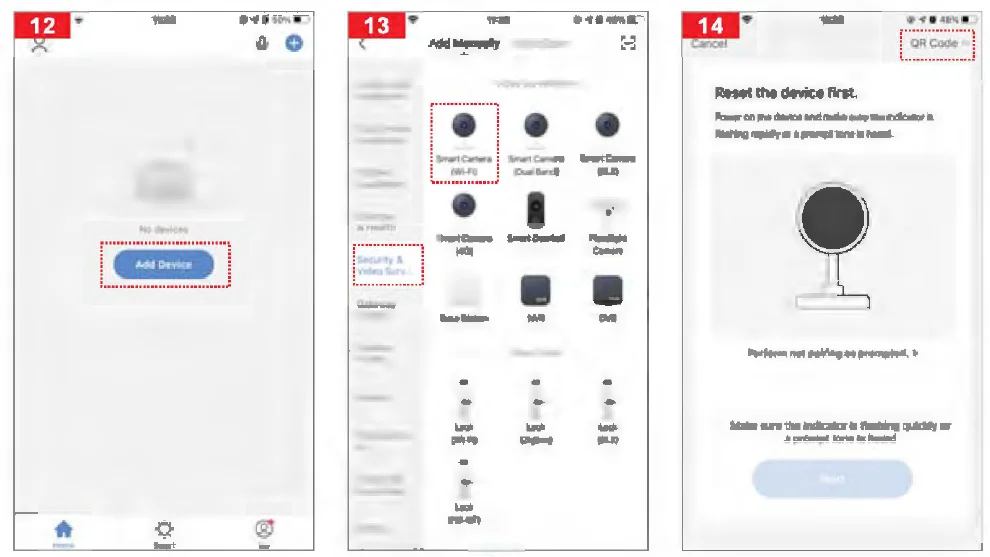
- Open”Smart Life” APP, press the”+” in the upper right corner of the main screen (Figure 12); choose “Security & Sensor”, click “Smart Camera” (Figure 13) to add a camera; Alternatively, choose “QR Code” to add (as shown in Figure 14).

- Then click”AP Mode” (Figure 15).
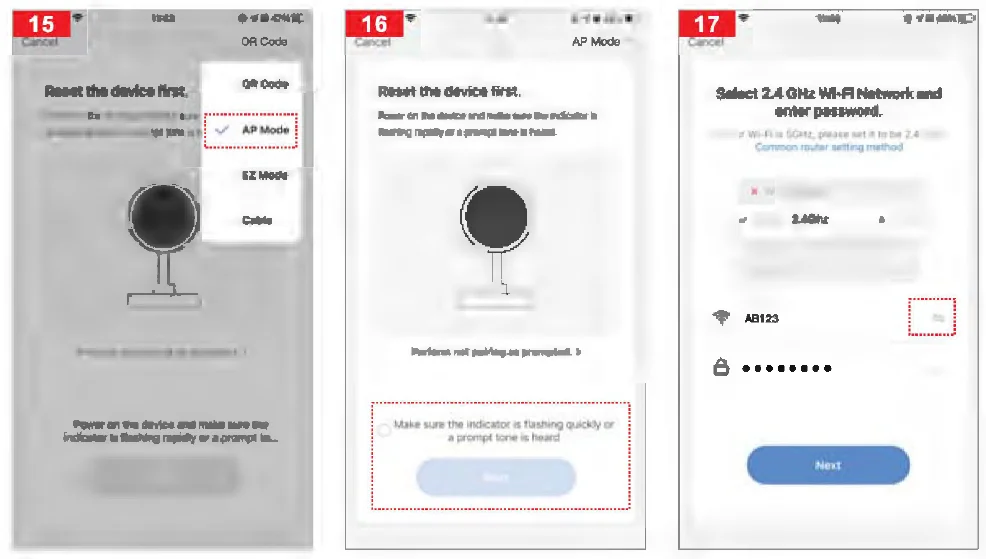
- Switch to”AP Mode”, click”Next” (Figure 16).
- Select the 2.4GHz Wi-Fi network and enter the password, click” Next “(Figure 17). If it is already a 2.4GHz network, click”Next”(skip to Figure 20).

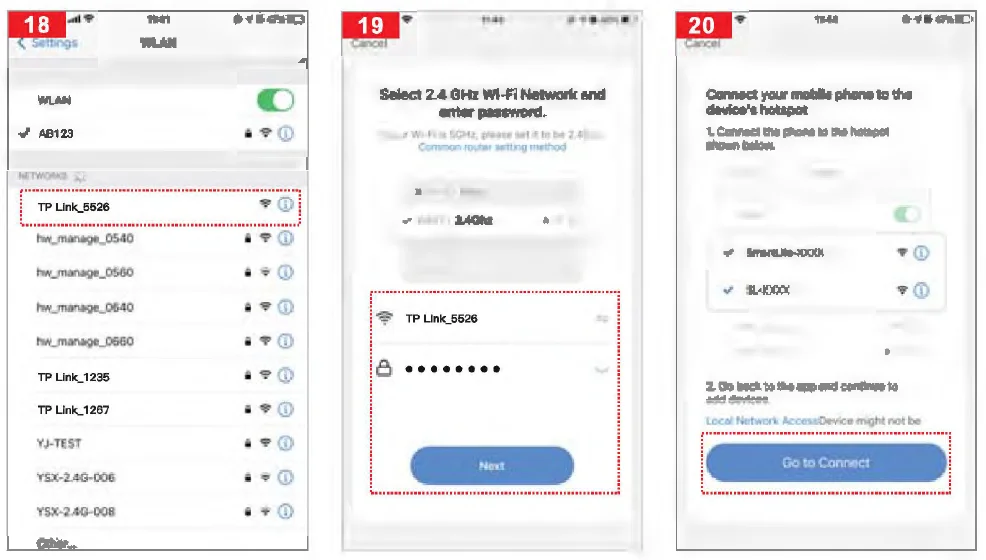
- Then select a 2.4GHz WiFi and enter the password to complete the connection (Figure 18).
- Click Back and return to the APP compatible mode interface, where the Wi-Fi name and the connected Wi-Fi name are displayed Password, and click the “Next” button (Figure 19).
- The page jumps to where the interface prompts “Wi-fl” to connect to the device hotspot and clicks “Connect” (Figure 20).

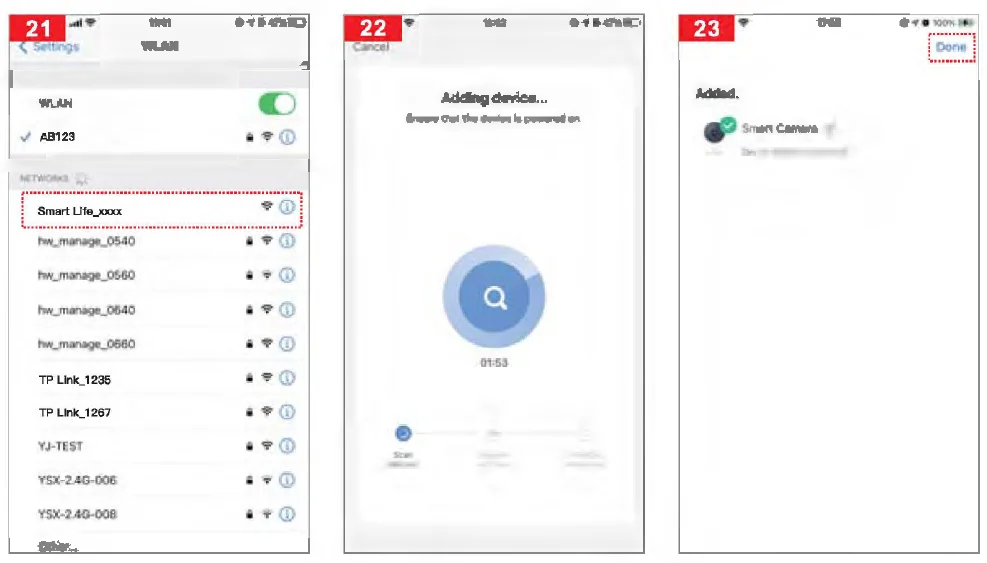
- The interface jumps to the WALN connection interface, finds the Wi-Fi at the beginning of “Smart Life_xxxx”, and clicks on the connection (Figure 21 ).
- When the connection is completed, click back and return to the APP interface, at which time the APP display device is connected (Figure 22).
- At this time, the device has been successfully connected; the interface jumps to “Device added successfully” (Figure 23).

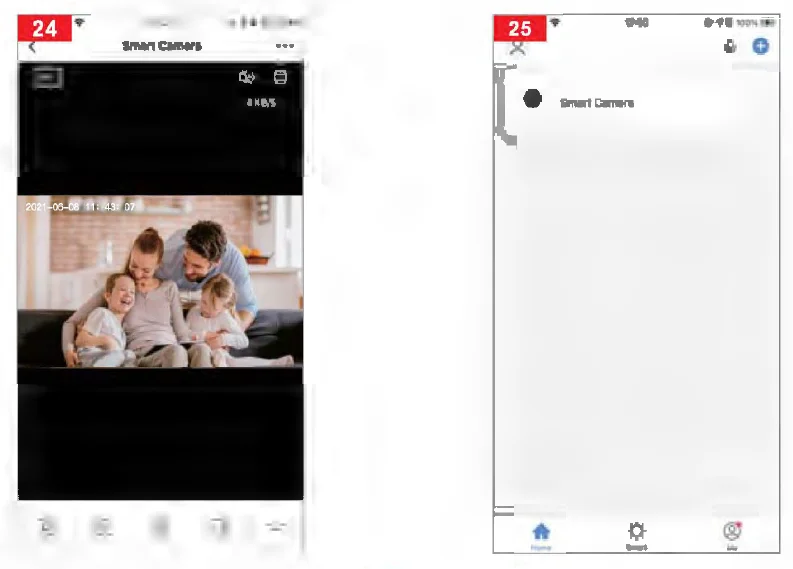
- Then click”connected”, it will jump to the Preview Interface of the Device (Figure 24).
- Close the device preview interface, and the interface returns to the APP home page, at which point the connected device will appear on the APP home page(Figure 25). After entering the device interface to view, no need to re-add; click directly into the device interface to view.
APP Video Browsing Details
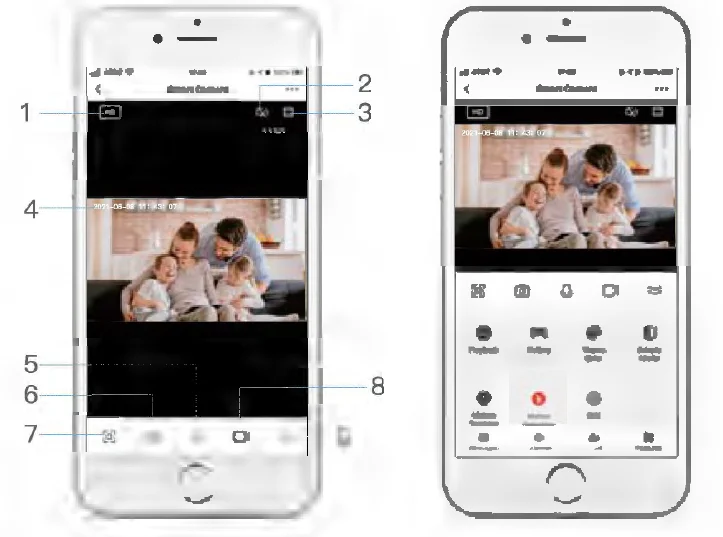
- Preview mode
- Sound
- Long Screen
- Time
- Microphone
- Screenshot Picture
- Full Screen
- Record Video
- More
Matters Need Attention
- Try to keep away from the metal space.
- Avoid the furniture; the microwave oven is blocked.
- Avoid the space where the audio, video, and data lines are wound, and keep the space away from them as large as possible.
- Ensure that as close as possible to the coverage of wireless Wi-Fi signals. Switching network environment.
- In the new network environment, please press the reset button for about 5 seconds, then connect to the network.
The name and content of the harmful substances in the product
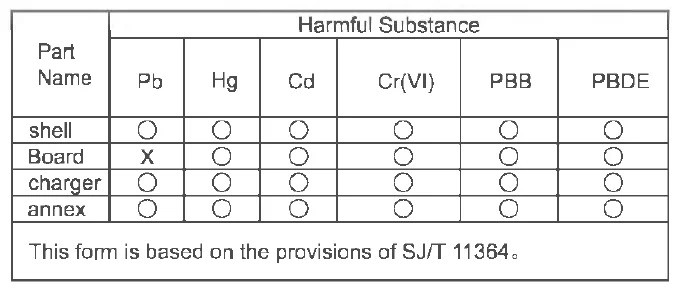
This product conforms to RoHS environmental protection requirements. At present, there is no mature technology in the world to replace or reduce the lead content in the electronic ceramics, porcelain, optical glass, steel, and copper alloys.
Other Information
FCC ID:2APD7-R9820. This device complies with Part 15 of the FCC Rules. Operation is subject to the following two conditions:
- This device may not cause harmful interference.
- This device must accept any interference received, including interference that may cause undesired operation.
FOR MORE MANUALS BY BLOGS, VISIT MANUALSLIBRARYY
Konnek Stein QC21SE Indoor Security Camera-FAQs
How do I connect the Konnek Stein QC21SE camera?
Download the “Smart Life” app, connect your phone to Wi-Fi, plug in the camera, open the app, select “Add Device,” and choose “Smart Camera (Dual Band).”
Can I access the camera remotely?
Yes, once set up, you can monitor your camera from anywhere in the world using the app.
Does the camera record audio?
Yes, it supports two-way audio, allowing you to listen and speak through the camera.
Can the camera work without Wi-Fi?
Limited functionality is possible. It can record locally onto a microSD card, but remote monitoring requires internet access.
How do I know if the camera is recording?
A steady or blinking LED near the lens indicates the camera is active. The app also shows live status and recording activity.
Can the camera work during a power outage?
If it is plugged in, it will stop during an outage. Battery-powered models or cameras with UPS backup can continue recording temporarily.
How far can the camera cover?
It provides a wide-angle indoor view suitable for rooms and common areas. Exact coverage depends on placement.
Can the camera detect motion?
Yes, the QC21SE has AI human motion detection and sends alerts to your phone when movement is detected.