
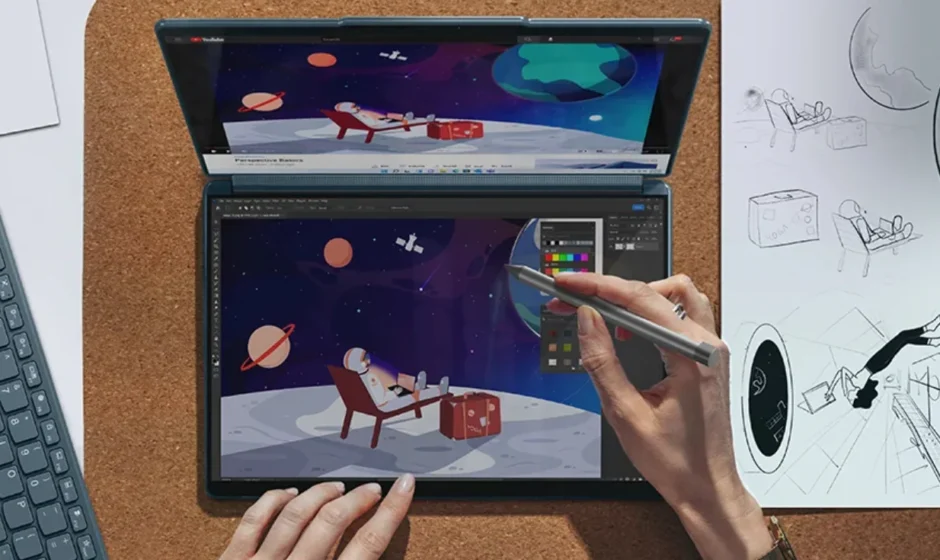

Lenovo Yoga Book 9i
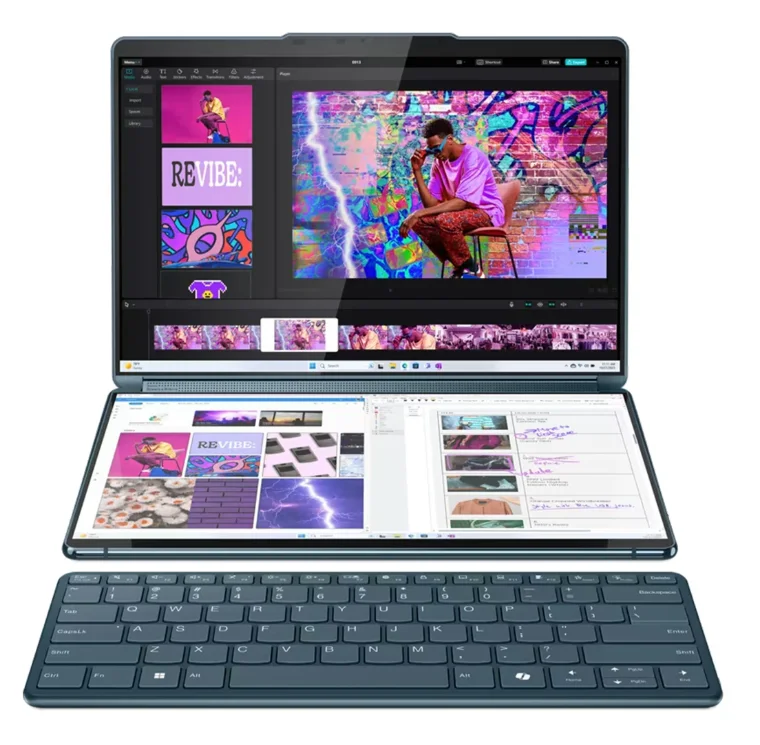
Meet your Yoga Book 9 13IRU8
Front view
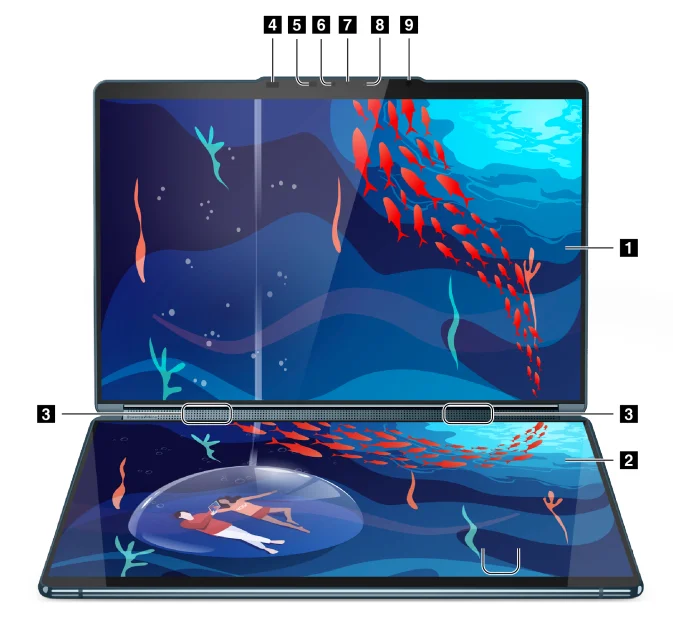
- Top screen
- Bottom screen
- Speakers
- ToF sensor
- IR LED
- IR camera
- Camera
- Camera light
- Ambient light sensor
Speakers
The speakers are the PC’s built-in sound output devices.
Time-of-flight sensor
The time-of-flight sensor (also referred to as a ToF sensor) emits an infrared laser and uses the reflected infrared energy to measure the distance and depth of objects in front of it. The data collected by the sensor can be used to detect human presence or recognize gestures.
Note: The infrared laser emitted by the ToF sensor is invisible to the human eye.
CAUTION: This device contains a laser that could be damaged during repair or disassembly, which could result in hazardous exposure to infrared laser emissions. There are no user-serviceable parts within the device. Do not attempt to disassemble or service the device.
Infrared LED
The infrared LED generates and emits near-infrared waves that are received and used by a camera (or a dedicated infrared camera) for facial recognition.
Infrared camera
The infrared camera receives near-infrared waves emitted by an infrared LED and reflected by a human face. It is used for facial recognition.
Camera
The built-in camera captures visible light and converts it to digital signals. It is used for video recordings and video conferencing.
Camera light
The camera light indicates whether the camera is activated.

Ambient light sensor
The ambient light sensor detects and measures the intensity of light in the user’s environment. The data collected by this sensor can be used to enable adaptive brightness for the screen backlight.
Left view
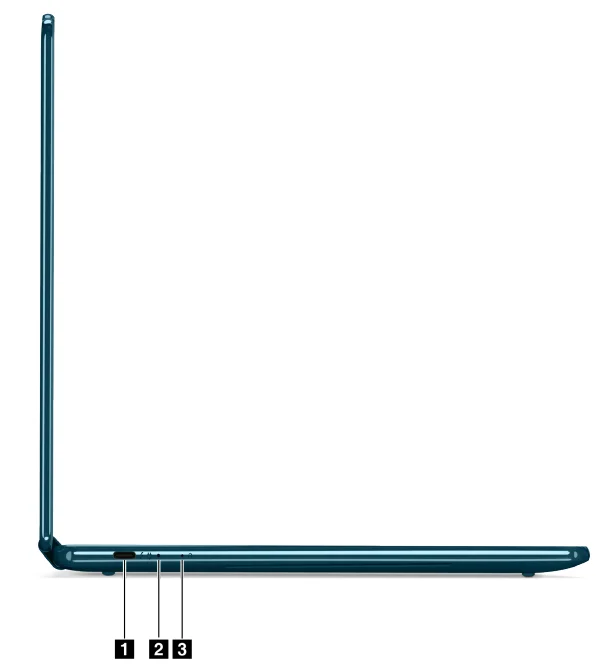
- Multi-purpose USB Type-C connector
- Battery charging light
- Novo button hole
Multi-purpose USB Type-C connector
This USB Type-C® connector is the PC’s power input connector. Use the included power adapter and this connector to supply power to the PC. When this connector is not used by the included power adapter, it can also be used to connect:
- Storage or peripheral devices that follow the universal serial bus (USB) specification for data transfer and device interconnection
- Display devices
Note: When connecting display devices, you need to use appropriate cables and adapters (if needed) according to the connection capabilities of the display device. - Thunderbolt™-enabled docks or devices
Charging light
The charging light indicates whether the PC is plugged into an electrical outlet. When the PC is plugged into an electrical outlet, the color of the light indicates whether the battery is fully charged (or will shortly be fully charged).

Novo button hole
When the PC is powered off, you can press the Novo button to display the Novo button menu. From the menu, you can then choose to:
- Open the firmware setup utility
- Display the boot device selection menu
- Display the Windows advanced startup options page
Note: The Novo button is rarely used during normal PC operations. To prevent users from accidentally pressing it, the Novo button is placed in a recessed hole. You can use a straightened paper clip to press this button.
Right view
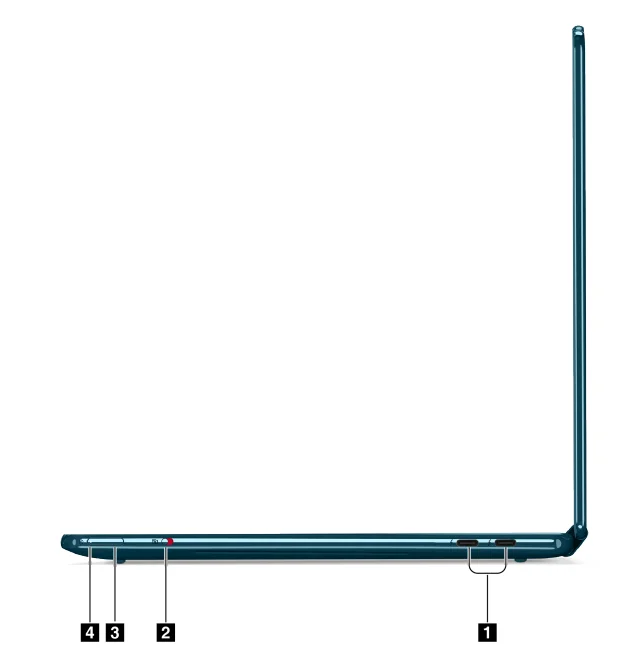
- Multi-purpose USB Type-C connector
- Camera switch
- Power button
- Power light
Multi-purpose USB Type-C connector
This USB Type-C® connector is the PC’s power input connector. Use the included power adapter and this connector to supply power to the PC. When this connector is not used by the included power adapter, it can also be used to connect:
- Storage or peripheral devices that follow the universal serial bus (USB) specification for data transfer and device interconnection
- Display devices
Note: When connecting display devices, you need to use appropriate cables and adapters (if needed) according to the connection capabilities of the display device. - Thunderbolt™-enabled docks or devices
Camera switch
This toggle switch is used to enable or disable the built-in camera.
Note: This switch is designed for privacy protection. If you don’t need to use the camera, slide the switch to the off position to prevent any apps from using the camera.
Power button
Press the power button to turn on your PC.
Note: By default, on a Windows PC, pressing the power button when the PC is turned on will put the PC into sleep mode.
Power light
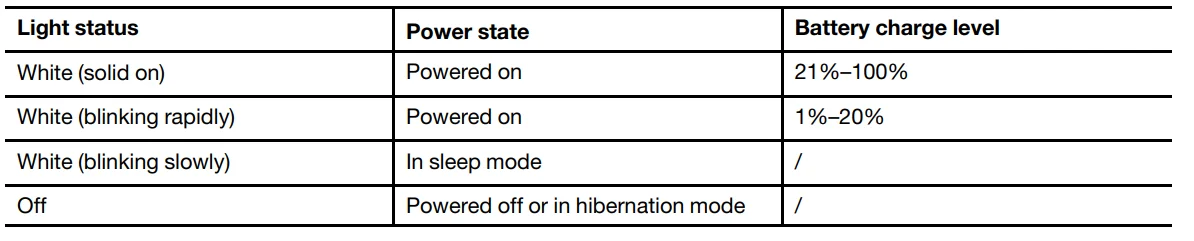
The power light indicates the current power state of the PC: whether it is powered on, powered off, in sleep mode, or in hibernation mode. When the PC is powered on, this light can also indicate low battery by blinking rapidly.
Bottom view
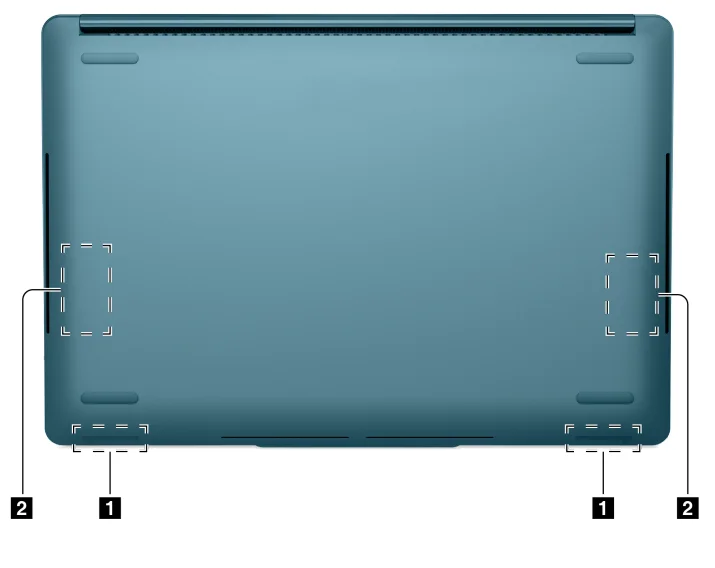
- Wi-Fi and Bluetooth antennas
- Speakers
Antennas
The antennas transmit and receive radio waves to allow data to be transferred between your PC and a Wi-Fi network device or a Bluetooth device.
Note: The antennas are hidden inside the PC.
Speakers
The speakers are the PC’s built-in sound output devices.
Specifications
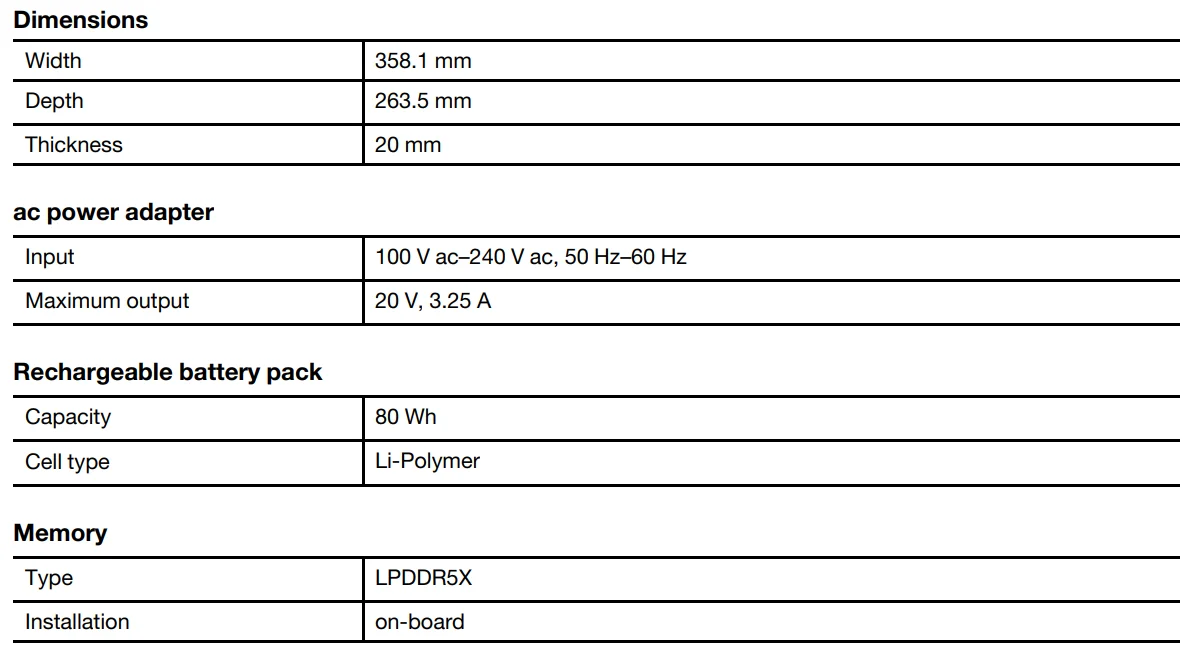
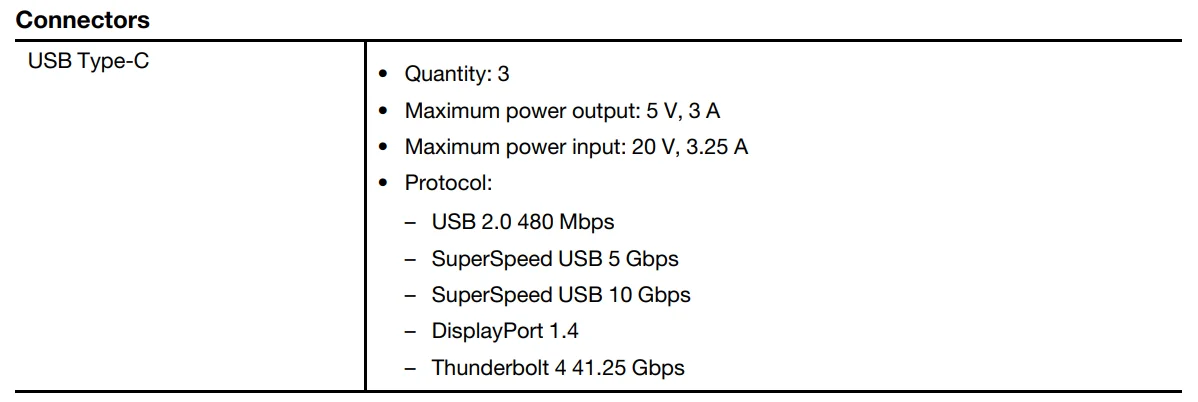
Note: Data rates and performance ratings are dependent on connected devices and cables if they are used. USB Type-C connectors that are DisplayPort 1.4 compliant through DisplayPort alternate mode provide maximum output resolution of 5120 x 3200, at 60 Hz frame rate and color depth of 24 bpp (bits per pixel). The actual maximum output resolution is dependent on the connected display device and the cable being used.
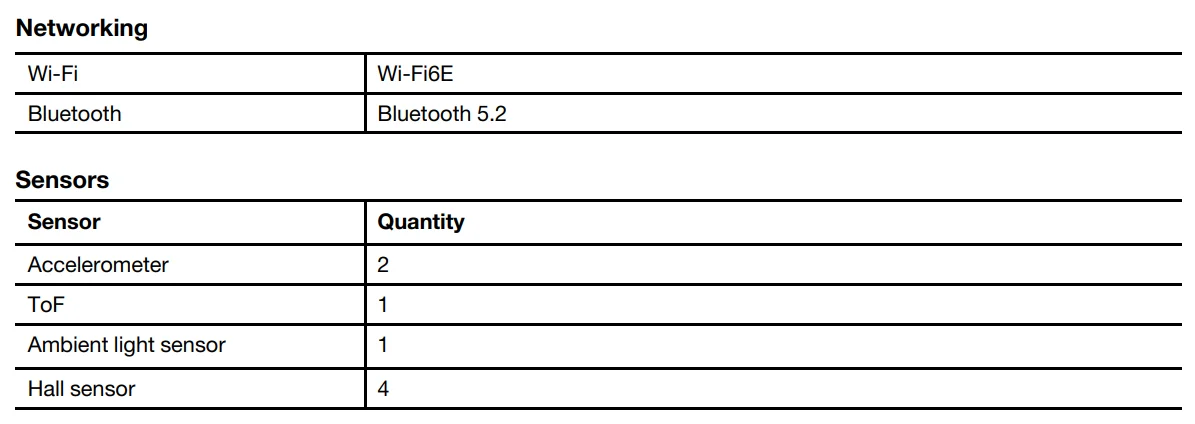
Networking
Statement on USB transfer rate
Depending on many factors such as the processing capability of the host and peripheral devices, file attributes, and other factors related to system configuration and operating environments, the actual transfer rate using the various USB connectors on this device will vary and will be slower than the data rate listed below for each corresponding device.

Operating environment
Maximum altitude (without pressurization) 3048 m (10 000 ft)
Temperature
- At altitudes up to 2438 m (8000 ft)
- Operating: 5°C to 35°C (41°F to 95°F)
- Storage: 5°C to 43°C (41°F to 109°F)
- At altitudes above 2438 m (8000 ft)
- Maximum temperature when operating under the unpressurized condition: 31.3°C (88°F)
Note: When you charge the battery, its temperature must be no lower than 10°C (50°F).
- Maximum temperature when operating under the unpressurized condition: 31.3°C (88°F)
Relative humidity
- Operating: 8% to 95% at wet-bulb temperature 23°C (73°F)
- Storage: 5% to 95% at wet-bulb temperature 27°C (81°F)
Specifications for peripheral devices for Yoga Book 9 13IRU8
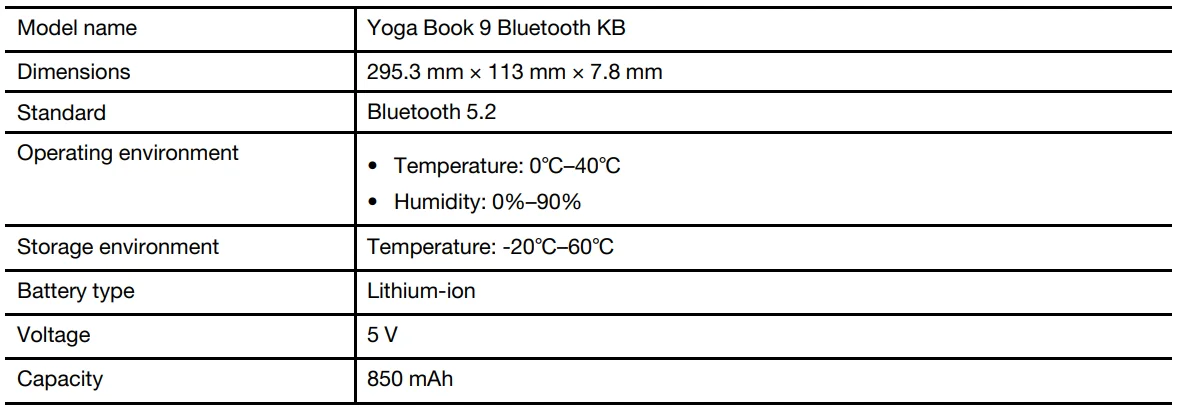
Bluetooth keyboard
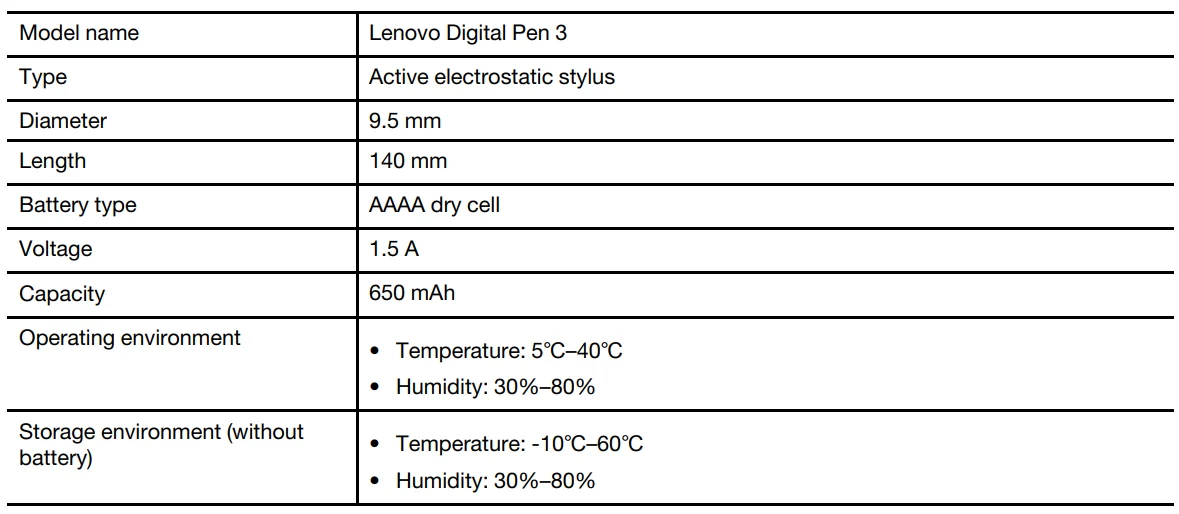
Digital pen
Interact with your Yoga Book 9 13IRU8
Both displays of the Yoga Book 9 13IRU8 are touch-enabled. You can touch the screens to interact with the operating system and your installed apps. The Windows operating system also supports multi-touch gestures. Yoga Book 9 13IRU8 includes neither a built-in keyboard nor a built-in touchpad. For text input, you can use the Bluetooth keyboard that comes with your Yoga Book 9 13IRU8. Alternatively, you can activate the Lenovo virtual keyboard on the bottom screen. If you want a pointer to precisely select screen items, you can activate a virtual touchpad on the bottom screen and use it as your pointing device.
A digital pen is also included for drawing and note-taking.
Yoga Book 9 Bluetooth KB
Yoga Book 9 Bluetooth KB is a Bluetooth keyboard that is specifically designed for your Yoga Book 9 13IRU8. You can pair the keyboard with Yoga Book 9 13IRU8 and then use it for typing characters. The keyboard includes hotkeys that provide quick access to settings and operations that you use frequently.
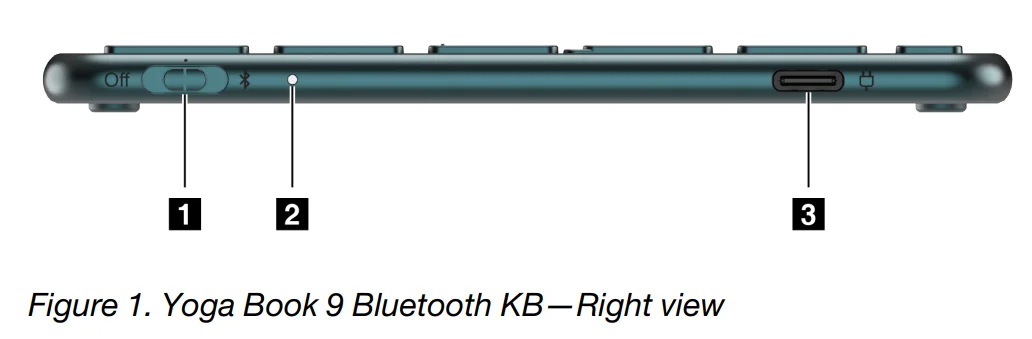
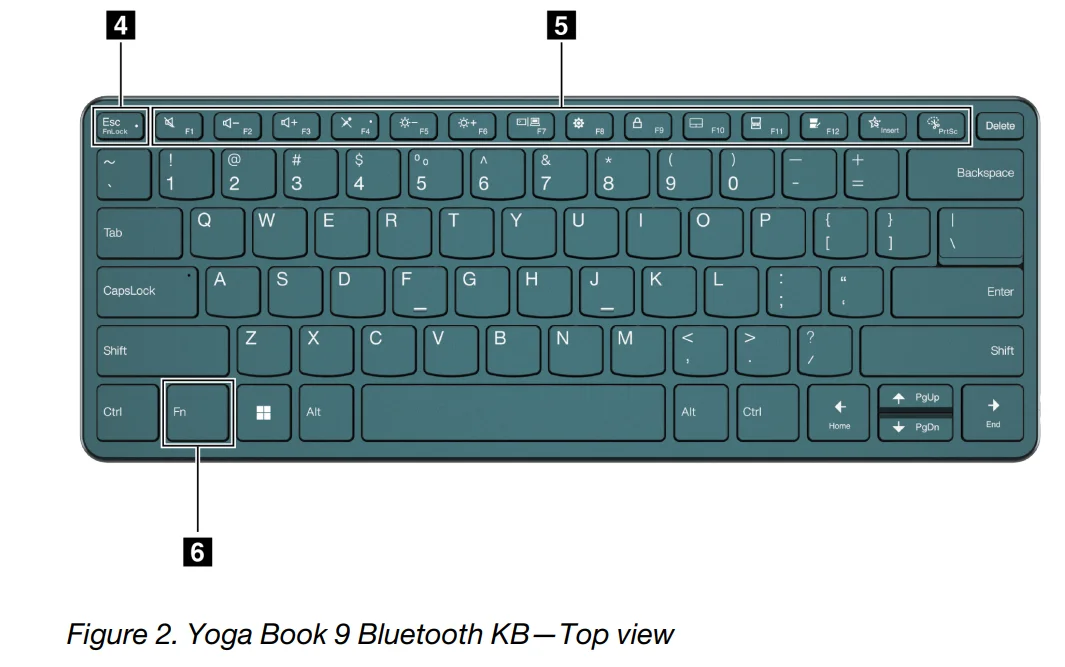
- Power/connection switch
- Charging/connection light
- Charging connector (USB Type-C)
- FnLock switch
- Dual-function keys
- Fn key
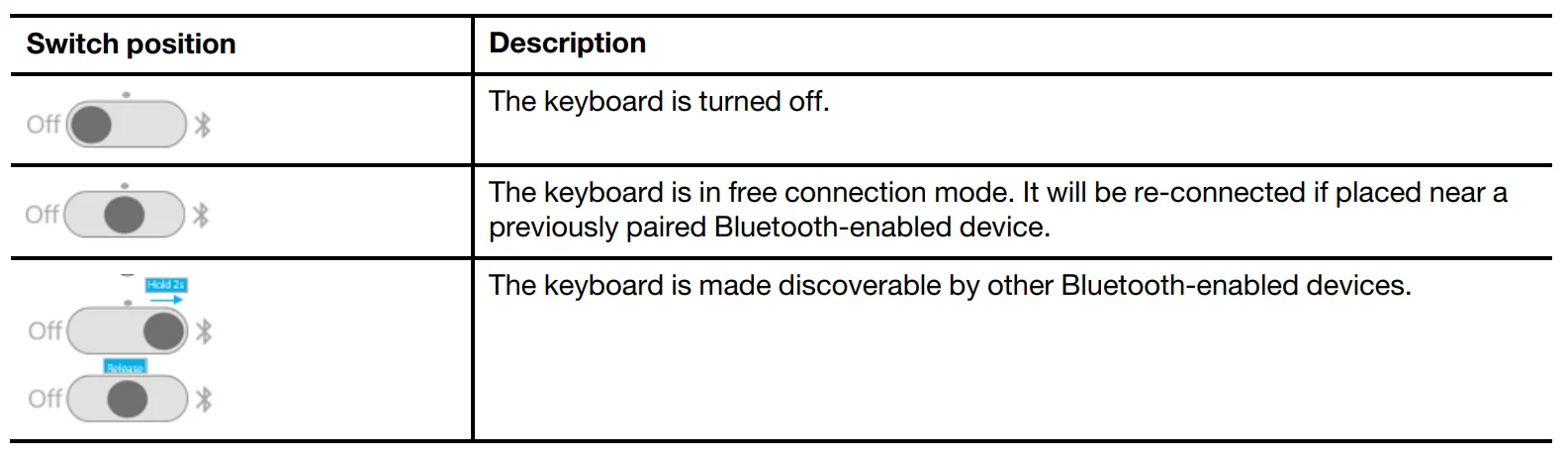
Keyboard switch positions
The keyboard switch can be placed in one of three positions.
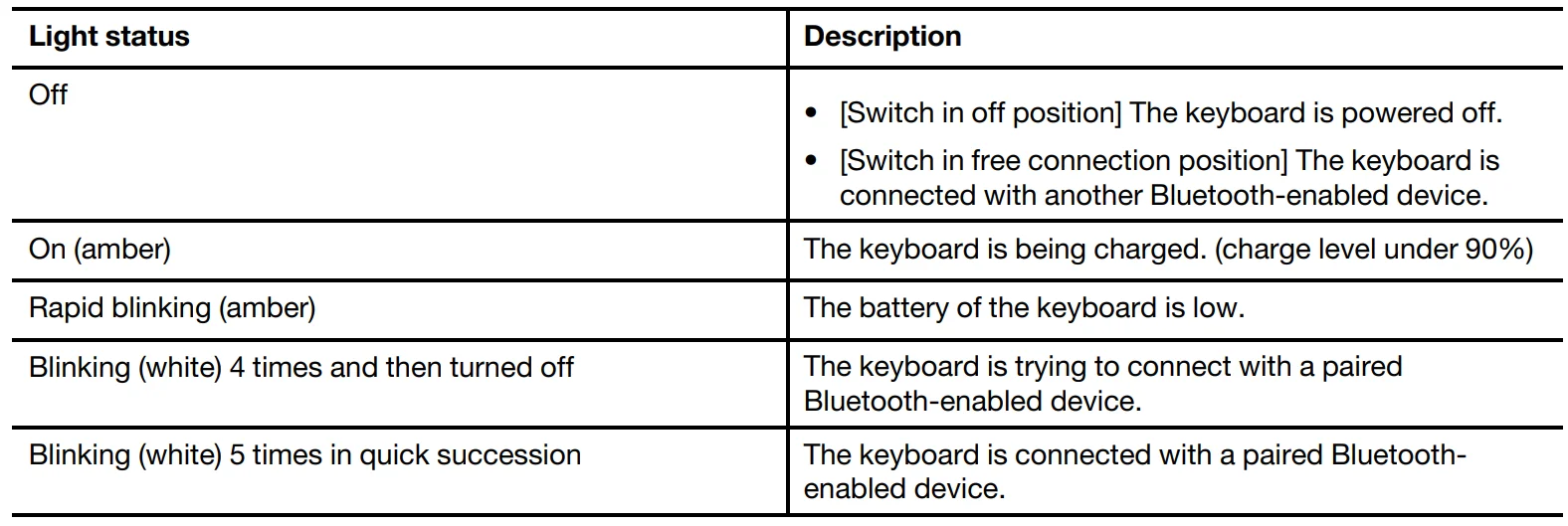
Keyboard status light
The status light on the right side of Yoga Book 9 Bluetooth KB indicates the power and connection status of the keyboard.
Pair Yoga Book 9 Bluetooth KB with Yoga Book 9 13IRU8
Before you begin using the Yoga Book 9 Bluetooth KB, make sure it is paired with the Yoga Book 9 13IRU8.
- Step 1.
Hold the switch of the Bluetooth keyboard in the pairing position for 2 seconds and then release the switch. - Step 2.
Enable Bluetooth on Yoga Book 9 13IRU8. - Step 3.
Select Settings ➙ Bluetooth & devices ➙ Add device ➙ Bluetooth. - Step 4.
On the found devices list, click a device that is labeled “YB9 KB.”
The Yoga Book 9 Bluetooth KB should now be paired with your PC and is ready for use. The battery level of the Bluetooth keyboard is displayed on the PC.
Charging Yoga Book 9 Bluetooth KB
The Yoga Book 9 Bluetooth KB is powered by a built-in lithium-ion battery. When connected to the PC, you can check the battery level of the keyboard. Recharge the keyboard when it is running low on battery.
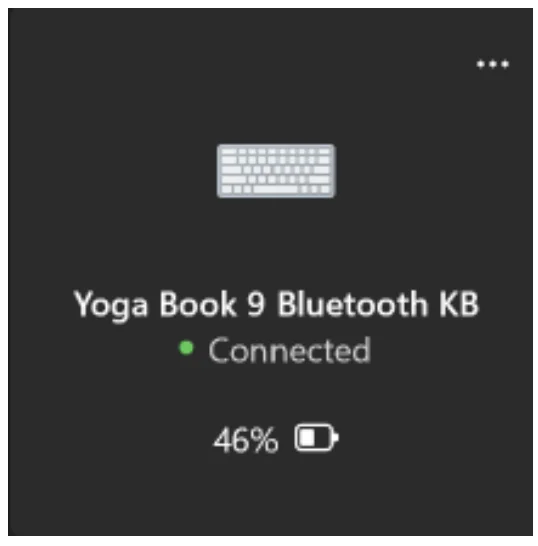
Note: The light on the right side of the Yoga Book 9 Bluetooth KB blinks amber if the keyboard is in a low- battery state.
The Yoga Book 9 Bluetooth KB includes a USB Type-C charging connector. Use the battery charger that came with your Yoga Book 9 13IRU8 to recharge the keyboard.
The Lenovo virtual keyboard
When activated, the Lenovo virtual keyboard is displayed on the bottom screen of the Yoga Book 9 13IRU8. It is a QWERTY–based, six–row, standard Lenovo keyboard that also provides function keys (F1–F12), hotkeys (shortcut keys), and Fn-based key combinations. There are three options to activate the Lenovo virtual keyboard. Each option can be turned on or off in the User Center app.

Note: The Lenovo virtual keyboard is not available when you use the Yoga Book 9 13IRU8 in tent or tablet mode
When activated, the virtual keyboard is displayed on the upper or lower part of the bottom screen. To switch the position of the virtual keyboard, slide 8 fingers upwards or downwards on the bottom screen.
Lenovo virtual keyboard customization
When the Lenovo virtual keyboard is activated, you can press the settings key () to customize the following keyboard settings:
- Change the keyboard transparency
- Turn the key-pressing sound on or off
- Turn the key-pressing vibration on or off
Virtual touchpad
Most notebook PCs include a built-in touchpad for interacting with the PC’s graphical user interface. You manipulate objects and text on the screen by sliding and tapping your finger on the touchpad. With Yoga Book 9 13IRU8, you can activate and use a virtual touchpad to perform such tasks.
Note: The Lenovo virtual touch pad is not available when you use Yoga Book 9 13IRU8 in tent or tablet mode.
The bottom virtual touchpad
When you put Yoga Book 9 Bluetooth KB or activate the Lenovo virtual keyboard on the upper part of the bottom screen, a virtual touchpad with two click buttons is displayed below the keyboard. You can slide your finger and tap the click buttons as you would on a physical touchpad.

Note: If the Lenovo virtual keyboard is activated on the lower part of the bottom screen, you can press the F10 hotkey to move the keyboard upward to reveal the virtual touchpad.
The floating virtual touchpad
You can also activate a floating virtual touchpad on the bottom screen of Yoga Book 9 13IRU8. There are three options to activate the floating virtual touchpad.
- Press the F10 hotkey on Yoga Book 9 Bluetooth KB
- Tap the bottom screen of Yoga Book 9 13IRU8 with three fingers
- Click the virtual touchpad icon on Windows system tray
Note: The last two options need to be enabled in the User Center app.
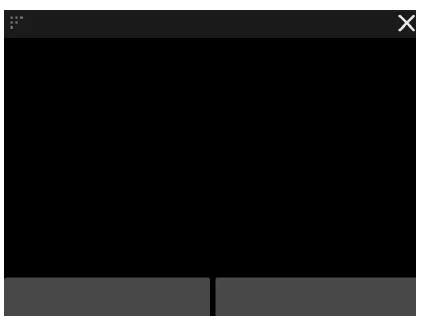
You can resize the floating touchpad by dragging the triangle in the upper left corner or re-position it by dragging the top bar. To close the floating touchpad, click the × button.
Maximize productivity with Yoga Book 9 13IRU8
Your Yoga Book 9 13IRU8 is an innovative and versatile PC product. It includes two displays that can be set to work independently or together. It also contains a built-in gyroscope. When you flip or rotate your Yoga Book 9 13IRU8, the screen content is oriented accordingly (landscape or portrait). The Yoga Book 9 folio case can be folded to create a stand. There are two different ways to do so. You can put your Yoga Book 9 13IRU8 on the stand and use the Yoga Book 9 Bluetooth KB for writing and programming tasks. The hinges that connect the two displays of the Yoga Book 9 13IRU8 can rotate 360°. If you need to present an idea to a colleague, you can rotate the hinges and use the PC in tent mode. It can also change into a tablet when needed.
Use your Yoga Book 9 13IRU8 in various modes
By taking advantage of the 360° rotation hinges, the Yoga Book 9 13IRU8 can be used in the following modes.
- Notebook mode
- Tent mode
- Tablet mode
Notebook mode
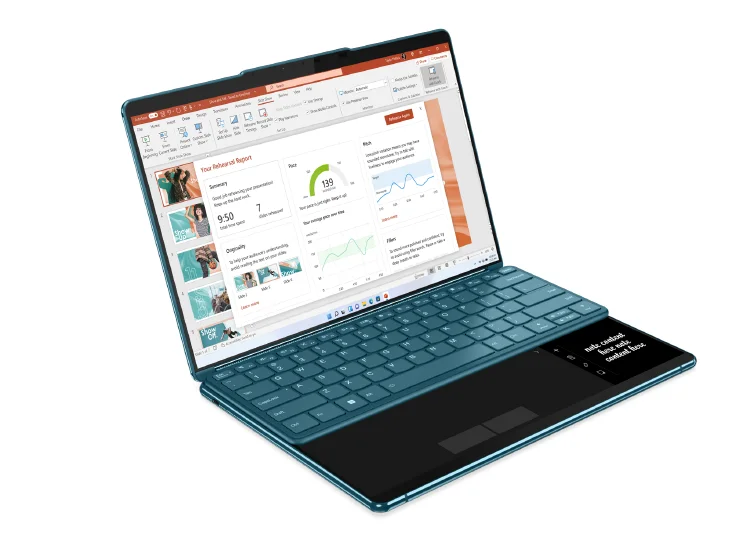
You can use your Yoga Book 9 13IRU8 like any conventional notebook PC. You can put Yoga Book 9 Bluetooth KB on top of the bottom screen of Yoga Book 9 13IRU8. When placed on the upper part of the screen, a virtual touch pad is displayed below the keyboard. When placed on the lower part of the screen, a widget bar is displayed above the keyboard.
Tent mode
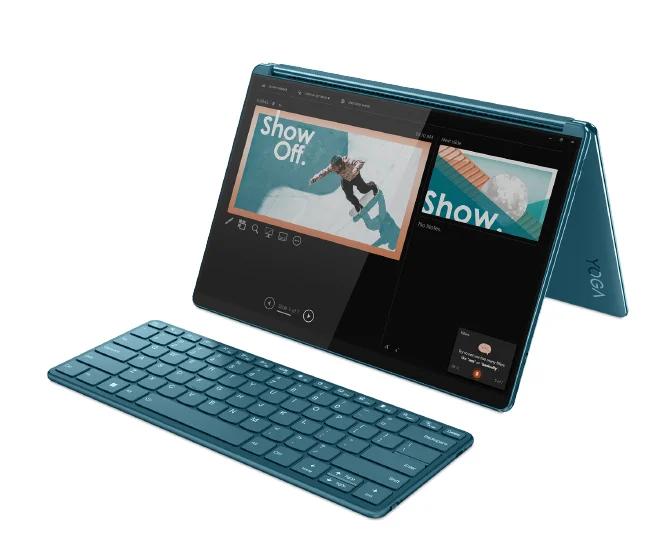
You can rotate the hinges that connect the two displays beyond 180° and place it on a desktop. When used in this mode, your Yoga Book 9 13IRU8 looks like a tent. You may use Yoga Book 9 13IRU8 in tent mode to present slides to a coworker sitting opposite you.
Tablet mode
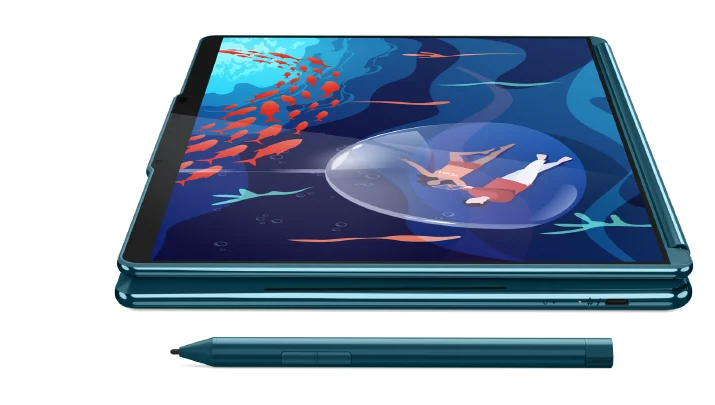
You can rotate the hinges that connect the two displays 360° and use Yoga Book 9 13IRU8 as a tablet PC. When you set your Yoga Book 9 13IRU8 to tablet mode, Windows display settings change automatically to allow content to be displayed only on the top screen.
Fold Yoga Book 9 folio case as a stand
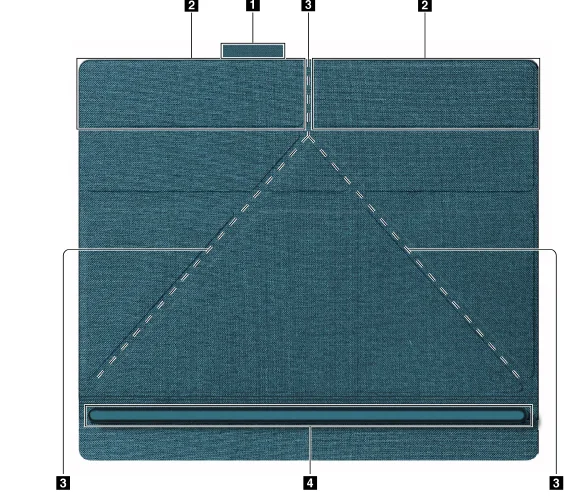
- Pen loop
- Magnetized area
- Folding lines to create a stand
- Support bar
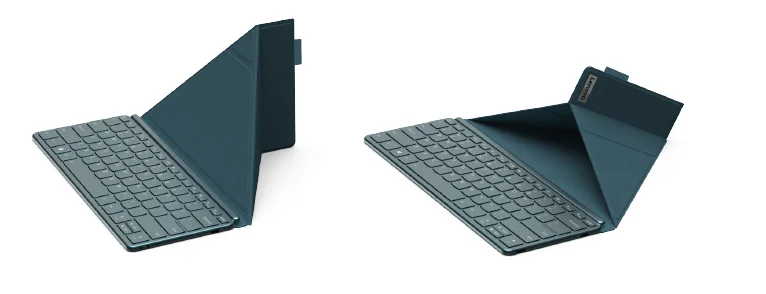
Yoga Book 9 folio case can be folded in one of two ways to be used as a stand for Yoga Book 9 13IRU8. When setting Yoga Book 9 13IRU8 on the stand, make sure its bottom edge is placed completely into the groove of the support bar.
Set how the two displays are used
Yoga Book 9 13IRU8 includes two displays. In the Windows Settings app, you can change how the two displays are used.
- Step 1.
Select Settings ➙ Display. - Step 2.
Use the drop-down list to change the setting.
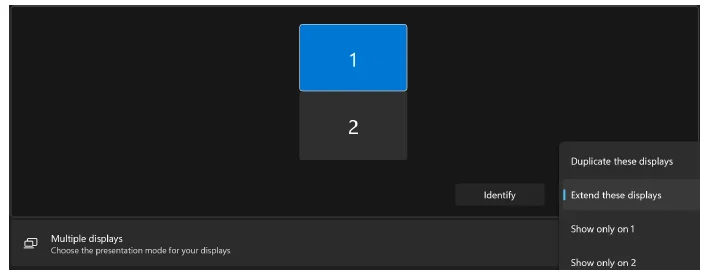
Note: The default setting “Extend these displays” is suitable for most usage scenarios.
The User Center app
User Center is an app developed specifically for Yoga Book 9 13IRU8. In this app, you can
- Enable options to display the window transfer assistant
- Enable options to display the widget bar
- Select wallpapers optimized for displaying across two screens
- Set up screen brightness separately for the two screens
- Set up how the virtual keyboard is activated
- Set up how the virtual touchpad is activated
Note: Periodic improvements to the User Center app may be available through online updates. When an update is downloaded, the app will display a notice and prompt you to install it. Features may be added or modified after updates are installed.
To open the app, search the app name in Windows search box and select the matched result. Alternatively, you can press the User Center hotkey (F12) on Yoga Book 9 Bluetooth KB or on the Lenovo virtual keyboard.
Enable cross-screen display
You can enable cross-screen display for viewing web pages and reading documents. When enabled, your viewing space increases with content displayed starting from the top screen and continuing into the bottom screen.
- Step 1.
Open the User Center app and select Dual-screen Settings. - Step 2.
Tap the toggle button for Cross-screen Browsing. - Step 3.
Open a web page or a document window. - Step 4.
Tap on the top or bottom screen with 5 fingers.
The Web page or document window should now be displayed across the top and bottom screens. To exit cross-screen display, tap the top or bottom screen again with five fingers.
Note:Cross-screen display is not available when you use Yoga Book 9 13IRU8 in portrait mode.
Move an app window between the two screens
When the two displays of the Yoga Book 9 13IRU8 are set in extension mode (the default setting), you can quickly move an app window to another screen to make room for the work that you have at hand.
- Step 1.
Click and drag the title bar of an app until one of the window transfer icons (↑,↓,←, or →) appears.
Note: If the window transfer icon does not appear, open the User Center app, select Dual-screen Settings ➙ Window Management and check the options for dragging a window with a mouse and finger. - Step 2.
Drag the app window onto the icon and release it.
The app window will be sent instantly to the other screen and displayed full screen.
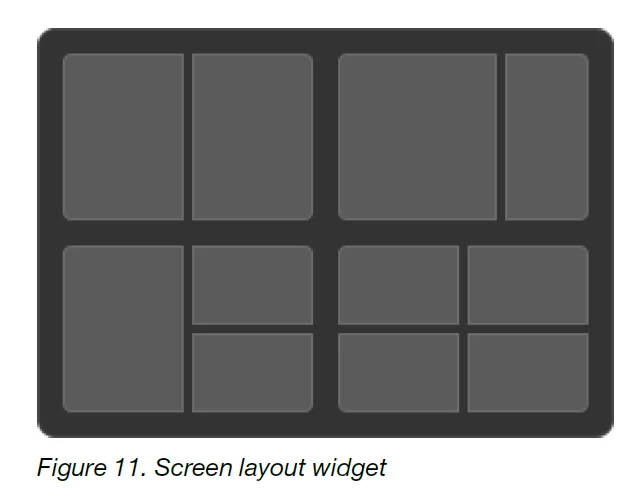
Note: If you hover the app window on the icon for a few seconds, the screen layout widget appears. You can then choose a zone in a screen layout so that the app window is sent to the other screen and snaps to that particular zone.
Enable facial recognition
Your Yoga Book 9 13IRU8 includes an infrared camera for facial recognition. When enabled, you can sign into Windows and Microsoft services just by looking at the camera.
- Step 1.
Select Settings ➙ Account ➙ Sign-in options ➙ Facial recognition ➙ Set up.
Note: If you’re using a local account to sign into Windows, make sure your account is password protected. - Step 2.
Follow the on-screen instructions to enroll your face. - Step 3.
Set up a PIN when prompted.
The PIN is unique to your device and can be used when facial recognition fails.
Help and support
Frequently asked questions
Why does my screen brightness change constantly
Your computer may include an ambient light sensor and the adaptive brightness feature is enabled. The light sensor can detect the intensity of the surrounding light. Using data provided by the sensor, the operating system can dynamically adjust the screen brightness. The adaptive brightness feature of the operating system can be disabled. For Windows operating systems, adaptive brightness settings are usually found in Settings ➙ System ➙ Display.
Why does my computer start automatically when I open the lid
Your computer may have Flip to Start enabled. Many Lenovo notebook computers include a sensor that can detect the angle at which the lid is opened. When you open the lid, the sensor can detect this behavior. If Flip to Start is enabled, the computer will respond by starting up automatically. If you don’t like this feature, you can disable it. Flip to Start can be enabled and disabled in:
- Lenovo Vantage, Lenovo PC Manager or Lenovo Smart Engine
- Firmware Setup Utility
I enabled some dual-screen settings in the User Center app but they do not seem to work. What are the possible causes?
There are three possible causes that may prevent you from using some dual-screen functions.
- The two displays are not set in extension mode.
- The account you used to sign into Windows is not the “administrator” type.
- The account you used to sign into Windows is the “administrator” type, but another “administrator” account has not signed out of Windows yet.
What is the battery’s ship mode
When your PC’s rechargeable battery is set in ship mode, it is disconnected and does not supply power to the PC.
A battery’s ship mode is designed to prevent the battery from over-discharging, a phenomenon that is known to significantly reduce the battery capacity. Over-discharge happens when a lithium battery is at a low charge level for an extended period. In the real world, it may take a considerable amount of time for the PC to be delivered from the manufacturer to your reseller and then from the reseller to you. The PC’s rechargeable battery is set to ship mode at the factory to prevent over-discharge during this process. Before turning on your PC for the first time, plug your PC into an electrical outlet, and the battery’s ship mode is instantly disabled.
Self-help resources
Use the following self-help resources to learn more about the computer and troubleshoot problems.
Fotr more manuals by Lenovo, visit ManualsLibraryy
Lenovo Yoga Book 9i-FAQs
What is the Lenovo Yoga Book 9i and how is it different from regular laptops?
The Lenovo Yoga Book 9i is a unique dual-screen laptop that replaces the traditional keyboard with a second touchscreen display. This allows users to multitask more efficiently by running multiple apps on separate screens. It also includes a detachable keyboard and stylus, giving you flexibility for typing, drawing, or productivity tasks. Its innovative design makes it ideal for professionals, students, and content creators.
Is the Lenovo Yoga Book 9i a good laptop for everyday use?
Yes, the Lenovo Yoga Book 9i performs well for daily tasks like browsing, streaming, and office work. It offers a premium build, smooth performance, and high-quality OLED displays. While it excels in multitasking and creative workflows, it may take some time to get used to the dual-screen setup. Overall, it’s a great choice if you want a modern and versatile laptop experience.
Does the Lenovo Yoga Book 9i have a touchscreen?
Yes, the Lenovo Yoga Book 9i features dual touchscreens, both of which are fully interactive. You can use gestures, a stylus, or the virtual keyboard to control the device. The touch response is smooth and accurate, making it ideal for drawing, note-taking, and navigating apps. This dual touchscreen setup is one of its standout features compared to traditional laptops.
Is the Lenovo Yoga Book 9i suitable for multitasking?
Yes, this laptop is specifically designed for multitasking. With two displays, you can open different apps on each screen, drag files between windows, and manage workflows more efficiently. It’s especially useful for tasks like coding, content creation, research, and presentations. The included software also helps organize windows across both screens seamlessly.
Can the Lenovo Yoga Book 9i be used for creative work like drawing or editing?
Absolutely, the Yoga Book 9i supports stylus input, making it suitable for drawing, sketching, and editing photos or videos. The high-resolution OLED screens provide vibrant colors and good contrast, which is helpful for creative tasks. While it may not replace a high-end workstation, it is more than capable for light to moderate creative work.
How does the Lenovo Yoga Book 9i compare to the Yoga 7i?
The Yoga Book 9i is a more premium and innovative device compared to the Yoga 7i. It offers dual screens, better display quality, and enhanced multitasking capabilities. The Yoga 7i, on the other hand, is more traditional with a single screen and built-in keyboard. If you prefer innovation and flexibility, the 9i is the better option, while the 7i is more budget-friendly.
Why might the Lenovo Yoga Book 9i feel slow sometimes?
The laptop may feel slow if too many apps or browser tabs are open at once, especially when using both screens heavily. Background processes or outdated software can also affect performance. To improve speed, close unused apps, keep the system updated, and manage startup programs. With proper optimization, the device performs smoothly for most tasks.
Does the Lenovo Yoga Book 9i come with a keyboard and stylus?
Yes, the device usually includes a detachable Bluetooth keyboard and a stylus. The keyboard can be placed on top of one screen or used separately, while the stylus allows for writing and drawing directly on the display. These accessories enhance flexibility and make the laptop adaptable to different work styles.
Is the Lenovo Yoga Book 9i worth buying?
The Lenovo Yoga Book 9i is worth buying if you want a unique, futuristic laptop with strong multitasking capabilities. It’s ideal for professionals, students, and creatives who benefit from dual screens. However, if you prefer a traditional laptop or longer battery life, other options might suit you better. Overall, it’s a premium device with innovative features.