
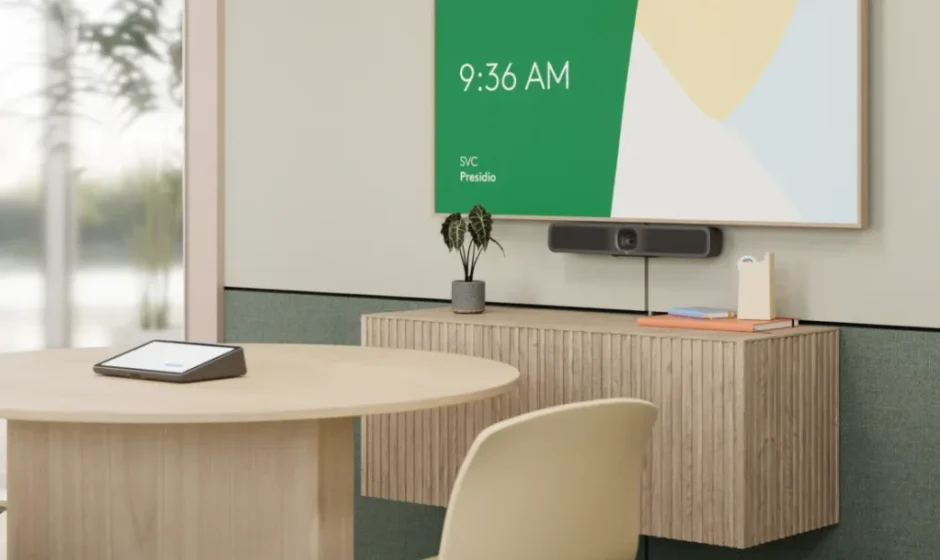

Logitech MeetUp 2 All-in-One USB Conference Room Camera
PRODUCT DESCRIPTION
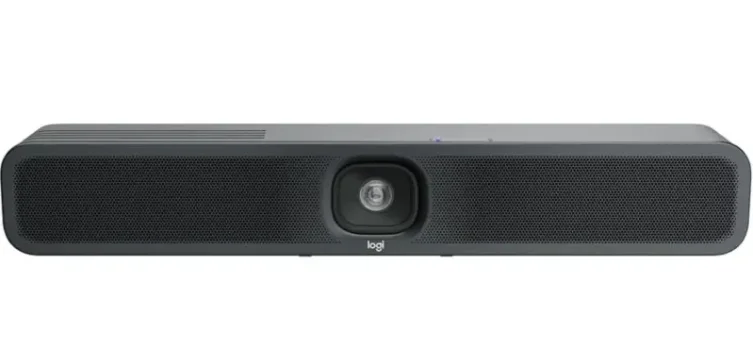
The Logitech MeetUp 2 All‑in‑One USB Conference Room Camera is a premium, professional‑grade video conferencing solution designed to elevate meetings in small to medium‑sized spaces. Combining outstanding audio, crystal‑clear video, and intuitive connectivity, MeetUp 2 delivers an immersive collaboration experience with minimal setup. Featuring a wide‑angle lens optimized for group framing and premium optics, it captures sharp, natural‑looking video that ensures everyone in the room is seen clearly — even in tight conference spaces.
Integrated audio includes advanced speakers and beamforming microphones that pick up voices across the room while minimizing background noise, making conversations sound clear and natural without the need for additional audio equipment. With plug‑and‑play USB connectivity, MeetUp 2 works seamlessly with major video conferencing platforms like Zoom, Microsoft Teams, and Google Meet, allowing users to start meetings quickly and confidently.
Designed for flexible placement, the sleek, compact form factor can be mounted on displays or placed on tables with ease. Whether for huddle rooms, executive offices, or collaborative spaces, the Logitech MeetUp 2 All‑in‑One USB Conference Room Camera delivers professional audio‑visual performance that enhances engagement and productivity in every meeting.
MeetUp is Logitech’s premier ConferenceCam designed for huddle rooms.
With a room capturing 120° FOV, 4K optics, and exceptional audio performance, MeetUp delivers an unsurpassed small room experience.
PLACEMENT
There are three ways to install your MeetUp.
We recommend placing the camera below the monitor as close to eye level as possible.
- Place on a table or shelf near the monitor.
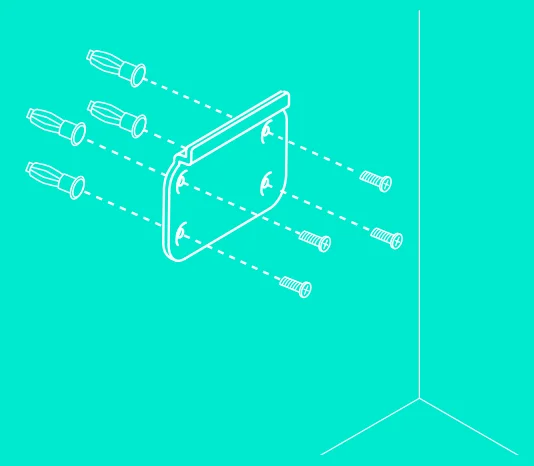
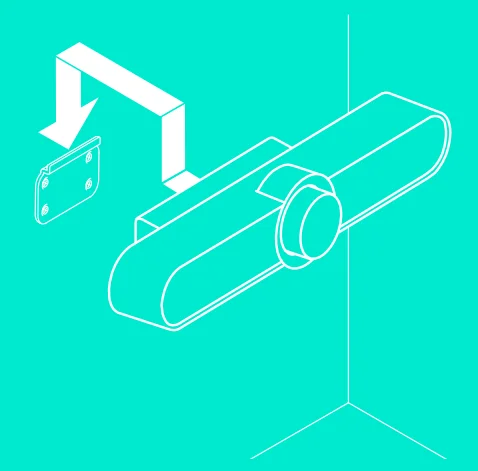
- Mount on the wall:
- Attach the bracket to the wall. Please use the appropriate type of screws for your wall type.

- Attach the camera to the bracket.

- Attach the bracket to the wall. Please use the appropriate type of screws for your wall type.
- Mount to the TV:
An optional TV mount bracket is available on www.logitech.com/support/MeetUp.
CONNECTION
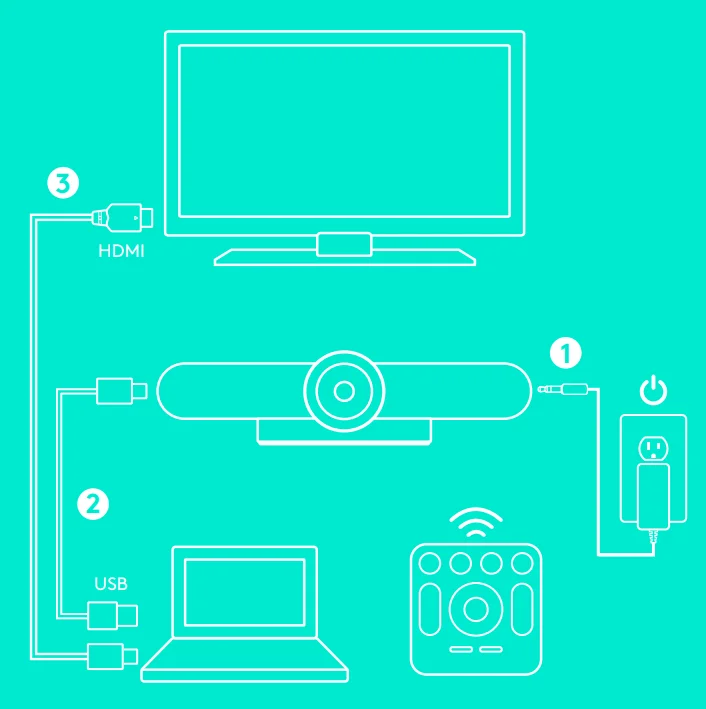
Connecting to MeetUp is the same whether you plan on using a dedicated computer in the room or if our team members bring a laptop to the room to run the meeting.
- PLUG
Plug MeetUp into power. - CONNECT
Connect the USB cable from MeetUp to the computer. - START
Connect the monitor to the computer.
Now you’re ready to start your video call!
STARTING A VIDEO CALL
After installing MeetUp, ensure it is selected as the default device for camera, speaker, and microphone in your video conferencing application. Once that step is complete, simply start the application and enjoy the benefits of improved audio and video.
Pairing MeetUp to a Bluetooth® device
You can use MeetUp for audio calls with a Bluetooth device. To pair your Bluetooth device to MeetUp, follow these simple steps:
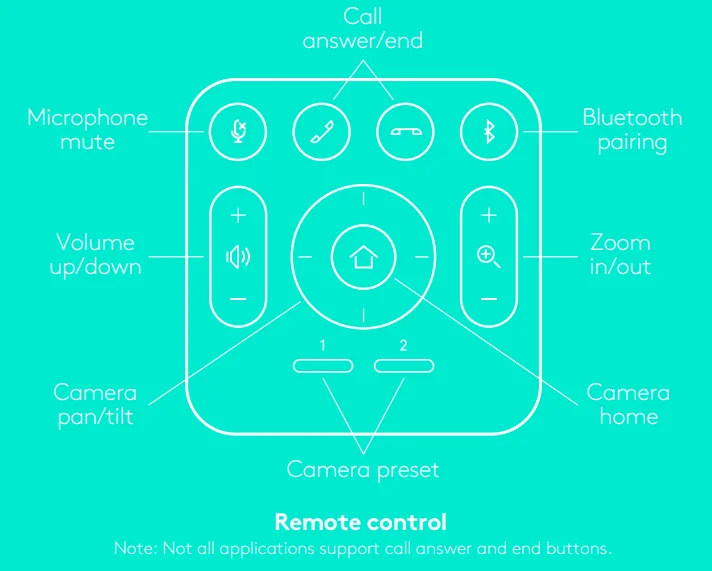
- Press and hold the Bluetooth button on the remote control until you see a flashing blue light near the camera lens.
- Place your mobile device in Bluetooth pairing mode and select “Logitech MeetUp.”
MeetUp is now ready for audio calls. Pressing the Bluetooth button on the remote after pairing will disconnect the Bluetooth device (it will still be “paired” but not “connected”). Pressing it again will reconnect the last paired device in range.
NOTE REGARDING 4K VIDEO
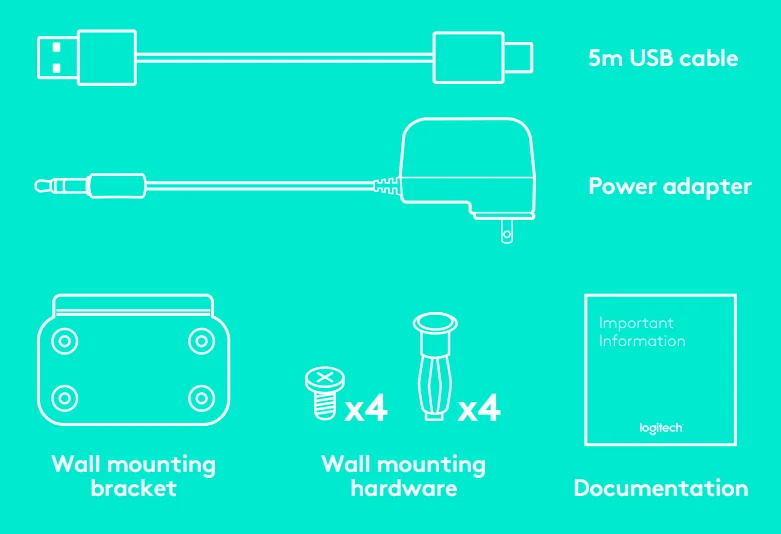
The USB 2.0 cable included with MeetUp supports Full HD video up to 1080p. If you plan on using 4K video, please use a USB 3.0 cable (not included).
FOR MORE INFORMATION
You can find additional information on MeetUp, including FAQs, software to enable functions in various applications, how to order replacement parts, and more,a t www.logitech.com/support/MeetUp
¹ Please consult the application documentation for further instructions on how to do this.
© 2017 Logitech. Logitech, Logi, and other Logitech marks are owned by Logitech and may be registered. All other trademarks are the property of their respective owners. Microsoft, Windows Vista, Windows, and the Windows logo are trademarks of the Microsoft group of companies. Logitech assumes no responsibility for any errors that may appear in this manual. Information contained herein is subject to change without notice.
For more manuals by Logitech, visit ManualsLibraryy
Logitech MeetUp 2 All-in-One USB Conference Room Camera- FAQs
What is the Logitech MeetUp 2?
Logitech MeetUp 2 is an all-in-one USB conference room camera designed for small meeting and huddle rooms. It combines a 4K camera, built-in microphones, and speakers in one compact device.
How do I set up Logitech MeetUp 2?
Plug the USB cable into your computer and connect the power adapter. Once connected, select MeetUp 2 as the camera and audio device in your video conferencing app.
Does Logitech MeetUp 2 need a computer to work?
Yes. MeetUp 2 connects to a PC or laptop via USB and works with video conferencing software installed on that computer.
Do I need to install software to use MeetUp 2?
No. The camera works through standard USB (UVC), so Windows, macOS, and ChromeOS recognize it automatically. Optional software like Logi Tune can be used for advanced settings.
How do I factory reset Logitech MeetUp 2?
Turn off the device by unplugging it or holding the power button for 10 seconds. Then press and hold the reset button until the reset process begins.
Where is the pairing or reset button on MeetUp 2?
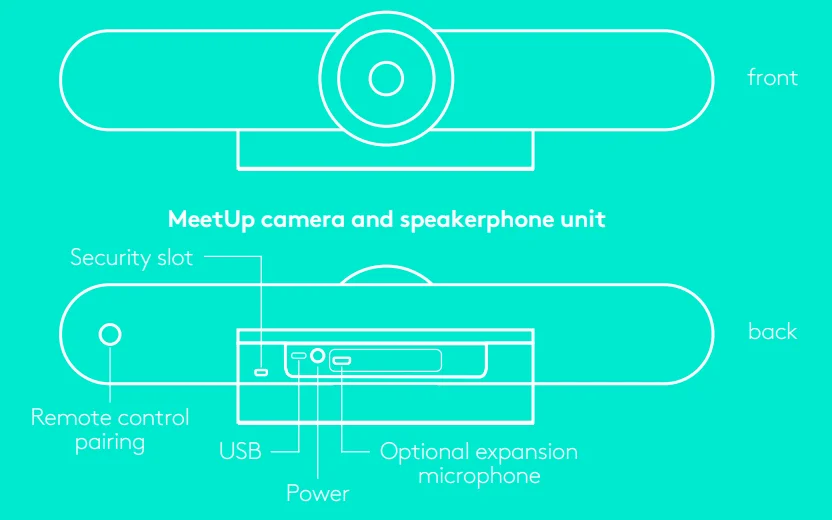
The pairing and reset buttons are located on the back of the device near the ports.
Which video conferencing platforms are supported?
MeetUp 2 works with popular platforms like Zoom, Microsoft Teams, Google Meet, and other USB-based conferencing applications.
Can I use Logitech MeetUp 2 with Tap IP?
Yes. MeetUp 2 works with Tap IP when connected to a supported compute device, allowing easy meeting control from the touch panel.
Does Logitech MeetUp 2 come with a remote control?
No. MeetUp 2 does not include a remote in the box. It can be controlled using compatible Logitech controllers or supported touch controllers.