
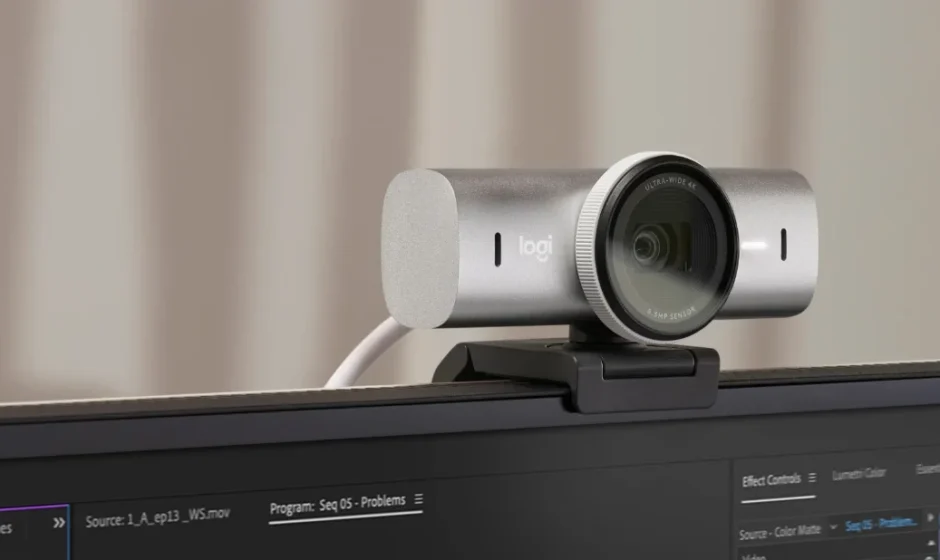

Logitech MX Brio Ultra HD 4K Streaming Webcam
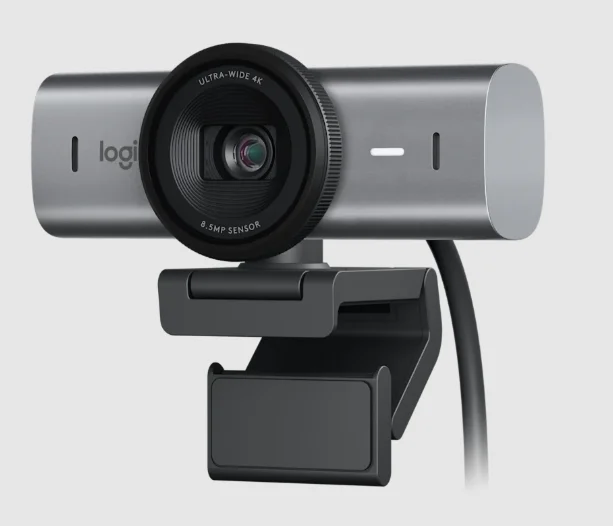
Getting Started – MX BRIO
Install the software
- Download the Logitech software to customize your webcam and fine-tune the image:
- Choose Logi Options for video conferencing
- Choose G-Hub for game streaming
Set up your webcam
- Wipe the back of your monitor before mounting.
- Open the mount.
- Remove the film from the micro suction pad.
- Place the mount at the desired location on the monitor and press the micro suction pad to the back of the monitor.
NOTE: The micro suction pad is designed so you can place it and remove it later without leaving marks - Retrieve the USB-C cable from the box and plug it into your webcam
- Attach the webcam to the mount.
- Open the privacy shutter.
- Pan and tilt the webcam to adjust the angle to your preference.
What’s in the box
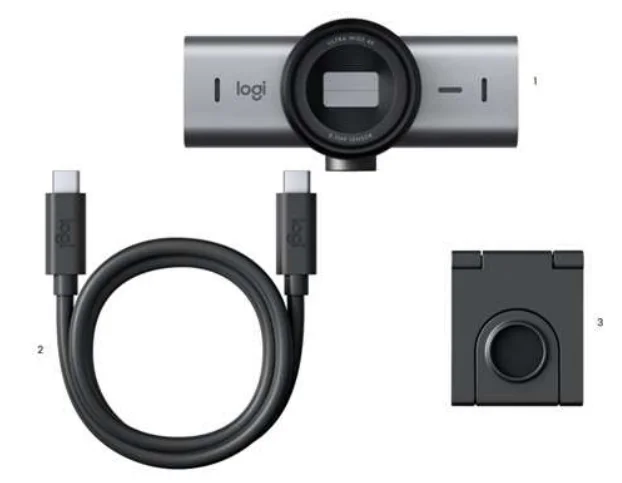
- MX Brio Webcam
- USB-C cable, with USB 3.0 standard
- Mount the clip with a removable mount adaptor
Product overview
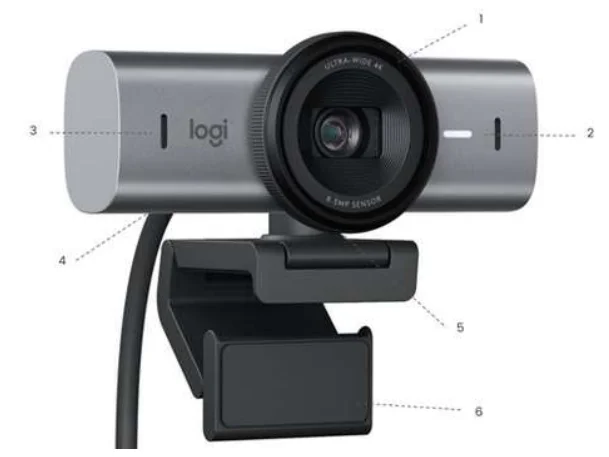
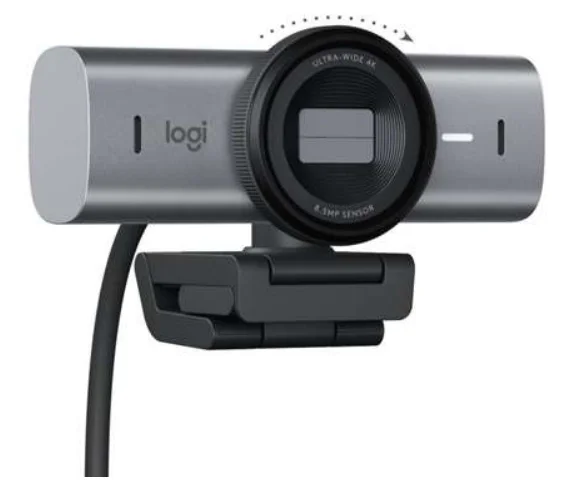
- Privacy shutter
- LED activity light
- Dual noise reduction microphones
- Detachable USB-C to USB-C cable with USB 3.0 standard
- Magnetic mount, Including¼ threafor d for forthlrd-porty mounts
- Micro-suction pod protective film (Remove before setting up mount)
Close your privacy shutter when not in use.
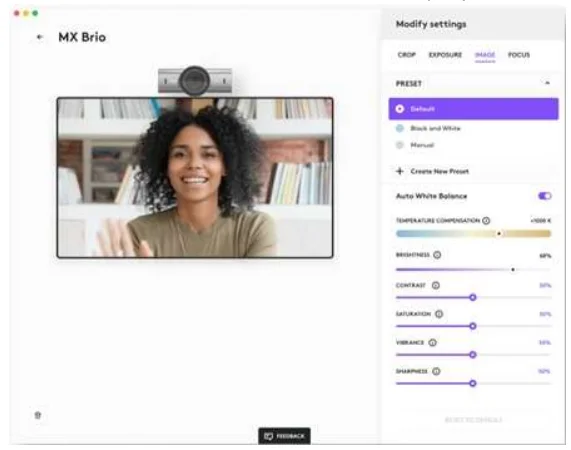
Download the software to adjust, focus, and fine-tune your Image.
To change settings manually:
- Crop your image: Pick your preferred field of view, zoom, and position.
- Exposure:
- Exposure compensation allows you to modify the brightness of the image while still keeping auto exposure turned on.
- Manual Exposure: To manually adjust the shutter speed and I/O turn exposure OFF.
- Shutter speed impacts exposure and motion blur.
- Slower will render the image brighter, but adds motion blur.
- Faster will look crisper but darker.
- Once you’re happy with the motion blur setting, adjust your brightness with the ISO control.
- ISO: Adjusts the camera’s sensitivity to light. Higher values will be brighter,but can add visual noise. Lower values will not add noise but will be darker.
- HDR: Combines multiple exposures to capture a broader range of light, enhancing contrast for dark and light areas of the image.
- Image: Adjust the color balance with temperature and tint. Adjust brightness, contrast, saturation, vibrance, and sharpness.
- Focus: You can disable Auto Focus and manually adjust the focus of the image.

- Switch to predefined settings
- Save custom settings
- Update your Finnware to get the latest version
Tips and Tricks
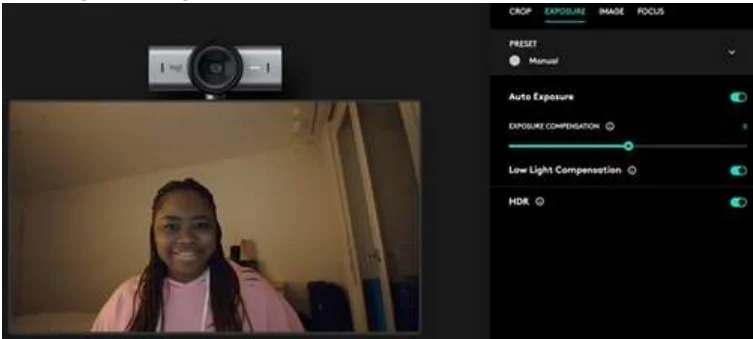
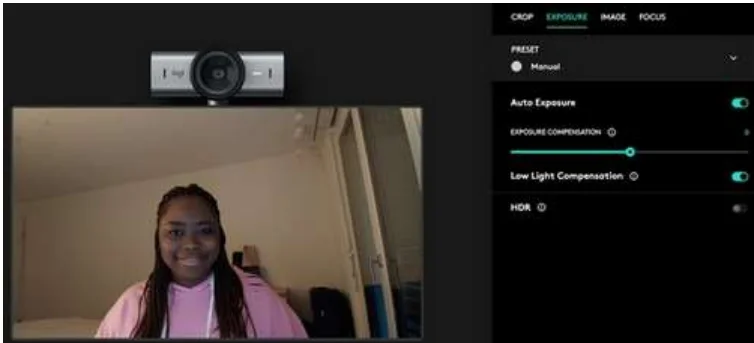
- Deactivate HOR when working in low light conditions for optimal image quality
- Working in low light conditions with HDR ON:

- Wonting in low light conditions with HDR OFF:

- Working in low light conditions with HDR ON:
- If you use MX Brio for streaming, you can mount the webcam as needed. MX Brio can be mounted to any camera tripod using the same standard screw for an optimal viewing experience.
For more manuals by Logitech, visit ManualsLibraryy
Logitech MX Brio Ultra HD 4K Streaming Webcam- FAQs
What is the Logitech MX Brio used for?
The MX Brio serves as a plug-and-play Ultra HD 4K webcam ideal for remote workers, professionals, and content creators. It connects via USB-C and supports platforms like Google Meet, Zoom, and Microsoft Teams on Windows, macOS, and Chrome OS. Flexible mounting options include a magnetic clip for monitors or laptops and a 1/4-inch tripod thread.
What software controls the Logitech MX Brio?
Logi Tune is the primary desktop app for customizing settings like image adjustments, framing, and Show Mode on the MX Brio. It works on Windows 10+ and macOS 12.0+, enabling AI-optimized video enhancements. No software is required for basic plug-and-play use.
How do I set up the Logitech MX Brio?
Unbox the webcam, USB-C cable, mount clip, and documentation. Clean your monitor, attach the micro-suction pad mount, snap the webcam magnetically into place, and plug into a USB-C port for automatic driver installation. Adjust pan, tilt, and privacy shutter dial for optimal positioning.
Does the Logitech MX Brio support 4K resolution?
Yes, the MX Brio delivers 4K video but requires a USB 3.0+ port and compatible apps like OBS Studio for full performance. Lower USB speeds limit it to 1080p. Use Logi Tune to fine-tune resolution and settings.
How do I test if the Logitech MX Brio is working?
Connect via USB-C and open your system’s Camera app; the LED activity light activates during use. Record a short clip to verify video and audio quality from the dual noise-reduction mics. Check Device Manager to ensure the camera is enabled and recognized.
Does the Logitech MX Brio require drivers or software?
No additional drivers are needed thanks to UVC standard support across major OS. Download free Logi Tune for advanced features like auto-framing, brightness control, and firmware updates.
How do I fix blurry video on the Logitech MX Brio?
Trigger autofocus by briefly covering then uncovering the lens. Adjust lighting, use Logi Tune for AI enhancements, and ensure USB 3.0 connection. Clean the lens and update via Logi Tune if issues persist.
What are common troubleshooting steps for the MX Brio?
Check USB cable/port for damage, verify privacy shutter is open, update drivers via Device Manager, and grant camera/mic permissions in apps. Restart your computer or reinstall Logi Tune for persistent issues like no detection.
Can the Logitech MX Brio record video?
Yes, use apps like Windows Camera, OBS Studio, or third-party tools since Logi Capture is discontinued. Logi Tune optimizes settings for high-quality 4K recording and streaming.
How do I use Show Mode on the Logitech MX Brio?
Tilt the camera down with one hand to display your desk or items during calls, then tilt up to return to self-view; requires Logi Tune. Secure the mount first for stability.