
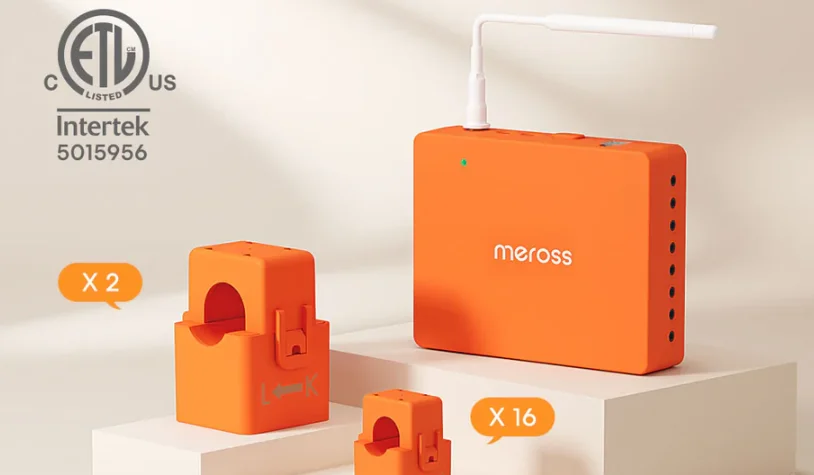

Meross EM16P Smart Energy Monitor
Safety Information
- Always wear Personal Protective Equipment (PPE) when installing the Meross EM16P.
- Do not use the Meross EM16P in any manner other than specified in this installation guide.
- If you believe any of the Meross EM16P components may have been damaged, do not attempt to use them.
- Do not attempt to open, disassemble, or repair any of the components of the Meross EM16P.
- Do not install the Meross EM16P in environments with explosive gas or vapors, nor in damp environments, nor in direct sunlight, nor where temperatures are consistently below -4°F (-20°C) or above 104°F (40°C).
- Make sure the Meross EM16P is not connected to the power supply during any manual processes, such as installation or removal.
- Do not perform any maintenance, service, or cleaning of the Meross EM16P after installation.
- The CT must be connected to the main unit before it is clamped onto the line for measurement.
Before You Get Started
The Meross EM16P is installed in your home’s electrical panel. You’ll turn off the main breaker, which will shut off power to your home. However, the service mains will remain dangerously energized. The following items may help with safe installation. Meross recommends installing the unit by a licensed professional electrician or other qualified professional in accordance with the local electrical codes for the area where it is to be used.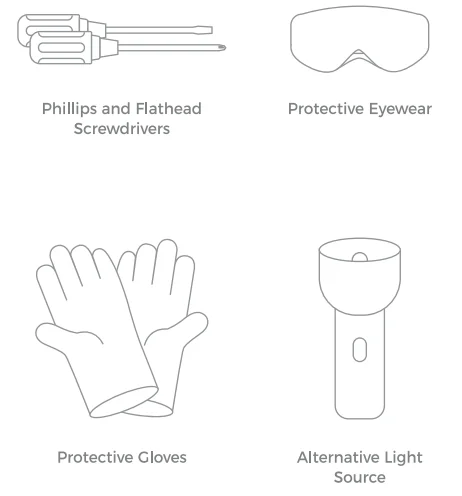
Installation Video
Common Questions
CT Direction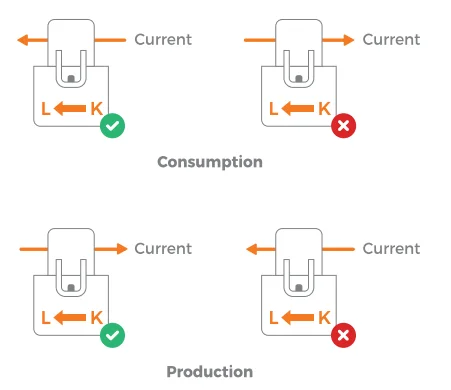
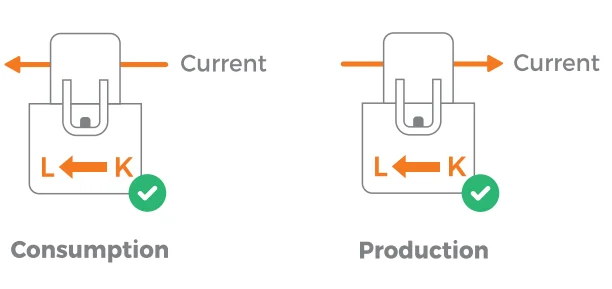
- When monitoring consumption, the current through the CT should flow K → L; when monitoring generation (e.g., solar PV), the current should flow L → K.
- With correct installation, a positive value indicates consumption, while a negative value indicates generation (e.g., solar PV).
- If the readings are reversed (positive vs. negative), the CT is likely installed in the opposite direction. This does not affect the product’s function or performance and can be corrected in two ways:
- Adjust the CT direction (may require opening the panel).
- Modify the setting in Device Settings → Circuit Factor.
Wire Harness
Wire colors may not match your system!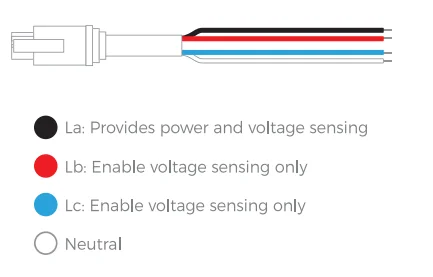
Need Help?
If you have any questions during the hardware installation or setup process, please contact us at:
https://www.meross.com/support.
Package Contents
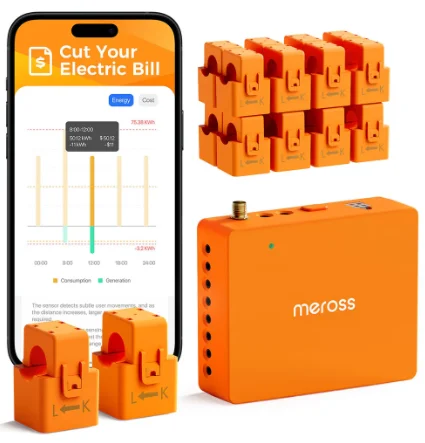
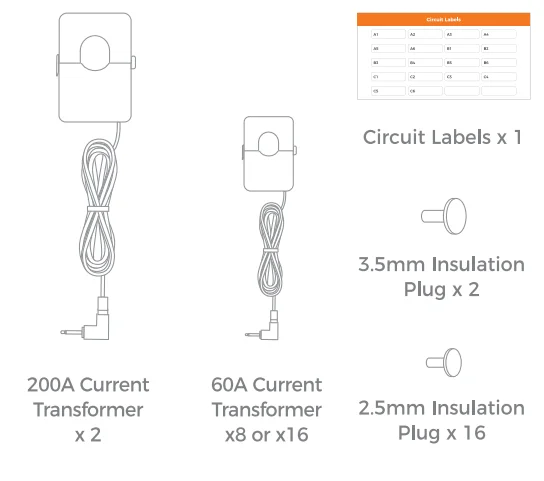
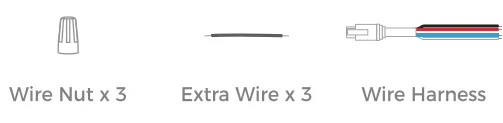
Your new Meross EM16P contains the following items. If any of these items are missing or damaged, please contact technical support immediately.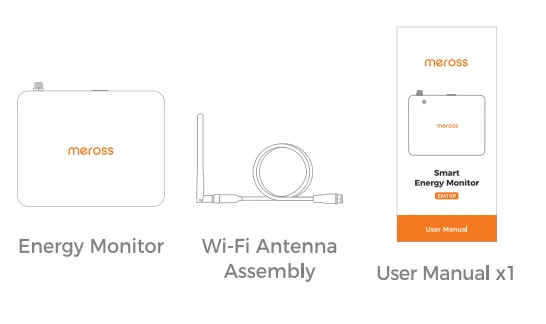
Energy Monitor Connections
The energy monitor is the core of the Meross EM16P. The 3.5 mm A and B audio jack ports on the top of the monitor serve as the input ports for the 200A main CTs. The coaxial connector for the Wi-Fi cable and the port for the wiring harness are also located at the top. The 2.5 mm audio jack ports numbered 1 through 16 on the sides of the monitor are the input ports for the 60A CTs. All ports are clearly labeled on the back of the energy monitor.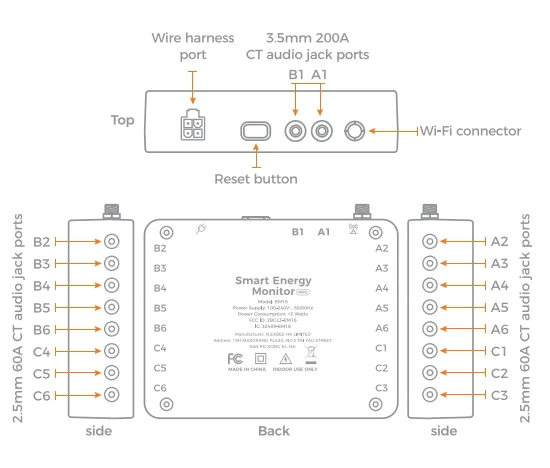
Installation Guide
Step 1: Download the Meross app
Scan the QR code to download the Meross app and register an account.
Step 2: Turn Off the Main Breaker
Within your electrical panel, deactivate the main circuit breaker to disengage all circuits in your residence. Subsequently, uninstall the securing panel and make necessary preparations for wiring and installation tasks.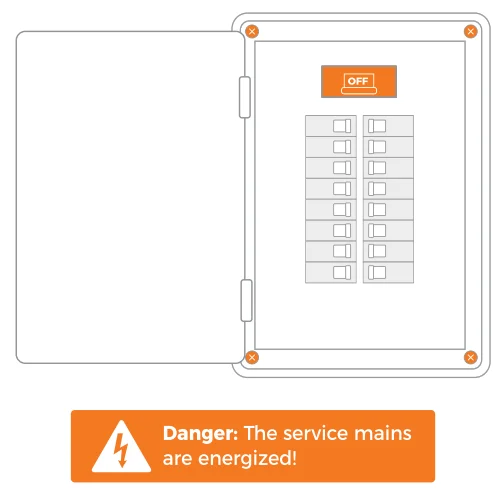
Step 3: Find a Place for the Monitor
Locate a place within the electrical panel for the Meross EM16P energy monitor, ensuring it is at least 50.8 mm (2 in.) from any live parts, including primary conductors, primary terminals, and primary lugs, but excluding insulated cables. The breaker box may be oriented differently than below, but the monitor is small and designed to fit easily in the box. Find a place that works.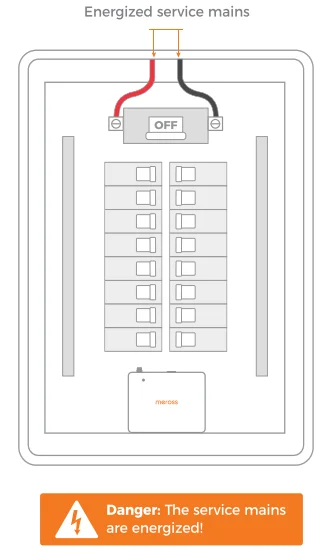
Step 4: Installation of Antenna
Insert the antenna assembly cable into the antenna-labeled jack located at the top of the energy monitor and tighten it securely. Next, locate or create a small aperture in the electrical panel and thread the antenna through it. Remember that the antenna should not be enclosed within the distribution box. If the antenna is placed inside the distribution box, it will experience signal interference.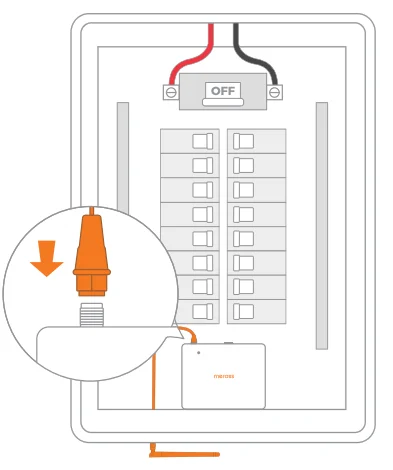
Step 5: Plug In the Wire Harness
Insert the power harness into the top of the energy monitor until it snaps securely into place. This harness allows access to single-phase power, two-phase power, and three-phase power.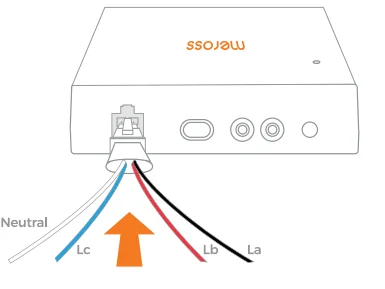
Step 6: Wire Installation
Identify and determine whether the line you currently need to monitor is single-phase, split-phase, or three-phase, with different wiring for different systems, for accurate monitoring.
6(a) Single-phase, 3-wire systems
In North America, it is also referred to as split-phase or dual-phase. (Common in North American homes and small commercial power scenarios.)
6(b) Single-phase, 2-wire systems
(Common in North American homes for lighting appliances, etc.)
6(c) Three-phase, 4-wire Wye systems with earthed (TN or TT) neutral (no-Delta)
(Common in North American industrial and large commercial power scenarios.)
How to determine my electricity type?
- Inspect the Electrical Meter Box or Distribution Panel. Open the panel (ensure safety, do not touch any exposed wires) and check:
- Single-phase, 3-wire systems: Typically have three connections, two hot wires (black and red) and one neutral wire (white). This system is common in U.S. residences, providing 240 volts (between the two hot wires) and 120 volts (between either hot wire and the neutral wire).
- Single-phase, 2-wire systems: Typically have two connections, one hot wire (black or red) and one neutral wire (white).
- Three-phase, 4-wire Wye systems: Typically have four connections, three hot wires (usually black, red, and blue) and one neutral wire (white). This system is common in commercial and industrial applications, not typical in residential settings.
- Observe the Main Circuit Breaker’s Rating
- Single-phase, 3-wire systems: The main circuit breaker is usually a 240-volt breaker, common in residential homes.
- Single-phase, 2-wire systems: The main circuit breaker is typically a 120-volt breaker.
- Three-phase, 4-wire Wye systems: The main circuit breaker is typically a three-phase breaker and has a higher current rating.
Step 6(a): Single-phase, 3-wire Systems Circuits Harness Wiring Method
In North America, it is also referred to as split-phase or dual-phase. (Common in North American homes and small commercial power scenarios.) Please connect the neutral wire to the neutral busbar first, then proceed with the subsequent steps.
(1) La Black Wire Connection
Connect the La wire to the a-phase circuit breaker to provide power to the equipment and monitor the a-phase voltage. For higher accuracy in monitoring, the current transformers (A1-A6) corresponding to the La phase voltage should be clamped onto the a-phase wire to monitor the current. (For the installation method of the current transformers, please refer to Steps 7 and 8.)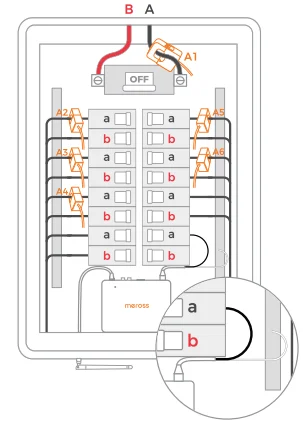
(2) Lb Red Wire Connection
Connect the Lb wire to the b-phase circuit breaker to monitor the b-phase voltage. For higher accuracy in monitoring, the current transformer corresponding to the Lb phase voltage (B1-B6) should be clamped onto the b-phase wire to monitor the current. (For the installation method of the current transformer, please refer to Steps 7 and 8.)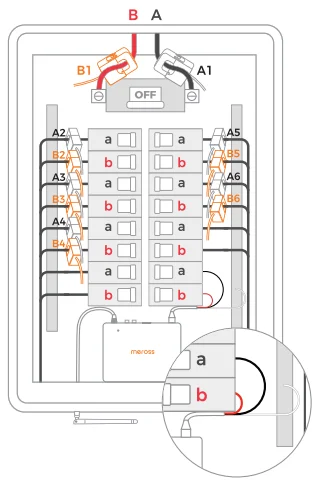
3. Lc Blue Wire Connection
If more circuits need to be monitored on the a-phase, connect the Lc wire to the a-phase circuit breaker to monitor the a-phase voltage. If more circuits need to be monitored on the b-phase, connect the Lc wire to the b-phase circuit breaker to monitor the b-phase voltage. For higher accuracy in monitoring, the current transformer corresponding to the Lc phase voltage (C1-C6) should be clamped onto the corresponding phase wire to monitor the current. (For the installation method of the current transformer, please refer to Steps 7 and 8.)
- Lc blue wire connection a-phase voltage

- Lc blue wire connection b-phase voltage

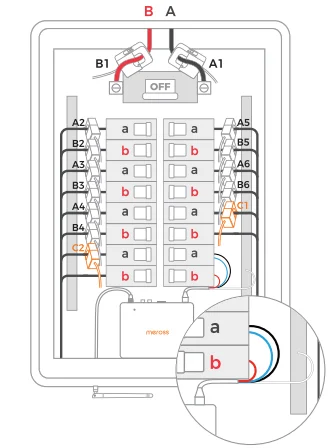
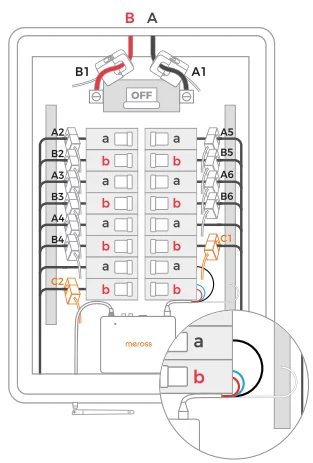
The wiring method for 6(b) and 6(c) is similar to that of 6(a). Please refer to the instructions provided for 6(a) for wiring guidance.
6(b) Single-phase, 2-wire systems
(Common in North American homes for lighting appliances, etc.)
6(c) Three-phase, 4-wire Wye systems with earthed (TN or TT) neutral (no-Delta)
(Common in North American industrial and large commercial power scenarios.)
Step 7: Connect the Main Current Transformers
Open the clasps on the main CTs, and according to the phase labels on the transformer, secure each clamp around one of the main service cables. Then, shut the clasps to secure the CTs. When monitoring consumption, the current through the CT should flow K → L. Finally, insert the 200A current transformer audio jacks into the audio jack ports on the top of the energy monitor.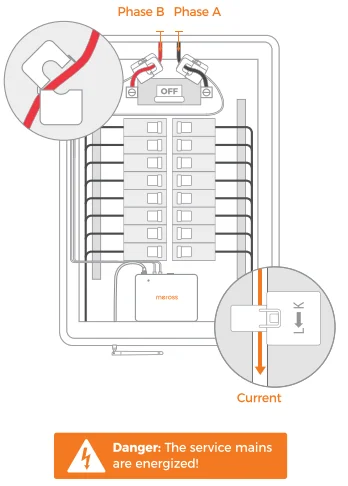
Step 8: Connect Current Transformers
Attach each CT clip securely to the hot leg of the circuit breaker you wish to monitor. Subsequently, connect the audio jack to the audio jack port located on the side of the energy monitor. Note the port number to name the circuit within the app.
1. Current direction
- When monitoring the wiring of your consumption, ensure that the current direction is as follows: K → L.
- When monitoring the wiring of your solar feeder, ensure that the current direction is as follows: L → K.

2. Phase and monitoring lines
Ensure the current transformer is correctly matched with its respective voltage collection line.
- La wire corresponds to the voltage of terminals A1 to A6.
- Lb wire corresponds to the voltage of terminals B1 to B6.
- Lc wire corresponds to the voltage of terminals C1 to C6. (In single-phase, 3-wire systems, the wiring phase of the blue voltage detection line can be adjusted according to the number of circuits to be monitored.)
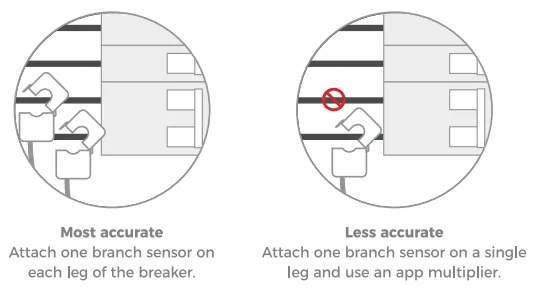
- If 2- or 3-pole breakers are to be monitored, we recommend that one CT be used for each pole; however, to conserve the number of CTs, a single CT can be used. To use a single CT, clamp the clamp around either one of the non-neutral leads coming off the breaker (it doesn’t matter which). When only one CT is used, input a circuit multiplier in the app to double or triple the reading by entering a “2” or “3”. Using a single CT to monitor a multi-pole breaker does not accurately monitor unbalanced loads. When the circuit loads are similar, the error is smaller; when the circuit loads vary significantly, the error increases. Meross recommends using this method only when there are insufficient current transformers available.

Step 9: Insulate Empty CT Audio Jack Ports
Securely insert the supplied 2.5 mm insulation plugs into each empty port on the EM16P to ensure complete insulation.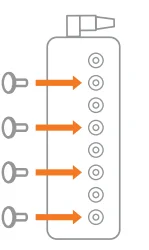
Step 10: Take a photo of your system
Before replacing your panel cover, take photos of the installation in case you need to contact support.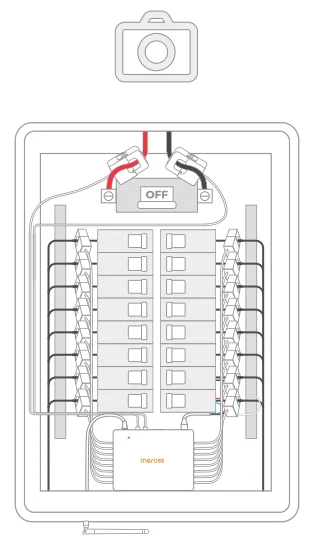
Step 11: Turn on the Power
Restore power to all circuits by reattaching the electrical box panel and turning on all circuit breakers that were turned off during installation. The unit’s green LED should begin to flash slowly after 2 seconds. If the LED is flashing slowly, the unit is ready for configuration. If the LED is not blinking normally, press and hold the reset button for 5 seconds to reinitialize the unit.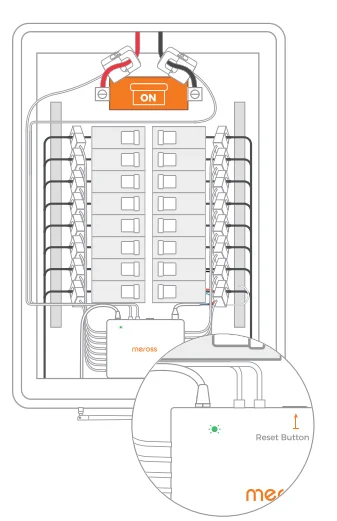
Step 12: Complete Setup
Open the Meross app and click on the “+” in the upper right corner of the home page to add a discovered device via Bluetooth pairing.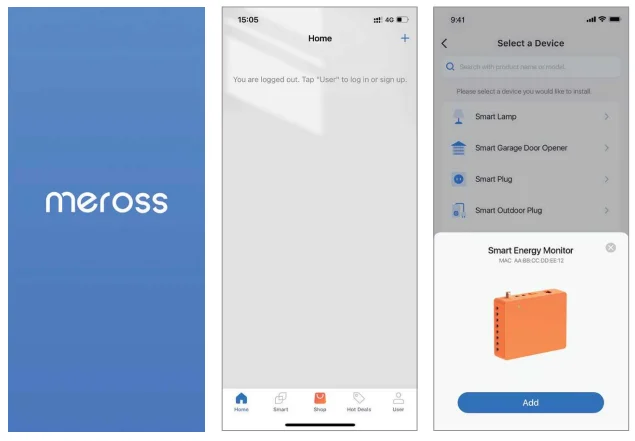
Home Assistant Integration
For the full setup guide, please refer to the official documentation: https://github.com/Meross-Tech/meross_rpc Home Assistant version required: 2025.2.5 or above.
Troubleshooting Guide
Here are some of our most frequent troubleshooting tips. For more help, please contact us at: https://www.meross.com/support.
After installing the EM16P, if the Meross app cannot detect your device, follow these troubleshooting steps:
- a) Ensure power supply to EM16P:
- Confirm the EM16P has power by checking if the device LED blinks slowly in green (once every 0.5 s). If not, press and hold the button for 10 s to reset.
- Ensure the wire harness is securely connected and properly wired.
- Verify that the main circuit breaker is switched on.
- Ensure the breaker powering the EM16P is turned on.
- b) Ensure phone connectivity:
- Make sure your phone is authorized for the Meross app and has Bluetooth enabled.
- For Android users, activate Location Services to enable proper Bluetooth device scanning.
- iPhone users should ensure Bluetooth is allowed in Settings > Meross app > Bluetooth Permissions.
- c) Confirm EM16P Wi-Fi antenna installation:
- Check if the antenna is securely screwed into the energy monitor.
- Ensure the antenna is positioned outside the switchboard to avoid signal interference caused by the metal enclosure. If the antenna is placed inside the distribution box, it will experience signal interference.
- d) Attempt power cycling: Try power cycling the breaker connected to the EM16P.
- e) Restart Meross app: Restart the Meross app on your phone.
- f) Reboot phone: If issues persist, reboot your phone.
Why is the Meross app unable to obtain real-time current and consumption data from the EM16P?
- Ensure proper connection of current transformer: Check that the current transformer is securely plugged into the monitor. Loose connections can disrupt data transmission.
- Verify load device status: Check that the cable with the transformer clipped to it is not connected to a load device that is not working. If the load device is not operational, it may not be drawing any current, resulting in no data being recorded.
Technical Specifications
- Energy Monitor
- Power Supply: 100–240V, 50/60Hz
- Supported System:
- Single-phase, 3-wire systems (split phase or dual phase)
- Single-phase, 2-wire systems
- Three-phase, 4-wire Wye systems with earthed (TN or TT) neutral (no-Delta)
- Voltage-current Correspondence:
- Black → A1-A6, Power
- Red → B1-B6
- Blue → C1-C6
- Dimensions (W x D x H): 4.5 x 3.5 x 1.1 in. (monitor size)
- Wireless Standard: IEEE 802.11 b/g/n, 2.4GHz
- Operating Conditions: -20°C~40°C (-40°F~104°F), 0%-80% RH (non-condensing)
- System Requirement:
- Smartphone running iOS 13 or later or Android 8.0 or later, supporting Bluetooth 4.0 or later
- Existing 2.4GHz Wi-Fi network
- Main Current Transformers
- Max Primary Current: 200A
- Max Voltage: 250V (Primary) / 333mV (Secondary)
- Burden Resistor: 7.2Ω, 1%, 62.5mW
- Cable Length: 1 m
- Inside Diameter: 24 mm
- Accuracy: +2%
- Branch Current Transformers
- Max Primary Current: 60A
- Max Voltage: 250V (Primary) / 333mV (Secondary)
- Burden Resistor: 18.2Ω, 1%, 62.5mW
- Cable Length: 1 m
- Inside Diameter: 10 mm
- Accuracy: +2%
Warranty
Meross products are covered by a 12-month limited warranty from the date of their original purchase. If any problems occur, please contact [email protected] for help.
Disclaimer
- The function of this smart device is tested under a typical circumstance described in our specifications. Meross does NOT guarantee that the smart device shall perform the same as described under all circumstances.
- Meross’s total liability is limited to what is expressly covered in its Privacy Policy.
- Damages arising from ignorance of the SAFETY INFORMATION shall not be covered by Meross after-sales service, nor does Meross take any legal responsibility therefrom.
Customers acknowledge their understanding of these articles clearly by reading this manual.
For More Manuals By Meross, Visit ManualsLibraryy.
Meross EM16P Smart Energy Monitor-FAQs
What is the Meross EM16P Smart Energy Monitor used for?
The Meross EM16P Smart Energy Monitor is designed for whole-home electricity tracking. It provides detailed insights into energy usage across multiple circuits, helping users identify power consumption patterns, reduce waste, and manage electricity costs more effectively through real-time monitoring and analytics.
How many circuits can the Meross EM16P monitor?
The EM16P supports monitoring up to 18 circuits simultaneously, making it suitable for larger homes or complex electrical systems. This allows users to track individual appliances or zones, giving a comprehensive breakdown of where energy is being used across the entire electrical panel.
Does the Meross EM16P provide real-time energy data?
Yes, the EM16P delivers near real-time energy data, including power usage and circuit-level consumption. This enables users to quickly identify spikes or unusual activity and take action to optimize energy usage and improve efficiency within their home or system setup.
Can the Meross EM16P store historical energy data?
The device offers long-term historical data storage, supporting up to five years of energy records. Users can view daily, hourly, or monthly consumption trends, making it easier to analyze usage patterns over time and plan strategies for reducing electricity costs.
Is the Meross EM16P compatible with solar energy systems?
Yes, the EM16P supports solar and renewable energy monitoring. It can track both energy consumption and energy generation, helping users understand how much power they produce versus consume and optimize usage to maximize efficiency and savings from their solar setup.
Does the Meross EM16P work without cloud services?
The EM16P can operate locally without relying on cloud services, offering enhanced privacy and reliability. It supports local web access, MQTT, and open API integration, making it suitable for advanced users who prefer local control or integration with custom smart home systems.
Is the Meross EM16P compatible with smart home platforms?
Yes, the device integrates with platforms like Home Assistant and supports open API access. This allows users to build custom automations, monitor energy usage alongside other smart devices, and create a more intelligent and responsive home energy management system.
How accurate is the Meross EM16P energy monitoring?
The EM16P offers professional-grade accuracy with an error margin typically within ±2%. This ensures reliable and consistent measurements, making it suitable for detailed energy analysis, tracking consumption trends, and making informed decisions about energy usage and efficiency improvements.
How is the Meross EM16P installed?
Installation involves placing the unit inside an electrical panel and attaching current transformer clamps to individual circuits. Due to the number of sensors and wiring involved, installation may require technical knowledge or professional assistance to ensure safe and accurate setup.
Is the Meross EM16P suitable for beginners?
While the interface and data visualization are user-friendly, the installation process can be complex due to multiple circuit connections. Beginners may find it easier to use after professional installation, while advanced users will benefit most from its detailed monitoring and customization capabilities.