
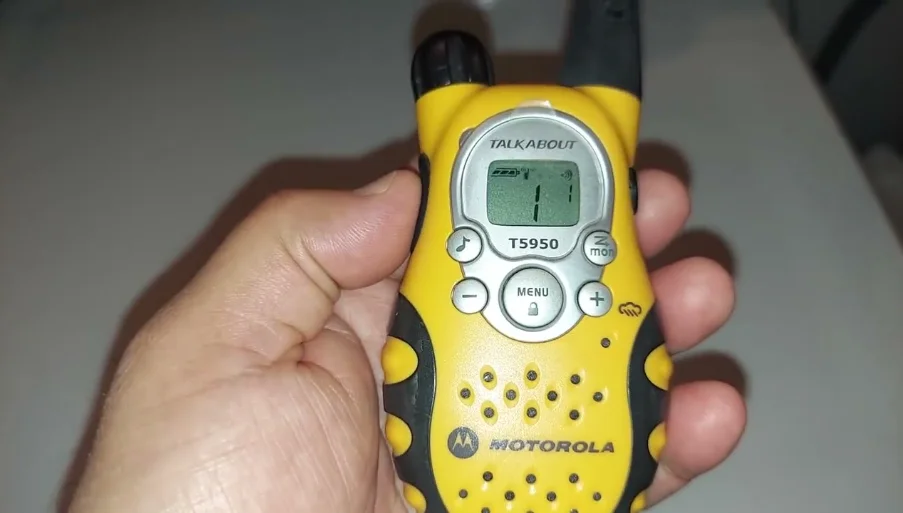

Motorola TalkAbout T5950 Two Way Radio
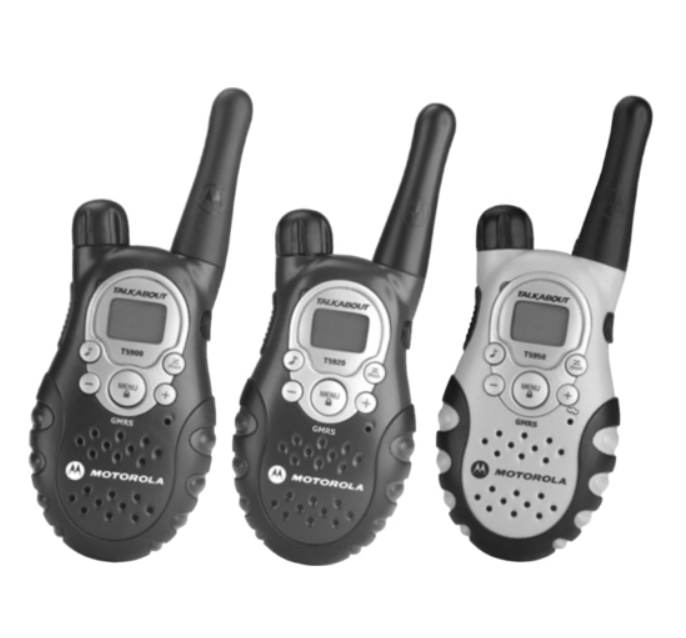
Safety and General Information
Important Information on Safe and Efficient Operation
Transmit and Receive Procedure
Your two-way radio contains a transmitter and a receiver. To control your exposure and ensure compliance with the general population/uncontrolled environment exposure limits, always adhere to the following procedure:
- Transmit no more than 50% of the time.
- To transmit (talk), press the Push to Talk (PTT) button.
- To receive calls, release the PTT button.
Transmitting 50% of the time or less is important because the radio generates measurable RF energy exposure only when transmitting (in terms of measuring standards compliance).
Portable Radio Operation and EME Exposure
Antenna Care
Use only the supplied or an approved replacement antenna. Unauthorized antennas, modifications, or attachments could damage the radio.
DO NOT hold the antenna when the radio is “IN USE.” Holding the antenna affects the effective range.
Two-way Radio Operation
When using your radio as a traditional two-way radio, hold the radio in a vertical position with the microphone 1 to 2 inches (2.5 to 5 cm) away from your lips.
Body-Worn Operation
To maintain compliance with Health Canada RF exposure guidelines, if you wear a radio on your body when transmitting, always place the radio in a Motorola-supplied or approved clip, holder, holster, case, or body harness for this product.
Use of non-Motorola-approved accessories may exceed Health Canada RF exposure guidelines.
If you do not use one of the Motorola-supplied or approved body-worn accessories and are not using the radio held in the normal use position, ensure the radio and its antenna are at least 1 inch (2.5 cm) from your body when transmitting.
Data Operation
If applicable, when using any data feature of the radio with or without an accessory cable, position the radio and its antenna at least 1 inch (2.5 cm) from the body.
Approved Accessories
For a list of approved Motorola accessories, visit our website at www.Motorola.com.
Facilities
To avoid electromagnetic interference and/or compatibility conflicts, turn off your radio in any facility where posted notices instruct you to do so. Hospitals or health care facilities may be using equipment that is sensitive to external RF energy.
Aircraft
When instructed to do so, turn off your radio when on board an aircraft. Any use of a radio must be in accordance with applicable regulations per airline crew instructions.
Medical Devices – Hearing Aids
Some digital wireless radios may interfere with some hearing aids. In the event of such interference, you may want to consult your hearing aid manufacturer to discuss alternatives.
Other Medical Devices
If you use any other personal medical device, consult the manufacturer of your device to determine if it is adequately shielded from RF energy. Your physician may be able to assist you in obtaining this information.
Safety and General Use While Driving
Check the laws and regulations on the use of radios in the area where you drive.
Always obey them. When using your radio while driving, please:
- Give full attention to driving and to the road.
- Use hands-free operation, if available.
- Pull off the road and park before making or answering a call if driving conditions require.
Batteries
All batteries can cause property damage and/or bodily injury, such as burns, if a conductive material, such as jewelry, keys, or beaded chains, touches exposed terminals. The conductive material may complete an electrical circuit (short circuit) and become quite hot. Exercise care in handling any charged battery, particularly when placing it inside a pocket, purse, or other container with metal objects.
Battery Charger Safety Instructions
Save these Instructions
- Do not expose the charger to rain or snow.
- Do not operate or disassemble the charger if it has received a sharp blow, or has been dropped or damaged in any way.
- Never alter the AC cord or plug provided with the unit. If the plug will not fit the outlet, have the proper outlet installed by a qualified electrician. An improper condition can result in a risk of electric shock.
- To reduce the risk of damage to the cord or plug, pull the plug rather than the cord when disconnecting the charger from the AC receptacle.
- To reduce the risk of electric shock, unplug the charger from the outlet before attempting any maintenance or cleaning.
- Use of an attachment not recommended or sold by Motorola may result in a risk of fire, electric shock, or personal injury.
Control Buttons
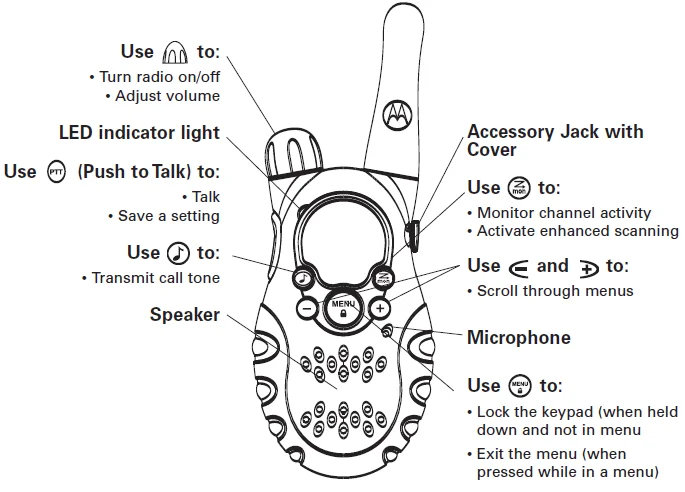
Getting Started
Installing the AA Batteries
Your radio uses 3 AA Alkaline batteries.
- With the back of the radio facing you, lift the battery latch up to release the battery cover and remove the cover.
- Insert 3 AA Alkaline batteries as shown on the inside of the battery compartment.
- Reposition the battery cover and press down to secure.
Note: A NiCd rechargeable battery can be used instead of 3 AA Alkaline batteries. A rechargeable battery upgrade kit, model number 53614, is available. For the dealer nearest you, call 1-800-353-2729 in the USA, or visit our website at www.motorola.com/talkabout.
Installing the NiCd Battery Pack
- Follow step 1 above to remove the battery cover.
- Remove the battery pack from the clear plastic bag. Do not disassemble or unwrap the battery pack.
- Insert the NiCd battery pack so the metal contacts on the side of the battery are facing outward from the radio to connect with the contacts on the battery door.
- Reposition the battery cover and press down to secure.
Battery Meter
The battery icon shows the battery charge level, from full to empty.
When the battery is empty, the radio chirps periodically after releasing PTT. The radio powers off when the voltage drops below a predetermined level to protect the rechargeable battery.
Note: Remove the batteries before storing your radio for extended periods of time. Batteries corrode over time and may cause permanent damage to your radio.
Using the Desk Stand Charger (Optional Accessory)
The desk stand charger provides drop-in charging convenience for NiCd batteries and can be placed on any flat surface, such as a desk or workbench. Charge the NiCd battery overnight (at least 16 hours) before using it for the first time. After the initial charge, an empty battery is fully charged within 14 hours.
- Turn the radio off and remove the battery cover.
- Remove the battery pack from the clear plastic bag. Do not disassemble or unwrap the battery pack.
- Insert the NiCd battery pack so the metal contacts on the side of the battery are facing outward from the radio to connect with the contacts on the battery door.
- Reposition the battery cover and press down to secure.
- Plug the AC power supply into the plug on the desk stand.
- Plug the AC power supply into a standard wall outlet.
- Remove the battery pocket inserts from the charger pockets.
- With a radio facing forward, slide it into one of the charging pockets.
To charge the battery pack separately from the radio:
- Remove the battery pack from the clear plastic bag. Do not disassemble or unwrap the battery pack.
- Make sure the charger pocket inserts are in place.
- Align the metal contacts on the battery pack with the contacts inside the charger, then insert the battery pack into the pocket.
- Plug the AC power supply into the plug on the desk stand.
- Plug the AC power supply into a standard wall outlet.
Notes:
- When moving between hot and cold temperatures, do not charge the battery until the battery temperature acclimates (usually about 20 minutes).
- For optimal battery life, remove the radio or battery from the charger within 16 hours. Do not store the radio in the charger.
Attaching the Belt Clip
- Align the belt clip post with the hole in the back of the radio.
- Gently push until the clip clicks into place.
Removing the Belt Clip
- Push down on the release tab at the top of the belt clip to release the catch.
- Pull the belt clip away from the back of the radio.
Turning Your Radio On and Off
Turn  clockwise to turn the radio on and counterclockwise to turn the radio off.
The radio chirps, and the display briefly shows all feature icons available on your radio. The display then scrolls through the available channels and Interference Eliminator Codes.
Setting the Volume
Press and hold  while rotating until you reach a comfortable listening level. Rotate clockwise to increase or counterclockwise to decrease the volume.
Do not hold the radio close to your ear. If the volume is set to an uncomfortable level, it could hurt your ears.
Setting a Channel
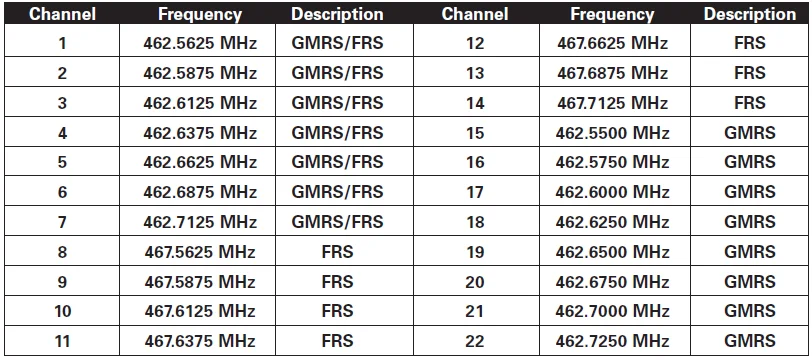
Your radio has 22 channels. Channels 1-7 and 15-22 are 1 watt. Channels 8-14 are 0.5 watts. When the radio is on a 1-watt channel,  displays. When the radio is on a 0.5-watt channel,
  displays.
- With the radio on, press MENU. The current channel flashes.
- Press – or + to set the channel.
- Press PTT to save the channel setting.
Channels and Frequencies
Weather Channels and Frequencies

Talking and Listening
To communicate, all radios in your group must be set to the same channel (1-22) and Interference Eliminator Code (0-99).
To talk, press and hold PTT. Hold the radio 2 to 3 inches away from your mouth when talking.
When you finish talking, release PTT (press to talk, release to listen).
Talk Range
Your radio is designed to maximize performance and improve transmission range. Do not use the radios closer than 5 feet apart.
Monitor Button
Pressing and holding for 3 seconds allows you to listen to the volume level of the radio when you are not receiving. This allows you to adjust the volume, if necessary. You can also use to check for activity on the current channel before you transmit (talk).
Special Features
Interference Eliminator Codes
Interference Eliminator Codes help minimize interference by providing a choice of code combinations. Your radio has 99 Interference Eliminator Codes. Codes 1-38 are the standard codes that appear on other FRS/GMRS radios. Codes 39-99 are additional digital codes added for superior interference protection.
To set the code for a channel:
- Press MENU until the code starts to flash.
- Press – or+ to select the code.
- Press PTT to save the code setting.
You can set a different code for each channel using this procedure. An extended press of – or + allows you to scroll through the Interference Eliminator Codes rapidly so you can quickly reach the code you want.
Note: You must set the Interference Eliminator Code to 0 on a radio that uses Interference Eliminator Codes to communicate with radios that do not have Interference Eliminator Codes.
Push to Talk Timeout Timer
To prevent accidental transmissions and save battery life, the radio emits a continuous warning tone and stops transmitting if you press PTT for 60 continuous seconds.
Locking the Keypad
To avoid accidentally changing your radio settings, press and hold MENU for 3 seconds or until the LOCK icon displays. You can turn the radio on and off, adjust the volume, receive, transmit, send a call tone, and monitor channels. All other functions are locked.
To unlock the radio, press and hold MENU for 3 seconds or until the LOCK icon is no longer displayed.
Enhanced Scanning
Scanning is used to:
- Monitor Channels and codes for transmissions and lock in on one that interests you.
- Find someone in your group who has accidentally changed channels and is talking during your scan.
With enhanced scanning, your home channel is scanned more frequently than any other channel. The home channel is the channel your radio was set to when you started to scan. If you activate scan while your radio’s Interference Eliminator Code is set to a number between 1 and 99, the radio checks for activity on each channel, but only in the specific code selected. All transmissions using code 0 or any other code are ignored.
To start scanning, briefly press and release . The scan indicator displays, and the radio begins to scroll through the channel and Interference Eliminator Code combinations.
When the radio detects activity, it stops scanning, and you can hear the transmission on that channel. To respond and talk to the person transmitting, press PTT within 5 seconds.
To stop scanning, briefly press and release .
Note: If you press PTT while the radio is scanning, the radio transmits on the channel you selected before you activated scan. If no transmission occurs within 5 seconds, scanning will resume.
Scan Advance
If the radio stops scanning on a channel you do not want to listen to, briefly press and release – or + to resume scanning for the next active channel.
Removing Channels from the Scan List (Nuisance Delete Feature)
To prevent the radio from scanning a channel, press and hold – or + for at least 3 seconds, then release, when the scan first stops on that channel. This temporarily removes the channel from the scan list. Press to exit scan mode.
Press a second time to activate the scan again. To restore a previously deleted channel, turn the radio off and then back on. The channel is now restored.
Note: You cannot remove your home channel from the scan list. The home channel is the channel your radio was set to when you started scanning.
Handsfree Use Without Accessories (iVox)
You can use the iVox feature to transmit hands-free without the need for any voice activation (VOX) accessories. Once iVOX is turned on, the radio detects your voice and transmits when you speak.
- Turn the radio off.
- Turn the radio on while pressing PTT.
 displays.
 - To temporarily disable iVox, press PTT. flashes intermittently.
- To turn off iVox, turn the radio off.
Handsfree Use With Accessories (VOX)
You can transmit hands-free with the use of optional accessories. Once VOX is turned on, the radio detects your voice and transmits when you speak.
- Turn the radio off and plug the VOX accessory into the accessory port (see page 11 for accessory port location).
- Turn the volume down, then turn the radio on. flashes on the display.
- Adjust the volume appropriately by rotating
 .
.
Note: There is a short delay between the time you start talking and when the radio transmits. There is a short delay before the transmission is completed.
To turn VOX off, press PTT or remove the audio accessory.
Accessories
There are many accessories (sold separately) available for your radio. For more information, refer to the brochure included with your radio, or contact the place of purchase.
Using Audio Accessories
- Turn the radio off, lift the accessory jack cover, then plug the audio accessory into the accessory port (see page 11 for accessory port location).
- Turn the radio on. Lower the volume before placing the accessory on your head or in your ear.
- Press
 while rotating
  to adjust the volume to a comfortable level.
 - To transmit, press PTT and speak into the accessory microphone, if any.
- To receive, release PTT.
Setting the Sensitivity Level
Adjusting the radio’s sensitivity level helps minimize the possibility of unintended noises triggering a transmission and helps the radio pick up soft voices.
- Make sure the radio is on
- Press MENU until displays.
- Press – or + to select the sensitivity level:
- 3 = High Sensitivity for quiet environments
- 2 = Medium Sensitivity for most environments
- 1 = Low Sensitivity for noisy environments
When you connect a VOX accessory, the radio is automatically set to the last chosen sensitivity level.
Note: If iVox is activated while setting the sensitivity level, a is displayed above  .
.
If VOX is activated while setting the sensitivity level, an ‘E’ is displayed above .
For more Manuals by Motorola, visit ManualsLibraryy
Motorola TalkAbout T5950 Two Way Radio-FAQs
What is the range of the Motorola TalkAbout T5950?
The Motorola TalkAbout T5950 offers a maximum range of up to 5 miles on GMRS channels, depending on terrain and environmental conditions.
How many channels does the Motorola T5950 have?
It provides 22 channels, allowing flexible communication options and minimizing interference during use.
Does the Motorola T5950 support hands-free operation?
Yes, the T5950 allows VOX (Voice-Activated Transmission), enabling hands-free communication with or without compatible accessories.
How many call alerts does the Motorola T5950 include?
The radio features 10 different call tones, including a vibrating alert, so you can easily identify incoming transmissions.
What type of battery does the T5950 use?
It uses NiCd rechargeable batteries, but it can also operate with standard AA batteries for added convenience.
Can the Motorola T5950 communicate with other TalkAbout radios?
Yes, it’s compatible with other Motorola TalkAbout models as long as they share the same frequency and privacy code settings.
Is the Motorola T5950 suitable for outdoor activities?
Absolutely. With its durable design and clear communication range, it’s great for camping, hiking, road trips, and outdoor coordination.
What kind of frequencies does the T5950 use?
The radio operates on both FRS (Family Radio Service) and GMRS (General Mobile Radio Service) frequencies for better range and clarity.
How can I improve the range of my Motorola T5950?
For the best range, use the radios in open areas with minimal obstructions, keep the batteries fully charged, and maintain a clear line of sight between devices.
How long does the Motorola T5950 battery last?
Battery life varies depending on usage, but fully charged batteries can typically last 8 to 12 hours during regular operation.