
Nerunsa Q23 Fitness Tracker Smartwatch

Quick guide
APP download method
- Scan code: Scan the QR code to download and install the application

- Android: Search for “Keep Health” on Google Play to download and install the app
- Apple: Search for “Keep Health” through the App Store to download and install the app

Note: Adapt to Android 5.0 or iOS 9.0 and above systems
Preparation before use
For the first use, please press and hold the power button to turn it on. If it cannot be turned on, please charge the watch first.

Watch and APP connection.
- Long-press the power button to start. Please make sure that the Bluetooth of the mobile phone is turned on (Android needs to turn on the GPS location permission)
- Open the Keep Health APP on the mobile phone, follow the instructions on the guide page to complete the APP registration and settings, enter [Device–Add Device], and select the Bluetooth code that matches the smartphone to connect. (Note: Android users can only pair on the APP, not on the phone’s system Bluetooth)

- After the APP is successfully connected to the watch, it will automatically enter the homepage to synchronize data, and the watch will automatically synchronize the date, time, and language of the phone.

Watch operating instructions
- Power button: Long-press the power button to turn on/off. On the dial interface, short-press the power button to enter the menu list, and short-press the power button on other application interfaces to return to the previous menu.
- Long-press on the dial interface: Enter the dial switching interface, swipe the screen to the left, and click the desired dial. You can also enter the Keep Health APP [Device–Watch face], click to install the dial.

- Swipe up the dial interface: enter the shortcut menu settings

- Swipe left or right on the dial interface: directly enter the application, and the card settings can be increased, decreased, and adjusted according to personal usage habits.
- The dial interface slides down: Enter the information notification, the information notification can display the last 8 information prompts, click on a message, enter the information reading, or delete a single message.


Application description
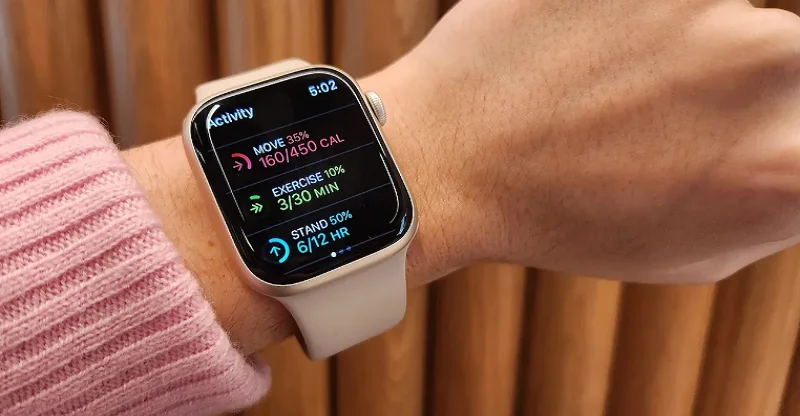
 Activity record: Enter the activity record interface, swipe up to view detailed activity data. The red part indicates exercise consumption, the green part indicates exercise time, and the blue part indicates standing time.
 Physical training: Enter the physical training interface, select the corresponding exercise mode to start training.
 Heart rate/blood oxygen: Click on the icon to enter the measurement. When measuring, you need to attach the heart rate sensor or electrode sensor on the back of the device to your wrist to maintain comfort, keep your mood relaxed, and your body still. The measured value time is 10- Between 40 seconds. The automatic monitoring can be turned on or off on the APP side. The automatic monitoring time is automatically measured once every 30 minutes(Note: Some functions are only available on specific models).
 Sleep: Enter the sleep interface, the watch will display yesterday’s sleep duration, deep sleep, and light sleep duration (you need to wear the watch to fall asleep to have a record)
 Weather: Enter the weather interface to display the weather conditions of the current day and the next 2 days. After the watch is connected to the APP, it will automatically synchronize the real-time weather forecast.
 Alarm clock: Enter the alarm clock interface, and you can choose to add or edit the alarm clock until the watch vibrates to remind you.
 Music: After the watch is connected to the APP, turn on the music control switch in the APP to open the music control interface on the watch side and control the music play, pause, previous, and next music of the mobile phone. ( NotTo to ensure the normal music control function, Android users should not pair the device with Bluetooth in the mobile phone system.)
APP operation instructions
APP-Home page
The home page displays information, including: Steps, consumption, distance, outdoor exercise, exercise record, heart rate, sleep, blood oxygen, water reminder, weight record, and women’s health. You can also edit and hide the corresponding modules according to your own living habits.
APP-Device
The background settings of the device, including: Smart watch and APP binding and unbinding, APP running settings in the background of the mobile phone, message notification, device settings, dial center, target setting, heart rate timing detection, Raise your wrist to wake up, drinking water reminder, women’s health, search Bracelet, music control, camera control, firmware version, factory reset.
APP-Mine
Account-related viewing and settings, including: Personal information, family, system settings, frequently asked questions, problem feedback, and about us.
*Family is divided into “family account” and “person I care about”.
“Family account” can add multiple members to manage multiple member watches at close range, or invite guardians to jointly manage member watches. “People I care about” can remotely view family data by caring about others.
Bracelet maintenance
- Avoid your watch from being exposed to strong shocks and extreme high temperatures.
- The lens and the case are waterproof when they are intact. After violent disassembly and assembly, the waterproof performance will be affected. Do not soak the watch in hot water, seawater, or a chemical solution.
- Please use the original charging cable to charge the watch.
Note: This equipment is not a medical device. The data and information provided are for reference only.
Activation & Warranty
Permanent replacement of damaged, defective items or missing components. Please activate via email below within 15 days. [email protected]
For more manuals by Blogs, visit ManualsLibraryy
Nerunsa Q23 Fitness Tracker Smartwatch- FAQs
How do I turn on my Q23 smartwatch?
Press and hold the power button until the screen lights up. If the battery is low, connect it to the charger first.
How do I change the time on my smartwatch?
The Q23 usually syncs the time automatically with your phone. To adjust manually, go to Settings > System > Date & Time.
Can I use the Q23 fitness tracker without a phone?
Yes, it can track steps, heart rate, and other basic data without a phone. For full features like syncing and notifications, you need the app.
How do I install apps on the Q23 smartwatch?
Go to the Play Store on your watch, search for the app you want, and tap Install. Some apps may require setup through the phone app.
How do I sync my fitness tracker with my phone?
Open the companion app, make sure Bluetooth is on, and select Sync Device. Keep the watch close to the phone during syncing.
Why is my Q23 smartwatch not turning on?
The battery may be completely drained. Charge it for at least 30 minutes, then press and hold the power button to restart.
How do I reset my smartwatch?
Go to Settings > General > Reset and select Factory Reset. For unresponsive watches, press and hold the power button until the reboot menu appears.
How do I know when the Q23 is fully charged?
The screen will display 100% battery and stop charging automatically.
Can the Q23 track workouts without internet or GPS?
Yes, it records steps, calories, and heart rate offline. GPS features, however, require a connected smartphone.
What should I do if the touchscreen stops responding?
Restart the watch. If the issue persists, perform a factory reset. Make sure the screen is clean and free from moisture.