
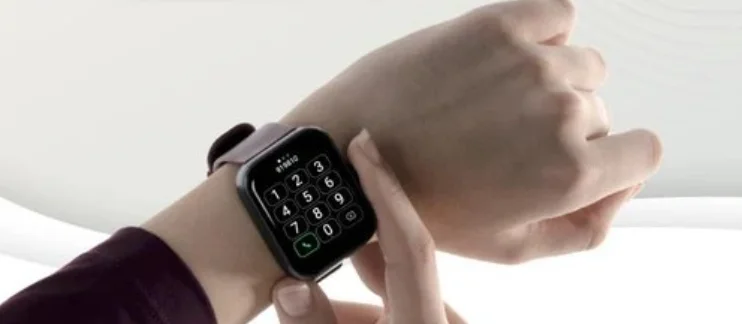

Noise ColorFit Icon Buzz Smart Watch
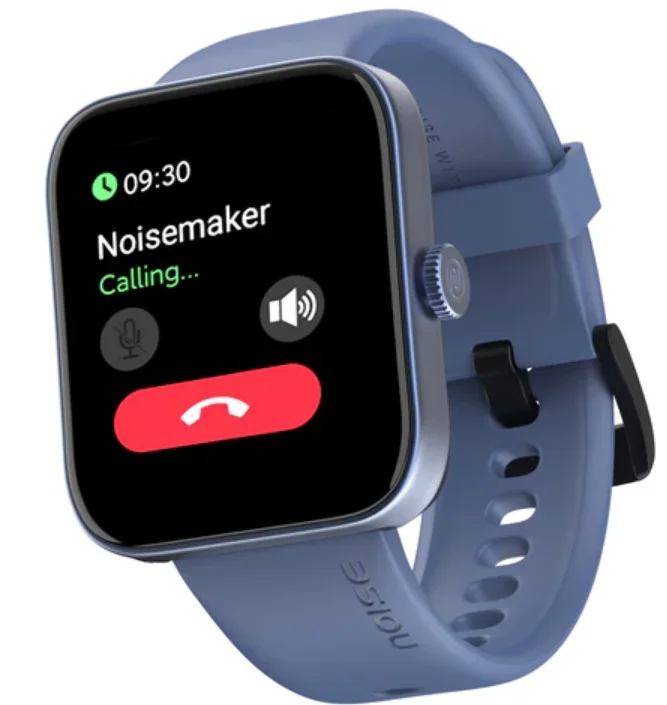
WHAT’S IN THE BOX
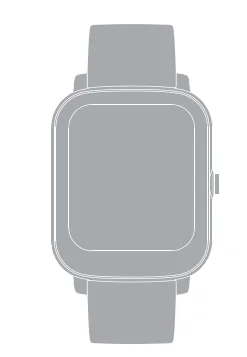
- ColorFit Icon Buzz smartwatch x 1

Charging cable x 1
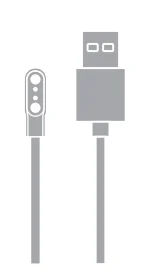
TABLE OF CONTENTS
- Activity
- Heart Rate
- Sleep
- Blood Oxygen
- Sports
- Messages
- Noise Buzz
- Weather
- Camera
- Music
- Stopwatch
- Alarm
- Timer
- App
- Find phone
- Breathe
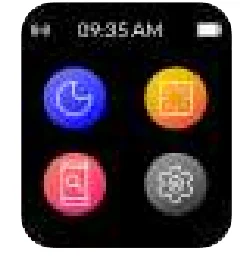
- Setting
- Games
- Al Voice
POWER ON
Press and hold the side button for 3 seconds or plug in the charger to turn on the watch.
POWER OFF
Long-press the button and confirm to power off.
WAKING UP THE WATCH
To turn the screen back on, you can wake up the watch by pressing the side button.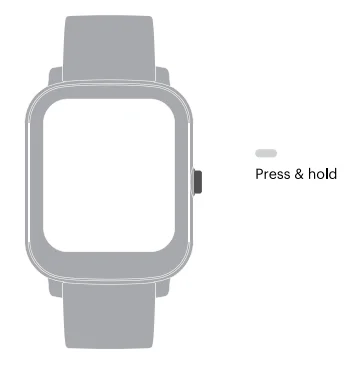
CHARGING
Before using your ColorFit Icon Buzz for the first time, charge the battery to its full capacity. Use the charging cable provided with the watch to charge. On a full charge, ColorFit Icon Buzz can last up to 5 days.
Note: The battery life and time to fully charge your device may vary as per usage and other factors.
Charge ColorFit Icon Buzz
- Plug the USB cable into a power adaptor.
- Plug the power adaptor into an electrical socket. (Power adaptor not included).
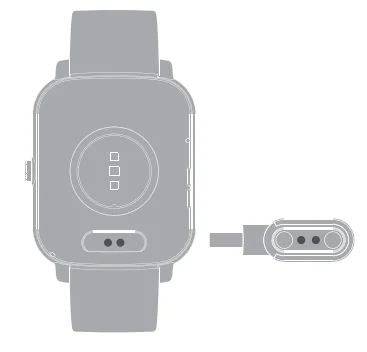
- Place the magnetic charger on the magnetic charging points of the watch.
- While your watch is charging, the screen will show the charging progress.
- Once the battery is fully charged, remove the charger.

SETUP
Before pairing, make sure that your smartphone and smartwatch are next to each other. The app will ask for personal information such as height, weight, and sex to calculate your stride length, distance covered, calorie burn rate, and metabolic rate. Turn on Bluetooth and the location on your mobile device. In your smartphone, download the Noise app from the Play Store or the App Store and install it.
Note: Ensure that your smartphone is running on Android 5.1+ or iOS 8.0 + and is connected to mobile data or a Wi-Fi network.
PAIR THE WATCH
Scan the QR code from the watch and download the Noise app. For iOS, select APP store, search Noise, download, and install the app. For Android, select Google Play to download and install the Noise app.
Note: The smartwatch supports Android 5.1 or above, iOS 8.0 or above,, and Bluetooth 4.0 or above.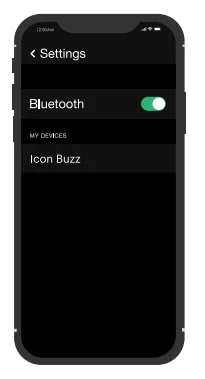
Open the Noise app and allow Bluetooth and GPS positioning to be turned on. Feed in your personal information and health goals in the app. Go tothe ‘Add Device’ page in the app, select the device type, and link the watch.
SETTING
- Dial

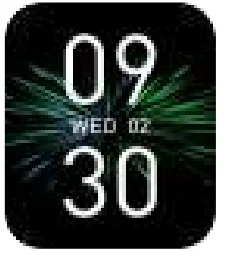
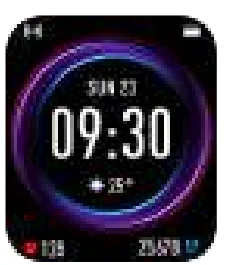
You can switch between different watch faces in the watch, choose and download cloud-based or you can create your own watch faces in the App. - Changing the Watch Face

Give your screen a personalised style by changing or customising the watch face from the App or the watch. - On the Watch

Touch and hold the home screen. Swipe and choose from the watch faces. - In the App

Go to the device, select watch faces, choose the watch face of your choice, and tap save to change. - Brightness

You can set the watch brightness on the watch.
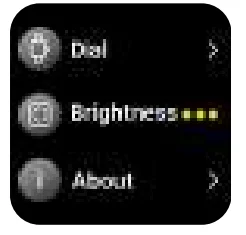
ABOUT
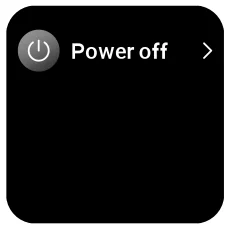
- Power off

Go to Settings. Select power off and choose to power off. - Games
You can play games on the watch. Go to games. Choose the game as per your preference and start playing. - Al Voice
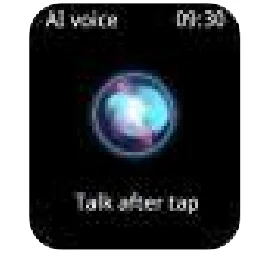
You can get the Al voice to do certain tasks. You can make calls, play music, open the camera & know the weather. Go to Al Voice. Tap on the Al voice and talk.
Eg:- Say “Call Annie”, a call to Annie will start from the phone.
- Say “Music”, it opens the music player in phone.
- Say “Start/Stop” to control music.
- Say “Camera”, it opens the camera in phone.
- You can click on pictures from Watch
- Say “ Weather”, it opens the weather report on your phone.
- Quick Settings
You can swipe from the watch’s home screen to gain Quick Settings access.- Do not disturb
- Brightness
- Find phone
- Setting

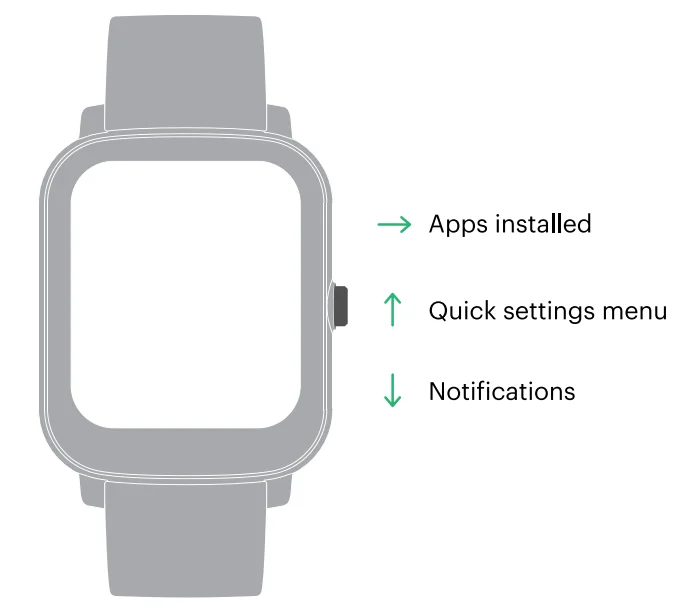
WATCH FEATURES
- Activity

You can check your daily activity progress in terms of the steps taken, distance covered, calories burned, and active time. - Sleep

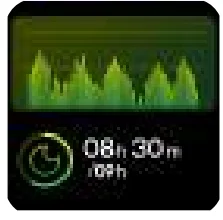
You can view your most recent sleep record and a display of your sleep quality in various sleep stages in the Noise app. - Heart Rate

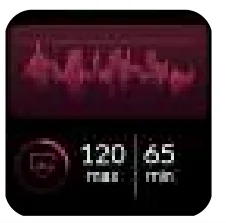
ColorFit Icon Buzz supports 24/7 heart rate tracking. You can select the measurement frequency in the app settings. To measure your heart rate in real time, go to the Heart Rate monitor and tap to measure. You can view the all-day data on the watch and app.
Note: Make sure your arms and wrists are still, and there is no space between your watch and your wrist. - Sports

Choose the sports you want to play and track the progress in terms of calories burned, heart rate, distance covered, and steps taken. - Weather

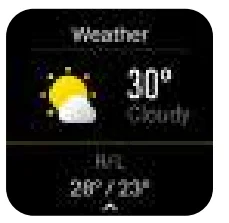
ColorFit Icon Buzz supports 7-day weather viewing in a location of your choice. You can view today’s current weather and the weather for the next six days. Open the Weather app on your watch and change the location to see the weather in your current location. Breathe

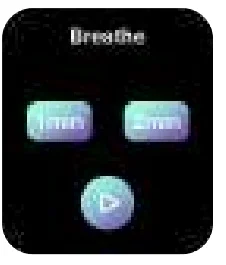
The Breathe feature helps you adjust your breathing rhythm as per your convenience. Go to the Breathe feature, choose the time duration, and tap on start to enter the cycles of breathing.
Note: During this period, if you swipe right or press a button, breathing is interrupted, and you can choose to practice again or complete the cycle.Blood Oxygen

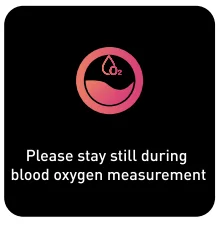
Colorfit Icon Buzz supports the viewing of the highest and lowest blood oxygen levels of the day. To measure your blood oxygen level in real time, go to the Blood Oxygen monitor and let it measure.
Note: Make sure your arms and wrists are sill and there is no space between your watch and your wrist.Noise Buzz

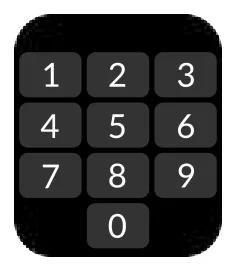
You can use this feature to manage calls from the watch. Go to Noise Buzz, choose to dial from the dial pad or from the contact list, and make calls.App

Scan the QR code via your smartphone to download the Noise app.Messages

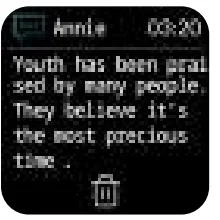
Go to messages to read the smart notifications on your watch.Camera

Control your camera remotely from the watch. Turn on the feature on the appMusic

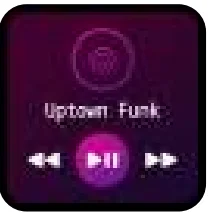
You can control your favourite songs and podcasts that play from your phone, right on your wrist as long as the watch is connected with the Noise Track app in your phone. You can play/pause music and go to the next/previous trackStopwatch

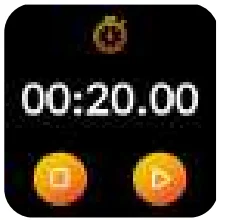
A stopwatch can be set on the watch.Alarm
You can set up to 3 alarms in the Noise app, and they’ll sync with the watch.Timer

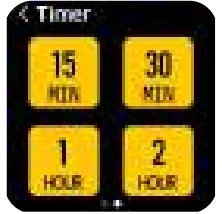
You can set a timer with a pre-set duration on the watch, and the timer will remind you when the time is up.Find Phone

You can make your phone ring using the watch when the watch is connected to the app. Click the icon to stop the ringing.
DEVICE INFORMATION AND TIPS
Device Information
The Colorfit loon Buzz Watch contains the following:
- TFT Display
- IP67 waterproof
- 9 Sports Modes
- 20mm Quick Change Pins
The ColorFit Buzz smartwatch stores your activity data for up to 7 days between syncs to the Noise app. Activity data includes your steps, distance, calories, active minutes, heart rate, sleep duration and workout data. We recommend syncing the watch to the app daily.
Tips
How do I update my ColorFit Icon Buzz?
You can update your ColorFit loon Buzz via the Noise app. Go to Device and select Check for updates.
How do I find my watch’s current firmware version?
You can find the watch’s current firmware on the watch. Go to Settings on the Noise app. Select Device information, choose Check for updates and update if any update is available.
How do we save battery?
Follow these simple steps to optimise the ColorFit Joon Buzz battery life.
- Minimise the screen brightness
- Limit the notifications you receive from the Noise app.
How does the watch estimate how many calories have been burned?
ColorFit loon Buzz estimates how many calories you’ve burned based on the physical data you entered when you set up your account.
How do I change my activity goals?
You can do it through the Noise app. Go to My Profile. Go to Setup and select My Objectives. Change your goals and confirm.
How do I log my weight?
You can log in your weight the first time you set up your Noise app. However, you can update the weight later via the Noise app. Go to My Profile, select Personal Information and change or update your weight. You can update birthday, height, step length and email id as well.
Disposal and Recycling Information
Electrical and electronic devices may not be disposed of with domestic waste. Consumers are obliged by law to return the electrical and electronic device at the end of their service lives to the public collecting points set up for this purpose or the point of sale. Details of this are defined by the national law of the respective country. By recycling, reusing the materials or other forms of utilising old devices, you are making an important contribution to protecting our environment.
Regulatory and Safety Information
USA: Federal Communications Commission (FCC) Statement
This device complies with Part 15 of the FCC rules. Operation is subject to the following two conditions: This device may cause harmful interference, and this device must accept any interference received, including interference that may cause undesired operation.
Warning: Changes or modifications not expressly approved by the party responsible for compliance could void the user’s authority to operate the equipment.
Note: This equipment has been tested and found to comply with the limits for a Class B digital device, pursuant to part 15 of the FCC Rules. These limits are designed to provide reasonable protection against harmful interference in a residential installation. This equipment generates, uses and can radiate radio frequency energy and, if not installed and used in accordance with the instructions, may cause harmful interference to radio communications. However, there is no guarantee that interference will not occur in a particular installation.
If this 76 equipment does cause harmful interference to radio or television reception, which can be determined by turning the equipment off and on, the user is encouraged to try to correct the interference by one or more of the following measures:
- Reorient or relocate the receiving antenna
- Increase the separation between the equipment and the receiver
- Connect the equipment into an outlet on a circuit different from that to which the receiver is connected
- Consult the dealer or an experienced radio/TV technician for help
In some cases, prolonged use of products. may cause skin irritation. Prolonged contact may contribute to skin irritation or allergies in some users. To reduce the possibility of imitation, keep the watch and watch band clean and dry. Don’t wear it too tight and give your wrist a rest by removing the watch after an extended period of wear. If you feel soreness, tingling, numbness, burning or stiffness in your hands or wrists while or after wearing the watch, please immediately discontinue use. The ColorFit Icon Buzz Watch is not a toy. ‘The watch contains small components that could be a choking hazard and are not intended for use by small children or pets. Unless otherwise specified, devices and services are not medical devices and are not intended to diagnose, treat, cure or prevent any disease. We develop products and services to track daily activity and wellness information as accurately as possible. ‘The accuracy of devices is not intended to be equivalent to medical devices or scientific measurement devices.
SAFETY INSTRUCTIONS
- Do not disassemble the battery on your own.
- Do not expose Colorfit Icon Buzz to extremely high or low temperatures,
- The excessive temperature during charging could cause heat, smoke, fire or deformation of the battery or even explosion.
- Charge the battery in a cool, ventilated room.
- Do not open, crush, bend, deform, puncture or shred secondary cells or batteries. In the event of a battery break or leak, prevent battery liquid contact with skin or eyes. If this happens, immediately flush the areas with water (DO NOT RUB THE EYE) or seek medical help.
- Keep the batteries out of children’s reach and in a safe place to prevent danger.
- Do not place the batteries in the water,
- Do not short-circuit. Short-circuiting may damage the battery. Short- circuiting can occur when a metallic object, such as coins, causes the direct connection of the positive and negative terminals of the battery.
- Do not use your product in a sauna or steam room.
- Do not dispose of batteries in the fire, as that may cause an explosion. Dispose of used batteries in accordance with your local regulations. Do not dispose it as household waste,
- Use only the charging cable supplied to charge the battery. Do not charge for more than 24 hours.
- Do not attempt to repair or maintain the watch yourself; service and maintenance should be performed by authorised technicians only. Any device failure should be referred to our after-sales service personnel.
- To prevent device damage, accessory damage and device failure, always protect the device against strong impact or shock.
CUSTOMER SUPPORT
If you experience any problems with the watch, it may be fixed by restarting your watch. Please get in touch with our Customer Care Team at +91 88-82:132-132 or just drop an email at [email protected]
For more information, visit us online at www.gonoise.com
For more manuals by GoNoise, visit ManualsLibraryy
Noise ColorFit Icon Buzz Smart Watch-FAQs
How do I use Noise Buzz calling on the Noise smartwatch?
Turn on the watch and open the Noise Buzz feature. You can make calls using the dial pad, call logs, or saved favorite contacts. Ensure Bluetooth calling stays connected for smooth performance.
How do I connect Bluetooth calling on Noise ColorFit Icon Buzz?
Pair the watch with your phone via the Noise app and allow Bluetooth calling permissions. Keep Bluetooth enabled on your phone at all times.
How do I access and change settings on my Noise watch?
Swipe through the watch screen to open Settings, where you can adjust brightness, notifications, call options, and system preferences.
How can I troubleshoot issues on my Noise smartwatch?
If problems occur, turn Bluetooth off and on, restart your phone, reconnect the watch, and lock the Noise app in the background to prevent disconnection.
How do I charge the Noise ColorFit Icon Buzz smartwatch?
Attach the watch to the charging cradle, connect it to a power adapter, and plug it in. Charging stops automatically when the battery reaches 100%.
Why is my Noise watch not charging?
Check the wall socket, use a different power source, and clean the charging pins on both the watch and charger.
Why is my Noise smartwatch not turning on after charging?
Use the original charger, remove any protective film, and ensure charging pins are clean and aligned properly.
Can I use my Noise watch without a phone?
Some features may work independently, but full functionality like calls, syncing, and notifications requires a connected smartphone.