
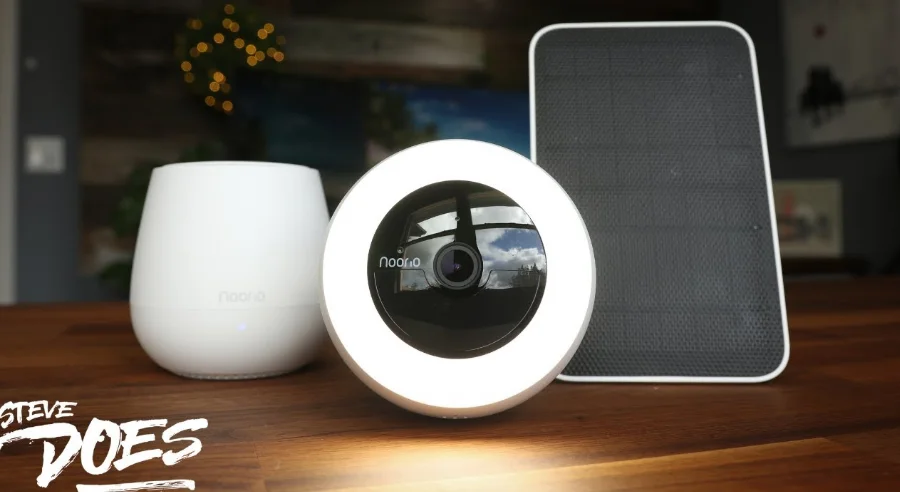

Noorio B310 Outdoor 2K Floodlight Camera
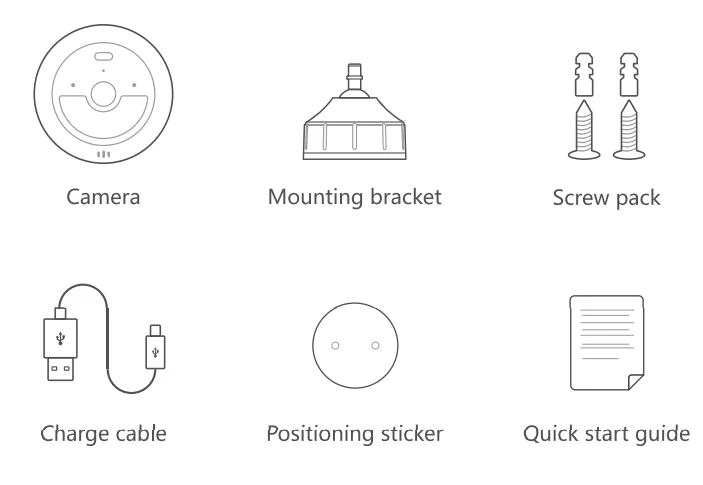
What’s Included
You may need

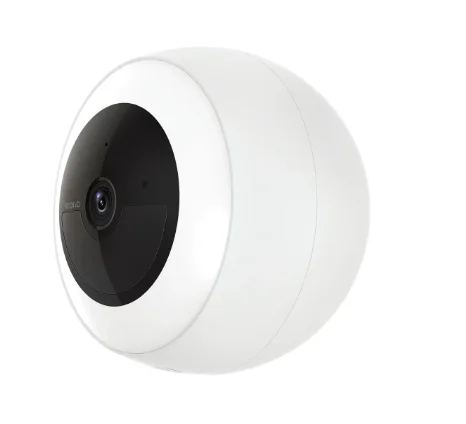
Product Overview

LED Indication

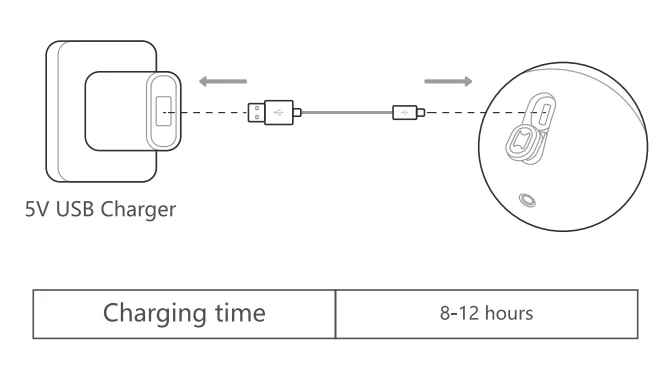
Charging Device
Set Up Your Device
- Scan the code below to get the Noorio app.
- Tap “Set Up a Device” to add your camera.
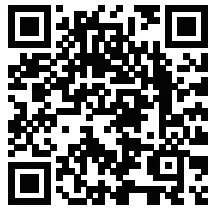
For online help and support, visit https://support.nooriolife.com/
Notice
FCC Statement
This device complies with Part 1 S of the FCC Rules. Operation is subject to the following two conditions:
- This device may not cause harmful interference.
- This device must accept any interference received, including interference that may cause undesired operation.
Caution: Any changes or modifications not expressly approved by the party responsible for compliance could void the user’s authority to operate the equipment.
Note: This equipment has been tested and found to comply with the limits for a Class B digital device under Part 15 of the FCC Rules. These limits are designed to protect reasonably against harmful interference in a residential installation. This equipment generates uses and can radiate radio frequency energy and, if not installed and used according to the instructions, may cause harmful interference to radio communications. However, there is no guarantee that interference will not occur in a particular installation. Suppose this equipment does cause harmful interference to radio or television reception, which can be determined by turning the equipment off and on. In that case, the u~ ~ is encouraged to try to correct the interference by one or more of the following measures:
- Reorient or relocate the receiving antenna.
- Increase the separation between the equipment and receiver.
- Connect the equipment to an outlet on a circuit different from the receivers.
- Consult the dealer or an experienced radio/TV technician for help.
Radio Frequency Exposure Statement
The device has been evaluated to meet general RF exposure requirements. The device can be used in fixed/mobile exposure conditions. The min separation distance is 20cm.
 This product complies with the radio interference requirements of the European Community.
Declaration of Conformity
This product complies with the essential requirements and other relevant provisions of Directive 2014/S3/EU. For the declaration of conformity, visit https://www.nooriolife.com/
Battery Safety (Only for the products that have batteries)
Do not expose the device to fire. Explosion or other hazard. Do not use the device in the environment at too high or too low temperature, never expose the device to strong sunshine or too too-wet environment. It is recommended to charge the device in an environment with a normal room temperature and good ventilation.
 This symbol means the product must not be discarded as household waste, and should be delivered to an appropriate collection facility for recycling. Proper disposal and recycling help protect natural resources, human health, and the environment. For more information on the disposal and recycling of this product, contact your local municipality, disposal service, or the shop where you bought this product.
IC Statement
This device complies with Industry Canada licence-exempt RSS standard(s). Operation is subject to the following two conditions.
- This device may not cause interference, and
- This device must accept any interference, including interference that may cause undesired operation of the device.
IC RF Statement
When using the product. Maintain a distance of 20cm from the body to ensure compliance with RF exposure requirements.
For more manuals by Noorio, visit ManualsLibraryy
Noorio B310 Outdoor 2K Floodlight Camera- FAQs
1. How do I reset my Noorio B310 Floodlight Camera?
Press and hold the reset button located on the top of the camera for about 5–10 seconds. You’ll hear a voice prompt saying, “Device reset successfully.” The LED will flash blue, indicating the camera is ready for setup again through the Noorio app.
2. How do I connect the Noorio B310 to Wi-Fi?
Open the Noorio app, add a new device, and follow the setup prompts. Make sure your Wi-Fi network is 2.4GHz, not 5GHz, and that your router’s SSID and password are entered correctly. Place the camera within a good signal range for best connectivity.
3. Can the Noorio B310 connect to 5GHz Wi-Fi?
No. The Noorio B310 supports 2.4GHz Wi-Fi only. Ensure your router broadcasts a 2.4GHz signal, which provides a stronger range for outdoor cameras.
4. How do I reset the camera if there is no reset button?
If your model has no visible reset button, open the Noorio app, go to Device Settings → Reset or Restore Factory Settings, and confirm. This method resets the camera without pressing a physical button.
5. Why is my Noorio B310 not connecting to Wi-Fi?
Check that the camera has power and that you’re entering the correct Wi-Fi password. Make sure your router is close enough and not blocked by thick walls or metal objects. Restart your router and camera, then try reconnecting through the app.
6. How can I tell if my floodlight camera is working properly?
When powered, the camera’s LED should light up or flash. You can also check the Noorio app live view to confirm if the feed is active. If there’s no signal, ensure the camera has power and a stable Wi-Fi connection.
7. How far can the Noorio B310 connect from the Wi-Fi router?
On average, the camera works well within 150 meters (490 feet) in open outdoor spaces. Indoors or with obstacles like walls, the range reduces to about 50 meters (160 feet).
8. Why is my camera showing a black screen or no image?
A loose or damaged cable, weak power supply, or poor Wi-Fi signal can cause video loss. Check connections, ensure the floodlight is powered, and restart the camera.
9. How do I perform a soft reset on my camera?
To do a soft reset, briefly press the reset button for less than 5 seconds. This refreshes the system and resolves minor setup or connectivity issues without erasing all settings.