
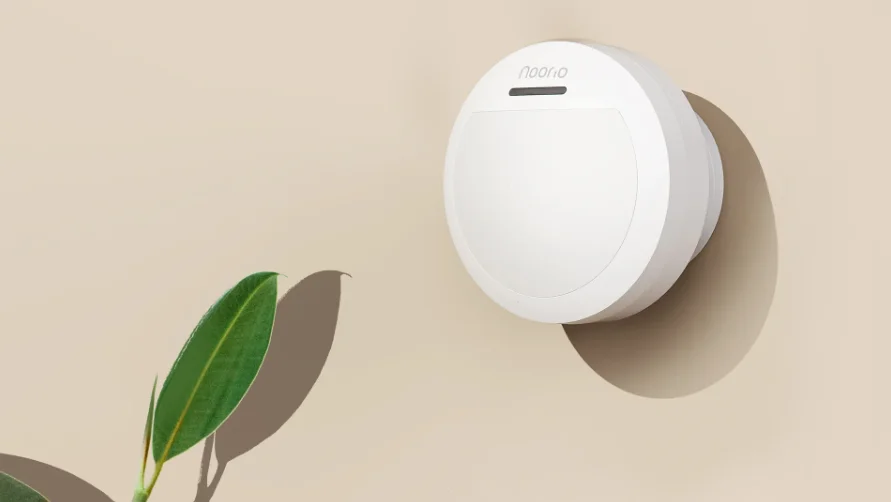

Noorio H300 Motion Sensor
What’s Included
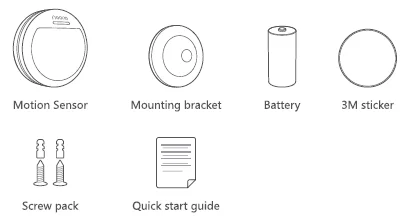
Product Overview
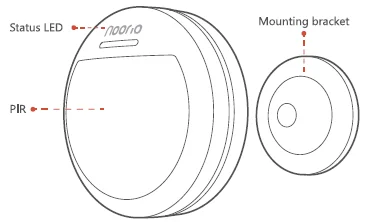
LED Indication
LED Light and Sensor Status
- Flashing blue: Ready for setup
- Flash blue once: Motion Detected
Battery Installation
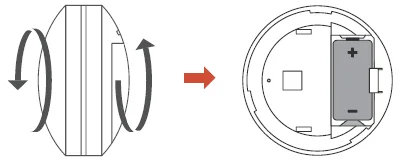
- Twist the back cover of the sensor and take it off.
- Install the CR123A battery into the slot correctly.
Set Up Your Device
- Scan the code below to get the Noorio app.
- Tap “Set Up a Device” to add your sensor.


Notice
FCC Statement
This device complies with Part 15 of the FCC Rules. Operation is subject to the following two conditions:
- This device may not cause harmful interference.
- This device must accept any interference received, including interference that may cause undesired operation.
Caution: Any changes or modifications not expressly approved by the party responsible for compliance could void the user’s authority to operate the equipment.
Note: This equipment has been tested and found to comply with the limits for a Class B digital device, pursuant to Part 15 of the FCC Rules. These limits are designed to provide reasonable protection against harmful interference in a residential installation. This equipment generates uses and can radiate radio frequency energy and, if not installed and used in accordance with the instructions, may cause harmful interference to radio communications.
However, there is no guarantee that interference will not occur in a particular installation. If this equipment does cause harmful interference to radio or television reception, which can be determined by turning the equipment off and on, the user is encouraged to try to correct the interference by one or more of the following measures:
- Reorient or relocate the receiving antenna.
- Increase the separation between the equipment and receiver.
- Connect the equipment into an outlet on a circuit different from that to which the receiver is connected.
- Consult the dealer or an experienced radio/TV technician for help.
Radio Frequency Exposure Statement
The device has been evaluated to meet general RF exposure requirements. The device can be used in fixed/mobile exposure conditions. The min separation distance is 20cm.
Battery Safety (Only for the products that have batteries)
Do not expose the device to fire, explosion, or other hazards. Do not use the device in an environment at too hot or too cold, never expose the device to strong sunshine or too too-wet environment. Do not charge the battery.
Customer Service
Warranty
1 year limited warranty
Email Us
- Customer Support: [email protected]
- Noorio Innovations Limited
- Office 216 2nd Floor, Alpha House, 27-33 Nathan Road, Tsim Sha Tsui, Kowloon, Hong Kong
For more Manuals by Noorio, visit ManualsLibraryy
Noorio H300 Motion Sensor-FAQs
What is the Noorio H300 Motion Sensor used for?
The Noorio H300 detects motion in your home and works with the Noorio Smart Hub to trigger automations such as turning on cameras, lights, or alarms when movement is detected.
Why isn’t my Noorio H300 detecting motion?
Ensure the sensor is properly paired, powered, and positioned within range of the Smart Hub. Avoid placing it behind obstacles or near direct sunlight, which may affect detection.
How many Noorio devices can connect to one Smart Hub?
A single Noorio Smart Hub supports up to 4 cameras and 64 sensors, including motion and contact sensors.
How do I share access to the H300 Motion Sensor with my family?
In the Noorio app, go to Device Settings → Device Sharing → Add Shared User, then enter your family member’s email address to grant access.
Can the Noorio H300 Motion Sensor work without internet?
The sensor can still connect locally to the Smart Hub using Noorio’s internal protocol, but remote notifications and app controls require an internet connection.
What does the Noorio Smart Hub do with the H300 sensor?
The hub acts as the control center—it connects the H300 sensor to other Noorio devices, stores data, and can trigger alerts or automations, such as activating a camera when motion is detected.
How do I reset the Noorio H300 Motion Sensor?
Press and hold the sync button until the LED flashes blue. The device will announce, “Device reset successfully.” Then reconnect it through the Noorio App.
Where should I install the Noorio H300 Motion Sensor?
Mount the sensor on a wall or corner at a height of about 6–8 feet for best motion detection. Avoid placing it near heat sources, windows, or air vents to reduce false alerts.