
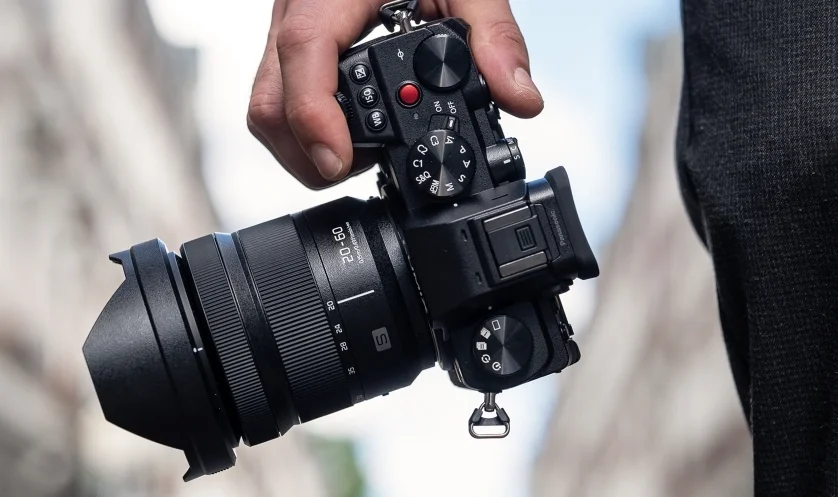

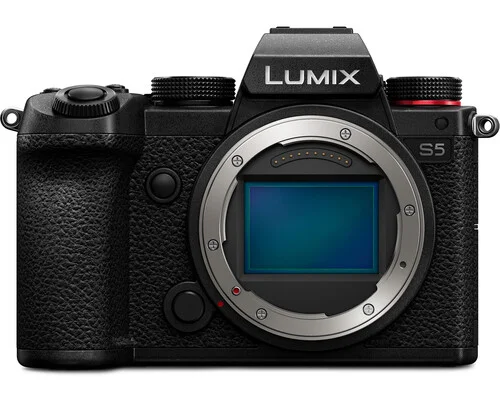
Panasonic Lumix S5 Full Frame Mirrorless Camera
Operating symbols
In this document, camera operation is explained using the following symbols: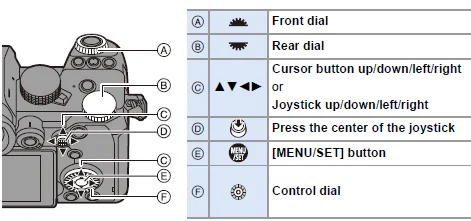
- Other symbols, such as icons shown on the camera screen, are also used in explanations.
- This document describes the procedure for selecting menu items as follows:
Example: Set [Picture Quality] of the [Photo] ([Image Quality]) menu to [STD.].
Introduction
Before Use
Firmware of Your Camera/Lens
Firmware updates may be provided in order to improve camera capabilities or to add functionality. For smoother recording, we recommend updating the firmware of the camera/lens to the latest version.
- For the latest information on the firmware or to download/update the firmware, visit the following support site: https://panasonic.jp/support/global/cs/dsc/
- To check the firmware version of the camera/lens, attach the lens to the camera and select [Firmware Version] in the [Setup] ([Others]) menu. You can also update the firmware in [Firmware Version].
- You can also update the firmware from a smartphone. For details, refer to [Help] in “LUMIX Sync”.
- This document provides explanations for camera firmware version 1.0.
Handling of the Camera
- When using the camera, take care not to drop it, bump it, or apply undue force. These may cause malfunction or damage to the camera and lens.
- If sand, dust, or liquid gets on the monitor, wipe it off with a dry soft cloth. Touch operations may be incorrectly recognized.
- Do not place a hand inside the camera mount. This may cause a failure or damage because the sensor is a precision device.
- The sensor can move, making a rattling noise, when the camera is shaken while it is off. This is caused by the image stabilizer mechanism in the body. It is not a malfunction.
Splash Resistant
Splash Resistant is a term used to describe an extra level of protection this camera offers against exposure to a minimal amount of moisture, water, or dust.
Splash Resistant does not guarantee that damage will not occur if this camera is subjected to direct contact with water.
In order to minimize the possibility of damage, please be sure that the following precautions are taken:
- Splash Resistant works in conjunction with the lenses that were specifically designed to support this feature.
- Securely close the doors, contact points, cover, etc.
- When the lens or cap is removed or a door is open, do not allow sand, dust, and moisture to enter inside.
- If liquid gets on the camera, wipe it off with a dry soft cloth.
Condensation (When the Lens, the Viewfinder, or Monitor is Fogged Up)
- Condensation occurs when there are temperature or humidity differences. Take care, as this may lead to soiling, mold, and malfunctions in the lens, viewfinder, and monitor.
- If condensation occurs, turn off the camera and leave it for approx. 2 hours. The fog will disappear naturally when the temperature of the camera becomes close to the ambient temperature.
Standard Accessories
Check that all the accessories are supplied before using the camera.
- The accessories and their shape will differ depending on the country or area where the camera was purchased. For details on the accessories, refer to “Owner’s Manual <Basic>” (supplied).
- The digital camera body is referred to as the camera in this document.
- The battery pack is referred to as a battery pack or battery in this document.
- The battery charger is referred to as a battery charger or charger in this document.
- The memory card is optional.
Lenses That Can Be Used
The lens mount of this camera is compliant with the L-Mount standard of Leica Camera AG.
It can be used with 35 mm full-frame interchangeable lenses and APS-C size interchangeable lenses of this standard.
- The interchangeable lenses used in the explanations are designated as follows in this document.

- When there is no distinction between the types of lenses, the explanation will use lens.
- Refer to catalogs/websites for the most current information regarding supported lenses. https://panasonic.jp/support/global/cs/dsc/

Note:
- The angle of view while recording with an APS-C lens is equivalent to the angle of view of a focal length of 1.5k when converted to the focal length of a 35 mm film camera. (If a 50 mm lens is used, the angle of view will be equivalent to a 75 mm lens.)
- As the image area narrows, the following functions are not available when using an APS-C lens:
- 6K photo
- [High Resolution Mode]
- [Multiple Exposure]
Memory Cards That Can Be Used
You can use the following memory cards with this camera.
SD memory card, SDHC memory card, and SDXC memory card are referred to by the generic name of card in this document.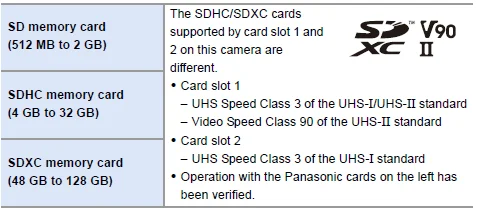
Cards That Can Be Used Stably with This Camera
When using the following functions, use cards that have the correct SD Speed Class, UHS Speed Class, and Video Speed Class.
Speed classes are standards to guarantee the minimum speed necessary for continuous writing.
[Video Record]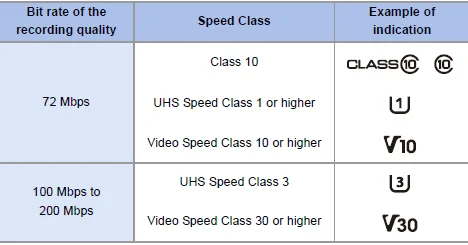
[6K/4K PHOTO]/[Post-Focus]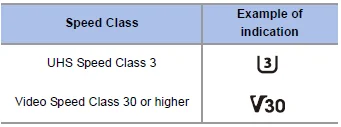
Note:
- You can prevent the writing and deleting of data by setting the write-protect switch on the card to “LOCK”.
- The data stored on a card may be damaged due to electromagnetic waves, static electricity, or a failure of the camera or card. We recommend backing up important data.
- Keep the memory card out of reach of children to prevent swallowing.
Names of Parts
Camera
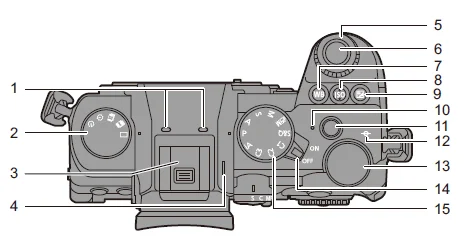
- Stereo microphone. Do not block the microphone with a finger. Audio will be difficult to record.
- Drive mode dial
- Hot shoe (hot shoe cover). Keep the hot shoe cover out of reach of children to prevent swallowing.
- Speaker
- Front dial
- Shutter button
- [WB] (White balance) button
- [ISO] (ISO sensitivity) button
- Exposure compensation button
- Charging light/Wireless connection light
- Video rec. button
- Recording distance reference mark
- Rear dial
- Camera on/off switch
- Mode dial
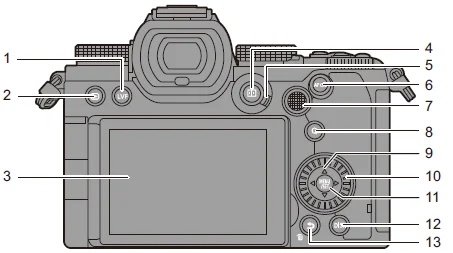
- [LVF] button
- Playback button
- Monitor/Touch screen
- AF mode button
- Focus mode lever
- [AF ON] button
- Joystick/Fn buttons (l 321) Center: Fn8, ∧: Fn9, >: Fn10, ∨: Fn11, <: Fn12
- [Q] (Quick menu) button
- Cursor buttons/Fn buttons ∧: Fn13, >: Fn14, ∨: Fn15, <: Fn16
- Control dial
- [MENU/SET] button
- [DISP.] button
- Cancel button/Delete button/Fn button (Fn1)
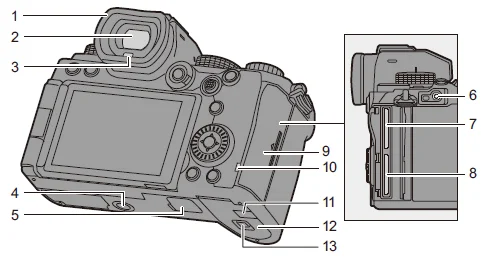
- Eye cup
- Viewfinder
- Eye sensor
- Tripod mount. If you attempt to attach a tripod with a screw length of 5.5 mm (0.22 inches) or more, you may not be able to securely fix it in place, or it may damage the camera.
- Battery grip connector (cover for the battery grip connector). Keep the cover for the battery grip connector out of reach of children to prevent swallowing.
- [REMOTE] socket
- Card slot 1
- Card slot 2
- Card door
- Card access light
- DC coupler cover. When using an AC adaptor, ensure that the Panasonic DC Coupler (DMW-DCC17: optional) and AC Adaptor (DMW-AC10: optional) are used.
- Battery door
- Battery door release lever
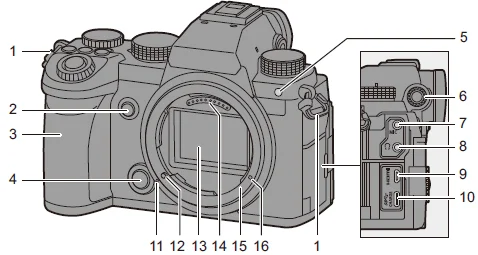
- Shoulder strap eyelet
- Preview button/Fn button (Fn2)
- Grip
- Lens release button
- Self-timer light/AF assist light
- Diopter adjustment dial
- [MIC] socket
- Headphone socket. Excessive sound pressure from earphones and headphones can cause hearing loss.
- [HDMI] socket
- USB port
- Lens fitting mark
- Lens lock pin
- Sensor
- Contact points
- Mount
- Screw hole for function expansion
Supplied Lens
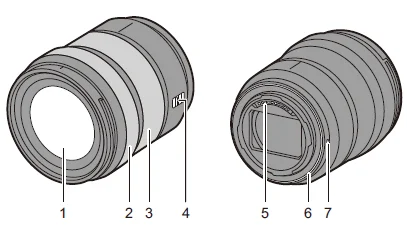
- Lens surface
- Focus ring
- Zoom ring
- [AF/MF] switch. You can switch between AF and MF. If [MF] is set on either the lens or camera, operation will be with MF.
- Contact points
- Lens mount rubber
- Lens fitting mark
Note:
Recording at or near the closest focusing distance at a wide angle will degrade image quality around the edges of the image. We recommend checking each picture after you have taken it when recording.
Viewfinder/Monitor Displays
At the time of purchase, the viewfinder/monitor displays the following icons.
For information about the icons other than those described here, refer to page 493.
Viewfinder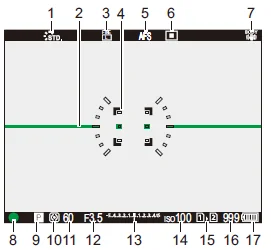
- Photo Style
- Level gauge
- Picture quality/Picture size
- AF area
- Focus mode
- AF mode
- Image stabilizer
- Focus (green)/Recording state (red)
- Recording mode
- Metering mode
- Shutter speed
- Aperture value
- Exposure compensation value/Manual Exposure Assist
- ISO sensitivity
- Card slot/Double card slot function
- Number of still images that can be taken/Number of pictures that can be taken continuously
- Battery indication
Getting Started
Attaching a Shoulder Strap
Attach a shoulder strap to the camera with the following procedure to prevent it from dropping.
Note:
- Pull the shoulder strap and check that it will not come out.
- Attach the opposite end of the shoulder strap with the same procedure.
- Use the shoulder strap around your shoulder. Do not wrap the strap around your neck. It may result in injury or accident.
- Do not leave the shoulder strap where an infant can reach it. It may result in an accident by mistakenly wrapping around the neck.
Charging the Battery
You can charge the battery either using the supplied charger or in the camera body.
You can also turn on the camera and supply power from an electrical outlet.
- The battery that can be used with the camera is DMW-BLK22. (As of September 2020)
Charging with the Charger
Charging time: Approx. 230 min
- Use the supplied charger and AC adaptor.
- The indicated charging time is for when the battery has been discharged completely. The charging time may vary depending on how the battery has been used. The charging time for the battery in hot/cold environments or a battery that has not been used for a long time may be longer than normal.
- Use the products supplied with the camera for charging.
- Use the charger indoors.
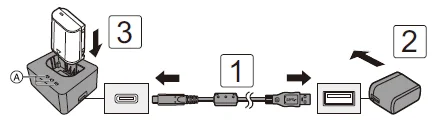
- Connect the charger and the AC adaptor with the USB connection cable. Check the direction of the terminals and plug in/out straight, holding onto the plug. (Inserting these at an angle may cause deformation or malfunction)
- Connect the AC adaptor to an electrical outlet.
- Insert the battery. The charging lights ([CHARGE]) (A) blink, and charging begins.
- Do not use any other USB connection cables except the supplied one. This may cause a malfunction.
- Do not use any other AC adaptors except the supplied one. This may cause a malfunction.
Charging Lights Indications
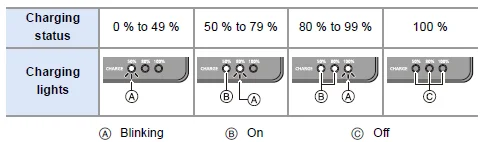
When the battery is inserted while the charger is not connected to the power source, the charging lights turn on for a certain period to allow you to confirm the battery level.
Note
After charging, disconnect the power source connection and remove the battery.
If the [50%] light is blinking quickly, then charging is not occurring.
- The temperature of the battery or surroundings is either too high or too low. Try charging at an ambient temperature between 10 °C and 30 °C (50°F and 86°F).
- The terminals of the charger or the battery are dirty. Remove the connection to the power source, and wipe with a dry cloth.
Battery Insertion
- Always use genuine Panasonic batteries (DMW-BLK22).
- If you use other batteries, we cannot guarantee the quality of this product.
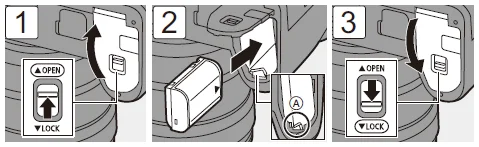
- Check that the camera on/off switch is set to [OFF].

- Check that lever A is holding the battery in place.
Removing the Battery
- Set the camera on/off switch to [OFF].
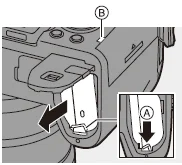
- Open the battery door. Check that the card access light B is turned off, and then open the battery door.
- Push the lever A in the direction of the arrow and then remove the battery.

Note
- Ensure that no foreign objects are adhering to the inner side (cushion) of the battery door.
- Remove the battery after use. (The battery will drain if left inserted in the camera for a long period of time.)
- The battery becomes warm after use, during charging, and immediately after charging. The camera also becomes warm during use. This is not a malfunction.
- Be careful when removing the battery, as the battery will jump out.
Inserting a Battery into the Camera for Charging
Charging time: Approx. 240 min
- Using the camera body and the supplied AC adaptor.
- The indicated charging time is for when the battery has been discharged completely. The charging time may vary depending on how the battery has been used. The charging time for the battery in hot/cold environments or a battery that has not been used for a long time may be longer than normal.
Use the products supplied with the camera for charging.
- Set the camera on/off switch to [OFF].
- Insert the battery into the camera.
- Connect the camera USB port and the AC adaptor using the USB connection cable. Check the direction of the terminals and plug in/out straight, holding onto the plug. (Inserting these at an angle may cause deformation or malfunction)
- Connect the AC adaptor to an electrical outlet. The charging light A turns re,d and charging begins.
Charging Light Indications
Charging light (red)
- On: Charging.
- Off: Charging has completed.
- Blinking: Charging error.
Note:
- You can also charge the battery by connecting a USB device (PC, etc.) and the camera with the USB connection cable. Charging may take longer in this case.
- The battery in the Battery Grip (DMW-BGS5: optional) cannot be charged.
- Do not use any other USB connection cables except the supplied one. This may cause a malfunction.
- Do not use any other AC adaptors except the supplied one. This may cause a malfunction.
- After charging, disconnect the connection to the power source.
- While the charging light is blinking red, charging is not possible. The temperature of the battery or surroundings is either too high or too low. Try charging at an ambient temperature between 10 °C and 30 °C (50°F and 86°F). The terminals of the battery are dirty. Remove the battery and wipe off the dirt with a dry cloth.
- Even when the camera on/off switch is set to [OFF], thus turning the camera off, it consumes power. When the camera is not used for a long time, remove the power plug from the electrical outlet in order to save power.
Inserting Cards (Optional)
This camera supports the double card slot function.
When two cards are used, relay recording, backup recording, and allocation recording are available.
- Card slot 1 (compatible with UHS-I/UHS-II)
- Card slot 2 (compatible with UHS-I)
Match the orientation of the cards as shown in the figure, and then insert them firmly until they click.
Card Access Indications
The card access light turns on while the card is being accessed.
Removing a Card
- Open the card door. Check that the card access light is turned off, and then open the card door.
- Push the card until it clicks, and then pull the card out straight.
Note
- The card may be warm just after the camera has been used.
- Do not perform the following operations during access. The camera may operate incorrectly, or the card and recorded images may be damaged.
- Turn off the camera.
- Remove the battery or card, or disconnect the power plug.
- Subject the camera to vibration, impacts, or static electricity.
Attaching a Lens Hood
For recording against a strong backlight, a lens hood can reduce the inclusion of unwanted light in images and a drop in contrast resulting from the irregular reflection of light that occurs within the lens.
It allows you to take more beautiful pictures by cutting out excess light.
When attaching the lens hood (flower shape) supplied with the interchangeable lens (S-R2060)
Hold the lens hood by placing your fingers as shown in the figure.
- Do not hold the lens hood in such a way that it will become bent.
- Align the mark on the lens hood with the mark on the tip of the lens.
- Rotate the lens hood in the direction of the arrow to align the mark on the lens hood with the mark on the tip of the lens. Attach the lens hood by rotating it until it clicks.
Removing the Lens Hood
While pressing the lens hood button, rotate the lens hood in the direction of the arrow and then remove it.
For more Manuals by Panasonic, visit ManualsLibraryy
Panasonic Lumix S5 Full Frame Mirrorless Camera-FAQs
What are the main specifications of the Lumix S5?
It features a 24.2MP full-frame CMOS sensor, wide dynamic range, low noise up to ISO 51,200, and can shoot 4K video up to 60p. The camera is also dust- and splash-resistant for durability.
Can the Lumix S5 shoot 4K video?
Yes. It supports 4K 60p/50p 4:2:0 10-bit internally, 4K 30p/25p 4:2:2 10-bit internal recording, and up to 5.9K RAW output via HDMI.
How do I connect the Lumix S5 to a computer?
Use the supplied USB cable. Turn on both the camera and PC, connect the cable securely, and your computer should recognize the camera for transferring files.
How do I transfer photos from the Lumix S5 to a phone?
Install the LUMIX Sync app on your smartphone. Connect the camera via Wi-Fi, select your device in the app, and transfer images directly.
Which lens is best for videography?
For cinematic video, 50mm or 28mm lenses are recommended. They provide a natural field of view and excellent depth of field for storytelling.
Can the Lumix S5 shoot in low light?
Yes. With a base ISO of 640 and Dual Native ISO up to 4000, the S5 performs exceptionally well in dim environments.
Does Panasonic have an app for the Lumix S5?
Yes. The LUMIX Sync app allows Wi-Fi connection, remote shooting, and photo/video transfer to smartphones.
Can I use Canon lenses on the Lumix S5?
Yes, with a compatible lens adapter, you can mount Canon EF lenses and use them with the S5.
How do I adjust shutter speed on the Lumix S5?
Use the shutter speed dial in manual mode or adjust via the camera’s menu settings depending on your shooting mode.