
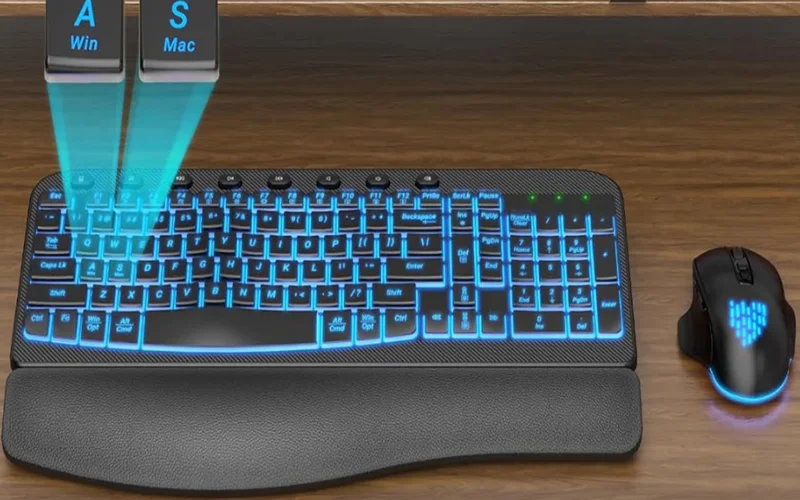

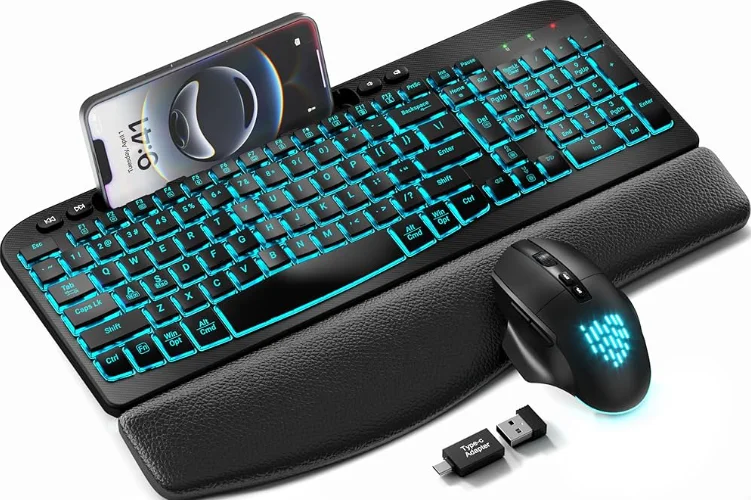
Sablute KM22 PRO Wireless Keyboard Mouse
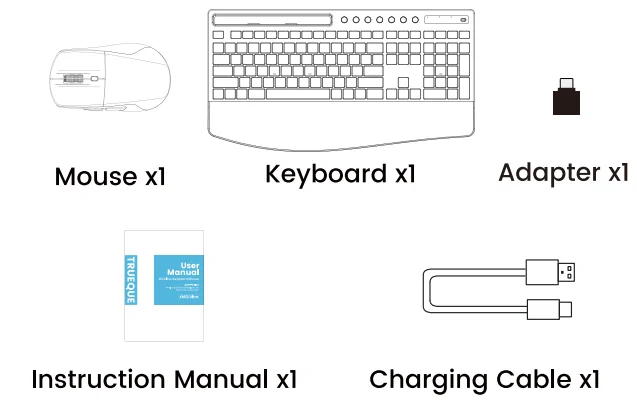
You will receive
Quick Start
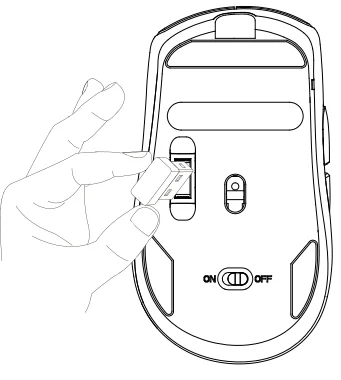
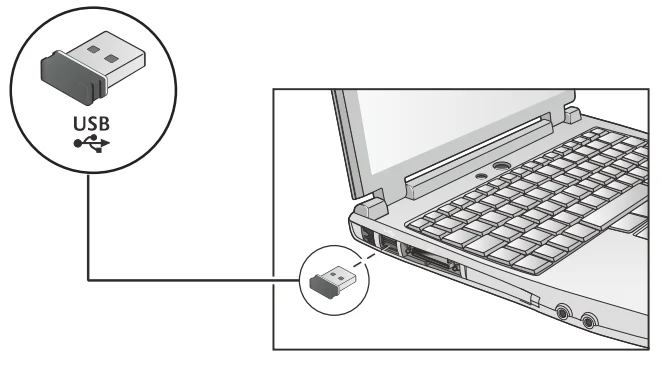
- Find the USB Receiver. The USB receiver is stored at the back of the mouse. Please remove it before use.

- Plug In. Insert the USB receiver into your computer’s USB port.

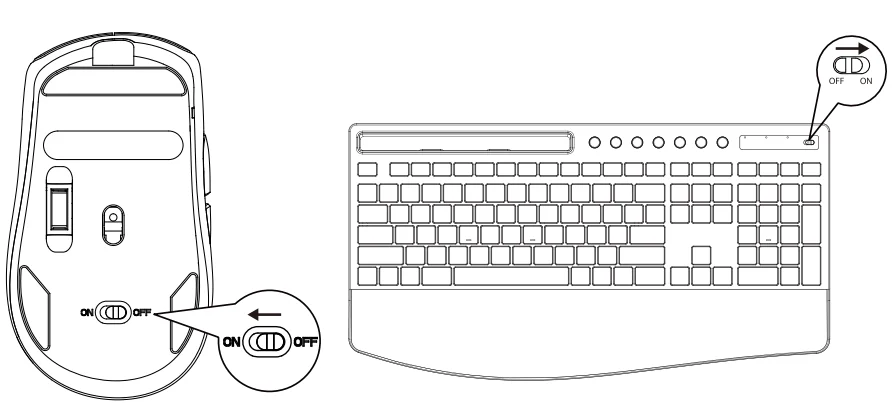
- Power On. Switch on the keyboard and mouse. They will connect automatically, no driver needed.

Keyboard re-pairing method
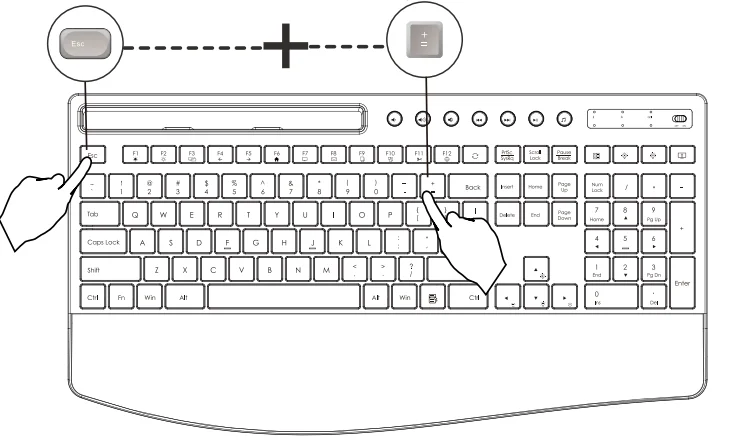
- Hold ESC + “=” for 3 seconds until the red light turns solid.
- Plug in the USB receiver.

Mouse repairing method
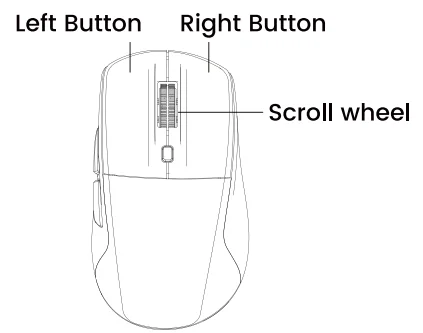
- Hold the left, right, and scroll wheel buttons together for 3-5 seconds.
- Plug in the USB receiver.

Mouse Functions
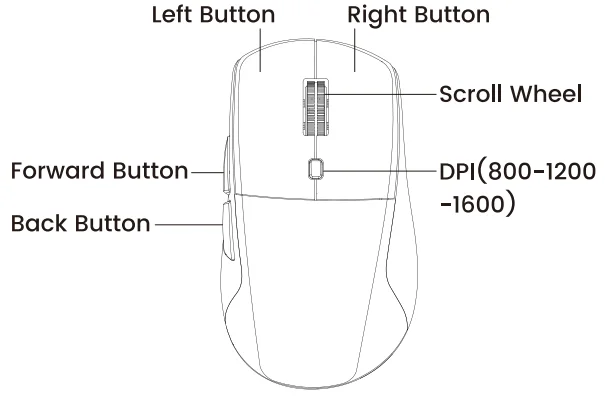
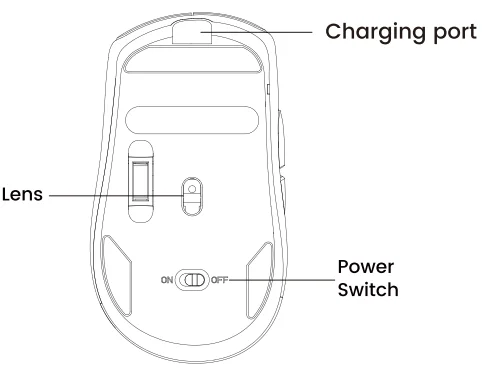
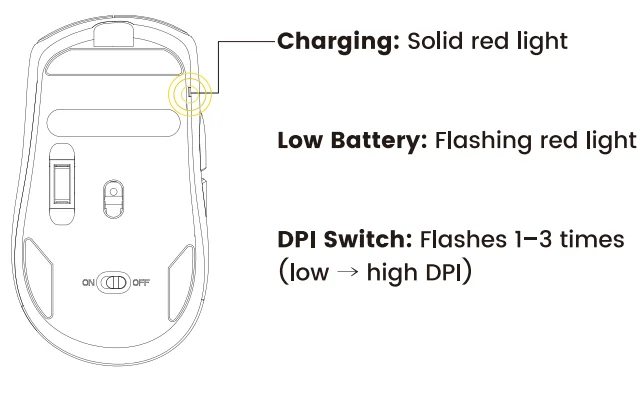
Mouse indicator light
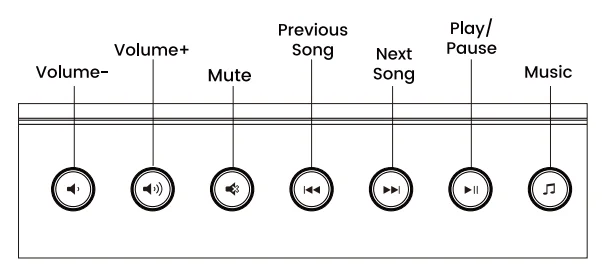
The functions of the shortcut keys
Keyboard Functions
Multimedia Shortcuts (FN + Function Keys)
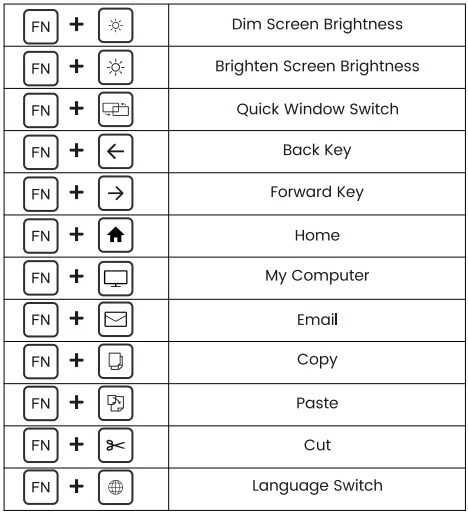
Independent Shortcut Keys
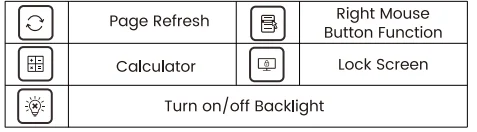
Backlight Control
- FN +:
 Adjust Brightness (5 levels)
 - FN +:
 Switch Lighting Effects (9 modes)
 - FN +:
 Cycle Through Colors / Lighting Speed (Decrease / Increase)
 Adjust Brightness (5 levels)

Indicator light function
- Num Lock: Green light on when Num Lock is active.
- Caps Lock: Green light on when Caps Lock is active.
 Low Battery:
- Red light flashes when power is low.
- Pairing: Steady red light during re-pairing.
- Charging: Steady red light when charging via Type-C.

 Low Battery: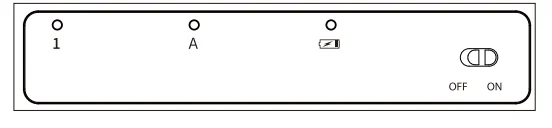
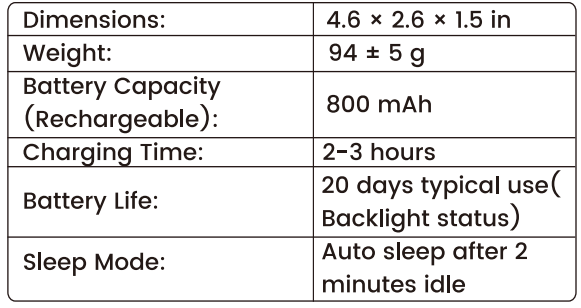
Product Specifications
Keyboard:
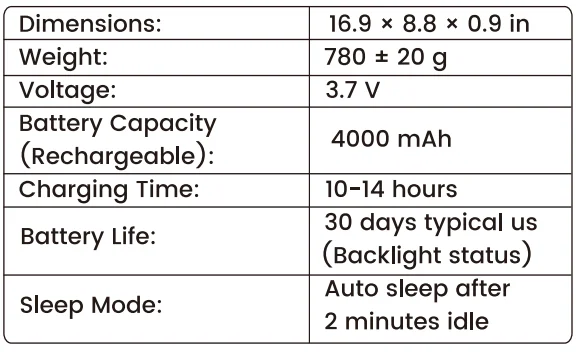
Mouse:
FAQ
Q1: Can’t connect?
A: Make sure the USB receiver is firmly plugged in, both keyboard and mouse are switched ON, and stay within 26 ft (8 m). If it still doesn’t work, please re-pair the devices (see Keyboard Pairing / Mouse Pairing section).
Q2: Backlight off?
A: This may happen if:
- Device enters sleep mode after a few minutes of idle → press any key/click to wake.
- Battery is low – recharge via USB-C cable.
- Backlight was turned off → use Backlight Control to adjust brightness/effects.
Q3: Keyboard not responding?
A: Check if the keyboard is charged. Replug the USB receiver or try another USB port (avoid hubs). If still unresponsive, re-pair as in Q1.
Q4: Mouse cursor not smooth?
A: Use on a flat, non-reflective surface (avoid glass or glossy tables). Adjust DPI (3 levels up to 1600 DPI) to match your screen. Recharge if the battery is low.
Customer service
Buy on SABLUTE, You will get:
 30-Day Money-Back Guarantee
- 90-Day Free Replacement
- Hassle-Free Warranty Without Returning
- Lifetime Customer Support
 30-Day Money-Back Guarantee
Contact us
For FAQs and more information, please visit: sablute.com/pages/contact, [email protected].
FCC Statement
This equipment has been tested and complies with the limits for Class B digital devices under Part 15 of the FCC rules. These rules are designed to provide reasonable protection against harmful interference in a residential environment. The device emits radio frequency energy during use, and improper setup may cause interference with wireless communications. If interference is detected (you can test by turning the device off and on), please try the following:
- Make sure the USB receiver is firmly plugged into your computer.
- Place the keyboard, mouse, and USB receiver closer together with no large objects blocking the signal.
- Try connecting the USB receiver to a different USB port on your computer.
- If the problem continues, consult a technician or your dealer for further assistance.
Changes or modifications not approved by the responsible party may void the user’s authority to operate this equipment. Operation is subject to the following two conditions:
- The device may not cause harmful interference.
- The device must accept any interference received, including interference that may cause undesired operation.
For More Manuals By Sablute, Visit ManualsLibraryy.
Sablute KM22 PRO Wireless Keyboard Mouse-FAQs
What are the main features of the Sablute KM22 PRO Wireless Keyboard Mouse Combo?
The Sablute KM22 PRO offers a full-size keyboard with ergonomic wrist support, quiet keys, and a responsive wireless mouse. It typically includes adjustable backlighting, rechargeable batteries, and a built-in device holder. These features make it suitable for productivity, multitasking, and comfortable long-term use.
Is the Sablute KM22 PRO keyboard and mouse combo rechargeable?
Yes, the Sablute KM22 PRO is designed with built-in rechargeable batteries for both the keyboard and mouse. This eliminates the need for disposable batteries and supports long usage with energy-saving features like automatic sleep mode, helping extend battery life significantly between charges.
Does the Sablute KM22 PRO have backlit keys?
The Sablute KM22 PRO usually features multiple backlight options, including several color modes and adjustable brightness. This allows users to type comfortably in low-light environments and customize their workspace aesthetics, while also having the option to turn off lighting to conserve battery when needed.
How do you connect the Sablute KM22 PRO to a computer?
The Sablute KM22 PRO connects via a 2.4GHz USB receiver that pairs both the keyboard and mouse. Simply plug the receiver into your device, and the combo works instantly without additional software. This plug-and-play setup ensures a stable and reliable wireless connection.
What is the wireless range of the Sablute KM22 PRO combo?
The Sablute KM22 PRO typically offers a wireless range of up to 10 meters, allowing flexible use in home or office environments. The connection remains stable within this range, although physical obstacles or interference from other devices may slightly affect performance.
Is the Sablute KM22 PRO comfortable for long typing sessions?
Yes, the KM22 PRO is designed with ergonomics in mind, featuring an extended wrist rest and low-profile keys. These elements help reduce strain on the hands and wrists during prolonged typing sessions, making it a practical choice for work, study, or daily computer use.
Is the Sablute KM22 PRO keyboard and mouse combo quiet?
Yes, the combo is built for quiet operation, with soft membrane keys and a silent-click mouse. This design reduces noise significantly, making it suitable for shared environments such as offices, libraries, or late-night use without disturbing others nearby.
Can the Sablute KM22 PRO be used for gaming?
The Sablute KM22 PRO is mainly intended for office and everyday use rather than gaming. While it can handle casual games, it lacks advanced gaming features like high polling rates or customizable macros, which are typically required for competitive gaming performance.
What should you do if the Sablute KM22 PRO is not working properly?
If the KM22 PRO stops working, check the USB receiver connection, ensure the battery is charged, and try reconnecting the device. Restarting your computer or reducing wireless interference can also help restore functionality and improve connection stability.