
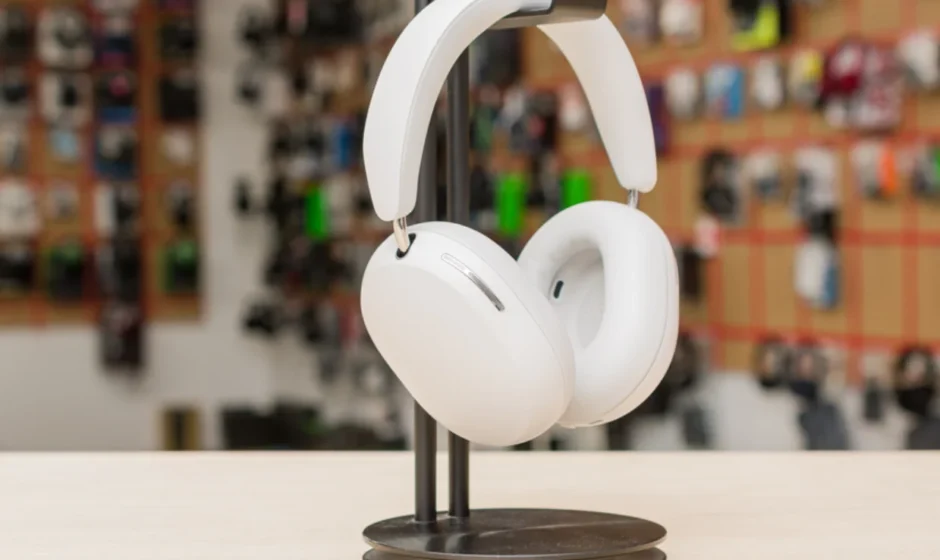

Sonos Ace Noise-Cancelling Wireless Over-Ear Headphones
Overview
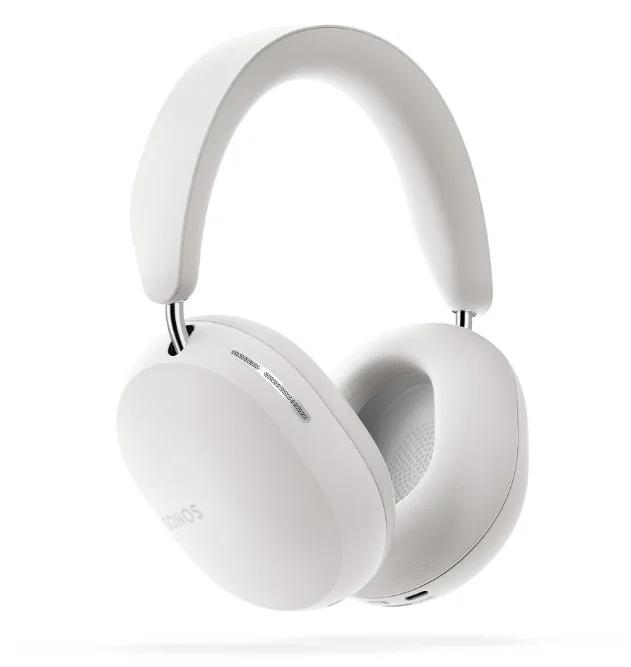
Sonos Ace has been expertly crafted and tuned for a personal listening experience unlike any other.
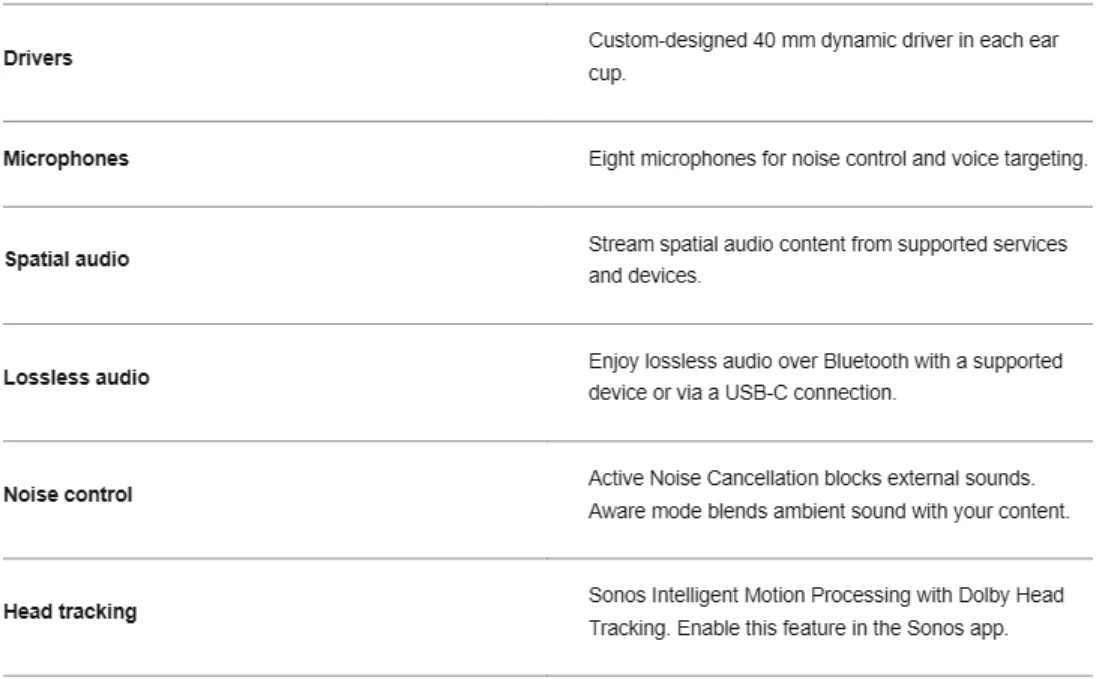
- A new personal best for sound. The custom-designed drivers render each frequency with superior precision and clarity. Experience a deeper connection to your content when you stream lossless and spatial audio.
- All the sounds you want, none of the noise you don’t. World-class Active Noise Cancellation adapts based on fit, pinpointing and neutralizing external sounds for maximum immersion. Turn on Aware Mode to hear what’s going on around you.
- A battery that lasts and charges ultra-fast. Listen or talk for up to 30 hours with Active Noise Cancellation enabled. Get 3 hours of battery life with a quick 3-minute charge using the included USB-C cable.
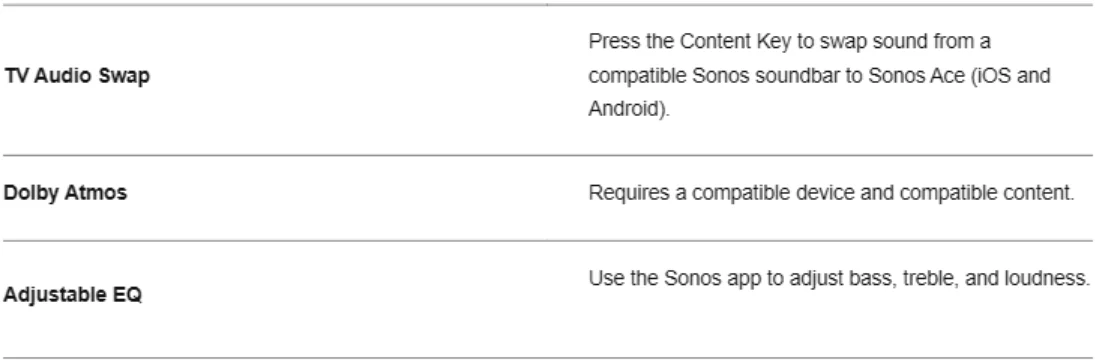
- The most precise and immersive home theater experience. Instantly swap TV audio from a compatible Sonos soundbar to 1 or 2 Sonos Ace headphones and feel transported to your own private theater. Spatial audio with Dolby Atmos envelops you in dramatically detailed sound from all directions, dynamic head tracking turns listening into a uniquely interactive experience (IOS and Android), and TrueCinema virtually renders a complete surround sound system for the most lifelike soundstage.
- Obsessively crafted for comfort. Plush memory foam ear cushions create an exceptional acoustic seal and minimize pressure. The extendable stainless steel headband and rotating ear cups adjust for a bespoke fit.
Controls, Lights, and Ports
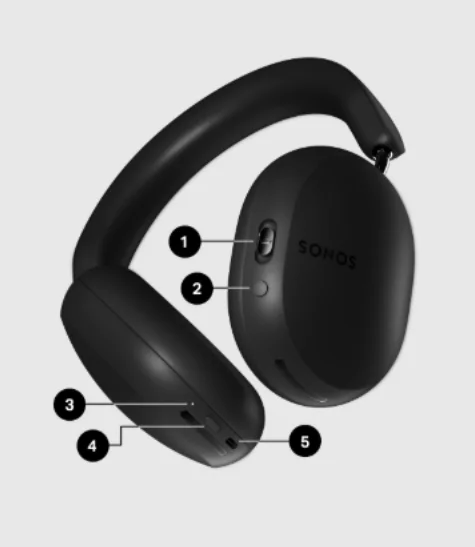
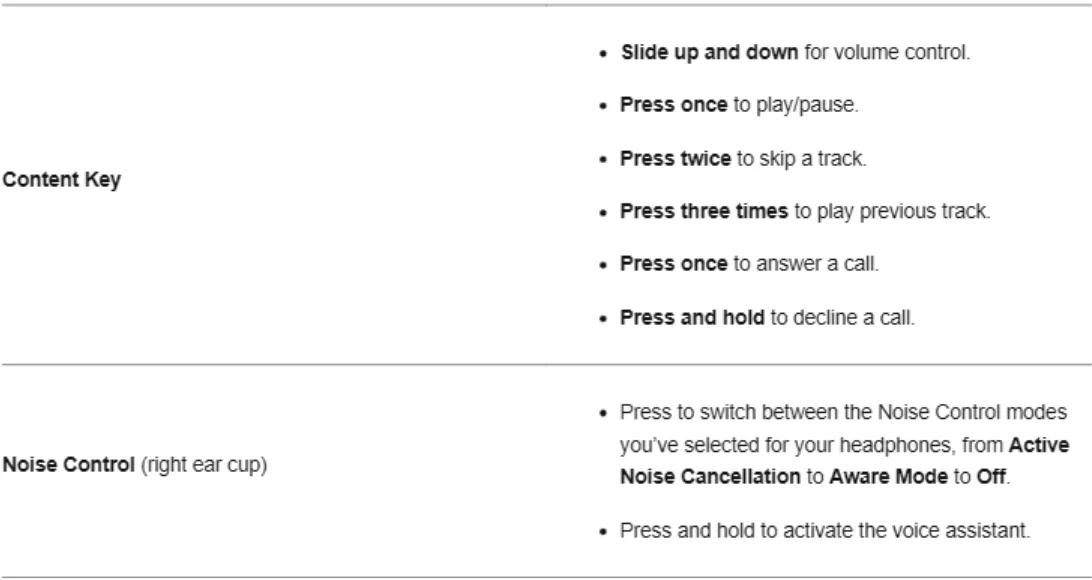
- Content Key
Playback
- Play/Pause: Press once to pause or resume streaming content.
- Next: Double press
- Previous: Triple press
- Volume: Slide up or down. Slide and hold to quickly change the volume.
Home theater
- TV Audio Swap: After you set up TV Audio Swap in the Sonos app, press and hold to swap audio with your soundbar.
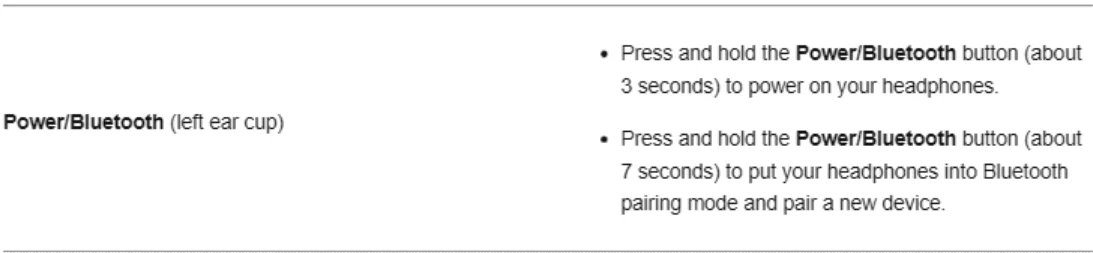
- Noise Control/Voice Control
Noise control
Press to switch between Active Noise Cancellation and Aware Mode.
Note: In the Sonos app, you can turn off Active Noise Cancellation and Aware Mode. Sonos Ace passively isolates you from background noise.
Voice control
Press and hold to activate the voice assistant on your device. You’ll hear a tone when it’s ready to listen.
- Status light
Indicates battery level, charging state, Bluetooth connection, and signals product updates and errors. It turns off when you’re wearing your Sonos Ace. - Power/Bluetooth
Power on/off
- Press and hold (about 3 seconds) to power on your headphones. You’ll hear a tone when they’re ready to use.
- Press and hold (about 3 seconds) to power off. You’ll hear a tone as they power off.
Bluetooth pairing
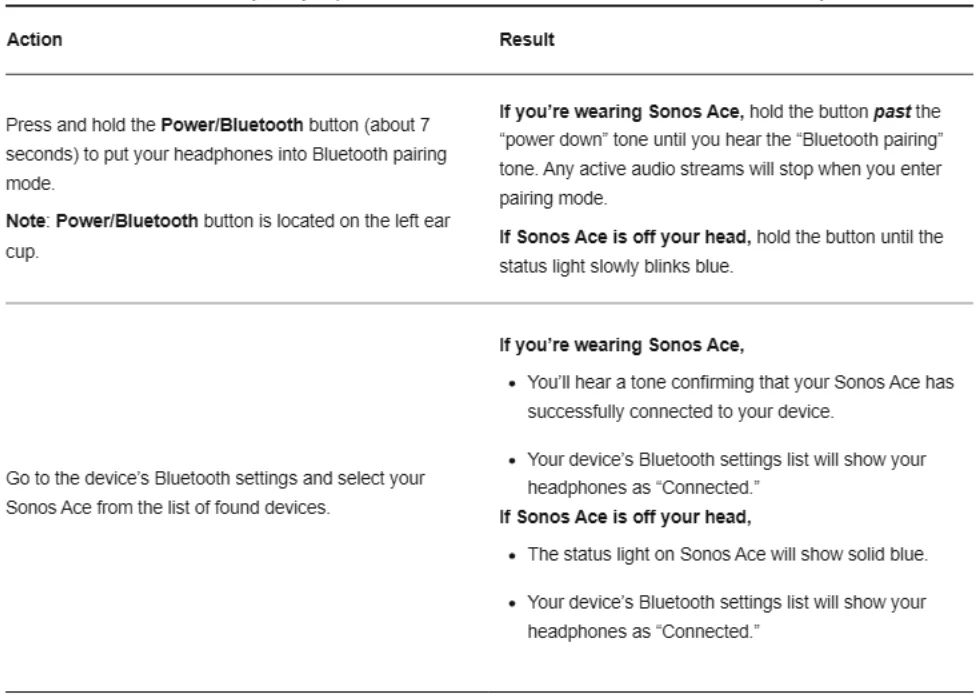
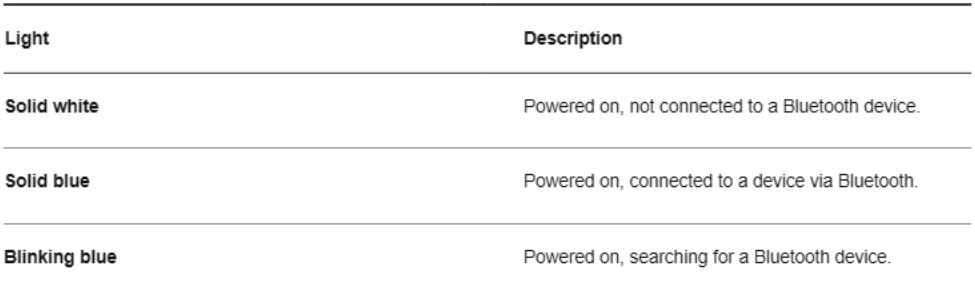
- Press and hold (about 7 seconds) to put your headphones into Bluetooth pairing mode. Hold past the “power down tone (first tone) until you hear the “Bluetooth” tone (second tone),, and the light blinks blue.
- Go to the device’s Bluetooth settings and select your headphones from the list of found devices.
Note: When you turn on your headphones, they automatically connect to the most recently connected Bluetooth device, available.
Factory reset
If you want to set up your Sonos Ace like new, you can factory reset your product to clear all of its settings and previously paired Bluetooth devices.
- Make sure your Sonos Ace is powered on.
- Press and hold the Power/Bluetooth button.
- While holding, plug your Sonos Ace into power.
The status light will flash white when your headphones have been reset.
Note: Sonos Ace is immediately ready to pair with a Bluetooth device when unboxed and after a factory reset.
- USB-C Port
Charging
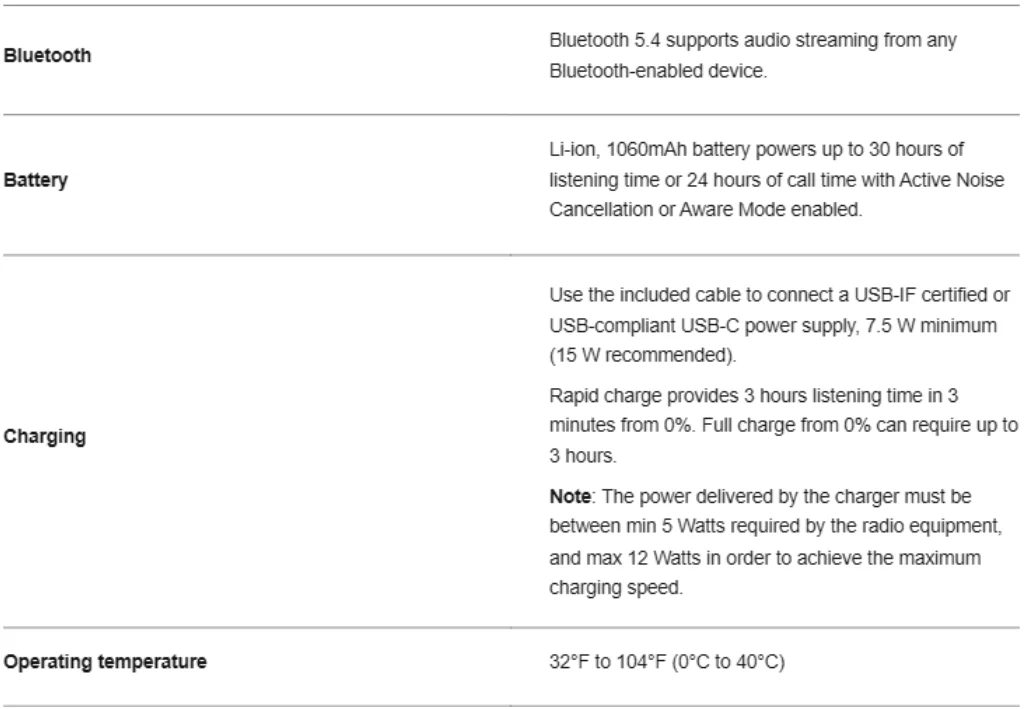
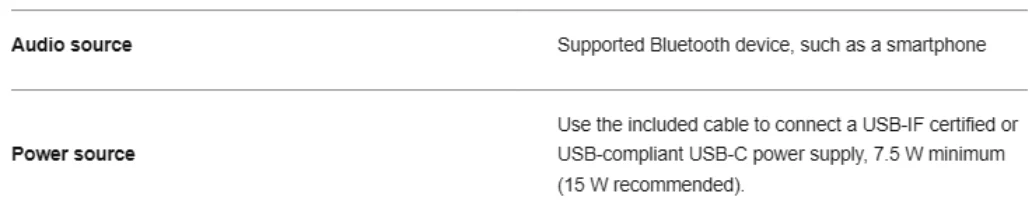
Use the included cable to connect a USB-IF certified or USB-compliant USB-C power supply, 7.5 W minimum (15 W recommended), and listen to Bluetooth audio while you charge.
Line-in
You can plug your headphones into an audio device in two ways:
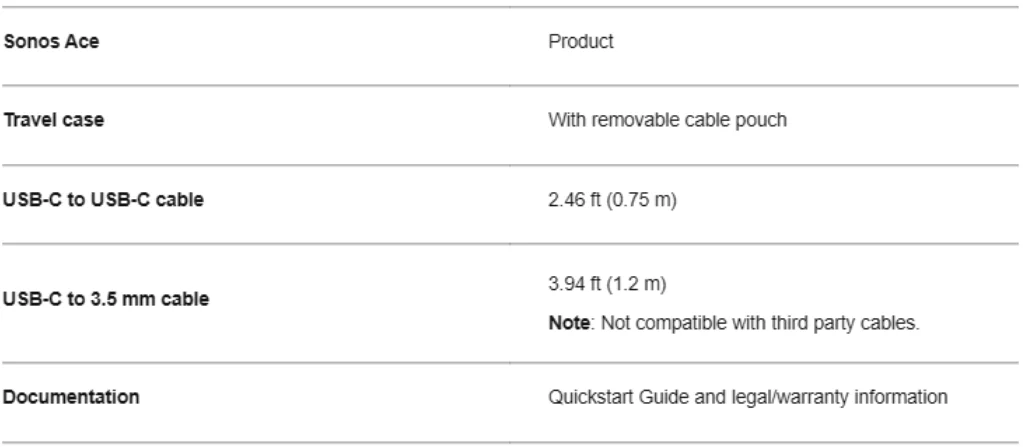
- USB-C to 3.5 mm cable (included). Useful for in-flight entertainment and devices without wireless capabilities. Note: Not compatible with third-party cables.
- USB-C to USB-C cable (included). Adds functionality to the line-inexperience l,,ike content control and phone calls.
Bluetooth is disabled when Sonos Ace is connected to a device with a USB-C cable. The light will show solid white.
Adjust the fit
Sonos Ace underwent extensive wear testing, with thoughtful consideration for different head shapes, head sizes, hairstyles, and accessories, to ensure comfort for as long as you’re listening.
The stainless steel headband smoothly extends and stays securely in place. Inside the ear cup, an innovative mechanism allows for precise adjustment to equalize pressure and create an exceptional acoustic seal.
To get the most out of your Sonos Ace, your headphones must fit comfortably:
- Before you put them on, make sure each ear cup is on the correct side. A contrasting interior color differentiates the right ear cup, so you instantly know how to orient Sonos Ace. You should be able to use the Content Key with your right hand.
- Try on your Sonos Ace. Your ears should be centered and comfortably surrounded by the ear cushions. Extend or shorten the arms of the headband as needed by pulling the ear cup down or pushing it up.
Ear cushion replacement
Ear cushions can be easily replaced if they wear out over time. Each cushion is securely held in place by magnets, but can be removed with a light pull.
When reattaching an ear cushion, here are some things to keep in mind:
- Make sure both cushions are on the correct sides. Look for the L (left) and the R (right).
- Before replacing a cushion, wipe the surface with a clean, dry cloth to make sure it’s free of dust and debris.
- The ear cushions will automatically snap into place.
Bluetooth pairing
Before you start, make sure your Sonos Ace is powered, and Bluetooth is enabled on the device you want to pair your Sonos Ace with.
Note: Sonos Ace is immediately ready to pair with a Bluetooth device when unboxed and after a factory reset.
Multipoint
You can connect your Sonos Ace to 2 Bluetooth devices and automatically switch between audio streams. Make sure Bluetooth is enabled on both of your devices.
In the Sonos app:
- Go to System Settings

- Select your Sonos Ace.
- Navigate to Bluetooth, then toggle Multipoint on or off.

Note: Multipoint is off by default.
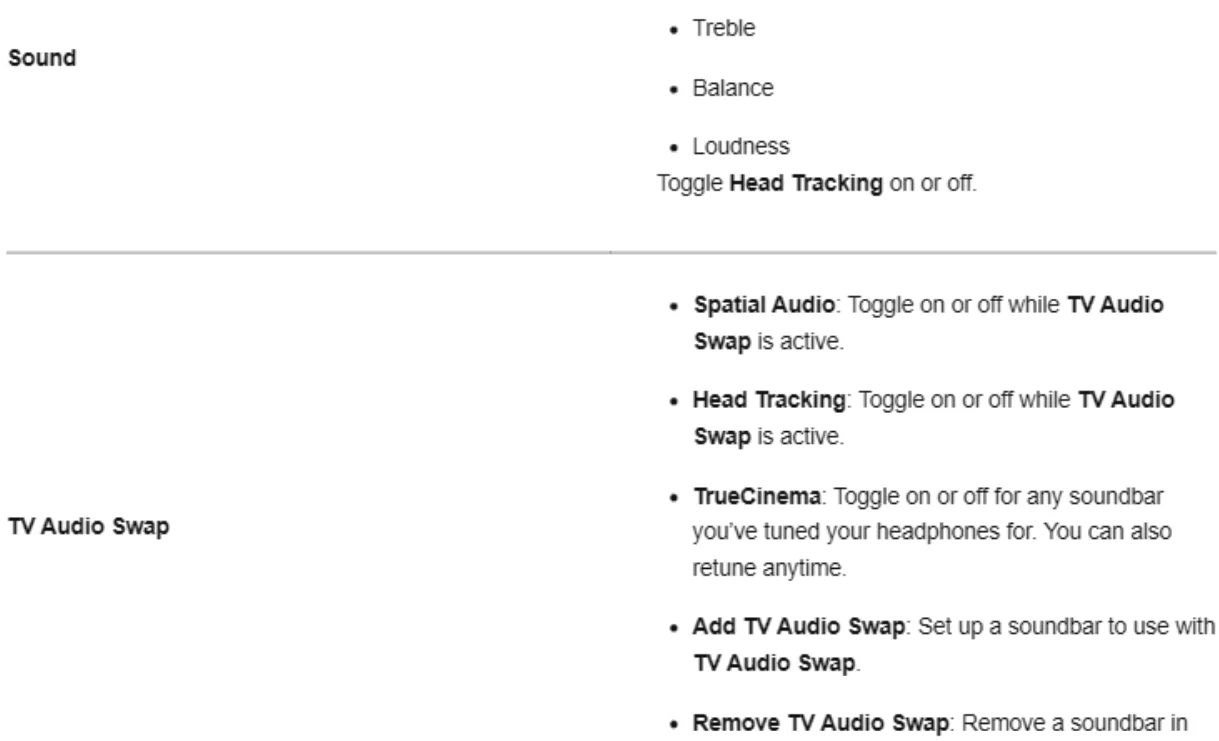
Head tracking for Bluetooth.
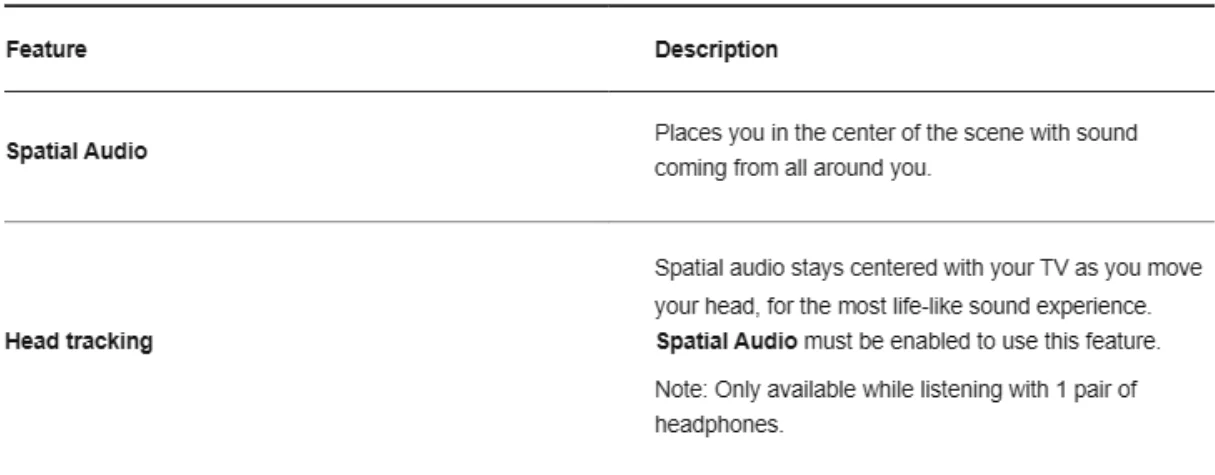
Sonos Intelligent Motion Processing with Dolby Head Tracking is available during Bluetooth playback. This industry-leading Dolby Atmos experience surrounds you in hyperrealistic sound with different elements of the music coming from points around your head.
You can enable or disable Head Tracking in the Sonos app:
- Go to System Settings
- Select your Sonos Ace under Headphones.
- Navigate to Sound, then toggle Head Tracking on or off.
Power and charging
Use the included cable to connect a USB-IF certified or USB-compliant USB-C power supply, 7.5 W minimum (15 W recommended).
While your Sonos Ace is charging, you can continue listening to a Bluetooth-connected device.
Low battery
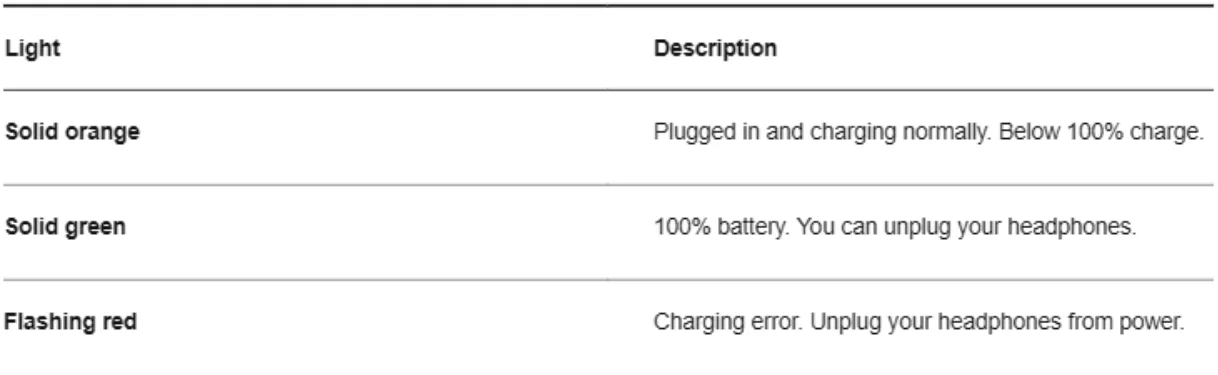
When the battery level reaches 10% power, you’ll hear a tone and the status light will flash orange.

Charging
After connecting your Sonos Ace to power:
- The status light shows solid orange when your headphones are plugged in and charging.
- The status light will show solid green when your headphones are plugged in and reach full charge.
Rapid charging
When your Sonos Ace reaches 10% power or lower, you can utilize rapid charging to quickly recharge. Rapid charging gives you 3 hours of playback in just 3 minutes.
Use the included USB-C to USB-C cable and a compliant USB-C power supply (not included) to charge your headphones:
- 0% to 10% in 3 minutes.
- 10% through 100% normal charging speed (full power in up to 3 hours).
TV Audio Swap
Instantly swap TV audio from a compatible Sonos soundbar to your Sonos Ace and feel enveloped in exhilarating surround sound and spatial audio. You can swap with 2 Sonos Ace headphones at once to enjoy a movie or game together.
Note: Only TV audio (via HDMI or optical) can stream to Sonos Ace.
Use the Sonos app (IOS and Android) to set up the connection between your Sonos Ace and a compatible soundbar. Make sure your products are up todatet, that datan WiFi is enabled before using TV Audio Swap.
If you want to use TV Audio Swap with two headphones, you must set up TV Audio Swap for each Sonos Ace.
Set up from the Home scr..een
Before you start, make sure your Sonos Ace remains powered on and within 30 ft (9 m) of your Sonos soundbar during TV Audio Swap.
- Go to the Sonos app.
- Target your Sonos Ace from the system view.
- Select Set Up on the Home screen to get started.
- Afterr the TV Audio Swap is set up, select Swap to connect to the soundbar.
Set up from Settings
- Go to the Sonos app.
- Go to System Settings , then select your Sonos Ace.
- Select + Add TV Audio Swap to get started.
Features and settings
To start or end a swap session, press and hold the Content Key or go to the Home screen in the app and choose Swap or Swap back. A second Sonos Ace can join or leave your session the same way.
While using TV Audio Swap, you can listen with Spatial Audio and dynamic Head tracking for the most immersive experience possible.
TrueCinema
TrueCinema measures how sound from your soundbar reflects off walls, furnishings, and other surfaces, then renders a full 7.1.4 surround sound system in your headphones with spatial audio tuned to the natural acoustics of your room. You’ll feel like you’re listening out loud in your own private theater.
Before tuning, update your products and use the Sonos app to set up TV Audio Swap with a compatible soundbar. Once you’re ready, go to Settings, choose your headphones, and choose TrueCinema.
Voice control
If your Sonos Ace is connected to a Bluetooth device that has a built-in voice assistant, you can activate it using the Noise Control/Voice Assistant button, located on the right ear cup.
Ask to play specific playlists, albums, podcasts, and more from a variety of apps.
Phone calls
Microphones target your voice and suppress background noise to produce crystal clear audio during phone and video calls.
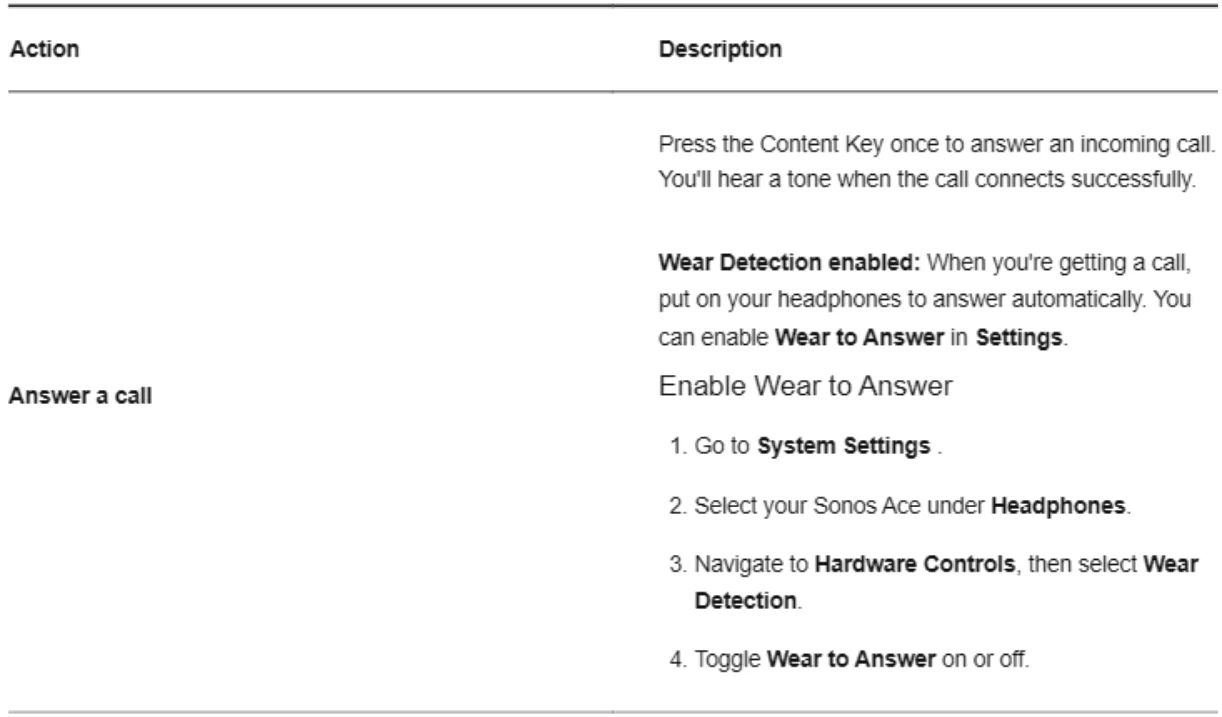
Receiving a call

During a call
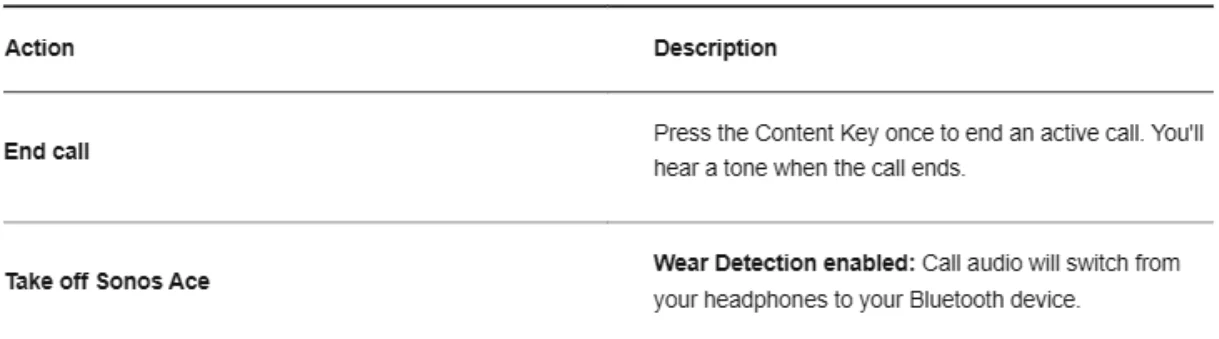
Wear detection
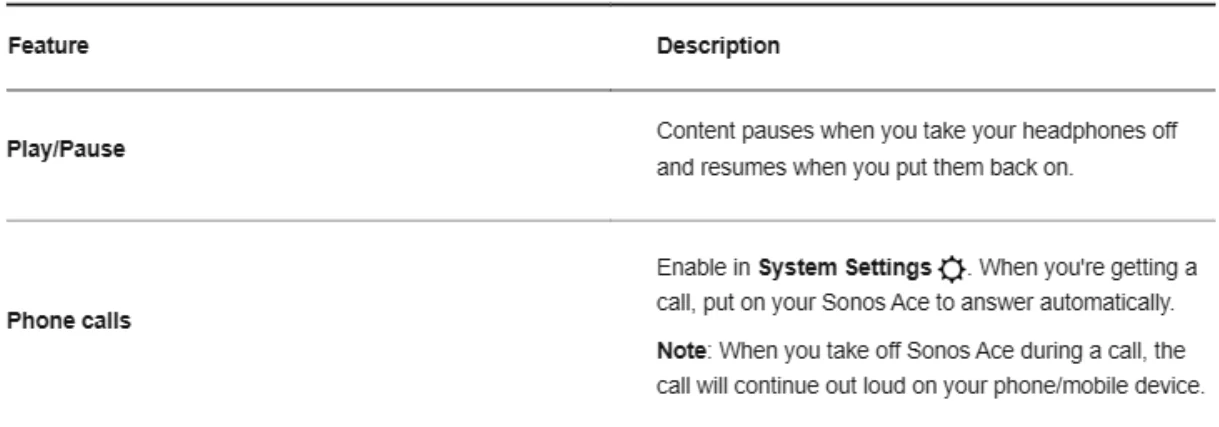
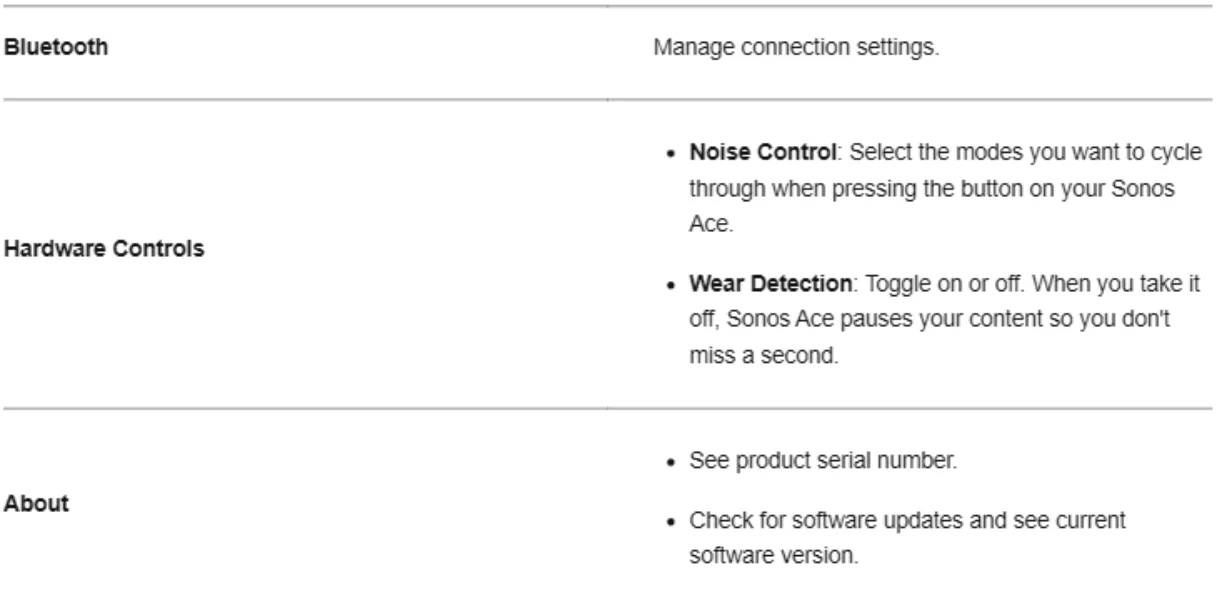
Sonos Ace uses sensors in the ear cups to detect if it’s on your head and ready to use. When you take it off, Sonos Ace pauses your content so you don’t miss a second.
Note: Sonos Ace will turn off after 30 minutes of inactivity.
Wear Detection is enabled by default. You can disable it in the Sonos app:
- Go to System Settings
- Select your Sonos Ace under Headphones.
- Select Wear Detection, then toggle Wear Detection on or off.
Note: If Wear Detection is disabled, your Sonos Ace won’t turn off after 30 minutes of inactivity.
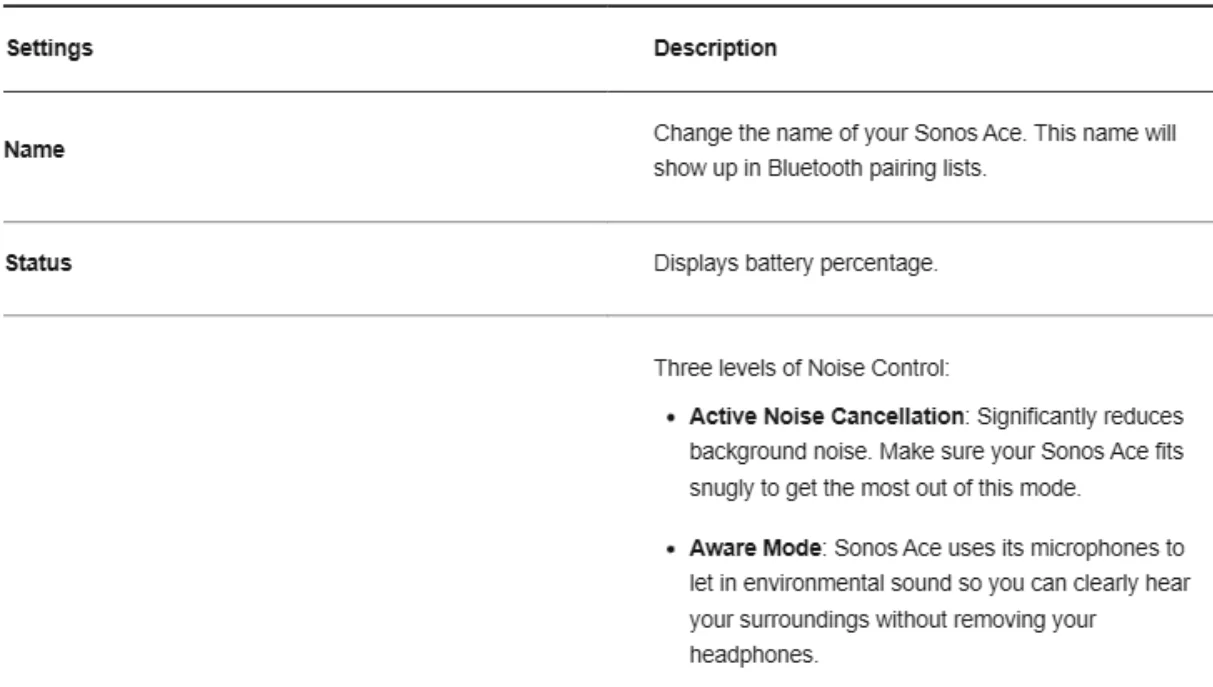
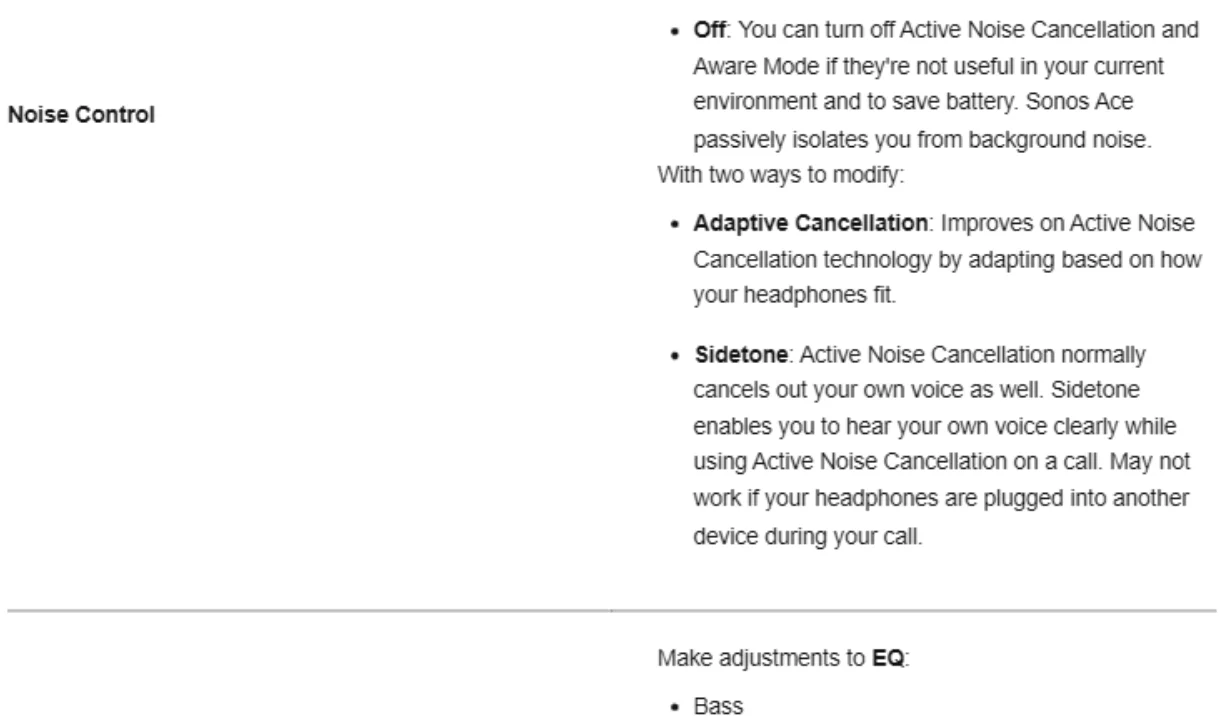
Product settings
Use the Sonos app to adjust product settings for Sonos Ace:
- Go to System Settings
- Navigate to Headphones and select your Sonos Ace.
Specifications
Audio
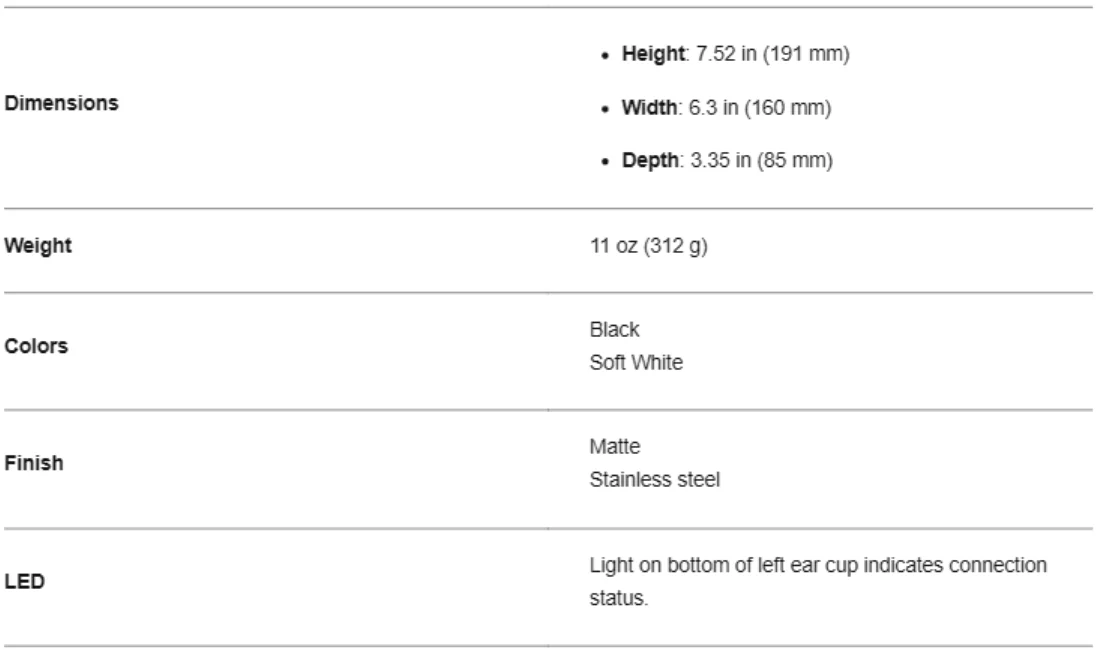
Details and Dimensions
Controls
Power and Connectivity
What’s in the box?
Requirments
Important safety information
- Read these instructions
- Keep these instructions.
- Heed all warnings.
- Follow all instructions.
- Do not use this apparatus near water.
- Clean only with a dry soft cloth. Household cleaners or solvents can damage the finish on your Sonos components.
- Do not block any ventilation openings. Install in accordance with the manufacturer’s instructions.
- Do not install near any heat sources such as radiators, heat registers, stoves, or other apparatus that produce heat.
- Protect the power cable from being walked on or pinched, particularly at plugs, convenience receptacles, and the point where they exit from the apparatus.
- Only use attachments/accessories specified by the manufacturer.
- Unplug this apparatus during lightning storms or when unused for long periods of time.
- Refer all servicing to Sonos qualified service personnel. Servicing is required when the apparatus has been damaged in any way, such as power-supply cable or plug is damaged, liquid has been spilled or objects have fallen into the apparatus, the apparatus has been exposed to rain or moisture, does not operate normally, or has been dropped.
- Warning: Do not expose batteries (battery pack or batteries installed) to excessive he,, such as sunshine or
fire. - This unit is not waterproof. Do not expose liquids, either dripping or splashing. Avoid using in wet conditions.
- Minimum performance level: When using Ace in wired audio mode, in the presence of strong RF fields, the user may experience temporary disruption of the audio output. In this case, normal performance may be restored by power-cycling the headphone using the power button.
For more manuals by Sonos, visit ManualsLibraryy
Sonos Ace Noise-Cancelling Wireless Over-Ear Headphones- FAQs
What is special about Sonos Ace headphones?
Sonos Ace are wireless over-ear headphones with 4-stage noise cancellation, custom 40 mm drivers, spatial audio, Dolby Atmos, and up to 30-hour battery life.
How good is the noise cancellation on Sonos Ace?
They use active noise cancellation (ANC) with eight microphones to block ambient noise, including engines, chatter, and background sounds.
Can I use noise cancellation without playing music?
Yes. ANC works independently, so you can enjoy silence even when no audio is playing.
How do I activate noise cancellation?
Press the dedicated ANC button on the headphones or use the Sonos app to turn it on.
What is the battery life of Sonos Ace?
Up to 30 hours with ANC on. A quick 3-minute charge provides up to 3 hours of playback.
How long does it take to fully charge?
It takes about 3 hours from 0% to 100% using the USB-C charging port.
How can I tell when the headphones are fully charged?
The charging light turns orange while charging and green when fully charged.
What Bluetooth version do they use?
Sonos Ace uses Bluetooth 5.4 for stable wireless connectivity.
How many devices can Sonos Ace connect to?
You can pair multiple devices via Bluetooth, but only one can actively play audio at a time.