
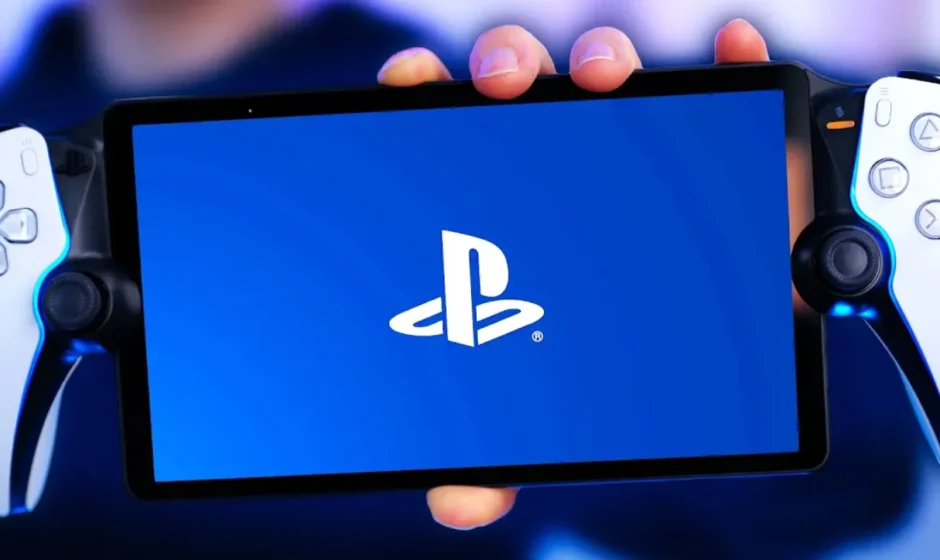

Sony PlayStation Portal
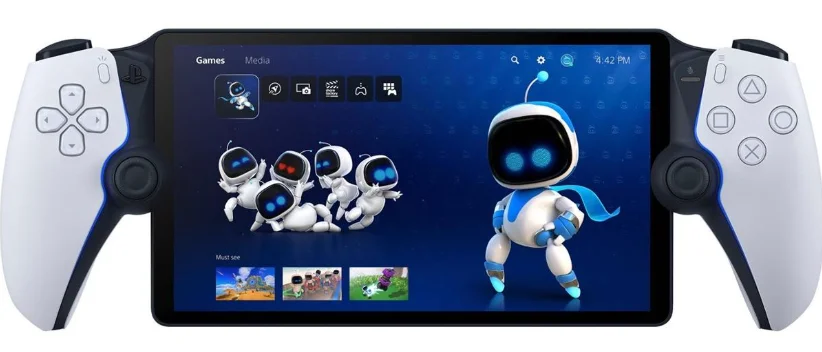
Health and Safety
Before using the product, carefully read this manual and any manuals for compatible hardware. Retain instructions for future reference. Parents or guardians of children should read this manual for safe use. This product has been designed with the greatest safety concern. However, any electrical device, if used improperly, has the potential for causing fire, electrical shock, or personal injury. Observe all warnings, precautions and instructions.
WARNING
SEIZURES INDUCED BY LIGHT STIMULATION (PHOTOSENSITIVE EPILEPSY)
If you have an epileptic condition or have had seizures, consult your doctor before using this product. Some individuals are sensitive to flashing or flickering lights or geometric shapes and patterns, may have an undetected epileptic condition, and may experience epileptic seizures when playing video games or watching video content.
DISCONTINUE USE IMMEDIATELY and consult your doctor if you experience any of the following health problems or symptoms when exposed to flashing or flickering lights or other light stimulation whilst playing video games or watching video content: eye soreness, altered vision, migraine, muscle twitching, convulsion or other involuntary movements, blackout, loss of awareness, confusion, or disorientation. In addition to the above, DISCONTINUE USE IMMEDIATELY if you experience any of the following symptoms: headache, dizziness, nausea, fatigue, similar symptoms to motion sickness, or discomfort or pain in any body part, such as eyes, ears, hands, arms, or feet, whilst playing. If the condition persists, seek medical attention.
RADIO WAVES
Radio waves may affect electronic equipment or medical devices (for example, pacemakers), which may cause malfunctions and possible injuries.
- Keep the product at least 30 cm away from a pacemaker or other medical devices when using the network features.
- Turn off the product immediately if you have any reason to suspect that interference is occurring with your pacemaker.
- If you use a pacemaker or other medical device, consult your doctor or the manufacturer of your medical device before using the wireless networking feature (wireless LAN).
- Do not use the wireless networking feature in areas where wireless network use is prohibited, such as in hospitals. Abide by the medical institution’s regulations when using the product on their premises.
Use and handling
Use in other countries
Depending on the country or region, there are limitations on the use of certain types of radio signals. In some cases, use of the product’s network features may lead to a fine or other penalty.
Moisture condensation
If the product is brought directly from a cold location to a warm one, moisture may condense inside the console, causing the product to malfunction. Should this occur, turn off the product and leave it until the moisture evaporates (this may take several hours). If the console still does not operate properly, please contact customer support.
Wireless networking feature
When using the scan function to select a wireless LAN access point, access points that are not intended for public use may be displayed. Only connect to an access point that you are authorised to use.
Screen
- Do not press your finger on the screen with excessive force. Also, do not scrape or scratch the screen with anything hard, such as metal, or anything with a sharp tip (such as a pencil or your fingernails). Any of these actions may damage or break the screen.
- Do not place the product screen-side down, as this may cause damage to the screen and sticks.
- Prolonged contact with water or dust may damage the screen and shorten its life.
- Direct exposure to sunlight may damage the product’s screen. Be careful when using the product outdoors or near a window.
- A small number of pixel display defects may be present and considered normal.
- When using the product in a cold environment, you may notice shadows on the graphics or the screen may appear darker than usual. This is not a malfunction, and the screen will return to normal when the temperature goes up.
Care and cleaning
Follow the precautions below to help prevent the product exterior from deteriorating or discolouring.
- Do not allow rubber or vinyl materials to be in prolonged contact with the product.
- Do not use thinner, benzine, or alcohol. Avoid using wipes, chemical cloths, and other products that contain such substances.
Charge the product
Connect to your PS5 console using the included USB cable when your console is turned on or in rest mode. Once charging begins, the product’s charging status momentarily displays on the screen.
- To charge the product while in rest mode, you have to configure the settings. From the PS5 home screen, select Settings > System > Power Saving > Features Available in Rest Mode > Supply Power to USB Ports, and then select a setting other than Off.
- Use the USB cable provided with this product or with your PS5 console. When using other cables, be sure to use a USB cable that complies with USB standards. Not all USB cables will function properly.
- You can also charge the product by connecting the USB cable to a AC adapter that supports USB PD (power delivery). Please use an AC adapter with USB Type-C® that outputs at least 5 V/3 A. You might not be able to charge the product on some devices.
Specifications
Design and specifications are subject to change without notice. The operating instructions may vary depending on the system software version in use with your PS5 console and the product.
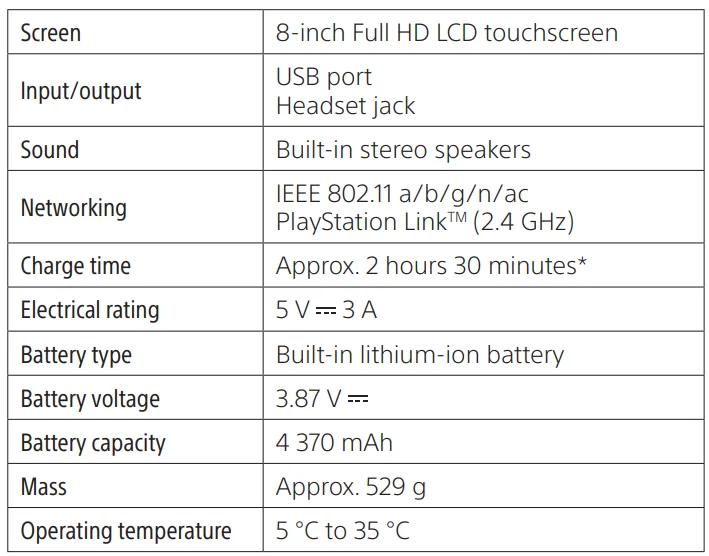
* This time is estimated based on charging via the PS5 console’s USB Type-C port.
System software
- The system software of the product is licensed to you under the terms of a separate end-user license agreement. For details, visit playstation.com/legal/product-ssla/.
- Always update the system software of your PS5 console and the product to the latest version.
Compliance information
This product has been manufactured by or on behalf of Sony Interactive Entertainment Inc., 1-7-1 Konan, Minato-ku, Tokyo, 108-0075 Japan. Imported into Europe and distributed by (except the UK) Sony Interactive Entertainment Ireland Limited, 2nd Floor, 2/3 Rogers Lane, Dublin 2, Ireland. Inquiries related to product compliance in the EU should be sent to the manufacturer’s authorised representative, Sony Belgium, bijkantoor van Sony Europe B.V., Da Vincilaan 7-D1, 1930 Zaventem, Belgium. For customers in the EU, UK, and Türkiye.
RE Directive “Informal DoC” statement. Hereby, Sony Interactive Entertainment Inc. declares that this product complies with the essential requirements and other relevant provisions of Directive 2014/53/EU. For details, please access the following URL: https://compliance.sony.eu
This radio equipment is intended to be used with the approved version(s) of software that are indicated in the EU/UK Declaration of Conformity. The software loaded on this radio equipment is verified to comply with the essential requirements of Directive 2014/53/EU and Regulation S.I. 2017 No.1206. The software version can be found via: select Quick Menu > Settings > System > System Software > Device Information.
The frequencies used by the wireless networking feature of this product are the 2.4 GHz / 5 GHz ranges. Wireless frequency band and maximum output power:
- Proprietary 2.4 GHz: less than 10 mW
- WLAN 2.4 GHz: less than 100 mW
- WLAN 5 GHz: W52/W53/W56: less than 100 mW, W58: less than 25 mW
This radio equipment was evaluated as receiver category 1, defined in EN 300 440 V2.1.1.
Further information
User’s guide
Find more detailed information about features and settings in the User’s Guide. playstation.com/rp-usersguide/
Customer support website
Find online support information, such as step-by-step troubleshooting and frequently asked questions, by visiting playstation.com/help/.
For more manuals by Sony, visit ManualsLibraryy
Sony PlayStation Portal-FAQs
What is the Sony PlayStation Portal used for?
The Sony PlayStation Portal is a handheld remote gaming device designed for PS5 users. It lets you stream and play PS5 games over a Wi-Fi connection without needing to use your TV. It works through Sony’s Remote Play feature and gives players a portable gaming experience at home or while traveling.
Do you need a PS5 to use the PlayStation Portal?
Originally, a PS5 console was required to use the PlayStation Portal. However, newer cloud streaming support allows some users to play select PS5 games without owning a PS5. A PlayStation Plus Premium subscription and a strong internet connection are still necessary for this feature.
Can the PlayStation Portal work away from home?
Yes, the PlayStation Portal can work outside your home as long as both the Portal and your PS5 have a stable internet connection. A fast Wi-Fi network is recommended for smooth gameplay and lower input lag during Remote Play sessions.
Does the PlayStation Portal support cloud gaming?
Yes, Sony added cloud streaming support through a beta feature. This allows users with a PlayStation Plus Premium membership to stream selected PS5 games directly from the cloud without connecting to a personal PS5 console.
What are the disadvantages of the PlayStation Portal?
The biggest limitation is its dependence on internet connectivity. Performance can vary based on Wi-Fi quality, and some features still require a PS5 or PlayStation Plus Premium subscription. It also lacks native app support and onboard game storage.
Does the PlayStation Portal support multiplayer games?
Yes, you can play multiplayer and online games on the PlayStation Portal just like on a PS5, provided your internet connection is stable and the game supports online features.
Can you use the PlayStation Portal while the PS5 is in rest mode?
Yes, the PlayStation Portal can wake your PS5 remotely if the console is connected to the internet and Remote Play settings are enabled. This makes it easy to start gaming without turning on the TV manually.
What internet speed is recommended for PS Portal?
Yes, you can play multiplayer and online games on the PlayStation Portal just like on a PS5, provided your internet connection is stable and the game supports online features.
Is the PlayStation Portal a standalone gaming console?
No, the PlayStation Portal is not a fully independent console like the Nintendo Switch or Steam Deck. Its main purpose is to stream PS5 games either from your own console or through Sony’s cloud gaming service.